MONA OS 2.0
 Partner with MONA







































 Free AI courses
 AI tools at work

 Tự động hoá doanh nghiệp
 Cẩm nang SEO
 Digital Marketing
 Kinh nghiệm thiết kế website
 Hạ Tầng Server
 Giáo dục


 VI
 EN


How to write a remarketing email in MONA eLearning
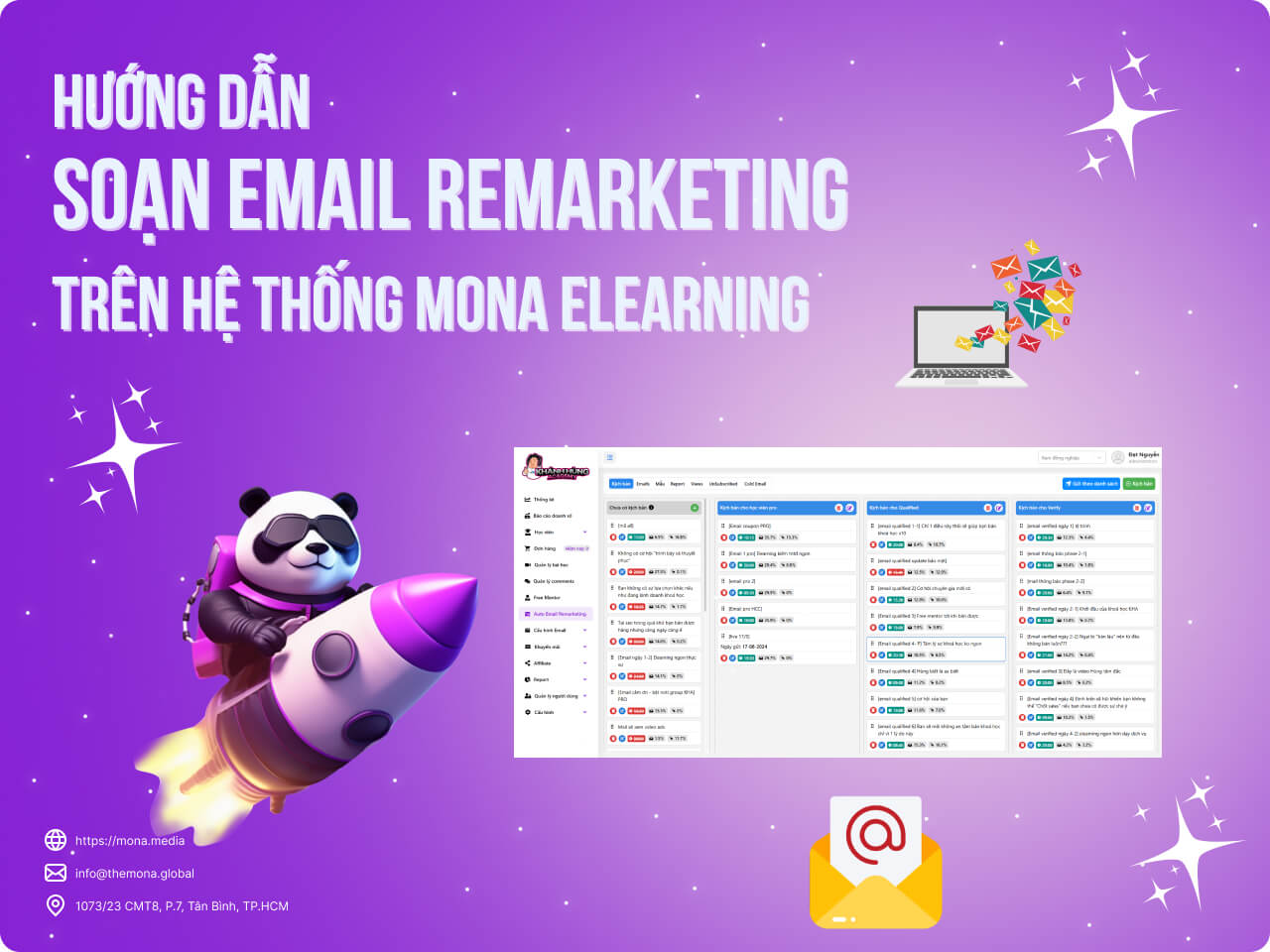
Email marketing is a cheap, convenient and effective way to reach customers. When you launch an elearning course, make good use of Auto Email Remarketing. In this article, MONA Media walks you through the steps to compose emails for the Auto Email Remarketing system.
Before sending emails, you need an email template. Below are the steps to create an email template as a demo for your reference.
Step 1: Open the Email template configuration in MONA Elearning
In the MONA Elearning overview screen → Email configuration → Email templates
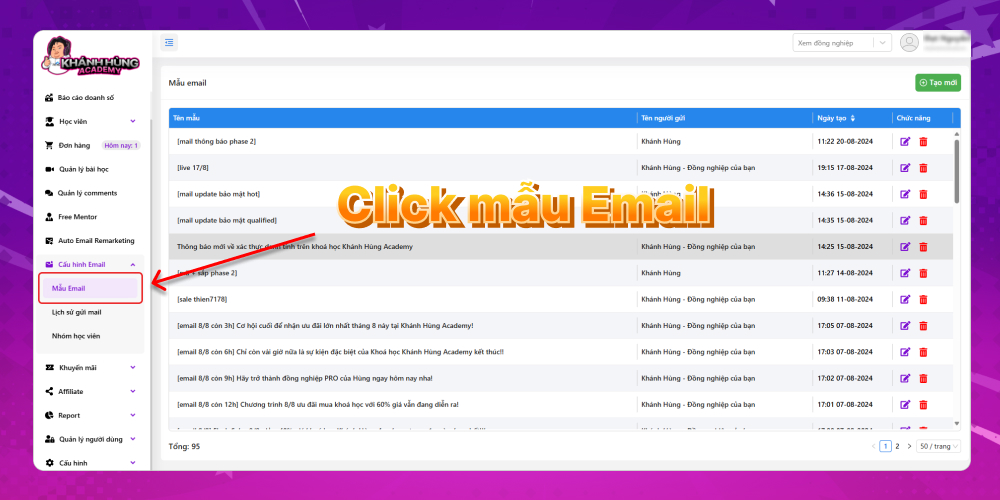
Here you can easily review the names of email templates you created earlier, the sender names and the creation dates
Step 2: Create a new Remarketing Email template
Click button Create new at the top right of the screen. The new Email template screen appears.
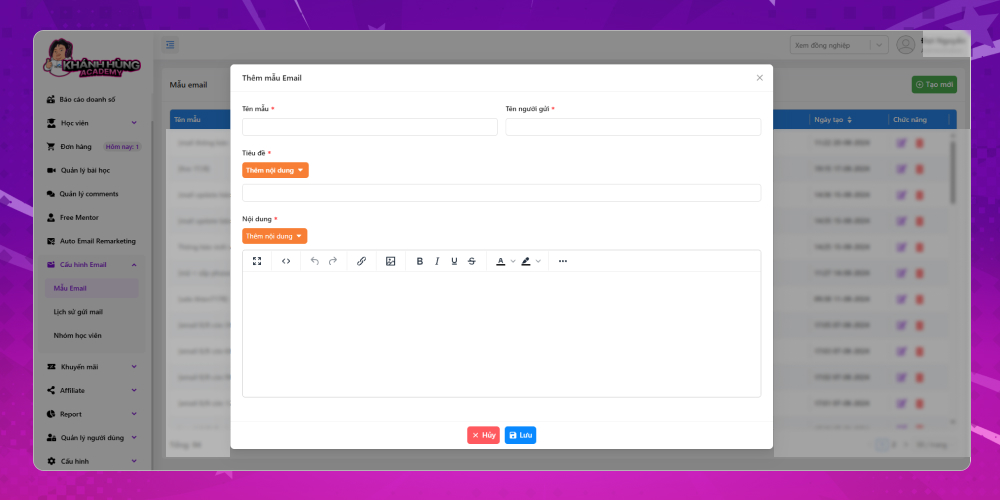
MONA will explain each field so you can picture how it works:
- Template name: This is the title of the Remarketing Email you send to students who signed up for the course. For example, you could use "Why should you buy this course?"
- Sender name
- Title: This is the subtitle of the email. The title plays a very important role in deciding whether students enroll in your course through the marketing email you sent. To help you write more effective email titles, the MONA Elearning system provides some suggestion functions such as:
- Full name
- Date of birth
- Customer ID
- Content: This field is where you write the remarketing email content sent to students. Like the title, the content also has functions to choose from, such as:
- Full name
- Date of birth
- Customer ID
- Unsubscribe
Many people ask why there is an function Unsubscribe in remarketing emails. Among the people who already know about your course, some students won't want to receive emails. Continuing to send remarketing emails to them will make them click the report spam button, which makes Google rate your emails as spam and forces you to buy another domain to keep running your email remarketing strategy.
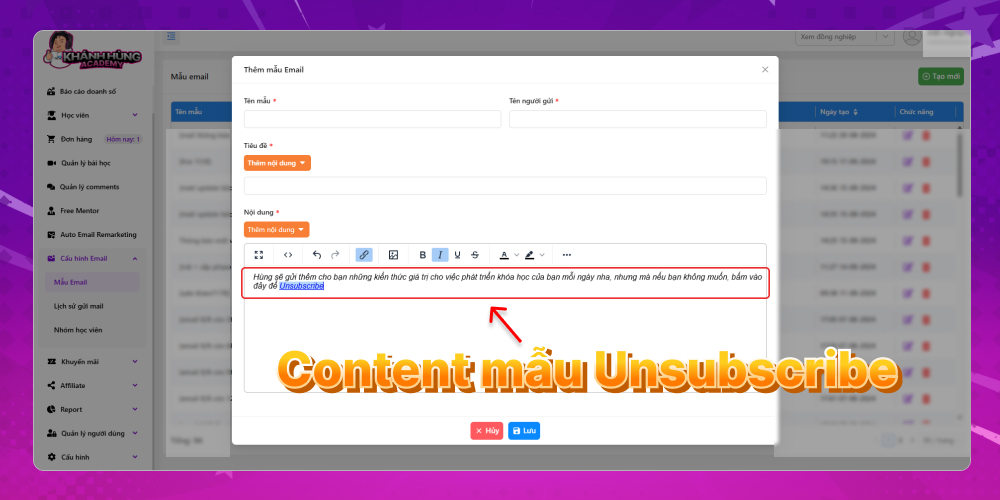
Step 3: Click Save to finish the Email template
Click Save to finish the Email template you created, and the system returns to the overview screen of all the Emails you created