
 MONA OS 2.0
 Partner with MONA


 Tự động hoá doanh nghiệp
 Cẩm nang SEO
 Digital Marketing
 Kinh nghiệm thiết kế website
 Hạ Tầng Server
 Giáo dục


 VI
 EN











Message us on
Zalo Official


 ProductsNew

 ProductsProducts
 Mới ra mắtKHA AI 2027App tự edit video, tự đăng mọi mạng xã hội, 2 phút mỗi ngày










 Website designLooks good and wins customers over.
SEO servicesBrings in customers searching for exactly what you sell.
 Tư vấn digital marketingKéo khách từ nhiều kênh, đo bằng số thật.
Corporate video productionVideos introducing your company, factory and team.
 NewAI video productionCompany story films made with AI.
 Custom software developmentCRM, ERP and HRM built for your business.
 Viết AI Agent theo yêu cầuĐặt riêng một trợ lý AI cho đúng việc của mình.
 Tư vấn chuyển đổi AIĐưa AI vào vận hành của cả công ty.
NewMONA LMSManagement for centers and schools.
MONA SkillHubInternal training for company staff.
 NHTQ systemEnd-to-end China–Vietnam shipping operations.
MONA JMSManagement for gold, diamond and pawn shops.
 MONA E-LearningA website with every feature you need to sell courses.
 How to sell online courses (course)More than 30 free lessons on selling courses on autopilot.
 MONA Cloudmonacloud.vnServers to get your apps and websites running.
 MONA Basemonabase.vnPostgres database, sign-in and file storage.
 MONA Mailmonamail.vnSend OTP, order and invoice emails from your software.
 MONA Paymonapay.vnAccept bank transfers via VietQR and notify your software when the money arrives.
 MONA eInvoiceComing soonIssue e-invoices that meet tax standards.
Gấu CườiTrả lời khách 24/7 trên web, Fanpage, Zalo và thu lead cho sale.
 Gấu TeleSalesGọi điện tư vấn, chăm khách như tổng đài viên thật.
Dê CườiTư vấn và chốt đơn cho shop ngay trong khung chat.
Gấu WebmasterNhắn nhóm Zalo là website được sửa xong.
 Gấu Pháp ChếSoạn hợp đồng, rà điều khoản trong vài phút.
 Gấu Báo GiáLên báo giá đúng mẫu và gửi khách ngay.
 AI chăm sóc khách hàngTheo dõi và giữ chân khách hàng cũ.
 Gấu Tuyển DụngLọc hồ sơ, hẹn lịch, phỏng vấn ứng viên.
 Mới ra mắt
KHA AI 2027
Xây kênh chuyên gia 2 phút mỗi ngày
Quay bằng điện thoại, AI tự edit video, tự đăng lên 16 nền tảng và tự trả lời bình luận, tin nhắn.
883.362lượt xem trên kênh CEO MONA sau 36 ngày
 Anh Khánh HùngCEO MONA đang dùng mỗi ngày
Xem app làm được gì
 AI
Gấu Cười MONA ĐANG TỰ XÀITrả lời khách 24/7 trên website, Zalo OA, Messenger và thu lead về cho sale.
Dê CườiChốt đơn bán lẻ và sàn: Shopee, TikTok Shop, web. Chăm cả khách sỉ, đại lý.
Gấu WebmasterCập nhật nội dung, tối ưu SEO website mỗi ngày.
Gấu TeleSalesGọi điện tư vấn, chăm khách như tổng đài viên thật.
Gấu Tuyển DụngLọc hồ sơ, hẹn lịch, phỏng vấn ứng viên tự động.
AI chăm sóc khách hàngGiữ khách cũ, cứu lead đã rớt cho phòng kinh doanh.
Gấu Pháp ChếSoạn hợp đồng, rà điều khoản trong vài phút.
Gấu Báo GiáLên báo giá đúng mẫu, gửi khách ngay khi có yêu cầu.
 Chuyển đổi AI toàn phầnGiải pháp tổng cho doanh nghiệp, 3 lớp triển khai.
 Viết AI Agent theo yêu cầuĐặt riêng một con AI gánh đúng nghiệp vụ của bạn.
 Custom softwareCRM, ERP and HRM with built-in AI automation.
 SEO & AEO thời đại AIĐược Google lẫn AI trích dẫn, không chỉ xếp hạng.
 Kiến thức AI cho doanh nghiệpBài phân tích, hướng dẫn ứng dụng AI vào vận hành.
 Free AI courses
 AI tools at work
App mới · KHA AI 2027
Xây kênh 2 phút mỗi ngày
AI tự edit video, tự đăng mọi mạng xã hội
Free consultation, 8am–10pm every day

26 July, 2026
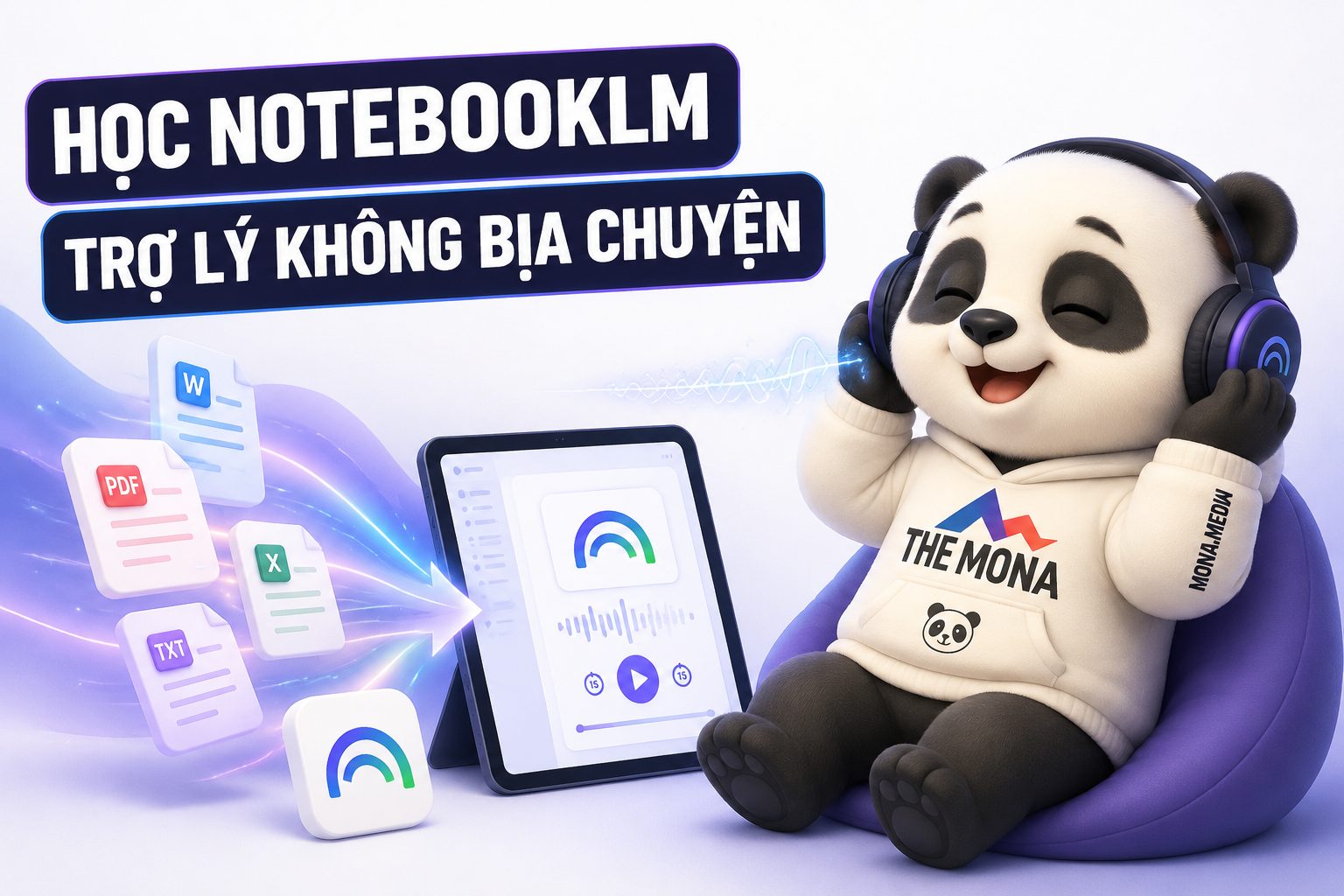
The fourth course in MONA's free AI course series, covering the tool that is taking off across Vietnam: NotebookLM from Google, which was renamed in mid-July 2026 to Gemini Notebook (you will see both names online for a while, but it is the same product). More than 30 million people and over 600,000 organizations use it, and the reason it is hot in Vietnam is easy to see: it turns your pile of documents into a Q&A assistant that answers only from those documents, plus the ability to turn documents into a podcast in natural-sounding Vietnamese. This course differs from the previous three in one way: nothing to install, no terminal, just a browser and a Google account. That makes it the course you can hand straight to your staff without anyone complaining it is too hard. Everything about using NotebookLM, from loading sources to creating a Vietnamese podcast, fits in the seven parts below.
Course contents
NotebookLM is a Google AI tool with a very different philosophy from ChatGPT or the chat version of Claude: instead of answering from the model's vast general knowledge, it answers only from the sources you load (documents, web pages, videos). People in the field call this grounding: every answer must be tied to a source, with clickable citations so you can verify it at the origin. If it is not in the sources, it says plainly “the sources do not mention this” instead of making something up to round out the story.
From that philosophy come three criteria for choosing tasks, worth memorizing so you never wonder “should this go to NotebookLM or ChatGPT”:

Conversely, work that needs creative ideas (flowery ad copy, brainstorming new ideas) is not its territory: precisely because it is tied to your sources to prevent fabrication, it is less imaginative. Skilled users combine both: NotebookLM handles the “correct” part, Gemini or Claude handles the “good” part (Part 6 covers this rhythm in detail).

The working unit of this tool is the notebook: a “folder” for one topic, holding that topic's sources. The first and most important principle: one separate notebook per topic, do not mix tax documents with recruiting documents in one place, because every answer draws from all the sources switched on in that notebook.
The sources you can load are richer than many people think:
The current limits, so you can plan accordingly: the free version allows up to 50 sources per notebook, each source holding up to half a million words, which means one notebook can take the whole filing cabinet of a department; the paid version (included in Google AI Pro/Ultra plans) raises the source cap and adds more tools. And a tip for getting past the cap, from the original course: if you hit the source limit, merge several documents of the same type into one file before loading, since the cap counts sources, not thickness.
If a document exists only as a scanned PDF and you want to edit its content before loading it, PDF to Word converter free on mona.media, the tool has built-in text recognition for scans.
Here is a start-to-finish example of loading sources, so you can picture the rhythm: building an “equipment manual cabinet” for a coffee shop chain. Open a new notebook and give it a proper name from the start (“Equipment manuals: bar area”), because two months from now you will have a dozen notebooks and the name is what saves you. First round of loading: PDF manuals for the espresso machine, grinder, commercial fridge and POS terminal (found with the “machine name + user manual + PDF” tip). Second round: paste links to 2-3 YouTube videos on cleaning that exact type of machine. Third round: the shop's own internal procedure file (a text file or Google Docs). Rename each source to keep things tidy (“Espresso machine: official manual”, “Video: cleaning the group head”). Fifteen minutes later, a question like “what does error E3 on the espresso machine mean” has an answer with page citations, instead of a roundabout phone call.
One source-loading habit worth building from day one, stressed because it decides half the quality: garbage in, garbage out. This tool amplifies the quality of your sources: load official documents and solid reports and the answers are trustworthy; load clickbait blog posts and it will summarize that garbage back to you very confidently. Choosing sources is the step where people must be good, and the machine cannot carry it for you.
Once the sources are loaded comes the best part: ask in plain language and get an answer with a small numbered citation after each point. Click a citation and it jumps straight to the original passage in the source (the exact PDF page, the exact stretch of video transcript) so you can check for yourself. This is the real difference from ordinary AI chat: you do not have to “trust”, you can verify.
Four techniques to use it well, drawn from the original course and our own experience:
Here is what a real Q&A round looks like with a “project brain” notebook: you ask, “based on this week's meeting minutes, which items does the supplier still owe us and what are the deadlines?” The tool returns a list of four items, each line with a numbered citation. Click the citation on the line “mold delivery 5 days late” and it jumps to the exact stretch of the meeting transcript where both sides agreed on that. You save the answer as a note named “Supplier outstanding items, week 30”, and next Friday you simply ask, “compared with the week 30 note, which items has the supplier delivered this week”. Keep going like this and the notebook becomes a project logbook you can talk to, and every claim in it can be traced back to the original minutes.

This is the feature that sent NotebookLM viral worldwide, and good news for us: it now supports Vietnamese, among more than 80 languages, with voices so natural that many people cannot tell it is a machine. One click turns a dry pile of documents into a two-voice podcast episode, a back-and-forth conversation about exactly that content: introductions, questions and answers, analogies, sounding like two professional hosts.
Creating one takes a minute to learn: in the notebook, the right-hand area has an Audio Overview section; click create and the tool builds it automatically (allow a few minutes for thick sources). To get the flavor you want, open the customize panel BEFORE creating and give instructions in plain language. The episode plays right in the notebook, and you can download the file to share with a group. Three customization instructions that give the best results in our experience: state who the LISTENER is (“new staff who know nothing about the industry”), state the FOCUS (“only dig into the returns and exchanges process”), and state the desired LENGTH (“keep it to 10 minutes”). Without those three, the tool decides for itself, and the default is often more sprawling than you want.
The real value for busy people in Vietnam: anything you “must read but never get around to reading” can be turned into something to listen to. An 80-page industry report on the drive. A new procedures document at the gym. And do not stop at the default button: there is a customize option before creating, where you can say things like: “focus on the impact for retail businesses, assume the listener is not technical, go into detail on the numbers.” The episode comes out exactly the way your target listener likes it.
Its sibling is Video Overview (also available in Vietnamese): it turns sources into a presentation video with illustrations, good for training material to hand out to your team. This pair is the application we find most valuable for Vietnamese businesses: turning internal documents into Vietnamese audio-visual content for staff, without spending a cent on outside production. Part 5 goes deeper.

The most valuable part of the course, combining use cases from the original course with scenarios we find fit Vietnamese businesses. Each notebook below is a “machine” you can build in one session:
1. Equipment and software manual cabinet. Load all the manuals for the equipment, machines and software your company uses (find official PDFs with the Part 2 tip). From then on the whole company asks in one place: “what does the blinking red light on the barcode printer mean”, “how do I set permissions in the accounting software”. No more asking around or calling the supplier and waiting half a day every time something breaks.
2. Tax and paperwork notebook. Load the tax regulations relevant to your industry and your accountant's reports from previous periods. When filing time comes, ask: “what are our tax obligations this quarter”, “can expense X be counted as a deductible expense, and which source says so”. The answer comes with citations pointing to the exact clause, something you would never dare trust from ordinary AI chat. The accountant still makes the final call, but the lookup step drops from an hour to ten minutes.
3. Recruiting notebook. Load the role's competency framework, the company's interview question set, candidate files and notes from earlier rounds. Before each interview: “what are this candidate's strengths and areas to probe further based on their file”, “give 10 interview questions based on the shift supervisor competency framework”. Remember the source-ticking rule: switch on only the file of the person you are about to interview.
4. Project brain. One notebook per major project: the plan, meeting minutes (export the transcript from Google Meet/Zoom and load it directly), documents from similar completed projects. Then ask: “my open items after yesterday's meeting”, “draft an email summarizing this meeting”, “what lessons from the last project apply to this one”. Project management is almost tailor-made for this tool: the essence of the job is gathering scattered information and synthesizing it into something easy to digest.
5. Market watch notebook. Load industry reports, solid analysis articles, and competitors' pricing pages and public documents (combined with the price-page screenshots you already know how to collect automatically from the advanced course). Ask: “how do competitors' pricing strategies differ”, “what are the industry trends for the second half of the year, and which source says so”. Then create a custom Audio Overview, “for a business owner to listen to in the car, 15 minutes, focused on action implications”: you get your own market intelligence briefing in Vietnamese, one episode a week.
A general operating tip for all five notebooks: for sources that are Google Docs/Slides there is a re-sync button after the original file changes, one click and the notebook updates; and from the paid version on, Drive sources can even sync automatically. That means you feed the notebook once and it lives alongside your company's documents, with no need to reload from scratch.

The July 2026 rename is more than a new coat of paint. A few new things worth knowing: every notebook now has a secure cloud computer that can run code, which means it does not stop at answering: it can export finished files: Excel spreadsheets, PDFs, PowerPoint slides built from the content of your sources (rolling out gradually to Pro users). The notebook has also been connected to the Gemini app (create and use notebooks right in the app, with two-way sync) and is about to arrive in Google Search's AI Mode as well. The direction is clear: from a standalone tool to a layer of “sourced knowledge” running across the Google ecosystem.
The real limits, stated fully so you do not expect the wrong things:
NotebookLM needs nothing installed, so the rollout plan is much leaner than in the earlier courses. Two weeks is enough for a company to get started:
Week 1: build 2 notebooks, assign 2 owners. Pick the two most painful problems from the five samples in Part 5 (in our experience, the equipment manual cabinet and the project brain deliver value fastest). Give each notebook a “librarian”: gathers the right sources, names them properly, and prepares 5-7 sample questions pasted into a note for colleagues to copy.
A set of 5 sample questions for the “librarian” to paste at the top of the notebook for colleagues to copy (using the equipment notebook as the example, swap in the contents of your own): “1. Machine X shows error [error code], how do I handle it? 2. What steps are in the end-of-day cleaning procedure for area Y, and which source sets them? 3. Until when is device Z under warranty, and what voids the warranty? 4. Compare the manufacturer's instructions with our internal procedure: is there anywhere we do things differently? 5. Write a one-page summary of [topic] for newcomers.” Question 4 is the most valuable: it makes the tool cross-check sources, exactly what it does best, and it often turns up mismatches nobody in the company noticed.
Week 2: roll out to the team + one training audio. Open access for the team to try it, with exactly one usage rule: when you see a good answer, save it as a note, and cite the source when you take it into a report. Then serve the showpiece to the team: take the company's latest procedure document, create a custom Vietnamese Audio Overview “for new staff, friendly tone, 10 minutes”, and share it in the group chat. A document nobody read suddenly becomes a podcast episode everyone listens to on the commute: that is usually the moment the whole company says “aha” and goes off to build notebooks for their own departments.
And the familiar boundary of the series, applied here: NotebookLM is a knowledge cabinet for Q&A, not an operating system. When your needs go beyond that to “the machine works on that data by itself” (answers customers by itself, processes orders by itself, runs processes by itself), that is the territory of custom-built automation software with permissions and someone accountable, in line with MONA's automation articles. If you want someone to sit down and map out the route from a knowledge cabinet to a self-running system for your business, call 1900 636 648 or send it to info@themona.global, and the MONA team will advise you straight, as always.

Does learning to use NotebookLM cost money? Yes and no. The free version is enough for individuals and small teams: 50 sources per notebook, the full Q&A toolkit, Audio Overview. The paid version (within the Google AI Pro/Ultra plans) raises the source cap and adds file export and automatic Drive sync.
Are NotebookLM and Gemini Notebook two different products? One product, renamed in mid-July 2026. The address is unchanged, and your data and existing notebooks stay as they were.
Does it work well in Vietnamese? Yes. Q&A in Vietnamese is smooth, and Audio Overview and Video Overview speak natural-sounding Vietnamese (among more than 80 supported languages). This is why it took off in Vietnam.
How is it different from ChatGPT or Claude? A different philosophy: NotebookLM answers only from the sources you load, with verifiable citations, so it almost never makes things up but is less imaginative. Regular AI chat answers from general knowledge, is more creative, but you have to check it yourself. Combining both is the smartest approach.
Is it safe to upload company data? Google commits not to use uploaded data to train models, and conversations are not stored unless you save a note. Ordinary internal documents are fine; for top-secret documents, follow your company's own security standards, with a person in charge approving.
The next course in the series: Vibe coding with Gemini and Antigravity, the missing piece of the Google toolkit trio in your hands. See you there.

CEO & Founder · The MONA
The founder of The MONA built a service company of 60+ staff with 14,000+ projects delivered. Khánh Hùng shares his thinking on building self-running systems, automating a business, and the real lessons behind MONA's projects.
 590




Professional website
design services
Own a website with a beautiful, 100% exclusive design and a lifetime warranty, with the ability
to expand features flexibly as your business grows, starting today!






 MONA will never sell your information or send you spam


 MONA will never sell your information or send you spam
