MONA OS 2.0
 Partner with MONA








































 Free AI courses
 AI tools at work

 Tự động hoá doanh nghiệp
 Cẩm nang SEO
 Digital Marketing
 Kinh nghiệm thiết kế website
 Hạ Tầng Server
 Giáo dục


 VI
 EN


How to view the remarketing email report on MONA eLearning
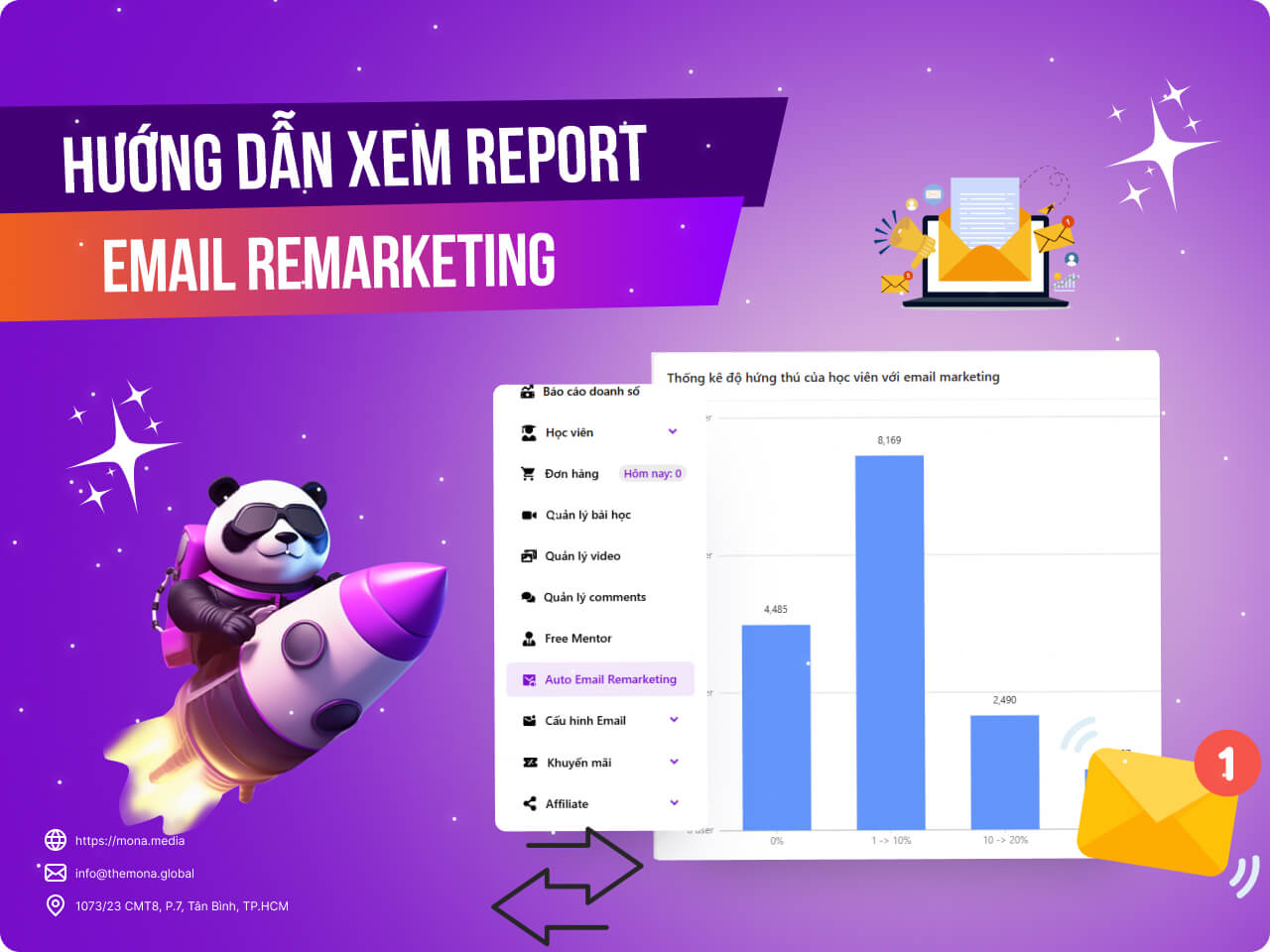
When running remarketing emails, tracking and evaluating results is key to improving them. MONA Elearning not only supports sending emails remarketing to learners but also provides detailed reports on these campaigns. This article shows you how to view the remarketing email reports in MONA Elearning, so you can track, analyze and improve your next campaigns.
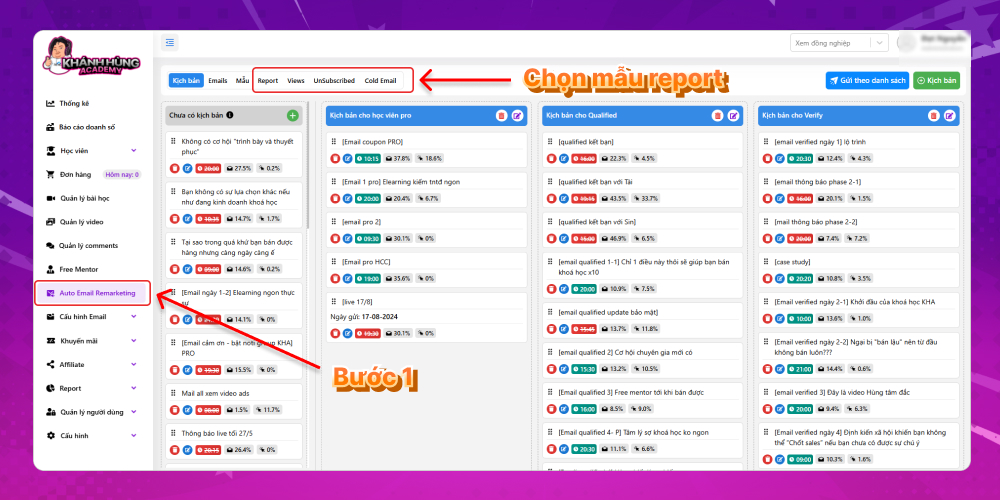
Step 1: Open the remarketing email report
To view detailed remarketing email reports, in the MONA Elearning admin interface, select Auto Email Remarketing. There are several report types here, evaluating your remarketing email campaigns in detail. Some of the reports are:
- Overview report
- Report Views
- Report UnSubscribed
- Report Cold Email
Step 2: How to read the remarketing email reports
How to view the remarketing email overview report
In the Auto Email Remarketing screen, select Report
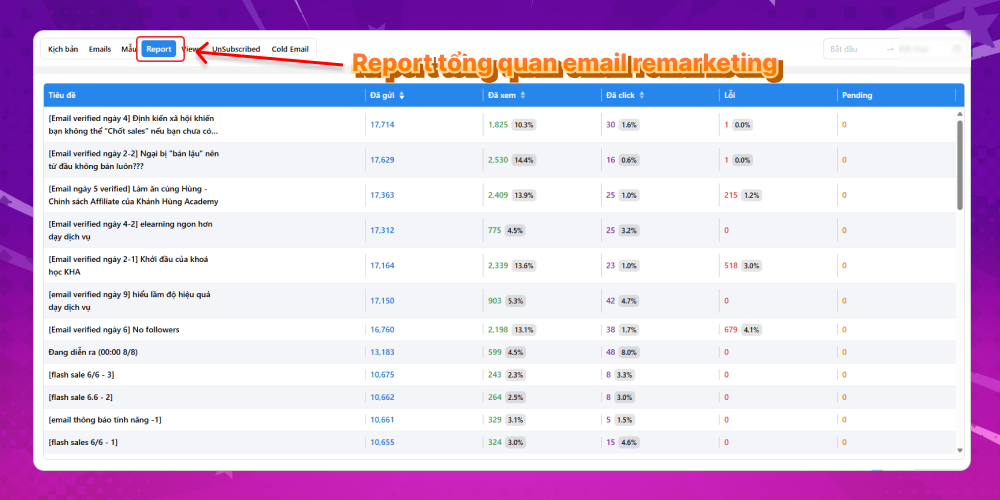
The overview report for your remarketing email campaigns is shown. Its notable columns are:
- Title: The names of the remarketing emails you have run or are running
- Sent: Number of emails sent
- Opened: Number of emails opened, with the open rate against emails sent
- Clicked: Number of clicks on the course link out of emails opened, with the matching percentage
- Mistake: Number of emails that failed to send
- Pending: Number of emails pending
How to view the remarketing email views report
In the Auto Email Remarketing screen, select Views
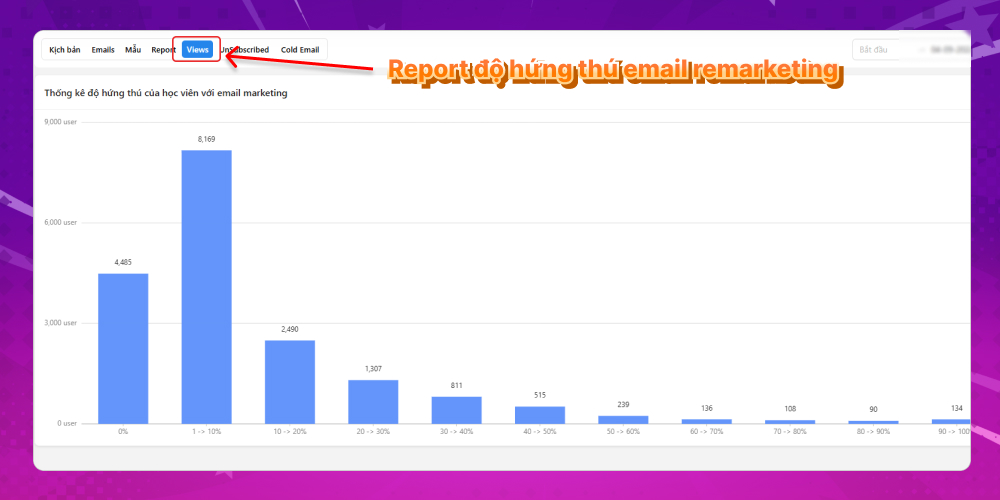
A bar chart shows remarketing email views in detail.
- The vertical axis shows the number of users who viewed the remarketing emails
- The horizontal axis shows the percentage of the remarketing emails learners have viewed (for example, 8084 users viewed 1-10% of all remarketing emails)
How to view the UnSubscribed report
This report lists every user who clicked UnSubscribed in the remarketing emails sent to all learners. To track it, from the Auto Email Remarketing screen, select UnSubscribed
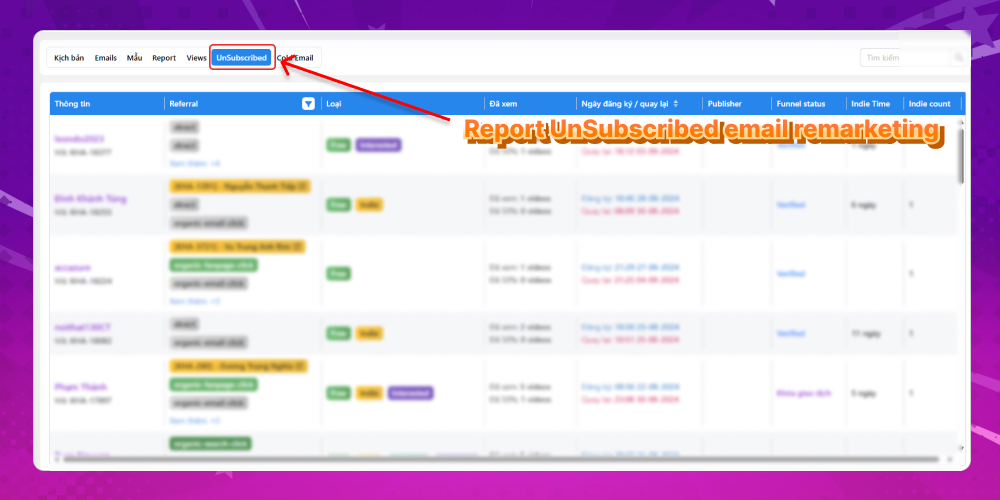
This report also includes important information such as:
- Learner ID information: Learner name and affiliate code
- Referral: The source the user used to reach the course
- Learner type
- Number of videos watched
- Registration date / date of return to the course
- Publisher: If this user has upgraded to PRO, the publisher's name is shown here
- Funnel Status: The last action this user took in the course
- Indie time
- Indie Count
How to view the Cold Email report
To view the Cold Email report in detail, in the Auto Email Remarketing screen, select Cold Email
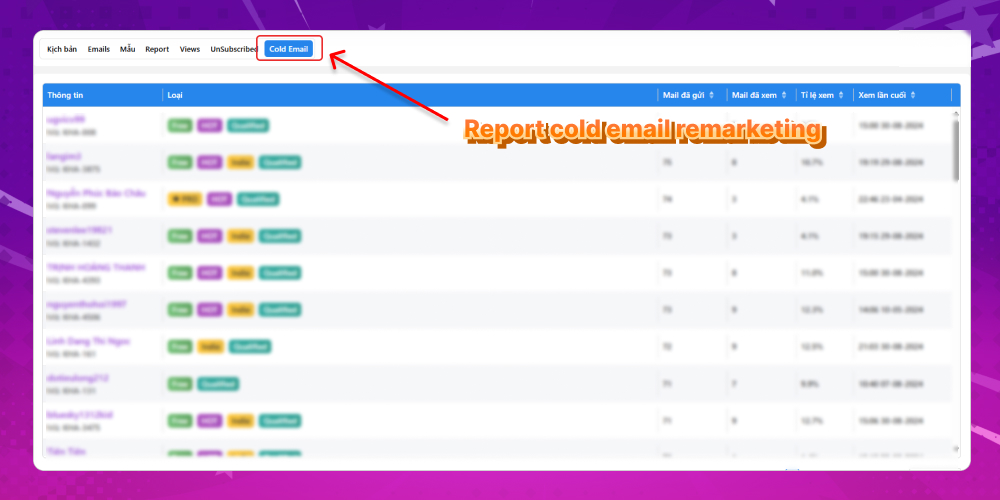
This report includes:
- Student information
- User type
- Emails sent
- Emails opened
- Open rate
- Last viewed
These reports show how effective your remarketing emails are. Use them to check whether your email templates really fit, and to see the quality of learners coming to your course so you can plan how to approach them.
We hope this article gives you the knowledge you need to manage and improve your remarketing email campaigns. If you have questions about MONA Elearning, contact the MONA Media team for detailed advice.
- Hotline: 1900 636 648
- Email: info@themona.global
- Address: 1073/23 Cach Mang Thang 8, Ward 7, Tan Binh District, Ho Chi Minh City