MONA OS 2.0
 Hợp tác với MONA










































 Free AI courses
 AI tools at work

 Tự động hoá doanh nghiệp
 Cẩm nang SEO
 Digital Marketing
 Kinh nghiệm thiết kế website
 Hạ Tầng Server
 Giáo dục


 VI
 EN


How to manage lesson comments on MONA eLearning

In online learning, interaction between instructors and students through comments under lesson videos matters a lot. Comments answer questions and also build a lively, engaged learning community. With built-in comment management, MONA Elearning lets administrators easily track, moderate and reply quickly. Still, tracking all the comments on every lesson can be hard for new users. This guide explains in detail how to manage comments on each lesson.
Step 1: Open comment management
Comment management in MONA Elearning has 2 tabs: Pending and Approved:
- Pending: Comments you have not yet approved for display under the lesson
- Approved: Comments you have approved for display
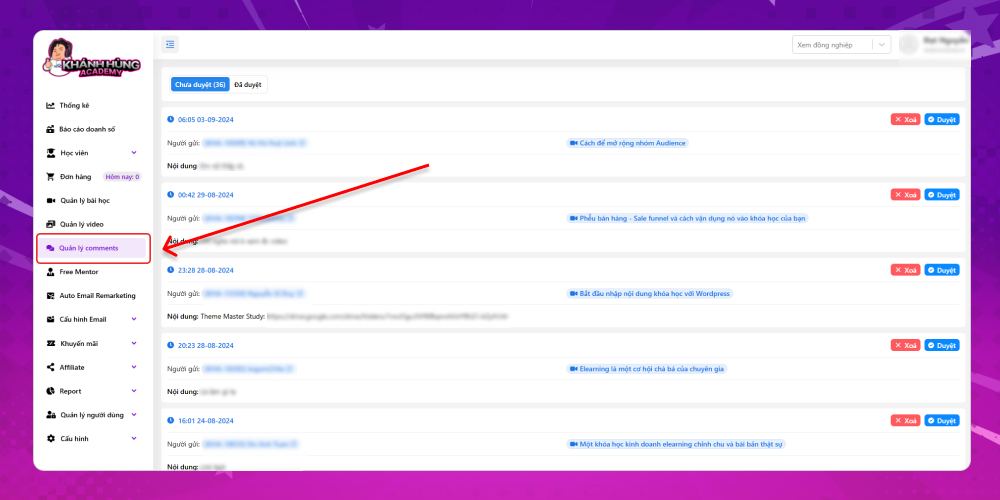
A standout feature of MONA Elearning is that you can pick the most suitable comments to approve, so bad comments don't hurt the quality of your course. To approve a comment, just click Approve.
Step 2: View comment information in the system
In comment management in MONA Elearning, the information you need to review includes:
- Time the comment was created
- Sender
- Comment content
- Name of the lesson with the comment
When you sell e-learning courses, you can use the comments on each lesson to spot errors or weak points in your teaching, then fix and replace them to keep students as happy as possible.
With the steps above, we hope you now know how to track, moderate and reply to comments in MONA Elearning. Using this feature well helps instructors and administrators handle issues on time and builds a positive, professional learning environment. Apply it now to improve the learning experience for your students! For any questions about MONA Elearning features, contact MONA Media using the details below:
- Hotline: 1900 636 648
- Email: info@themona.global
- Address: 1073/23 Cach Mang Thang 8, Ward 7, Tan Binh District, Ho Chi Minh City