


 MONA OS 2.0
 Partner with MONA










































 Free AI courses
 AI tools at work

 Tự động hoá doanh nghiệp
 Cẩm nang SEO
 Digital Marketing
 Kinh nghiệm thiết kế website
 Hạ Tầng Server
 Giáo dục


 VI
 EN


How to manage lessons on MONA eLearning
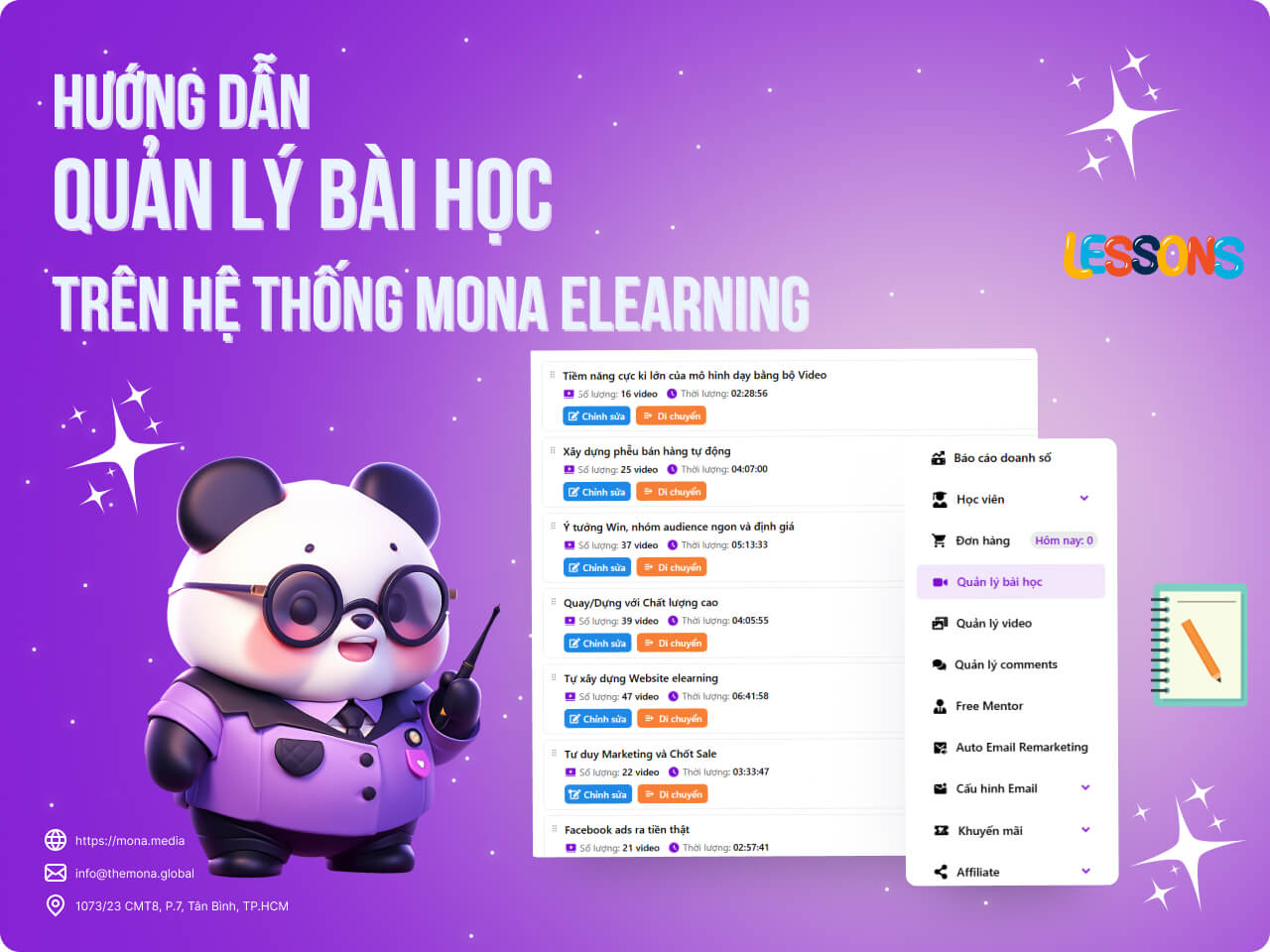
Lesson management is a key part of running an online learning website. To give learners a smooth, professional experience, lessons need to be added, organized sensibly and kept tightly in sync with the e-learning system. MONA Elearning makes these tasks easy, and also supports the whole process from creating and editing lessons to arranging their order. This article walks you through how to manage lessons in MONA Elearning.
Step 1: Add a lesson category
To build a lesson list that syncs with your e-learning website, you first need lesson categories. To create one, select Lesson Management -> Categories

Enter the lesson category name

Button "Show on learning page" tick this option later.
Step 2: Upload lesson videos to the system
In the interface of Lesson management, choose Uploaded

All lesson videos of the e-learning course, both finished videos and drafts.
To upload a video, select Upload video

The video upload section has three options:
- DRM button (screen recording protection): Tick this if you want the uploaded video to be protected from screen recording
- Video: Upload a video from your device
- Thumbnail: Thumbnail image for the lesson video

Step 3: Add the uploaded videos to a lesson category
Once uploaded, videos sit outside any category. You can edit their details in the following fields:

- Video name (lesson)
- Lesson link
- Video link (copy it from the Video Management section in step 1)
- Show or hide the video
- Video type: free or PRO
- Course description
- Video thumbnail
Once you have finished editing this video, click the Movebutton. Choose the target category and the video's position in it

Step 4: Rearrange video positions in the course (if needed)
Videos that have a category and a position appear on your e-learning website. So depending on how important the category is, or your strategy for attracting free learners, you can move the most appealing videos to the top. Click the Movebutton, then choose the category and position.
Finally, to finish managing and arranging the lesson videos for your e-learning course, click Sync to update the website.

With the detailed steps in this article, we hope you now know how to manage and adjust lessons effectively and give learners the best possible learning experience. Make full use of MONA Elearning's features to improve your teaching quality and make your e-learning system more professional. Contact MONA Media if you have any questions about MONA Elearning.
- Hotline: 1900 636 648
- Email: info@themona.global
- Address: 1073/23 Cach Mang Thang 8, Ward 7, Tan Binh District, Ho Chi Minh City








