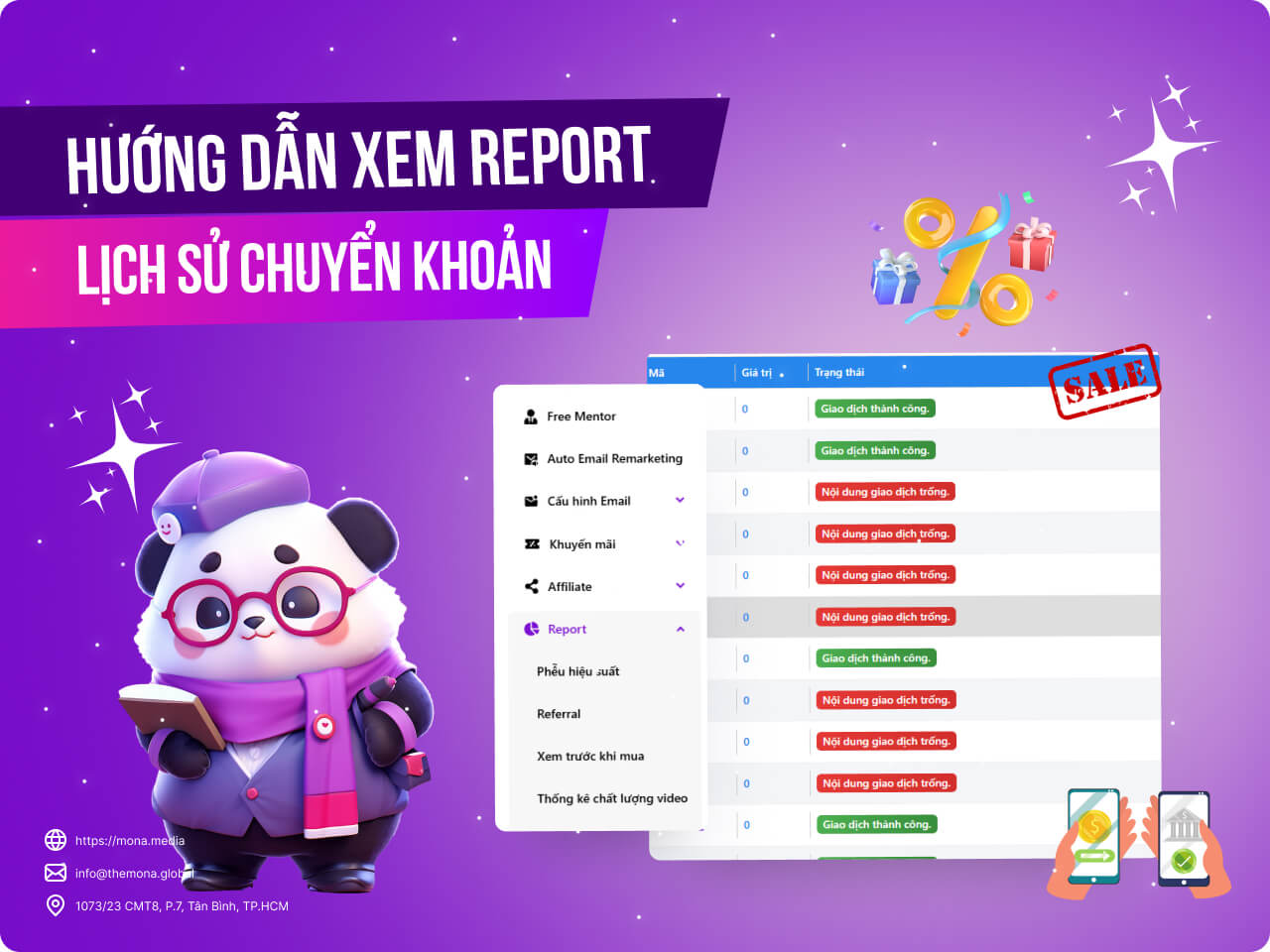
How to view the bank transfer history report on MONA eLearning
When learners upgrade their e-learning courses, tracking bank transfer history helps you manage finances and confirm completed transactions. Understanding this need, MONA Elearning includes a transfer history report so you can easily check and manage every transaction related to course upgrades. In this article, MONA Media walks you through viewing and using this report step by step.
Step 1: Open the transfer history report
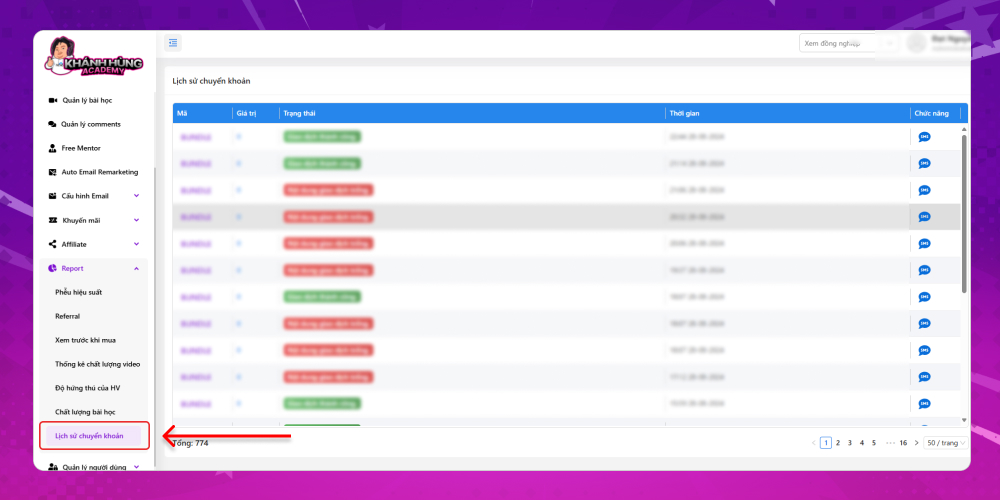
In the admin interface, go to Reports -> Transfer History
Here you only need to look at these columns:
Transfer status
Transfer time
From this you can easily see how many orders were paid by transfer in a day and how many transactions failed.
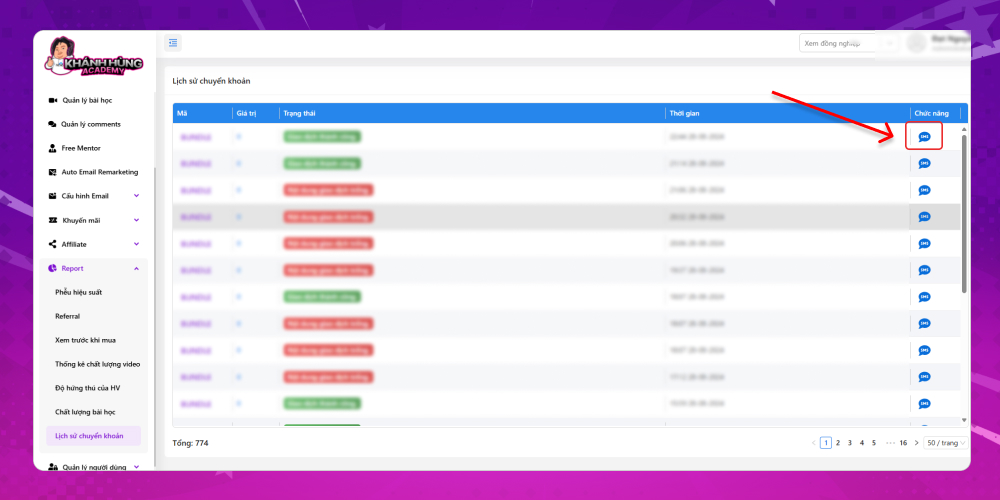
Step 2: View the transfer details
Click SMS in the actions column to see the transfer details
Knowing how to read the transfer history report helps you manage transactions and adds transparency and trust when learners upgrade e-learning courses. We hope these steps help you use this feature well and manage your courses better. If you run into any difficulty, contact MONA Media via:
Hotline: 1900 636 648
Email: info@themona.global
Address: 1073/23 Cach Mang Thang 8, Ward 7, Tan Binh District, Ho Chi Minh City
MONA has a podcast: listen instead of readingEpisodes on AI, automation & SEO for Vietnamese businesses



 MONA OS 2.0
 Partner with MONA








































 Free AI courses
 AI tools at work

 Tự động hoá doanh nghiệp
 Cẩm nang SEO
 Digital Marketing
 Kinh nghiệm thiết kế website
 Hạ Tầng Server
 Giáo dục


 VI
 EN