MONA OS 2.0
 Partner with MONA






























 Free AI courses
 AI tools at work

 Tự động hoá doanh nghiệp
 Cẩm nang SEO
 Digital Marketing
 Kinh nghiệm thiết kế website
 Hạ Tầng Server
 Giáo dục


 VI
 EN


How to create a custom promotion on MONA eLearning
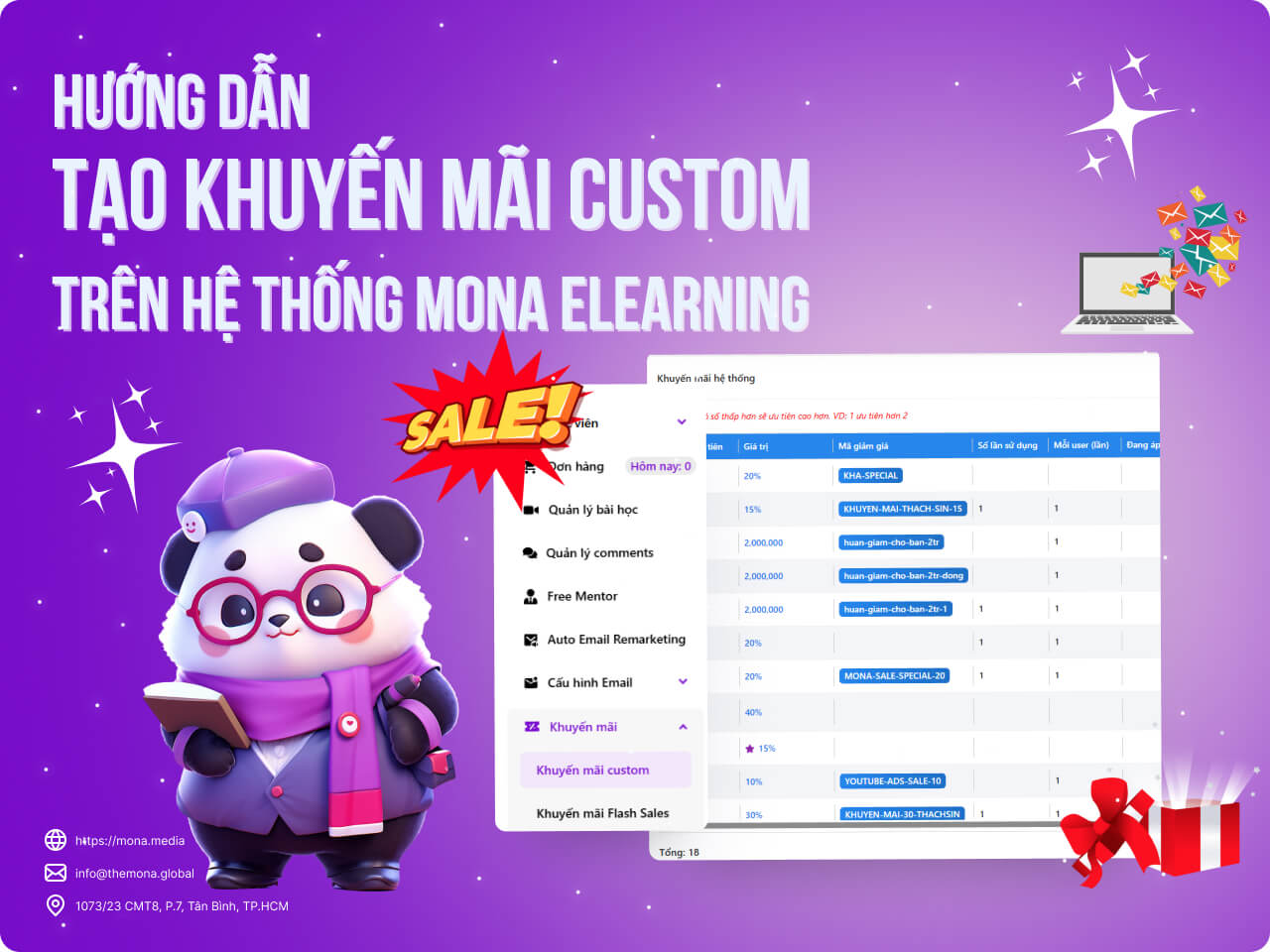
Promotions are essential for any sales website, especially for sites selling digital products. These products don't involve factors like inventory, expiry dates, quantity sold or cost of goods. That's why setting up advertising campaigns is so necessary when selling digital products today.
MONA Elearning has a feature for setting up promotions to sell courses on your website. In this article, MONA Media will walk you through creating custom promotions in detail, one of the most commonly used promotions when selling online courses.
Step 1: Choose to create a new custom promotion
In the admin interface, choose Promotion –> Custom Promotions → Click the Create new blue button at the top right
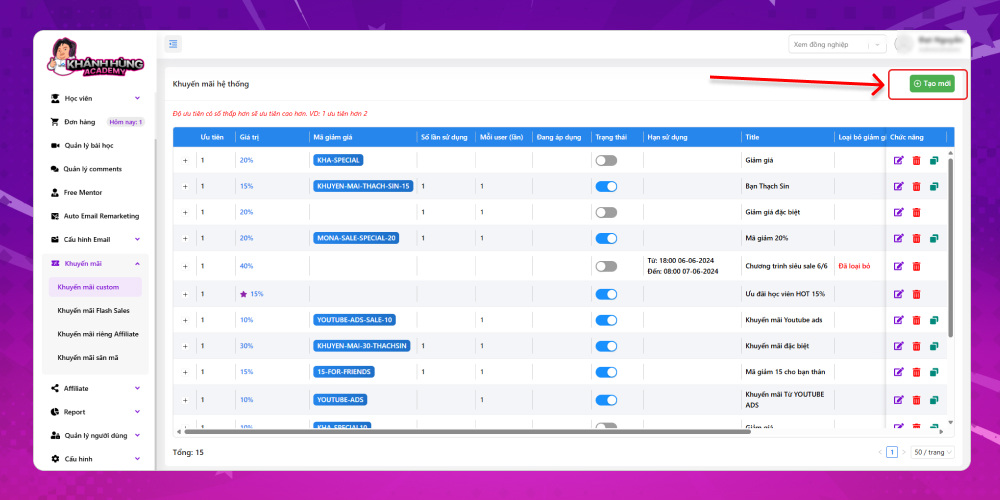
On the custom promotions overview screen, you can see the custom promotions created earlier. The key figures to look at in this summary table are:
- Priority level of the promotion
- Promotion value
- Number of times the promo code has been used
- Which users it currently applies to
- Toggle button to turn the promo code on or off
- Promo code expiry date
Step 2: Choose the list of students who receive the promotion
Click button Students – 0 selected to choose the students who will receive this promo code.
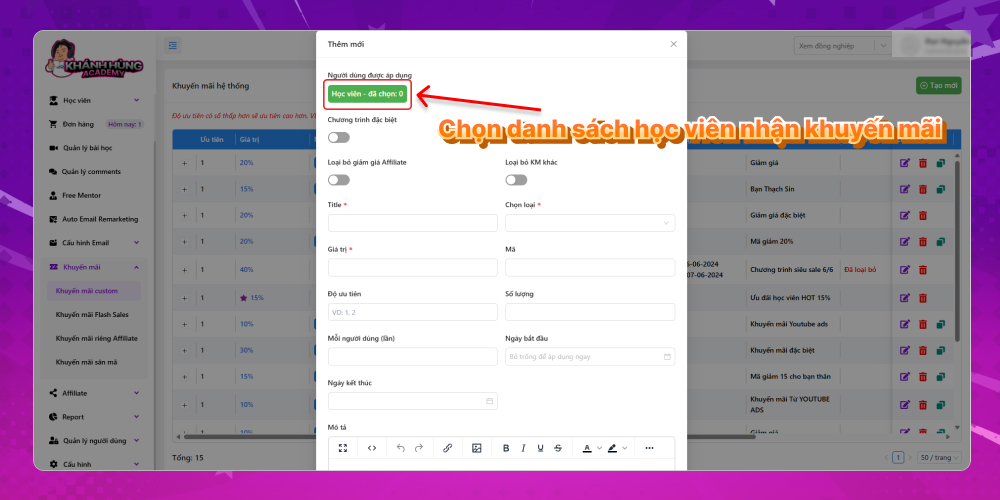
The system shows all the students in your course. MONA Elearning also classifies users in detail to assess the potential of these students. Common user types are:
- Pro: All users who upgraded to the PRO plan
- Free: All free users
- Interested:
- Qualified
- Hot:
- Indie:
- Cold: Students who haven't returned to the website in a long time
- Affiliate: All students who came to the course through affiliate
- Inactive:
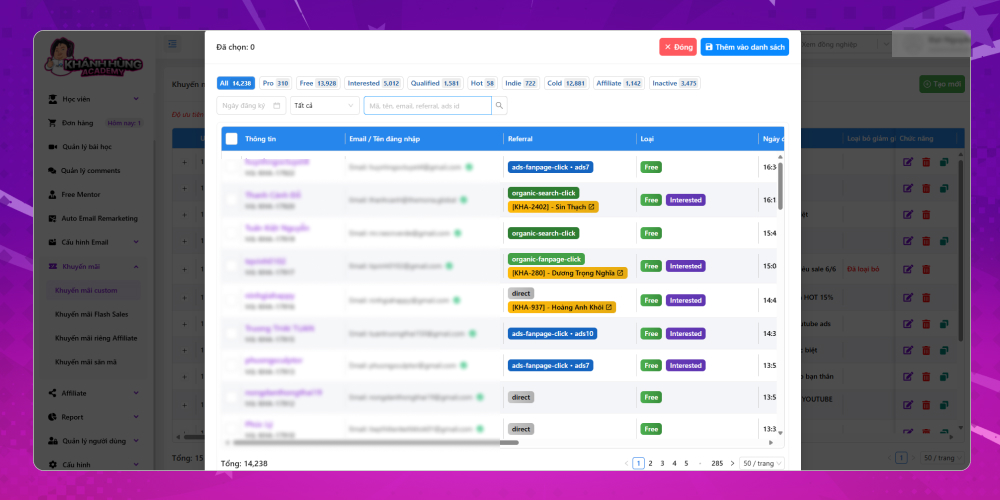
Based on this, pick the users suited to this promo code.
Step 3: Fill in the promo code details
Fill in the promo code details using the following fields:
- Title: Set a title for the custom promo code
- Choose type: You can choose between two types of discount: percentage and fixed amount.
- Value: Enter the promotion value depending on whether you chose percentage or fixed amount.
- Code: Name the promo code that users will apply. Keep the code name simple and easy to tell apart from other discount codes
- Priority: If several promo codes run in the same period, the one with higher priority ranks above the others. So when setting up a new promo code, MONA always sets the priority to 1.
- Quantity: Number of promo codes: MONA leaves this field empty
- Per user (times): Usually 1 time
- Start date: The date the promo code becomes usable
- End date: The date the promotion ends
- Description: A detailed description of the promotion
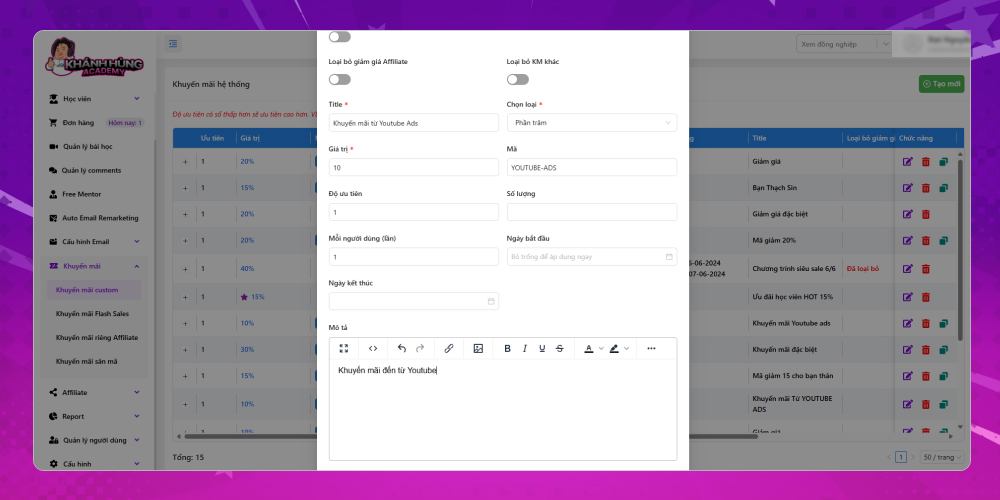
The system also has other option buttons such as:
- Exclude Affiliate discounts: Use this when you don't want this promo code to combine with Affiliate discount codes
- Exclude other promotions: Use this when you don't want this promo code to combine with discount codes from other promotions.
Step 4: Choose the conditions for users to receive the promo code
From the list of students who receive the promotion chosen in Step 2. You can filter students in detail by conditions to pick the users best suited to the custom promo code you are setting up. The specific conditions include:
- Number of videos watched
- Number of cancelled transactions
- Account creation date (by day)
- Account creation date (by hour)
- Customer account classification
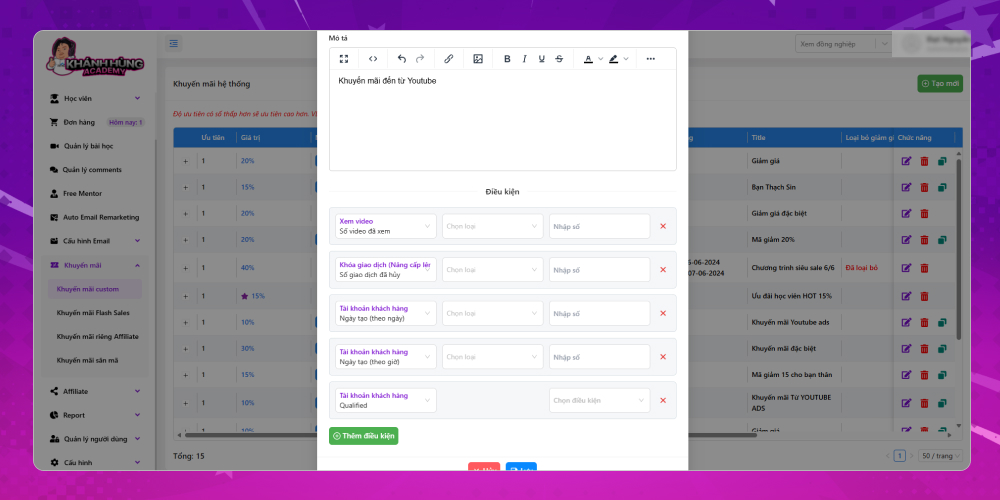
Based on these criteria, choose the conditions that filter out the right users for this type of promo code. If you have no conditions, leave this section blank, and the system will apply the list of students chosen in Step 2 to apply.
After you finish filling in the custom promo code details, click Save to finish creating the promo code.
Those are the detailed steps to create a custom promotion on the MONA Elearning system. For any questions about MONA Elearning for online courses, you can contact MONA Media through the details below:
- Hotline: 1900 636 648
- Email: info@themona.global
- Address: 1073/23 Cach Mang Thang 8, Ward 7, Tan Binh District, Ho Chi Minh City