
 MONA OS 2.0


 Tự động hoá doanh nghiệp
 Cẩm nang SEO
 Digital Marketing
 Kinh nghiệm thiết kế website
 Hạ Tầng Server
 Giáo dục


 VI
VI
 EN
EN























Message us on
Zalo Official


 ProductsNew

 ProductsProducts
 Mới ra mắtKHA AI 2027App tự edit video, tự đăng mọi mạng xã hội, 2 phút mỗi ngày










 Website designLooks good and wins customers over.
SEO servicesBrings in customers searching for exactly what you sell.
Website designLooks good and wins customers over.
SEO servicesBrings in customers searching for exactly what you sell.
 Tư vấn digital marketingKéo khách từ nhiều kênh, đo bằng số thật.
Corporate video productionVideos introducing your company, factory and team.
Tư vấn digital marketingKéo khách từ nhiều kênh, đo bằng số thật.
Corporate video productionVideos introducing your company, factory and team.
 NewAI video productionCompany story films made with AI.
 Custom software developmentCRM, ERP and HRM built for your business.
 Viết AI Agent theo yêu cầuĐặt riêng một trợ lý AI cho đúng việc của mình.
 Tư vấn chuyển đổi AIĐưa AI vào vận hành của cả công ty.
NewMONA LMSManagement for centers and schools.
MONA SkillHubInternal training for company staff.
Tư vấn chuyển đổi AIĐưa AI vào vận hành của cả công ty.
NewMONA LMSManagement for centers and schools.
MONA SkillHubInternal training for company staff.
 NHTQ systemEnd-to-end China–Vietnam shipping operations.
MONA JMSManagement for gold, diamond and pawn shops.
NHTQ systemEnd-to-end China–Vietnam shipping operations.
MONA JMSManagement for gold, diamond and pawn shops.
 MONA E-LearningA website with every feature you need to sell courses.
 How to sell online courses (course)More than 30 free lessons on selling courses on autopilot.
 MONA Cloudmonacloud.vnServers to get your apps and websites running.
 MONA Basemonabase.vnPostgres database, sign-in and file storage.
 MONA Mailmonamail.vnSend OTP, order and invoice emails from your software.
 MONA Paymonapay.vnAccept bank transfers via VietQR and notify your software when the money arrives.
 MONA eInvoiceComing soonIssue e-invoices that meet tax standards.
Gấu CườiTrả lời khách 24/7 trên web, Fanpage, Zalo và thu lead cho sale.
MONA eInvoiceComing soonIssue e-invoices that meet tax standards.
Gấu CườiTrả lời khách 24/7 trên web, Fanpage, Zalo và thu lead cho sale.
 Gấu TeleSalesGọi điện tư vấn, chăm khách như tổng đài viên thật.
Dê CườiTư vấn và chốt đơn cho shop ngay trong khung chat.
Gấu WebmasterNhắn nhóm Zalo là website được sửa xong.
Gấu TeleSalesGọi điện tư vấn, chăm khách như tổng đài viên thật.
Dê CườiTư vấn và chốt đơn cho shop ngay trong khung chat.
Gấu WebmasterNhắn nhóm Zalo là website được sửa xong.
 Gấu Pháp ChếSoạn hợp đồng, rà điều khoản trong vài phút.
 Gấu Báo GiáLên báo giá đúng mẫu và gửi khách ngay.
 AI chăm sóc khách hàngTheo dõi và giữ chân khách hàng cũ.
 Gấu Tuyển DụngLọc hồ sơ, hẹn lịch, phỏng vấn ứng viên.
 Mới ra mắt
KHA AI 2027
Xây kênh chuyên gia 2 phút mỗi ngày
Quay bằng điện thoại, AI tự edit video, tự đăng lên 16 nền tảng và tự trả lời bình luận, tin nhắn.
352.433lượt xem trên kênh CEO MONA sau 20 ngày
Mới ra mắt
KHA AI 2027
Xây kênh chuyên gia 2 phút mỗi ngày
Quay bằng điện thoại, AI tự edit video, tự đăng lên 16 nền tảng và tự trả lời bình luận, tin nhắn.
352.433lượt xem trên kênh CEO MONA sau 20 ngày
 Anh Khánh HùngCEO MONA đang dùng mỗi ngày
Xem app làm được gì
Anh Khánh HùngCEO MONA đang dùng mỗi ngày
Xem app làm được gì
 AI
Gấu Cười MONA ĐANG TỰ XÀITrả lời khách 24/7 trên website, Zalo OA, Messenger và thu lead về cho sale.
Dê CườiChốt đơn bán lẻ và sàn: Shopee, TikTok Shop, web. Chăm cả khách sỉ, đại lý.
Gấu WebmasterCập nhật nội dung, tối ưu SEO website mỗi ngày.
Gấu TeleSalesGọi điện tư vấn, chăm khách như tổng đài viên thật.
Gấu Tuyển DụngLọc hồ sơ, hẹn lịch, phỏng vấn ứng viên tự động.
AI chăm sóc khách hàngGiữ khách cũ, cứu lead đã rớt cho phòng kinh doanh.
Gấu Pháp ChếSoạn hợp đồng, rà điều khoản trong vài phút.
Gấu Báo GiáLên báo giá đúng mẫu, gửi khách ngay khi có yêu cầu.
AI
Gấu Cười MONA ĐANG TỰ XÀITrả lời khách 24/7 trên website, Zalo OA, Messenger và thu lead về cho sale.
Dê CườiChốt đơn bán lẻ và sàn: Shopee, TikTok Shop, web. Chăm cả khách sỉ, đại lý.
Gấu WebmasterCập nhật nội dung, tối ưu SEO website mỗi ngày.
Gấu TeleSalesGọi điện tư vấn, chăm khách như tổng đài viên thật.
Gấu Tuyển DụngLọc hồ sơ, hẹn lịch, phỏng vấn ứng viên tự động.
AI chăm sóc khách hàngGiữ khách cũ, cứu lead đã rớt cho phòng kinh doanh.
Gấu Pháp ChếSoạn hợp đồng, rà điều khoản trong vài phút.
Gấu Báo GiáLên báo giá đúng mẫu, gửi khách ngay khi có yêu cầu.
 Chuyển đổi AI toàn phầnGiải pháp tổng cho doanh nghiệp, 3 lớp triển khai.
 Viết AI Agent theo yêu cầuĐặt riêng một con AI gánh đúng nghiệp vụ của bạn.
 Custom softwareCRM, ERP and HRM with built-in AI automation.
 SEO & AEO thời đại AIĐược Google lẫn AI trích dẫn, không chỉ xếp hạng.
 Kiến thức AI cho doanh nghiệpBài phân tích, hướng dẫn ứng dụng AI vào vận hành.
 Free AI courses
 AI tools at work
App mới · KHA AI 2027
Xây kênh 2 phút mỗi ngày
AI tự edit video, tự đăng mọi mạng xã hội
Free consultation, 8am–10pm every day
AI tools at work
App mới · KHA AI 2027
Xây kênh 2 phút mỗi ngày
AI tự edit video, tự đăng mọi mạng xã hội
Free consultation, 8am–10pm every day

18 March, 2023
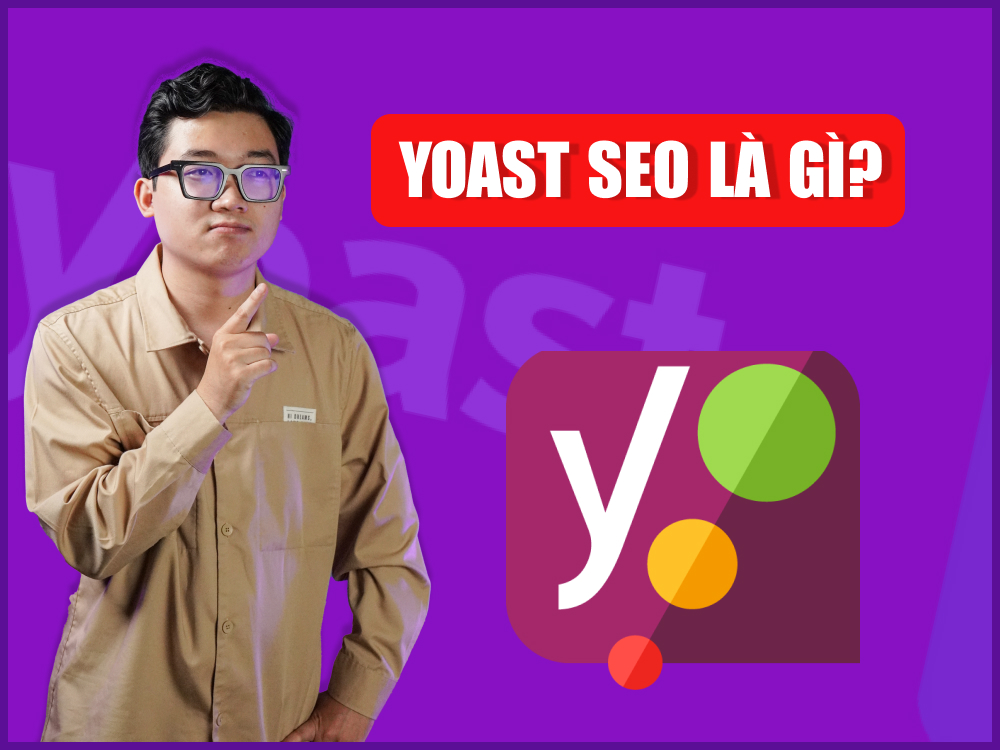
Today there are many tools to help you raise keyword rankings on Google's results pages. Yoast SEO is one of the most popular, helping streamline SEO service to improve your Google rankings work and widely used. In this article, Mona Media explains what Yoast SEO is and how to set it up and use it Yoast SEO worth knowing.
Yoast SEO is one of the most useful tools for optimizing An SEO-ready website on WordPress. Yoast SEO lets users enter and manage SEO elements such as the title, description and focus keyword.
Developed and provided by the Yoast team since 2010, Yoast SEO is one of the most essential plugins, found on almost all website wordpress today.
Yoast SEO comes in 2 versions: free and paid. The free version is very capable and has all the basic features you need to optimize your website or blog for SEO.
What Yoast SEO does:
Yoast SEO is an open-source WordPress plugin with many features for optimizing a website for SEO. It evaluates page elements such as the title, description, focus keyword and length, and recommends improvements. It also measures how hard your content is to read, checks keyword frequency and checks paragraph length.
Yoast SEO shows the errors on your site and suggests fixes. It can generate a good-quality sitemap so search engines can find and display your site. You can also manage internal links to pass strength to other pages on your site quickly.
Yoast SEO also helps reduce duplicate content errors on your website, optimizes page descriptions and improves the click-through rate for your keywords. It has more features besides, such as a readability analysis to improve user experience and a keyword matrix to define the main keyword list for your site.
Installing the Yoast SEO plugin for WordPress is simple. You only need to know how to use a computer and have a basic grasp of website management to do it easily. Installation is quick, about 10 to 15 minutes. Here are the steps:
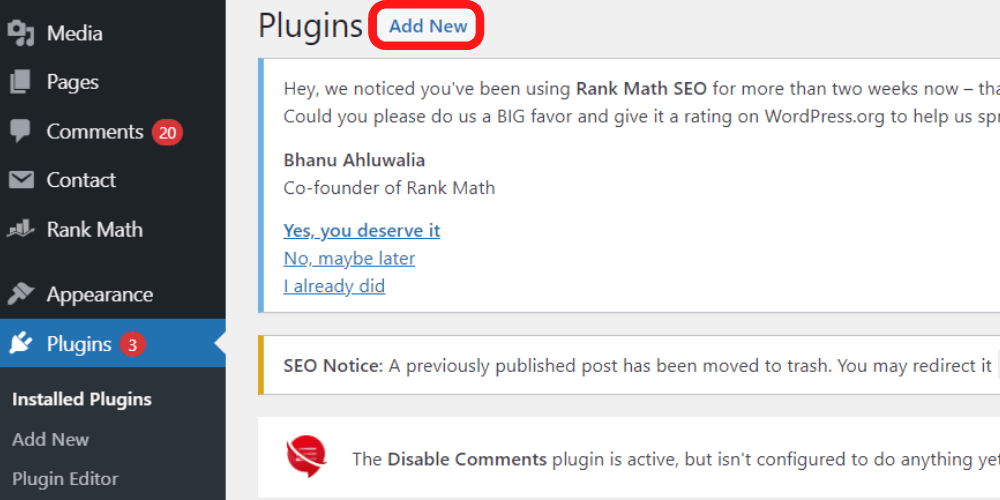
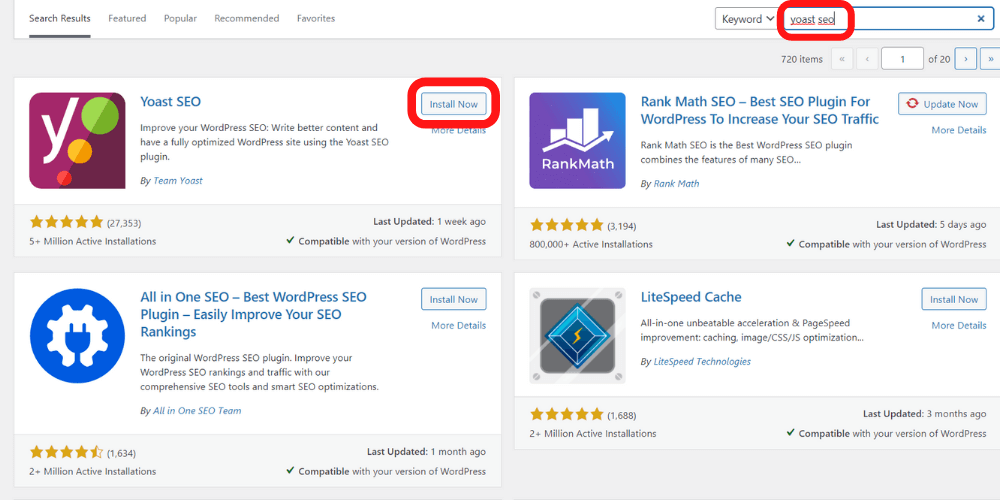
Now check the left-hand menu and you will see a new item: SEO.
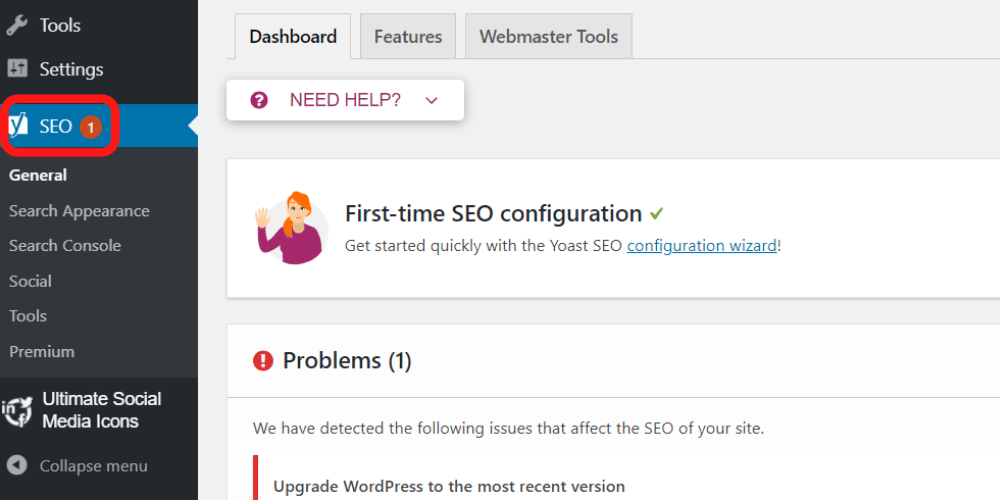
First you need to set up Yoast SEO. To make it quick, you can click the link below:
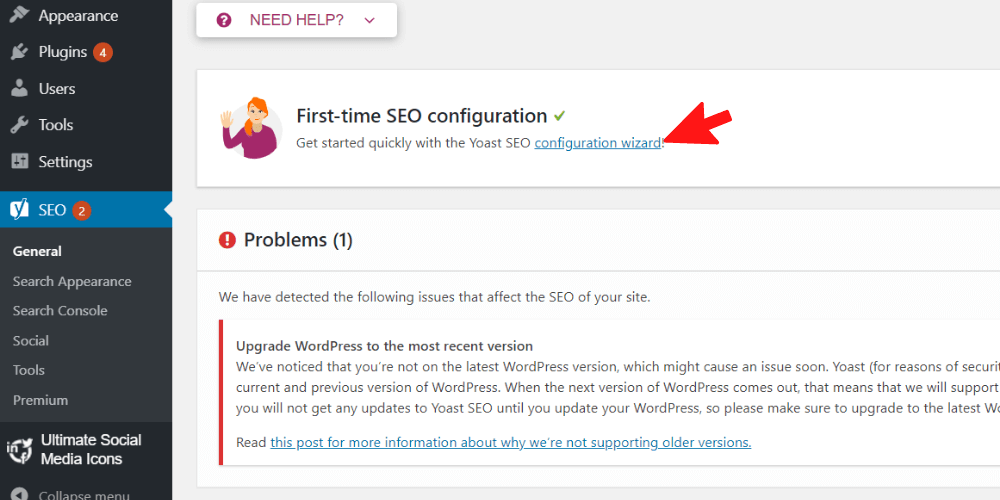
You will see 8 setup steps for Yoast SEO. Just follow the instructions below.
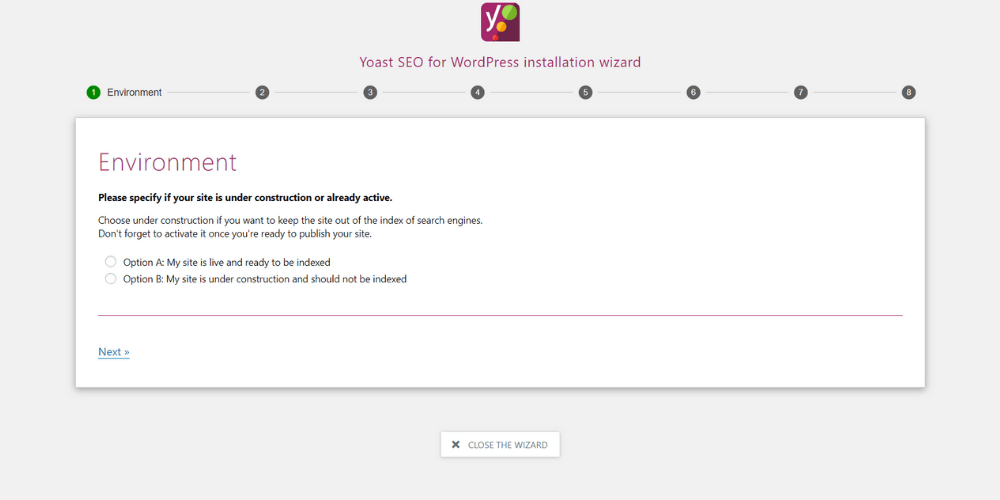
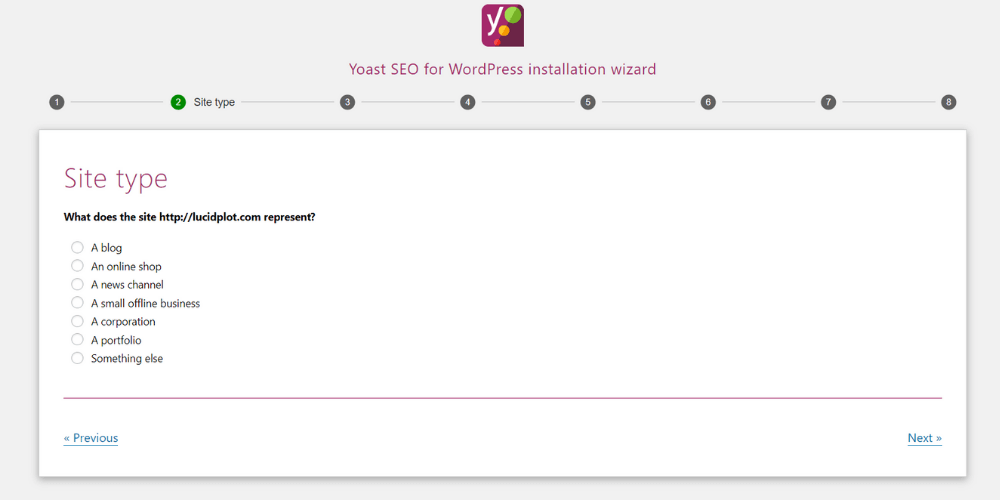
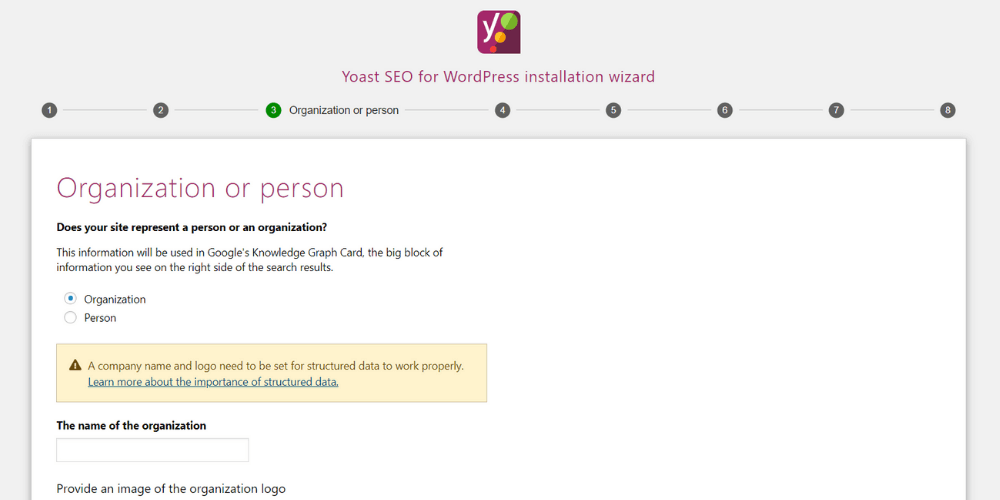
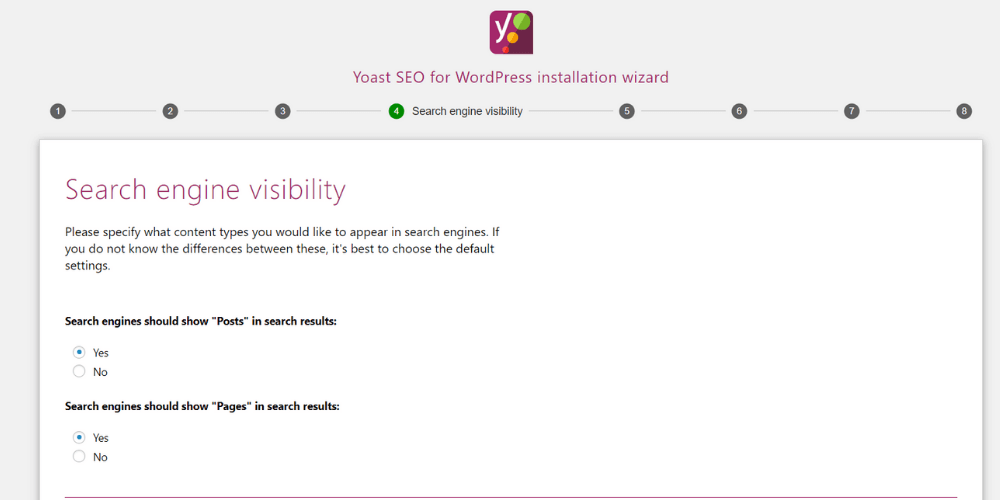
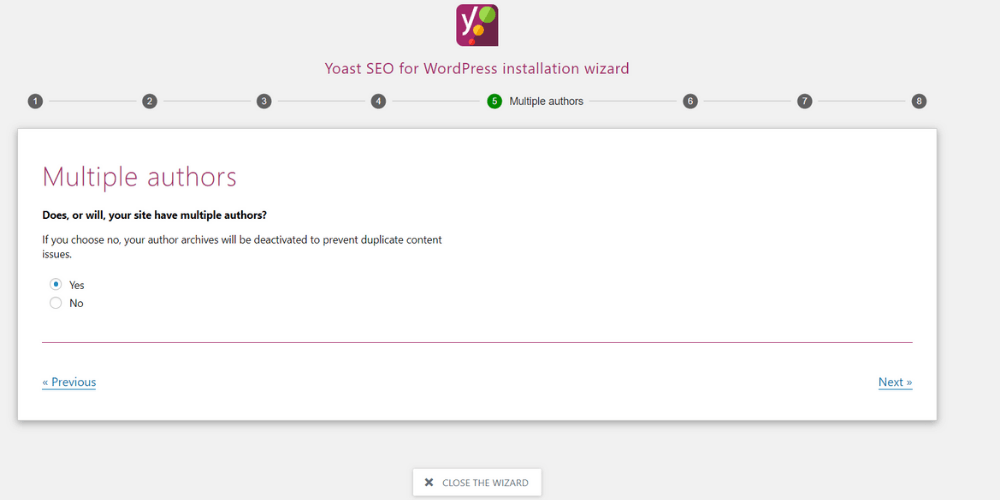
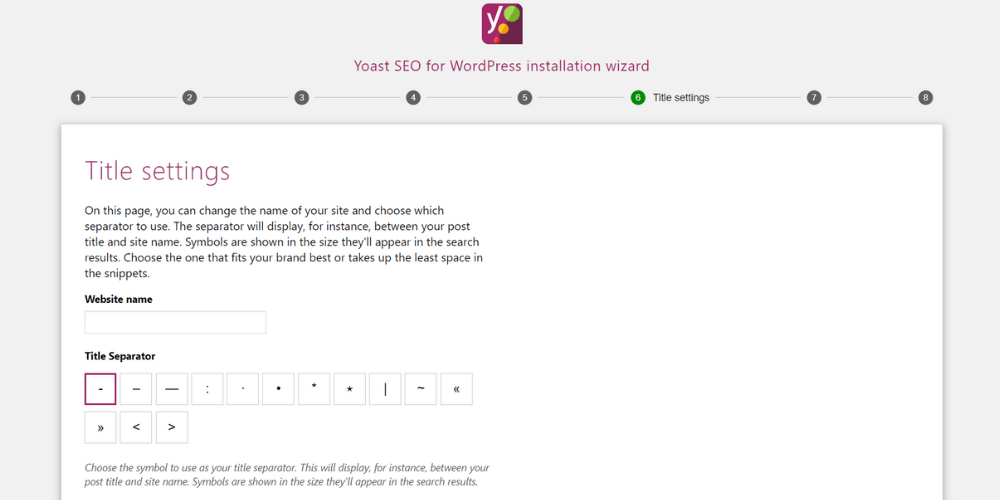
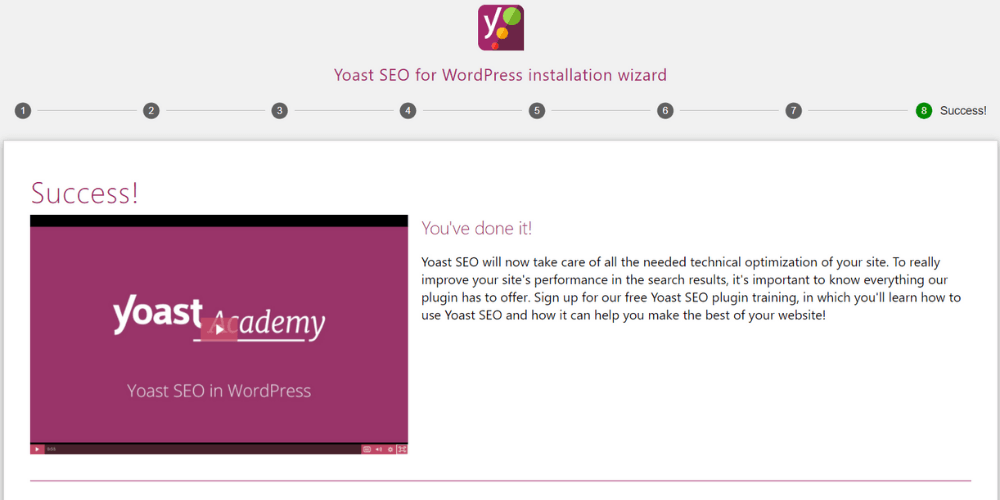
The Dashboard is the Yoast SEO control panel, with 3 tabs: Dashboard, Features and Webmaster Tools.
This panel shows all serious SEO notices for your website. You will see Problems, which are serious issues to fix right away, and Notifications, which are minor issues you can skip.
This lists all Yoast SEO features. You can turn on or off any you don't want. Remember to save this section.
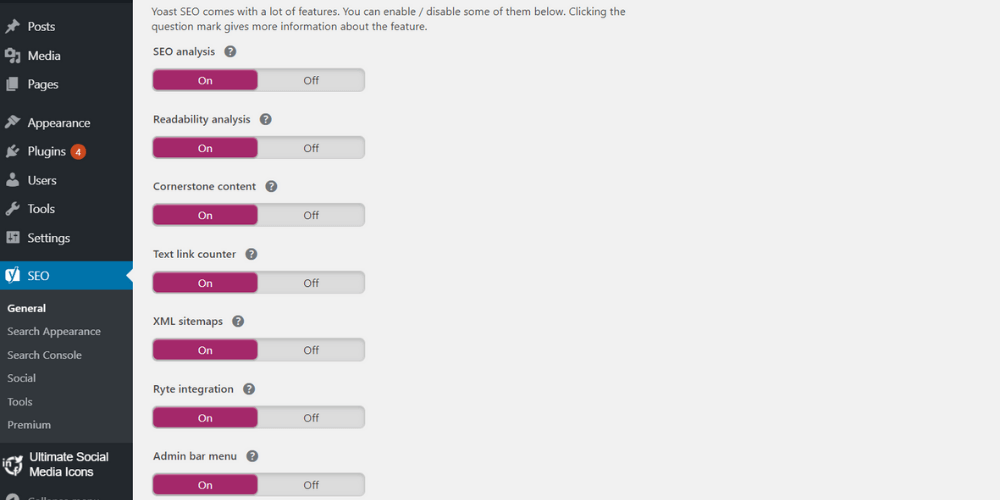
This section holds the verification codes for the Webmaster Tools accounts of some search engines, such as: Google Search Console.
Click the blue link below to get the code.
This section sets how your website appears in search engines.
Start with General. This is a fairly important section.
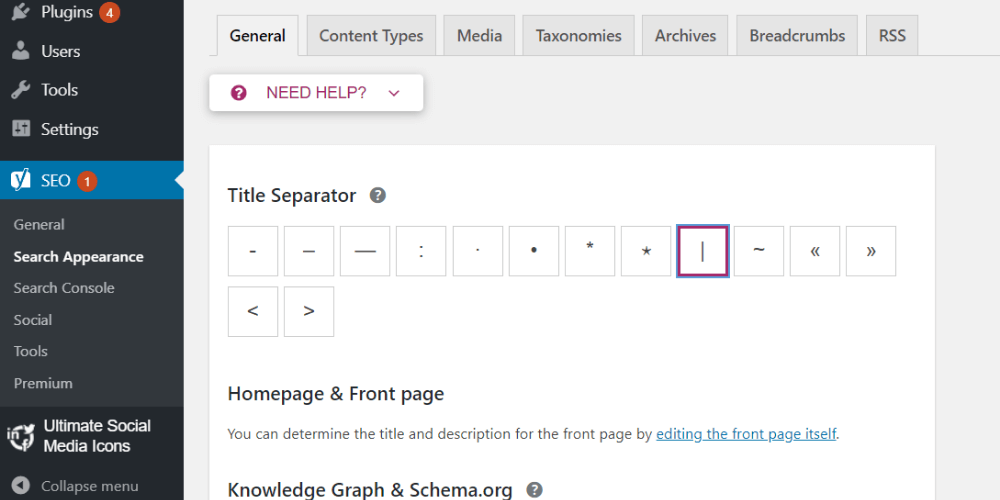
First is Title Separator, the symbol that separates the site name from the post title.
An example you can look at: “Yoast SEO là gì – Mona Media” (What is Yoast SEO – Mona Media). The dash “–” is the title separator.
Pick whichever symbol you like.
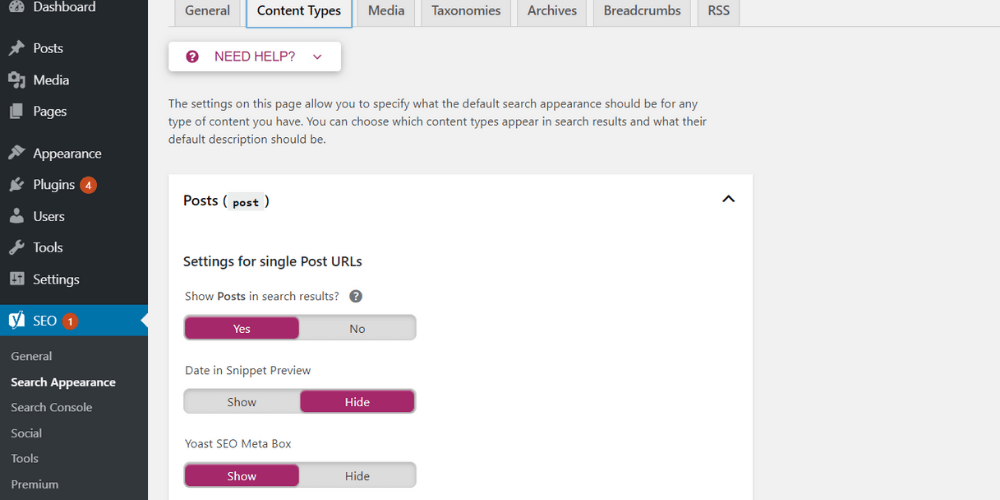
This section controls how your search results are shown.
For the line that shows “Show Posts in search results?” If you choose No it means “noindex”
Date in Snippet Preview: this shows the date in preview mode (you should set it to hide, since it isn't important).
Yoast SEO Meta Box: Show
When you upload an image or video to WordPress, it creates a URL for that file. This is usually a blank page. If you don't plan to use it, it's best to disable it.
Our advice is to choose Yes.
In this section we choose how categories appear in Google search.
Choose Yes and scroll down. For Yoast SEO Meta Box, choose Yes again.
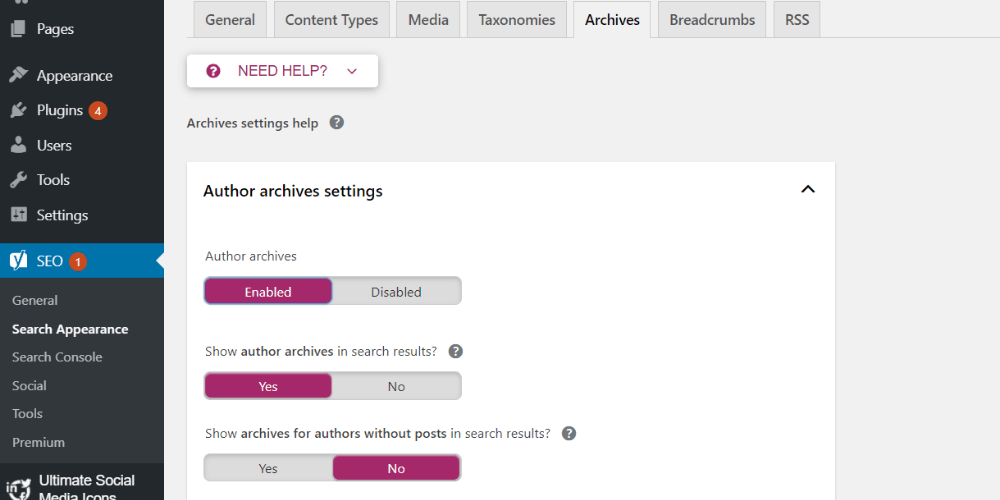
In this section, you should disable the feature “Author archives” if your blog has only one author.
If you leave the archive showing on the home page, you will get duplicate content, so think it over carefully.
You can disable it in “search results” or block it in robot.txt.
The section below is “date achrive settings” similar to the one above.
Breadcrumbs is the path usually shown at the top of a post, showing where you are on the website.
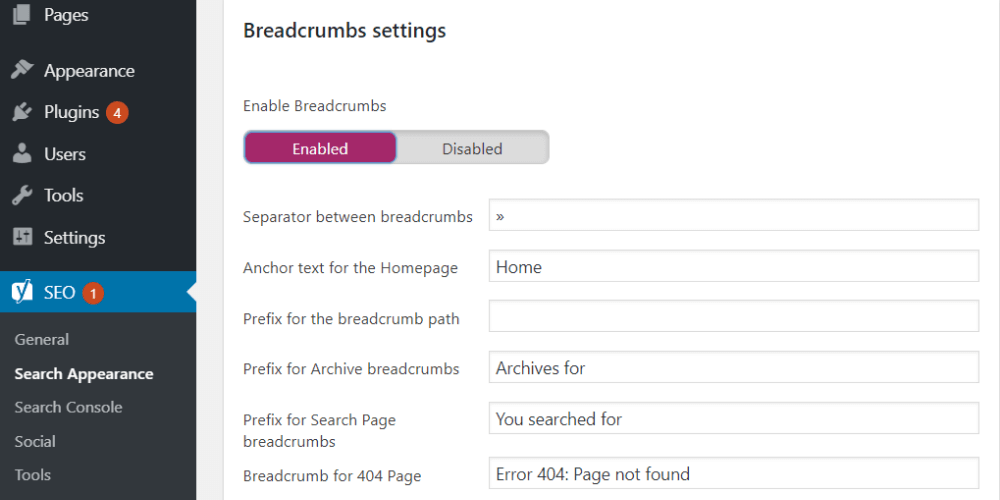
Read this if you don't know about it yet.
See more: 404 Not Found errors what is it? A guide to fixing error 404 quickly
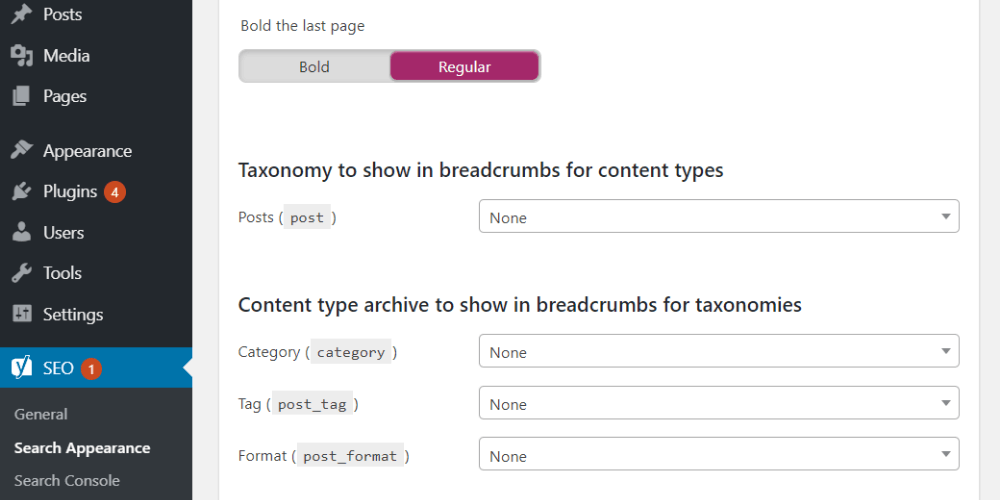
Below are 2 more options. You need to bold the last page in the breadcrumb and show the breadcrumb for Taxonomy (tag, post, category).
You need this feature if you use an RSS feed. If you don't, you can ignore it.
An RSS feed provides a summary of a post, in XML format
Google no longer allows this feature to connect to the Crawl Errors API. You can go to Google Search Console to use it directly.
This is where you set up your social media accounts. Enter the URLs of your pages, or Twitter and Instagram. The Facebook tab has Open Graph meta options and shows a preview of how your page looks when shared on Facebook.
This feature has 4 tools:
This section is a menu introducing the features in Yoast SEO Premium.
This is the section about the people who make the Yoast SEO tool. Naturally, Yoast are experts who know SEO well.
Here they introduce online SEO courses from basic to advanced.
This is the best part. It answers a series of questions such as: how do I optimize on-page with Yoast SEO, how do I use this tool most effectively, and how do I write a post to SEOstandards? These are SEO techniques you need to get used to and use every day. It may sound confusing, but WordPress Yoast SEO will help make this work much simpler.
When you start creating a new post, scroll down to see the Yoast SEO interface. You should use the Yoast SEO Premium interface, because it has more useful features than the Free version.
Pay attention to the following points:
In this section we'll walk through an example in detail:
Example: The post What is Jetpack? What to know about the Jetpack WordPress plugin
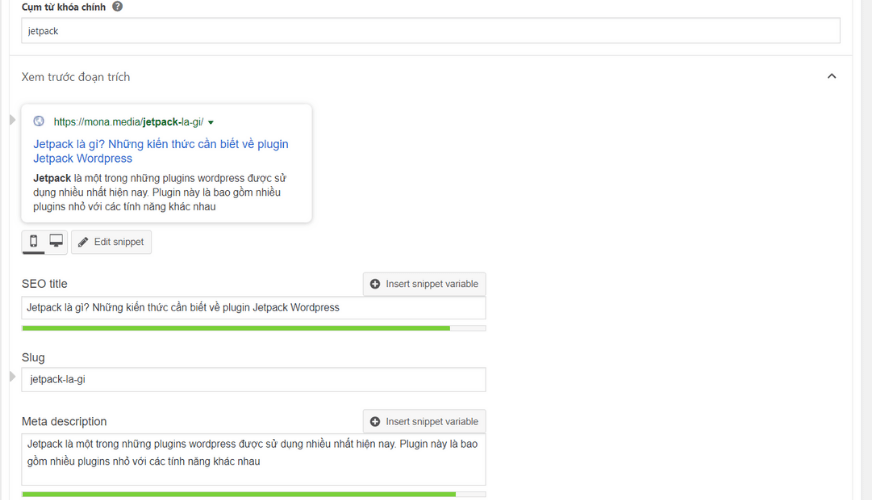
The next part is very important and people often skip it
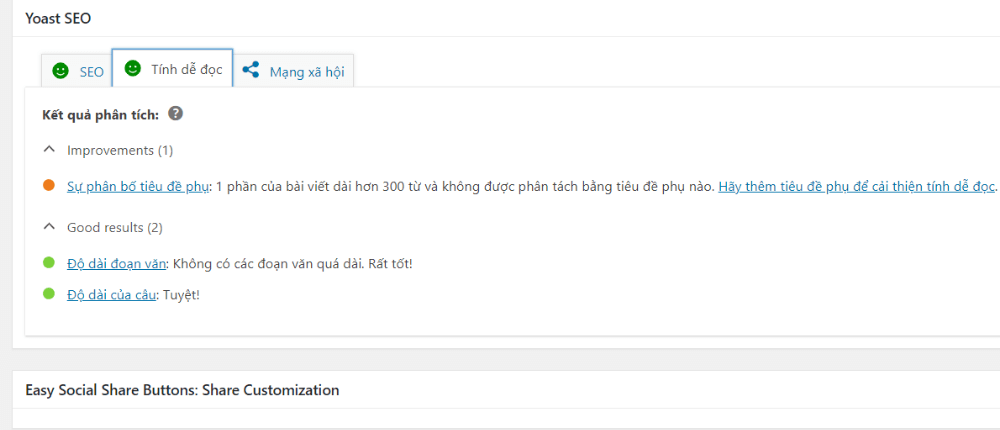
There are many ways to make a post easier to read. Try the ones below:
Bonus tip:
The advice above is a guide and you don't have to follow it 100%. Adjust the layout so the post is easy to read, easy on the eye and sensible.
This is what people usually call the strict “SEO standard” factors that need attention.
Below you will see a field called “Keyphrase synonyms“.
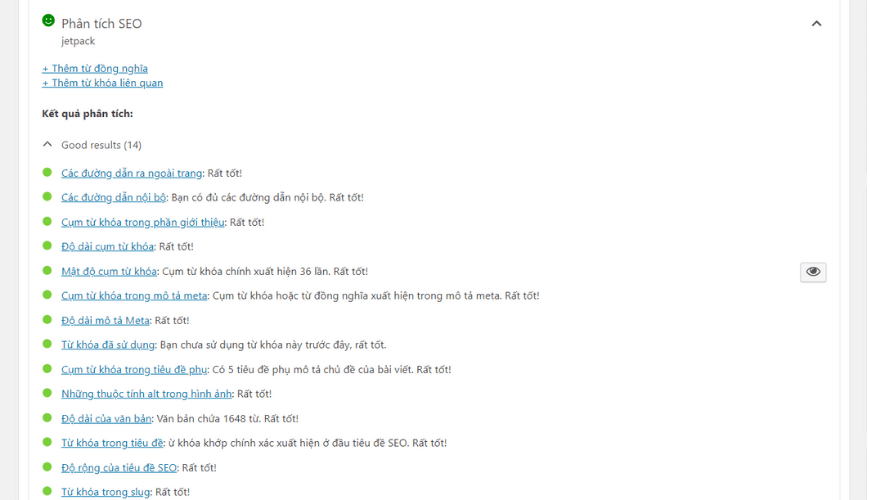
You can choose a phrase that is a synonym of the focus keyword to optimize further. Try picking a phrase, then look at the analysis Yoast SEO gives. If the light is green, your post has improved and needs no more editing.
Bonus tip:
See more:
These are the related keyphrases. Note that related keywords are different from synonyms.
Example: related keywords for “company website design” could be “thiết kế website công ty chuyên nghiệp” (professional company website design) or “xây dựng website công ty” (building a company website), and so on.
You should add related keyphrases in the post, and ideally in the meta description, title and alt text too.
Yoast SEO Premium has many useful advanced features that give you the most support in optimizing your website for SEO.
The Redirects Manager in Yoast SEO is an add-on feature for the Premium version of the plugin. It gives users an advanced URL redirect management system.
With it you can set up redirects directly for old URLs that may have been deleted or changed. With Redirects Manager, users can create URL redirects, manage the redirect list, check for redirect errors and more.
Internal Linking Suggestions in Yoast SEO is a newer feature, introduced in August 2020. It searches for posts related to your content and suggests internal links to them. Internal Linking Suggestions makes it easy to create internal links between posts, which strengthens the connections between pages on your site.
Content Insights in Yoast SEO gives users a tool for analyzing content as a whole. Users can check keyword popularity, analyze content length, judge SEO difficulty, check keyword frequency and more. Content Insights helps you improve and optimize your site content for the best SEO results.
The advanced “Add Related Keyphrase” feature was introduced by Yoast SEO Premium in its latest version. It works by suggesting new keywords based on your post's focus keyword, helping you optimize content more effectively.
Add Related Keyphrase has several standout advantages: it is easy to use, increases engagement with your site content and makes keyword research more convenient.
The advanced Social Preview feature lets users customize and preview pages on social networks such as Facebook and Twitter. With it you can adjust the image before sharing your site on social media and write a custom title and description.
Social Preview also helps users create shares that look appealing and professional, which raises engagement and brings more visits to your website.
What steps do you need to upgrade from Yoast SEO Free to Premium? The guide below walks through the upgrade. If you have any problems downloading or installing Yoast SEO Premium, contact Yoast support for help.
If you want to upgrade from Yoast SEO Free to Premium and haven't installed Yoast SEO Free yet, follow these steps:
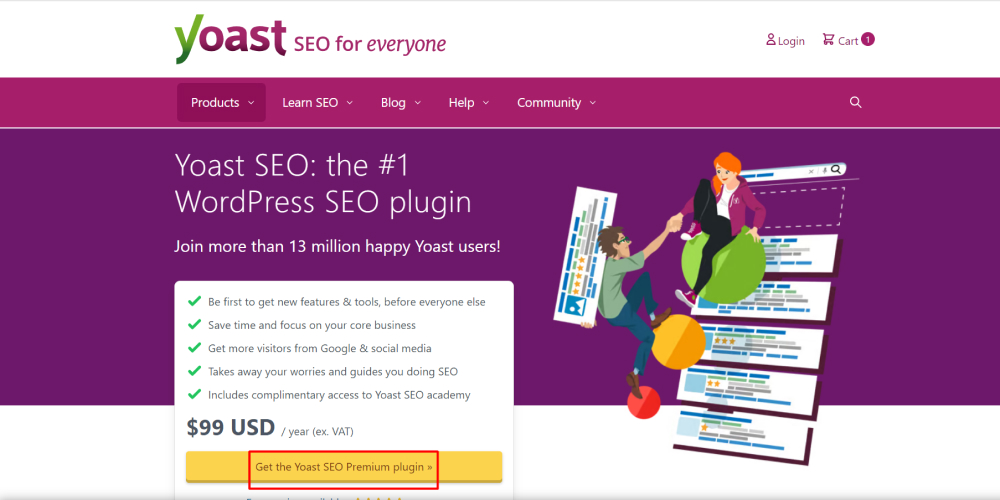
Step 1: Go to the Yoast website and choose “Get Yoast SEO Premium”.
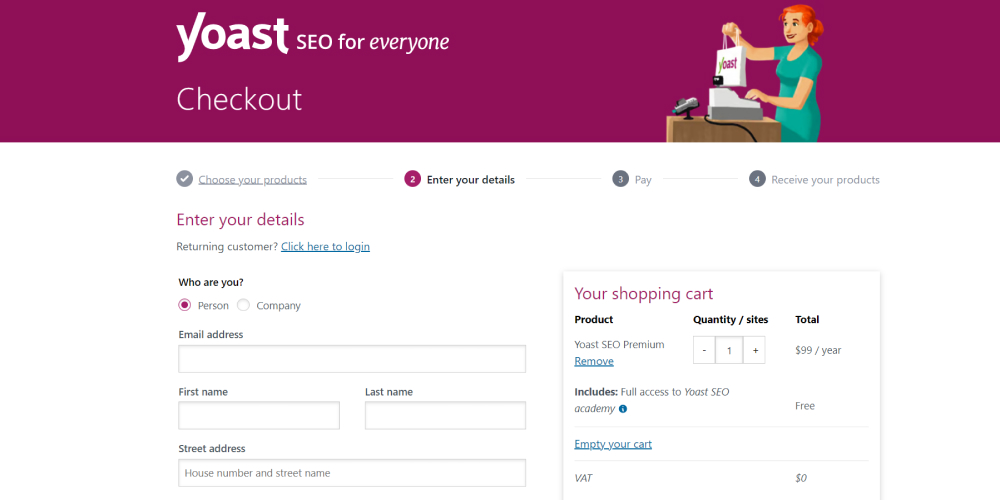
Step 2: Fill in your details, pay and complete the purchase of the Yoast SEO Premium plan.
Step 3: Download and install Yoast SEO Premium as described above.
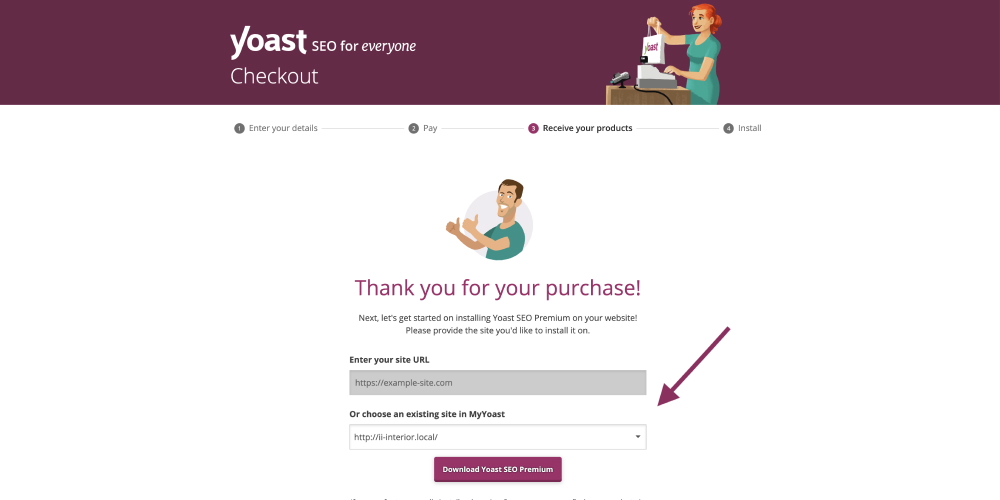
If you have already installed and configured Yoast SEO Free, back up all your website content during the upgrade to avoid losing data. To upgrade from Yoast SEO Free to Yoast SEO Premium, follow these steps:
Step 1: Log in to the Yoast SEO website, choose the Yoast SEO Premium plan and complete the purchase.
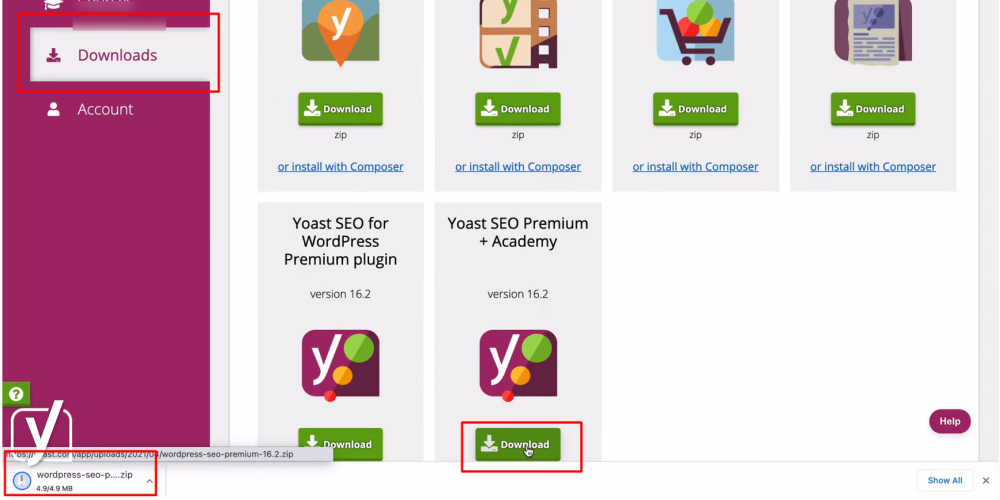
Step 2: Download the Yoast SEO Premium ZIP file from the website.
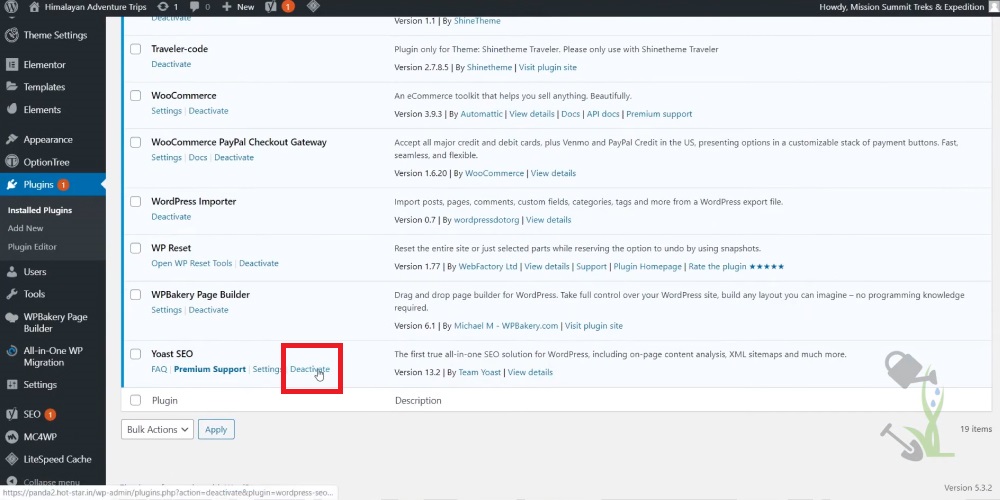
Step 3: Go to your WordPress admin and choose “Plugins”. Find the Yoast SEO Free plugin and deactivate it (do not delete it).
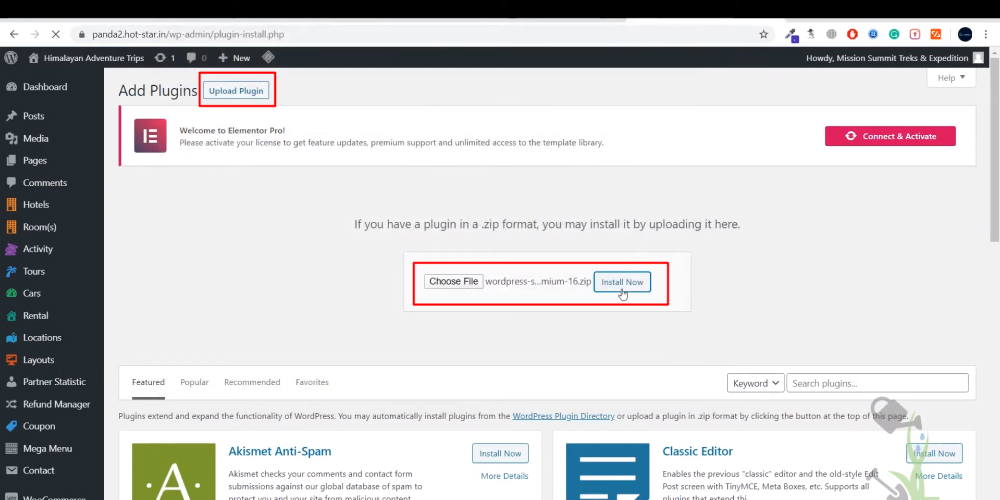
Step 4: Choose “Add New” and upload the Yoast SEO Premium ZIP file you downloaded earlier. Once the upload succeeds, activate the Yoast SEO Premium plugin.
Step 5: Switch to the Settings tab and enter your Premium license key (not the Yoast SEO Free license) to activate the new Premium features.
Yoast SEO currently offers 4 extension packs: Yoast SEO Premium, Video SEO, SEO News and Local SEO.
The Yoast SEO Premium pack is the advanced, paid version of the Yoast SEO plugin. On top of the features in the free version, Premium has more powerful tools for optimizing a website for SEO. It is a good choice for anyone who wants to optimize their site for SEO.
Yoast's Video SEO pack is one of the extension packs for the Yoast SEO plugin. It is designed to improve how easily the videos on your site are found and how much people engage with them. Video SEO includes several useful features to help your videos perform better in search results and on your site.
Yoast's SEO News pack is one of Yoast's high-quality add-ons. It comes with Yoast SEO Premium or Yoast SEO Academy and is designed for news websites and sites that publish new content regularly. With its rich, high-quality features, SEO News cuts the time and effort needed to optimize for SEO and extends the site's reach.
Plan Local SEO from Yoast is designed to help local businesses optimize their website content to attract customers in their area. This extension offers local SEO features for registering the business on Google My Business, helping the site rank high in local search results. That improves your chances of reaching potential customers.
-> A detailed guide to registering Google Business for your company
A website design and SEO company Mona Media that has been operating for more than 10 years. We give businesses a strong lift in income and up 100-200% revenue. Every project beat its KPIs in just 6 MONTHS, with keywords reaching TOP 1-3 search result pages. Contact us now to get the full-scope SEO price list in full detail.
What Yoast SEO is, and how to install, set up and use it, are the basics. If you want to be a professional SEO, explore the tools below:
The answer depends on the scale of operation. For a website of a few dozen pages with one person managing content, the free version of Yoast does the job: setting titles and descriptions, sitemaps and readability checks.
When a website grows to thousands of pages with several departments publishing, we see systems that use Yoast start to run into other problems. Meta fields are left blank in bulk, schema is inconsistent across page types, and there is nothing yet for declaring content to AI tools. At that point a business needs a process layer on top of the plugin, not just more features.
| Criterion | Free Yoast SEO | Yoast SEO Premium | MONA SEO |
|---|---|---|---|
| Focus keyword per page | 1 keyword | Add related variants | Per keyword set for each page type |
| Content analysis | Optimized for English | Optimized for English | Built for Vietnamese content |
| Declarations for AI search (ChatGPT, Gemini, AI Overview) | No dedicated section yet | No dedicated section yet | Built in, runs alongside Google SEO |
| Cost | Free | Paid per year, per website | License per domain; one license covers the whole set of 7 MONA plugins |
| Switching | None | None | Detects an existing Yoast install and steps aside, keeping your existing meta |
If Yoast is running fine for you, keep it and don't remove it in a hurry. What is worth doing now is checking that meta and schema are filled in on every page, especially product pages that few people look at. You can also compare the options in the article plugin SEO WordPress, and review the basics in the article What is WordPress. If your website needs someone to look after everything from technical work to content, see SEO services package from MONA?
Answers to the questions people ask most about Yoast SEO:
Should you use a Premium version of Yoast SEO that is shared for free?
Yoast SEO Premium is a product of Yoast, protected by intellectual property rights and privacy policies. Using a shared copy of Yoast SEO Premium without buying a license from the maker violates the product's terms of use.
Yoast SEO Premium has many useful features for optimizing a website for SEO. If you want the Premium version, use the paid plan so you get support and security assurance.
Why does using Yoast SEO keywords help you reach the top more easily?
Yoast SEO's keyword feature lets you pinpoint the keywords related to your site content, so you can focus on them and optimize for success.
The tool can also assess keyword competition, optimize meta tags and give you better control over keyword strings so you produce better content. With Yoast SEO, keywords are optimized and pushed toward the top of search results, which increases your reach to potential customers.
Can you use Yoast SEO and other SEO plugins at the same time?
You can use Yoast SEO and other SEO plugins on your website at the same time. However, many SEO plugins have similar features, and running several can cause conflicts and slow your site down. To optimize your site, choose one or two SEO plugins of real quality to use alongside Yoast SEO.
That covers the essential knowledge about Yoast SEO including what it is and how to use and set it up. We hope this article helps you understand it and gives you everything you need to work with Yoast SEO. Good luck!
See also:
A suggestion from MONA
If you are considering an SEO plugin for your WordPress website, we have MONA SEO, a licensed plugin developed by the MONA team. Besides SEO for Google, the plugin also declares data for ChatGPT, Gemini and AI Overview, and its admin interface is fully in Vietnamese. It detects an existing Yoast or Rank Math install and steps aside, so you can switch over gradually without conflicts.
See the details at plugin.mona.software, or see more reviews in the plugin WordPress section of our blog. For advice based on your website's current state, call 1900 636 648.

CEO & Founder · The MONA
Founder of The MONA, who built a services company of 200+ staff with 14,000+ projects delivered. Khánh Hùng shares how he thinks about building systems that run themselves, automating a business, and the real lessons from delivering projects at MONA.
 1,6K
1,6K




Professional website
design services
Own a website with a beautiful, 100% exclusive design and a lifetime warranty, with the ability
to expand features flexibly as your business grows, starting today!








 MONA will never sell your information or send you spam
MONA will never sell your information or send you spam
MONA will never sell your information or send you spam


 MONA will never sell your information or send you spam