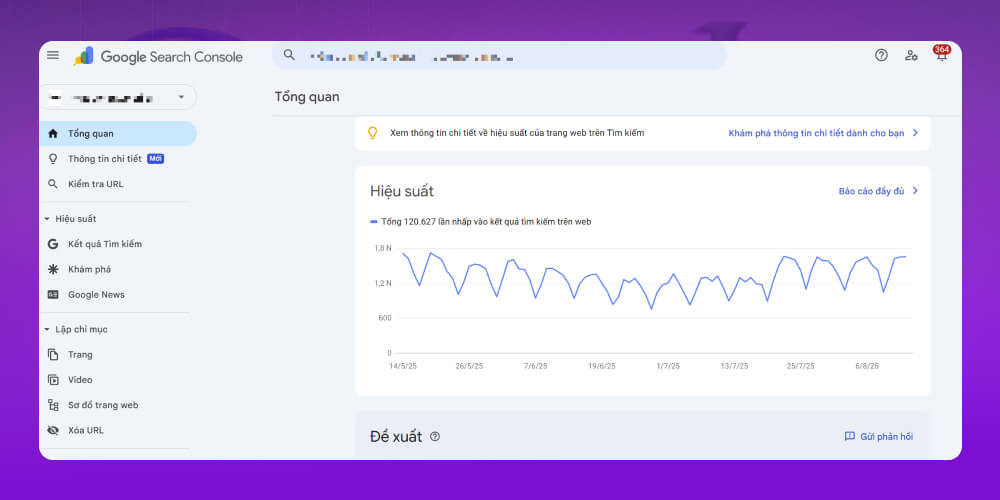
Quick summary: Google Search Console (formerly Google Webmaster Tool) is one of Google's free tools, and an extremely important one for tracking your website's performance in search results.
Do you know how Google “sees” your website? Google Search Console (formerly Google Webmaster Tool) is one of Google's free tools, and an extremely important one for tracking your website's performance in search results. From checking technical errors and tracking keyword rankings to finding your most visited pages, it all shows up in GSC reports.
Whether you are just starting to learn SEO or have done it for years, skipping this tool is a big mistake. Let's MONA Media take a closer look at what Google Search Console is and how to use it well in this article.
What is a webmaster?
A webmaster, also called a website administrator, is the person responsible for managing, running and developing one or more websites. They keep the site running reliably, give users a good experience and help the owner, a business or an individual, reach their goals.
A webmaster takes on several important tasks, including:
Technical management: Registering, maintaining and managing technical elements such as servers, domains, databases, source code and supporting tools.
Content management: Publishing, updating and optimizing content such as text, images and video, keeping information fresh and useful.
Design management: Building, editing and optimizing the user interface so the website looks good and is easy to use.
SEO optimization: Applying SEO techniques to improve search rankings and increase visibility on Google and other search engines.
Analysis and evaluation: Using tools such as Google Webmaster Tool to track performance, analyze data and propose improvements.
What is Google Webmaster Tool?
Google Webmaster Tool, now called Google Search Console, is a free tool from Google that helps website administrators monitor, manage and maintain their site's performance in Google search results.
SEO tools This tool helps you track how Googlebot crawls, indexes and displays your website on the SERP, and helps you find and fix issues that affect how the site performs.
Main functions of Google Webmaster Tool:
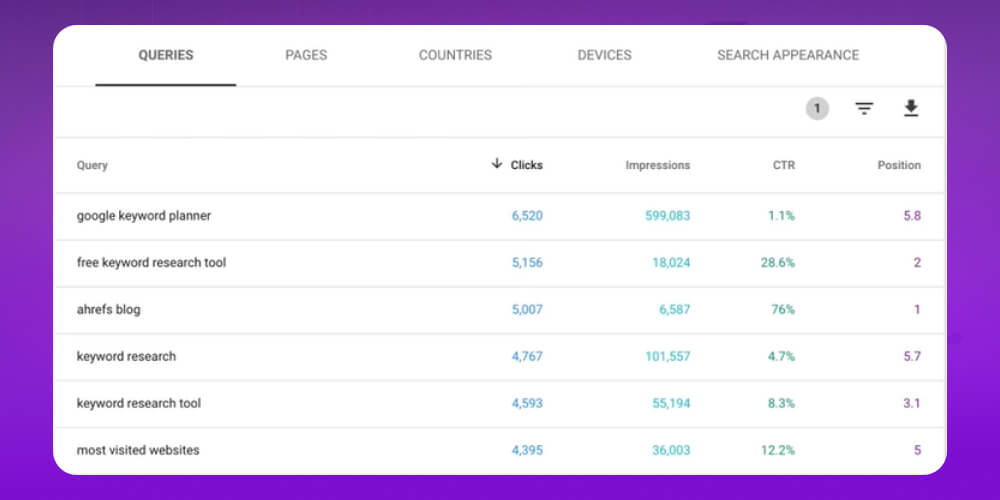
Search performance tracking: Gives you impressions, clicks and average position for your website on Google.
Keyword analysis: Shows you which keywords people search for to reach your website.
Find and fix errors: Detects crawl errors, indexing errors, mobile display errors and security issues.
Manage your sitemap: Lets you submit a sitemap so Google can crawl and index your site more effectively.
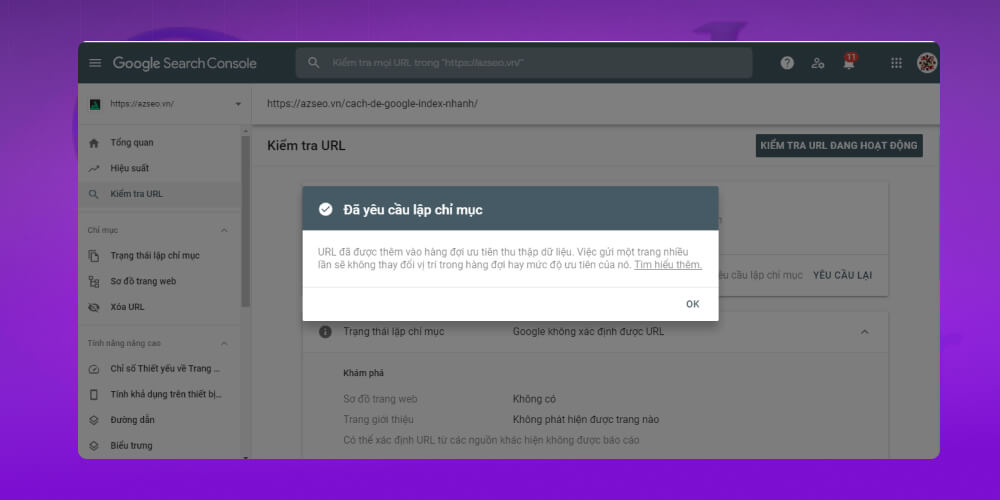
Submit indexing requests: Request Have Google index new pages or quickly refresh pages you have edited.
User experience analysis: Checks page load speed, mobile usability and other factors that shape the user experience.
How does Google Webmaster Tools work?
In short, Google Webmaster Tools works like this:
First, it confirms that Google can access the content on your website.
Google Webmaster Tools lets you submit new pages and posts so Google can crawl them. You can also remove content you don't want people to find in search.
Google Webmaster Tools helps you review your content and present it to users in a more visual way.
You can maintain your website without interrupting its presence in search results.
Google Webmaster Tools lets you find and remove malware or spam issues.
Benefits of Google Search Console
Google Search Console gives site owners the information and tools they need to improve site performance and manage the site effectively.
Here are some of the benefits website owners get from Google Webmaster Tools:
Detailed performance tracking: GSC gives clear reports on impressions, clicks, CTR and keyword rankings, so you can see how people find your website on Google.
Improve search visibility: Based on keyword and search behavior data, you can adjust your content, improve SEO on-page and raise rankings for your target keywords.
Find and fix technical SEO errors: The tool quickly flags problems such as pages that can't be crawled, missing meta descriptions, 404 errors or slow loading, with specific suggestions for fixing them.
Timely alerts: When your site has a serious problem such as an indexing error, a security issue or a server outage, GSC notifies you immediately so you can act fast.
Google News performance (if applicable): If your site is in Google News, you can track article performance, check how often you appear and optimize content to be more visible.
With Google Search Console, you don't just “know” how your website is doing, you can actively improve it for higher rankings and a better user experience.
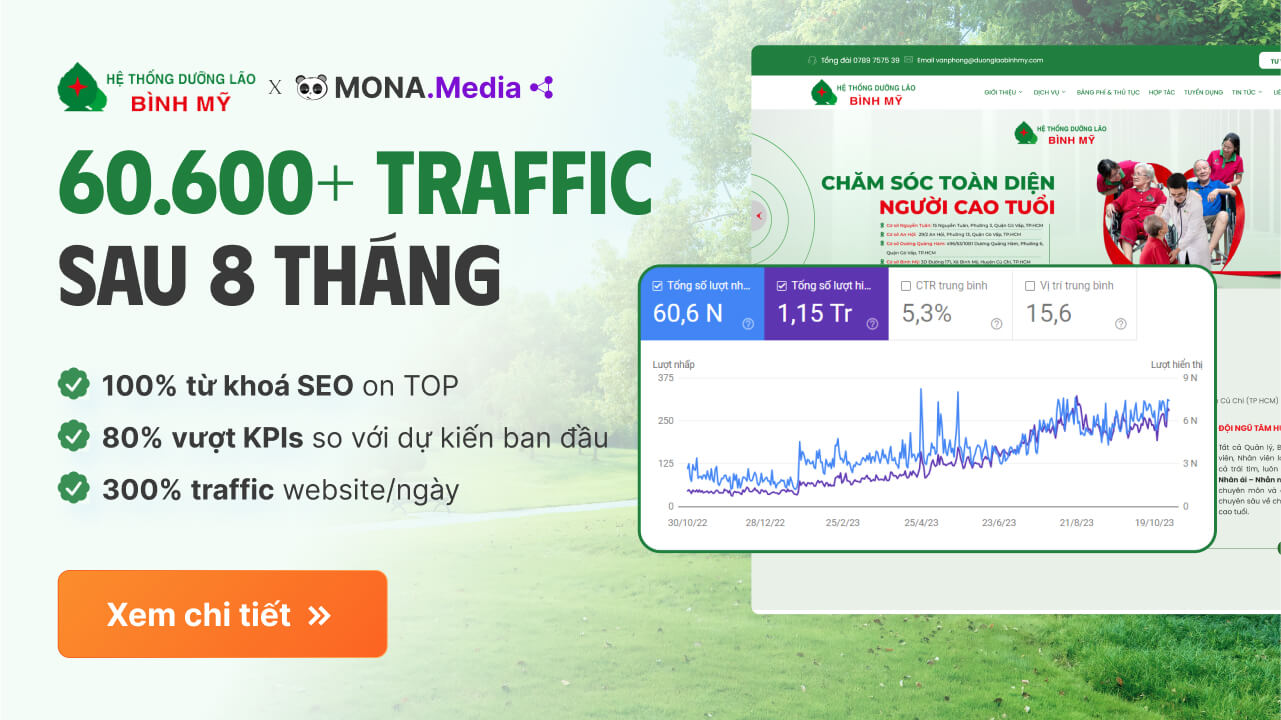
Read the SEO case study: Bình Mỹ nursing home network x MONA
Bình Mỹ is one of the most trusted nursing home networks in Ho Chi Minh City, providing professional care for the elderly and children with disabilities. MONA was proud to work with Bình Mỹ on a full SEO strategy, from on-page optimization and quality backlinks to applying the latest trend of SEO AI to boost visibility on AI Overview and AI-powered search engines.
After only 10 months, the Bình Mỹ website beat its targets, with 100% keywords ranking in Google's top results, wider brand reach and more potential customers.
Read the full case study to see how MONA turns strategy into real results.
Who should use Google Search Console
Google Search Console isn't only for SEO SEO specialists specialists. Anyone who runs, develops or manages a website should use it. It's a powerful tool for monitoring performance, handling issues and optimizing your site to show up better on Google.
Who should use Google Webmaster Tools:
Business owners: Even if you don't run the website yourself, you should know the basics of GSC so you can optimize your site, understand its features and make sure your business shows up well on Google.
SEO specialists and marketers: GSC tracks traffic and search rankings and supplies key data for technical optimization decisions, and it works well alongside Google Analytics, Google Trends and Google Ads.
Website administrators: You can quickly spot and fix server errors, page load problems and security issues such as hacks and malware, so changes and maintenance go smoothly without hurting search performance.
Web Developer: It helps you check and fix structured data errors, highlighting and other technical issues, making your site's code friendlier to Google.
How to set up Google Search Console quickly
To set up Google Webmaster Tools for your website, follow these steps:
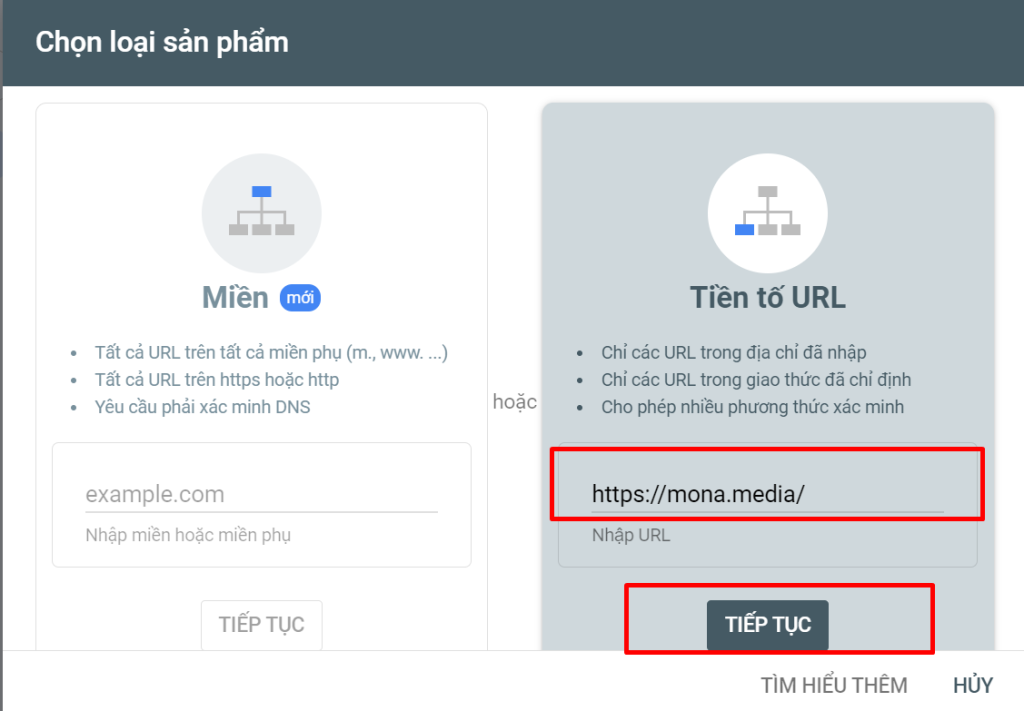
Step 2: Enter the website address you want to set up in Search Console
Next, the screen shows two ways to verify: “Domain” and “URL prefix”. To make verification easier in the new version of Google Search Console, choose URL prefix.
Also note that, for websites that already have SSL certificate installed, the exact site address to enter under “URL prefix” is “https://tenmiencuaban.com”
Step 3: Choose a verification method for your website
Before you can use Search Console's markup tools, you must verify that you are the site owner or an authorized representative. There are 5 ways to verify your website. Pick the simplest one that suits you.
First, go to Google webmaster Tools and choose “Settings“.
Next, click “Ownership verification”
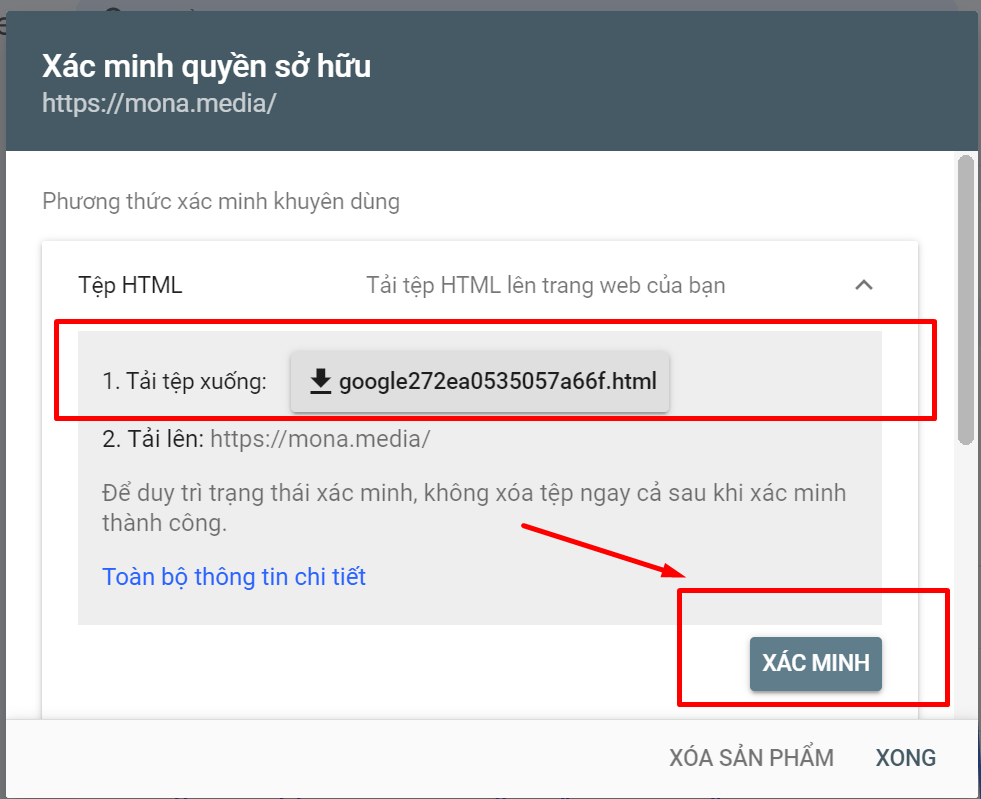
Method 1: Upload an HTML file
Google gives you an HTML file to upload to your website's root directory. This proves you have access to the website's server. Once the file is uploaded, click “Verify” in Google Webmaster Tools and you're in.
Method 2: Add an HTML tag
You can verify your site by adding the meta tag provided by Google Webmaster Tools to the <head> section of your home page, then clicking “Verified”.
Note: With some WordPress or CMS other themes, the Google Search Console verification code may be hidden or lost when you update the home page. To avoid losing access, revoke the verification for now until you switch to a more stable method such as an HTML file or DNS.
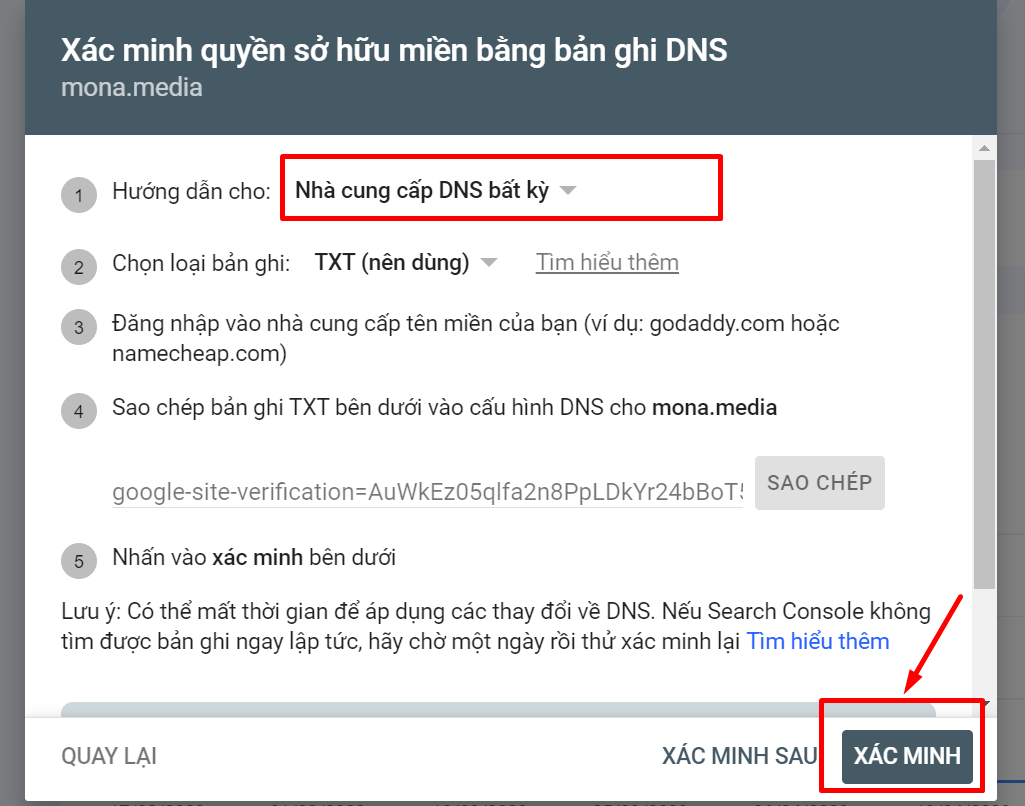
Method 3: Choose your domain provider
Next, click “Any DNS provider” in the drop-down list. Click your provider's name and Google Webmaster Tools will walk you through the verification steps.
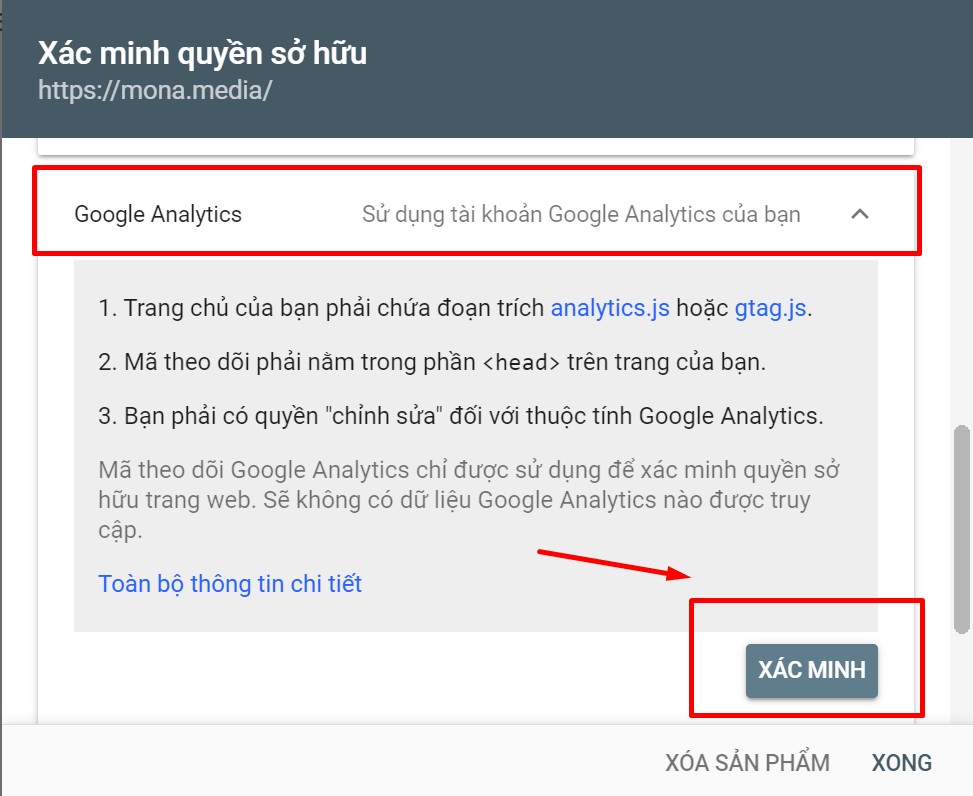
Method 4: Use Google Analytics
As the administrator of the Google Analytics account for your website, you can verify your site using the asynchronous tracking code placed at the top of the home page.
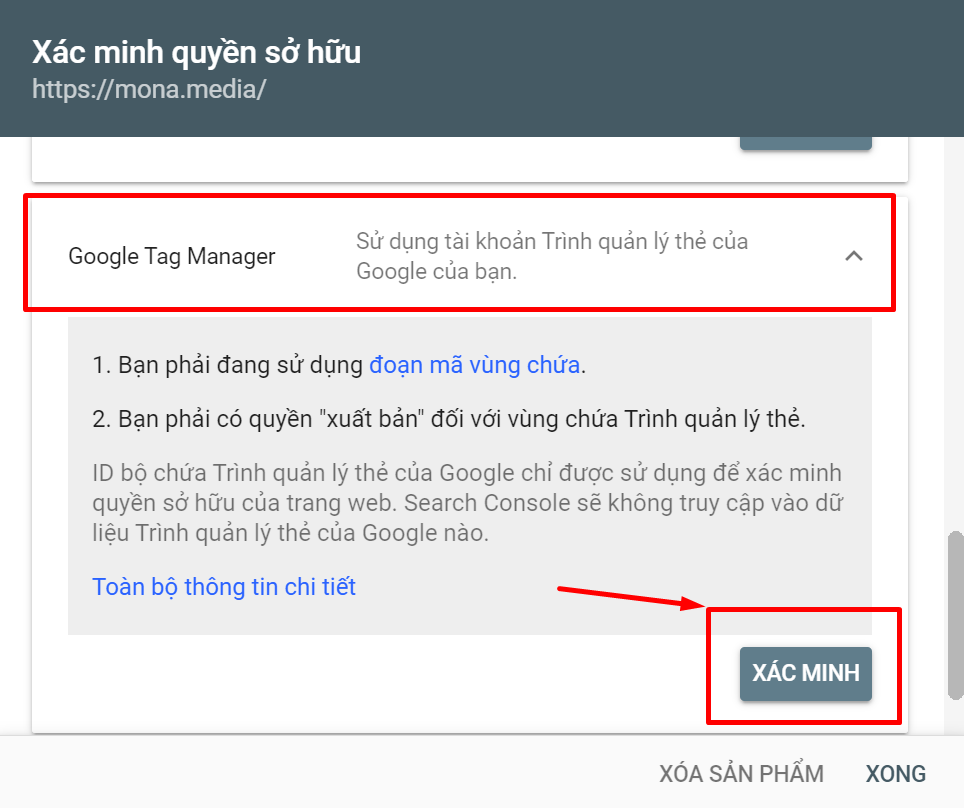
Method 5: Use Google Tag Manager
This Google tool lets you add and manage all the tracking tags for your website, including Google Webmaster Tool.
Step 4: Insert the HTML code into your website
There are 2 ways to insert the HTML code into your website:
Method 1: Go to your site and paste the HTML code straight into the header. This takes some coding knowledge, or you can ask your IT team to paste it in for you.
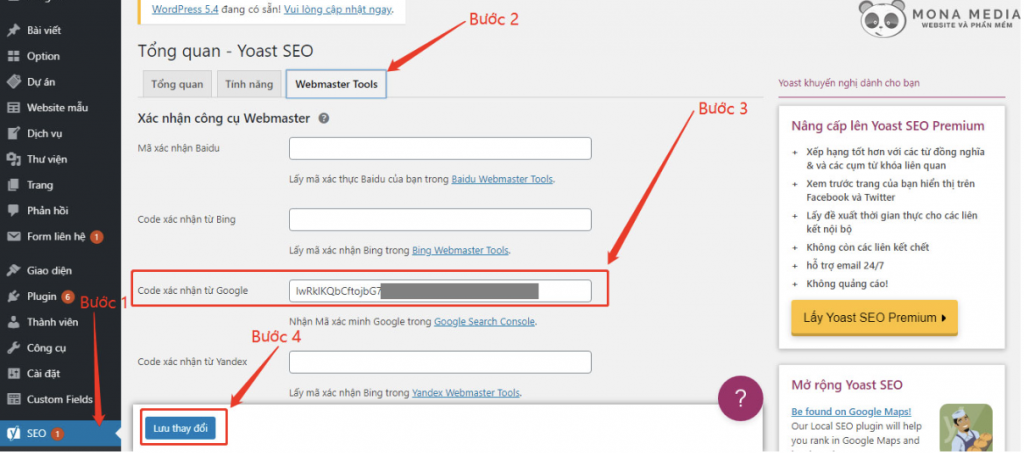
Method 2: Use the Plugin Yoast SEO for WordPress. This method is for sites that have a website built with WordPress. Just go to SEO ⮕ Webmaster Tools ⮕ Google verification code ⮕ Save changes.
Step 5: Verify your website
To verify your site, just go back to Google Search Console (as covered in Step 3 – Google verification methods) and click “Verified“.
If you follow the Google Search Console setup steps above, you've successfully set up Google Webmaster Tool for your website. To see the data Search Console collects on your site, it's best to come back later (a week or more).
A detailed guide to using Google Webmaster Tools
Setting up Google Webmaster Tool is only the start. To get the most out of it, you need to read and understand the data, and use it to adjust your plan full-scope SEO as needed. Below is a detailed guide to using GSC, updated for each feature.
Overview
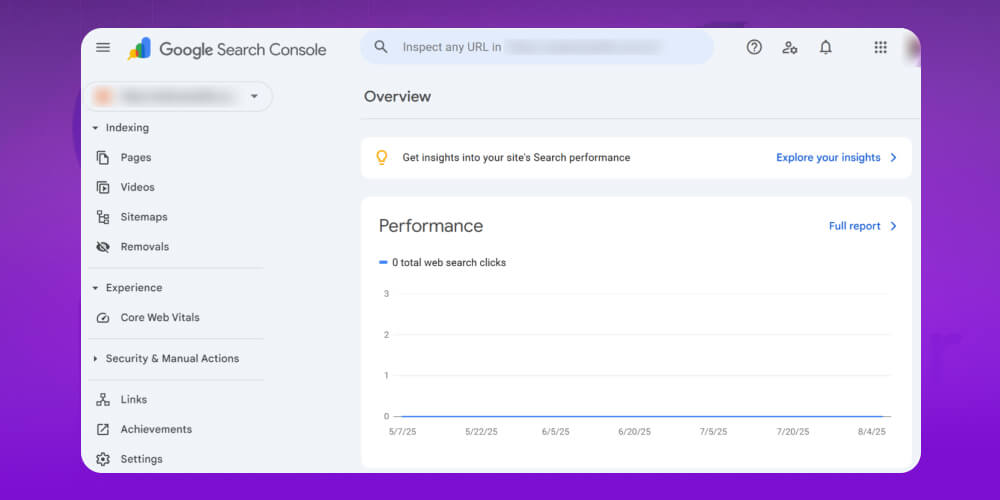
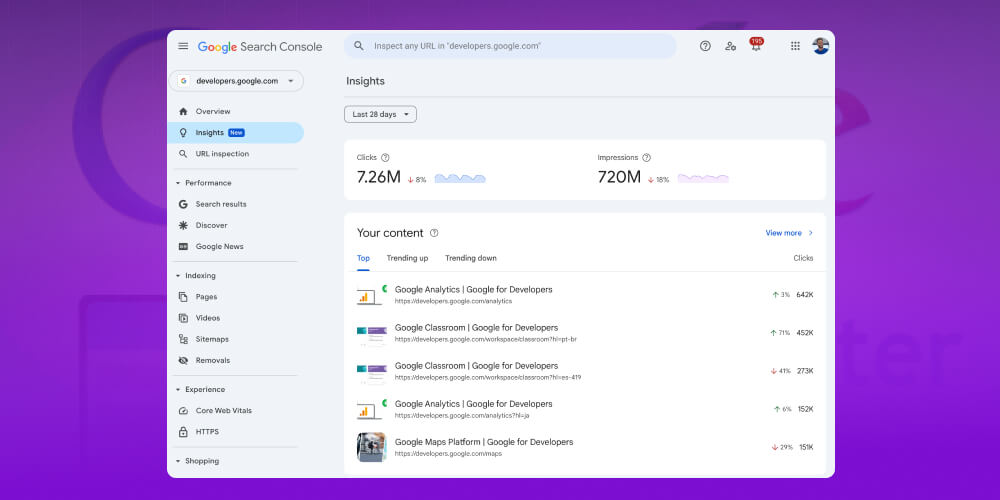
When you sign in to Google Search Console (GSC), you'll see an overview with three main parts: Search Console Insights, Performance and URL Inspection. Each part gives you key information to manage, track and optimize your website.
Search Console Insight
This is a new GSC feature that gives an overview of how users find and interact with your website.
With Search Console Insights, you can see:
Which articles perform best.
How your new content is doing.
How people reach your website.
What keywords they searched before landing on your site.
Which pages or articles refer visitors to you.
This feature is especially useful for judging how engaging your content is and adjusting it. SEO strategy, content marketing.
Performance
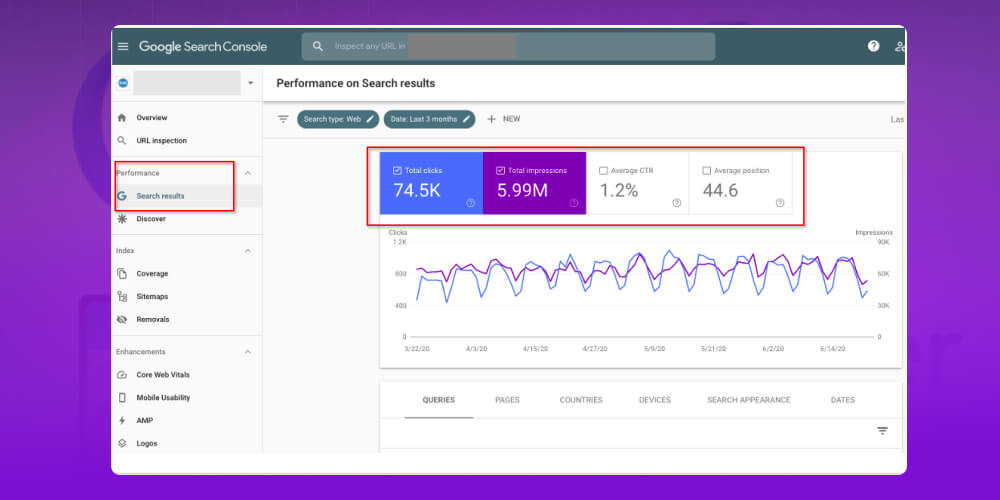
The Performance section gives detailed figures on your site's search results, including:
Total clicks: The number of times users clicked through to your website from Google Search.
Impressions: The number of times your website appeared in search results.
Average CTR: Clicks as a percentage of impressions.
Average position: The average ranking of your website in Google Search.
You can filter and view data over different time ranges, up to 16 months. This section also shows which search queries (keywords) brought clicks and impressions to your site.
URL Inspection
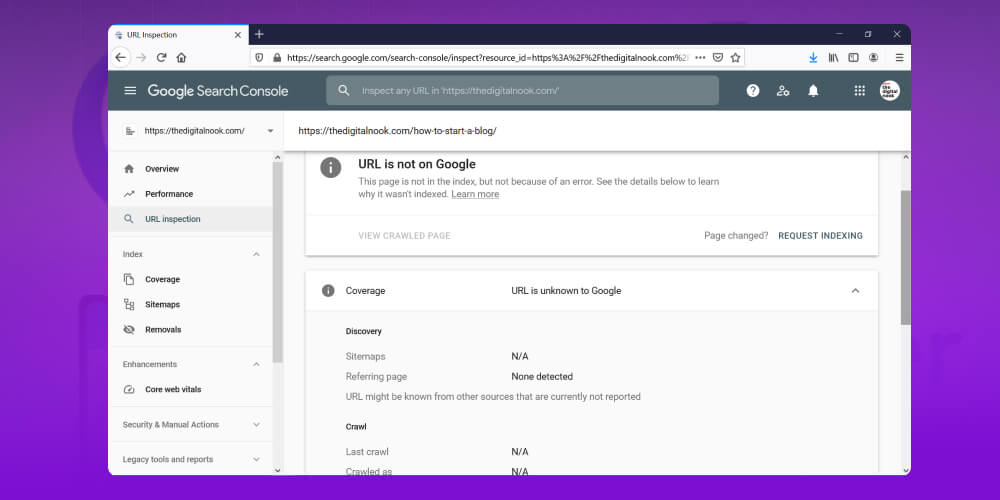
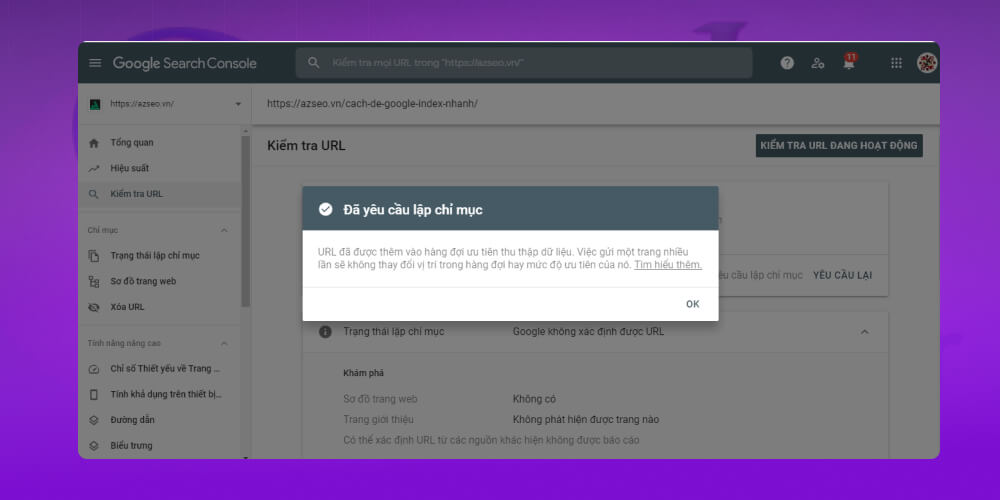
This feature lets you check the indexing status of a specific URL on your website:
If a URL isn't indexed yet, you can submit a request for Google to index it.
For new posts, using this feature speeds up indexing so your content shows up on Google sooner.
It's a handy trick for getting new content into search results faster.
Indexing
In Google Search Console, the Indexing section helps you manage your site's indexing status, submit sitemaps and remove URLs when needed. It has three key features: Indexing status, sitemaps and URL removal.
Indexing status
The indexing feature in this SEO tool tells you:
How many of your pages Google has indexed.
Which pages have errors or are excluded.
Warnings that are affecting indexing.
Note: Check this section regularly to catch errors early and fix them right away, so Google records all your content.
Sitemap
A sitemap is an .xml or .html file that provides information about your website, such as videos and images. Besides listing the pages on your site, it also gives details such as:
When each page was last updated.
How often each page changes.
How pages, videos or files relate to each other.
A sitemap helps Google understand your site's structure and index it more efficiently.
How to add a sitemap to Google Search Console:
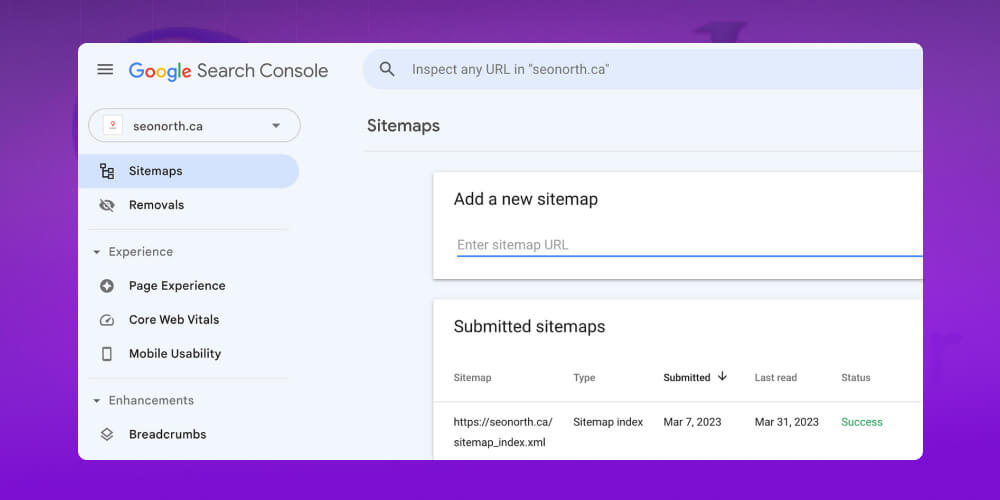
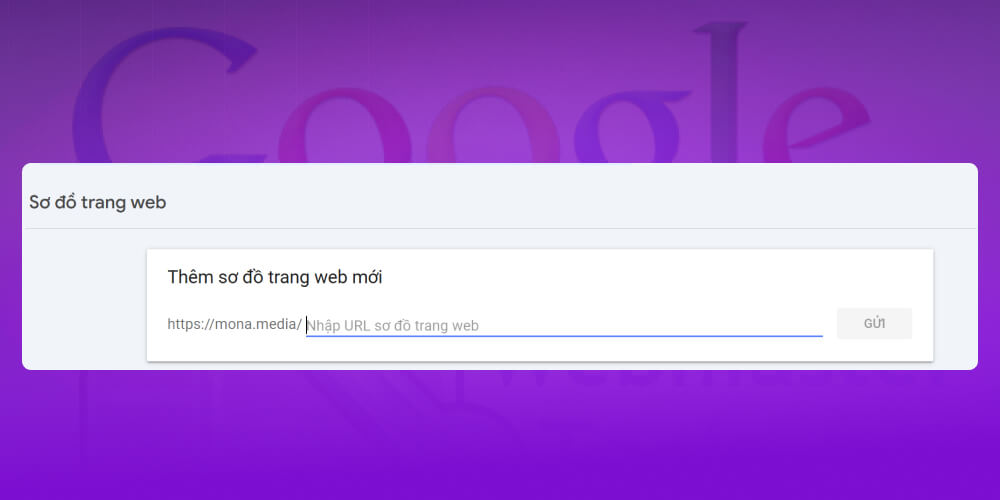
Step 1: After verifying your website, open Google Search Console and choose Indexing → Sitemaps.
Step 2: Copy your sitemap link (usually yourdomain.com/sitemap.xml), paste it into the “Add a new sitemap” box and click Submit.
After you submit, GSC shows a list of sitemaps with the submission date, last read date and a success status.
Removals
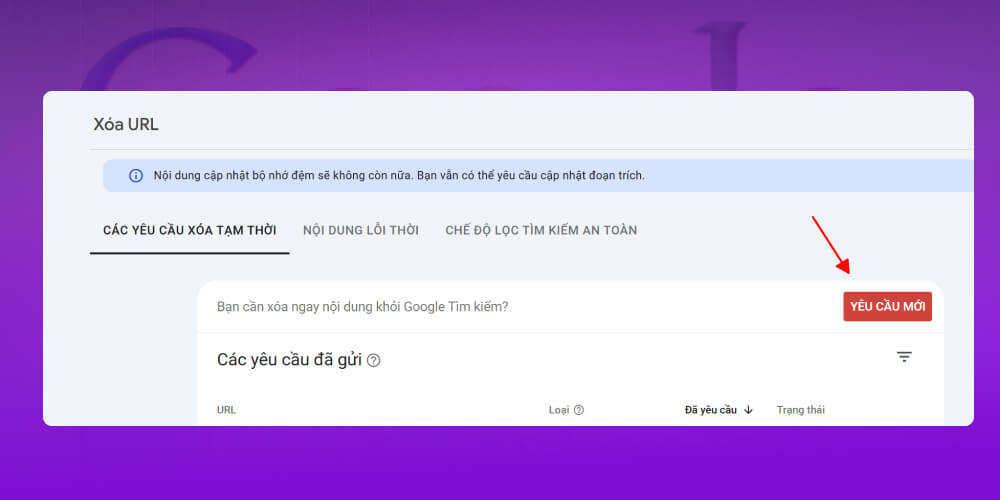
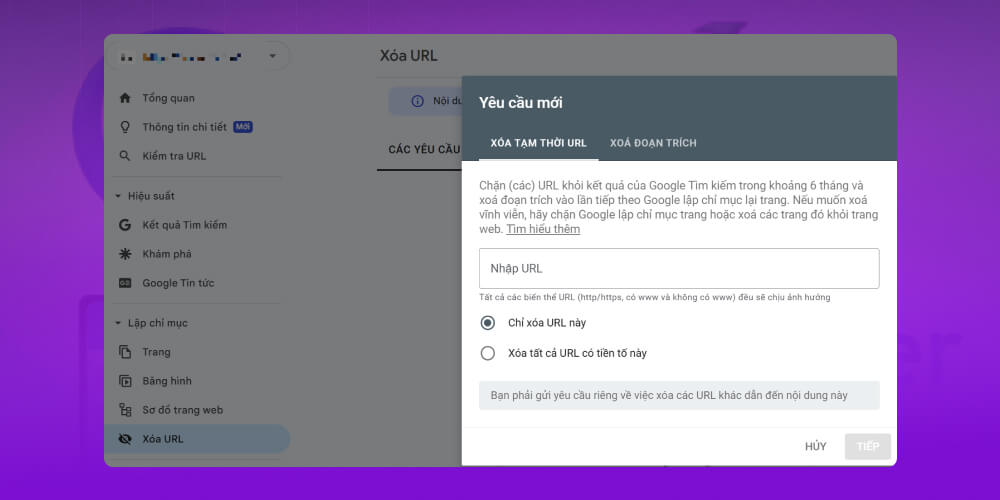
This feature lets you temporarily remove a URL from Google search results for up to 6 months.
How to temporarily remove a URL:
Step 1: Go to Google Search Console → Removals → New request.
Step 2: Paste the URL you want to remove. Choose Remove this URL only or Remove all URLs with this prefix → Next.
Note: To remove a page permanently, delete it from your website and add a noindex meta tag so Google doesn't index it again.
Experience in GSC
The Experience section in Google Search Console helps you check and improve the user experience on your website, especially load speed, mobile display and advanced technical factors. Here is a detailed guide to each item.
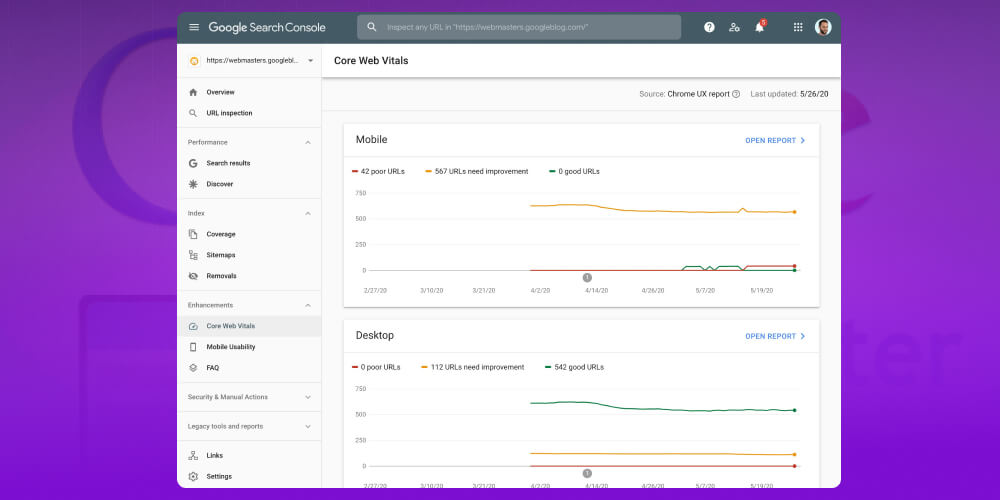
Core Web Vitals
This item shows whether your website meets the user experience standards Google evaluates. GSC reports related metrics here, such as load speed, visual stability and page interactivity.
If it finds errors, fixing them can be fairly complex and takes programming knowledge. You should:
Download the error report from GSC.
Send the report, or a guide to fixing slow speed, to your developers.
Ask them to optimize the source code, images, hosting and so on to improve speed.
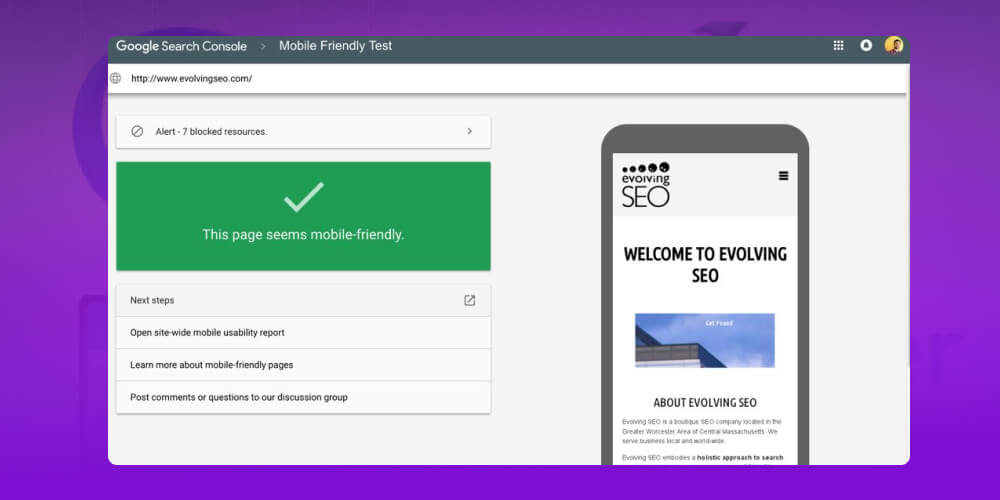
Mobile Usability
This feature tells site administrators about problems that make the website display or work poorly on phones.
Common errors include:
Content wider than the screen.
Text too small to read.
Buttons or clickable elements too close together.
Incompatible plugins.
Viewport not set, or set to the wrong device width.
If your website focuses only on content and ignores the technical side, the user experience suffers and the bounce rate rises, so your search rankings may “drop” off Google's first page. That doesn't just make organic traffic fall sharply, it also hits your revenue directly.
Website optimization can't rely on tools like Google Search Console alone. You need to understand the factors that affect web performance so you can plan an SEO strategy that is effective and lasts.
With more than 10 years years of experience and 2,000+ full-scope SEO projects across many industries, MONA is ready to help you carry out SEO services from on-page optimization and off-page building to technical SEO. We also optimize your website for AI-driven SEO trends to improve its rankings in AI Overviews, making sure your SEO strategy stays tied to your business goals, with clear KPIs and transparent reporting at each stage.
Please Contact MONA today to start optimizing your website, improving the user experience and reaching millions of potential customers.
Advanced features in Google Search Console
Besides the features above, GSC has several notable advanced features:
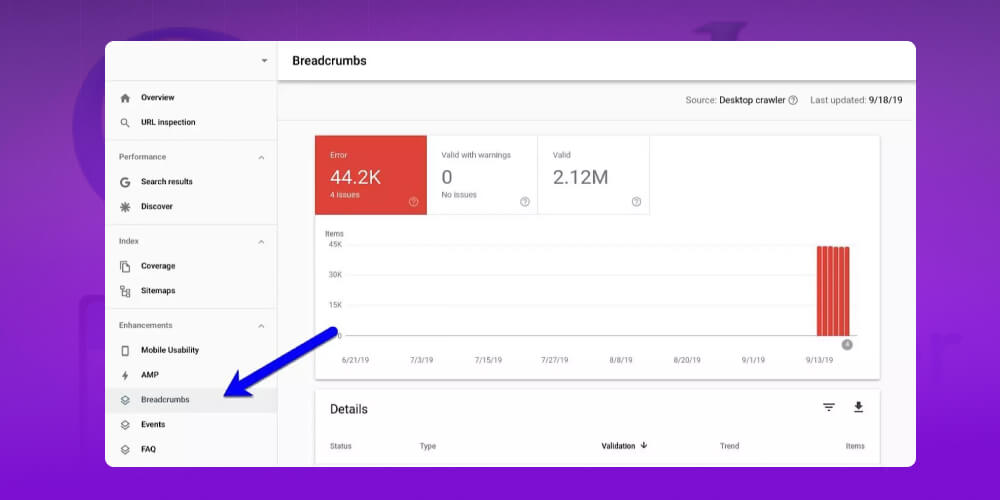
Breadcrumbs
If Google Webmaster Tools shows errors or warnings about your breadcrumb hierarchy, fixing them helps you optimize the site for a smoother user experience.
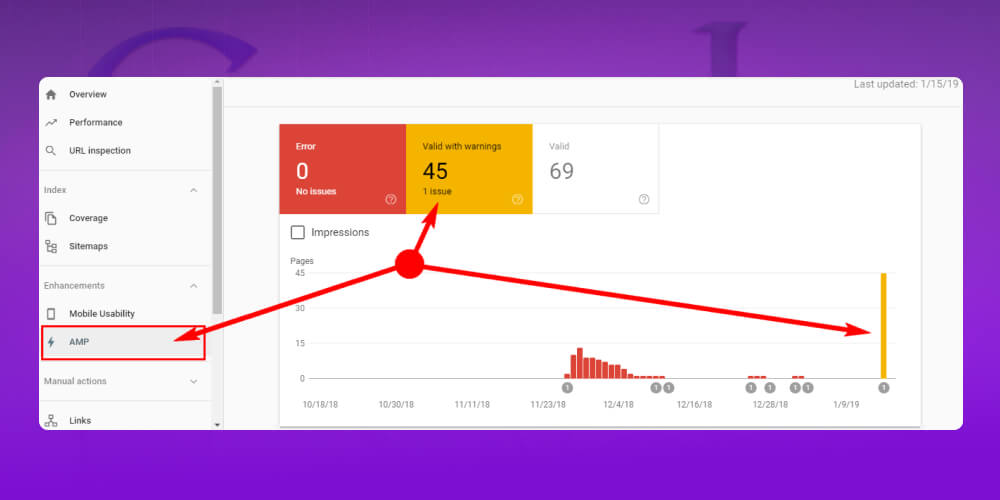
AMP (Accelerated Mobile Pages)
With this feature, Google Search Console reports AMP pages that have errors, with the cause and a suggested fix, so you can optimize your site and keep your AMP pages running well.
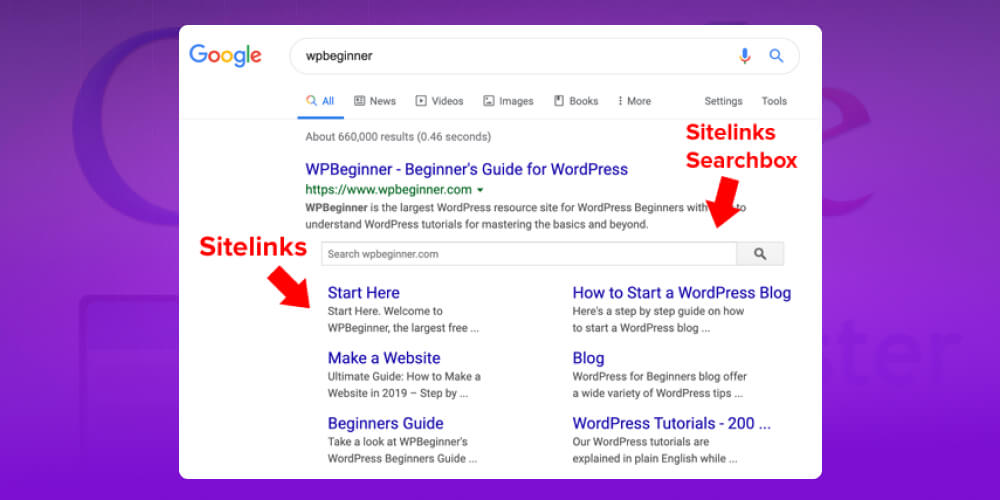
Sitelinks Searchbox
The Sitelinks The Searchbox in Google Webmaster Tool lets users search your website's content directly from Google results, without visiting your home page first.
This saves users time and helps them find information faster, which is especially useful for sites with a lot of content or a complex structure.
To get Google to show this search box, just add structured data to your website so Google recognizes it and displays the search box right under your listing in search results.
Structured data could not be parsed
“Structured data could not be parsed” means Google Search Console found structured data on your website but hit a serious syntax error, so Google can't read or understand it.
With this error, Google can't tell what type of data you want to provide, such as jobs, events or other types. This can affect your site's ability to show rich results in search.
Advanced Search Console usage
To use Google Search Console at an advanced level, take these steps:
Check indexing status with the Coverage feature
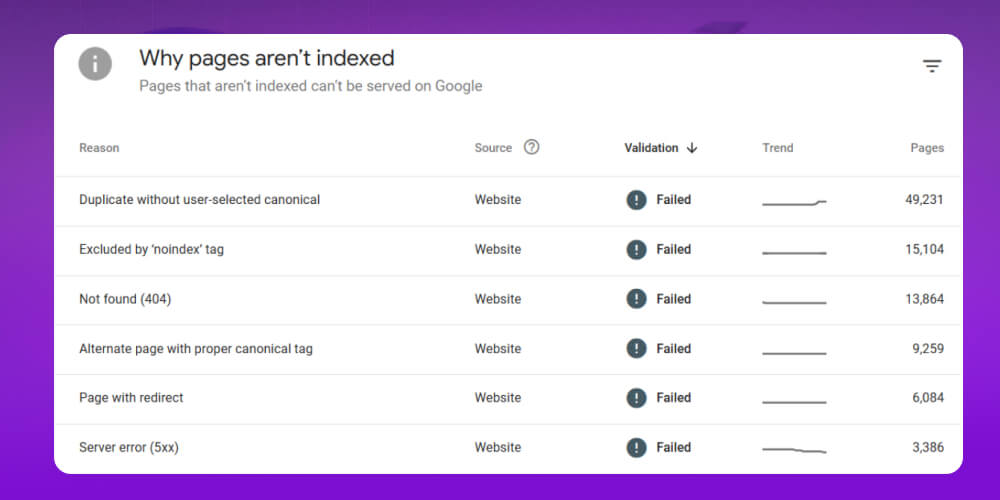
The Coverage feature in Google Search Console helps you track how Google has crawled and indexed the pages on your website.
For details, click each status (such as error, warning, valid but not indexed and so on) to see the matching list of URLs. In the “Details” section, Google explains clearly why a page isn't indexed.
Example: , if there are errors about crawling or 5xx server errors, you can quickly identify the technical issue affecting indexing.
Other common causes also show up often in the Coverage report:
URLs marked noindex, meaning the page has a tag telling Google not to index it.
URLs blocked by the robots.txt file, so Google can't access them to crawl.
Monitor the Coverage section regularly and fix errors promptly and more of your pages will be indexed by Google, which raises your chances of showing up in search results.
Grow traffic with Google Webmaster Tool
One of the most effective ways to grow organic traffic is to use the Performance report in Google Search Console. Here you see impressions and clicks, and also discover keywords, including ones you never optimized for, that are getting your pages onto Google.
For each URL, a keyword with a high CTR means users are clicking a lot, a good sign that your page ranks high. Keep it up and strengthen the content to hold your ranking.
On the other hand, if a keyword gets many impressions but few or no clicks, your page probably ranks low or the title isn't compelling. Optimize the content and meta, or redirect the keyword to a better-suited article, to improve both CTR and ranking.
Track internal links and backlinks with Google Search Console
Google Search Console doesn't only track search performance. It's also a useful tool for checking both internal links and backlinks, two factors that shape your site structure and SEO rankings.
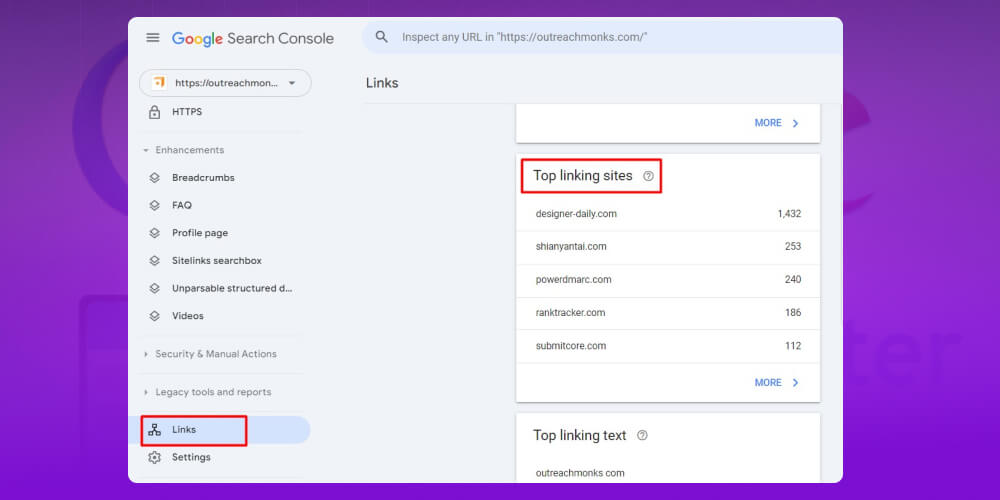
In the “Links” section, you can easily see which pages on your site are linked to from the most other pages. These are your top internal links, showing which pages matter most in your content structure. Click any URL to see exactly which pages point to it, then adjust your link layout to help Google discover your content.
GSC also shows backlink data (external links), which are links from other websites to your pages. You can see the most linked pages and the number of referring domains.
You can also see which anchor texts are used most. This helps you judge how natural your backlinks are and spot signs of spam or keyword overuse.
Whether you're new to SEO or running projects for clients, you should know how to read the key SEO metrics. Continuing the “SEO from Zero” video series, Huy walks you through each step of tracking your site's metrics. Watch the video and follow along.
Frequently asked questions about Google Webmaster Tools
1. What is Google Search Console?
Google Search Console (GSC) is a free Google tool that lets website owners track, monitor and optimize their sites in the search engine. Using GSC helps users work more effectively and drive more engagement, and makes sure the site's content is shown fully and accurately in Google results. The main features of GSC are:
Track website performance and search keywords on Google
Verify your website and configure network settings
Find and fix errors on your website
See the links pointing to your website
Submit a sitemap so Google can index your website better
Get notified about security issues and errors on your website
2. What is Google indexing?
Google indexing is the process of building a structured database from the web pages Google finds. Its purpose is to let the tools keep tracking and updating Google's index, so search results show relevant, high-quality pages to users.
That's why it's important to optimize your website content to meet Google's standards. Only then can Google indexing understand your content and rank your pages higher in search results.
3. The role of Google Webmaster Tool in SEO
Google Search Console plays an important role in website SEO optimization. It gives you information about site traffic and other SEO metrics. It also lets you learn about the links to your website from other sites on the Internet. By understanding these links, you can find ways to increase the number of links to your site and improve its SEO factors.
This article, MONA Media has covered all the knowledge What is Google Webmaster Tool and how to register, set up and use toolsGoogle Search Console effectively. Website administrators should know at least the guidance above to use Google Webmaster Tool well and get the best results from optimizing their sites.
Frequently asked questions about Google Webmaster Tool
What is Google Webmaster Tool?
Google Search Console (formerly Google Webmaster Tool) is one of Google's free tools, and an extremely important one for tracking your website's performance in search results.
About The MONA Group: Founded in 2016, with more than 200 staff, MONA has delivered 14,000+ projects with an 85% client retention rate. MONA provides website design, full-scope SEO, custom software and AI automation solutions for businesses. Consulting hotline: 1900 636 648. Explore MONA SEO services and AI tools at work.
MONA has a podcast: listen instead of readingEpisodes on AI, automation & SEO for Vietnamese businesses
Founder of The MONA, who built a services company of 200+ staff with 14,000+ projects delivered. Khánh Hùng shares how he thinks about building systems that run themselves, automating a business, and the real lessons from delivering projects at MONA.
Own a website with a beautiful, 100% exclusive design and a lifetime warranty, with the ability
to expand features flexibly as your business grows, starting today!




 MONA OS 2.0









































 Free AI courses
 AI tools at work
 Tự động hoá doanh nghiệp
 Cẩm nang SEO
 Digital Marketing
 Kinh nghiệm thiết kế website
 Hạ Tầng Server
 Giáo dục



 VI
VI
 EN
EN