
 MONA OS 2.0


 Tự động hoá doanh nghiệp
 Cẩm nang SEO
 Digital Marketing
 Kinh nghiệm thiết kế website
 Hạ Tầng Server
 Giáo dục


 VI
VI
 EN
EN
















Message us on
Zalo Official


 Products

 ProductsProducts








 Website designLooks good and convinces your customers.
SEO servicesBrings in customers searching for exactly what you sell.
Website designLooks good and convinces your customers.
SEO servicesBrings in customers searching for exactly what you sell.
 Tư vấn digital marketingKéo khách từ nhiều kênh, đo bằng số thật.
Corporate video productionVideos introducing your company, factory and team.
Tư vấn digital marketingKéo khách từ nhiều kênh, đo bằng số thật.
Corporate video productionVideos introducing your company, factory and team.
 NewAI video productionCompany story films made with AI.
 Custom software developmentCRM, ERP and HRM built for your business.
 Viết AI Agent theo yêu cầuĐặt riêng một trợ lý AI cho đúng việc của mình.
 Tư vấn chuyển đổi AIĐưa AI vào vận hành của cả công ty.
NewMONA LMSManagement for centers and schools.
MONA SkillHubInternal training for company staff.
Tư vấn chuyển đổi AIĐưa AI vào vận hành của cả công ty.
NewMONA LMSManagement for centers and schools.
MONA SkillHubInternal training for company staff.
 NHTQ systemEnd-to-end China–Vietnam shipping operations.
MONA JMSManagement for gold, diamond and pawn shops.
NHTQ systemEnd-to-end China–Vietnam shipping operations.
MONA JMSManagement for gold, diamond and pawn shops.
 MONA E-LearningA website with every feature you need to sell courses.
 Course on selling online coursesMore than 30 free lessons on selling courses automatically.
 MONA Cloudmonacloud.vnServers to get your apps and websites running.
 MONA Basemonabase.vnPostgres database, sign-in and file storage.
 MONA Mailmonamail.vnSend OTP, order and invoice emails from your software.
 MONA Paymonapay.vnReceive bank transfers via VietQR, with payment alerts sent to your software.
 MONA eInvoiceComing soonIssue e-invoices that meet tax standards.
Gấu CườiTrả lời khách 24/7 trên web, Fanpage, Zalo và thu lead cho sale.
MONA eInvoiceComing soonIssue e-invoices that meet tax standards.
Gấu CườiTrả lời khách 24/7 trên web, Fanpage, Zalo và thu lead cho sale.
 Gấu TeleSalesGọi điện tư vấn, chăm khách như tổng đài viên thật.
Dê CườiTư vấn và chốt đơn cho shop ngay trong khung chat.
Gấu WebmasterNhắn nhóm Zalo là website được sửa xong.
Gấu TeleSalesGọi điện tư vấn, chăm khách như tổng đài viên thật.
Dê CườiTư vấn và chốt đơn cho shop ngay trong khung chat.
Gấu WebmasterNhắn nhóm Zalo là website được sửa xong.
 Gấu Pháp ChếSoạn hợp đồng, rà điều khoản trong vài phút.
 Gấu Báo GiáLên báo giá đúng mẫu và gửi khách ngay.
 AI chăm sóc khách hàngTheo dõi và giữ chân khách hàng cũ.
 Gấu Tuyển DụngLọc hồ sơ, hẹn lịch, phỏng vấn ứng viên.
 AI
Gấu Cười MONA ĐANG TỰ XÀITrả lời khách 24/7 trên website, Zalo OA, Messenger và thu lead về cho sale.
Dê CườiChốt đơn bán lẻ và sàn: Shopee, TikTok Shop, web. Chăm cả khách sỉ, đại lý.
Gấu WebmasterCập nhật nội dung, tối ưu SEO website mỗi ngày.
Gấu TeleSalesGọi điện tư vấn, chăm khách như tổng đài viên thật.
Gấu Tuyển DụngLọc hồ sơ, hẹn lịch, phỏng vấn ứng viên tự động.
AI chăm sóc khách hàngGiữ khách cũ, cứu lead đã rớt cho phòng kinh doanh.
Gấu Pháp ChếSoạn hợp đồng, rà điều khoản trong vài phút.
Gấu Báo GiáLên báo giá đúng mẫu, gửi khách ngay khi có yêu cầu.
AI
Gấu Cười MONA ĐANG TỰ XÀITrả lời khách 24/7 trên website, Zalo OA, Messenger và thu lead về cho sale.
Dê CườiChốt đơn bán lẻ và sàn: Shopee, TikTok Shop, web. Chăm cả khách sỉ, đại lý.
Gấu WebmasterCập nhật nội dung, tối ưu SEO website mỗi ngày.
Gấu TeleSalesGọi điện tư vấn, chăm khách như tổng đài viên thật.
Gấu Tuyển DụngLọc hồ sơ, hẹn lịch, phỏng vấn ứng viên tự động.
AI chăm sóc khách hàngGiữ khách cũ, cứu lead đã rớt cho phòng kinh doanh.
Gấu Pháp ChếSoạn hợp đồng, rà điều khoản trong vài phút.
Gấu Báo GiáLên báo giá đúng mẫu, gửi khách ngay khi có yêu cầu.
 Chuyển đổi AI toàn phầnGiải pháp tổng cho doanh nghiệp, 3 lớp triển khai.
 Viết AI Agent theo yêu cầuĐặt riêng một con AI gánh đúng nghiệp vụ của bạn.
 Custom softwareCRM, ERP and HRM with built-in AI automation.
 SEO & AEO thời đại AIĐược Google lẫn AI trích dẫn, không chỉ xếp hạng.
 Kiến thức AI cho doanh nghiệpBài phân tích, hướng dẫn ứng dụng AI vào vận hành.
 Free AI courses
 AI tools at work
18 March, 2023
If you manage a website or do SEO, you have probably heard of Google Analytics. It is a free tool from Google that shows you the customer journey clearly: where visitors come from, what they do on the website and why they leave. With that data you can optimise content, improve the experience and, most importantly, turn traffic into revenue. To understand this SEO tool better, MONA Media walks you through what Google Analytics is and how to use GA effectively in this article.
Google Analytics (GA) is a free tool developed by Google that lets administrators track and analyse all activity on a website or app. With GA you know how many people visit, where they come from, which pages they view longest and when they leave.
The tool even provides data on users' age, gender and the devices they use to visit. This information is extremely useful for understanding user behaviour, so you can optimise content, adjust marketing campaigns and improve the experience, turning traffic into real customers.
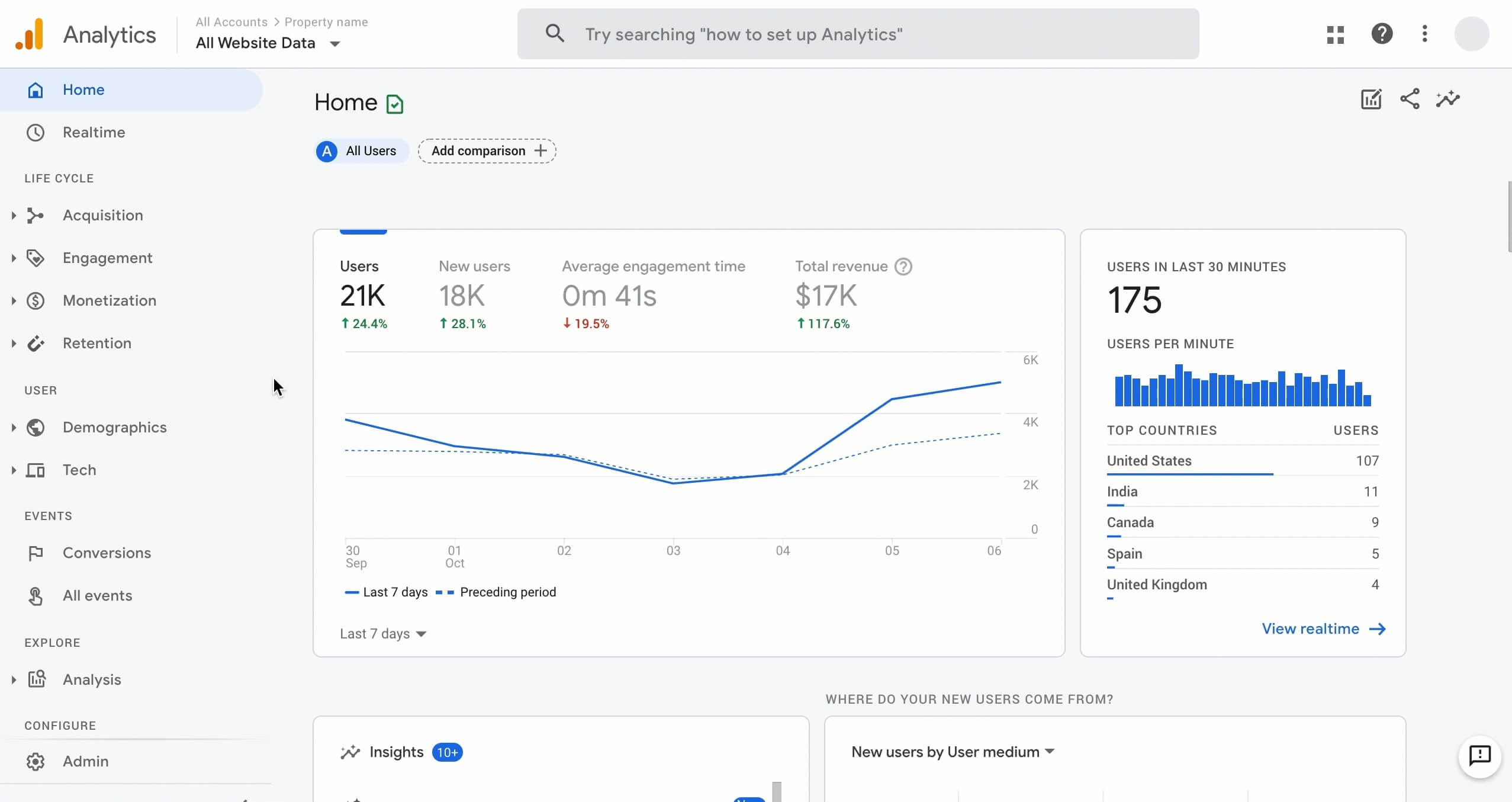
The Google Analytics interface
Google Analytics 4 (GA4) is the latest version of Google Analytics, officially launched on 14/10/2020 to replace Universal Analytics. While the old version mainly relied on page views, GA4 focuses on event analysis, which tracks user behaviour and conversion journeys in more detail. It is seen as a big step forward, with many modern features supporting SEO, marketing and online business performance.
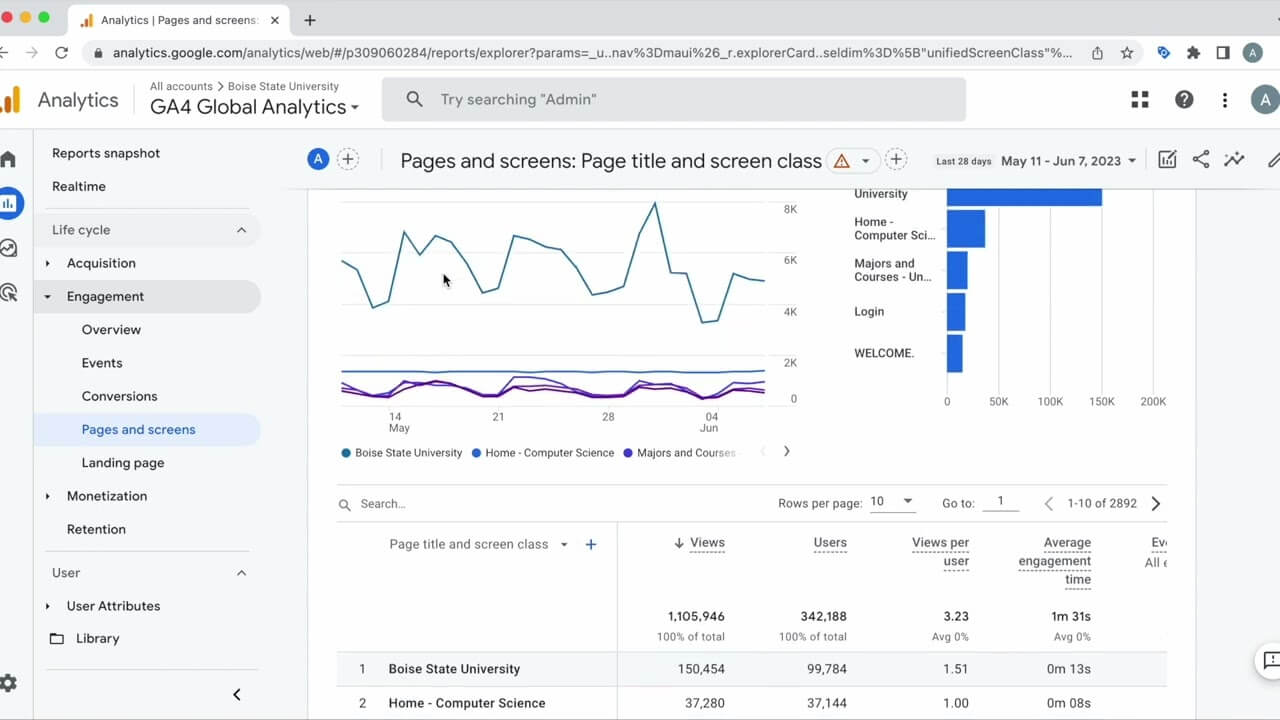
The Google Analytics 4 interface
GA4 highlights:
Predictive analysis of user behaviour using machine learning and AI.
Custom, flexible reports built to your needs.
Track up to 300 events and 30 conversions.
Customise and extend automated reports.
Detect anomalies in behaviour and traffic.
Detailed audience segmentation for more accurate remarketing.
Deep integration with Google Ads, for more effective ads.
Tracking without code, with low-latency data updates.
Many advanced data control options, keeping data safe and transparent.
Imagine each website visitor as a customer walking into a shop. As soon as they come in, Google Analytics “hands” them a small tracking card (a cookie) to remember things like which door they came in through, which counter they stopped at, how long they stayed and where they finally left.
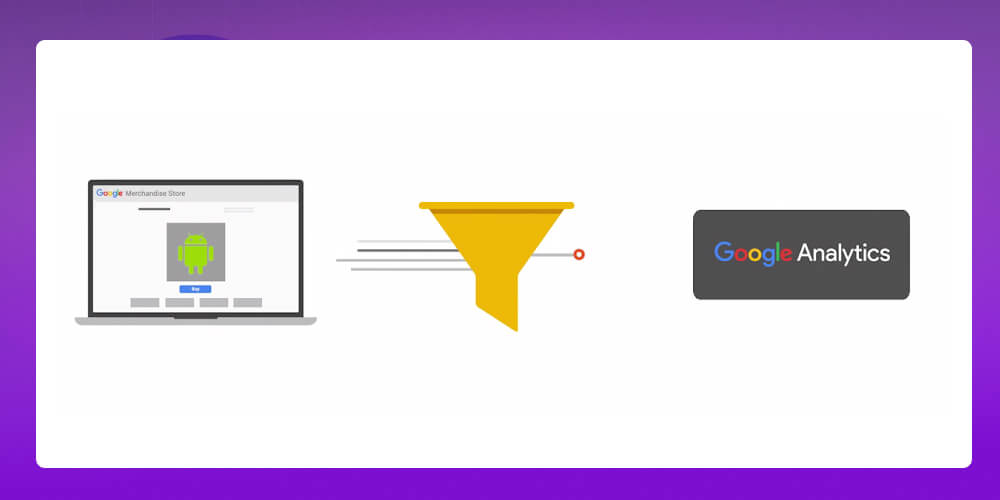
All that information is sent to Google's system, where the data is compiled into visual reports. So you know which channels bring visitors to your website, which pages interest them most and where they drop off, giving you a basis to improve and increase conversions.
In the digital era, data is the most important competitive weapon for business growth. Statistics show that 89,66% of Internet users search for information on Google, and Google Analytics is the free tool that shows you where they come from, what they care about and why they leave. However, to get the most out of this data, you need a an SEO-ready websitewith an impressive design and its own identity, strong enough to attract and keep customers.

MONA has worked on more than 7.000+ website design projects, delivering solutions that are not only good-looking but also fully optimised for SEO, data and business results. If you want your brand to stand out and break through online, contact MONA for advice on web design professional SEO-ready design.
Google Analytics gives businesses a full view of website traffic, from customer sources and behaviour to how long they stay. Beyond measurement, the tool also analyses data and suggests optimisations, from improving user experience to adjusting how content is delivered to better match search needs.
Tracking and understanding data in real time gives businesses an accurate view of their online business. That gives you a solid basis for decisions and for building effective marketing and advertising strategies instead of relying on gut feeling.
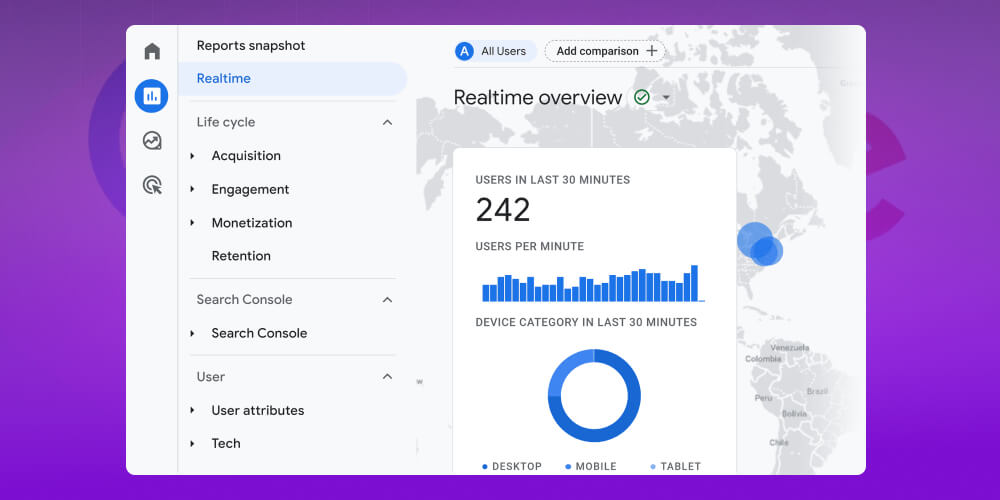
With Google Analytics, you can track data in real time and see clearly how data moves on your website, for example:
Whether a website's numbers are good depends heavily on its users. For new businesses, traffic is usually still low, and this is when SEO web on top services are the key solution to get the website onto Google's top page, win more customers and improve sales.
CINESTAR is a cinema chain serving more than 8 million visitors a year and still expanding. To keep up with digital trends and give customers a better experience, CINESTAR worked with MONA to design a modern cinema website with a strong brand identity.
The project not only helped CINESTAR raise awareness and expand its reach but also improved the experience for both customers and the operations team, contributing to strong sales growth.

Explore the website design case study CINESTAR x MONA to see what we did to turn the website into a powerful tool for this cinema brand.
Beyond measuring traffic, Google Analytics (GA) gives businesses unique insights that help them understand customers and set more accurate strategies. This data is the basis for optimising content, improving user experience and increasing conversion rates.
Some notable insights Google Analytics provides:
Customer demographics: age, gender, location, interests.
Access technology: the devices, platforms and operating systems customers usually use.
User behaviour on the website: visit duration, most viewed pages, bounce rate.
Traffic sources: visitors coming from Google search, social networks, email or direct.
Interaction journey: track each step customers take from entering the website to converting.
Conversion potential: analyse the customer groups most likely to buy.
Transaction value: identify customer groups that usually buy high-value products/services.
Repeat purchase behaviour: know which customers visit several times before deciding to buy, so you can run remarketing or send suitable promotions.
With these insights, businesses can analyse each customer group in more depth, predict consumer trends and build marketing or content plans “tailored” to each audience, improving results and keeping costs down.
To know whether a marketing campaign really works, businesses need concrete data rather than gut feeling. Google Analytics tracks everything from traffic sources and user behaviour to conversion performance, giving you a more accurate view to optimise campaigns.
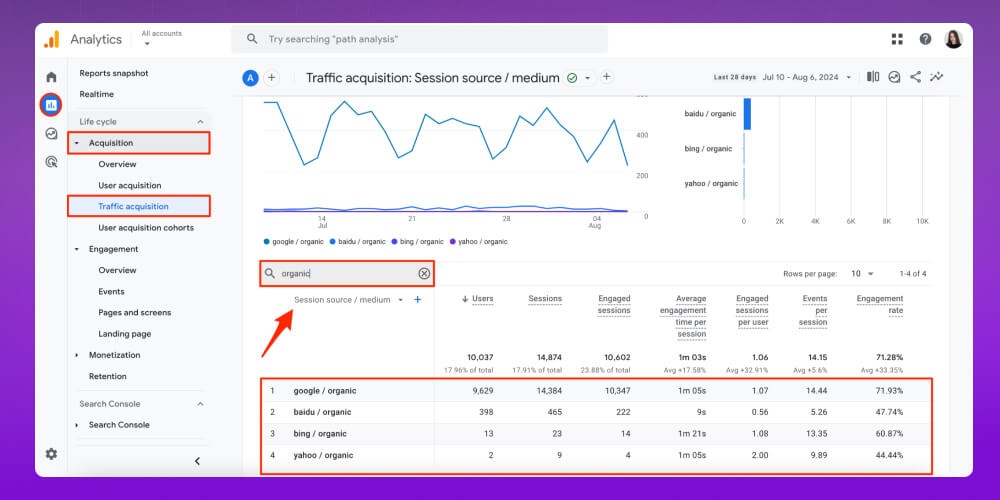
Some key benefits of Google Analytics in marketing analysis:
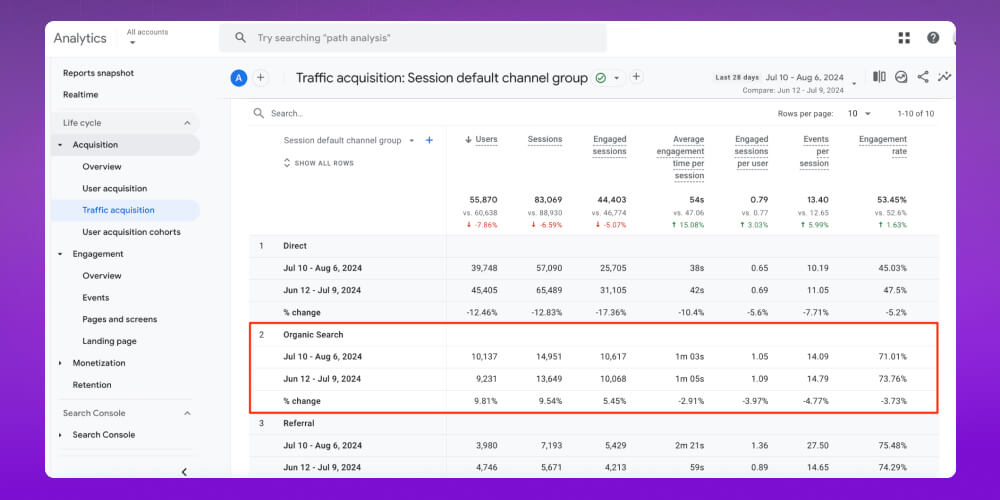
Detailed tracking of traffic from many channels: organic search, paid ads, social networks, email, referral…
Measuring important metrics: conversion rate, bounce rate, average time on page, cost per conversion.
Adding UTM tags to analyse the performance of each campaign and each specific traffic source.
Direct connection with Google Ads to measure ROI accurately and adjust ad budgets sensibly.
A clear picture of your target customers and their interaction behaviour at each stage of the conversion funnel.
Comparing performance across marketing channels to allocate budget optimally.
Making decisions based on real data to increase conversion rates and revenue.
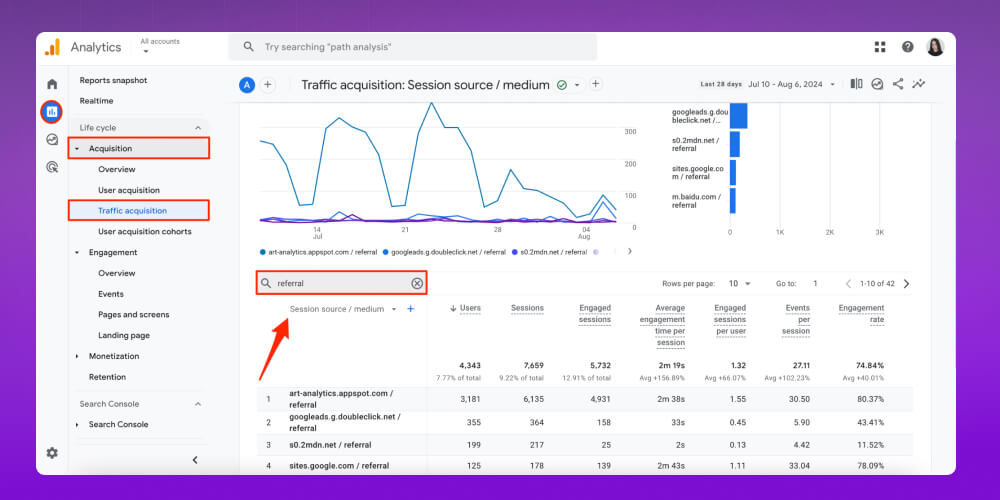
Google Analytics provides detailed data on traffic, user behaviour and search keywords, helping businesses assess the performance of a structured full-scope and find ways to improve rankings. The tool also shows how long users stay on a page, which content gets the most interest and how they move around the website, helping marketers optimise content to match customer needs.
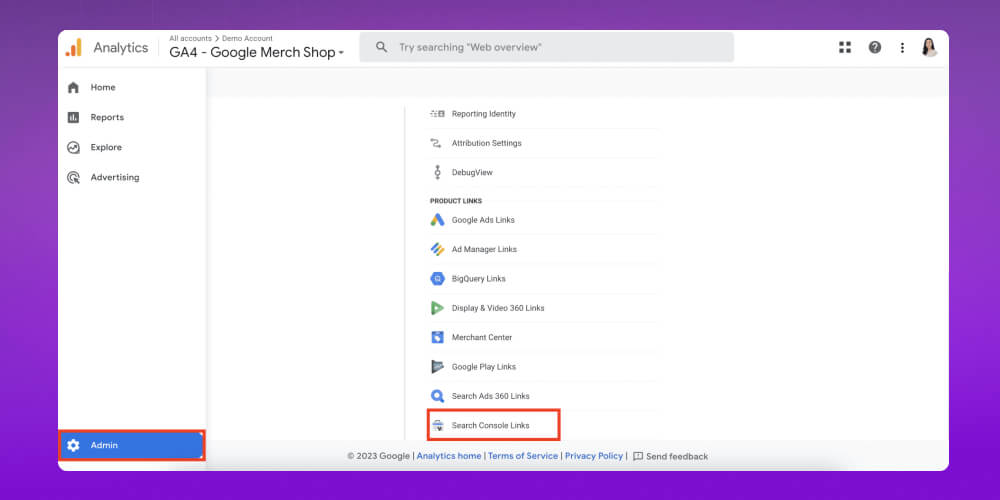
Combined with Google Search Console and Google Ads, GA helps measure SEO and content marketing performance. In particular, with AI and machine learning, GA helps predict trends and measure performance SEO AI and to improve ranking in Google AI Overview, raising click-through rates and widening brand reach.
One of the strongest features of Google Analytics is goal and conversion tracking. Businesses can set custom goals such as purchases, sign-ups, phone calls, document downloads or any important action on a website or app.
All this data is recorded and shown in reports, so you can accurately assess the performance of each marketing campaign and business activity.
Tracking goals and conversions with GA brings clear benefits such as:
Understanding user behaviour at each stage of the sales funnel.
Identifying strengths and weaknesses in the process to improve the experience and raise conversion rates.
Measurement ROI of ad campaigns by connecting conversion data to Google Ads.
Adjusting budgets and marketing strategy based on real data instead of gut feeling.
Integrated with Google Tag Manager for more detailed tracking, including conversions from phone calls or actions outside the website.
Providing a reliable data basis for fast, accurate business decisions.
Doing SEO without tracking and measuring data makes it very hard to know how well your website is performing. With more than 10 years of experience, the MONA team knows how to use Google Analytics to optimise websites, helping businesses reach Google's top results and show up everywhere customers search.

Contact MONA for detailed advice on our SEO Web On Top service and grow your website's revenue.
It stands out from other SEO tools on the market with a range of informative, useful features that only Google Analytics has, such as:
One strength of Google Analytics is smart data analysis using artificial intelligence (AI) and machine learning. So the tool goes beyond collecting data: it automatically detects trends, predicts future user behaviour and suggests optimisations.
This helps businesses not only react faster to change but also seize growth opportunities proactively.

Specifically, GA's smart data analysis feature helps:
Predict user behaviour so you can adjust content and marketing campaigns in time.
Spot new trends and growth opportunities from real data.
Get early warnings of risks or problems in marketing campaigns so you can deal with them in time.
Personalise data with customer segments, filters and custom reports based on your goals.
Ensure high accuracy by filtering out duplicate or unnecessary data.
Connect fully with the Google ecosystem (Ads, Tag Manager, Google Search Console) to optimise marketing campaigns.
Google Analytics provides many types of reports to help you better understand your users and the activity on your website. Below are some important Google Analytics reports you should know:
The user report is an important feature of GA as an SEO tool, letting businesses analyse visitors' behaviour, characteristics and activity in detail. So you can better understand who visits your website, where they come from, what they care about and how they interact.
It is the foundation for optimising user experience, increasing conversion rates and improving business results.
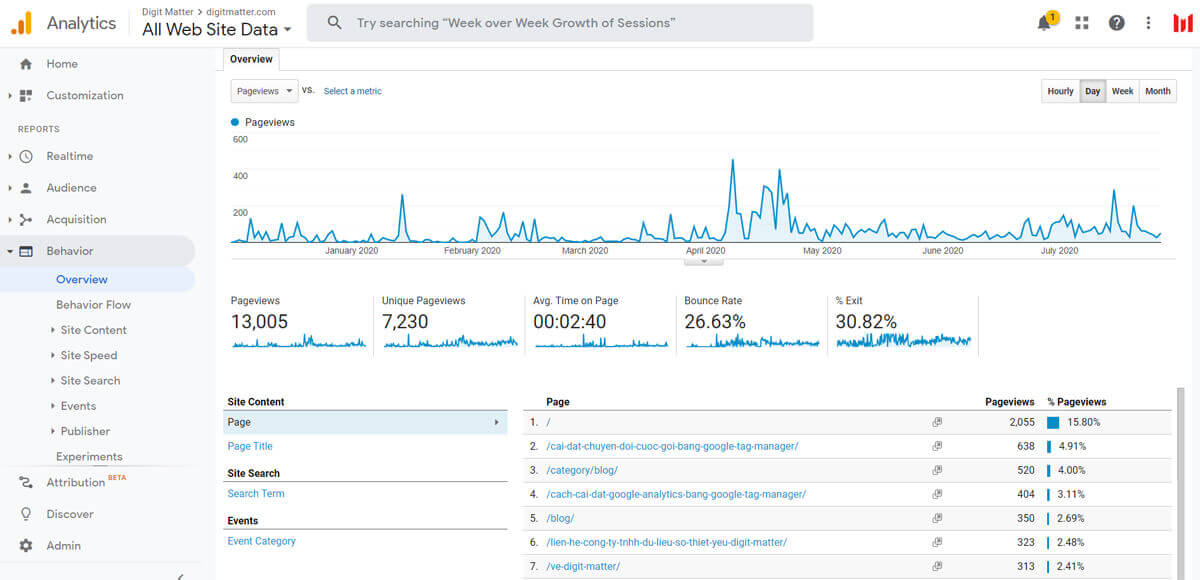
User report
GA's website performance report tells you:
Total users (Users): The number of individuals visiting the website over a period of time.
New and returning users: Separates first-time visits from returning visitors.
Demographics: Information on age, gender, location and language.
User behaviour: Metrics that track user behaviour such as average time on page, page views, bounce rate, and actions such as clicks or video views.
Behavior flow: A visual map of the user journey that helps spot pages with high exit rates.
User segments: Analyse users by traffic source, geographic area or device.
Session data: Includes session duration, number of sessions, revenue, transactions and conversion rate.
This report helps marketers and website administrators identify the right customer audience, analyse the experience journey and build better strategies to attract and keep users.
The behaviour report shows you in detail how users interact with a website or app, from the moment they arrive until they leave. It is an important tool for understanding customers' real experience and spotting strengths and weaknesses in content, so you can optimise page structure and increase conversion rates.
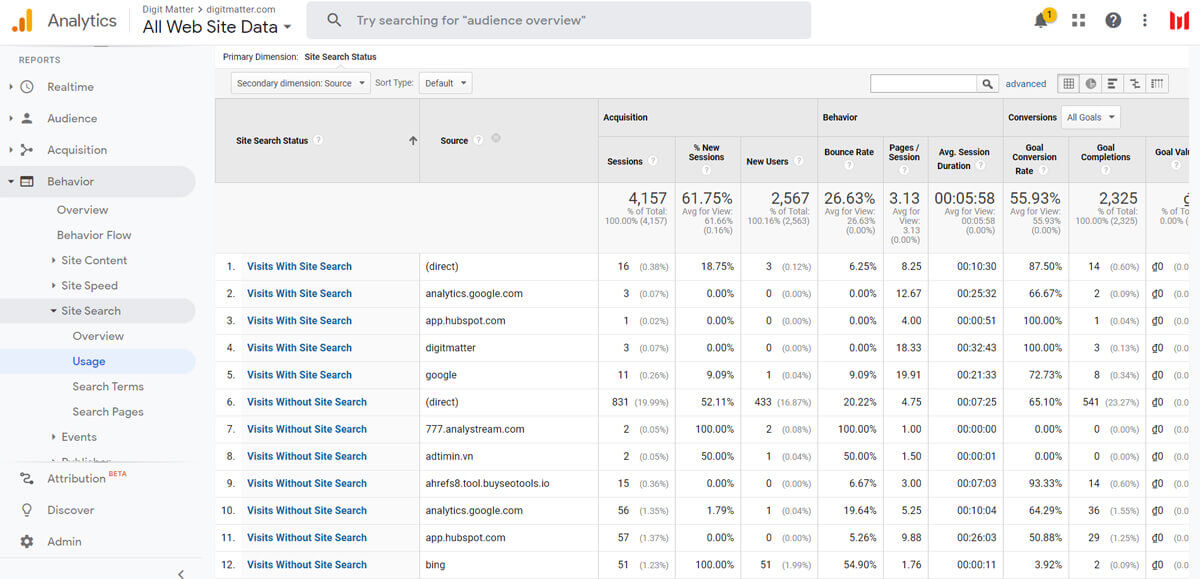
Behaviour report
Key points in GA's behaviour report:
Pageviews: Total views of all pages.
Average Time on Page: Measures how engaging content is by how long users stay.
Bounce Rate: The share of visitors who leave the website after viewing only one page.
On-page interactions: Link clicks, scrolling, video views, document downloads…
Behavior Flow: A visual chart tracking how users move through the website.
Page content: Summary of the most viewed pages, landing pages and exit pages.
Events: Records specific actions such as filling in forms, clicks, file downloads and video views.
With this report, marketers can see which content keeps visitors, which pages make many of them leave, and build a content strategy that better matches user needs.
In the conversion report, businesses track how well the goals they set are performing, such as purchases, sign-ups, document downloads or any important action on the website and app.
This report not only tells you how many conversions were generated but also analyses the customer journey before they complete the action, so you can optimise the sales process and increase conversion rates.
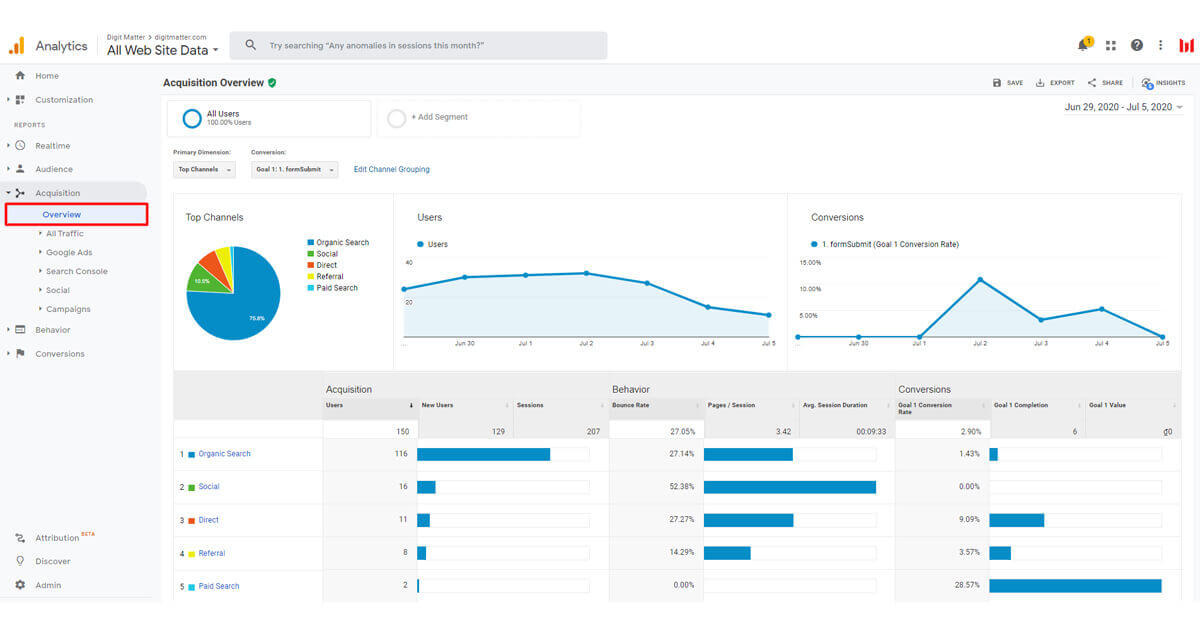
Conversion report
In this report you will find:
Total conversions: The number of times users completed a goal (purchase, sign-up, file download…).
Conversion Rate: The percentage of visitors who take a conversion action.
Goal URLs: The page or content where customers converted successfully.
Reverse Goal Path: The sequence of pages users visited before converting.
Funnel Visualization: Shows each step of the conversion journey, helping you spot drop-off points.
Goal Flow: A flow chart showing the traffic sources and interactions that lead to conversions.
Top Conversion Paths: The most common paths customers take before completing a conversion.
Time Lag: The time lag from the first visit to the customer's decision to convert.
With this report, businesses can easily identify quality traffic sources, assess marketing campaign performance and optimise the sales process to increase conversion rates, save costs and grow revenue.
The Real-Time report gives details on the current activity of users who are on the website right now. It provides metrics such as:
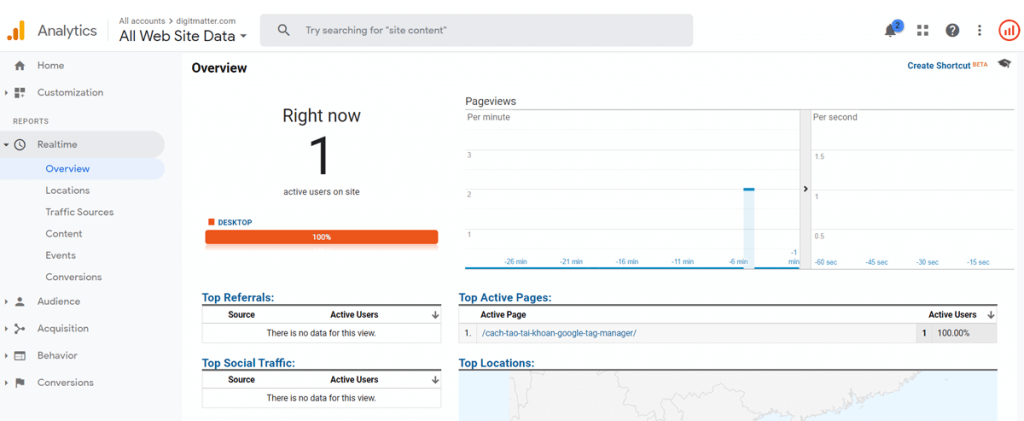
Real-time report
With this report, you can quickly assess the performance of a marketing campaign, a special event or newly published content. It is a useful tool for capturing instant feedback and adjusting in time to improve marketing results and user experience.
→ See now: How to optimise website SEO to reach Google's top results most effectively
With Google Analytics you can access, customise and arrange data exactly as you like to get the reports that best suit your business.
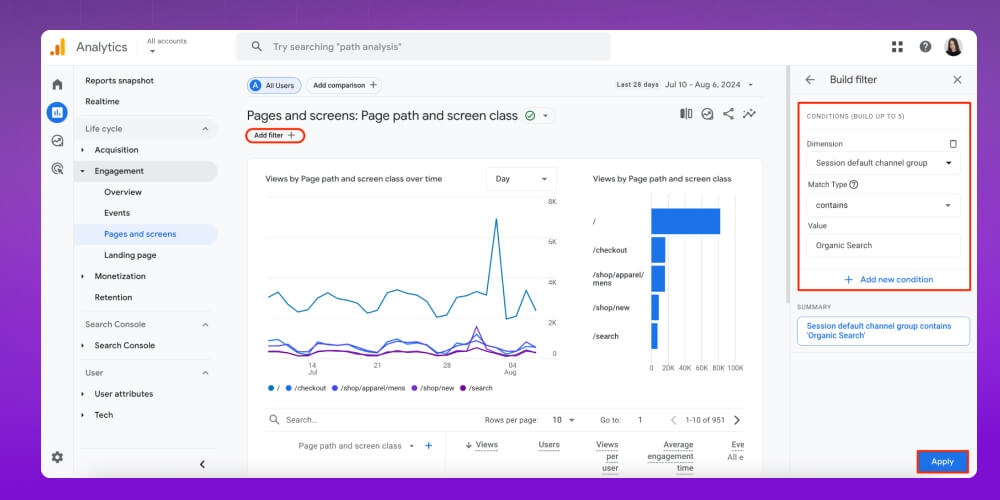
Lets the account access all data anytime, anywhere, through the app, email, third-party software or other Google products compatible with Analytics.
Customise data to fit your needs with a range of supporting functions such as advanced filters, channel groups, content groups and creating new metrics.
Businesses can add new events, metrics or goals to reflect user behaviour and real business processes accurately.
With the tools Analytics provides, you can create your own website dashboard with the data, reports and metrics you choose.
In Google Analytics 4 for websites, data collection and management is designed to be flexible and complete, helping businesses understand user behaviour on both websites and apps.
GA4 works on an event model: from basic actions such as page views and clicks to advanced actions such as downloads or conversions, everything is recorded and analysed.
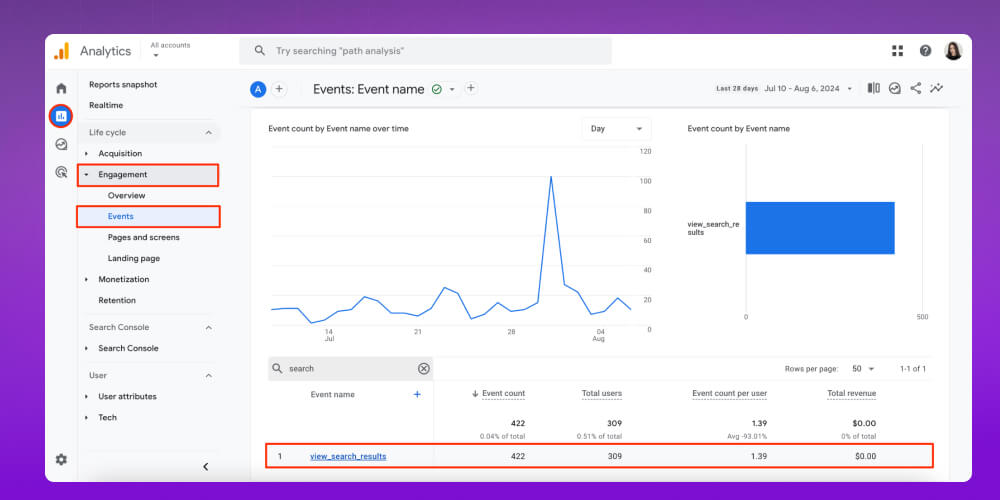
Key points of GA's data collection and management:
Event data collection: Records user behaviour such as page views, clicks, file downloads, sign-ups or purchases.
User information: Includes number of visitors, sessions, approximate location, device and browser.
First-party cookies: Uses cookies such as _ga to tell users apart and manage sessions.
User-provided data: Can add information such as email, phone number… (in line with privacy policies and GDPR).
Automatic and custom events: Supports collecting default events, enhanced measurement and events defined by the business.
Centralised data management: Stored and analysed in GA through reports and visual dashboards.
Cross-platform tracking: A single property to manage data from both the website and the mobile app.
Security control: Administrators can assign access and editing rights and keep data safe.
Data segmentation: Lets you filter and analyse by user group, event or specific goal.
GA4 provides a modern data collection and management platform, helping businesses track customer behaviour easily, optimise marketing strategy and make decisions based on accurate numbers.
One strength of GA4 is its data processing. Instead of just collecting raw numbers, GA4 turns them into meaningful information that businesses can analyse to optimise strategy and make more accurate decisions.
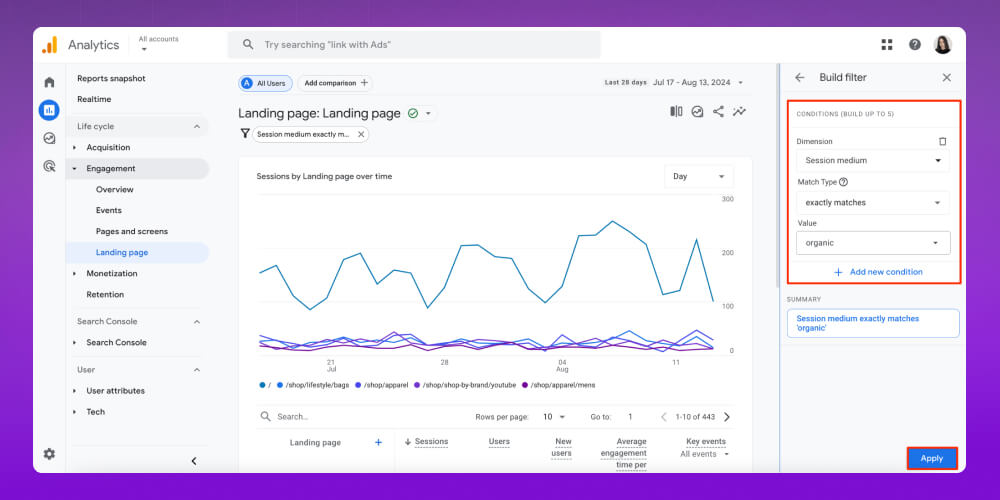
GA4 records data from a website or app through events and data streams. In the process, the system automatically filters out spam, bot or internal traffic to keep the numbers accurate.
GA4 also uses algorithms to segment users, analyse behaviour and generate engagement metrics that are genuinely useful. This helps businesses understand their customers instead of being thrown off by “noise” from invalid data.
Administrators can adjust how data is collected and measured. GA4 lets you add or edit events, set filters to exclude unwanted traffic and customise the process to match your analysis goals.
As a result, the data accurately reflects real user behaviour and stays close to the business's goals.
Once processed, data is shown in visual reports such as charts, tables, conversion funnels or the Explorations feature for in-depth analysis. This visualisation helps administrators easily spot trends, strengths and weaknesses on the website and act on improvements right away.
Beyond measurement, GA4 also complies with security and privacy regulations such as GDPR. Businesses can control access, sharing and data storage to keep information safe. This lets businesses use data for analysis without worrying about legal violations.
A big advantage of Google Analytics for websites is that it integrates with many different tools, saving businesses time and making data analysis more effective. With these connections you can track everything from ad campaigns and customer behaviour to business performance, all in one system.
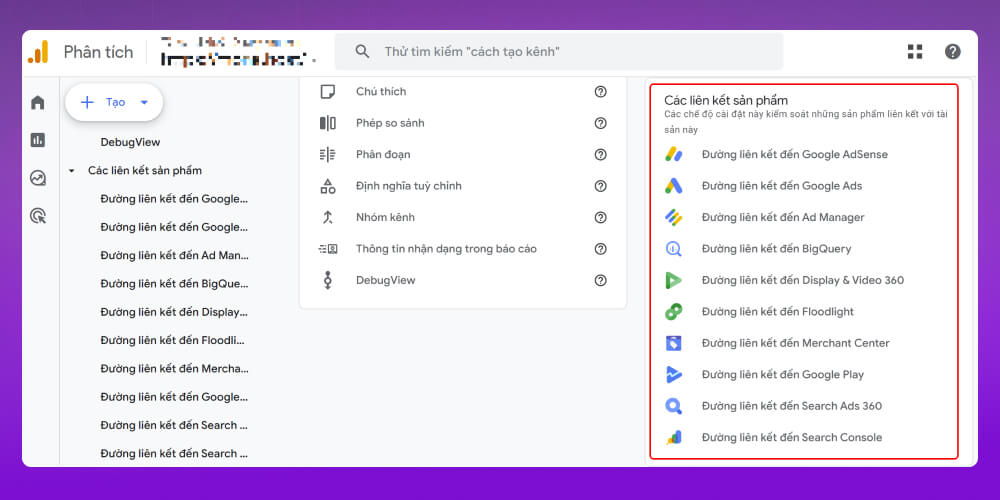
Common integrations include:
Google Ads: Measure ad performance, optimise budgets and bidding strategy.
Google AdSense: Track display ad revenue on the website.
Salesforce: Connect CRM data to analyse the customer journey from online to offline.
Google Data Studio: Visualise data in easy-to-follow reports and dashboards.
Google Search Console: Analyse organic search performance, keywords and impressions.
Some advanced integrations (only in Analytics 360):
Google Ad Manager: Advanced management and optimisation of display ads.
Google Cloud: Store, process and analyse big data.
Custom Tables & Custom Funnels: Customise data tables and analysis funnels in more detail to fit the business's own goals.
To use GA effectively, you need to know the following important metrics:
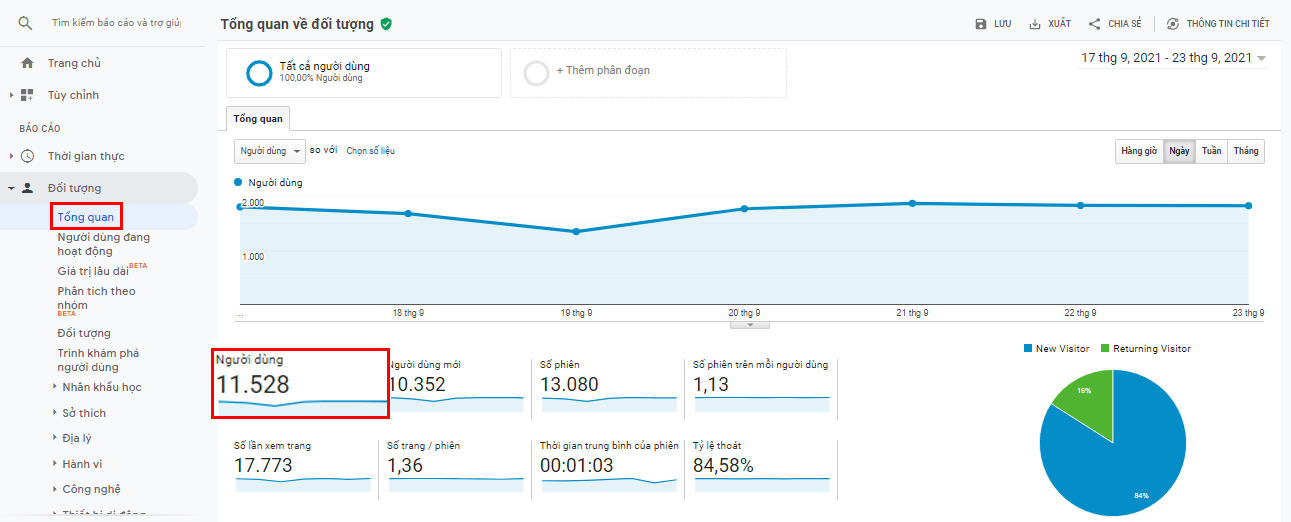
Users is the most basic and important metric in Google Analytics, showing the number of individuals who visited the website over a given period.
Each user who visits is assigned a unique Client ID so the system can record and tell them apart. In practice, when people talk about website “traffic”, they mean this number of users.
To see Google Analytics traffic reports, simply go to Audience → Overview → Users.
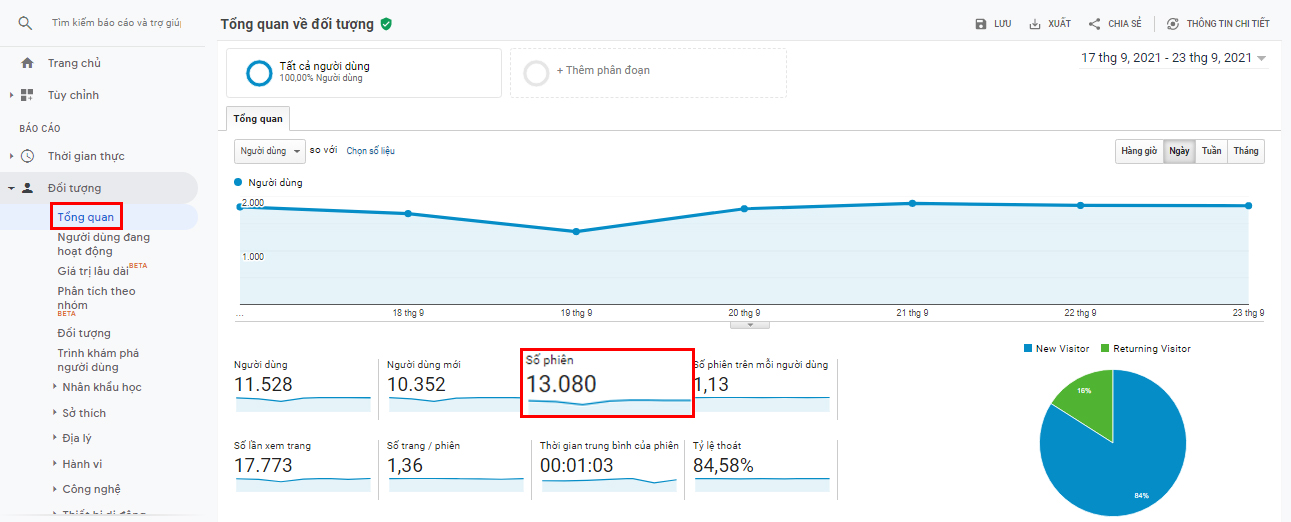
A session is a series of actions a user takes when interacting with a website. One user can have many sessions if they come back to the website several times. If a user lands on a page and leaves immediately without any action, that session is called a single-page session, and its duration is 0.
Session rules in Google Analytics:
A session starts when: the user has just arrived on the website, or after 30 minutes of inactivity they take a new action such as changing page, viewing a product, scrolling, clicking…
A session ends when: there has been no interaction for 30 minutes, or the user closes the browser or moves to another website and does not come back within that time.
To see the number of sessions in Google Analytics, go to Audience → Overview → Sessions.
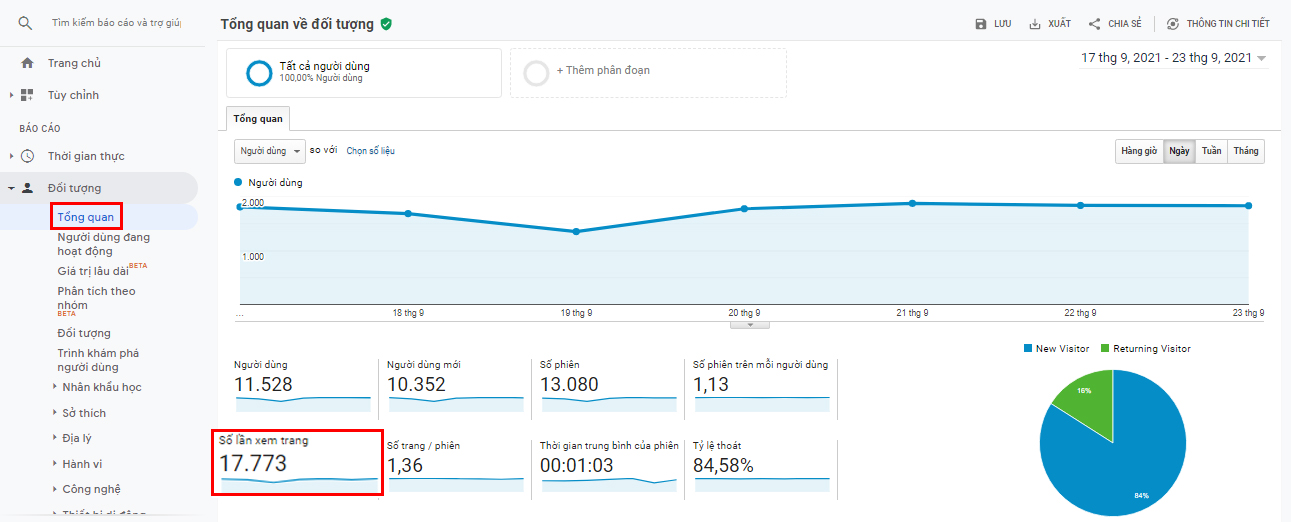
Pageviews is the total number of pages viewed by all users. As long as a user lands on a page, even without interacting or leaving immediately, it counts as 1 pageview
How to see Pageviews: Audience → Overview → Pageviews
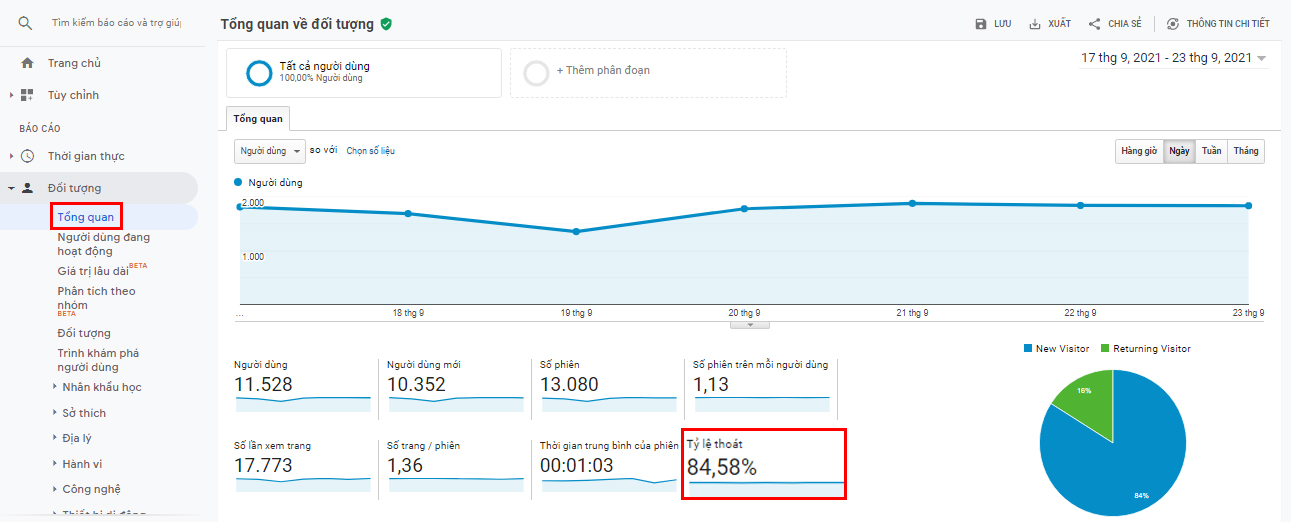
Bounce rate is the number of times users visit the website and leave without any interaction (single-page sessions). A higher bounce rate suggests the website does not provide the information users need, so search engines rate it low.
How to see Bounce Rate: Audience → Overview → Bounce rate
A lot of you look at total traffic and forget to split it: who is new, who is returning. New users help you expand the market, while returning users are a sign of loyalty. In this video Huy shows you how to track and build a strategy for each group, so watch now to take your SEO project further!
How to tell pageviews, sessions and bounce rate apart:
Example: Visit website ➞ Page A ➞ Page B ➞ Leave
Analytics will record:
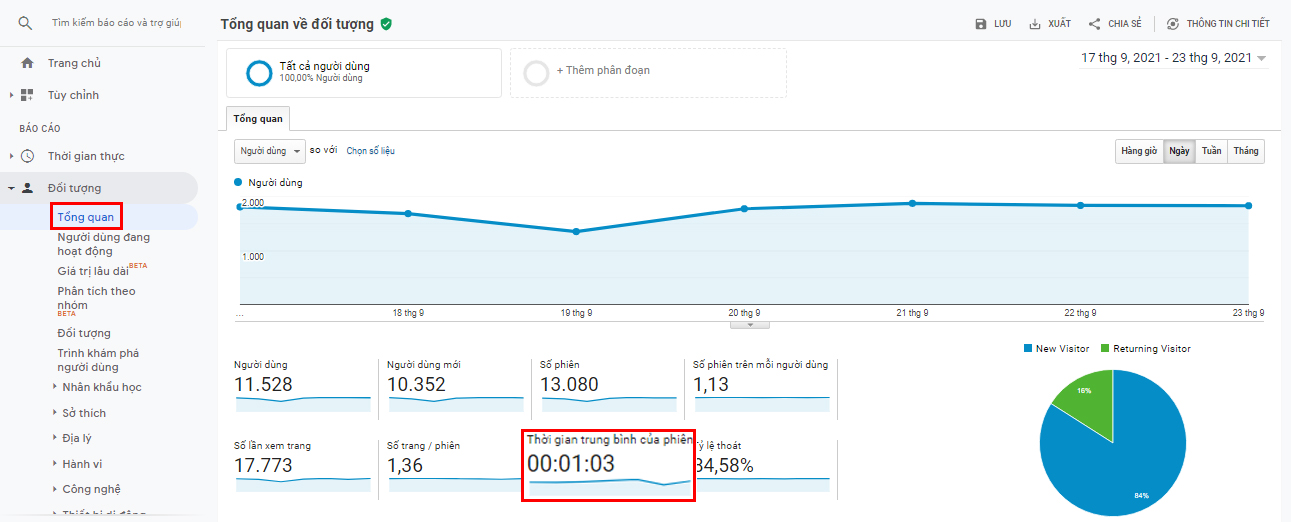
Average session duration tells you how long a user is active on your website. The higher the average session duration, the more it shows your website provides useful information and content that keeps users longer.
Average session duration = Total duration of all sessions / Total number of sessions
How to see average session duration (Avg. time per sessions): Audience → Overview → Average session duration.
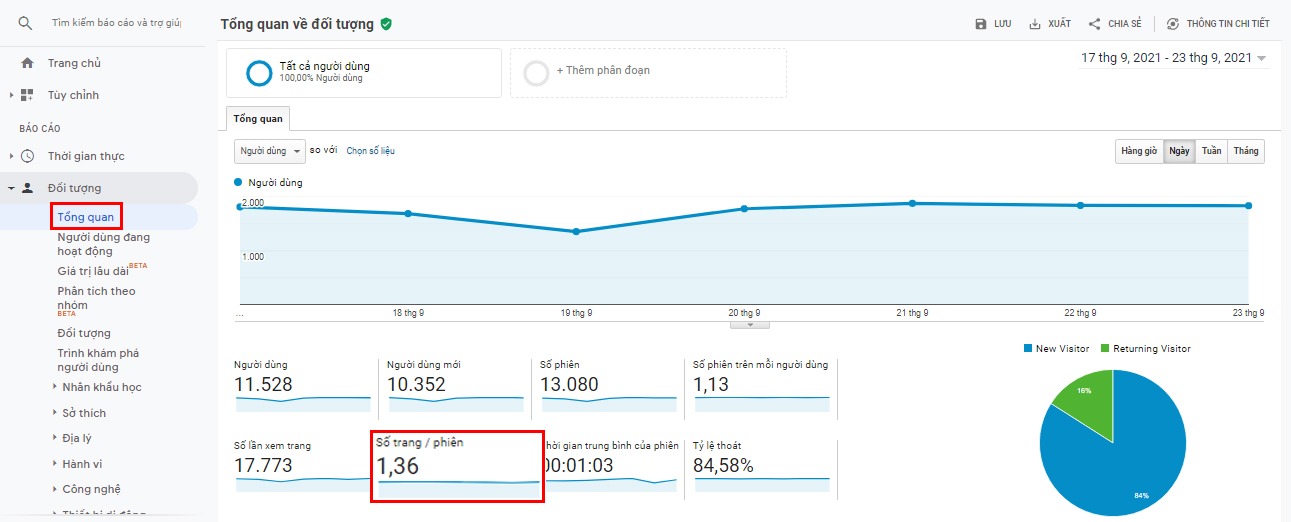
Pages per Session tells you how many pages each user views on average in one session.
For example, if a user enters the website and browses in this order: page A → page B → back to page A, the system still records 3 pages/session, even with the repeat.
There is no fixed “standard” threshold for this metric; it depends on the type of website. For example, clothing websites usually have high pages/session because users tend to look at many products, while service introduction websites or landing pages usually have lower pages/session.
To see pages/session in Google Analytics, go to Audience → Overview → Pages/session (Avg. Pageviews per Session).
A conversion happens when a user visits the website and takes exactly the action you want. Depending on your business goal, a conversion can be:
Visit and buy → from visitor to customer.
Visit and leave contact details → from visitor to potential customer.
Visit and download the app → from visitor to user/customer.
Common examples of conversions are 1 order, 1 newsletter sign-up, 1 contact form, 1 app download or 1 successful call.
You can set up and track conversions in Google Analytics under Administration → Goals.
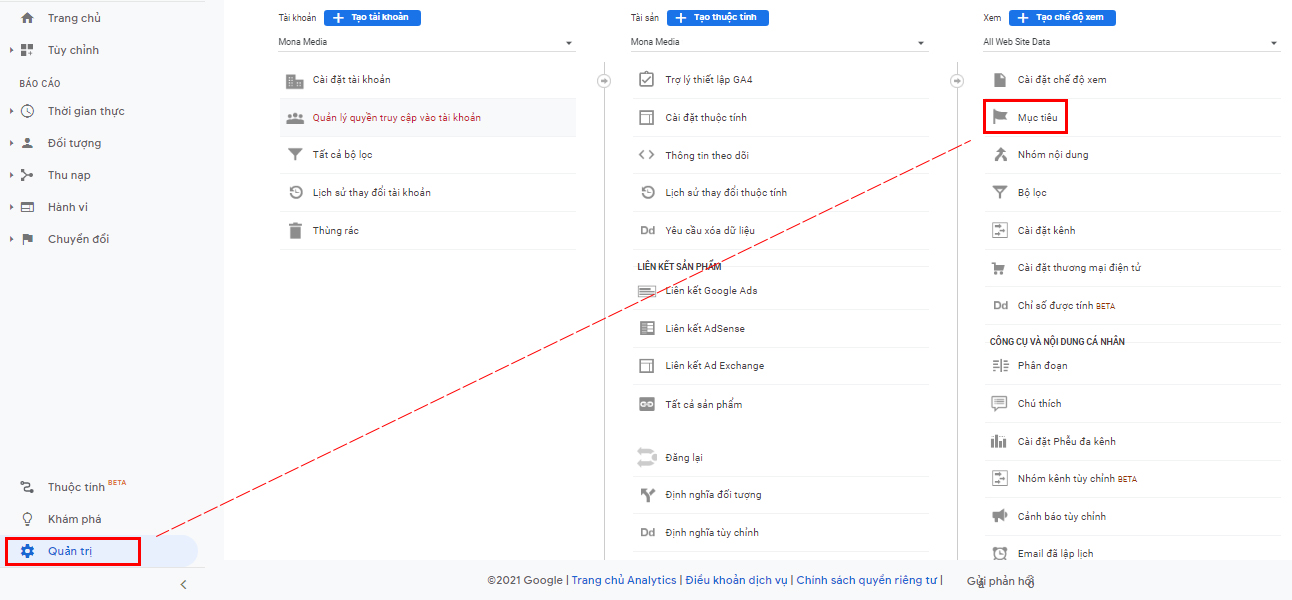
How to calculate Conversion Rate:
Conversion rate = (Number of goal completions / Number of website visits) x 100
Example: You want to know how many of 550 website visitors signed up for the newsletter?
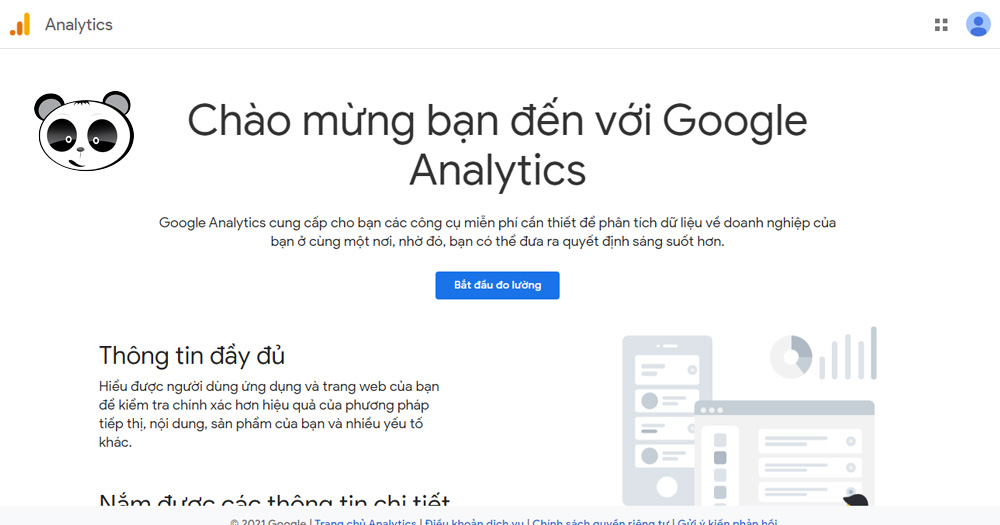
To sign up for Google Analytics, first log in to your Google account https://accounts.google.com/servicelogin
Then go to https://analytics.google.com/ and select “Start measuring” to sign up.
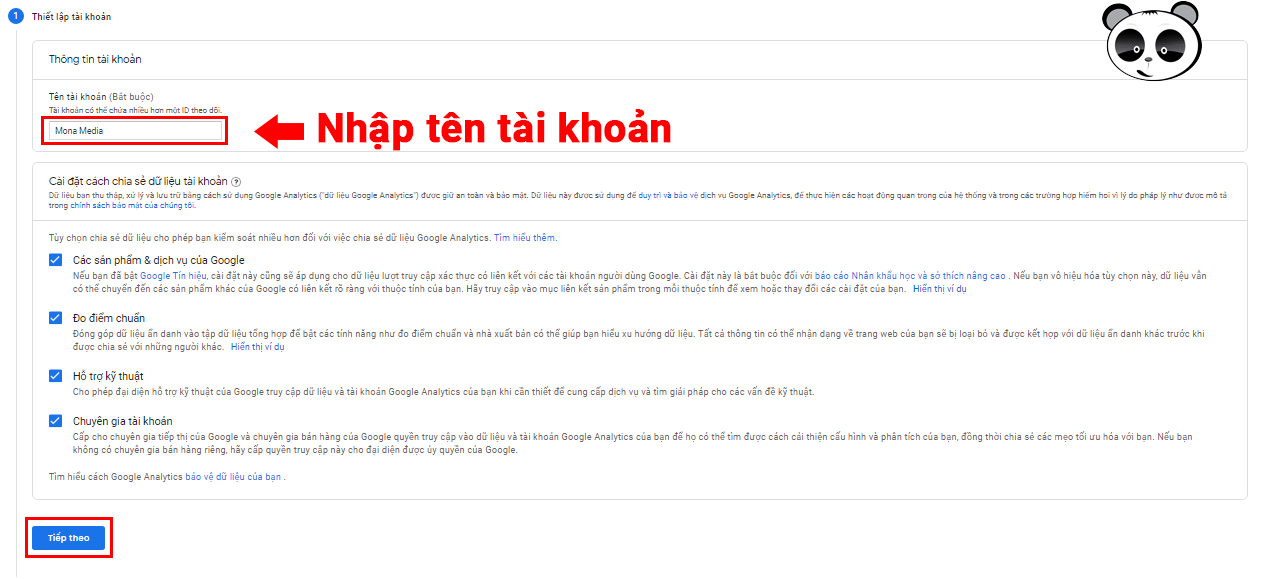
1. Account details
Enter an account name and select continue
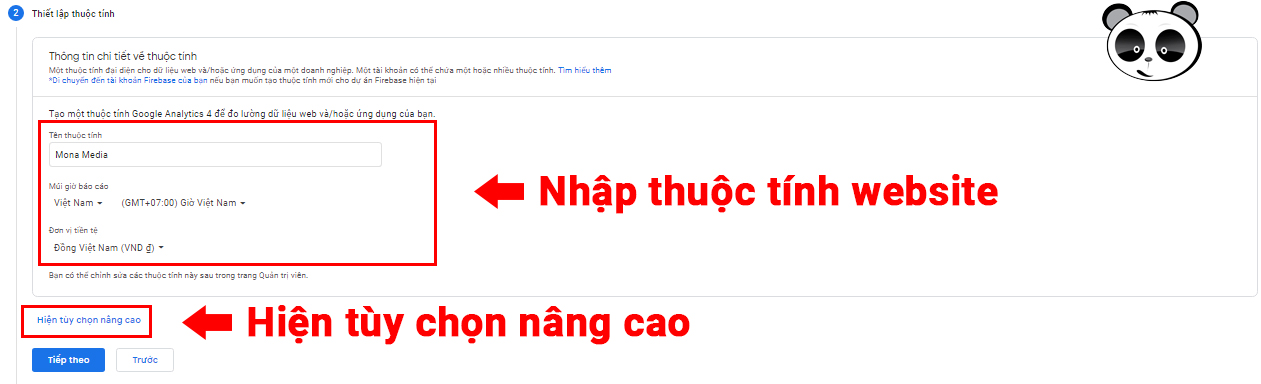
2. Set up a property in GA
After creating a Google Analytics account, you need to set up a Property to start measuring data:
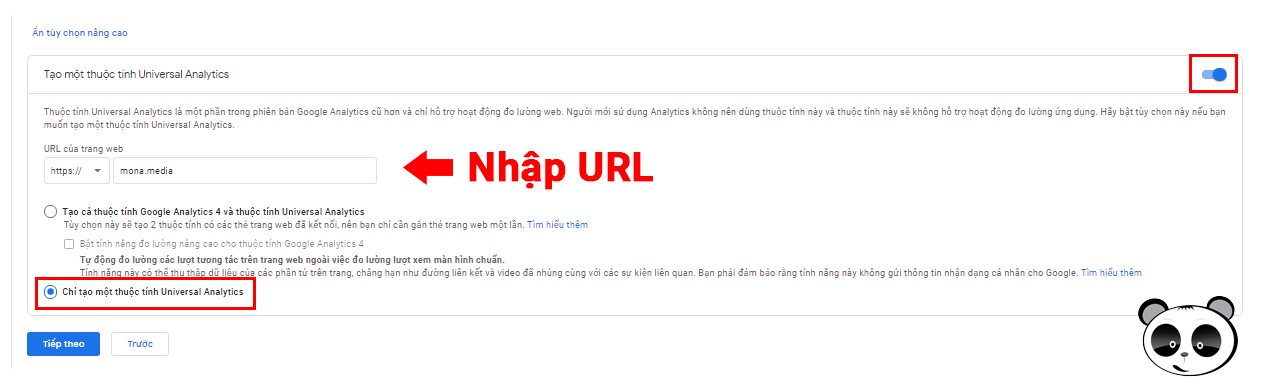
Enter basic information: fill in the property name, choose the reporting time zone and currency.
Open advanced options: click “Show advanced options”.
Turn on Universal Analytics: select “Create a Universal Analytics property”.
Enter the website URL: fill in the address of the website you want to track.
Choose the mode: tick “Create a Universal Analytics property only” to use the old GA interface (Universal Analytics).
3. About your business
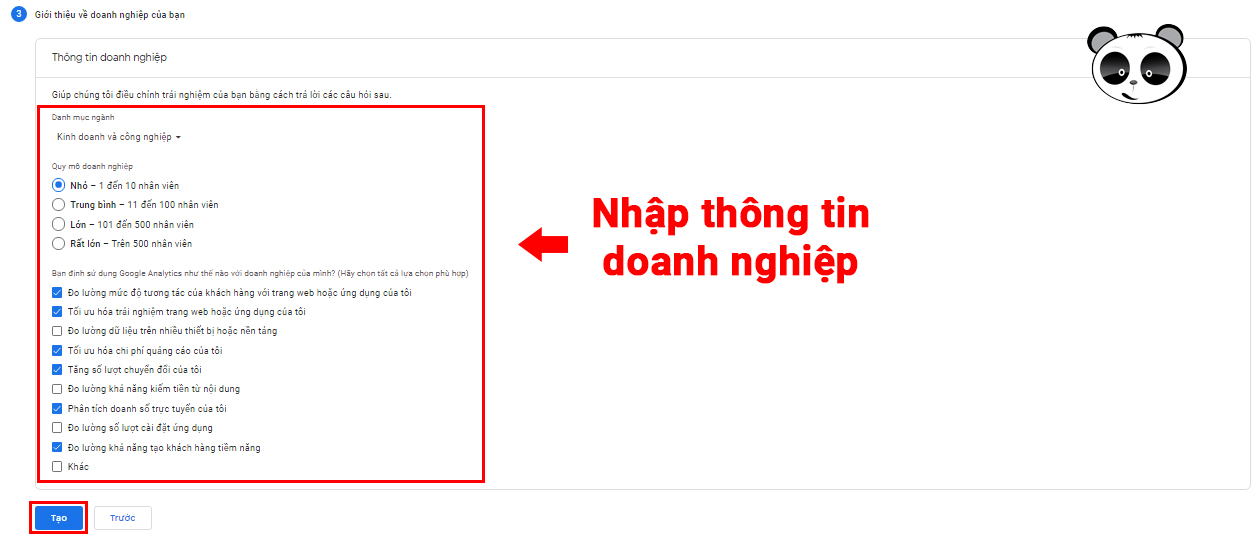
In this step, you provide basic information about your business so Google Analytics better understands how you will use the data:
Choose the Industry Category: for example E-commerce, Education, Real estate, Technology…
Business Size: choose the number of employees that matches your organisation.
How you will use Analytics: tick the relevant items, such as measuring website traffic, analysing user behaviour, tracking sales…
Click Create to finish the setup.
Once done, you will get a Tracking ID/Tracking Code to add to your website and start collecting data.
4. Confirm and complete sign-up
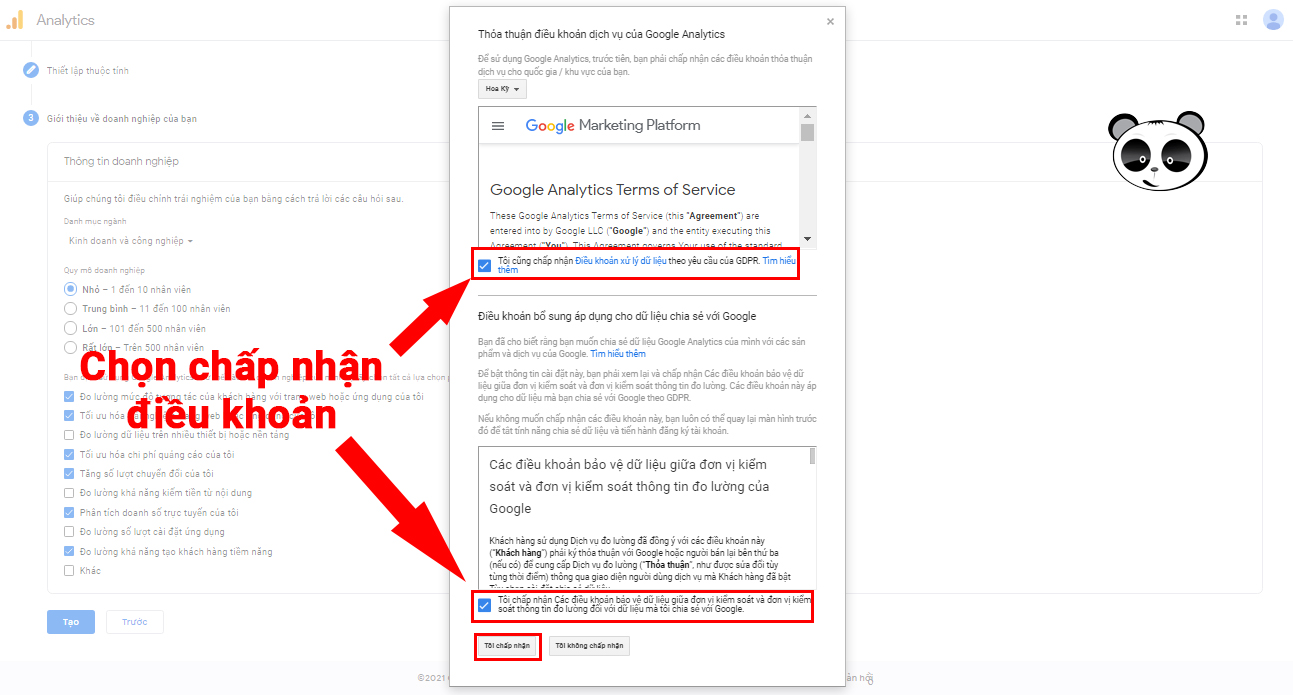
Tick both terms boxes, then select “I accept” to complete sign-up.
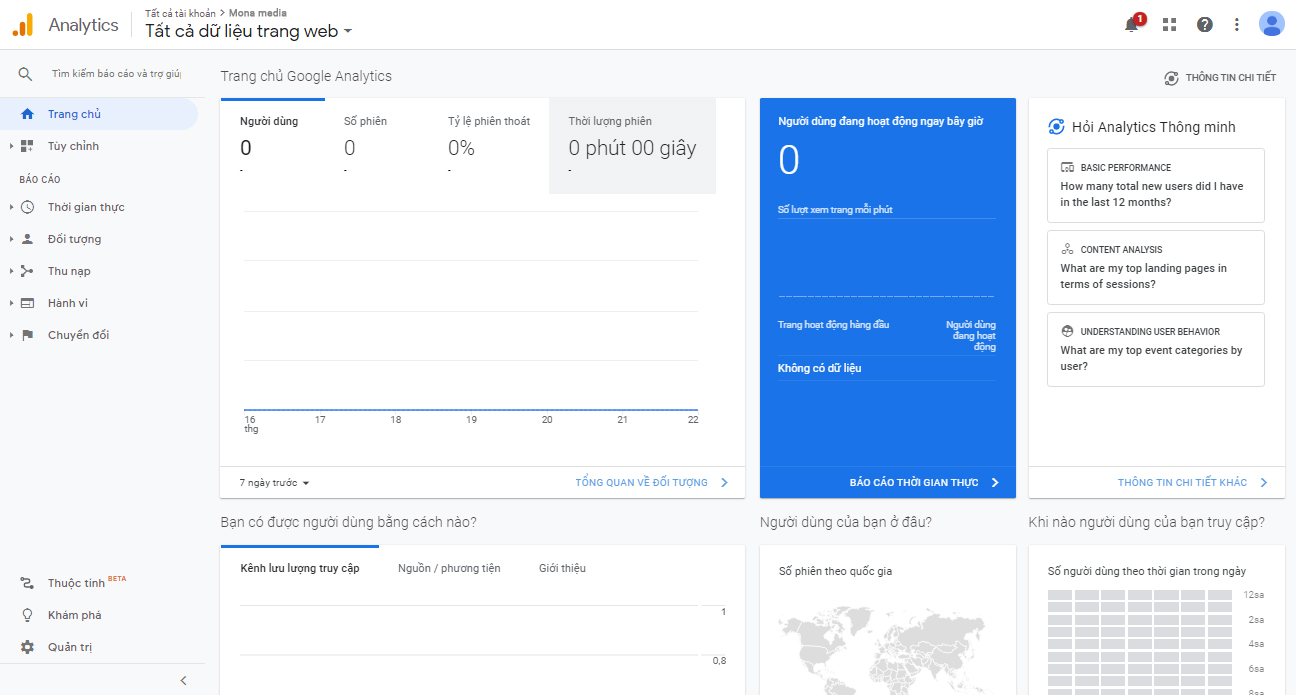
This is the Analytics interface after sign-up and setup are complete
Note: If you already have a Google Analytics account, you can skip the steps above and choose to create a new property in the admin section to enter the necessary information.
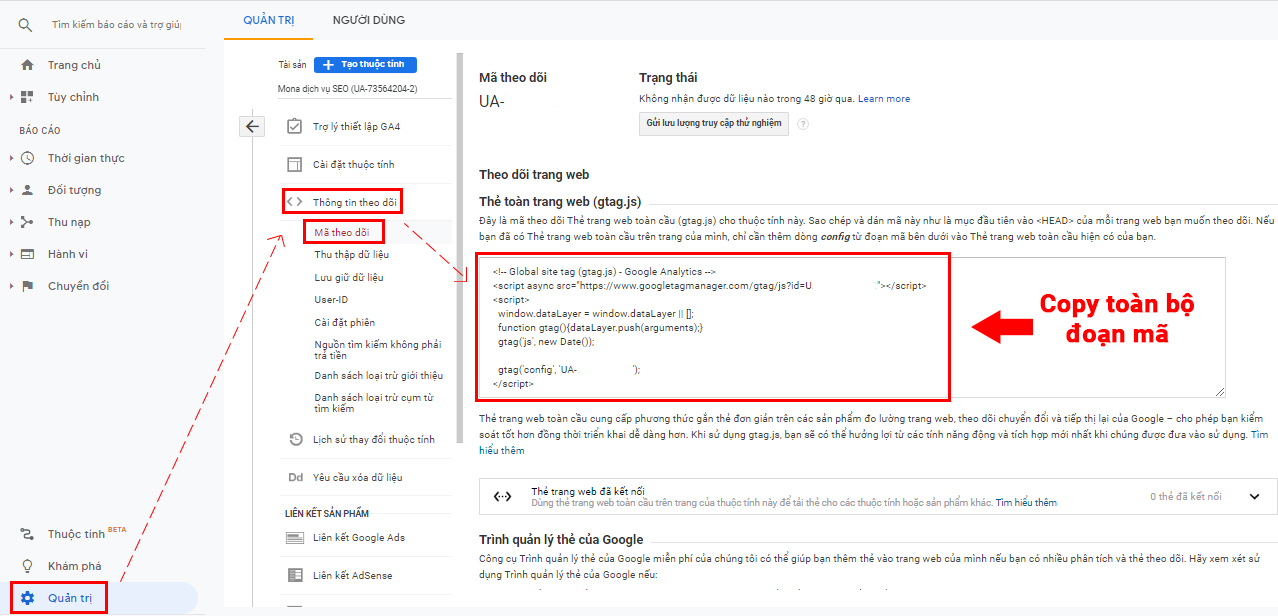
After creating a property in Google Analytics, you will get a tracking code. This code needs to be inserted into your website so GA starts collecting data.
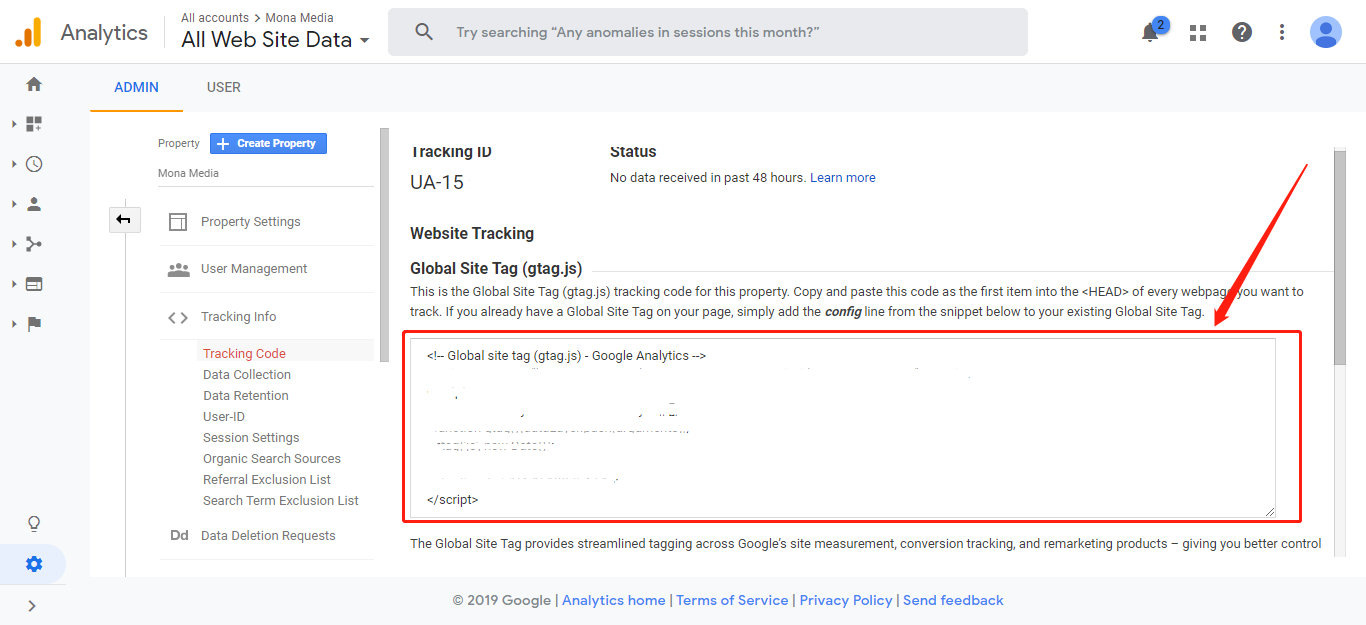
In Google Analytics, go to Admin → Property → Tracking Info → Tracking Code.
Copy the entire code gtag.js the system provides.
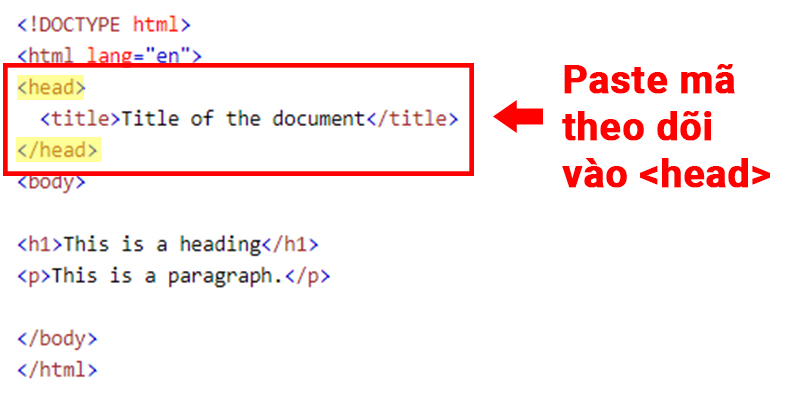
For a static HTML website: paste the code right before the </head> tag in the HTML file.
The quickest and easiest way to integrate Google Analytics with WordPress is to use a plugin:
Go to Appearance → Theme Editor and insert the code before the tag </head> trong file header.php.
Or you can use a plugin such as Insert Headers and Footers to paste the tracking code.
After installing, visit the website and open Google Analytics → Real-Time report to check whether the visit has been recorded. Once integration succeeds, Google Analytics starts collecting data on users, behaviour and traffic sources on your website.
Sign up for a Google Tag Manager account at: https://tagmanager.google.com/
Select create account to start signing up
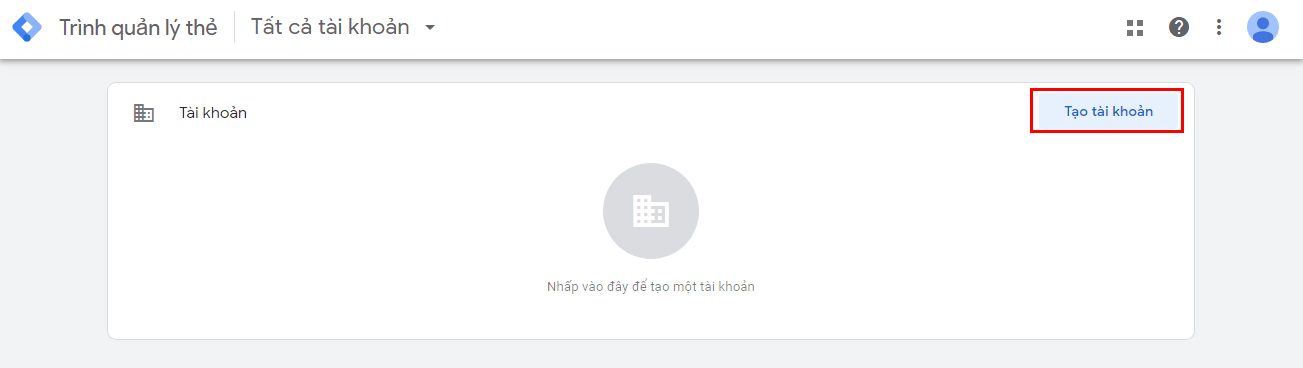
Fill in all the account information → select To create
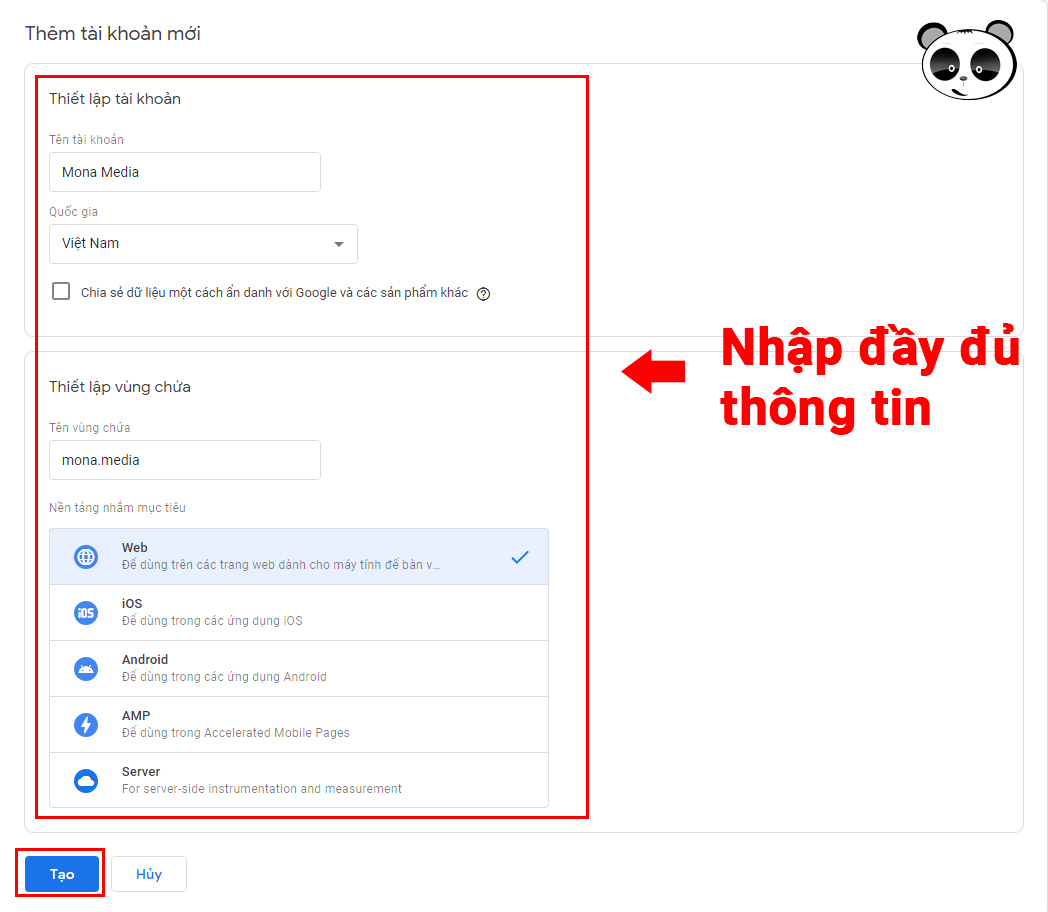
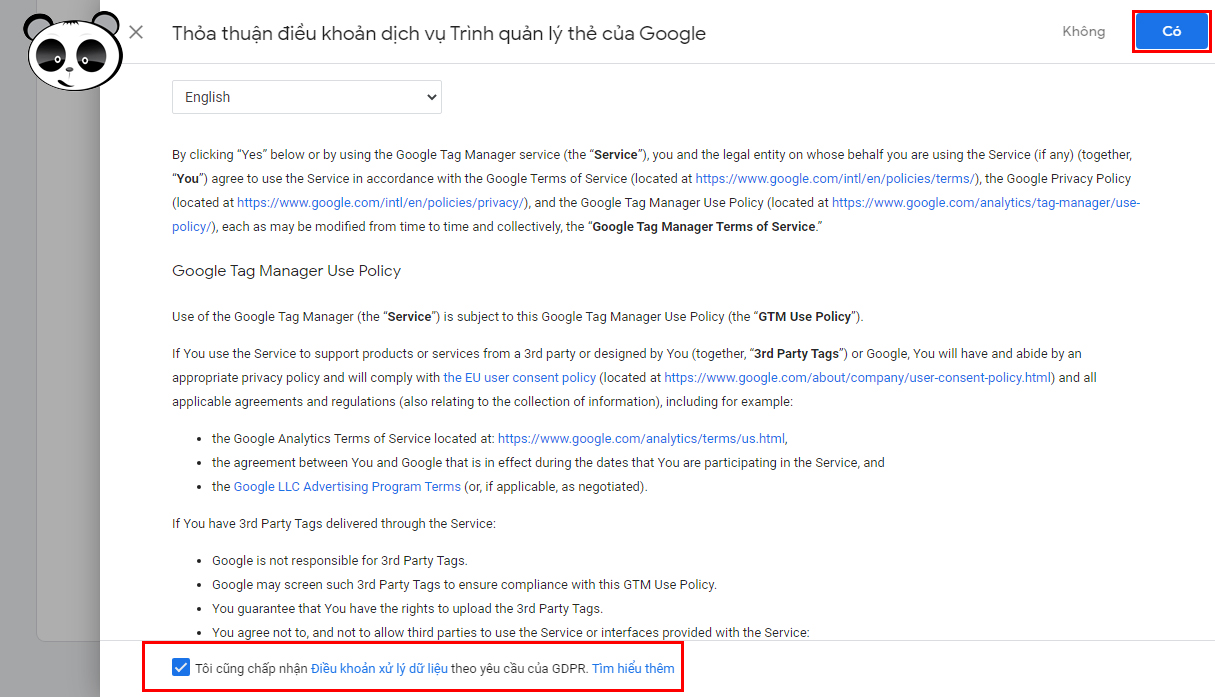
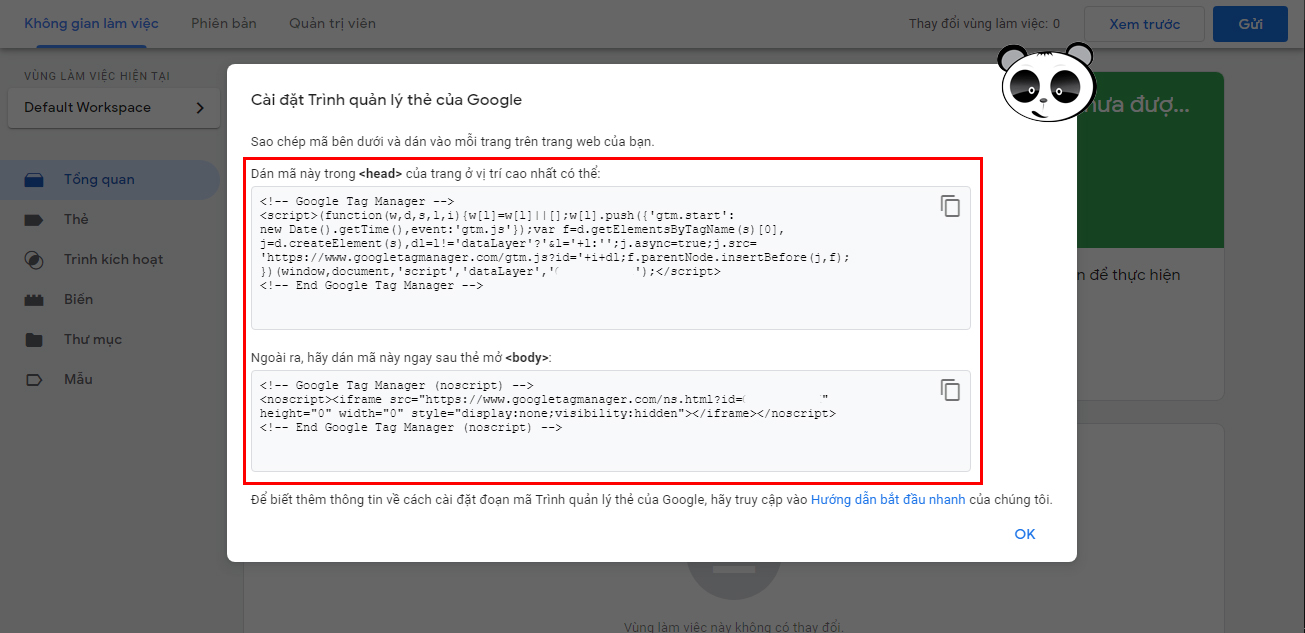
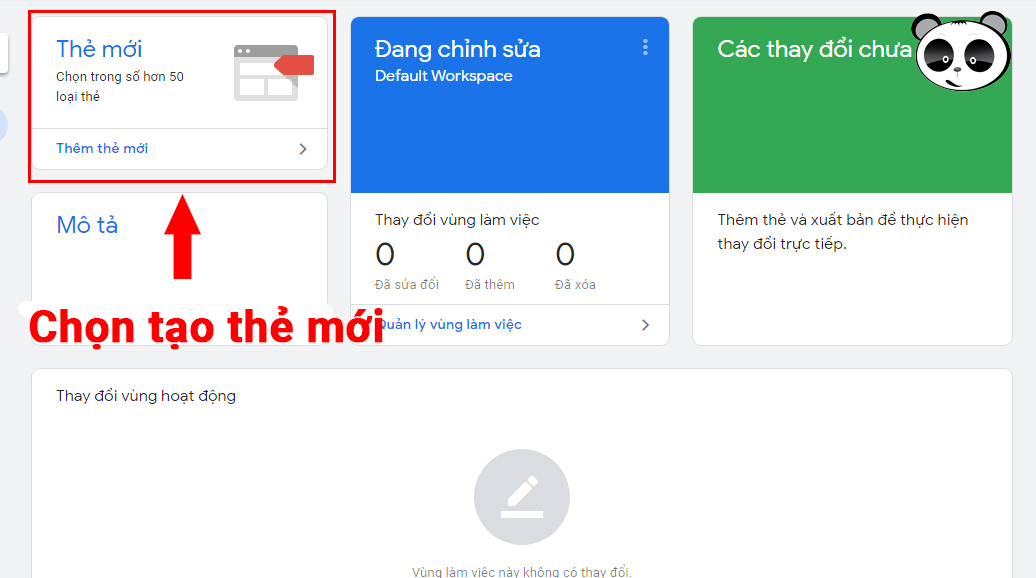
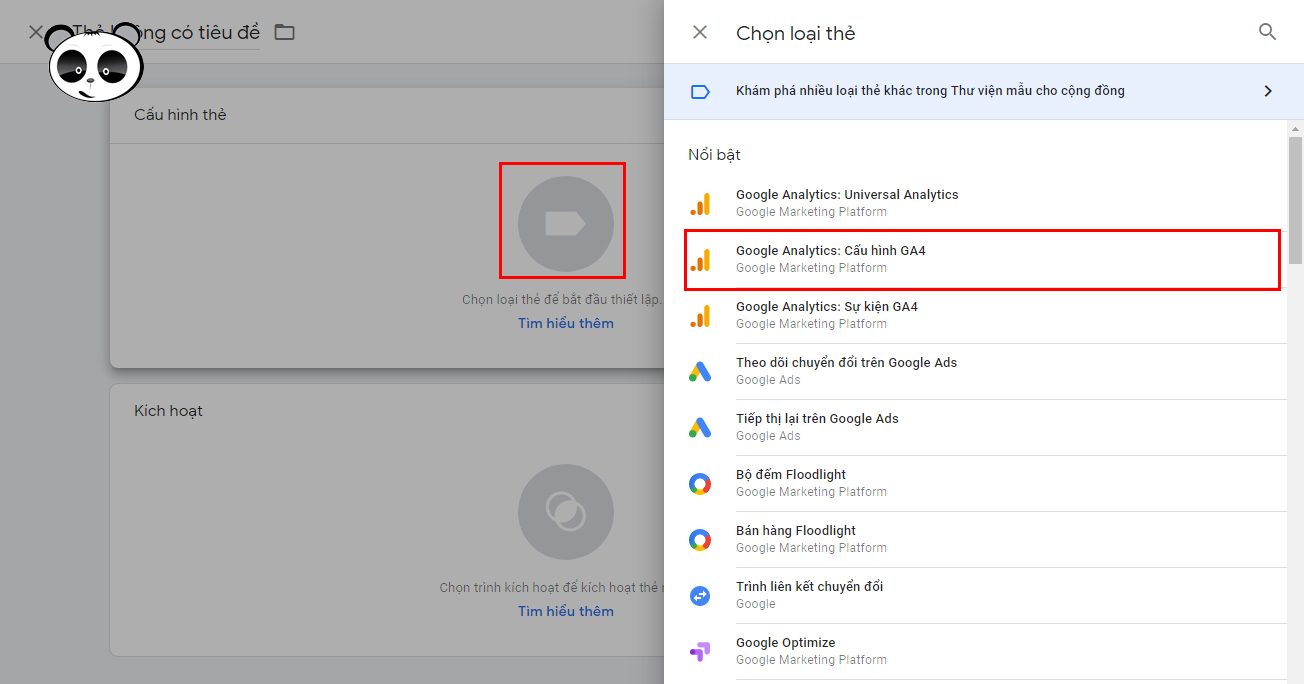
At this step, you need the measurement ID from Google Analytics to continue
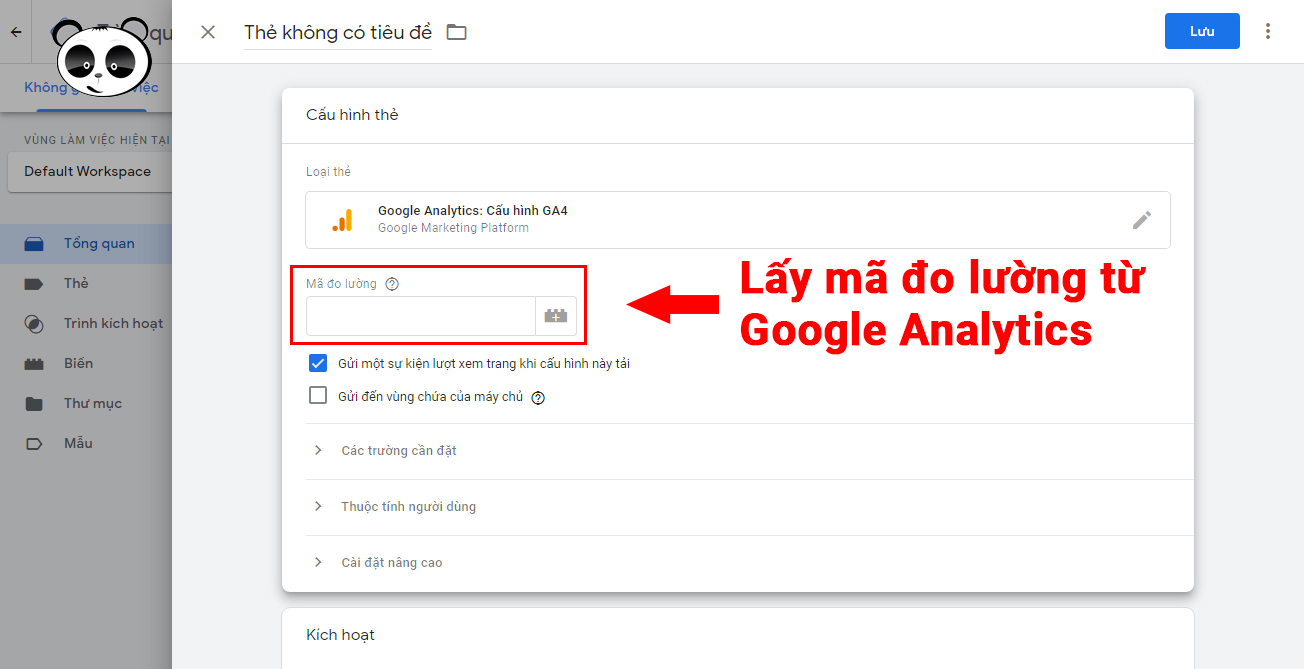
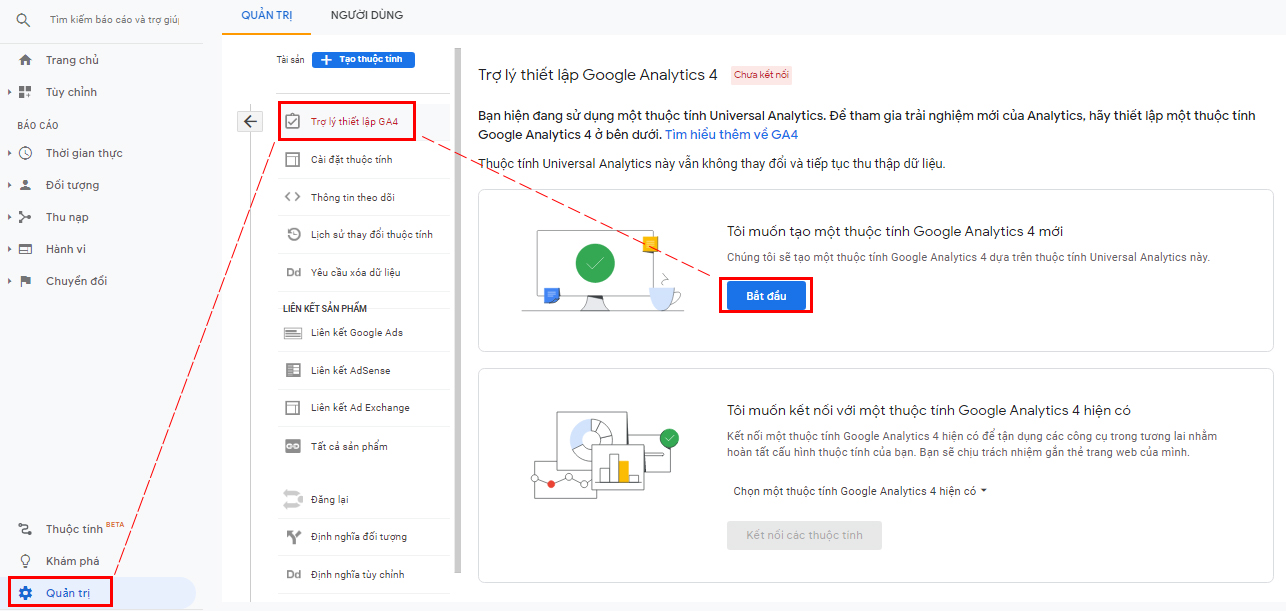
Select Create property to continue
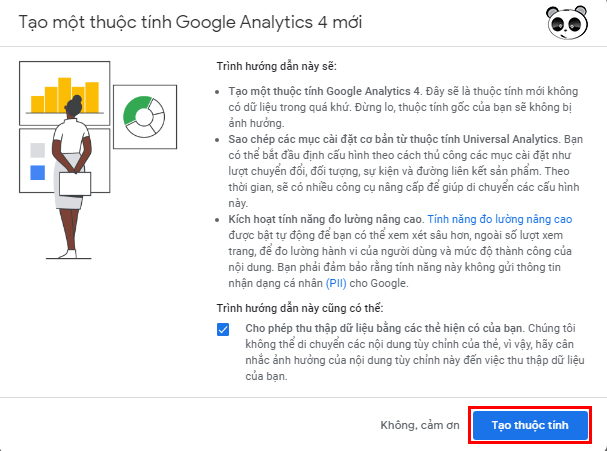
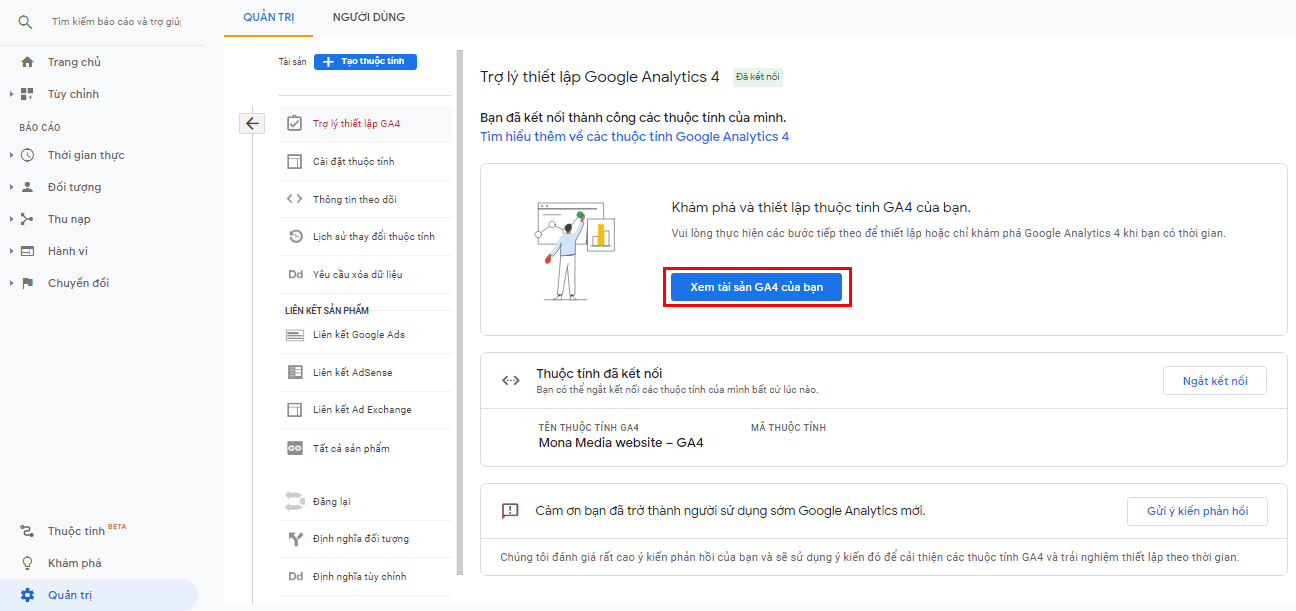
Select See your GA4 property and switch to the GA4 interface to get the data stream code
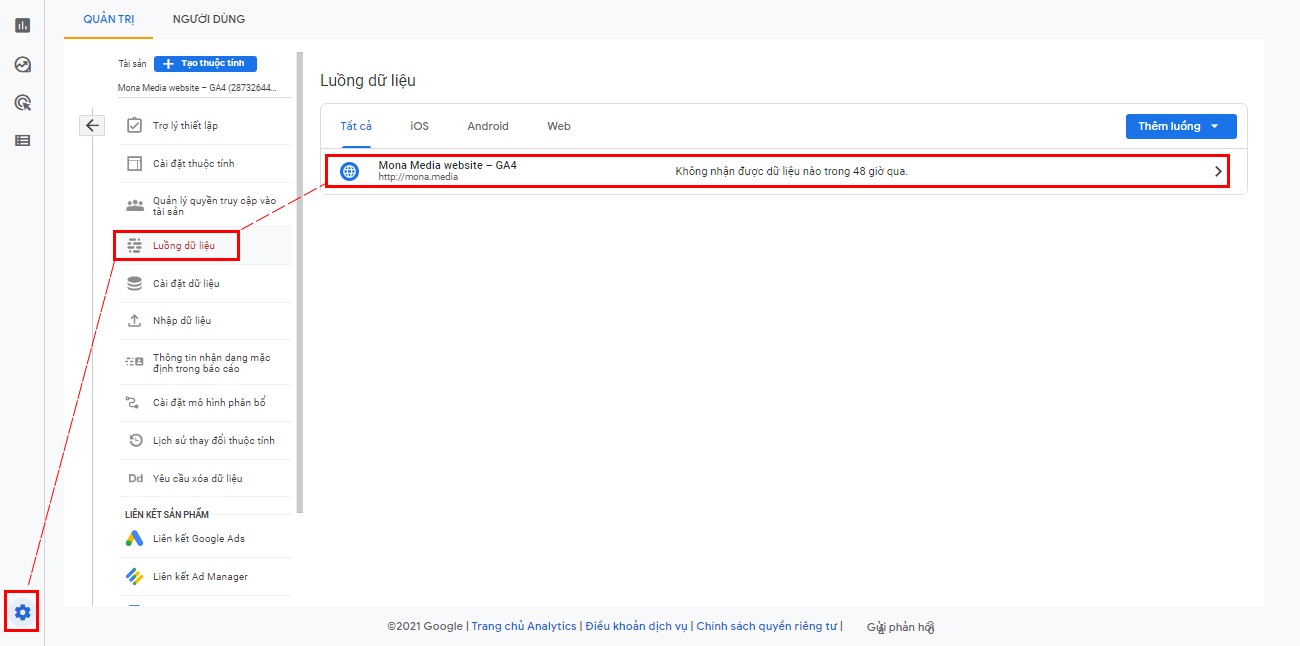
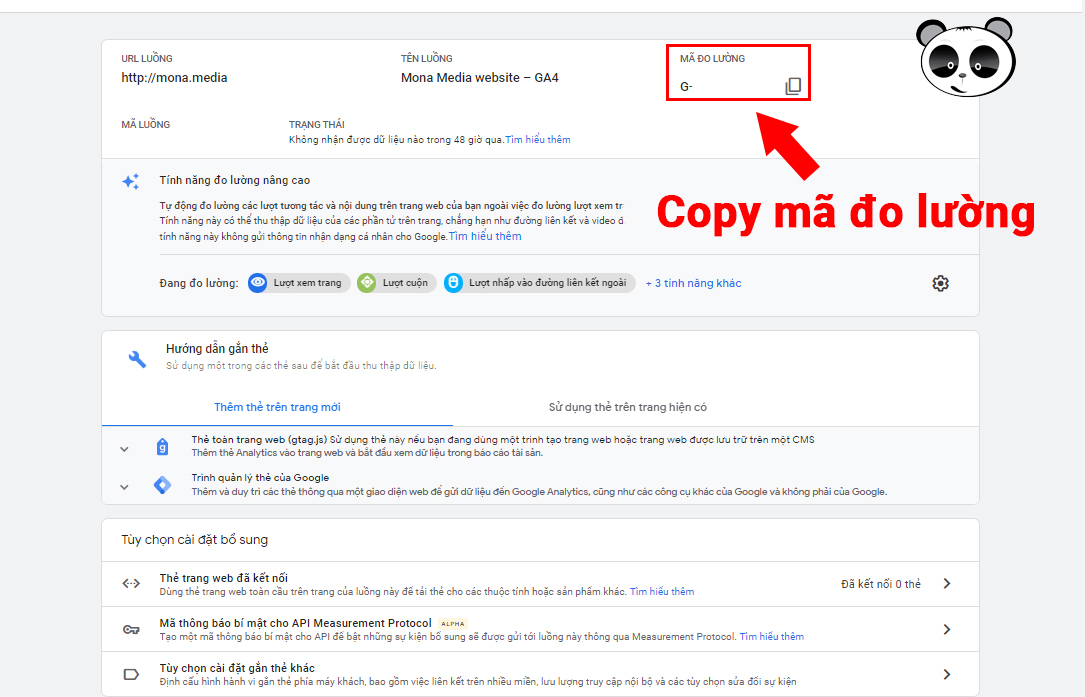
Copy the measurement ID of the web stream
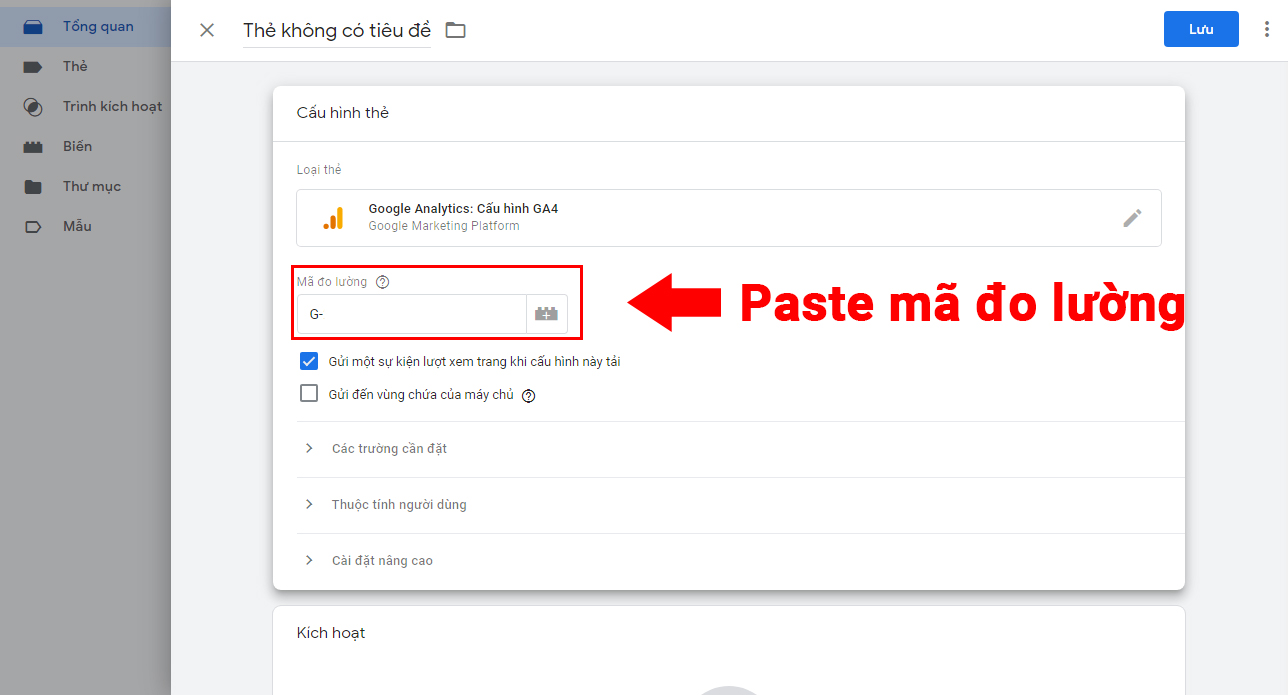
Paste the measurement ID into Google Tag Manager where you left off in the previous step
Click the panel Triggering
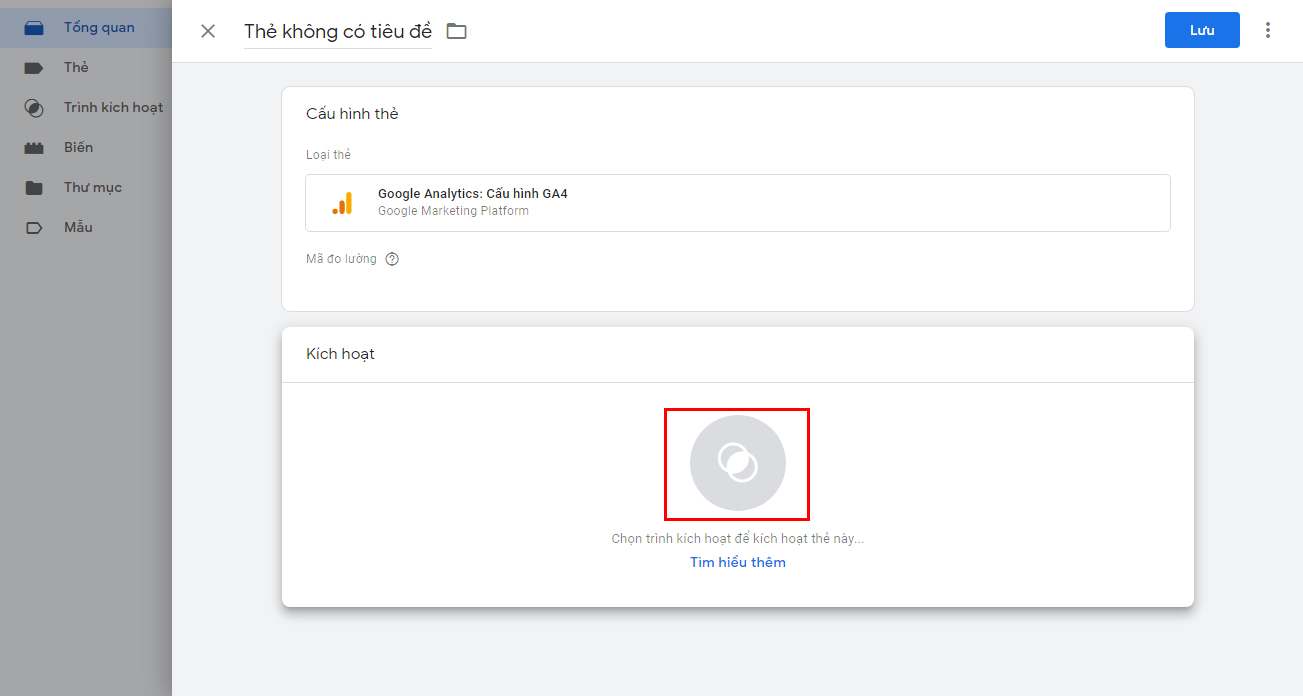
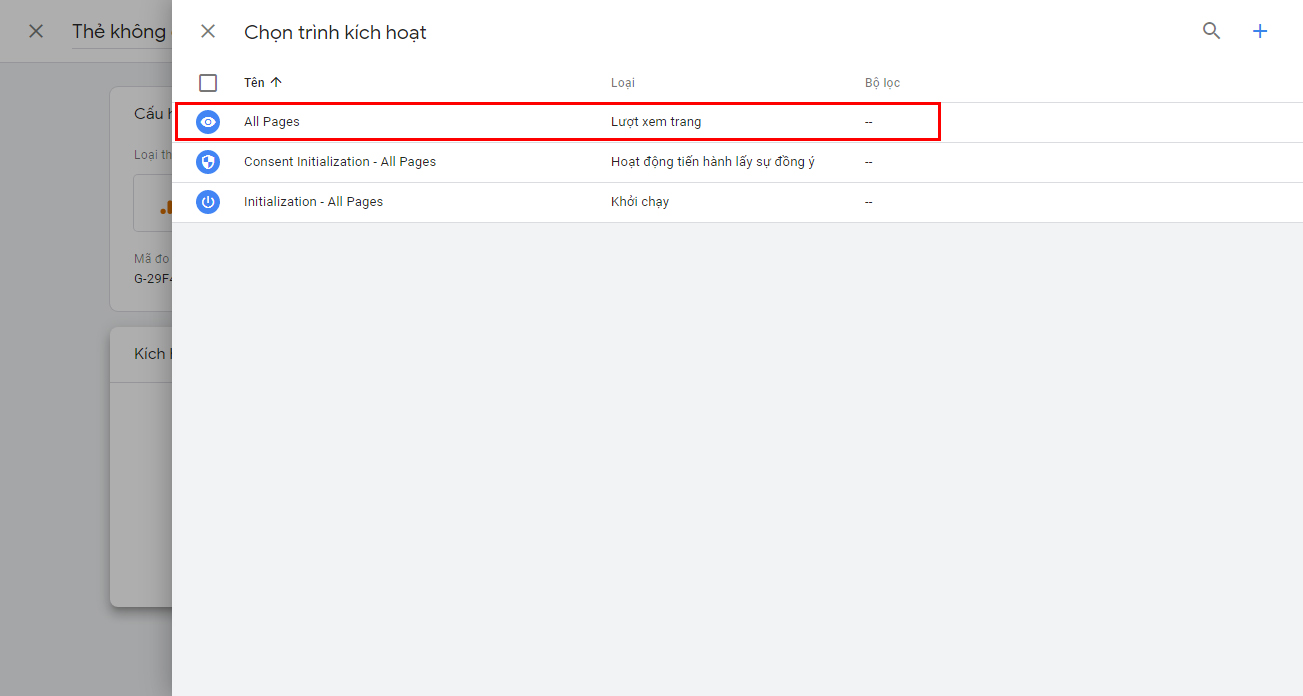
Choose a trigger ➞ select All Pages
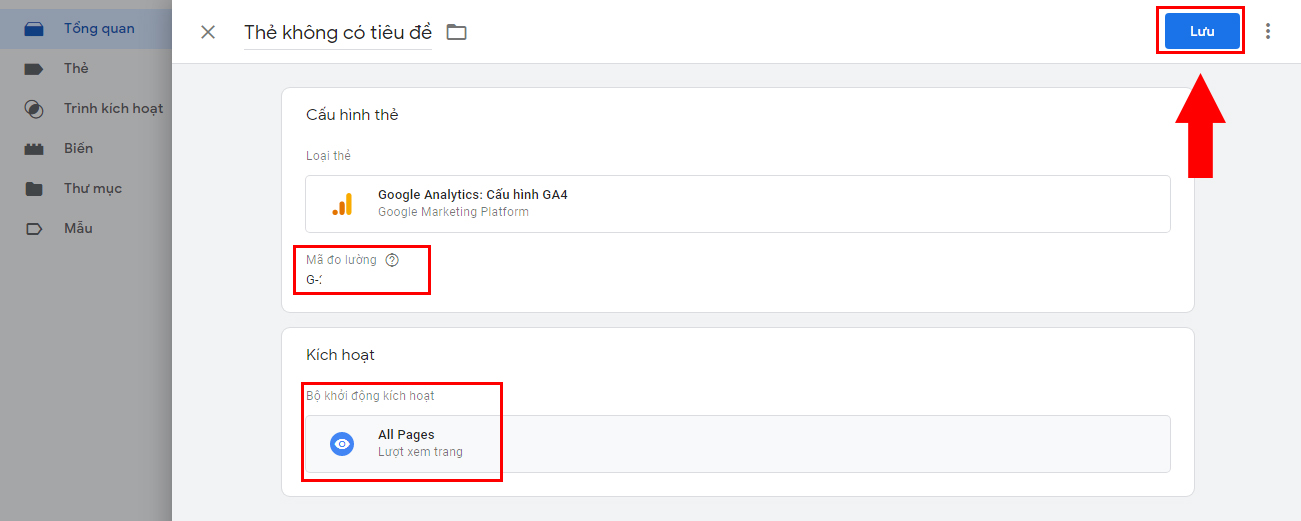
Once you have the Measurement ID and Choose the trigger ➞ Save
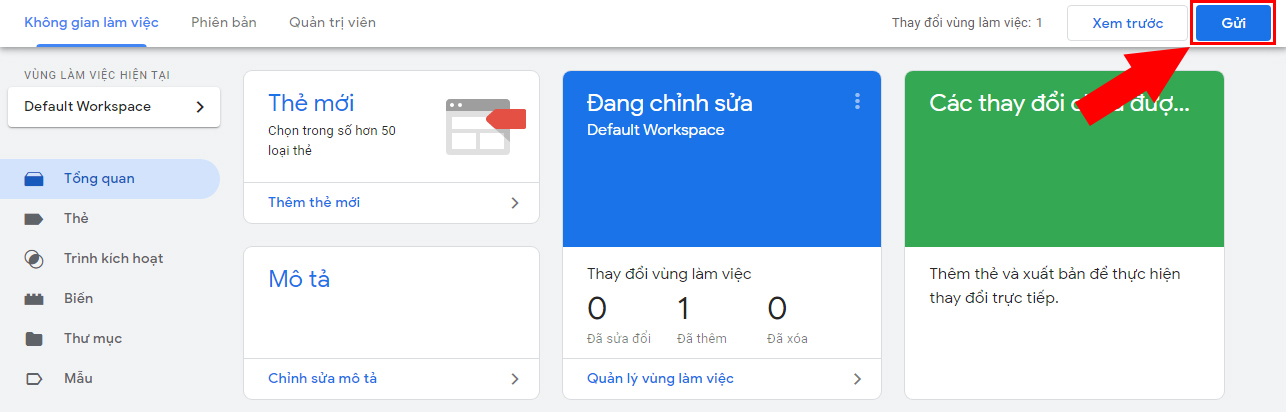
The last step is to select Submit on the overview page
Below is a comparison table of Google Analytics 4 and Universal Analytics to show you the differences between the two:
| Attribute | Google Analytics 4 | Universal Analytics |
| Measurement Model | Uses events to measure data | Uses pages and events to measure data |
| Reporting | More flexible reports that are easier to create | Traditional reporting interface |
| Conversion (Goal) | Create conversions (goals) by marking events as conversions | Create conversions (goals) through settings in the admin configuration |
| Custom Dimension and Custom Metric | Supports up to 50 custom dimensions and 50 custom metrics | Supports up to 20 custom dimensions and 20 custom metrics |
| Data Retention | Supports data retention for 2 months and 14 months | Supports optional data retention from 14 months to unlimited |
| Tracking Code | Uses a Measurement ID starting with G- | Uses a Tracking ID starting with UA- |
| Analysis Reports | Advanced analysis features to track the customer journey | Limited to Analytics 360 customers for viewing and analysing data |
| BigQuery | BigQuery integration for advanced data queries | BigQuery integration for Analytics 360 customers |
| Interface | A completely different reporting interface with fewer reports | Traditional reporting interface |
| View | No “View” concept in GA4; uses Account and Property | Has a “View” concept to separate data by website and app |
The GA4 admin system is designed to help users manage, configure and control data and Analytics assets efficiently and flexibly. The admin interface has three main levels: account, property and view.
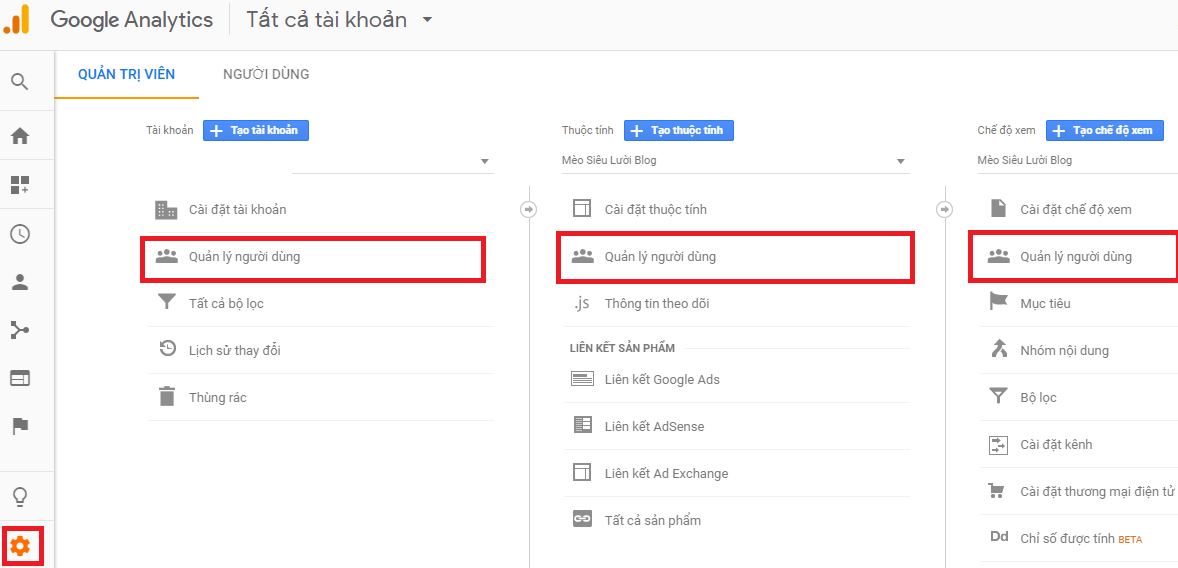
This is the highest-level unit you can create in Analytics. The account is your access point to Google Analytics. You need at least one account to access Analytics and to define the properties you want to track. An organization usually has one or more Google Analytics accounts. Each account can hold up to 50 different properties, so you can customize the properties in an account as needed.
Main features of the account level:
Create and manage multiple accounts: Suitable for organizations with several brands or separate projects.
Holds multiple properties: Each account can manage up to 50 websites/apps.
Access permissions: Administrators can grant different users permissions at the account level, keeping data secure.
Centralised data management: Makes it easy for the organization to control and compare performance across websites/apps.
Customizable to your needs: Lets you set up properties, goals and configurations to fit each project.
A property represents a specific website or mobile app you want to track. Each property has a unique Tracking ID, usually in the form UA-xxxxxxxx-y.
The middle digits (xxxxxxxx): the account number (Account ID).
The final digit (y): the property number (Property ID) within the same account.
With this ID, Google Analytics can identify your website or app and collect its data accurately.
A view is the administrative level in Google Analytics that lets you access and customize reports. Each view is created from a property and can have its own filters to process data the way you want. One property can contain several views, up to 25.
To avoid scattered or skewed data, keep a single property and only create the views you need. Administrators can also give other users access to individual views, so they can follow and analyze reports based on the processed data.
1. How do I see the users visiting my website?
To see the users visiting your website, go to your Google Analytics dashboard and follow these steps:
2. How do I share Google Analytics data with other people?
To share Google Analytics data with someone else, follow these steps:
3. Can I track Google Ads campaigns in Google Analytics?
The answer is YES, you can track Google Ads campaigns in Google Analytics. To do this, link your Google Analytics account with your Google Ads account. Once linked, you can follow ad performance, traffic and user behavior related to your campaigns in Google Analytics reports.
4. Does Google Analytics cost money?
Google Analytics comes in both a free version and a paid version.
Google Analytics is a very good website analytics tool that helps website administrators monitor their site and steer their plans better.
This MONA Media article not only helps you understand what Google Analytics is, it also gives practical, easy-to-apply guidance for getting the most out of this powerful tool. With the knowledge shared here, thousands of businesses, marketers and SEO specialists have become more confident analyzing data, refining strategy and increasing conversions. We hope you will also make good use of Google Analytics to take your online business to the next level.

CEO & Founder · The MONA
Founder of The MONA, who built a services company of 200+ staff with 14,000+ projects delivered. Khánh Hùng shares how he thinks about building systems that run themselves, automating a business, and the real lessons from delivering projects at MONA.
 1,8K
1,8K




Professional website
design services
Own a website with a beautiful, 100% exclusive design and a lifetime warranty, with the ability
to expand features flexibly as your business grows, starting today!














 MONA promises never to use your information for sale or SPAM
MONA promises never to use your information for sale or SPAM
MONA promises never to use your information for sale or SPAM


 MONA promises never to use your information for sale or SPAM