
 MONA OS 2.0
 Partner with MONA


 Tự động hoá doanh nghiệp
 Cẩm nang SEO
 Digital Marketing
 Kinh nghiệm thiết kế website
 Hạ Tầng Server
 Giáo dục


 VI
 EN













Message us on
Zalo Official


 ProductsNew

 ProductsProducts
 Mới ra mắtKHA AI 2027App tự edit video, tự đăng mọi mạng xã hội, 2 phút mỗi ngày










 Website designLooks good and wins customers over.
SEO servicesBrings in customers searching for exactly what you sell.
 Tư vấn digital marketingKéo khách từ nhiều kênh, đo bằng số thật.
Corporate video productionVideos introducing your company, factory and team.
 NewAI video productionCompany story films made with AI.
 Custom software developmentCRM, ERP and HRM built for your business.
 Viết AI Agent theo yêu cầuĐặt riêng một trợ lý AI cho đúng việc của mình.
 Tư vấn chuyển đổi AIĐưa AI vào vận hành của cả công ty.
NewMONA LMSManagement for centers and schools.
MONA SkillHubInternal training for company staff.
 NHTQ systemEnd-to-end China–Vietnam shipping operations.
MONA JMSManagement for gold, diamond and pawn shops.
 MONA E-LearningA website with every feature you need to sell courses.
 How to sell online courses (course)More than 30 free lessons on selling courses on autopilot.
 MONA Cloudmonacloud.vnServers to get your apps and websites running.
 MONA Basemonabase.vnPostgres database, sign-in and file storage.
 MONA Mailmonamail.vnSend OTP, order and invoice emails from your software.
 MONA Paymonapay.vnAccept bank transfers via VietQR and notify your software when the money arrives.
 MONA eInvoiceComing soonIssue e-invoices that meet tax standards.
Gấu CườiTrả lời khách 24/7 trên web, Fanpage, Zalo và thu lead cho sale.
 Gấu TeleSalesGọi điện tư vấn, chăm khách như tổng đài viên thật.
Dê CườiTư vấn và chốt đơn cho shop ngay trong khung chat.
Gấu WebmasterNhắn nhóm Zalo là website được sửa xong.
 Gấu Pháp ChếSoạn hợp đồng, rà điều khoản trong vài phút.
 Gấu Báo GiáLên báo giá đúng mẫu và gửi khách ngay.
 AI chăm sóc khách hàngTheo dõi và giữ chân khách hàng cũ.
 Gấu Tuyển DụngLọc hồ sơ, hẹn lịch, phỏng vấn ứng viên.
 Mới ra mắt
KHA AI 2027
Xây kênh chuyên gia 2 phút mỗi ngày
Quay bằng điện thoại, AI tự edit video, tự đăng lên 16 nền tảng và tự trả lời bình luận, tin nhắn.
940.268lượt xem trên kênh CEO MONA sau 43 ngày
 Anh Khánh HùngCEO MONA đang dùng mỗi ngày
Xem app làm được gì
 AI
Gấu Cười MONA ĐANG TỰ XÀITrả lời khách 24/7 trên website, Zalo OA, Messenger và thu lead về cho sale.
Dê CườiChốt đơn bán lẻ và sàn: Shopee, TikTok Shop, web. Chăm cả khách sỉ, đại lý.
Gấu WebmasterCập nhật nội dung, tối ưu SEO website mỗi ngày.
Gấu TeleSalesGọi điện tư vấn, chăm khách như tổng đài viên thật.
Gấu Tuyển DụngLọc hồ sơ, hẹn lịch, phỏng vấn ứng viên tự động.
AI chăm sóc khách hàngGiữ khách cũ, cứu lead đã rớt cho phòng kinh doanh.
Gấu Pháp ChếSoạn hợp đồng, rà điều khoản trong vài phút.
Gấu Báo GiáLên báo giá đúng mẫu, gửi khách ngay khi có yêu cầu.
 Chuyển đổi AI toàn phầnGiải pháp tổng cho doanh nghiệp, 3 lớp triển khai.
 Viết AI Agent theo yêu cầuĐặt riêng một con AI gánh đúng nghiệp vụ của bạn.
 Custom softwareCRM, ERP and HRM with built-in AI automation.
 SEO & AEO thời đại AIĐược Google lẫn AI trích dẫn, không chỉ xếp hạng.
 Kiến thức AI cho doanh nghiệpBài phân tích, hướng dẫn ứng dụng AI vào vận hành.
 Free AI courses
 AI tools at work
App mới · KHA AI 2027
Xây kênh 2 phút mỗi ngày
AI tự edit video, tự đăng mọi mạng xã hội
Free consultation, 8am–10pm every day

06 September, 2026
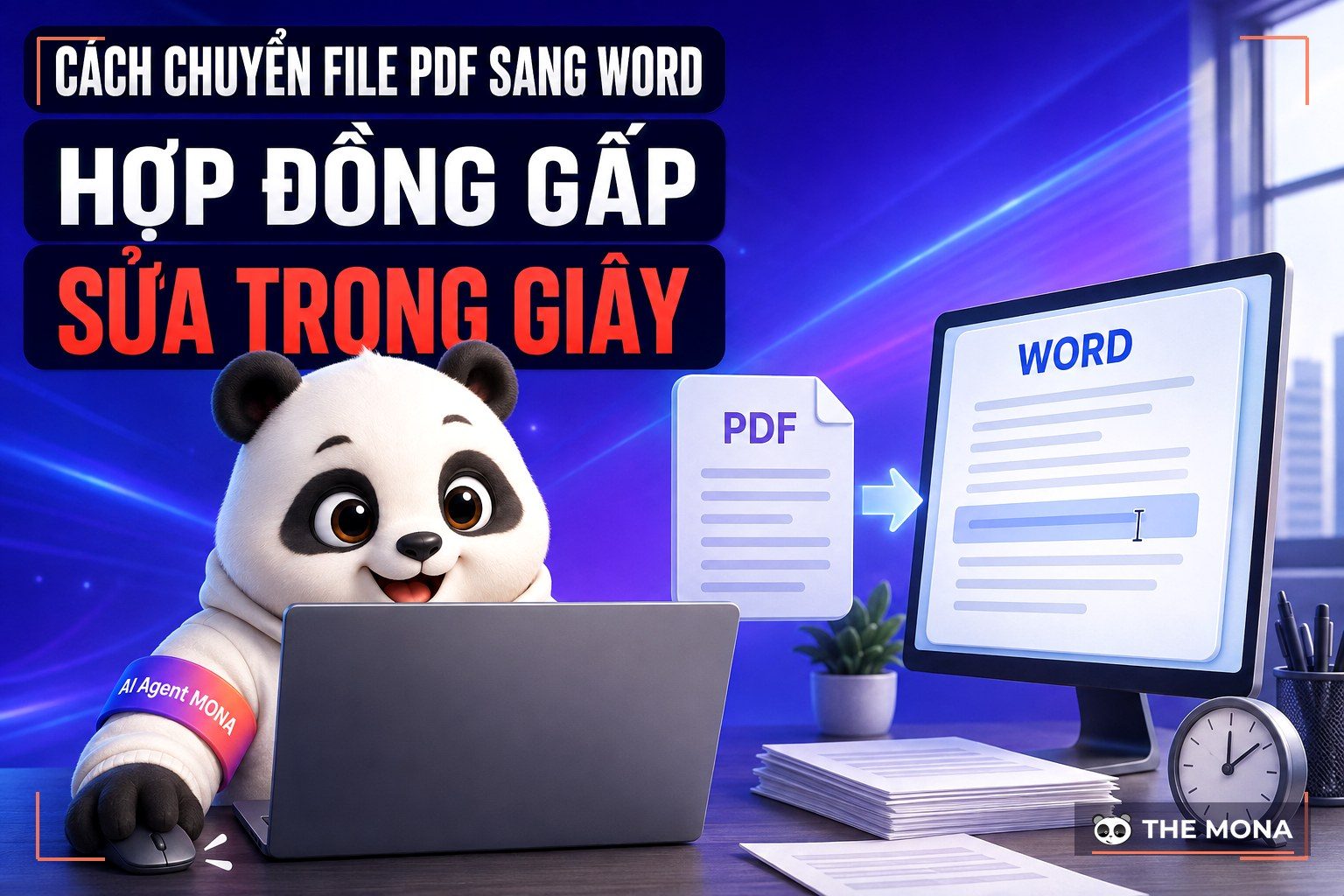
A salesperson on our team receives a PDF contract from a client at exactly 5 pm and needs to urgently edit 3 lines to close the deal that day. We run into this scene all the time. The trouble is that the PDF is locked tight, and when you copy the text out, all the Vietnamese diacritics scramble into strange characters. She sits there retyping every word of 3 A4 pages, sweating, and one wrong digit means paying damages on the contract. It is really exhausting.
We have seen this at the MONA office since March 2016, running day-to-day for a large team, whenever a PDF is handed to sales they panic because they can't get the text out. Without an accurate way to convert PDF to Word, the company's work stops dead right away. This is the most common breaking point for businesses using electronic paperwork today, and it has to be solved properly to do the job right.
Instead of laboriously retyping 3 pages, you just need the right tool to thaw the PDF into a Word file you can edit freely. We have tested this across more than 14,000 projects of all sizes and boiled it down to the 6 fastest methods you can apply right now. A company's operations will run very smoothly if you do it the right way and save 2 hours a day. That is exactly how it works.
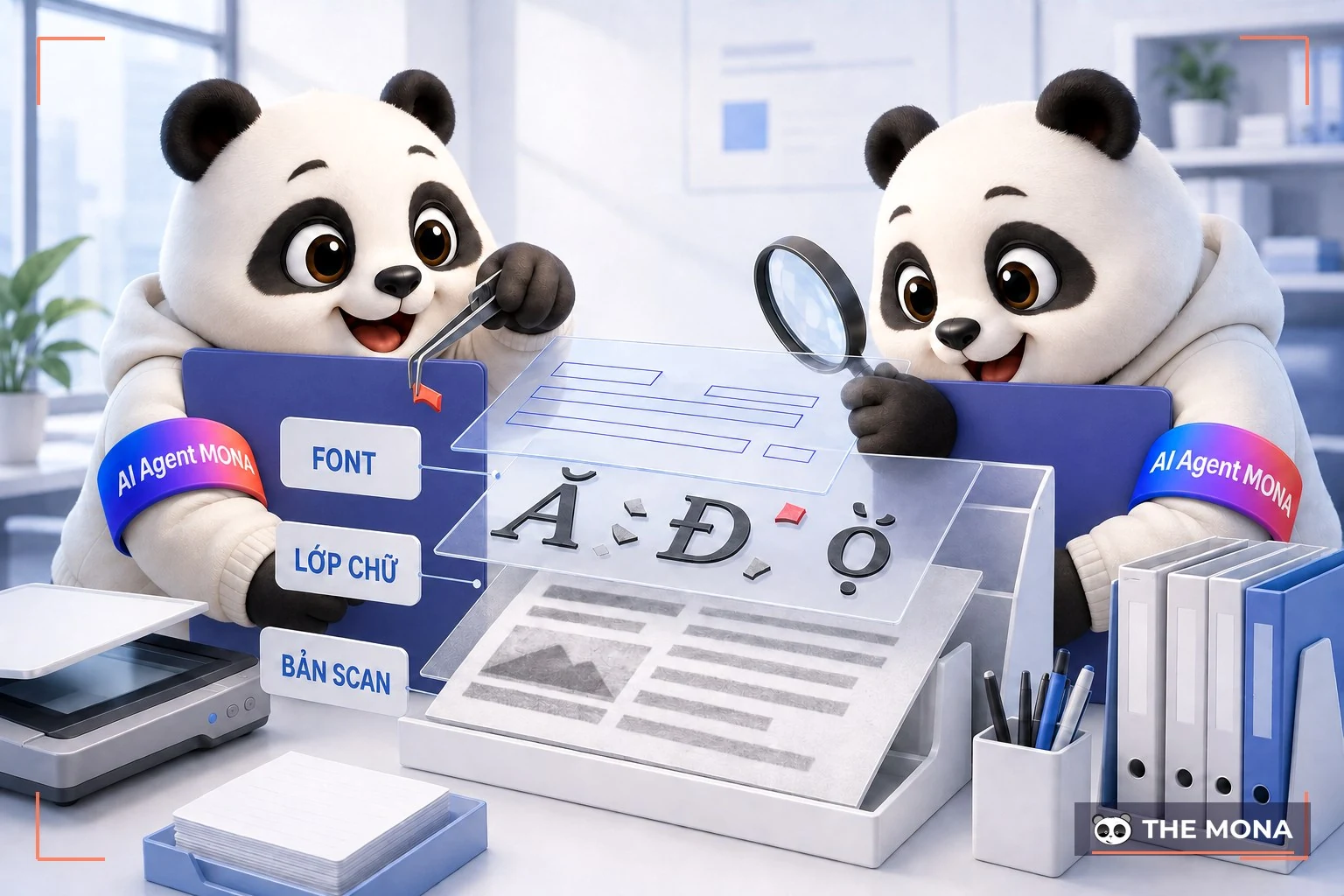
A PDF file is essentially a hardened picture that locks the position of all text, line spacing and images to fixed coordinates on a static page. Any browser or program that opens it looks exactly the same, never off by even 1 px, but when you push it back into a Word file it falls apart. We find that most PDFs downloaded online shift lines when forced into another format. Clients doing website design in Ho Chi Minh City run into this trouble often. It's a real nuisance.
We break down 3 main causes of files breaking in conversion. First is fonts: if the machine doesn't have the old VNI or TCVN3 font set the original author used, that text turns into squares immediately. Second is the text layer structure: PDFs often stack several invisible layers on top of each other to protect copyright, and during conversion the tool skips all the text. Third is over-compressing the file below 2 MB beforehand, which permanently destroys the text data beyond recovery.
A scanned file is really just a photo of a sheet of paper, with no characters hidden inside for a computer to read, so you have to use optical character recognition. Reading Vietnamese with diacritics is always a tough problem for foreign tools because the hook-above and tilde marks stick together.
When you feed in a scanned PDF, it outputs an image pasted into a Word file. We have run technical checks many times across 5 updates and found you need fully licensed software to get stable results.
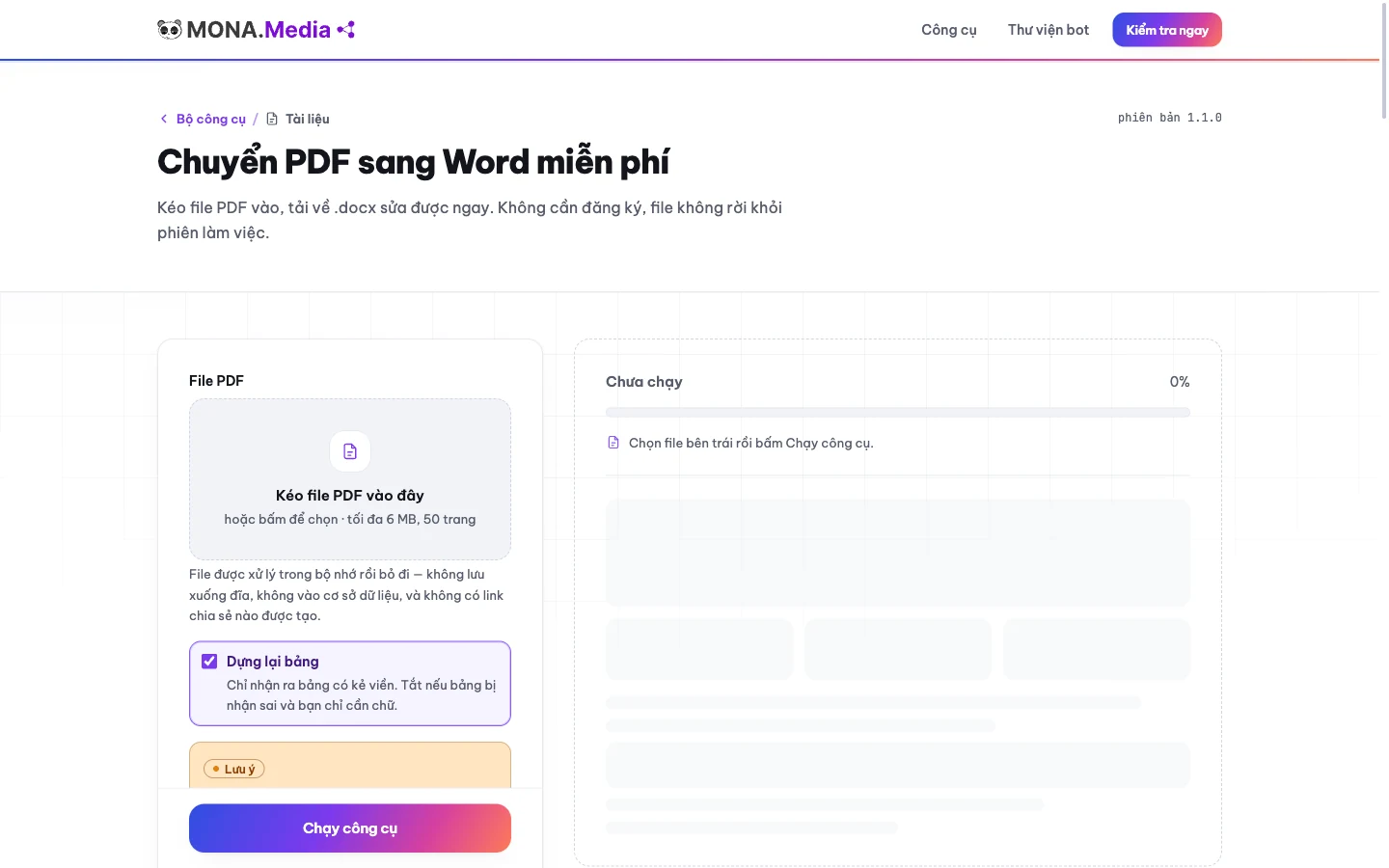
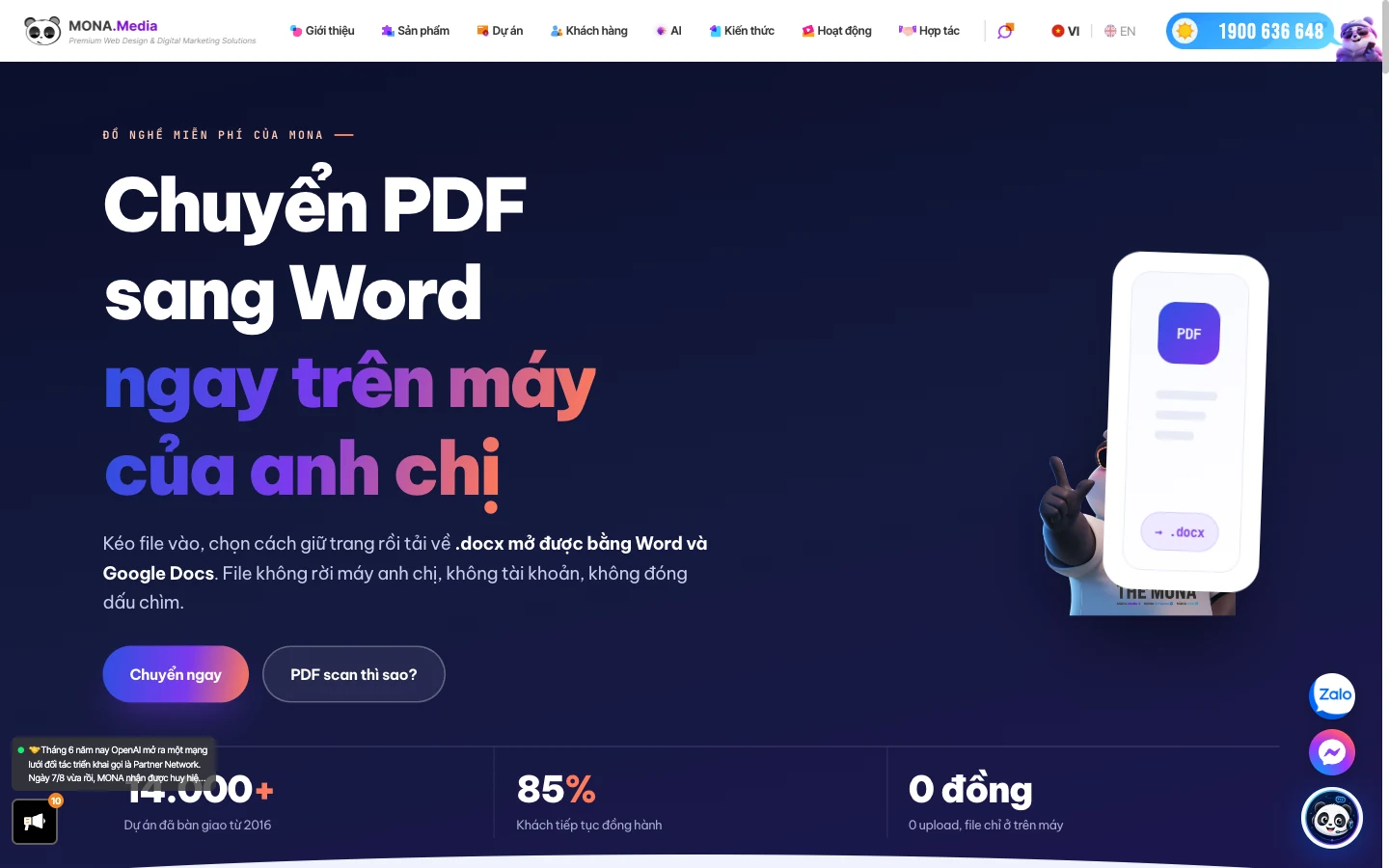
We measured on an ordinary office computer: a contract file 12 trang converted in under 10 seconds, and the downloaded .docx file sits right in the downloads folder. We wrote the tool to tackle Vietnamese font errors at the root, for clients to use every day, processing directly in the browser without sending files anywhere. In the past, people on our team often used foreign tools, and only when they read the terms did they find those vendors have the right to keep drafts on their servers. Since then MONA wrote its own tool that runs in the browser, and the file never leaves the machine. This ties into system risk assessment. It works very well.
Go to our official link how to convert a PDF to Word , drag your PDF file straight into the box in the middle of the screen. The tool automatically scans every line, recognizes commas and periods, and returns a .docx file in under 3 seconds depending on file weight. We guarantee your contract file never leaves the current session, and closing the browser tab wipes it clean, which is very safe for confidential documents.
Even though our tool handles Vietnamese smoothly, to be upfront: it can't read scanned PDFs that are images with no text layer, and if you feed one in it will report a 404 text not found error. To work with scanned PDFs you need one of the other methods below, and we won't make rash promises on this.
If the file has an extra layer of password protection, the tool also gives up, so remove the password first and then process it, to keep everything running smoothly and protect the system as much as possible.
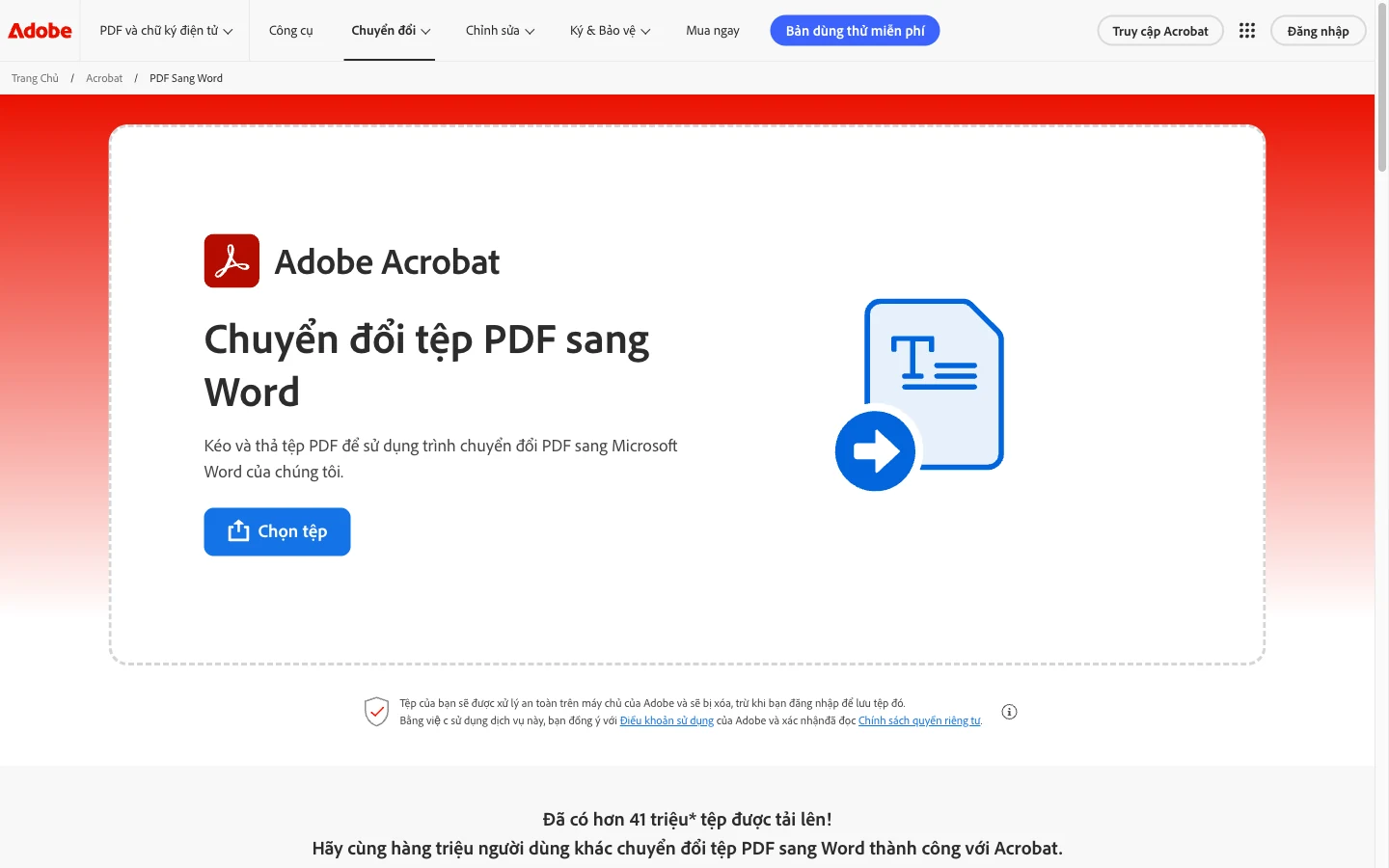
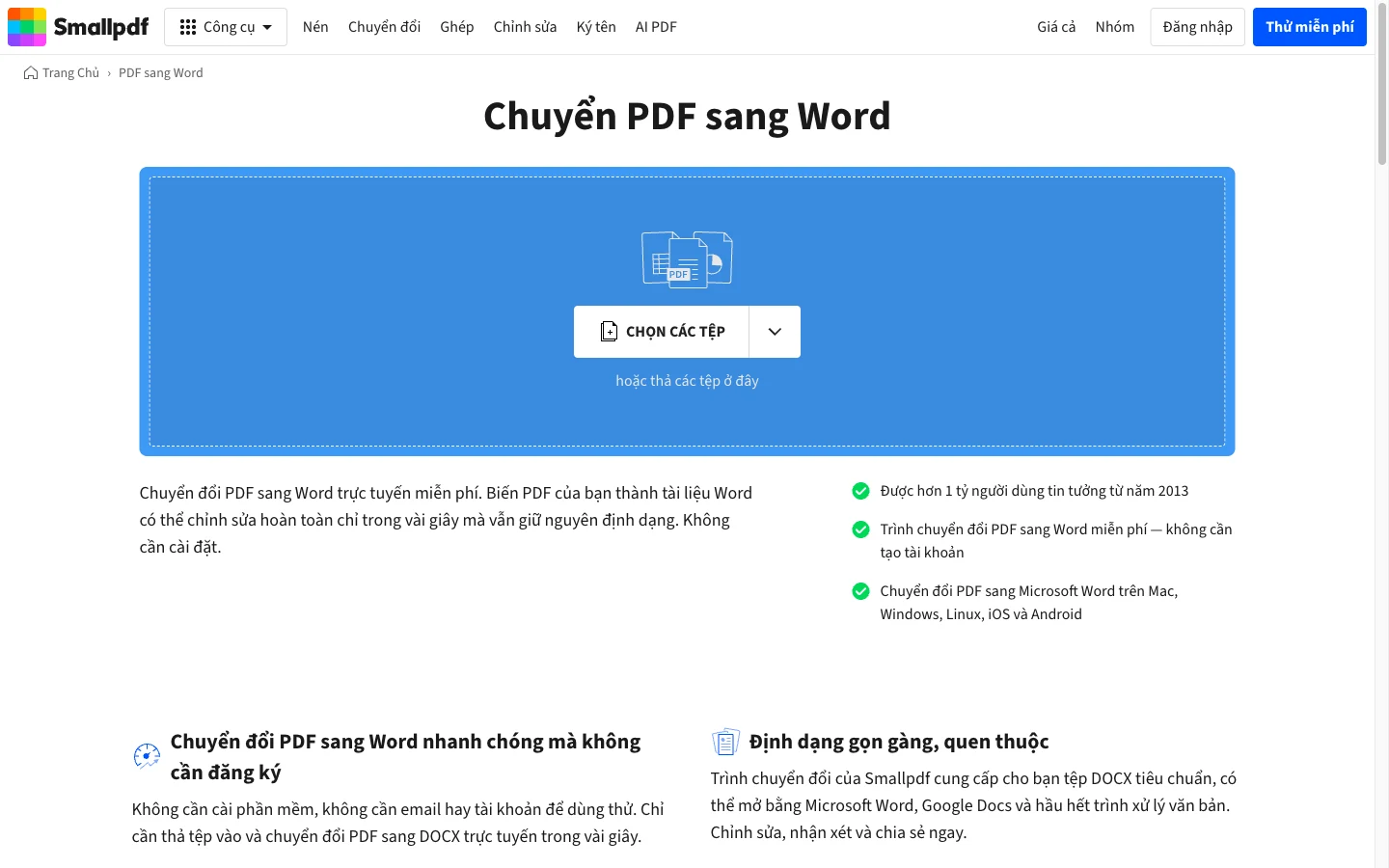
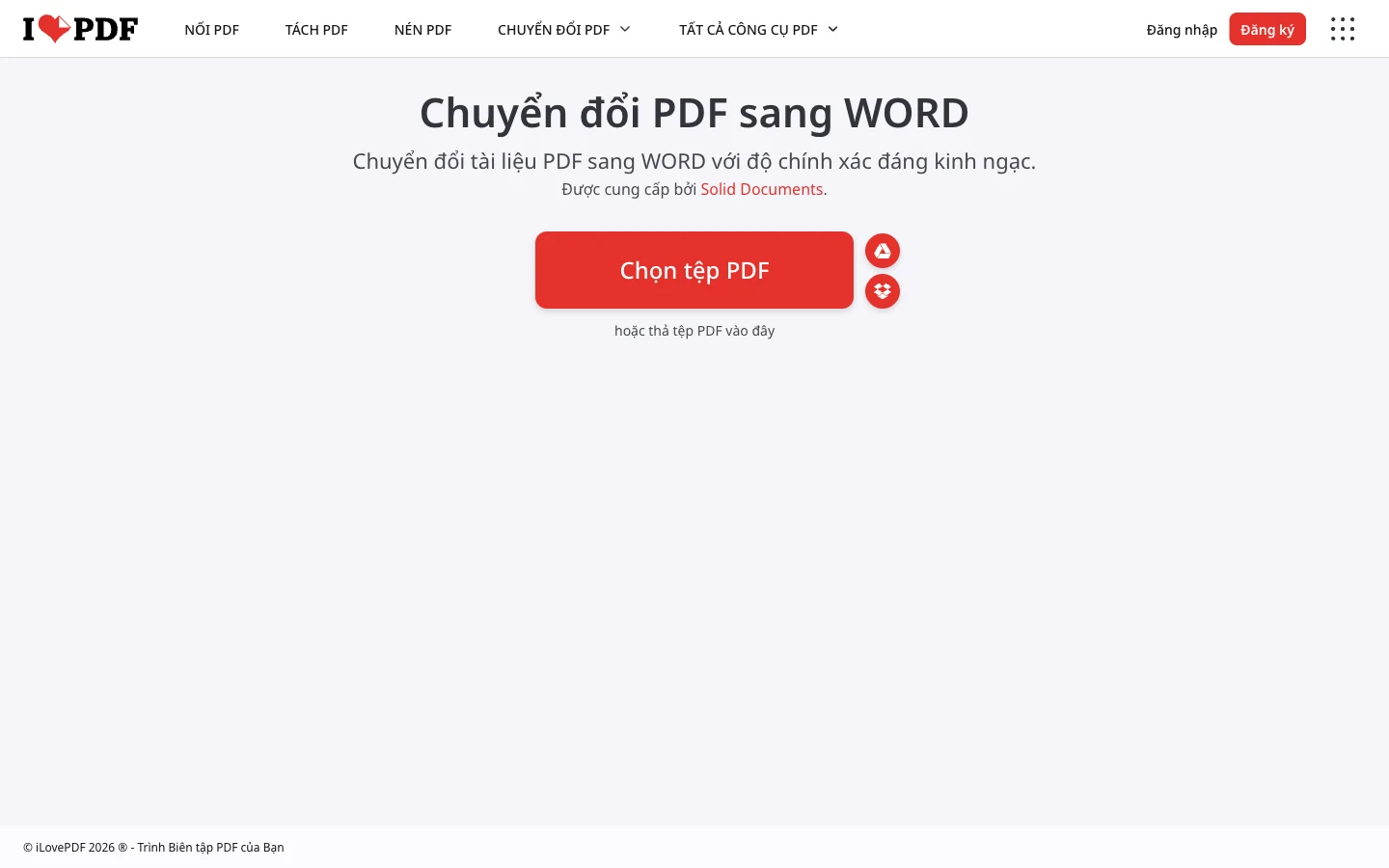
If your computer already has Office 2013 or later, don't bother looking for outside tools, because Microsoft has built this feature into its powerful software. Few people notice this great feature. Microsoft Word automatically reverses the PDF structure into separate paragraphs, tables and images so you can work on them directly. It's very quick.
Open Word, click the File tab in the top left corner, choose Open, and browse to the PDF you want to edit. Word will show a small message asking if you agree to convert the file, so go ahead and click OK and wait about 5 seconds. The text and layout are kept almost intact, enough to quickly edit 3 lines of a contract without retyping from scratch, exactly the smart way to work for busy people. Some clients ask about reversing text formatting and it works the same way in Word.
We tested this function on 06/09/2026 with 10 different PDFs and found it opens pure text documents very accurately. If your file has nested tables or complicated 3-column layouts, Word will shift lines a little, so take the time to fix the spacing and you're good to go.
If you're on a business trip, borrowing a cafe computer without Word, just throw the file straight onto Google Docs and process it in any current browser. Google's ecosystem is very strong at pulling text out of PDFs, even files with strange font errors that other programs give up on helplessly.
First, drag and drop the PDF into your personal Google Drive. When the upload finishes, right-click the file, scroll down to Open with, and choose Google Docs. Drive automatically extracts each text layer inside the PDF and lays it out on a clean blank page for you to type on freely. When done, export it as a .docx file to your computer and you're finished. It takes about 20 seconds.
We checked on 06/09/2026 that Google Docs picks up Vietnamese very accurately, reading all 500 pages of data without dropping a single word. The only downside is that it throws away all image formatting and tables and keeps only plain text. If you need to keep a nice layout, Docs won't work, because it breaks everything apart. But for getting the text out, it's accurate.
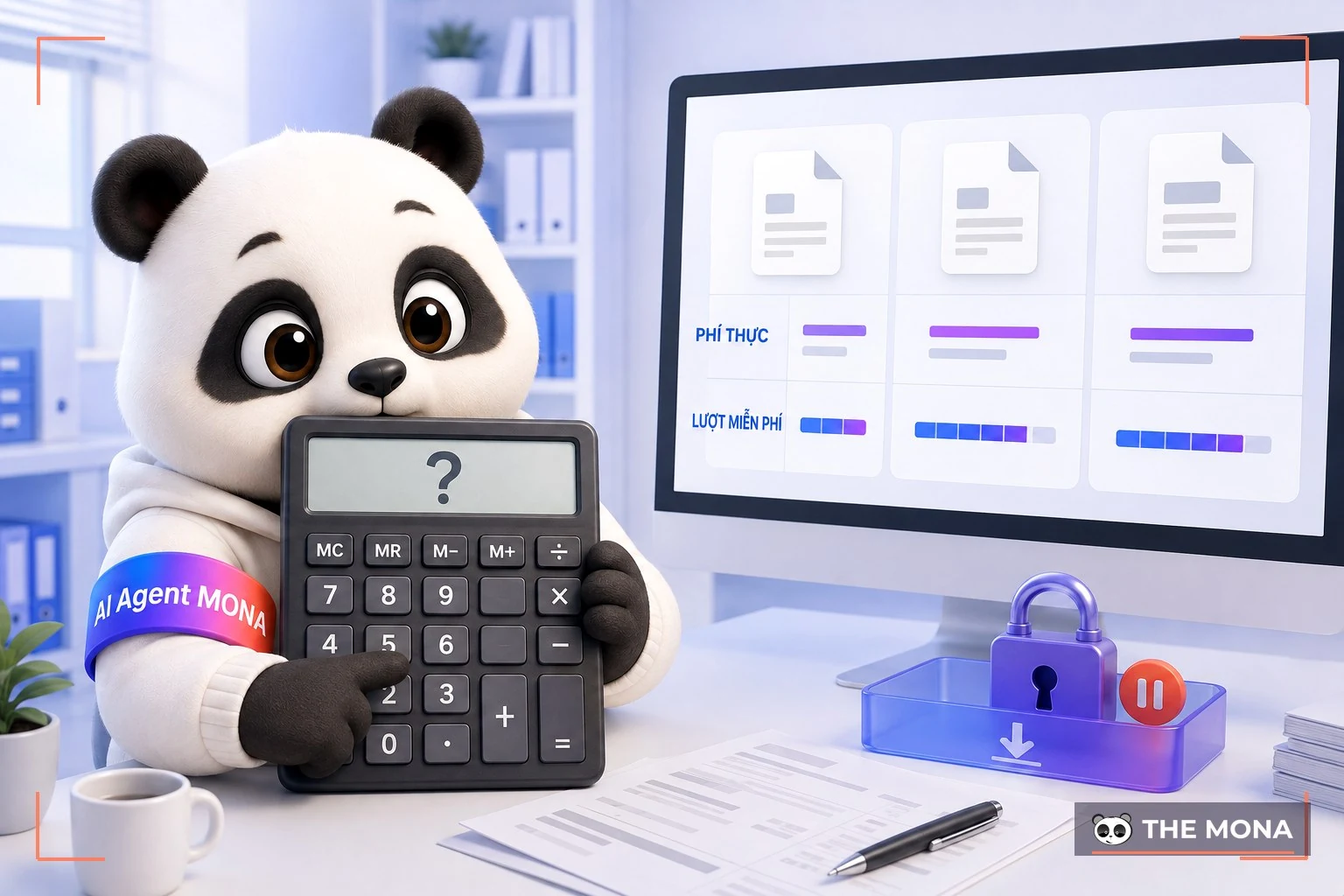
Office workers use these 3 foreign tools so much they know the interface by heart, but few know how many features the free plan actually blocks. We built a detailed comparison of each one to help you decide. There is no such thing as a completely free lunch: they lure you in for about 2 days and then ask for money. Paying is certain.
Adobe Acrobat online is from the company that created the PDF format, so it converts very smoothly and keeps almost the exact layout, but you can use it free exactly once, after which it forces you to buy the 350,000 VND/month plan. Next is iLovePDF, which is more down to earth and lets you convert without limits on the number of uses. But uploaded file size is capped under 15 MB, so you must buy the Premium version at 120,000 VND/month to raise the limit. Smallpdf is the harshest, allowing only 2 conversions a day on the free plan, and its Pro plan costs a steep 220,000 VND/month.
Foreign tools eat your money day by day if your company moves large volumes of paperwork, and the cost problem swells. We advise plainly: if you handle contracts at high density, you should commission in-house software to handle the whole job end to end and save costs.
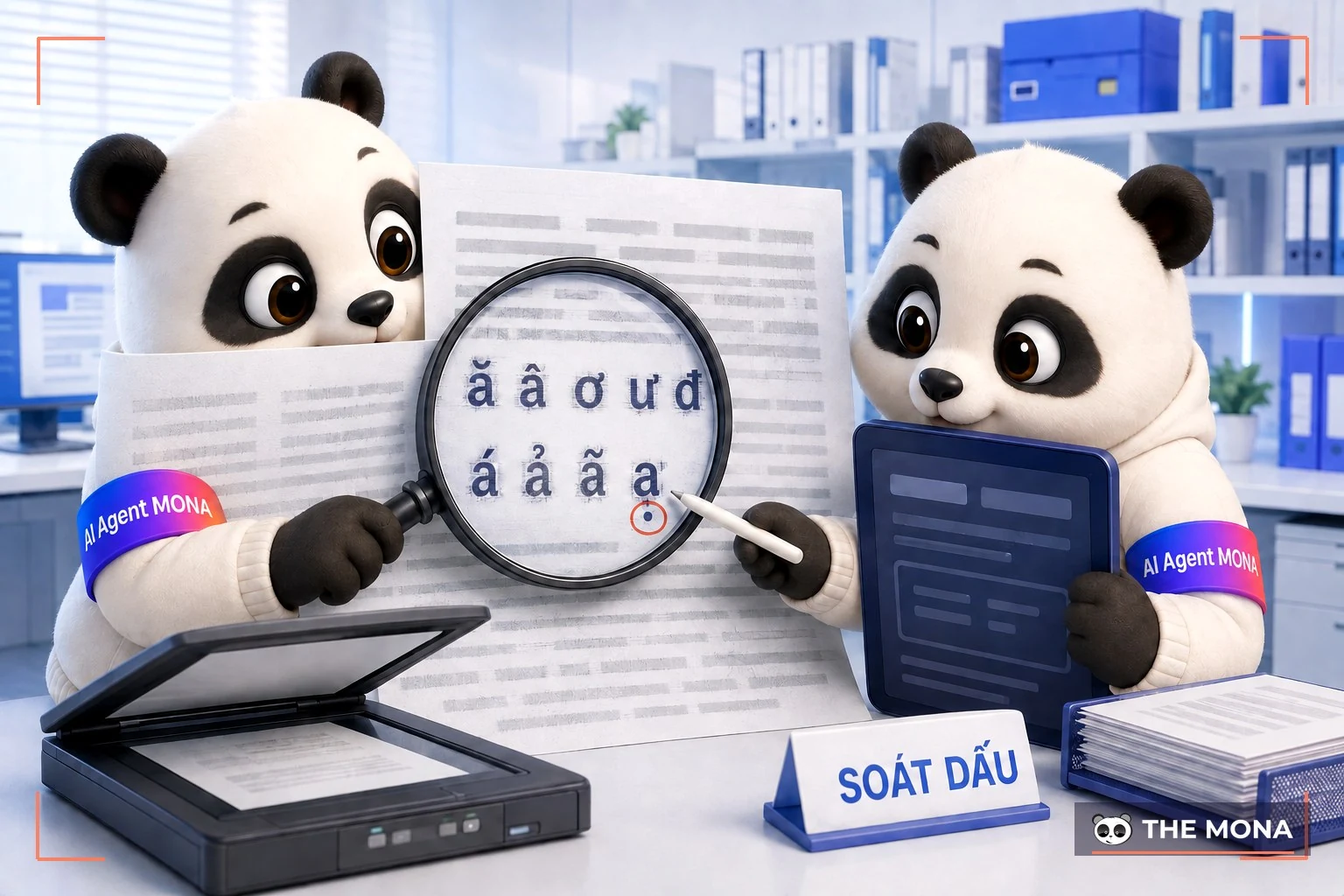
For a clear scan, each 10 trang page takes about 2 min to run OCR and then check by eye. A scanned page of 300 dpi clear printed text is mostly readable by OCR, while a tilted or blurry phone photo fails almost completely with any tool; we tested with 3 common types of documents which are contracts, invoices and catalogues. A scanned PDF is a photo of a sheet of paper, so we have to use OCR technology to teach the computer to read each stroke, but Vietnamese is OCR's biggest nightmare because of stuck-together diacritics. When the letters o and ơ sit close together, or an a carries a stacked grave accent, the computer outputs strange symbols. After 3 rounds of training, MONA's OCR still often ruins clients' work in some places because the machine doesn't understand meaning. This is very hard.
We tested OCR on scanned PDFs: English text is read almost correctly, but with Vietnamese documents it drops badly, with many wrongly joined diacritics. Adobe Acrobat handles this a bit better, reading most Vietnamese diacritics so you only fix the rest by hand. We are continuously retraining our Vietnamese model to upgrade this for a better client experience, but for now it is still rough. It is just like using converting from an image file to text.
If you are holding a contract photographed blurrily with a phone, don't expect any tool to read it fully. Have a staff member retype it by hand to be sure. Even content optimization tools can't save a very blurry image file, and AI only sees where to read text at a minimum resolution of 300 dpi. To dig deeper, see the full evaluation process from us.
Last March, a construction company client brought MONA a 140-page bid package and a 60-page design catalogue, all locked PDF files, and asked us to extract the data to build a website. Our project lead broke into a sweat because the files were so heavy that opening them in a normal browser froze the machine. We tried iLovePDF and it reported the 15 MB limit was exceeded and demanded the Premium plan, which stalled everything. It was a real dead end.
We decided to split the 140-page package into 7 parts of 20 pages each, then use MONA's in-house tool to process them in parallel on 3 different computers. The result was that within 45 minutes all the text and technical specs of several hundred material codes were pulled into clean Word files, keeping Vietnamese diacritics intact. The client was startled to see the Word files we exported. They had planned to hire 3 people to retype for a full week to finish all that tough work.
As for the 60-page catalogue, full of full-bleed images, we advised the client to skip pulling text and use a PDF to image tool to keep the original design quality. The hard lesson from our 14,000 projects is to choose the tool by file type, because no single tool handles every kind of document under the sun. Each job has its own path.
Through long years of supporting clients, we have received a pile of hotline calls about this PDF conversion. Whatever you wonder about, we note it all and answer once and for all, so we don't have to explain the same thing hundreds of times. Answering quickly now.
Which method avoids font errors?
Prefer MONA's converter or open the file in Microsoft Word 2013 or later. These two keep VNI or Unicode Vietnamese fonts very reliably. Foreign tools often turn the tilde into a hook-above mark, and checking again costs a lot of time and effort.
If I drop a contract into the browser, will the file be exposed?
Our tool processes everything locally in the RAM of the computer you're using and doesn't send a single byte of data to MONA's servers or anywhere else. But if you use another online tool, the file is uploaded to their server. The risk of leaking an internal quote is real, so weigh it carefully.
What tool works well for a 50 MB PDF?
Stay away from free online tools, since they all block at 15 MB, so it's best to avoid them. Drop the file into Google Drive and open it with Google Docs, which is the toughest option, because Google's servers can chew through files of any size cleanly. Understanding the rules of each tool makes your work 3 times faster.
In short, if you hold a pure text contract, opening it in Word or using MONA's PDF extraction tool directly is the quickest and neatest: accurate in Vietnamese, secure, and only 5 minutes a day. For a 5-page report packed with complex images, bite the bullet and pay for Adobe Acrobat to keep the layout. If you are too busy to figure it out yourself, hand this paperwork flow over to technology to handle professionally from A to Z.
As your company grows, contracts, quotes and invoices are produced every hour, and using scattered tools can't keep up with the pace. Our IT team specializes in building AI Agent systems that handle incoming paperwork in bulk, including generating and reading payment QR codes for invoices. They automatically receive 50 PDF files an hour, extract customer data and push it straight into the CRM without a single person retyping. This cuts nearly all manual labor. See more about virtual staff systems to see the power of automation.
If you have a headache from a messy pile of process paperwork, pick up the phone and call MONA at 1900 636 648. We will send an expert to diagnose the problem and assemble the automated flow that fits your business best. It cuts 20 hours of wasted work. Our service from us always delivers real results. Every bottleneck in the admin department will be cleared out for good. That's the truth.

CEO & Founder · The MONA
Founder of The MONA, who built a services company of 60+ staff with 14,000+ projects delivered. Khánh Hùng shares how he thinks about building systems that run themselves, automating a business, and the real lessons from delivering projects at MONA.
 387




Professional website
design services
Own a website with a beautiful, 100% exclusive design and a lifetime warranty, with the ability
to expand features flexibly as your business grows, starting today!






 MONA will never sell your information or send you spam


 MONA will never sell your information or send you spam
