MONA OS 2.0
 Partner with MONA


 Tự động hoá doanh nghiệp
 Cẩm nang SEO
 Digital Marketing
 Kinh nghiệm thiết kế website
 Hạ Tầng Server
 Giáo dục


 VI
 EN


JPG and JPEG
Photos, Zalo images and camera shots. Original mode leaves the file data untouched unless you rotate the image.


 ProductsNew

 ProductsProducts
 Mới ra mắtKHA AI 2027App tự edit video, tự đăng mọi mạng xã hội, 2 phút mỗi ngày










 Website designLooks good and wins customers over.
SEO servicesBrings in customers searching for exactly what you sell.
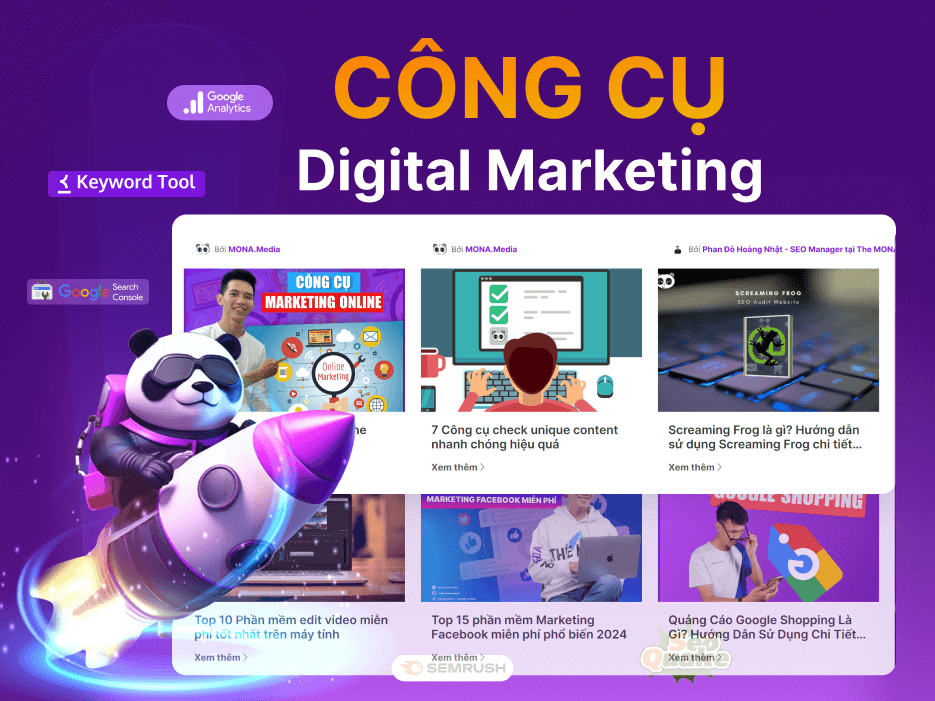 Tư vấn digital marketingKéo khách từ nhiều kênh, đo bằng số thật.
Corporate video productionVideos introducing your company, factory and team.
 NewAI video productionCompany story films made with AI.
 Custom software developmentCRM, ERP and HRM built for your business.
 Viết AI Agent theo yêu cầuĐặt riêng một trợ lý AI cho đúng việc của mình.
 Tư vấn chuyển đổi AIĐưa AI vào vận hành của cả công ty.
NewMONA LMSManagement for centers and schools.
MONA SkillHubInternal training for company staff.
 NHTQ systemEnd-to-end China–Vietnam shipping operations.
MONA JMSManagement for gold, diamond and pawn shops.
 MONA E-LearningA website with every feature you need to sell courses.
 How to sell online courses (course)More than 30 free lessons on selling courses on autopilot.
 MONA Cloudmonacloud.vnServers to get your apps and websites running.
 MONA Basemonabase.vnPostgres database, sign-in and file storage.
 MONA Mailmonamail.vnSend OTP, order and invoice emails from your software.
 MONA Paymonapay.vnAccept bank transfers via VietQR and notify your software when the money arrives.
 MONA eInvoiceComing soonIssue e-invoices that meet tax standards.
Gấu CườiTrả lời khách 24/7 trên web, Fanpage, Zalo và thu lead cho sale.
 Gấu TeleSalesGọi điện tư vấn, chăm khách như tổng đài viên thật.
Dê CườiTư vấn và chốt đơn cho shop ngay trong khung chat.
Gấu WebmasterNhắn nhóm Zalo là website được sửa xong.
 Gấu Pháp ChếSoạn hợp đồng, rà điều khoản trong vài phút.
 Gấu Báo GiáLên báo giá đúng mẫu và gửi khách ngay.
 AI chăm sóc khách hàngTheo dõi và giữ chân khách hàng cũ.
 Gấu Tuyển DụngLọc hồ sơ, hẹn lịch, phỏng vấn ứng viên.
 Mới ra mắt
KHA AI 2027
Xây kênh chuyên gia 2 phút mỗi ngày
Quay bằng điện thoại, AI tự edit video, tự đăng lên 16 nền tảng và tự trả lời bình luận, tin nhắn.
856.188lượt xem trên kênh CEO MONA sau 30 ngày
 Anh Khánh HùngCEO MONA đang dùng mỗi ngày
Xem app làm được gì
 AI
Gấu Cười MONA ĐANG TỰ XÀITrả lời khách 24/7 trên website, Zalo OA, Messenger và thu lead về cho sale.
Dê CườiChốt đơn bán lẻ và sàn: Shopee, TikTok Shop, web. Chăm cả khách sỉ, đại lý.
Gấu WebmasterCập nhật nội dung, tối ưu SEO website mỗi ngày.
Gấu TeleSalesGọi điện tư vấn, chăm khách như tổng đài viên thật.
Gấu Tuyển DụngLọc hồ sơ, hẹn lịch, phỏng vấn ứng viên tự động.
AI chăm sóc khách hàngGiữ khách cũ, cứu lead đã rớt cho phòng kinh doanh.
Gấu Pháp ChếSoạn hợp đồng, rà điều khoản trong vài phút.
Gấu Báo GiáLên báo giá đúng mẫu, gửi khách ngay khi có yêu cầu.
 Chuyển đổi AI toàn phầnGiải pháp tổng cho doanh nghiệp, 3 lớp triển khai.
 Viết AI Agent theo yêu cầuĐặt riêng một con AI gánh đúng nghiệp vụ của bạn.
 Custom softwareCRM, ERP and HRM with built-in AI automation.
 SEO & AEO thời đại AIĐược Google lẫn AI trích dẫn, không chỉ xếp hạng.
 Kiến thức AI cho doanh nghiệpBài phân tích, hướng dẫn ứng dụng AI vào vận hành.
 Free AI courses
 AI tools at work
App mới · KHA AI 2027
Xây kênh 2 phút mỗi ngày
AI tự edit video, tự đăng mọi mạng xã hội
Free consultation, 8am–10pm every day

MONA free tool no. 03
Pick JPG, PNG, WebP or phone photos, put them in the right order and download one sharp PDF. Your images never leave your device, no sign-up, no watermark.
 No uploads · processed on your device
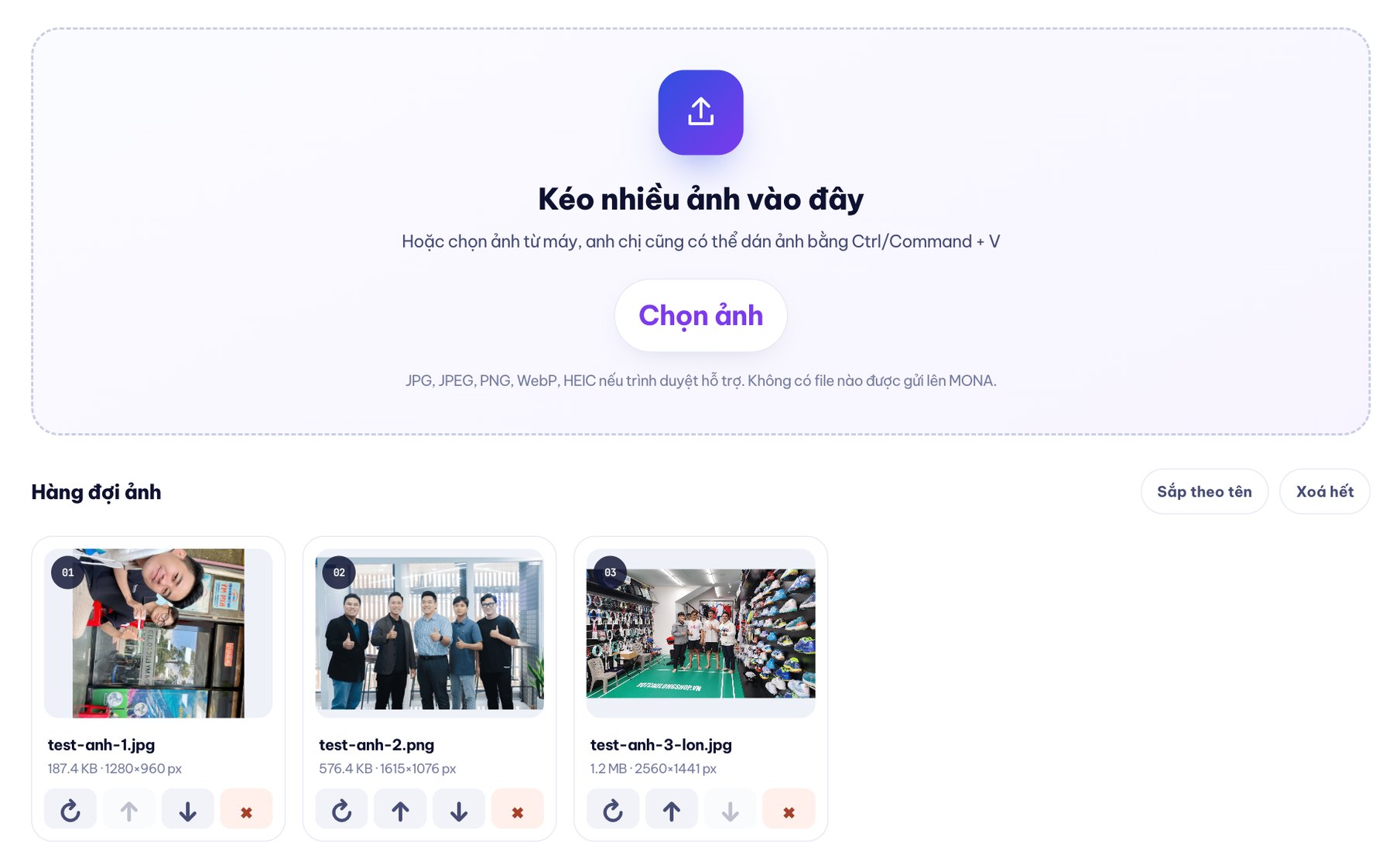
00Convert images here
The tool runs right in your browser. Images are processed one at a time to save memory on your phone and computer.
Or choose images from your device. You can also paste images with Ctrl/Command + V
No images yet. The order in the queue is the order of the PDF pages.
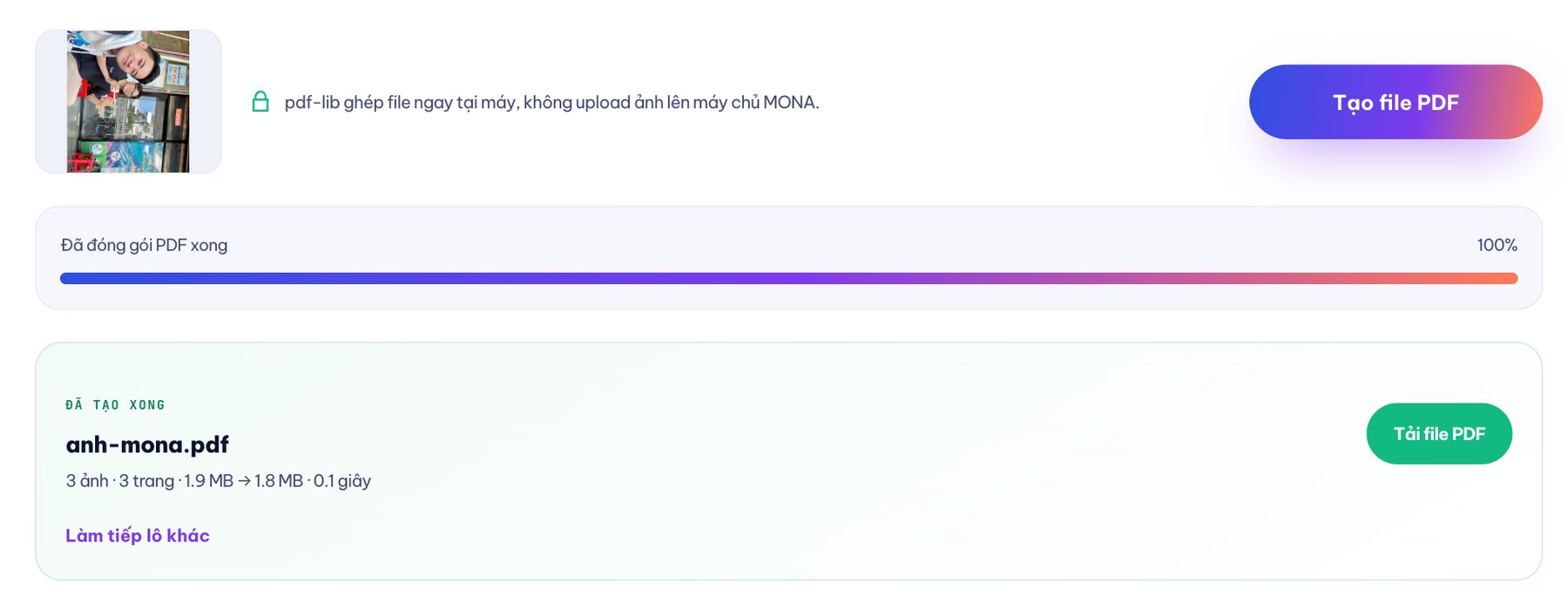
pdf-lib builds the file on your device, without uploading images to MONA's server.
01Any image works
The four most common formats go into the same queue. The tool tells you clearly when the browser cannot open an image instead of stopping the whole batch.
Photos, Zalo images and camera shots. Original mode leaves the file data untouched unless you rotate the image.
PNG files with an alpha channel stay PNG inside the PDF, so transparent areas don't turn black.
The browser decodes WebP and then packs it into the PDF. It can be compressed further if you choose Medium or Light.
HEIC only opens reliably in Safari and on iPhone. Other browsers will clearly list the names of skipped images.
02Page size and quality
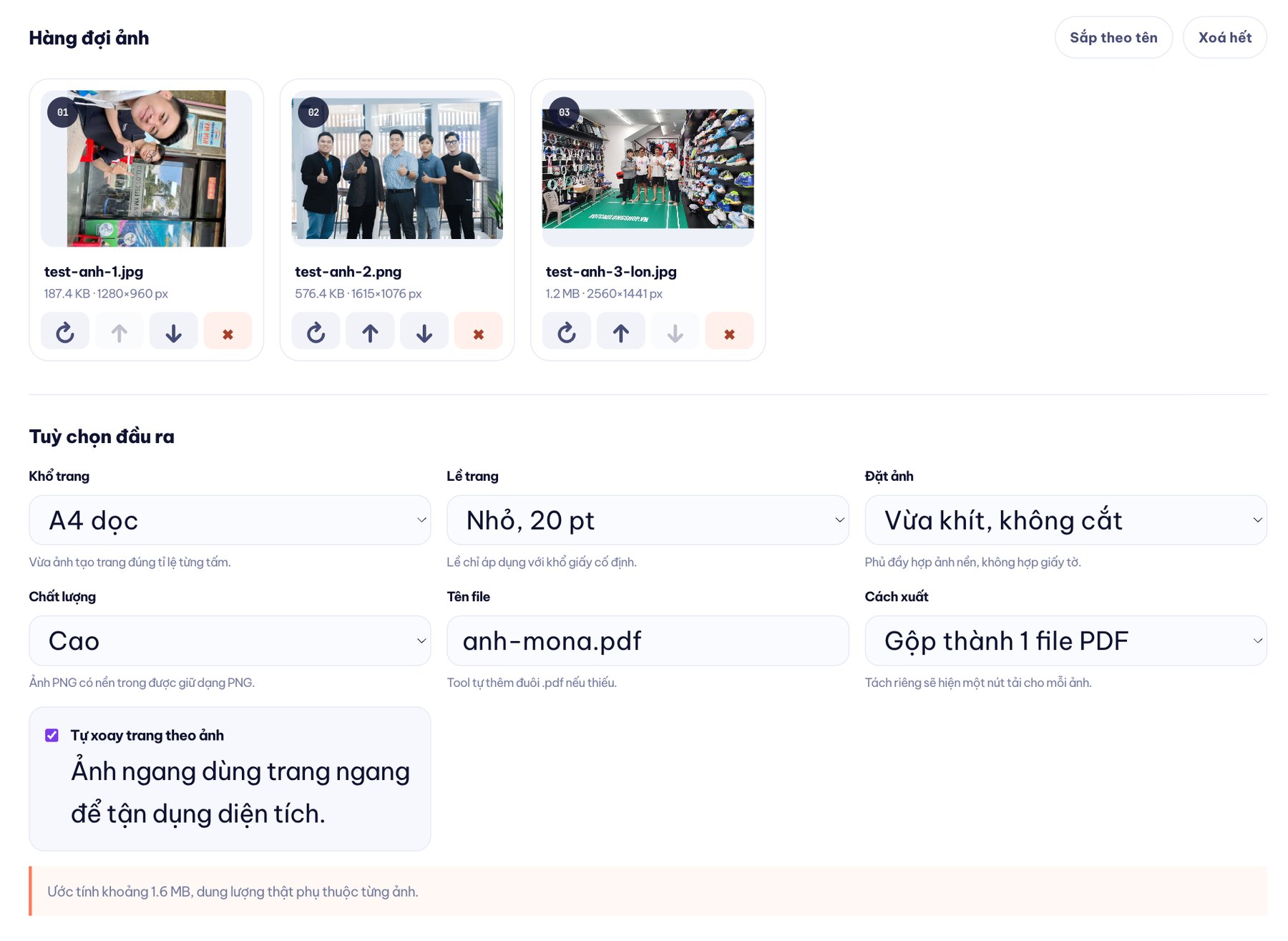
There is no single page size that fits every job. Documents need their edges intact, presentation images can fill the page, and files you send in a hurry should stay small.
The page is exactly the size of the image, with no added white space and no lost document corners.
The image keeps its proportions, sits in the middle of the page and has breathing room so the printer does not cut the edges.
The long edge is capped at 2,200 px, enough to read documents and lighter than the original.
03Do it right on your phone
No app to install, no sign-up. Safari, Chrome or whatever browser you use is enough.
No app download needed. The tool works directly in the browser.
Pick several photos from your library, or open the camera to shoot a document on the spot. Use the ↑ ↓ buttons to change the order on a touch screen.
On iPhone, the file is in the Files app. On Android, the file is usually in the Downloads folder.
Images stay in your device's memory. Turn off your connection after the page loads and the tool can still merge the PDF.
04Images never leave your device
“ID cards, contracts, land titles and invoices shouldn't pass through some unknown server just to be merged into a PDF.”
 Gấu Cười · free tools
The browser reads each image directly from your device.
pdf-lib merges the images into a PDF right in your device's memory.
No network request carries your image files away. You can open the Network tab to check for yourself.

05Why it's free
Clients often send documents photographed on a phone, 20 to 30 loose shots at a time. The MONA team built this tool to merge them quickly into one PDF, then opened it up for anyone with the same job. Since 2016 we have delivered 14,000+ projects, and 85% of our clients stay with us.
Need to edit the text in a document? Use tool PDF sang Word; need to share a link quickly? Use the QR code generator.
06Where to draw the line so you don't overpay
A few dozen shots merged now and then is completely different from thousands of reports and invoices passing through a business every month.
07FAQ
Yes. Select several images at once, drag and drop to rearrange them or use the up and down buttons on your phone, then choose Merge into 1 PDF file. Each image becomes one page, in the exact order of the queue.
The tool sets no hard limit because images are processed on your device. Batches over 300 images and images larger than 40 MP trigger a warning since they may use a lot of memory. If your phone is low-powered, split them into a few smaller batches.
They can stay unchanged. Choose Original quality so unrotated JPG or PNG files are embedded directly without recompression. High, Medium and Light reduce the file size; sharpness also depends on the original image and how you place it on the page.
Yes, when the browser can decode HEIC, which is more reliable in Safari on iPhone or Mac. Chrome and some Android devices may not open them; the tool skips just that image, reports the file name and carries on with the rest.
Yes. On a computer, drag and drop each image tile. On a phone, use the up and down buttons. The rotate button turns each image in 90-degree steps before the PDF is created.
No. The PDF has no watermark, no limit on how many times it is opened and no expiry. The file is created right in the browser and downloaded to your device.
No. The browser reads the images, pdf-lib merges the PDF and your device creates the download file. The tool does not use fetch, XHR or forms to send image content to MONA's server.
Tell MONA where the images come from, where they need to be stored and what data has to be extracted. We will lay out clearly which parts a free tool can handle and which parts are actually worth building software for.

MONA Media's free image-to-PDF converter is a browser-based tool at mona.media/chuyen-anh-sang-pdf/. It accepts multiple JPG, JPEG, PNG and WebP images, plus HEIC when the browser supports it; it lets you reorder and rotate each image, choose Fit to image, A4, A5 or Letter page sizes, set margins, image placement and quality level, then merge everything into one PDF or split each image into its own PDF. JPG and PNG in Original mode are embedded directly where possible to keep quality. Images are processed one by one on the device with pdf-lib, never uploaded to MONA's server, with no watermark and no expiry. MONA Media is part of The MONA Group, has operated since 2016, has delivered 14,000+ projects, hotline 1900 636 648.






 MONA will never sell your information or send you spam


 MONA will never sell your information or send you spam