
 MONA OS 2.0
 Partner with MONA


 Tự động hoá doanh nghiệp
 Cẩm nang SEO
 Digital Marketing
 Kinh nghiệm thiết kế website
 Hạ Tầng Server
 Giáo dục


 VI
 EN








Message us on
Zalo Official


 ProductsNew

 ProductsProducts
 Mới ra mắtKHA AI 2027App tự edit video, tự đăng mọi mạng xã hội, 2 phút mỗi ngày









 Website designLooks good and wins customers over.
SEO servicesBrings in customers searching for exactly what you sell.
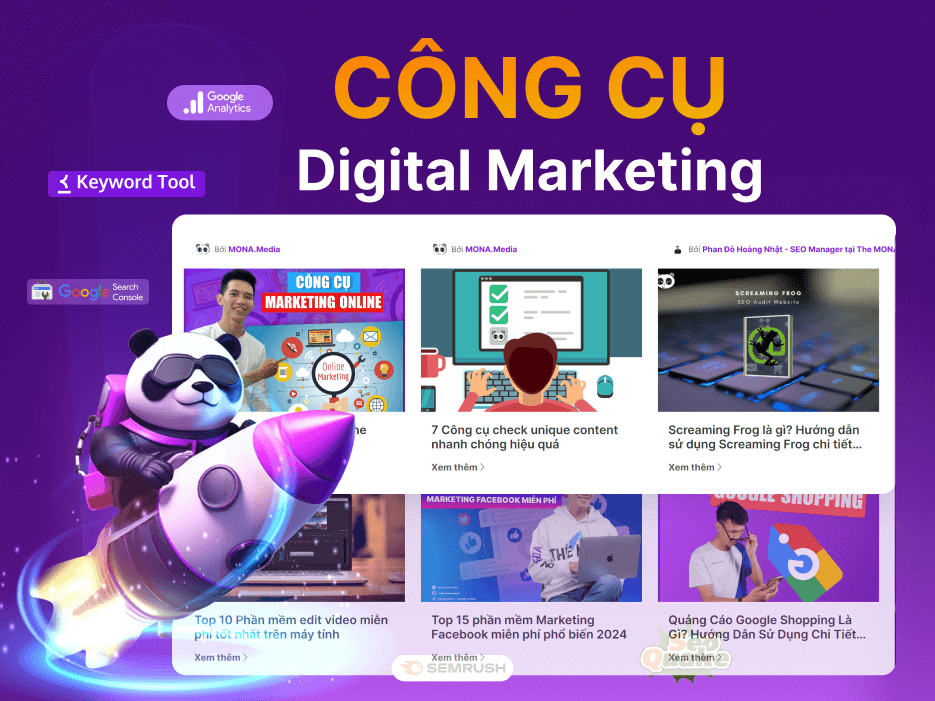 Tư vấn digital marketingKéo khách từ nhiều kênh, đo bằng số thật.
Corporate video productionVideos introducing your company, factory and team.
 NewAI video productionCompany story films made with AI.
 Custom software developmentCRM, ERP and HRM built for your business.
 Viết AI Agent theo yêu cầuĐặt riêng một trợ lý AI cho đúng việc của mình.
 Tư vấn chuyển đổi AIĐưa AI vào vận hành của cả công ty.
NewMONA LMSManagement for centers and schools.
MONA SkillHubInternal training for company staff.
 NHTQ systemEnd-to-end China–Vietnam shipping operations.
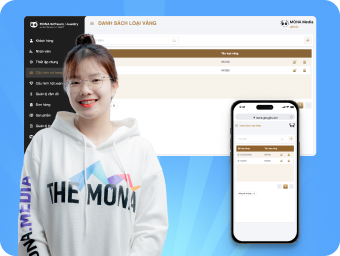
MONA JMSManagement for gold, diamond and pawn shops.
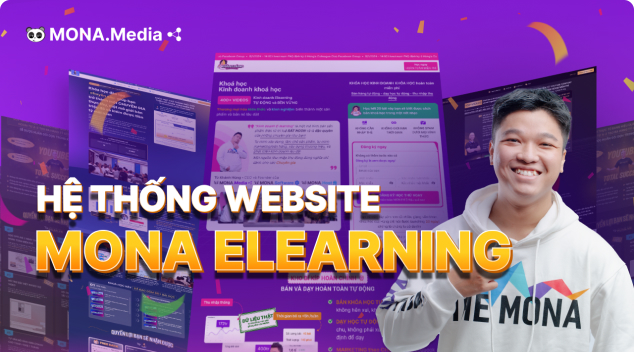 MONA E-LearningA website with every feature you need to sell courses.
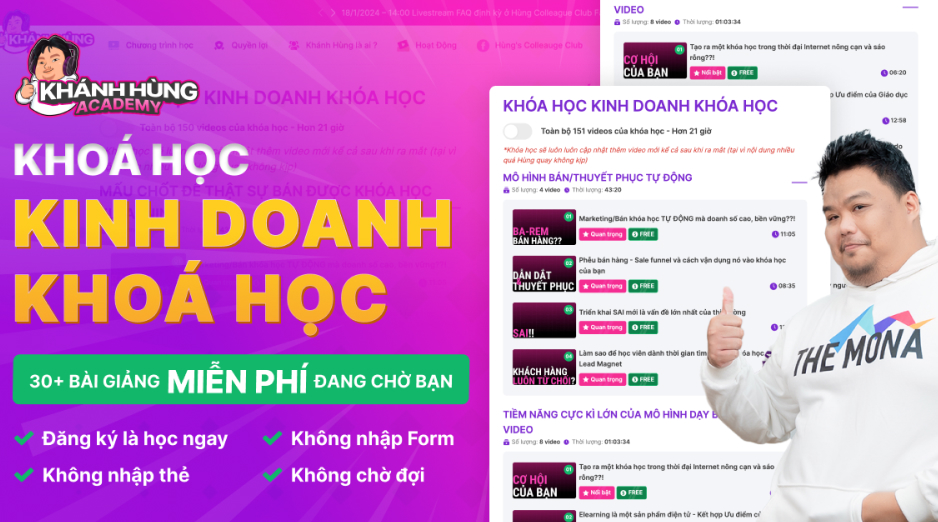 How to sell online courses (course)More than 30 free lessons on selling courses on autopilot.
 MONA Cloudmonacloud.vnServers to get your apps and websites running.
 MONA Basemonabase.vnPostgres database, sign-in and file storage.
 MONA Mailmonamail.vnSend OTP, order and invoice emails from your software.
 MONA Paymonapay.vnAccept bank transfers via VietQR and notify your software when the money arrives.
 MONA eInvoiceComing soonIssue e-invoices that meet tax standards.
Gấu CườiTrả lời khách 24/7 trên web, Fanpage, Zalo và thu lead cho sale.
 Gấu TeleSalesGọi điện tư vấn, chăm khách như tổng đài viên thật.
Dê CườiTư vấn và chốt đơn cho shop ngay trong khung chat.
Gấu WebmasterNhắn nhóm Zalo là website được sửa xong.
 Gấu Pháp ChếSoạn hợp đồng, rà điều khoản trong vài phút.
 Gấu Báo GiáLên báo giá đúng mẫu và gửi khách ngay.
 AI chăm sóc khách hàngTheo dõi và giữ chân khách hàng cũ.
 Gấu Tuyển DụngLọc hồ sơ, hẹn lịch, phỏng vấn ứng viên.
 Mới ra mắt
KHA AI 2027
Xây kênh chuyên gia 2 phút mỗi ngày
Quay bằng điện thoại, AI tự edit video, tự đăng lên 16 nền tảng và tự trả lời bình luận, tin nhắn.
957.158lượt xem trên kênh CEO MONA sau 52 ngày
 Anh Khánh HùngCEO MONA đang dùng mỗi ngày
Xem app làm được gì
 AI
Gấu Cười MONA ĐANG TỰ XÀITrả lời khách 24/7 trên website, Zalo OA, Messenger và thu lead về cho sale.
Dê CườiChốt đơn bán lẻ và sàn: Shopee, TikTok Shop, web. Chăm cả khách sỉ, đại lý.
Gấu WebmasterCập nhật nội dung, tối ưu SEO website mỗi ngày.
Gấu TeleSalesGọi điện tư vấn, chăm khách như tổng đài viên thật.
Gấu Tuyển DụngLọc hồ sơ, hẹn lịch, phỏng vấn ứng viên tự động.
AI chăm sóc khách hàngGiữ khách cũ, cứu lead đã rớt cho phòng kinh doanh.
Gấu Pháp ChếSoạn hợp đồng, rà điều khoản trong vài phút.
Gấu Báo GiáLên báo giá đúng mẫu, gửi khách ngay khi có yêu cầu.
 Chuyển đổi AI toàn phầnGiải pháp tổng cho doanh nghiệp, 3 lớp triển khai.
 Viết AI Agent theo yêu cầuĐặt riêng một con AI gánh đúng nghiệp vụ của bạn.
 Custom softwareCRM, ERP and HRM with built-in AI automation.
 SEO & AEO thời đại AIĐược Google lẫn AI trích dẫn, không chỉ xếp hạng.
 Kiến thức AI cho doanh nghiệpBài phân tích, hướng dẫn ứng dụng AI vào vận hành.
 Free AI courses
 AI tools at work
App mới · KHA AI 2027
Xây kênh 2 phút mỗi ngày
AI tự edit video, tự đăng mọi mạng xã hội
Free consultation, 8am–10pm every day

15 June, 2026

Used properly, NotebookLM turns long documents, training files, internal reports and marketing content into a very compact lookup assistant. The challenge is how you load sources, write prompts and verify answers so the tool doesn't become a place for generic summaries. In this article, MONA goes straight to the real operations: creating a notebook, adding documents, asking by role, pulling ideas for SEO, training staff and managing knowledge. We also point out clearly where standalone tools hit their ceiling when a business needs a seamless data system.
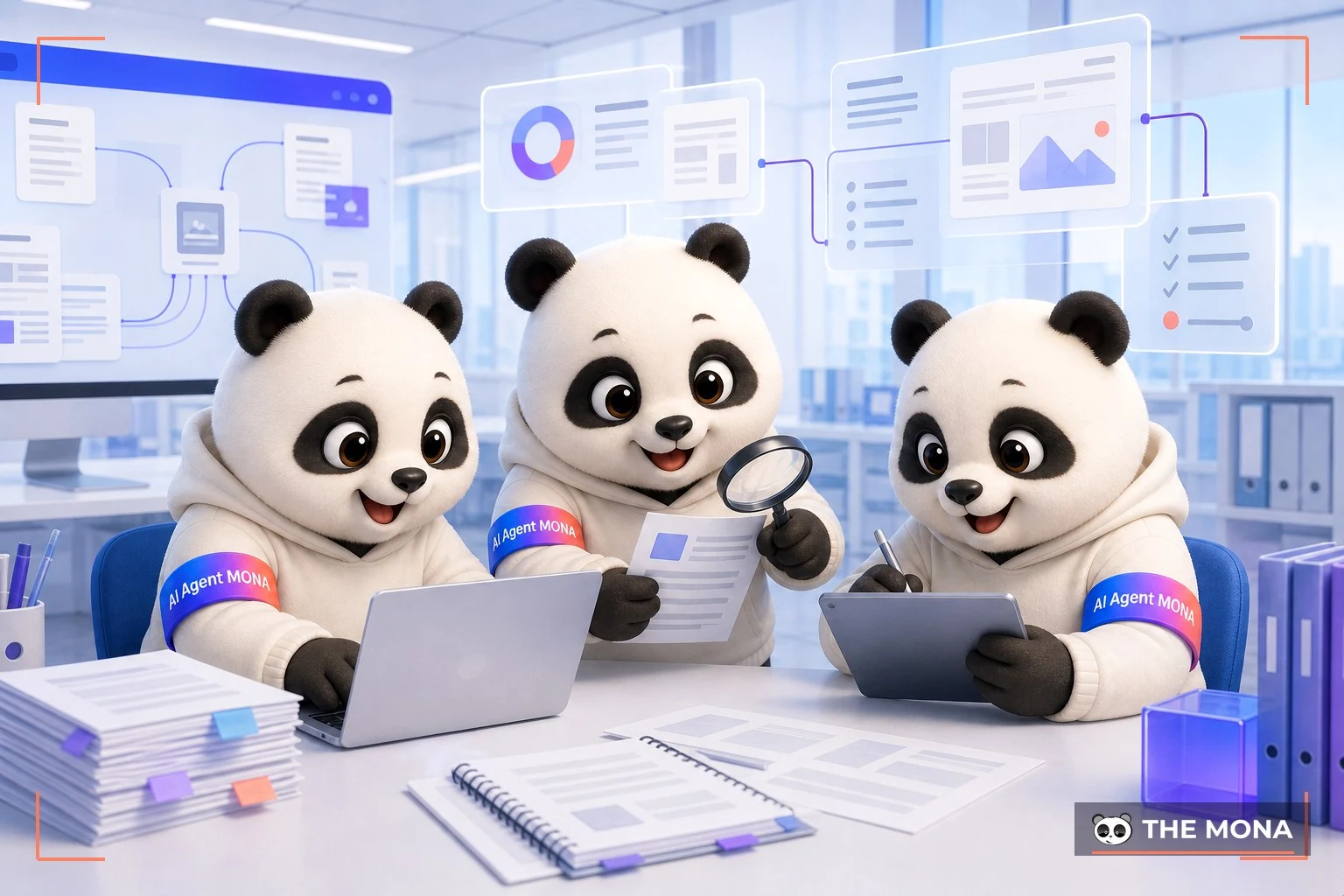
You don't need to study for long to use NotebookLM. What you need to do is create the right notebook, load the right sources, then check whether the answers stick to the documents.
Doing it right from the start saves a lot of cleanup later. At MONA, we usually have internal teams start with one small goal, then expand to SEO, content, sales and operations.
Each notebook should serve one clear job. Don't mix quotes, sales scripts, SEO documents and customer support processes in the same place.
It's very simple. Go to NotebookLM, choose to create a new notebook, then name it after the work goal.
The clearer the name, the easier it is to control the answers. It's a small step, but well worth doing.
MONA usually splits notebooks by task group when training customers on AI tools. This keeps your documents from getting mixed up, so you don't get answers that sound right but aren't usable.
After creating a notebook, load sources in the Sources section. NotebookLM can work with Google Docs, PDFs, web pages and plain text.
For Google Docs, choose the document saved on Drive. For PDFs, upload the file directly.
If you have a scanned-only PDF you want to fix up before loading, use MONA's free PDF to Word converter , where the file stays on your machine and isn't uploaded anywhere.
For web pages, paste the link you want to analyze. For plain text, paste the content into the input box.
Don't load everything just because it's convenient. The cleaner the sources, the closer the answers are to the work.
For marketing teams, we usually load service pages, blog posts, product information sheets and brand voice documents. NotebookLM then helps summarize, compare and suggest content faster.
The real value of NotebookLM is in the citations. You read the answer and know which document it came from.
After you ask a question, look at the citation numbers next to the answer. Click one to open the matching source passage.
Always check the source. Don't skip this step.
For example, you can ask NotebookLM to summarize the differences between two plans: SEO services. Then open the citations to see whether the answer sticks to the right service page.
NotebookLM is very handy for reading and querying documents. But it's still a standalone tool if your data isn't connected.
For businesses that need end-to-end operations, MONA usually combines AI tool training with custom software. That way, data from your website, SEO, CRM and internal processes finally travels in one system.

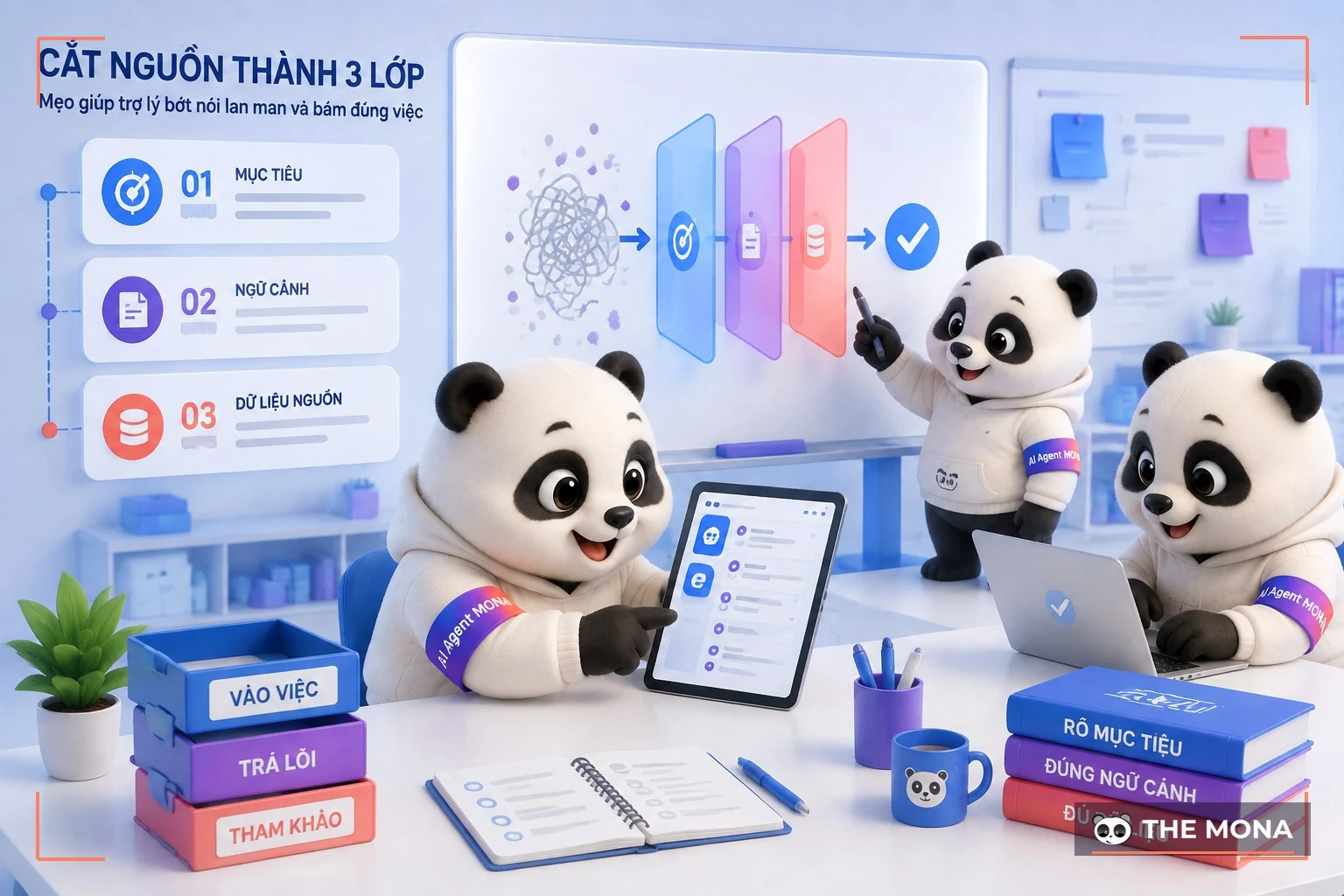
NotebookLM rambles when you load every document in one place. Processes, meeting notes, market articles and competitor pages get mixed together on equal footing.
As a result, the assistant can't tell which sources it must follow and which are just for reference. Don't mix them all together.
The method is simple. MONA usually splits the sources in NotebookLM into 3 layers, so each layer has a clear role.
Layer 1 is what NotebookLM must prioritize when it answers. This layer sets the tone of the answers.
Put documents here that rarely change and relate directly to how your business works. Examples include the consulting process, price list, warranty policy, customer profiles and a set of customer support answers.
For marketing, layer 1 can be brand positioning, target customer groups, the service list and the approved messages. For sales, layer 1 should include the price list, discount terms and the deal-closing process.
For operations, layer 1 should be the order-handling process, handover rules, report templates and approval permissions. The rule is very simple.
We usually treat layer 1 as the backbone of the notebook. When this layer is clean, NotebookLM answers more reliably and makes fewer things up by feel.
Layer 2 helps NotebookLM understand the current situation. This layer changes month by month.
You can put meeting notes, content plans, campaign direction, recent customer feedback and business goals for the current period into this layer. This is what keeps answers from going stale.
For example, the marketing team is running a campaign for web design services. NotebookLM needs to know which industries, which packages and which messages are the priority this month.
For sales, layer 2 can be call notes, the customer groups showing interest, reasons customers decline and the questions that repeat during the week. For operations, layer 2 is staffing status, the work assignment schedule and the bottlenecks being handled.
MONA uses layer 2 to train how to ask questions and how to check answers internally. When training customers, we also show their team how to update this layer weekly.
Layer 3 widens the perspective. It is not used to make decisions in place of the core documents. This layer is only for cross-checking.
You can put research papers industry reports, competitor pages, market documents and expert articles into this layer. NotebookLM will have more material to compare and suggest from.
For example, when producing SEO content, layer 3 helps the assistant see how the market phrases a topic. But the final wording must still follow the business's positioning, services and target customers.
For sales, layer 3 helps compare how competitors present value. For operations, layer 3 helps you look at outside process templates, then filter them to fit how the business actually runs.
A short prompt you can use: “Prioritize the core documents. Use reference documents only to add perspective. Do not change approved pricing policy and processes.”
The 3-layer split makes NotebookLM behave more like a disciplined assistant. It knows what to follow and what to just read as extra.
Even so, NotebookLM is still a tool used notebook by notebook. When a business needs seamless data, tight permissions and automation across CRM, ERP, website, SEO and sales, MONA builds custom software so the system runs more reliably.

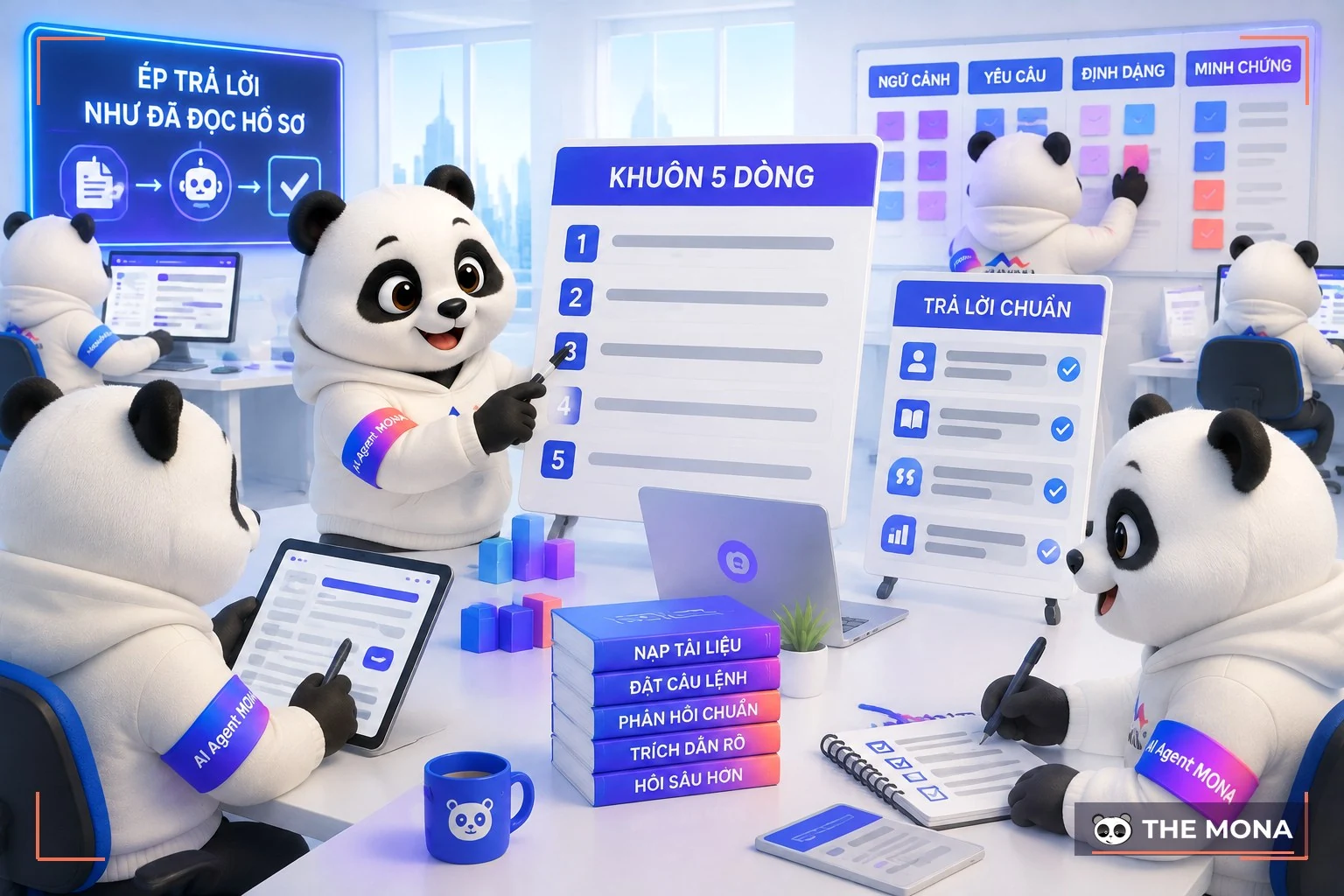
NotebookLM answers in generalities when the prompt only says “summarize this document”. The result sounds right, but it isn't enough to assign work, write a plan or make a decision.
You need to push the tool to work like a staff member who has read the files. We usually use a 5-line template to lock down the role, the task, the sources, the format and the self-check.
NotebookLM needs to know which department it is answering for. The closer the role is to the job, the less the answer rambles.
You can write: “Act as the head of marketing reading this set of documents to prepare next month's content plan.” For sales, change it to a sales team lead or a customer support staff member.
Don't assign a vague role like “expert”. Tie the role to a real department in the business.
NotebookLM needs to know whether you want a summary, a plan or an analysis table. Each type of output pulls the reading of the documents in a different direction.
State it directly in the prompt: “Create a 10-point summary for the CEO to read in 5 minutes.” If you need action, write: “Create an implementation plan with tasks, owners and deadlines.”
State the output first. It saves you many rounds of rewriting the prompt.
NotebookLM is strong at sticking to the documents you've loaded. But you still need to say which source is the main one and which is only for cross-checking.
You can write: “Use only this quarter's sales report and the meeting notes file. Do not guess beyond the uploaded sources.” This reduces answers that look good but have no basis.
MONA also locks sources this way when training customers to use NotebookLM. The goal is to turn internal documents into answers with a basis.
A long single block of answer is hard to use. You should lock the format right in the prompt so the result can be passed on to the team.
For example: “Present as a table with 4 columns: issue, evidence in the documents, proposed action, priority.” For training, a checklist is usually easier to use than a table.
Format matters a lot. It decides whether the answer is usable right away or has to be reworked by hand.
NotebookLM can still miss context or misread a point in the documents. You should ask the tool to list what it is unsure about at the end of its answer.
Add to the prompt: “At the end of the answer, list the points with insufficient data and the questions to ask before implementing.” This self-check layer helps reduce rushed decisions.
This 5-line template suits summarizing files, analyzing marketing documents, preparing sales scripts and reviewing operating processes. We see it as a foundation skill before bringing AI into a larger system.
NotebookLM handles personal work and loose documents well. When a business needs seamless data, permissions, security and automation that follows real processes, MONA usually recommends building custom software such as CRM, ERP or an internal automation system.

A meeting file usually holds too many scattered ideas. The listener remembers one version, the note-taker understands another, and by the time work is assigned, no one is in charge.
The effective way to use NotebookLM is to turn meeting notes into an operating document right away. You don't just need a summary, you need something you can assign work from immediately.
Don't summarize in generalities. Push the tool to split the notes into 4 clear parts.
Create a separate notebook for each important meeting. Each notebook should hold documents from one meeting, one workstream or one customer only.
This keeps NotebookLM from mixing contexts. The results read cleaner, with fewer ideas leaking in from other meetings.
Name the notebook clearly. For example: “March marketing meeting, service SEO campaign”.
Clear from the start. Less fixing later.
After uploading, don't type a prompt like “summarize the meeting”. That usually produces readable text, but it's hard to assign work from.
MONA usually has internal teams use a fixed prompt structure. The goal is to turn the meeting content into a work coordination table.
You can use this sample prompt:
The phrase “use only information in the documents” is very important. It reduces the tool making things up.
Many meetings lose work not because there is no one to do it. The problem is that a decision sounds clear, but when it comes time to do it, the conditions for carrying it out are missing.
You should ask NotebookLM to look specifically at the ambiguous points. It's a small step, but it keeps the meeting from ending in “I thought that's what you meant”.
A sample prompt we often use:
This step suits customer meetings. It also suits sales meetings, where a promise is easily taken as a commitment.
Lock it down first. Then assign.
Once you have the task table, you can ask NotebookLM to write the assignment messages. Messages should be short, with a clear person, task and deadline.
Don't let the tool write in an overly formal tone. Internal task messages need to be easy to understand and not add unnecessary pressure.
For a marketing meeting, the output can be a task list for content, ads and SEO. For a sales meeting, the output can be reminder messages to send quotes, follow up with customers and update CRM.
For an internal meeting, the output should have a clear owner and deadline. For a customer meeting, the output should include a confirmation section to avoid mismatched expectations.
NotebookLM is very handy for processing meeting documents. But a standalone tool still has a ceiling, because every step depends on whoever uploads the file, whoever writes the prompt and whoever moves the data into the system.
In custom software projects, MONA uses internal AI to help read documents, split out tasks and train customers' operations teams. When a business needs seamless data, security and automatic task assignment through CRM or ERP, we design custom software instead of relying on standalone tools.

Audio Overview in NotebookLM suits the moments when you need to grasp a long set of documents quickly before a meeting. It turns the loaded sources into a conversational audio version, which makes the issues easier to catch than skimming.
Don't listen to believe it right away. Listen to get oriented. For strategy documents, SEO plans, ad reports or market research, Audio Overview helps you go from “haven't had time to read” to “know what to ask”.
Dirty sources make a messy audio version. Before you click to create an Audio Overview, filter the documents to match the goal of the meeting.
For a marketing meeting, we usually put the campaign brief, keyword report, landing page content and customer notes into the same source set. This helps NotebookLM understand a context closer to the decision being made.
MONA also uses this approach when training customers to use AI tools for websites, SEO and marketing. The cleaner the sources, the less the audio rambles.
Audio Overview shouldn't be treated as the final report. It's more like someone giving a quick recap, helping you see which axis the documents run along.
Listen with the mindset of catching the frame. Note the big themes, the points repeated many times, contradictions in the data and what needs further questions.
For a CEO, the value is knowing which issues deserve a place on the table. For a marketer, the value is seeing where messaging, channels and data are out of line.
A quick listen opens the way. Decisions still need source checks.
NotebookLM's strength is that it sticks to sources. After listening to Audio Overview, go back to the citations to check the points that affect decisions.
Don't just keep the lines that sounded good. Keep the lines with sources. This reduces the risk of mistaking a summary passage for an operational fact.
In SEO work, one wrong summary line about a keyword group can skew the content plan. In sales, a small misunderstanding about the customer profile can make the consulting team focus on the wrong thing.
MONA always recommends using NotebookLM in a verified way. The tool makes you faster, but it doesn't replace the responsibility of the professional doing the work.
Notes have to lead back to action. After listening and checking sources, turn the content into a short checklist for the meeting.
You can ask NotebookLM to summarize in a fixed template. For example: “From the loaded sources, create a meeting prep checklist for the CEO and marketer, split into solid data, points to ask, proposed decisions.”
This template keeps the meeting from drifting. Attendees remember the content and know what to do next.
For MONA, NotebookLM fits the quick-learning step, document review and preparing discussions. When a business needs seamless data across website, CRM, SEO and operations, standalone tools hit a ceiling.
That's when you need custom software that MONA builds around the business's real processes. NotebookLM helps people work faster, while a dedicated system keeps cash flow and data running reliably.
Many marketing teams already have data, but it's scattered across competitor URLs, old posts, product files and keyword sheets. The hard part is gathering the right topics so the website gains search pull.
MONA usually uses NotebookLM as a document analysis desk before rollout SEO, website design and sales content. This tool shouldn't be turned into a mass article-writing machine. It fits better as an assistant that reads, groups and points out content gaps.
Done right, it's very different.
Start with a separate notebook for each topic cluster. For example, a “spa management software” cluster would have competitor URLs, old blog posts, service pages, a keyword sheet and product documents.
The cleaner the sources, the more usable the results. We usually split sources into 3 groups so NotebookLM doesn't mix up intent.
Don't load everything at once. Name the sources clearly, like “competitors”, “old posts”, “product documents”. Naming this way makes NotebookLM's citations easier to check.
This is the foundation step.
After loading the sources, don't ask NotebookLM to write an article right away. The first prompt should make it group search intent from the data it has read.
We often use a short prompt structure with a clear role and clear output.
This prompt lets you see the website as a map, not a list of loose posts. For SEO in 2026, a clear topic cluster usually matters more than publishing lots of thin posts.
Don't write in a rush.
Once NotebookLM has grouped everything, ask it to compare competitors against your existing content. The goal is to find what the website is missing, what isn't deep enough, or what misses the sales focus.
MONA usually splits gaps into 4 types so the SEO and marketing team can handle them more easily.
You can ask NotebookLM to return the results as a table. Each row has the missing topic, search intent, what competitors have as a source, what your internal sources lack, and a recommended action.
The key is to check citations. NotebookLM has the advantage of sticking to loaded sources, but whoever does the SEO still has to reread to avoid misreading the context.
A subject-matter person has to make the final call.
Only once you have the topic map should you move on to the post list. This is where NotebookLM saves prep time for writers, but you still need an editor to hold the sales direction.
Each assignment brief should have enough for the writer not to guess.
For service websites, we usually pre-attach the path to a conversion page such as SEO services or website design in Ho Chi Minh City. This keeps the content serving cash flow, not just the publishing calendar.
Illustrations for this part should use real screenshots from NotebookLM. You can capture the Sources panel, an answer with citations and the topic map table.
NotebookLM handles reading and gathering documents very well. Its ceiling is that everything stays fragmented if the team does each step by hand. When a business needs seamless data, a content approval process, CRM, ERP and secure automation, MONA writes custom software to connect AI tools into the real system.
NotebookLM is very useful when you need to read documents fast, summarize key points, draft content or look things up internally from the sources you've loaded.
But once data is scattered across files, email, CRM, ERP, the website and sales messages, a standalone tool starts to hit its ceiling.
This is the point to look at squarely.
NotebookLM helps one person or a small group understand documents faster. It doesn't replace the business's operating processes by itself.
You still have to upload documents, choose sources, ask questions, check answers and move results elsewhere.
The work is still manual.
When staff leave, change roles or forget to update sources, the knowledge in NotebookLM easily drifts from the data actually in operation.
We use NotebookLM very well for learning from documents, standardizing content, quick training and research support.
But a business needs to clearly separate a document-reading assistant from a real operating system.
Not all data belongs in NotebookLM. Reference documents can stay in a reading and comprehension tool.
Data that creates revenue, costs, accountability and access rights should go into a dedicated system.
Separate them from the start.
This split keeps you from having each department hold its own copy of the data. The correct version ends up with whoever remembers longest, not in the system.
That is an operational risk.
MONA still uses NotebookLM and AI tools internally to read documents, analyze requirements, summarize research and standardize training.
We don't treat AI tools as operating software that replaces the business. They are a support layer for jobs machines can do faster than people.
This boundary is very important.
When training customers, MONA usually coaches marketing, sales and operations teams to use AI on the right jobs first.
For example, NotebookLM suits turning product documents into a set of customer support questions, consulting scripts or SEO outlines.
But customer data, orders, permissions and management reports must live in a purpose-designed system.
MONA has operated since 2016, with .000+ projects. We look at AI pragmatically.
If a tool reduces manual steps, use it. Where you need control and room to scale, you need to write software.
A business doesn't need to drop NotebookLM when building its own system. You just need to put it in the right place in the process.
NotebookLM supports reading and understanding. Custom software is responsible for recording, processing, permissions and automation.
The roadmap should go step by step.
For businesses doing marketing, websites and SEO, this approach keeps data from breaking between content, potential customers and sales.
You can start with a website designed around the right conversion flow, then continuing on to SEO services, CRM and operating software.
NotebookLM helps us work smarter with documents. Custom software helps a business run more seamlessly in the real world.
That is the next step.

You can build each NotebookLM notebook yourself by department when sources are few, the question scope is clear and users know how to check citations. When you want an internal assistant that updates documents automatically, sets permissions by role and records staff questions, we build custom knowledge software; call 1900 636 648 to pick the first document group.
Each notebook should serve just one job.

CEO & Founder · The MONA
Founder of The MONA, who built a services company of 60+ staff with 14,000+ projects delivered. Khánh Hùng shares how he thinks about building systems that run themselves, automating a business, and the real lessons from delivering projects at MONA.
 383




Professional website
design services
Own a website with a beautiful, 100% exclusive design and a lifetime warranty, with the ability
to expand features flexibly as your business grows, starting today!






 MONA will never sell your information or send you spam


 MONA will never sell your information or send you spam
