
 MONA OS 2.0
 Partner with MONA


 Tự động hoá doanh nghiệp
 Cẩm nang SEO
 Digital Marketing
 Kinh nghiệm thiết kế website
 Hạ Tầng Server
 Giáo dục


 VI
 EN




Message us on
Zalo Official


 ProductsNew

 ProductsProducts
 Mới ra mắtKHA AI 2027App tự edit video, tự đăng mọi mạng xã hội, 2 phút mỗi ngày







 Website designLooks good and wins customers over.
SEO servicesBrings in customers searching for exactly what you sell.
 Tư vấn digital marketingKéo khách từ nhiều kênh, đo bằng số thật.
Corporate video productionVideos introducing your company, factory and team.
 NewAI video productionCompany story films made with AI.
 Custom software developmentCRM, ERP and HRM built for your business.
 Viết AI Agent theo yêu cầuĐặt riêng một trợ lý AI cho đúng việc của mình.
 Tư vấn chuyển đổi AIĐưa AI vào vận hành của cả công ty.
NewMONA LMSManagement for centers and schools.
MONA SkillHubInternal training for company staff.
 NHTQ systemEnd-to-end China–Vietnam shipping operations.
MONA JMSManagement for gold, diamond and pawn shops.
 MONA E-LearningA website with every feature you need to sell courses.
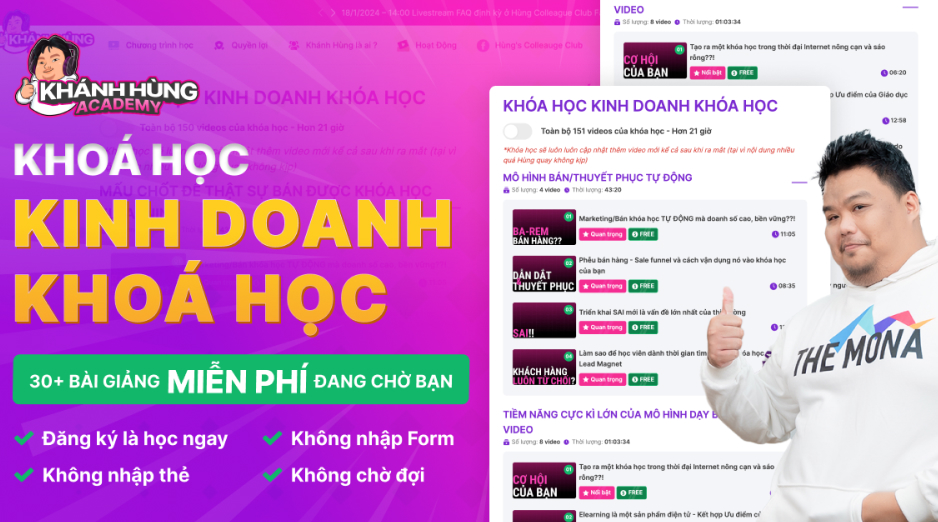 How to sell online courses (course)More than 30 free lessons on selling courses on autopilot.
 MONA Cloudmonacloud.vnServers to get your apps and websites running.
 MONA Basemonabase.vnPostgres database, sign-in and file storage.
 MONA Mailmonamail.vnSend OTP, order and invoice emails from your software.
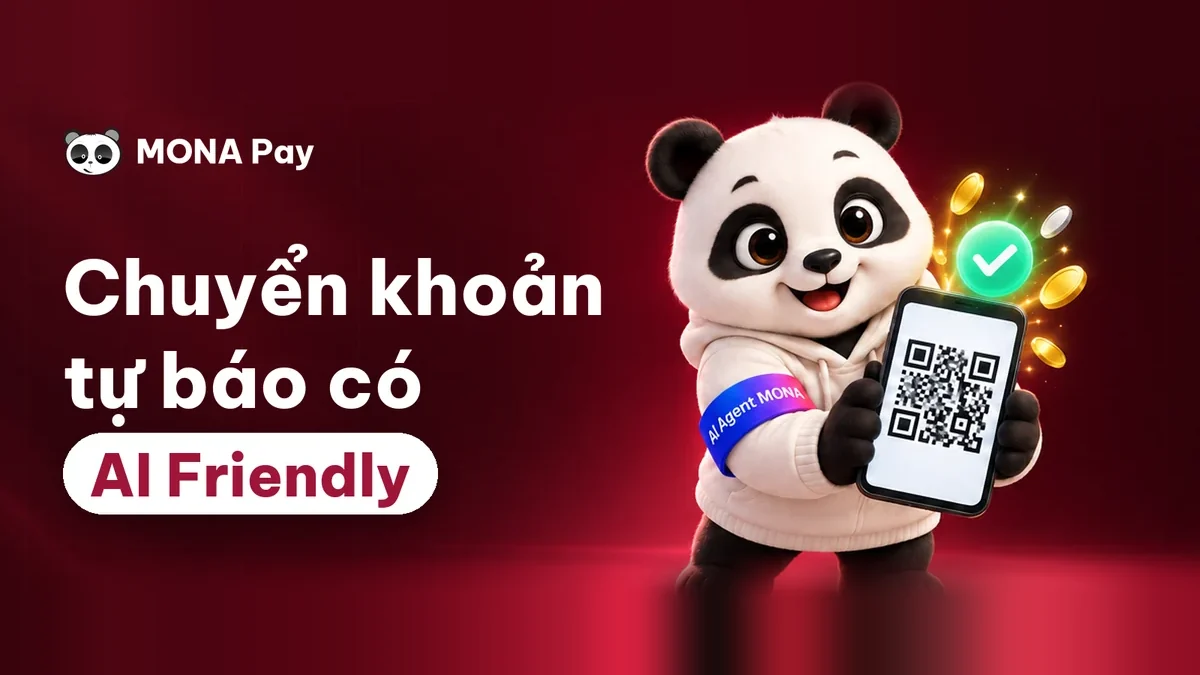 MONA Paymonapay.vnAccept bank transfers via VietQR and notify your software when the money arrives.
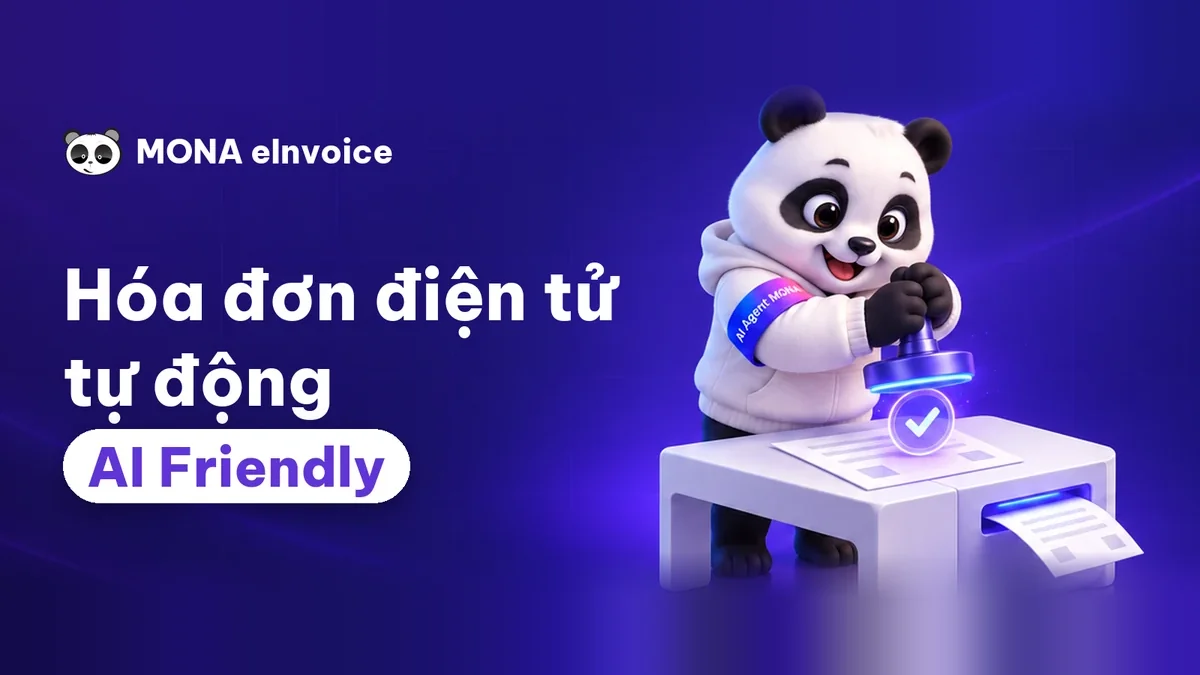 MONA eInvoiceComing soonIssue e-invoices that meet tax standards.
Gấu CườiTrả lời khách 24/7 trên web, Fanpage, Zalo và thu lead cho sale.
 Gấu TeleSalesGọi điện tư vấn, chăm khách như tổng đài viên thật.
Dê CườiTư vấn và chốt đơn cho shop ngay trong khung chat.
Gấu WebmasterNhắn nhóm Zalo là website được sửa xong.
 Gấu Pháp ChếSoạn hợp đồng, rà điều khoản trong vài phút.
 Gấu Báo GiáLên báo giá đúng mẫu và gửi khách ngay.
 AI chăm sóc khách hàngTheo dõi và giữ chân khách hàng cũ.
 Gấu Tuyển DụngLọc hồ sơ, hẹn lịch, phỏng vấn ứng viên.
 Mới ra mắt
KHA AI 2027
Xây kênh chuyên gia 2 phút mỗi ngày
Quay bằng điện thoại, AI tự edit video, tự đăng lên 16 nền tảng và tự trả lời bình luận, tin nhắn.
855.899lượt xem trên kênh CEO MONA sau 30 ngày
 Anh Khánh HùngCEO MONA đang dùng mỗi ngày
Xem app làm được gì
 AI
Gấu Cười MONA ĐANG TỰ XÀITrả lời khách 24/7 trên website, Zalo OA, Messenger và thu lead về cho sale.
Dê CườiChốt đơn bán lẻ và sàn: Shopee, TikTok Shop, web. Chăm cả khách sỉ, đại lý.
Gấu WebmasterCập nhật nội dung, tối ưu SEO website mỗi ngày.
Gấu TeleSalesGọi điện tư vấn, chăm khách như tổng đài viên thật.
Gấu Tuyển DụngLọc hồ sơ, hẹn lịch, phỏng vấn ứng viên tự động.
AI chăm sóc khách hàngGiữ khách cũ, cứu lead đã rớt cho phòng kinh doanh.
Gấu Pháp ChếSoạn hợp đồng, rà điều khoản trong vài phút.
Gấu Báo GiáLên báo giá đúng mẫu, gửi khách ngay khi có yêu cầu.
 Chuyển đổi AI toàn phầnGiải pháp tổng cho doanh nghiệp, 3 lớp triển khai.
 Viết AI Agent theo yêu cầuĐặt riêng một con AI gánh đúng nghiệp vụ của bạn.
 Custom softwareCRM, ERP and HRM with built-in AI automation.
 SEO & AEO thời đại AIĐược Google lẫn AI trích dẫn, không chỉ xếp hạng.
 Kiến thức AI cho doanh nghiệpBài phân tích, hướng dẫn ứng dụng AI vào vận hành.
 Free AI courses
 AI tools at work
App mới · KHA AI 2027
Xây kênh 2 phút mỗi ngày
AI tự edit video, tự đăng mọi mạng xã hội
Free consultation, 8am–10pm every day

26 May, 2023
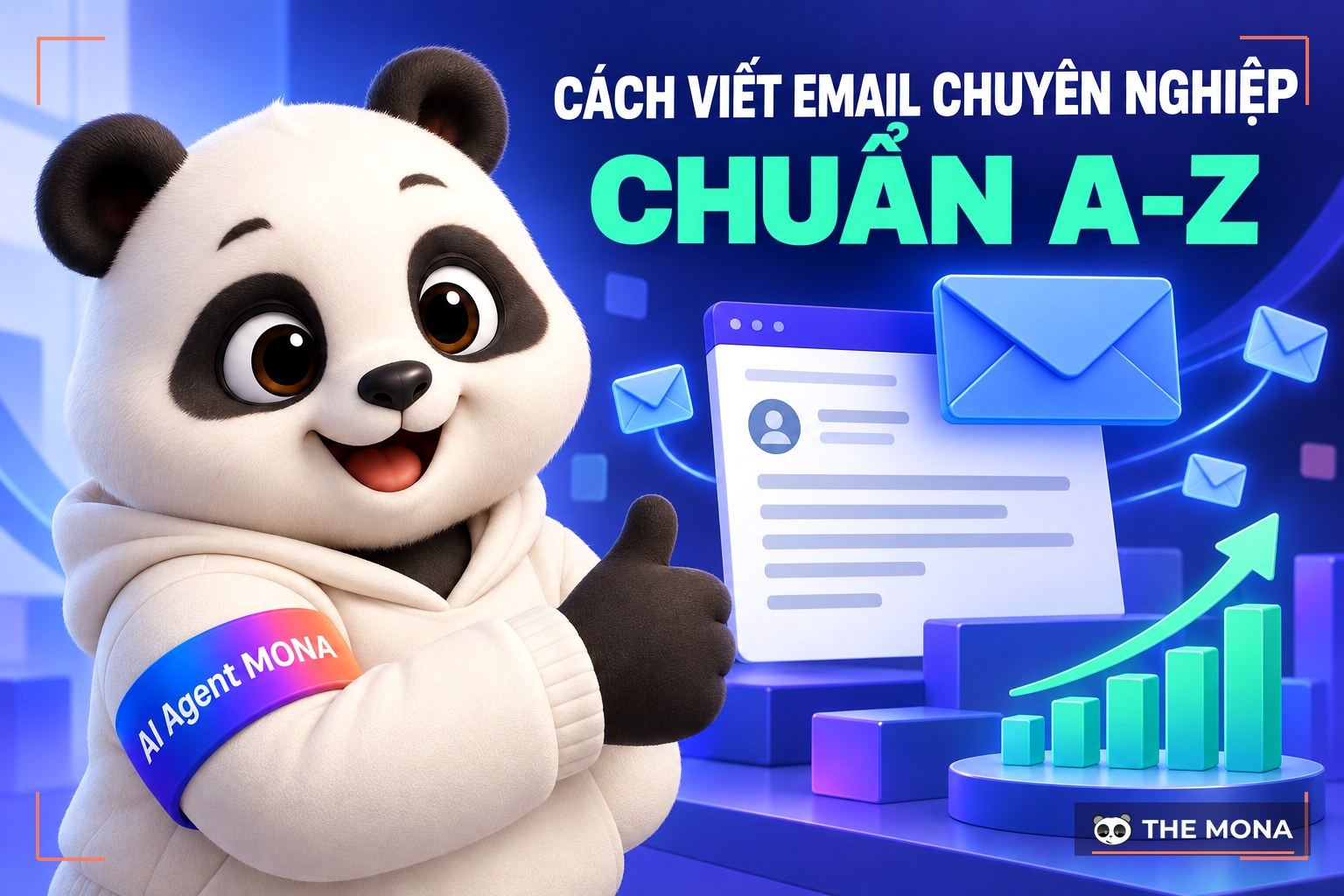
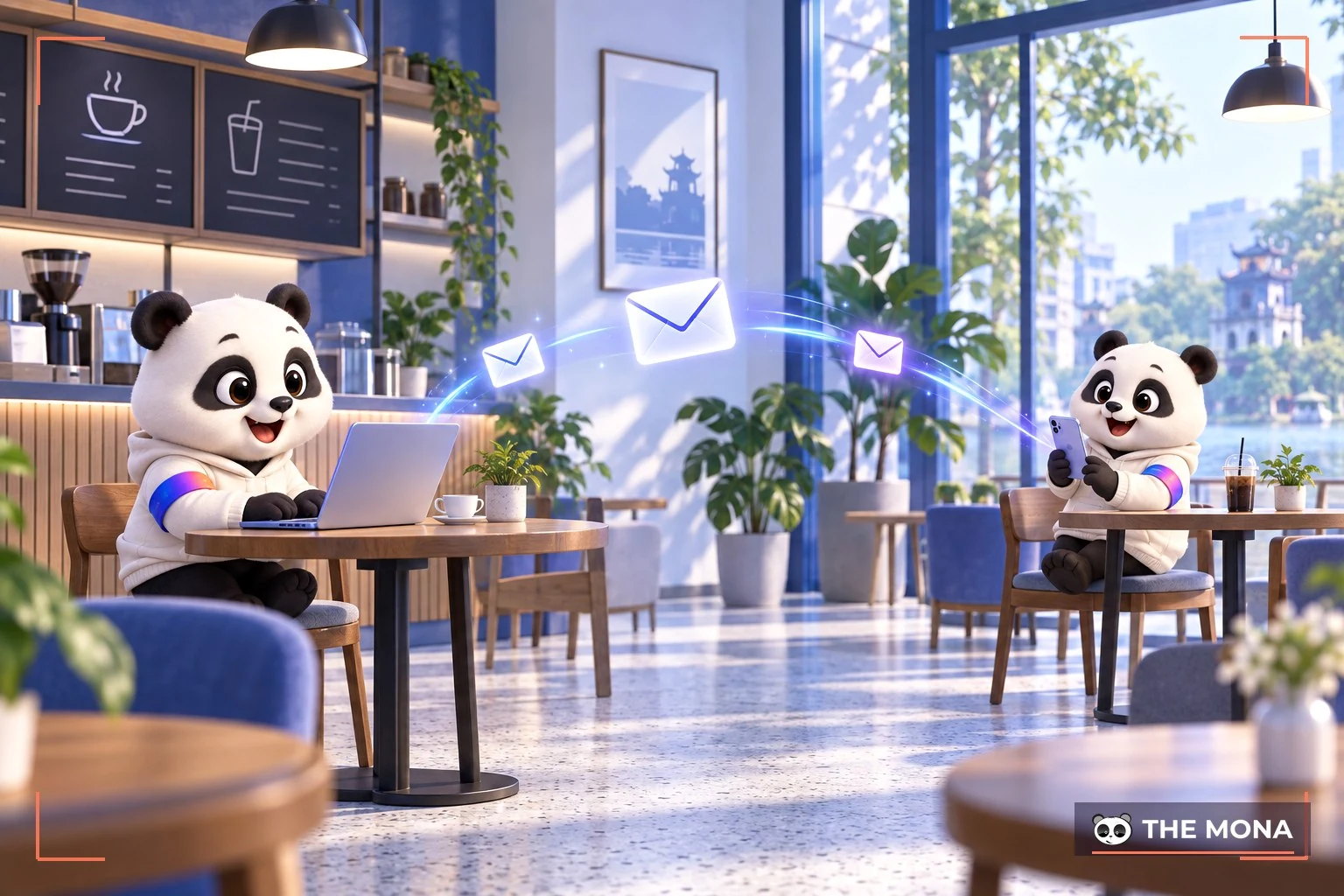
In today's information-technology era, email is one of the most frequently used online communication tools for individuals and businesses. So how do you write a professional, complete email without the common mistakes? In this article, Mona Media shares with you the ways to write an email professionally in simple but very useful steps.
Email (electronic mail) is a form of online information exchange over the internet between electronic devices such as mobile phones or laptops. Users can send and receive email at any time as long as they have a stable internet connection. Today email is widely used and is considered an essential tool for work and study.
–> See also: Email Marketing service full-service, higher conversion
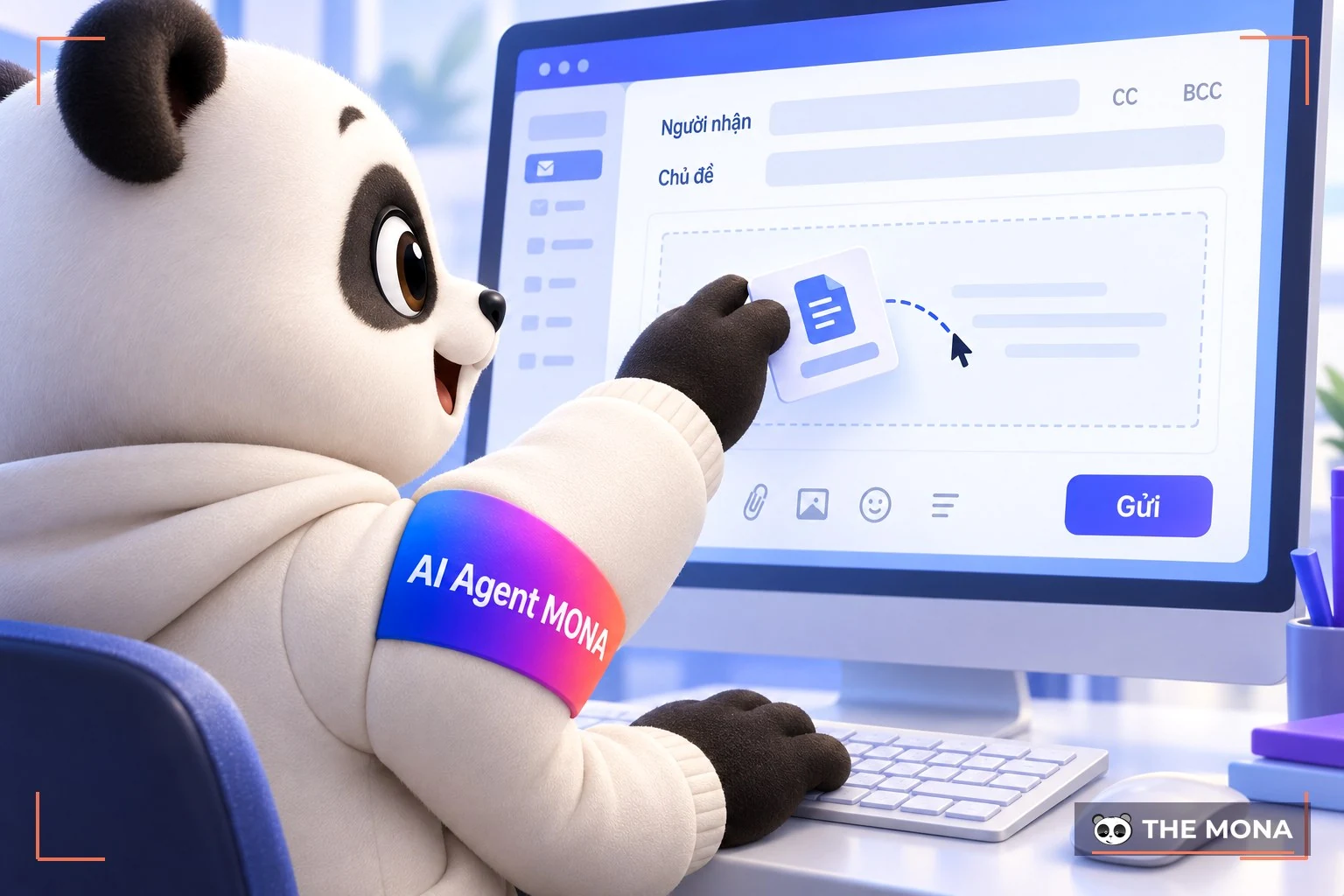
Note: To send an email to several recipients at once, you can use “CC” by clicking CC or pressing Ctrl+Shift+C. To send as BCC, click BCC or press Ctrl+Shift+B.
Note:
To send an email to many people at once, you can use CC or BCC.
->See more: what a brief is? 7 elements of a brief that is “right the first time”
The subject line is a short sentence describing the main content or purpose of the email. It sits at the top of the email and is meant to draw the recipient in. A good subject line is short, clear, avoids abbreviations and summarizes the main content of the email to attract the recipient's interest.
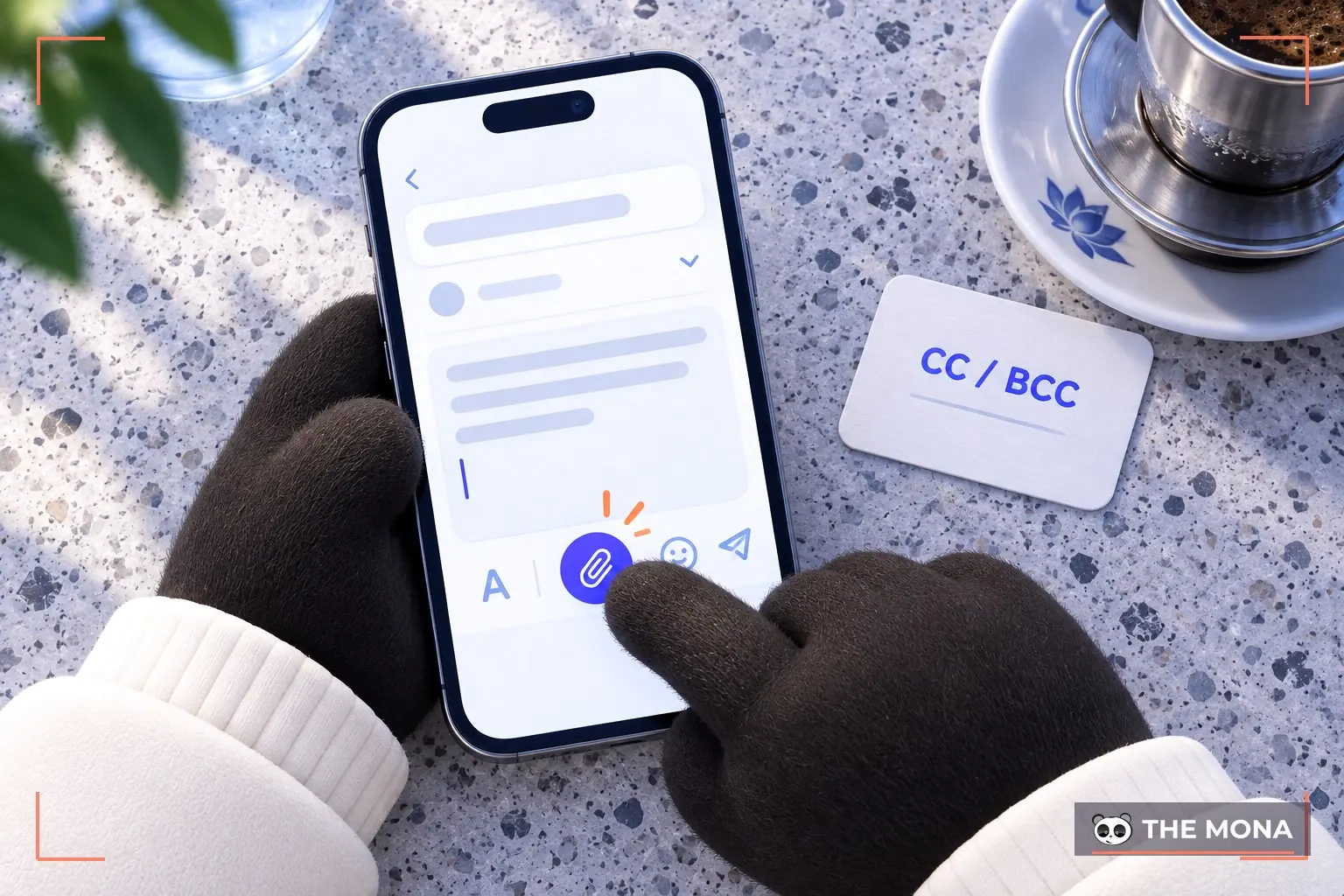
This is a very important part of sending email. With attachments you can send text files, images, audio, video, PDF documents, spreadsheets and many other formats. Recipients can download and open attachments to view, edit or store them. Attaching files is a common, convenient way to share information and documents at work.
How you write an email differs by situation. In general, though, the body should be short, concise and to the point, avoiding rambling, long-winded text that confuses the reader.
What makes a standard email body?
A standard email has these parts:
Greeting: Depending on the context, you can use these greetings:
Email body: Use bullet points or short, concise sentences to separate the main points. If needed, add line breaks to separate different topics in the same email so the reader can follow easily.
Thanks: You can use these sentences to express thanks:
A clear email layout makes your email easier to read and more effective at conveying information.
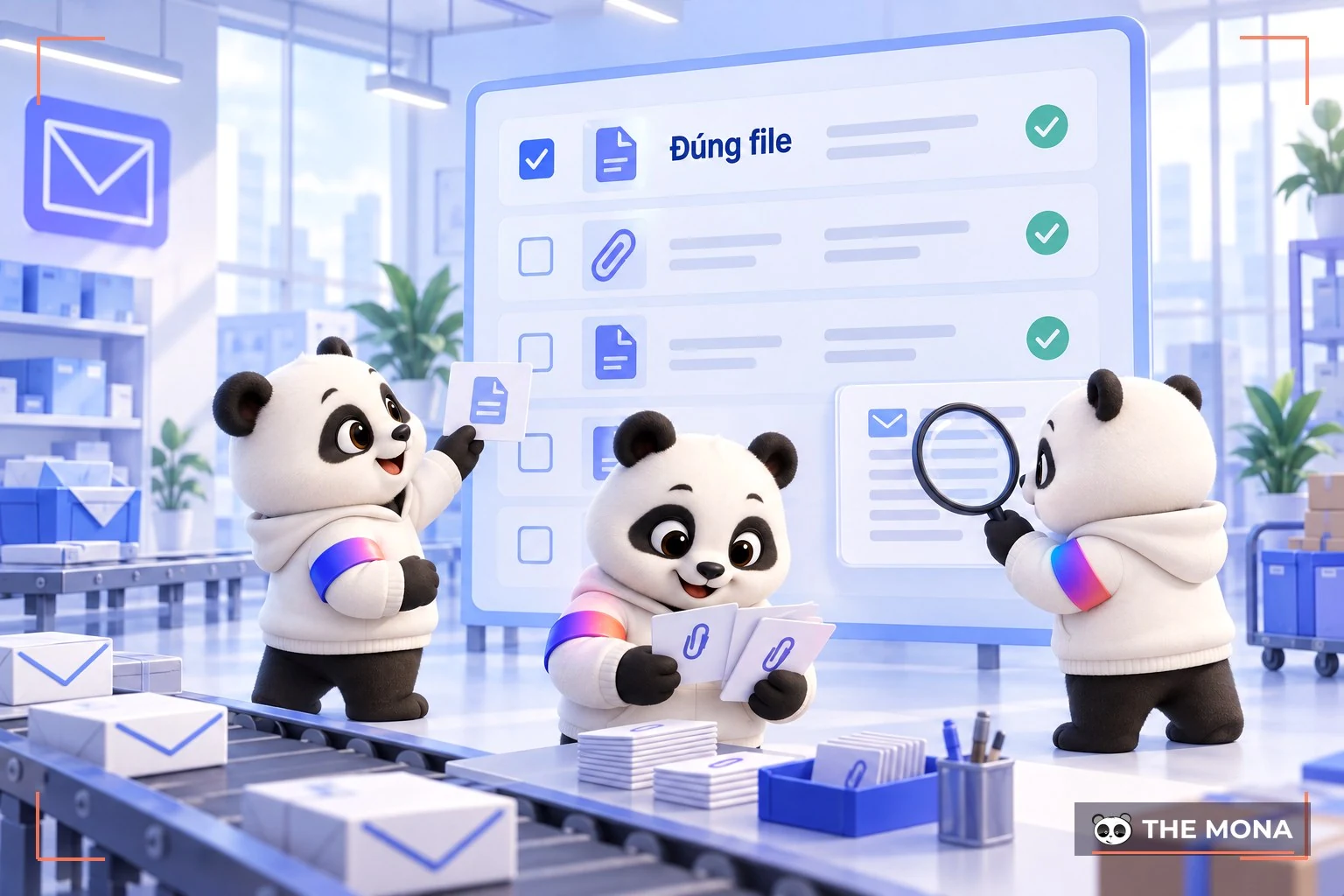
When sending email, checking the attachments is very important. Make sure you attached the right file before sending, and name the file after the document so the recipient can find and store it easily. You can also use tools like Word, Excel or Paint to highlight the important parts of your email and draw the reader's attention.
->See more: What is product marketing? How to market a product effectively
To reach the right person, make sure you enter the correct email address of the person you want to inform. Make sure the email content is accurate and complete first, and only then enter the recipient's address; otherwise, if you hit send by accident before finishing, it is hard to recover.
In practice, the recipient's trust and your credibility increase when they read an email that ends with a clear, specific signature. A signature is also a polite, considerate way to communicate online.
A standard signature includes the following:
To create a professional email signature, you can use fonts, colors, sizes and attached images. But keep the signature simple and careful so it looks professional and polished.

One essential and very important step is to check the whole email again before sending it. This reflects how professional and careful you are. An email with many spelling mistakes shows a lack of respect for the recipient. Sending an email with the wrong attachment causes just as much trouble. So check the whole email before sending to avoid avoidable problems.
->See more: Top 10 how to write email marketing subject lines that are effective and professional
The subject line summarizes the main content so the recipient can decide whether to open the email right away. A subject line helps the recipient understand immediately what the email is about. So write the subject line as carefully as the body of the email.
Using the opening sentence to briefly summarize the purpose and main content of the email gives the recipient an overview and a clearer understanding of what you are raising. This is one of the effective ways to write email.
So the recipient fully understands what you are raising, avoid starting with vague or rambling sentences. Use clear language and an easy-to-understand, short, concise message that goes straight to the point, to avoid misunderstanding.
Limit the use of capital letters in email. Write the whole message in normal lowercase so the recipient doesn't feel shouted at or disrespected.
Because email tends to be brief, many people naturally use abbreviations. Only use them when both sender and recipient understand what they mean. When in doubt, explain the abbreviation or write each word out in full, so the recipient understands what you mean and avoids needless misunderstanding in email.
A short email is easier for the recipient to absorb and saves time on both sides. To avoid long, rambling text, remove unnecessary information and keep the email short and to the point, while including all the important information you want to convey.
At the start of an email, a polite, sincere greeting shows respect and a serious attitude toward the recipient and the content you sent. It is the first step toward a good working relationship.
To close an email, phrases like “thank you very much,” “looking forward to working with you” or “looking forward to your reply” show respect for the recipient. Though small, they matter for showing consideration and leaving a good impression.
In Gmail you can set up a signature that appears automatically at the end of every email you send. This is useful because recipients want your contact details, such as a phone number, Skype or address, so they can reach you right away when needed.
Sending email on time shows respect and how seriously you take your partners. Sending at the wrong time can annoy the recipient. To avoid forgetting to send, or sending at a time that disrupts work, use the schedule-send feature in Gmail or Outlook.
That's the useful information on how to write an email professionally that we have put together. Apply these tips to write better emails. Visit often and Mona Media for more useful articles on SEO, marketing and websites.
->See more: What is online marketing? How to build an effective online marketing strategy
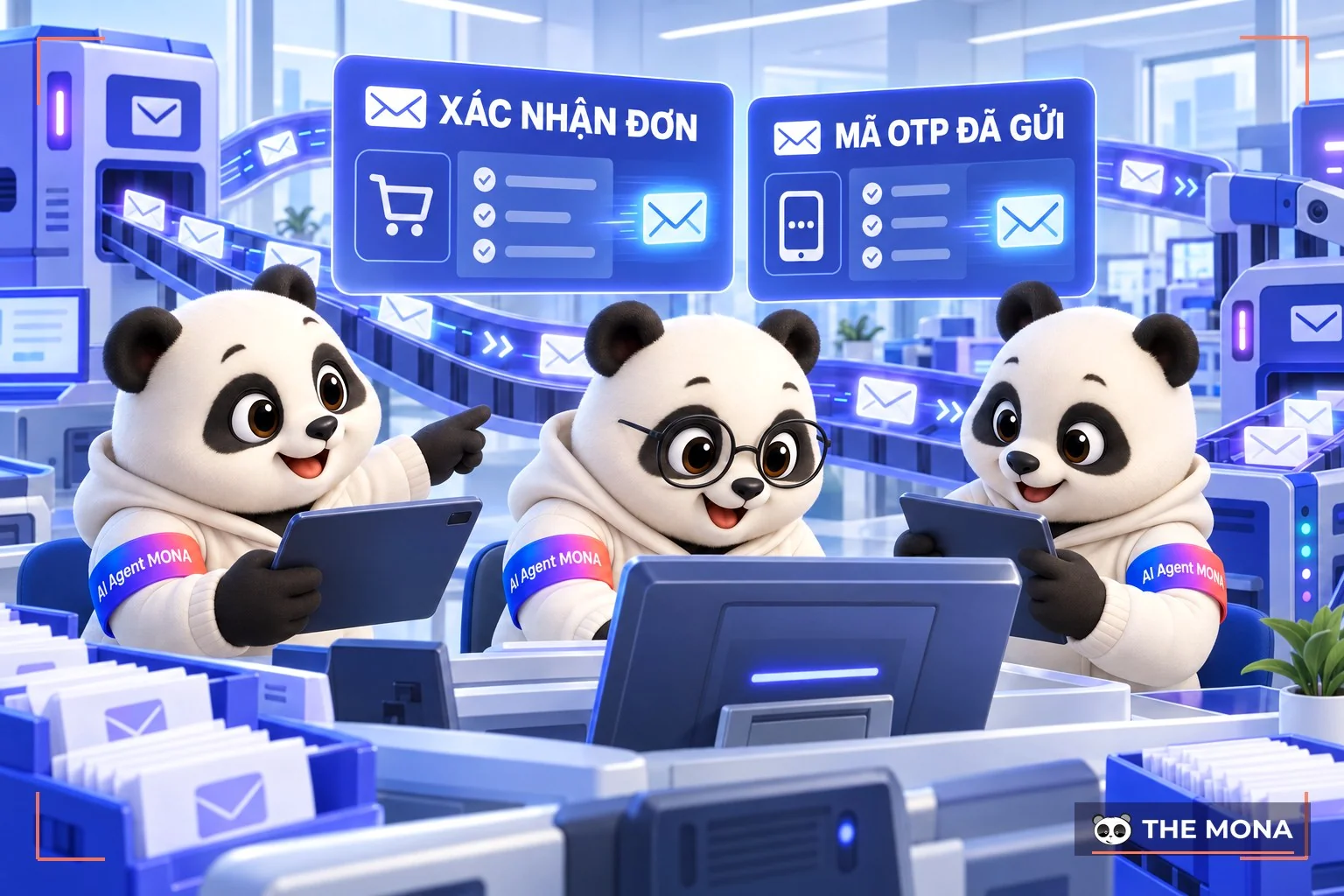
A customer places an order on your website at midnight. They pay, then wait for an OTP or a confirmation email, and the inbox stays empty. The next morning staff arrive, open their computers and send a make-up email from the company Gmail, but the customer has already gotten angry and cancelled the order. We have met many businesses that use personal Gmail or Workspace to send system notifications, and sooner or later this breaks. According to Google's limits, which we checked on September 19, 2026, each Workspace account can send at most 2,000 emails per day, and above that all email is locked for 24 hours and the system is paralyzed.
That is why software should use a dedicated email-sending API. With MONA Mail, every confirmation on e-commerce websites, OTP code or appointment reminder is fully automated. We set it up so the software calls the API once and the system pushes the email into a queue; when queued, the API returns code 201 with the status queued. If the receiving server is busy, our worker retries automatically at 1 second, 5 seconds, 25 seconds, 2 minutes and 10 minutes before reporting failed. Every step is clear.
Compared with foreign providers such as Resend, Mailgun or SendGrid (we checked on 19/09/2026), MONA Mail gives you real control, because the servers and data sit in Vietnam and MONA is always there. You can start on the free plan with 3,000 emails a month, or the Starter plan at 99,000 VND for 30,000 emails, paid in VND with a VAT invoice. Integration is simple: you only need to verify your domain with one DKIM record, selector mona1 (RSA 2048). When your wallet runs out, the API returns a 402 code right away and pauses sending over the limit, so there are no surprise bills.
Please don't use MONA Mail to email people who aren't your customers. Our documentation says this clearly: IPs are currently shared, so a new domain sending for the first time can still land in spam for a few days if it hasn't been warmed up properly. Any automation system should only be used for customers who are already dealing directly with your business.
A manifesto for growing together
MONA is a software, digital transformation and AI transformation company, but above all, MONA is a B2B service company that benefits directly from this: THE MORE SUCCESSFUL VIETNAMESE BUSINESSES BECOME, THE MORE MONA BENEFITS, while a declining, slow market with weak technology is exactly what kills MONA's future business opportunities. So, more than anyone, MONA wants you to succeed, and MONA actually steps in to help you succeed.
And AI transformation is the key to that success for all of us.
MONA
Writing a proper email no longer takes much effort, but watching over every send to every customer is a cost no business can carry by hand. MONA Mail is free for 3,000 emails a month, with a webhook for the status of each email. Try it first at https://monamail.vn/; it takes about 5 minutes. Just click and you're set.
Writing a proper email no longer takes much effort, but watching over every send to every customer is a cost no business can carry by hand. MONA Mail is free for 3,000 emails a month, with a webhook for the status of each email. Try it first at https://monamail.vn/; it takes about 5 minutes. Just click and you're set.

CEO & Founder · The MONA
Founder of The MONA, who built a services company of 200+ staff with 14,000+ projects delivered. Khánh Hùng shares how he thinks about building systems that run themselves, automating a business, and the real lessons from delivering projects at MONA.
 1,5K



Professional website
design services
Own a website with a beautiful, 100% exclusive design and a lifetime warranty, with the ability
to expand features flexibly as your business grows, starting today!






 MONA will never sell your information or send you spam


 MONA will never sell your information or send you spam
