
 MONA OS 2.0
 Partner with MONA


 Tự động hoá doanh nghiệp
 Cẩm nang SEO
 Digital Marketing
 Kinh nghiệm thiết kế website
 Hạ Tầng Server
 Giáo dục


 VI
 EN











Message us on
Zalo Official


 ProductsNew

 ProductsProducts
 Mới ra mắtKHA AI 2027App tự edit video, tự đăng mọi mạng xã hội, 2 phút mỗi ngày










 Website designLooks good and wins customers over.
SEO servicesBrings in customers searching for exactly what you sell.
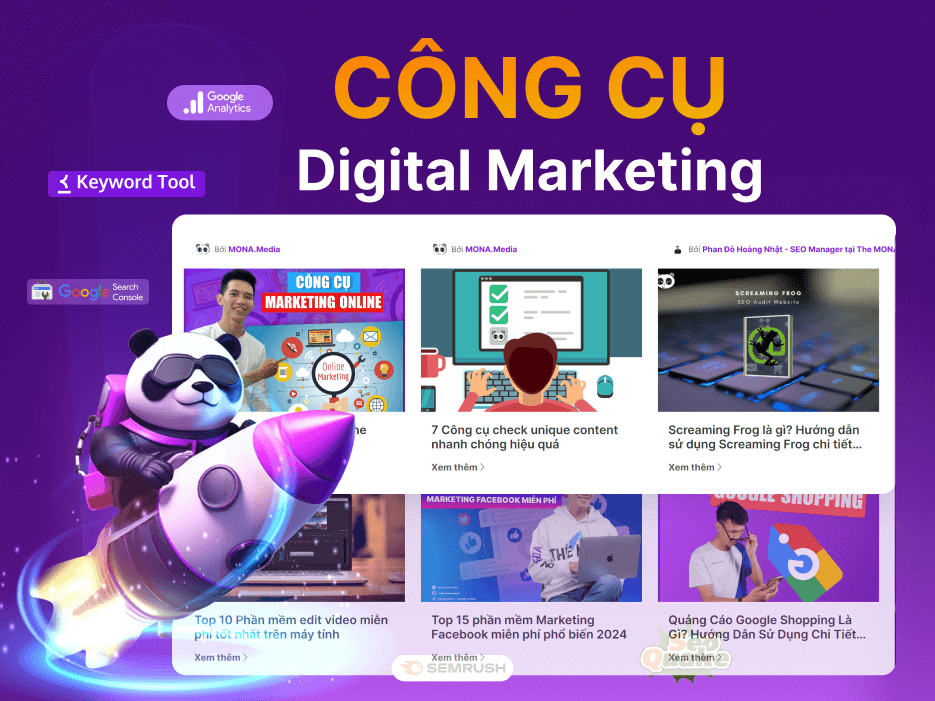 Tư vấn digital marketingKéo khách từ nhiều kênh, đo bằng số thật.
Corporate video productionVideos introducing your company, factory and team.
 NewAI video productionCompany story films made with AI.
 Custom software developmentCRM, ERP and HRM built for your business.
 Viết AI Agent theo yêu cầuĐặt riêng một trợ lý AI cho đúng việc của mình.
 Tư vấn chuyển đổi AIĐưa AI vào vận hành của cả công ty.
NewMONA LMSManagement for centers and schools.
MONA SkillHubInternal training for company staff.
 NHTQ systemEnd-to-end China–Vietnam shipping operations.
MONA JMSManagement for gold, diamond and pawn shops.
 MONA E-LearningA website with every feature you need to sell courses.
 How to sell online courses (course)More than 30 free lessons on selling courses on autopilot.
 MONA Cloudmonacloud.vnServers to get your apps and websites running.
 MONA Basemonabase.vnPostgres database, sign-in and file storage.
 MONA Mailmonamail.vnSend OTP, order and invoice emails from your software.
 MONA Paymonapay.vnAccept bank transfers via VietQR and notify your software when the money arrives.
 MONA eInvoiceComing soonIssue e-invoices that meet tax standards.
Gấu CườiTrả lời khách 24/7 trên web, Fanpage, Zalo và thu lead cho sale.
 Gấu TeleSalesGọi điện tư vấn, chăm khách như tổng đài viên thật.
Dê CườiTư vấn và chốt đơn cho shop ngay trong khung chat.
Gấu WebmasterNhắn nhóm Zalo là website được sửa xong.
 Gấu Pháp ChếSoạn hợp đồng, rà điều khoản trong vài phút.
 Gấu Báo GiáLên báo giá đúng mẫu và gửi khách ngay.
 AI chăm sóc khách hàngTheo dõi và giữ chân khách hàng cũ.
 Gấu Tuyển DụngLọc hồ sơ, hẹn lịch, phỏng vấn ứng viên.
 Mới ra mắt
KHA AI 2027
Xây kênh chuyên gia 2 phút mỗi ngày
Quay bằng điện thoại, AI tự edit video, tự đăng lên 16 nền tảng và tự trả lời bình luận, tin nhắn.
937.359lượt xem trên kênh CEO MONA sau 42 ngày
 Anh Khánh HùngCEO MONA đang dùng mỗi ngày
Xem app làm được gì
 AI
Gấu Cười MONA ĐANG TỰ XÀITrả lời khách 24/7 trên website, Zalo OA, Messenger và thu lead về cho sale.
Dê CườiChốt đơn bán lẻ và sàn: Shopee, TikTok Shop, web. Chăm cả khách sỉ, đại lý.
Gấu WebmasterCập nhật nội dung, tối ưu SEO website mỗi ngày.
Gấu TeleSalesGọi điện tư vấn, chăm khách như tổng đài viên thật.
Gấu Tuyển DụngLọc hồ sơ, hẹn lịch, phỏng vấn ứng viên tự động.
AI chăm sóc khách hàngGiữ khách cũ, cứu lead đã rớt cho phòng kinh doanh.
Gấu Pháp ChếSoạn hợp đồng, rà điều khoản trong vài phút.
Gấu Báo GiáLên báo giá đúng mẫu, gửi khách ngay khi có yêu cầu.
 Chuyển đổi AI toàn phầnGiải pháp tổng cho doanh nghiệp, 3 lớp triển khai.
 Viết AI Agent theo yêu cầuĐặt riêng một con AI gánh đúng nghiệp vụ của bạn.
 Custom softwareCRM, ERP and HRM with built-in AI automation.
 SEO & AEO thời đại AIĐược Google lẫn AI trích dẫn, không chỉ xếp hạng.
 Kiến thức AI cho doanh nghiệpBài phân tích, hướng dẫn ứng dụng AI vào vận hành.
 Free AI courses
 AI tools at work
App mới · KHA AI 2027
Xây kênh 2 phút mỗi ngày
AI tự edit video, tự đăng mọi mạng xã hội
Free consultation, 8am–10pm every day

18 March, 2023

When we browse the web, we see many images with text on them. You may wonder what font was used in the image, because that font could help you design banners or other things later. You no longer need to wonder, because there are now many tools that can identify the fonts in an image. Below, MONA Media will share some ways to find a font from an image for you to try.

Identifying a font from an image with font search tools can help you in situations like these:
To help you check the font in an image quickly and effectively, MONA has put together the methods below:

WhatFontis is an image font finder that can identify almost any font, even Creative Market fonts that many other tools do not support. WhatFontis also has other advanced features you may like, and they cost nothing.
Here are the steps to find a font with WhatFontis:

Myfonts is a website that helps find fonts, including Vietnamese fonts, from images up to 2MB. It also sets requirements for uploaded images so the match works better. For example: fewer than 50 characters, text not too tight to the edges, and letters taller than 100 pixels.
Myfonts can detect the position of each character. The steps are simple:

This is the most popular tool for finding fonts from images. WhatTheFont is completely free to use. However, keep the following in mind when using it:
How to find a font in an image on a computer
Once you upload your image to WhatTheFont, the results appear as a list and you can pick the font you need. Here is how to check a font from an image with WhatTheFont:
Find a font from an image on an Android phone

You can also use your phone to find the font in a photo you took or downloaded. Your phone lets you quickly identify fonts on boxes, labels, cups or anything else you can photograph.
In detail, here is how to use the WhatTheFont app to find a font from an image:

Font Squirrel works much like WhatTheFont. This app also lets you download the font identified in the image. Some fonts are free, while others must be bought before you can download them.
An important Font Squirrel feature is Webfont Generator, which lets you generate fonts for a website automatically. Finding a font from an image is easy: just upload the image and the tool scans it for the font.
Here are the steps to find a font from an image online with Font Squirrel:
≫ Find out more: Google advertising services ways to increase conversion effectively

One of the best tools for finding fonts from images is Fontspring Matcherator. Just upload your image company profile photographyof a product or service, then click "matcherate it!" and the tool shows the names of the fonts used in the image you uploaded.
If you want to download a font from Fontspring Matcherator to your computer, you have to pay a fee.

Like other font finders, IdentiFont offers many features, including finding fonts from images. Specifically:
Above is a detailed guide to finding fonts from images quickly and conveniently. With the font-from-image tools just MONA shared, you can pick fonts that fit your needs. We wish you success.
-> Read more:

CEO & Founder · The MONA
The founder of The MONA built a service company of 60+ staff with 14,000+ projects delivered. Khánh Hùng shares his thinking on building self-running systems, automating a business, and the real lessons behind MONA's projects.
 3,3K




Professional website
design services
Own a website with a beautiful, 100% exclusive design and a lifetime warranty, with the ability
to expand features flexibly as your business grows, starting today!



NHẬN TƯ VẤN SEO MIỄN PHÍ !






 MONA will never sell your information or send you spam


 MONA will never sell your information or send you spam
