
 MONA OS 2.0
 Partner with MONA


 Tự động hoá doanh nghiệp
 Cẩm nang SEO
 Digital Marketing
 Kinh nghiệm thiết kế website
 Hạ Tầng Server
 Giáo dục


 VI
 EN










Message us on
Zalo Official


 ProductsNew

 ProductsProducts
 Mới ra mắtKHA AI 2027App tự edit video, tự đăng mọi mạng xã hội, 2 phút mỗi ngày









 Website designLooks good and wins customers over.
SEO servicesBrings in customers searching for exactly what you sell.
 Tư vấn digital marketingKéo khách từ nhiều kênh, đo bằng số thật.
Corporate video productionVideos introducing your company, factory and team.
 NewAI video productionCompany story films made with AI.
 Custom software developmentCRM, ERP and HRM built for your business.
 Viết AI Agent theo yêu cầuĐặt riêng một trợ lý AI cho đúng việc của mình.
 Tư vấn chuyển đổi AIĐưa AI vào vận hành của cả công ty.
NewMONA LMSManagement for centers and schools.
MONA SkillHubInternal training for company staff.
 NHTQ systemEnd-to-end China–Vietnam shipping operations.
MONA JMSManagement for gold, diamond and pawn shops.
 MONA E-LearningA website with every feature you need to sell courses.
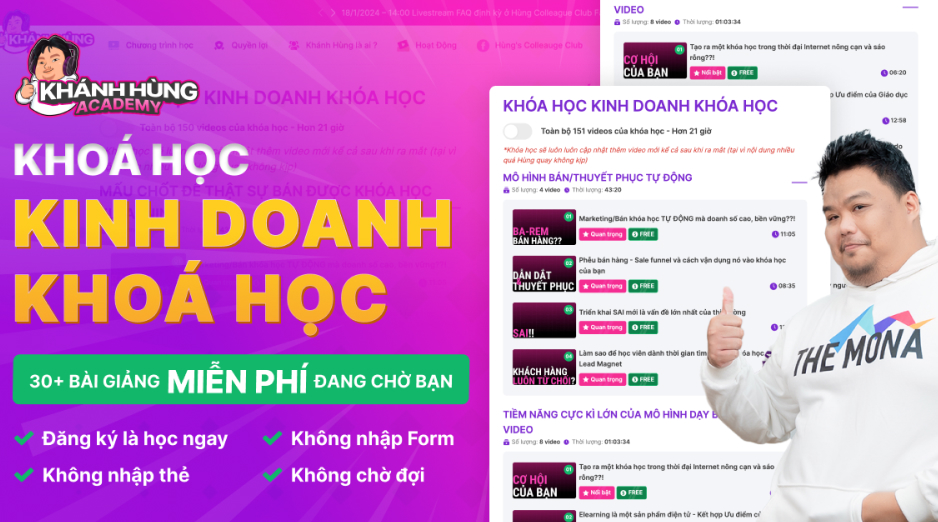 How to sell online courses (course)More than 30 free lessons on selling courses on autopilot.
 MONA Cloudmonacloud.vnServers to get your apps and websites running.
 MONA Basemonabase.vnPostgres database, sign-in and file storage.
 MONA Mailmonamail.vnSend OTP, order and invoice emails from your software.
 MONA Paymonapay.vnAccept bank transfers via VietQR and notify your software when the money arrives.
 MONA eInvoiceComing soonIssue e-invoices that meet tax standards.
Gấu CườiTrả lời khách 24/7 trên web, Fanpage, Zalo và thu lead cho sale.
 Gấu TeleSalesGọi điện tư vấn, chăm khách như tổng đài viên thật.
Dê CườiTư vấn và chốt đơn cho shop ngay trong khung chat.
Gấu WebmasterNhắn nhóm Zalo là website được sửa xong.
 Gấu Pháp ChếSoạn hợp đồng, rà điều khoản trong vài phút.
 Gấu Báo GiáLên báo giá đúng mẫu và gửi khách ngay.
 AI chăm sóc khách hàngTheo dõi và giữ chân khách hàng cũ.
 Gấu Tuyển DụngLọc hồ sơ, hẹn lịch, phỏng vấn ứng viên.
 Mới ra mắt
KHA AI 2027
Xây kênh chuyên gia 2 phút mỗi ngày
Quay bằng điện thoại, AI tự edit video, tự đăng lên 16 nền tảng và tự trả lời bình luận, tin nhắn.
924.584lượt xem trên kênh CEO MONA sau 41 ngày
 Anh Khánh HùngCEO MONA đang dùng mỗi ngày
Xem app làm được gì
 AI
Gấu Cười MONA ĐANG TỰ XÀITrả lời khách 24/7 trên website, Zalo OA, Messenger và thu lead về cho sale.
Dê CườiChốt đơn bán lẻ và sàn: Shopee, TikTok Shop, web. Chăm cả khách sỉ, đại lý.
Gấu WebmasterCập nhật nội dung, tối ưu SEO website mỗi ngày.
Gấu TeleSalesGọi điện tư vấn, chăm khách như tổng đài viên thật.
Gấu Tuyển DụngLọc hồ sơ, hẹn lịch, phỏng vấn ứng viên tự động.
AI chăm sóc khách hàngGiữ khách cũ, cứu lead đã rớt cho phòng kinh doanh.
Gấu Pháp ChếSoạn hợp đồng, rà điều khoản trong vài phút.
Gấu Báo GiáLên báo giá đúng mẫu, gửi khách ngay khi có yêu cầu.
 Chuyển đổi AI toàn phầnGiải pháp tổng cho doanh nghiệp, 3 lớp triển khai.
 Viết AI Agent theo yêu cầuĐặt riêng một con AI gánh đúng nghiệp vụ của bạn.
 Custom softwareCRM, ERP and HRM with built-in AI automation.
 SEO & AEO thời đại AIĐược Google lẫn AI trích dẫn, không chỉ xếp hạng.
 Kiến thức AI cho doanh nghiệpBài phân tích, hướng dẫn ứng dụng AI vào vận hành.
 Free AI courses
 AI tools at work
App mới · KHA AI 2027
Xây kênh 2 phút mỗi ngày
AI tự edit video, tự đăng mọi mạng xã hội
Free consultation, 8am–10pm every day

13 June, 2026

Everyone who uses Veo can run into common errors. Recognizing and fixing them promptly is important for keeping your work productive. We'll walk through these errors with you and show you exactly how to fix them.
Veo is an effective tool that helps businesses save time and work more productively. Applying Veo to your workflow lets you automate many repetitive tasks.
To streamline your workflow, set up automated tasks in Veo. Start by building workflows based on your business's real needs.
Veo lets you customize modules to your needs. This keeps your workflows flexible and efficient.
Veo provides clear reports. You can track the performance of each workflow and make timely adjustments.
Free AI tools such as Veo are convenient but only solve personal, manual problems. A business needs custom software built by MONA to truly automate its processes. This software helps you integrate data seamlessly and keeps it secure.

Using shortcut commands streamlines your workflow with Veo. These commands save time and make your work more efficient. Let's look at how to use shortcut commands most effectively.
Shortcut commands in Veo come in many forms. For example, the command /task lets you create a task in a few seconds. Instead of entering lots of details, you just type the command and the essential information.
Example:
Using shortcut commands is an effective way to save time every day.
To optimize shortcut commands, you can customize them for yourself or your team. This creates commands that fit better and are easier to remember.
For example, you can create a shortcut for sending a weekly report:
This customization lets you work faster and makes your work more efficient.
Using shortcut commands in Veo helps you get the most out of it. However, to reach true automation, a business needs custom software built by MONA. MONA can integrate AI into your workflow and train your staff to use it effectively.

Writing effective prompts is how you get Veo working at its best. Here is a concrete 3-step formula .
The first step is to define exactly what you need from Veo. State the specific goal you want. A clear request lets Veo give accurate results. For example, instead of just asking to "find information", ask it to "find information about 2026 digital marketing trends".
Detailed context helps Veo understand your needs better. You can add information about the field, the target audience and related factors. Clear context lets Veo answer in a way that fits your specific needs. For example, say you need the information for a particular marketing campaign.
Finally, check Veo's results and adjust the prompt if needed. If the result isn't accurate, revisit the previous steps. This streamlines your work with Veo. Adjusting is important to make sure Veo works more effectively.
Applying this formula lets you get the most out of Veo. However, to get real results, a business needs custom software built by MONA that integrates seamlessly with your existing systems.

Categorizing information effectively helps Veo process it faster. You'll save time and streamline your workflow. Below is a concrete guide to categorizing information.
To create information categories, first identify the basic types of information. Then you can create categories that fit. This helps Veo recognize information more accurately and quickly.
Organizing information sensibly helps you manage data effectively. It also speeds up access to information in Veo. You can follow the steps below to organize information properly.
Veo is a useful tool for managing information. Using it effectively, though, takes a clear strategy. A business that wants to keep its processes and data optimized needs custom software built by MONA.

Connecting Veo with other tools improves your working experience. It lets us get the most out of Veo in marketing and management.
Step 1: Open the Veo app and go to settings.
Step 2: Select "Connections" and find the tool you want to connect.
Step 3: Follow the on-screen instructions to finish connecting.
Step 4: Test the connection to make sure everything runs smoothly.
Connecting Veo with other tools saves you time and makes your work more efficient. However, for the best results, a business needs custom software built by MONA, which integrates data and workflows seamlessly.

A business needs to recognize the right moment to move from Veo to custom software. In practice, when a tool no longer meets your needs, work performance suffers badly.
If your team spends a lot of time on repetitive tasks, that is a clear sign your current tools are no longer enough. Delays in work hurt service quality and your business's reputation.
Custom software from MONA gives your business maximum flexibility. Your workflows get more streamlined, with less time and fewer unexpected costs. This shift helps your business sustain steady growth.
Moving to custom software helps a business streamline its workflow and improve service quality. MONA is ready to support you through the process.

If you need a finished video for your company and do not have time to figure out Veo yourself, take a look at MONA's AI video editing service: MONA handles everything from the script to the final cut, and delivers it with a cut for each channel.

CEO & Founder · The MONA
Founder of The MONA, who built a services company of 60+ staff with 14,000+ projects delivered. Khánh Hùng shares how he thinks about building systems that run themselves, automating a business, and the real lessons from delivering projects at MONA.
 217




Professional website
design services
Own a website with a beautiful, 100% exclusive design and a lifetime warranty, with the ability
to expand features flexibly as your business grows, starting today!






 MONA will never sell your information or send you spam


 MONA will never sell your information or send you spam
