
 MONA OS 2.0


 Tự động hoá doanh nghiệp
 Cẩm nang SEO
 Digital Marketing
 Kinh nghiệm thiết kế website
 Hạ Tầng Server
 Giáo dục


 VI
VI
 EN
EN












Message us on
Zalo Official


 ProductsNew

 ProductsProducts
 Mới ra mắtKHA AI 2027App tự edit video, tự đăng mọi mạng xã hội, 2 phút mỗi ngày








 Website designLooks good and wins customers over.
SEO servicesBrings in customers searching for exactly what you sell.
Website designLooks good and wins customers over.
SEO servicesBrings in customers searching for exactly what you sell.
 Tư vấn digital marketingKéo khách từ nhiều kênh, đo bằng số thật.
Corporate video productionVideos introducing your company, factory and team.
Tư vấn digital marketingKéo khách từ nhiều kênh, đo bằng số thật.
Corporate video productionVideos introducing your company, factory and team.
 NewAI video productionCompany story films made with AI.
 Custom software developmentCRM, ERP and HRM built for your business.
 Viết AI Agent theo yêu cầuĐặt riêng một trợ lý AI cho đúng việc của mình.
 Tư vấn chuyển đổi AIĐưa AI vào vận hành của cả công ty.
NewMONA LMSManagement for centers and schools.
MONA SkillHubInternal training for company staff.
Tư vấn chuyển đổi AIĐưa AI vào vận hành của cả công ty.
NewMONA LMSManagement for centers and schools.
MONA SkillHubInternal training for company staff.
 NHTQ systemEnd-to-end China–Vietnam shipping operations.
MONA JMSManagement for gold, diamond and pawn shops.
NHTQ systemEnd-to-end China–Vietnam shipping operations.
MONA JMSManagement for gold, diamond and pawn shops.
 MONA E-LearningA website with every feature you need to sell courses.
 How to sell online courses (course)More than 30 free lessons on selling courses on autopilot.
 MONA Cloudmonacloud.vnServers to get your apps and websites running.
 MONA Basemonabase.vnPostgres database, sign-in and file storage.
 MONA Mailmonamail.vnSend OTP, order and invoice emails from your software.
 MONA Paymonapay.vnAccept bank transfers via VietQR and notify your software when the money arrives.
 MONA eInvoiceComing soonIssue e-invoices that meet tax standards.
Gấu CườiTrả lời khách 24/7 trên web, Fanpage, Zalo và thu lead cho sale.
MONA eInvoiceComing soonIssue e-invoices that meet tax standards.
Gấu CườiTrả lời khách 24/7 trên web, Fanpage, Zalo và thu lead cho sale.
 Gấu TeleSalesGọi điện tư vấn, chăm khách như tổng đài viên thật.
Dê CườiTư vấn và chốt đơn cho shop ngay trong khung chat.
Gấu WebmasterNhắn nhóm Zalo là website được sửa xong.
Gấu TeleSalesGọi điện tư vấn, chăm khách như tổng đài viên thật.
Dê CườiTư vấn và chốt đơn cho shop ngay trong khung chat.
Gấu WebmasterNhắn nhóm Zalo là website được sửa xong.
 Gấu Pháp ChếSoạn hợp đồng, rà điều khoản trong vài phút.
 Gấu Báo GiáLên báo giá đúng mẫu và gửi khách ngay.
 AI chăm sóc khách hàngTheo dõi và giữ chân khách hàng cũ.
 Gấu Tuyển DụngLọc hồ sơ, hẹn lịch, phỏng vấn ứng viên.
 Mới ra mắt
KHA AI 2027
Xây kênh chuyên gia 2 phút mỗi ngày
Quay bằng điện thoại, AI tự edit video, tự đăng lên 16 nền tảng và tự trả lời bình luận, tin nhắn.
349.639lượt xem trên kênh CEO MONA sau 20 ngày
Mới ra mắt
KHA AI 2027
Xây kênh chuyên gia 2 phút mỗi ngày
Quay bằng điện thoại, AI tự edit video, tự đăng lên 16 nền tảng và tự trả lời bình luận, tin nhắn.
349.639lượt xem trên kênh CEO MONA sau 20 ngày
 Anh Khánh HùngCEO MONA đang dùng mỗi ngày
Xem app làm được gì
Anh Khánh HùngCEO MONA đang dùng mỗi ngày
Xem app làm được gì
 AI
Gấu Cười MONA ĐANG TỰ XÀITrả lời khách 24/7 trên website, Zalo OA, Messenger và thu lead về cho sale.
Dê CườiChốt đơn bán lẻ và sàn: Shopee, TikTok Shop, web. Chăm cả khách sỉ, đại lý.
Gấu WebmasterCập nhật nội dung, tối ưu SEO website mỗi ngày.
Gấu TeleSalesGọi điện tư vấn, chăm khách như tổng đài viên thật.
Gấu Tuyển DụngLọc hồ sơ, hẹn lịch, phỏng vấn ứng viên tự động.
AI chăm sóc khách hàngGiữ khách cũ, cứu lead đã rớt cho phòng kinh doanh.
Gấu Pháp ChếSoạn hợp đồng, rà điều khoản trong vài phút.
Gấu Báo GiáLên báo giá đúng mẫu, gửi khách ngay khi có yêu cầu.
AI
Gấu Cười MONA ĐANG TỰ XÀITrả lời khách 24/7 trên website, Zalo OA, Messenger và thu lead về cho sale.
Dê CườiChốt đơn bán lẻ và sàn: Shopee, TikTok Shop, web. Chăm cả khách sỉ, đại lý.
Gấu WebmasterCập nhật nội dung, tối ưu SEO website mỗi ngày.
Gấu TeleSalesGọi điện tư vấn, chăm khách như tổng đài viên thật.
Gấu Tuyển DụngLọc hồ sơ, hẹn lịch, phỏng vấn ứng viên tự động.
AI chăm sóc khách hàngGiữ khách cũ, cứu lead đã rớt cho phòng kinh doanh.
Gấu Pháp ChếSoạn hợp đồng, rà điều khoản trong vài phút.
Gấu Báo GiáLên báo giá đúng mẫu, gửi khách ngay khi có yêu cầu.
 Chuyển đổi AI toàn phầnGiải pháp tổng cho doanh nghiệp, 3 lớp triển khai.
 Viết AI Agent theo yêu cầuĐặt riêng một con AI gánh đúng nghiệp vụ của bạn.
 Custom softwareCRM, ERP and HRM with built-in AI automation.
 SEO & AEO thời đại AIĐược Google lẫn AI trích dẫn, không chỉ xếp hạng.
 Kiến thức AI cho doanh nghiệpBài phân tích, hướng dẫn ứng dụng AI vào vận hành.
 Free AI courses
 AI tools at work
App mới · KHA AI 2027
Xây kênh 2 phút mỗi ngày
AI tự edit video, tự đăng mọi mạng xã hội
Free consultation, 8am–10pm every day
AI tools at work
App mới · KHA AI 2027
Xây kênh 2 phút mỗi ngày
AI tự edit video, tự đăng mọi mạng xã hội
Free consultation, 8am–10pm every day

18 March, 2023
Marketing campaigns are essential for building a brand and growing a business, and images are a key part of whether a campaign succeeds. Used well, images can do a great deal for you; used badly, they backfire. If you lack experience in this area you can brief a designer, but the result sometimes isn't what you had in mind. For that reason, Mona media will walk you through the basic steps for making your own images for advertising or branding, whether you run a business or a small personal venture.
Photoshop is one of the most photo editing professional programs available today. The latest version, Photoshop CS6, gives users an excellent experience with continuously updated features and a very attractive interface.
Photoshop is graphics software released in 1988 on the Macintosh by Adobe Systems. Today it leads the market for photo editing software and is regarded as the standard for professional graphic designers.
Photoshop is best known and most widely used by designers for website design. In Photoshop, designers can freely adjust, edit, cut, paste and replace even the most complex elements. Designing UI or UX most often relies on Photoshop
Besides the functions used for edit your images Photoshop is also widely used in areas such as: website design, graphic design, drawing textures for 3D applications and painting, among many others. When you start the software, you will see the main interface below:
Adobe Photoshop photo editing software
As you can see in the picture, the Photoshop interface is divided into 4 main areas: the options bar, the toolbar, the document window and the panels. As you learn, you will go deeper into what each area does.
When you work on large documents, the panels and toolbar can take up too much screen space. Click the arrow icon to collapse or expand these tools and get more room for a large document. The panels (palettes) are made up of many smaller panels, so you can close the ones you don't use with the X icon on each panel. To open them again, go to Window in the menu bar.
Photoshop lets you switch the toolbar from two columns to one by clicking the arrow at the top.
If you are used to the two-column toolbar, one column will feel unfamiliar at first, but it is tidier and gives you more working space.
Press Tab and Photoshop hides the entire toolbar and all panels, leaving only the document. Press Tab again to bring them back. Press Shift + Tab to hide only the panels; when you move the mouse close to them, they reappear automatically. It is a small trick that helps a lot with large documents.
To view the document in full screen, press F. Press F again to hide the window above it. Press F once more to hide the options bar and get the most working space. One more press returns everything to normal.
Use Ctrl + Tab to switch between images when you are working with several at once. To compare several documents at the same time, go to Window -> Arrange in the menu and choose Tile Horizontally or Tile Vertically.
When you have a workspace you like, save it with Window -> Workspace -> Save Workspace. To return to the default workspace, go to Window -> Workspace -> Default Workspace, or click the icon on the options bar.
To zoom, click the magnifying glass icon or press Z. The cursor turns into a magnifying glass with a + inside. There are 2 ways to do it:
+ First, click on the document to zoom in. To zoom out, hold Alt and click on the document.
+ Second, hold the left mouse button and drag. A dashed rectangle appears, and the area inside it is enlarged when you release the mouse.
Every tool in Photoshop has its own options. The Zoom tool is quite simple, and you can also zoom with shortcuts: Ctrl and + to zoom in, Ctrl and – to zoom out.
The Navigator panel sits at the top of the panels by default and works as a map. In it you can see a thumbnail of the whole document.
Click the hand icon on the toolbar or press H to select the Hand tool. It is the simplest tool in Photoshop. In large documents at high zoom, the Hand tool lets you click and drag to move to another area of the image.
This tool changes the size of an image. Photoshop has many ways to resize an image. Here is the most common one:
Say you want to resize the image Yellow lily resized to match the size of the image Yellow lily. Go to Image -> Image Size or press Alt + Ctrl + I and enter the same width and height as the Yellow lily image. If you tick Constrain Proportions, changing the width or height automatically changes the other value to keep the proportions. Click OK to finish.
One caution: never enlarge an image beyond its original size, because it will lose quality. You can make it smaller without losing sharpness.
When you work with images you took yourself, scanned or took from stock sites, try to pick the largest size available. A large image can always be reduced, but a small image loses quality when enlarged.
Tip: Photoshop has keyboard shortcuts for almost everything. If you are not used to them, learn them before you start practicing, because shortcuts make you work faster.
When you don't understand an operation, look it up on YouTube. It is a huge library of knowledge and has just about everything you need.
Illustrator is vector drawing software, commonly used for illustrations, animation artwork and charts. Illustrator draws with mathematical equations, unlike bitmap images that store information in a grid of dots. That lets vector graphics be enlarged without losing resolution. Adobe Illustrator can create a small file that prints many times larger with no problem.
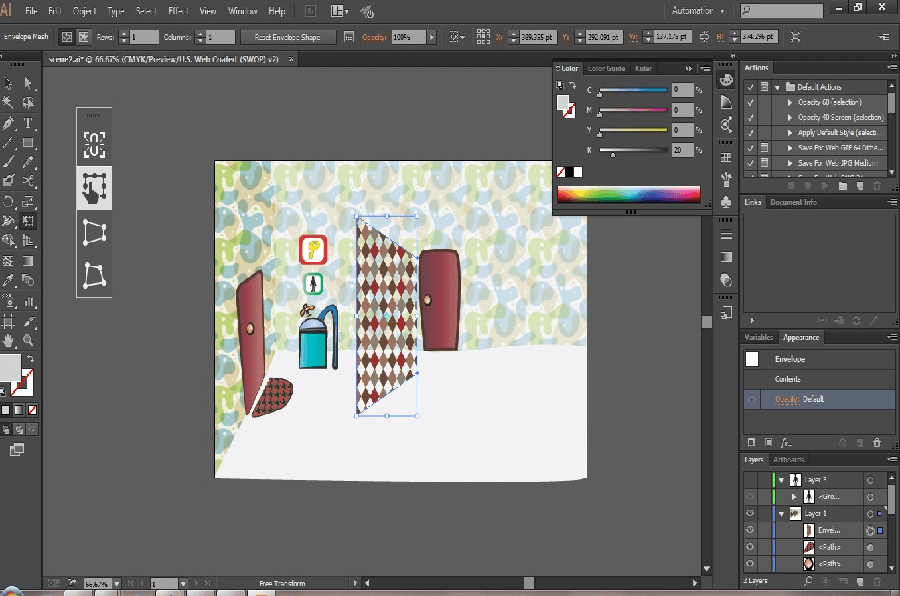
Editing images with Adobe Illustrator
This is flexible software that delivers high-quality final artwork, with fast and easy ways to create and edit objects. It is a real necessity for graphic designers. If you are building a e-commerce websites then image editing is essential, and you can use this software to edit images and banners and create product illustrations for your website.
+ Create a new artboard: go to File / New, then enter the settings you need.
+ New from a template: go to File / New From Template, then choose the template you need.
+ Adjust the artboard size: go to File / Document Setup or press Ctrl + Alt + P. The options are: Artboard, where you reset the artboard settings; Type, for text formats; and Transparency, for transparent background settings.
+ Preview mode: View -> Preview or press Ctrl + Y to show the image with all strokes and fills.
+ Outline mode: View -> Outline or press Ctrl + Y to show only the outlines of the image.
+ Fit the whole page: View / Fit in Window or Ctrl + 0.
+ 100% view: View / Actual Size or Ctrl + 1.
There are 3 buttons:
+ Standard Screen Mode: the standard display.
+ Full Screen with Menu Bar: full screen with the menu bar.
+ Full Screen Mode: full screen.
First choose the Zoom tool, then do one of the following:
+ Zoom in: click on the artboard, or drag a rectangle and the program enlarges the area you selected. The alternative shortcut is Ctrl + “+”.
+ Zoom out: do the opposite of zooming in. The alternative shortcut is Ctrl + “-”.
Used to select a whole path or a whole group of objects, scale or rotate objects, and move an object or group to another place on the artboard.
Select one object, then hold Shift and select the others, or drag a selection box around the objects.
Used to select and move anchor points, select several anchor points at once by dragging a box around them, shorten, lengthen or rotate tangents, and select elements within a group.
Used to select individual elements within a group. Once an object is selected, click it again to select the group that object belongs to.
Lets you select objects that share similar attributes.
Lets you select anchor points or path segments by drawing a free-form area around the points or segments you want.
Lets you select objects by drawing an outline around them.
Besides the selection tools, you can also select objects with commands in the Select menu:
+ All (Ctrl+A): select all objects.
+ Deselect (Ctrl+Shift+A): select nothing.
+ Reselect (Ctrl+6): repeat the last selection.
+ Inverse: invert the selection.
+ Next Object Above (Ctrl+Alt+]): select the next object above.
+ Next Object Below (Ctrl+Alt+[): select the next object below.
+ Same: select by object attribute.
Select objects that share the same blending mode and use the following options:
+ Fill & Stroke: same fill and stroke color.
+ Fill Color: same fill color.
+ Stroke Color: same stroke color.
+ Stroke Weight: same stroke thickness.
+ Style: same style.
+ Symbol Instance: instances of the same symbol.
+ Rectangle Tool (M): draws a rectangle.
+ Rounded Rectangle: draws a rectangle with rounded corners.
+ Ellipse: draws an ellipse or a circle.
+ Polygon: draws a polygon.
+ Star Tool: draws a star.
+ Flare: creates light effects such as a center, halo, rays and rings.
+ Line Segment Tool: draws a straight line.
+ Arc Tool: draws a curve.
+ Spiral Tool: draws a spiral.
+ Rectangular Grid Tool: draws a rectangular grid.
+ Polar Grid Tool: draws a grid made of concentric ellipses.
Lightroom is another Adobe product, released after Photoshop, and it inherits many of Photoshop's features. If you know Photoshop well, Lightroom is easy to pick up. As commercial software it is complete and well organized in its own way, built to meet users' growing needs. Because Adobe had already released Photoshop with a full set of image-processing features, Lightroom was developed with new features and utilities aimed at more demanding needs, at a reasonable price.
Lightroom is the core program in a workflow for managing image data and doing basic post-processing.
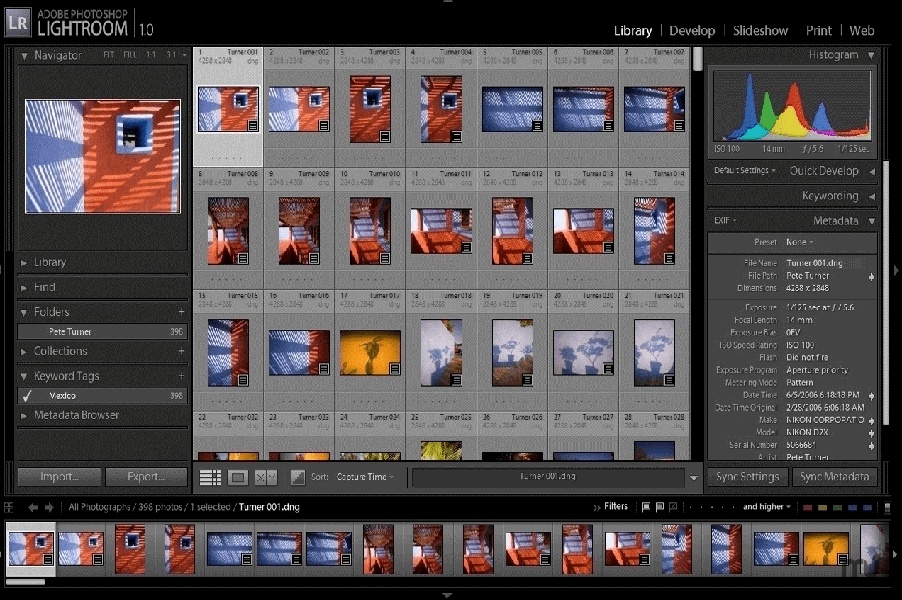
Adobe Lightroom photo editing software
When you use Lightroom, importing is required. You can import images from any source connected to your computer, including a camera. Go to File / Import Photos, choose the source, then the images, then the destination, and click Import.
Within one catalog, a photo can be imported only once, so if you try again Lightroom will tell you the image is a duplicate.
To avoid duplicates, keep the following in mind:
After importing photos into the catalog, Lightroom lets you sort them by marking them at any time. Click one photo or several selected photos and you get several ways to mark them.
– Mark with Flag and Rejected
– Mark with star ratings
– Or mark with colors.
Marking makes it easier to sort, process, manage and use your photos.
This tool helps you search and sort your photos. When you work with images from many sources, shot at different times and with different cameras, the Library filter is very useful.
Go to Edit -> Edit Watermarks.
After photos are edited and sorted, they need to be exported for different uses.
The editing functions cover most common needs, such as cropping, lighting, color, color blending, noise reduction, sharpening and softening.
Using Lightroom to edit photos in batches is very efficient. Adjust the settings on one sample photo until they are right, click + Presets, select the settings you need, click Create, then select the other photos that are similar to the sample and apply the preset. That's it.
Lightroom is built for management and basic post-processing, so when you need photo editing at a higher level, you will need other software. Right-click an image and you can work with other photo editing programs installed on your computer.
When you edit in Lightroom, the original image stays untouched. The edits are saved in a separate, very small file within the catalog.
Canva is a simple, free online design tool. Even without any graphics background you can create modern, distinctive designs from Canva's library of templates. Besides the free features there are paid options. You can use Canva entirely free when you upload images from your computer or Facebook. You do need to credit the copyright information clearly when required.
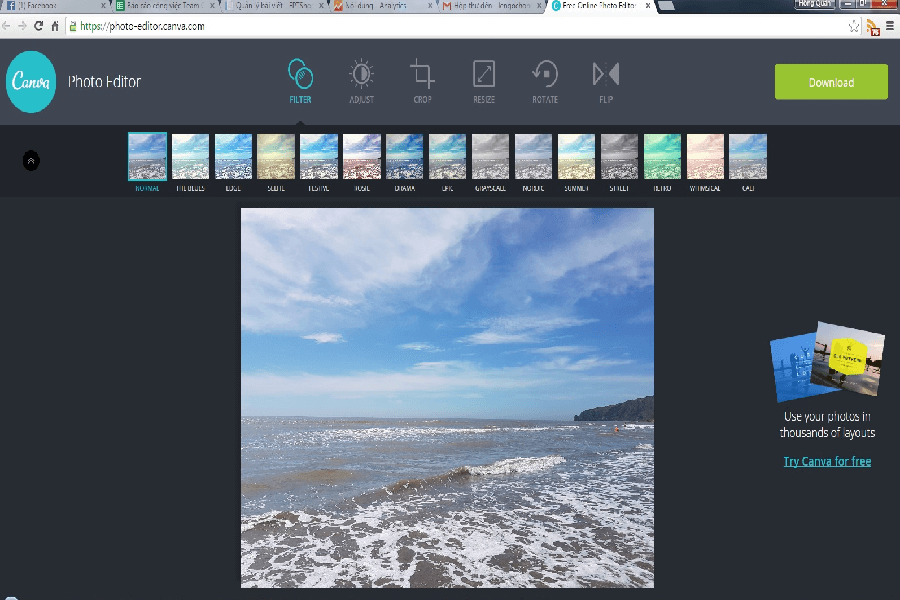
CANVA
You can register for a Canva account with your Gmail or Facebook account. Then log in and follow these steps:
First, choose a topic to create. Canva is a huge library covering posters, business cards, invitations, presentations and more, so there is plenty to choose from.
Next, choose the type of image to create.
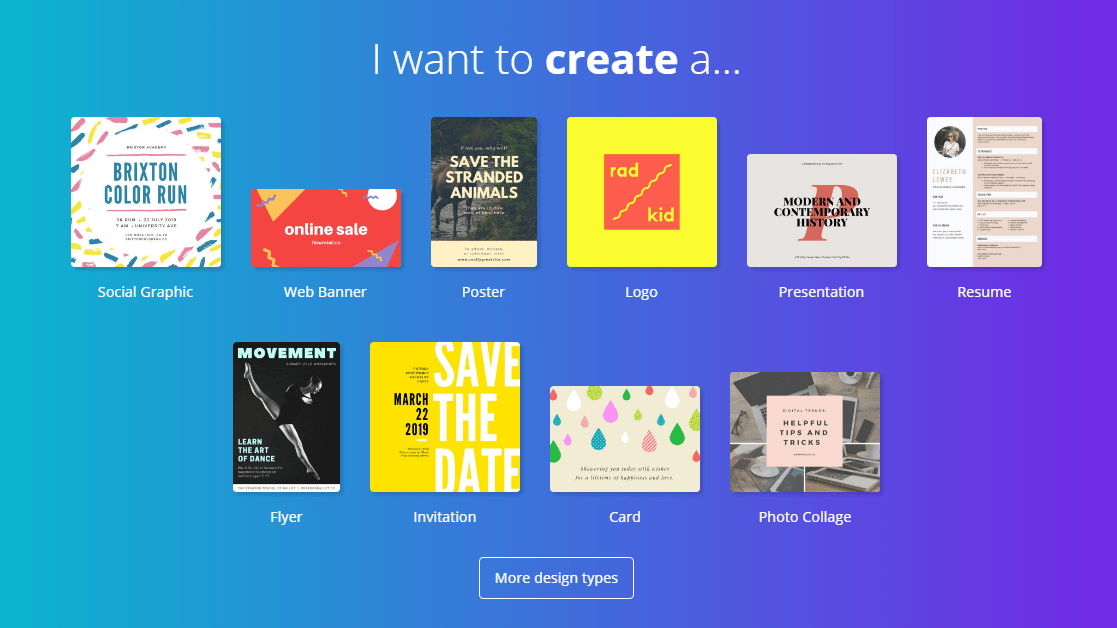
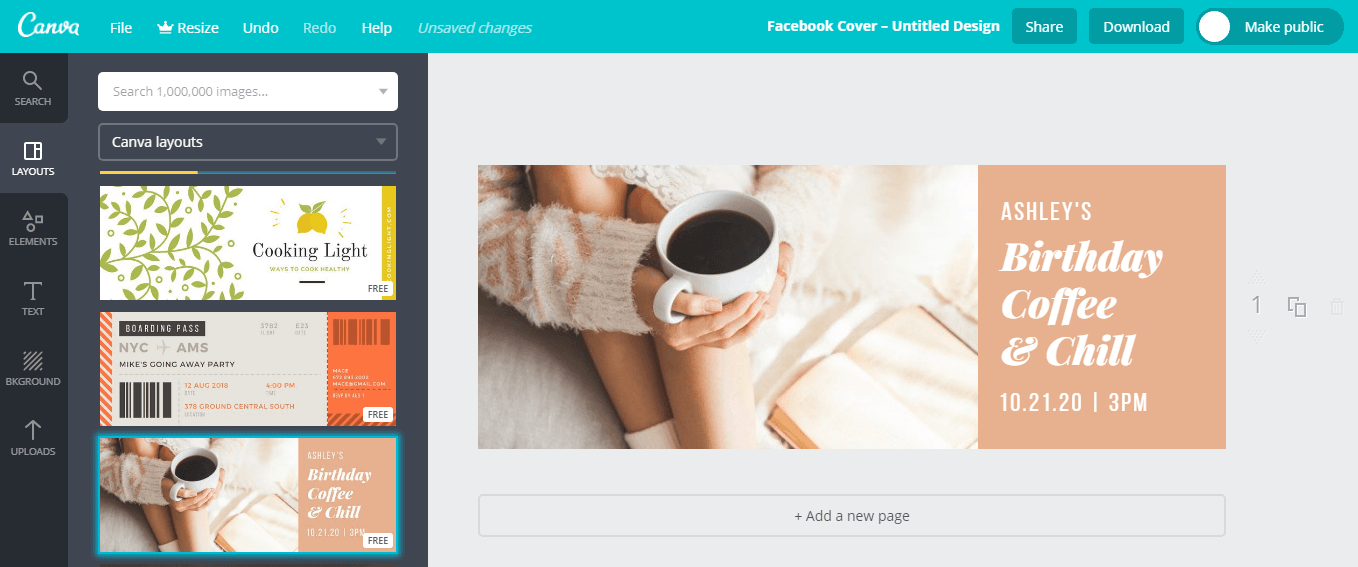
After you pick a category and an image type with the right dimensions, a new tab opens, and that is where you build your design. At this point you will probably say, “wow, this is great!” Everything seems to be there already, and you only need to “assemble” the pieces harmoniously to get the image you want.
Editing photos online with CANVA
The interface is divided into 2 sides: tools on one side and a preview of the design on the other. The main tools are:
– Search: look things up by keyword. It helps you find the elements you need.
– Layouts: ready-made templates, both paid and free.
– Elements: small items such as images, icons and charts to insert into the design.
– Text: for adding text.
– Background: for choosing a background color.
– Uploads: upload images from your computer to use in your design.
First, you need to sign up for Canva.
When that is done, you get a blank page in the standard size for your choice. You can also ask for a blank page with a custom size.
Image size: 828 x 315 px.
Make your own Facebook cover photo
You can download ready-made images from Google and use online tools to resize them. If you have some design knowledge, though, you can create a distinctive, sharp cover with harmonious colors and accents that carries your own brand.
The Facebook cover is the larger image at the top of your timeline, above your profile picture. Like your profile picture, it is public, which means anyone who visits your profile can see it. Besides adding a visual accent to your profile, the cover also shows your personality and outlook.
Make your own Facebook cover photo
Image size: it depends on where the logo will be used, and each placement has its own suitable size.
A logo is the graphic element of a brand, arranged together with text to create something distinctive. It is an important part of any organization or company, with shapes, colors, fonts and images that are usually unique to it.
When working on logo design graphic designers need to present the company's value as fully as possible through visuals, combining color and text that suit the company's needs and communicate the right information to customers. Depending on the brand, a logo can have a strong or a soft style.
Make your own Facebook cover photo
Image size: the minimum is 180 x 180 px, but 300 x 300 px is a good size.
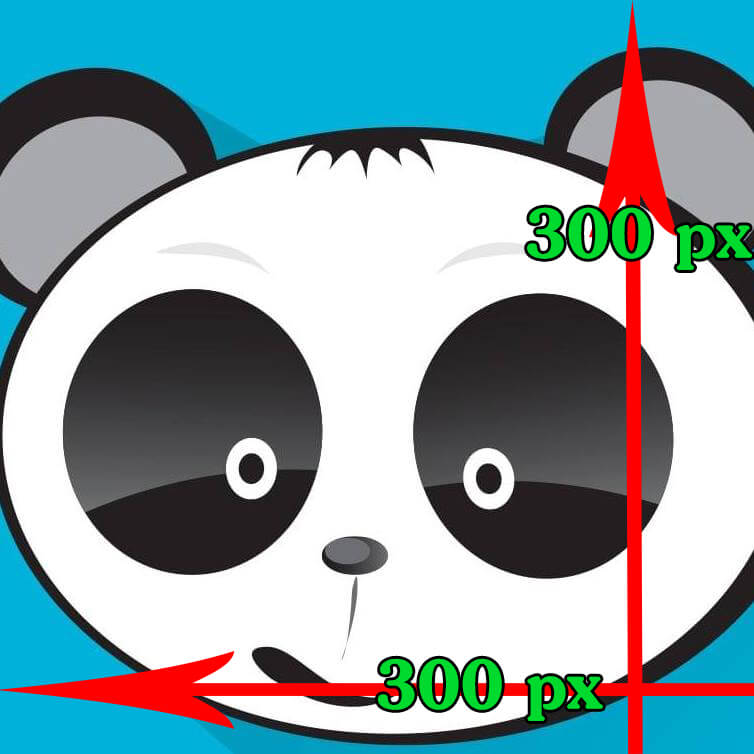
Make your own Facebook fanpage avatar
An avatar is the small image shown next to your Facebook account. In many cases the avatar stands in for your account name: instead of your name, your avatar is displayed.
The Note thumbnail size currently used is 1105 x 410 px.
The size varies with the type of shared link, such as YouTube or a website, but the standard display size used most is 470 x 240 px. For ads with this type of image, Facebook recommends 1280 x 628 px, but if you can't find a sharp image that large, 940 x 492 px also works.
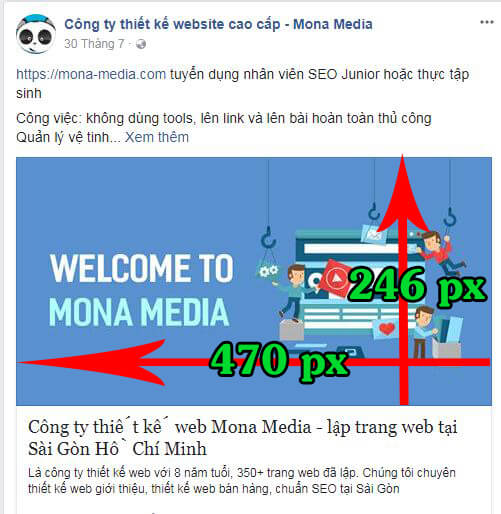
Make your own Facebook post images
Square images work best. The size displayed on Facebook is 470 x 470 px, but use 900 x 900 px so the image looks good both as a normal post and in ads.
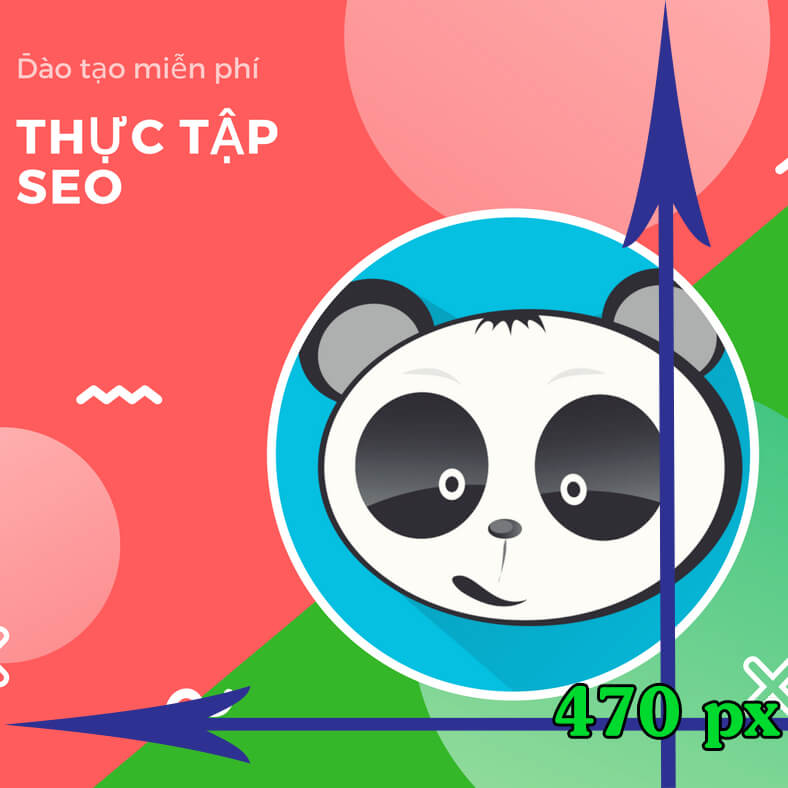
Editing images for the timeline
For landscape images, whatever size you upload, Facebook automatically scales the width to the standard 470 px.
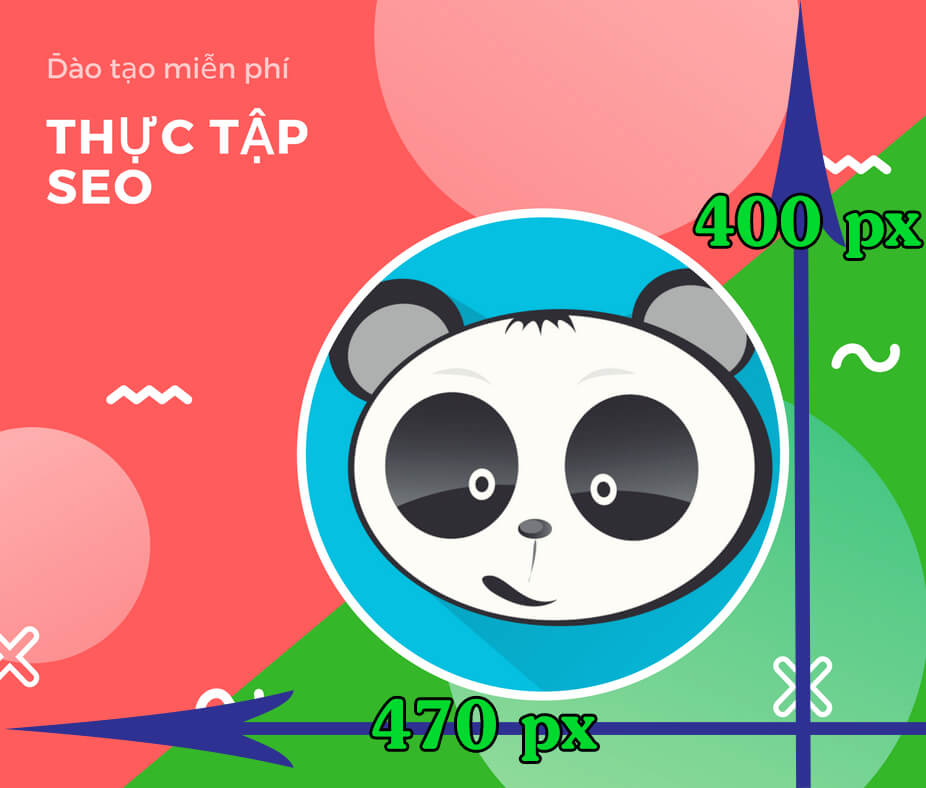
Images posted to the timeline
Likewise, for portrait images Facebook forces the height to 470 px.
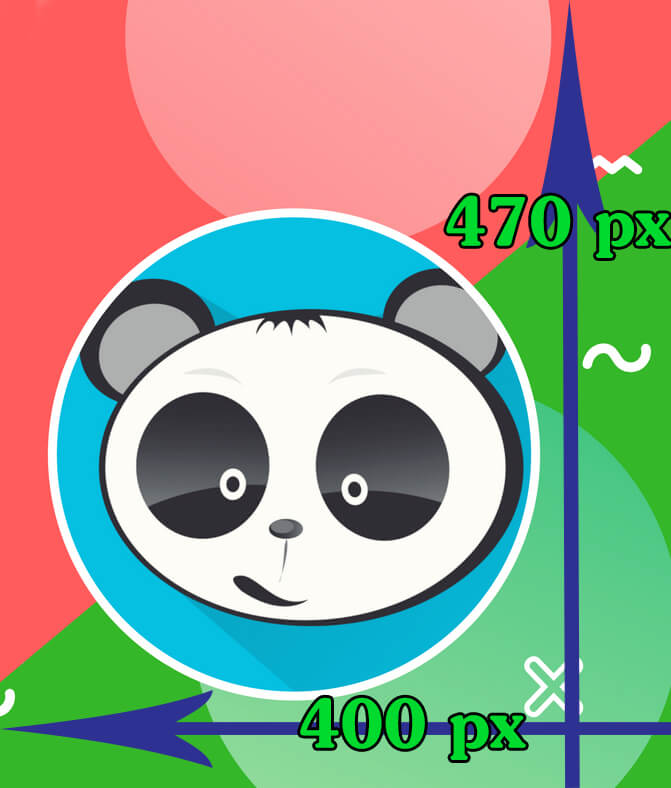
Images posted to the timeline
With Canva you can make distinctive Facebook post images quickly and easily. This is the screen you work in.
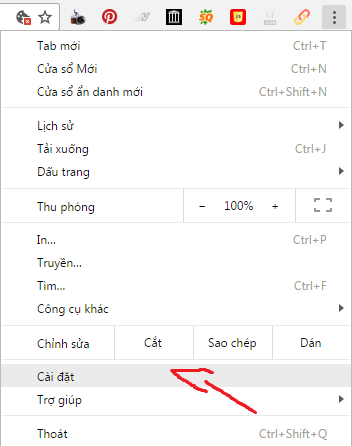
Image size: it depends on your website design.
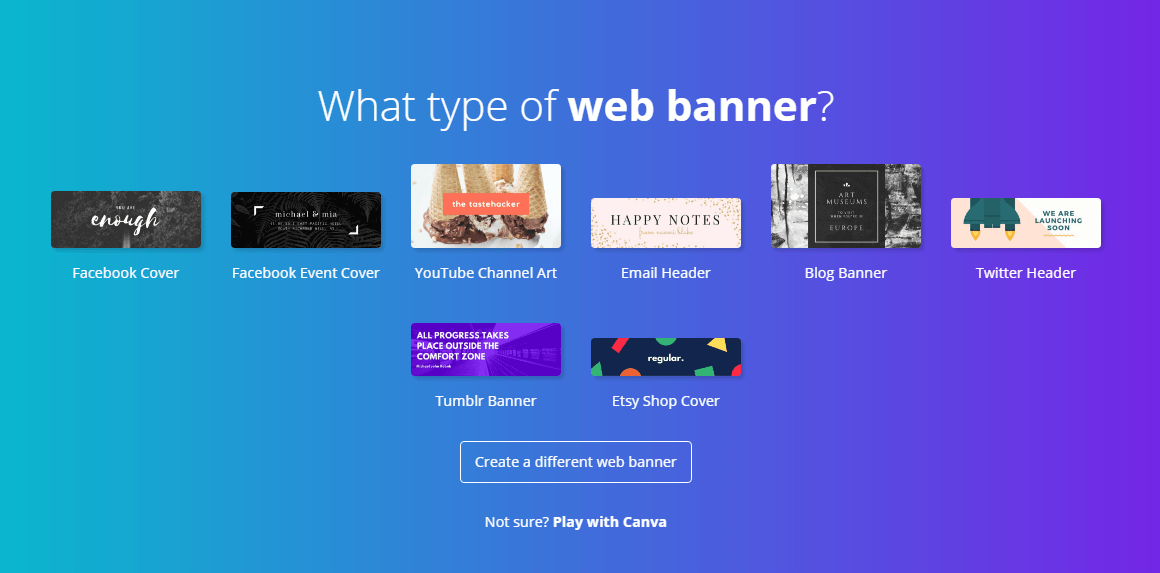
Make your own website banner images
With the ready-made layouts in Canva, every banner design becomes easy. First go to Layouts to pick a ready-made design that suits your industry. You can edit, move or delete the sample text and icons as you like. If you want to get creative, use the tools in Elements. It is simple: just drag and drop with the mouse.
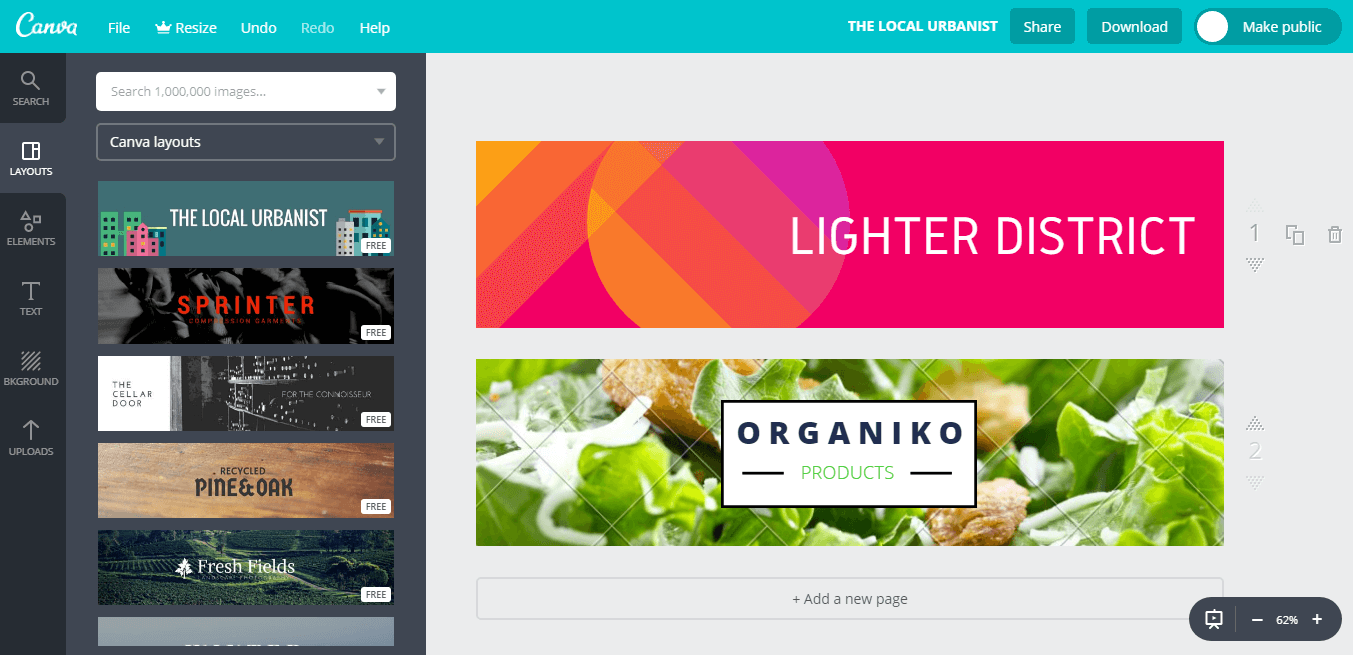
Make your own website banner images
You can also design ad banners in other styles by clicking Add a new page. Then you create the content yourself, such as text, icons and images, so that it all looks harmonious and attractive.
Making ad banners in Canva is simple and easy. The most important factor is still your own creativity and taste, which is what makes the result effective.
Make your own website banner images
An infographic needs to look good and present information and data as clearly as possible. It has to combine symbols, icons and text in an organized, clear and complete way. That is not easy, but with Canva's step-by-step help you can produce hundreds of different infographics without spending much time or effort. The real estate websites, travel websites and hotel websites use infographics most, because they are a handy way to promote a brand to a wide audience.
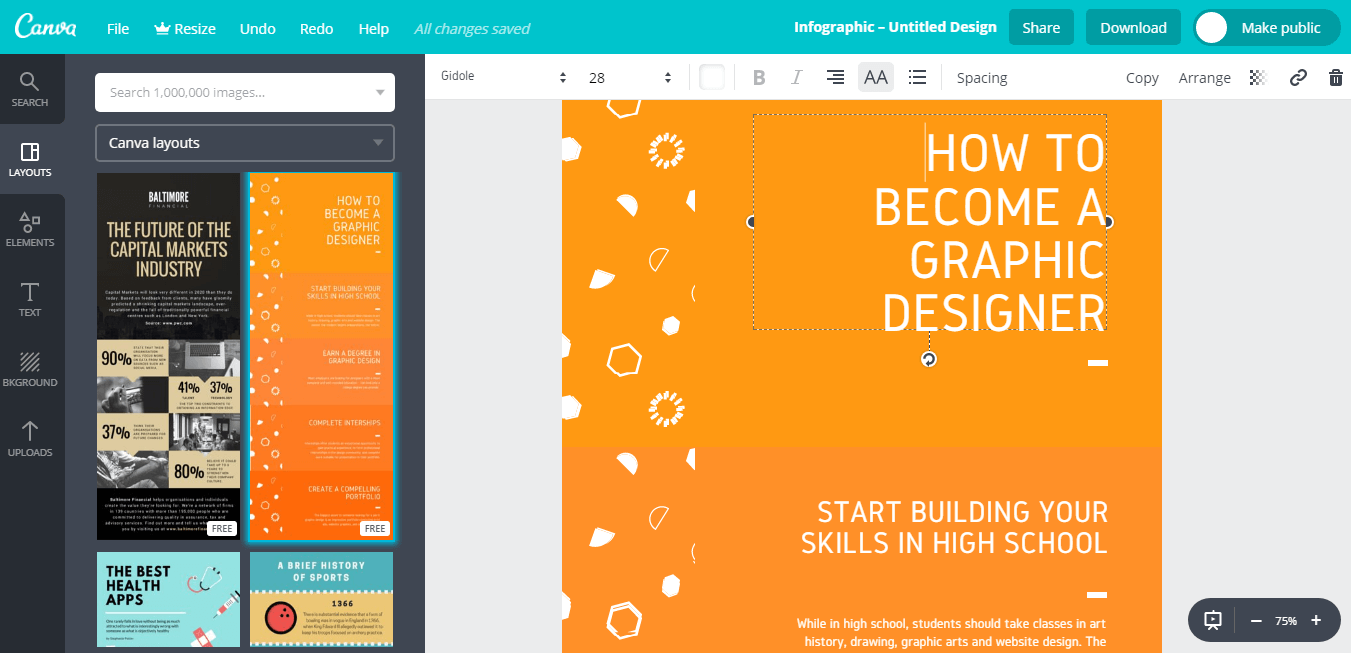
Make your own infographics
YouTube channel art is the first impression for people who visit your video channel. First impressions have a big effect on success or failure in communication. Many people will unsubscribe if your channel has no decent banner. Don't worry: with a few simple steps in Canva you can create a professional banner for your YouTube channel.
A thumbnail is a small image that still has to carry enough information and be easy to read. How do you design one? Canva can help.
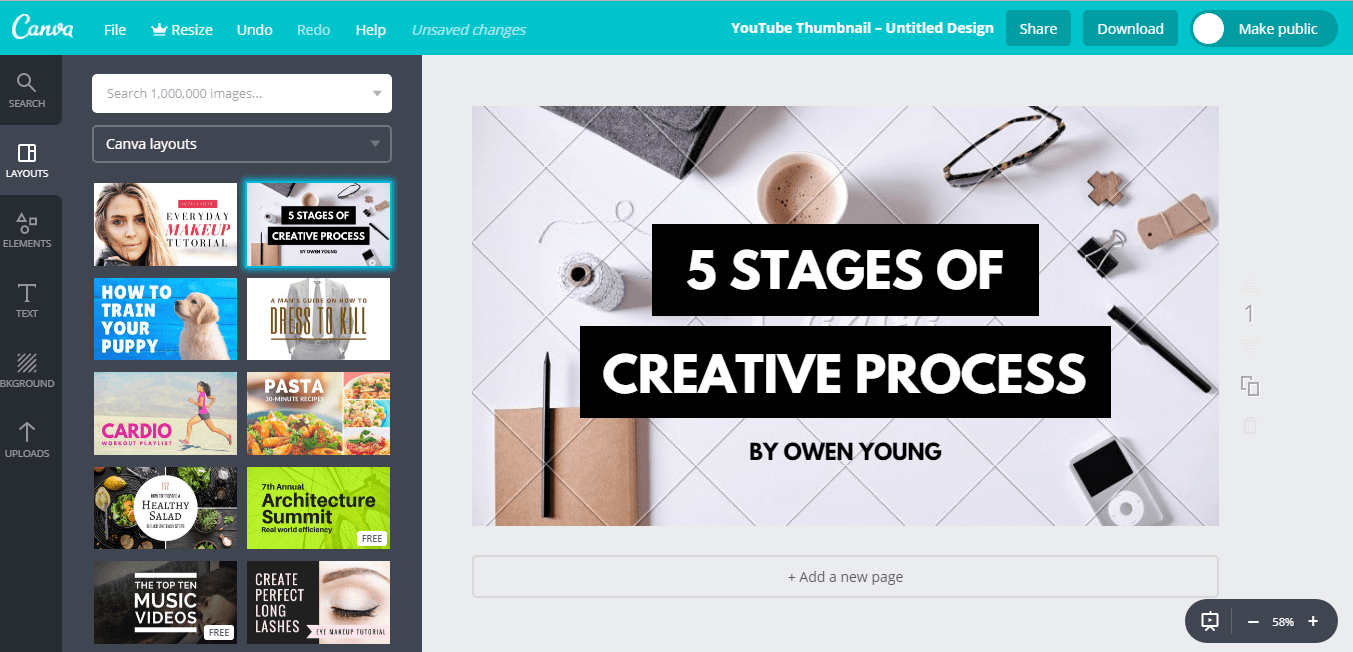
Make your own YouTube thumbnail
Camera 360 is a photo-taking and editing app published by PinGuo that is known for its soft, dreamy look and helps you create great photos easily. The company also built a very useful free online photo editor called WebCamera360. You don't need to download and install complex editors like PhotoScape or Photoshop to get photos you like. You can then save them to your computer or share them directly to social media such as Twitter, Instagram and Facebook.
To photo editing online 360, you can follow these basic steps:
Step 1: Go to http://sieuimba.com/camera360-online. The default language of this website is English.
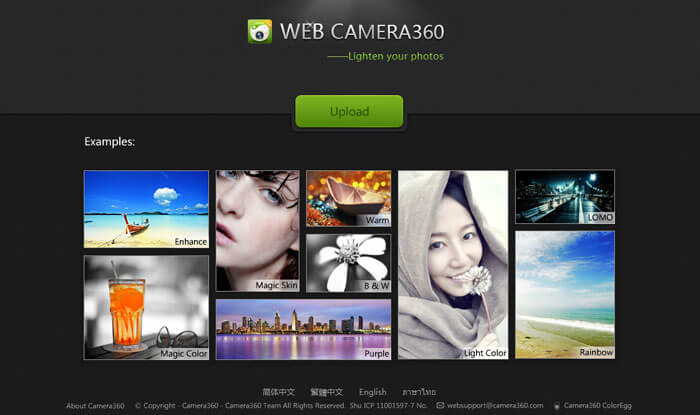
How to edit photos with Online 360
WebCamera360 app interface
Step 2: Click Upload, then choose and upload the photo you want to edit.
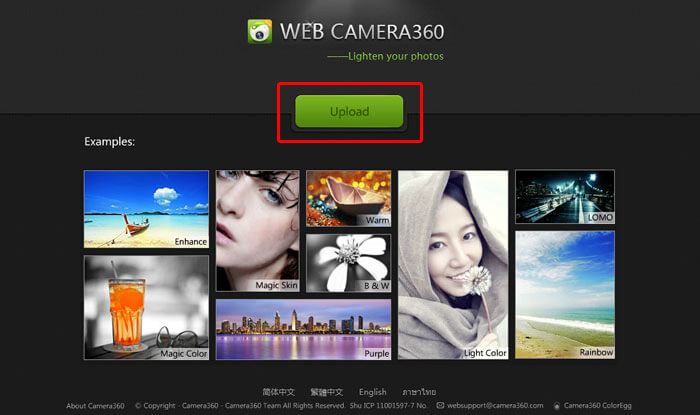
Click Upload to load the photo you want to edit
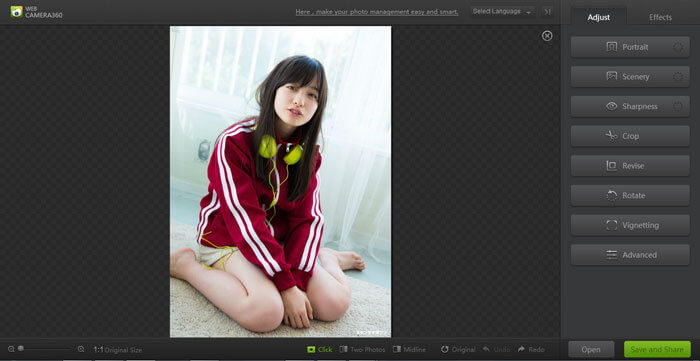
Photo editing interface
Before you start editing, notice the toolbar at the bottom of the interface. It has 3 functions you will need during editing: photo editing are:
– Original: if you are not happy after editing and want to start over, click Original to return the photo to its original state.
– Undo: if you make a change you don't like, click Undo to go back one step.
– Redo: brings back the step you just undid.

3 essential functions for photo editing
Step 3: this is where you edit. Let's look at what the tools in the Adjust tab, the main editing tools, do.
– Portrait, Scenery and Sharpness group
+ Portrait: smooths the photo, good for skin-smoothing portrait shots.
+ Scenery: improves the natural lighting in a photo. Don't overuse it, or your photo will look overexposed.
+ Sharpness: with just a few simple steps, your photo becomes noticeably sharper.
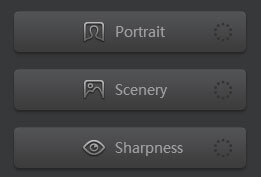
Portrait, Scenery and Sharpness group
– Crop, Revise and Rotate group
+ Crop: the cropping tool. You can crop to preset ratios or adjust the crop frame as you like, then choose Apply.
+ Revise: a tool used for both rotating and cropping.
+ Rotate: the rotate tool.
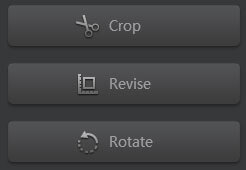
Crop, Revise and Rotate group
– Vignetting: this tool darkens the 4 corners of the photo so that light and attention move toward the center. Drag the slider to adjust the scale.
– Advanced: advanced adjustment tools. You need to be skilled with the app to use them well.
Step 4: next, let's look at the ready-made effects for themes like landscape, art and portraits in the Effects tab.
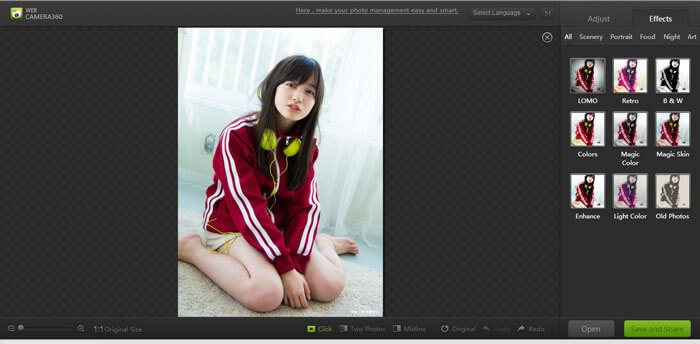
Choose an effect you like
Click the effect you like and drag the slider to adjust its strength until you are happy with it, then click Apply.
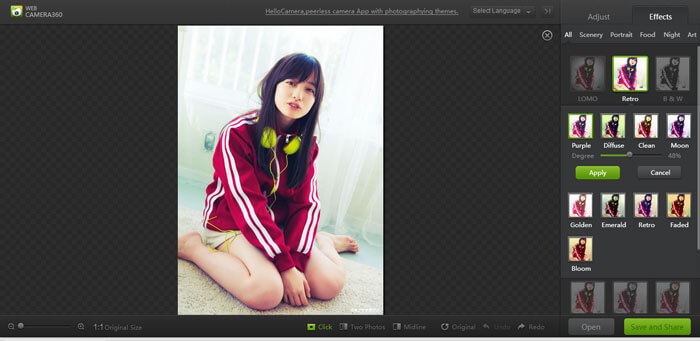
When you are happy, click Apply
Step 5: after all the editing, you have a photo you like, and all that is left is to save it to your computer or share it. To do that, click the Save and Share button.
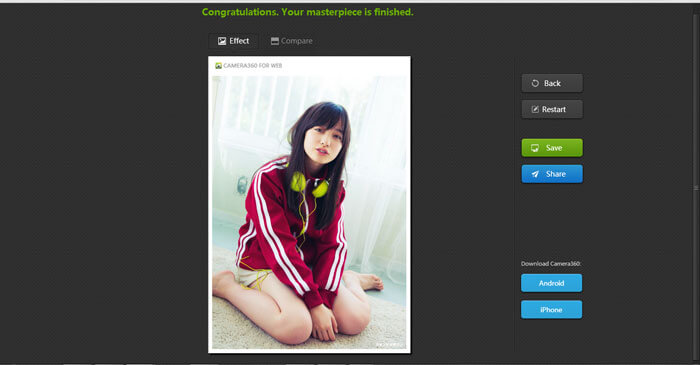
Click the Save and Share button
If you love taking photos with your phone and want them to look their best but don't know which editing app to choose, here are some highly rated tools from recent times.
A popular app that almost every mobile photographer knows. VSCO Cam is a highly artistic app that helps you get striking photos.
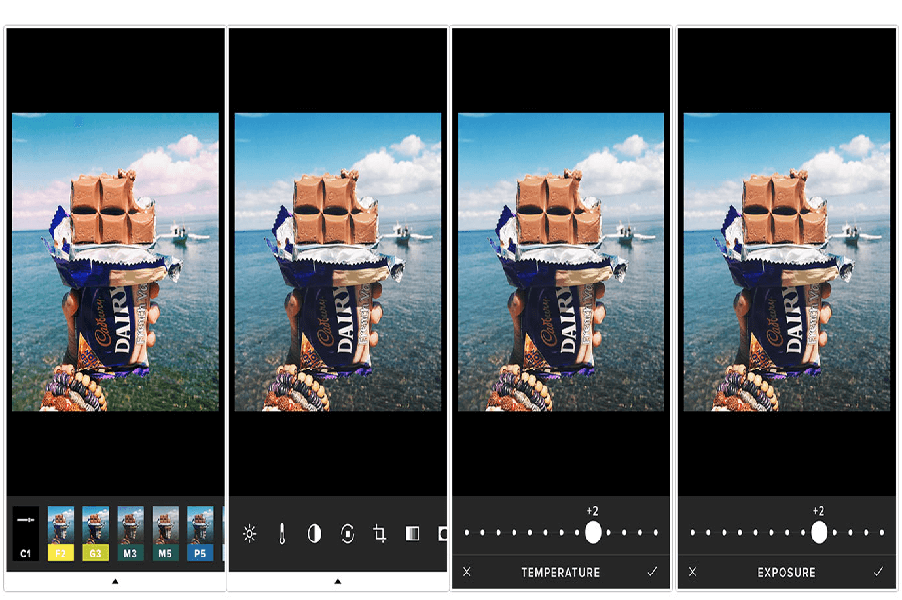
VSCO
A great app that lets you take photos and add color filters for interesting effects. You can adjust how strong each filter is to get a photo you like. It also lets you share your photos with the community.
A product of Instagram and a video editing app. With Hyperlapse you can speed up a clip you shot and adjust the stabilization of the footage.
A free iPhone app that works very well for shaky hands holding the camera. It is considered the simplest and most effective way to create a timelapse effect without professional equipment.
A photo editor with an easy-to-use interface. You can blend adjustments together to create a photo that is your own. Its drawback is that it lacks some basic adjustments such as brightness and contrast.
Darkroom is a good-looking photo editing app that produces high-quality, striking images. It is quite similar to VSCO Cam and some default iOS apps, with extra sliders to change brightness, contrast, saturation and other settings. Some of its tools are fairly complex, though, and users need time to get used to it.
Snapseed is a very powerful photo editing app for phones. If you can use it well, you can make good-looking photos without spending much time or effort. A few features that put Snapseed ahead of other apps:
– Edit different areas of a photo separately.
– Fine-tune settings such as brightness, contrast, saturation, color temperature and detail.
– Choose special effects such as tilt-shift, vignette and old-photo looks.
– Color filters, black-and-white conversion and presets let you make a good photo quickly and easily.
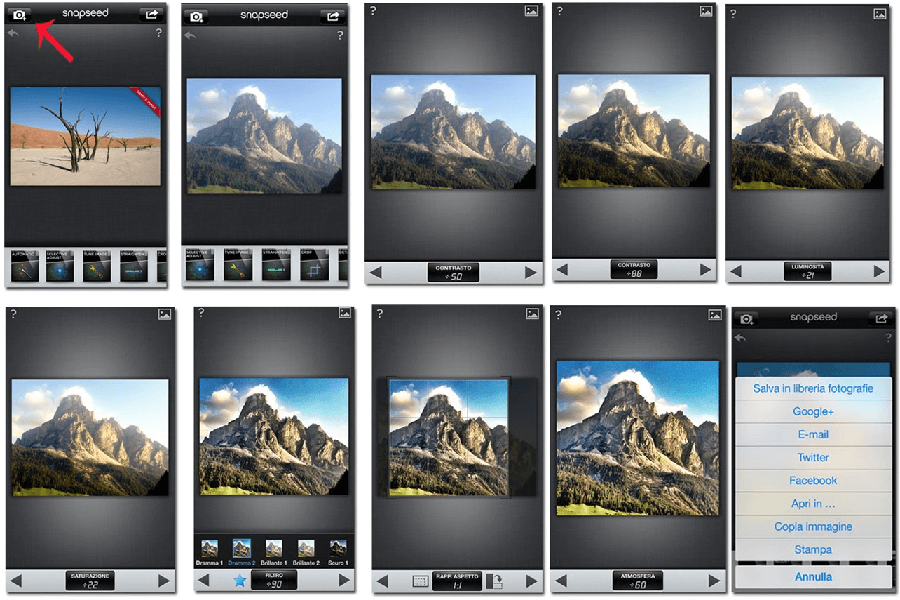
Snapseed
Over is also a photo app for phones, compatible with Android and iOS. It is quite different from other apps, though. While other apps focus on editing photos, Over focuses on adding interesting details to them. If you are good with your hands and have a good eye, Over can also help you make ideal business cards or striking images of your own.
Today, designing artistic text and famous brand names on a computer is nothing new. Still, creating a professional, good-looking result that shows the designer's skill is not easy. So here is a set of artistic fonts to help you design striking lettering.
As the name suggests, this font looks neat, elegant and refined, like a gentleman in a well-cut suit. It is also a great choice for logos, brands or upscale posters. It works well for striking article headlines that draw readers in.
Glamor is a great choice for fashion design, with 24 modern and elegant styles. You will see it everywhere, from posters and book covers to highly artistic things like magazines and websites.
GEOM is inspired by basic strokes and geometric shapes. It is a relaxed, free-spirited font family. GEOM was created by São Paulo art director Danilo Gusmão Silveira and has been well received by many professional designers. Experts say it suits album covers, magazines and film posters.
This font family has a light, airy style. It comes with 1100 alternate characters that fit different levels of complexity and length.
Samantha Script also lets you customize the look of the font to fit your needs and make the strongest impression in your design.
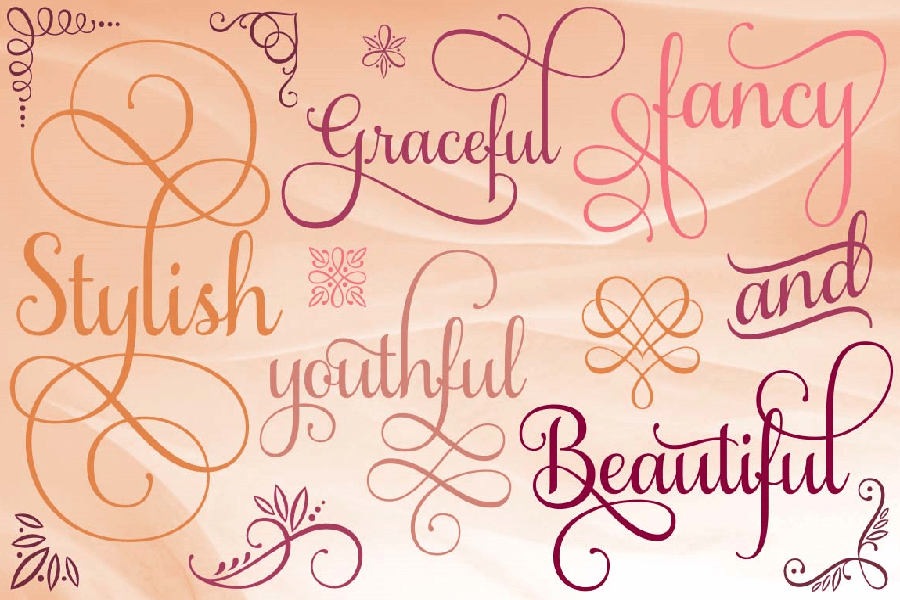
Samantha Script
This font has been a hit on design forums because it is said to evolve by itself. Its name is also striking: in Spanish, it means cockroach.
If you love a vintage look with a bit of grit, this is a great choice.
This font is inspired by the 1960s and 70s, so you will see it on T-shirts, designer bags, posters and street advertising logos.
Carioca was created by two designers, Tano Veron and Yai Salinas. It stands out from other fonts because it is extremely playful.
If you plan to design graphic posters or creative album covers, Carioca is a great choice, with interesting color changes on each letter.
Bauru is the work of designer Pier Paolo, inspired by soul and jazz songs. If you are designing for music brands or tea rooms, this is an excellent choice.
Minna Drop can make any design more fun, with a touch of the special and the mischievous to catch children's attention. Used on children's book covers, it is a great combination.
Whether you are a web designer or a graphic designer, going to Google to find images to use is natural and easy. But you need to understand that everything on the internet has a copyright, and you can't use it without permission, because the author may sue you. A fine over one simple illustration for an article is not worth it.
Today, finding high-quality stock photos that are free to use is a big help. In this article we introduce several websites that offer free images you can download and use in all of your design projects without worrying about copyright infringement.
Pixabay is one of our favorite websites. At the moment it has more than 460,000 images made by photographers around the world. Just register a free account and you can download freely in many sizes. Even better, Pixabay supports Vietnamese, so it is easy to use.
According to our records, the Pixabay homepage now has more than 750,000 images, vector graphics and more, all free under the Creative Commons CC0 license. You can download, edit, print or even use them commercially without any copyright concerns.
Similar to Pixabay, Every Stock Photo is a large, professional library of high-quality images. You can easily search for what you need, and the images are free of copyright to use. The site is a free image source of high quality for professional designers.
If you need old black-and-white style images, Historical Stock Photos is one site worth bookmarking for the long term.
Free Digital Photos is a long-established image sharing site with a collection of up to billions of images in good quality, both free and paid, across many categories and styles. Unfortunately, the free images are usually lower in quality and size than the paid ones. Overall it is still worth a visit, because you may find what you need.
Another highlight of Free Digital Photos is that it is a website offering free images in an animation style, and the work here is very realistic and easy to find and use.
The images on this site are all of good quality and very sharp, free to use anywhere. The website interface of Free Pixels is not very attractive, but that doesn't matter when the images are free and high quality.
As the name says, Free Images offers nearly 400,000 good-quality images sorted into many topics. However, not all of them are high quality or free to use, so be careful when searching for, downloading and using images on this site.
Just register a free account and you can access 388,435 images as of now, and the number keeps growing. Besides images, Free Images offers some other free resources for graphic designers.
This site doesn't have many images, but if you need images on environmental topics it covers them well. You don't need to register an account. Just click View full resolution under an image and download freely.
Flickr is a site that most internet users, especially designers in Vietnam, know well, and it would be a mistake to leave it out of your image searches. But keep in mind that not all images on Flickr are free to use, so choose carefully to avoid trouble when using them.
You can think of Unsplash as a blog sharing free, high-quality images for people who like a simple, refined look. Of course, all the images on this blog come with standard licenses.
This is a legend among designers. The site offers 10 free images, refreshed every 10 days, which means 30 new high-quality images added each month. The images at Unsplash are all stunning natural landscapes. The quality is very good and the image sizes are very large.
Images are the first thing that hits users when they visit your website. So you need to design images that are friendly to UX and encourage users to interact more on your site. Here are the points to keep in mind when designing images for a website.
Content is the “soul” of the whole thing, the message you want to get across to users, so its importance is beyond debate. Image content should stay close to the content of the website, program, article or product, and should prompt users to take the target action. But don't overdo it, or it will take away from the content of the whole page.
Designers express images and color differently depending on their style and purpose, but color has to be used in the right place at the right time to work well. Every color carries its own meaning. If you are designing images for a website about the environment or nature, for example, choose green as the main tone, a construction website works better with plenty of yellow, and call-to-action buttons are best in red or orange…
Pay attention to image size: not too small and not too large, because size affects image quality and loading speed. This matters a great deal for user experience design. An image that fits the size it is displayed at on the website is all you need.
You should also reduce image file size before uploading to your website. There are several ways to do this: use your CMS to compress images directly on the site, or use free online tools such as Kraken or TinyPNG.
This is not something to worry about too much, but if you want images that are friendly to users, UX/UI stick to common formats: PNG, JPG, GIF, BMP or TIFF.
To get the best possible image quality, you can also look at the professional photography packages MONA Media offers, including:
MONA Media has just shared a few useful points about photo editing. We hope this helps you understand the topic better.

CEO & Founder · The MONA
Founder of The MONA, who built a services company of 200+ staff with 14,000+ projects delivered. Khánh Hùng shares how he thinks about building systems that run themselves, automating a business, and the real lessons from delivering projects at MONA.
 1,6K
1,6K



Professional website
design services
Own a website with a beautiful, 100% exclusive design and a lifetime warranty, with the ability
to expand features flexibly as your business grows, starting today!







 MONA will never sell your information or send you spam
MONA will never sell your information or send you spam
MONA will never sell your information or send you spam


 MONA will never sell your information or send you spam