
 MONA OS 2.0
 Partner with MONA


 Tự động hoá doanh nghiệp
 Cẩm nang SEO
 Digital Marketing
 Kinh nghiệm thiết kế website
 Hạ Tầng Server
 Giáo dục


 VI
 EN







Message us on
Zalo Official


 ProductsNew

 ProductsProducts
 Mới ra mắtKHA AI 2027App tự edit video, tự đăng mọi mạng xã hội, 2 phút mỗi ngày








 Website designLooks good and wins customers over.
SEO servicesBrings in customers searching for exactly what you sell.
 Tư vấn digital marketingKéo khách từ nhiều kênh, đo bằng số thật.
Corporate video productionVideos introducing your company, factory and team.
 NewAI video productionCompany story films made with AI.
 Custom software developmentCRM, ERP and HRM built for your business.
 Viết AI Agent theo yêu cầuĐặt riêng một trợ lý AI cho đúng việc của mình.
 Tư vấn chuyển đổi AIĐưa AI vào vận hành của cả công ty.
NewMONA LMSManagement for centers and schools.
MONA SkillHubInternal training for company staff.
 NHTQ systemEnd-to-end China–Vietnam shipping operations.
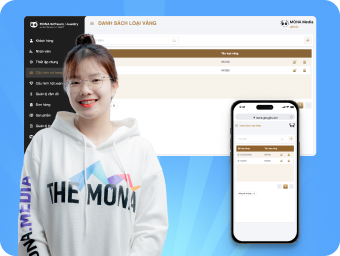
MONA JMSManagement for gold, diamond and pawn shops.
 MONA E-LearningA website with every feature you need to sell courses.
 How to sell online courses (course)More than 30 free lessons on selling courses on autopilot.
 MONA Cloudmonacloud.vnServers to get your apps and websites running.
 MONA Basemonabase.vnPostgres database, sign-in and file storage.
 MONA Mailmonamail.vnSend OTP, order and invoice emails from your software.
 MONA Paymonapay.vnAccept bank transfers via VietQR and notify your software when the money arrives.
 MONA eInvoiceComing soonIssue e-invoices that meet tax standards.
Gấu CườiTrả lời khách 24/7 trên web, Fanpage, Zalo và thu lead cho sale.
 Gấu TeleSalesGọi điện tư vấn, chăm khách như tổng đài viên thật.
Dê CườiTư vấn và chốt đơn cho shop ngay trong khung chat.
Gấu WebmasterNhắn nhóm Zalo là website được sửa xong.
 Gấu Pháp ChếSoạn hợp đồng, rà điều khoản trong vài phút.
 Gấu Báo GiáLên báo giá đúng mẫu và gửi khách ngay.
 AI chăm sóc khách hàngTheo dõi và giữ chân khách hàng cũ.
 Gấu Tuyển DụngLọc hồ sơ, hẹn lịch, phỏng vấn ứng viên.
 Mới ra mắt
KHA AI 2027
Xây kênh chuyên gia 2 phút mỗi ngày
Quay bằng điện thoại, AI tự edit video, tự đăng lên 16 nền tảng và tự trả lời bình luận, tin nhắn.
954.414lượt xem trên kênh CEO MONA sau 51 ngày
 Anh Khánh HùngCEO MONA đang dùng mỗi ngày
Xem app làm được gì
 AI
Gấu Cười MONA ĐANG TỰ XÀITrả lời khách 24/7 trên website, Zalo OA, Messenger và thu lead về cho sale.
Dê CườiChốt đơn bán lẻ và sàn: Shopee, TikTok Shop, web. Chăm cả khách sỉ, đại lý.
Gấu WebmasterCập nhật nội dung, tối ưu SEO website mỗi ngày.
Gấu TeleSalesGọi điện tư vấn, chăm khách như tổng đài viên thật.
Gấu Tuyển DụngLọc hồ sơ, hẹn lịch, phỏng vấn ứng viên tự động.
AI chăm sóc khách hàngGiữ khách cũ, cứu lead đã rớt cho phòng kinh doanh.
Gấu Pháp ChếSoạn hợp đồng, rà điều khoản trong vài phút.
Gấu Báo GiáLên báo giá đúng mẫu, gửi khách ngay khi có yêu cầu.
 Chuyển đổi AI toàn phầnGiải pháp tổng cho doanh nghiệp, 3 lớp triển khai.
 Viết AI Agent theo yêu cầuĐặt riêng một con AI gánh đúng nghiệp vụ của bạn.
 Custom softwareCRM, ERP and HRM with built-in AI automation.
 SEO & AEO thời đại AIĐược Google lẫn AI trích dẫn, không chỉ xếp hạng.
 Kiến thức AI cho doanh nghiệpBài phân tích, hướng dẫn ứng dụng AI vào vận hành.
 Free AI courses
 AI tools at work
App mới · KHA AI 2027
Xây kênh 2 phút mỗi ngày
AI tự edit video, tự đăng mọi mạng xã hội
Free consultation, 8am–10pm every day

15 June, 2026

NotebookLM on your phone gives you an optimal solution for your work. Downloading and using the app is simple, saving you time and raising productivity. In this post, we'll walk you through each step so you can start using NotebookLM on your mobile device right away.
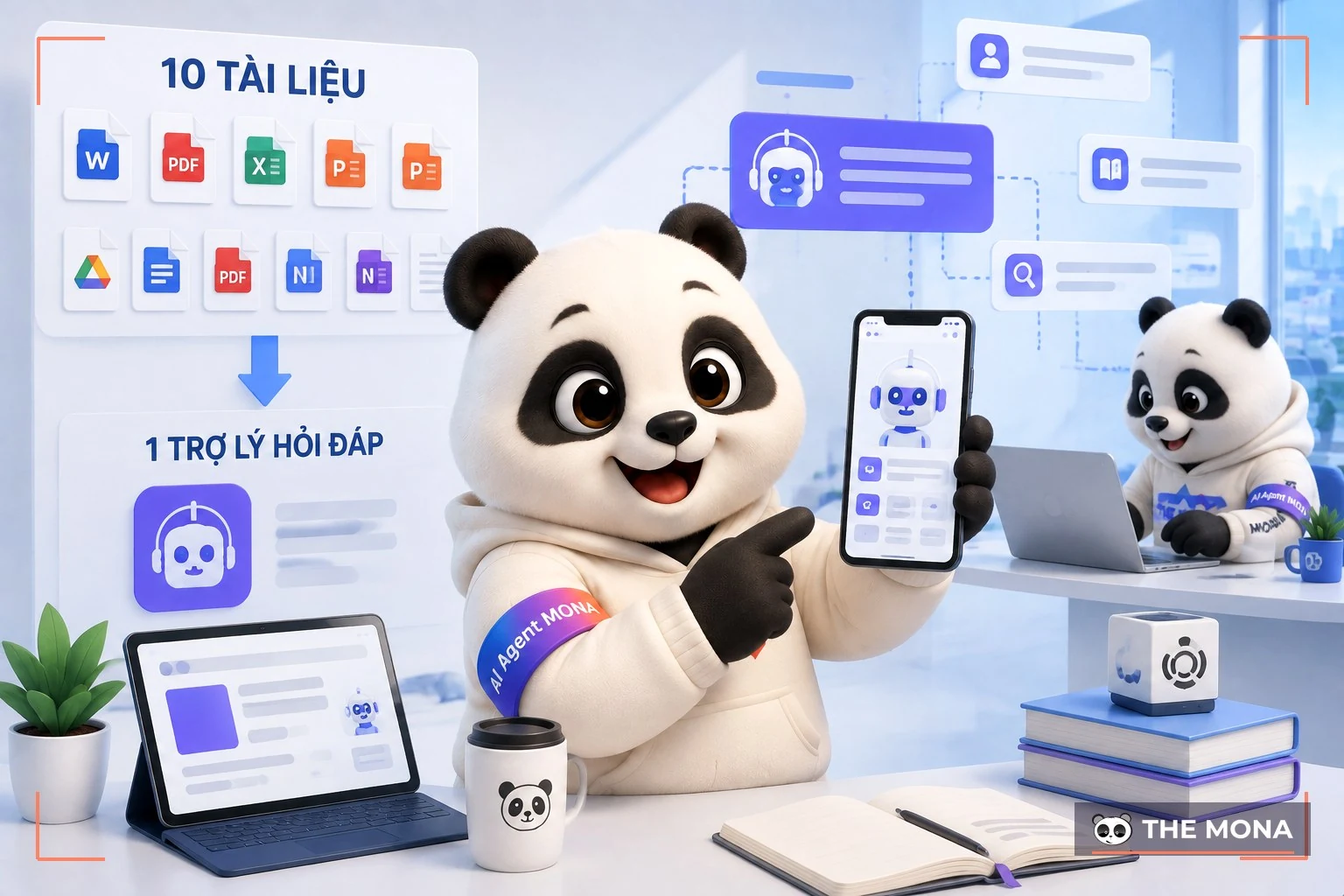
Work documents are usually scattered across Drive, email, PDFs and meeting notes. When you need to look something up fast, you lose time opening file after file.
NotebookLM on your phone gathers your documents into one notebook, then lets you ask questions directly against those sources. It's far tidier.
For MONA, the real value isn't in “installing another app.” The value is in turning the 10 documents you use most into a pocket Q&A assistant.
You can use it on the move, before a meeting, when you need to summarize sales materials, or to review SEO content. We also use this approach in internal training and when guiding customers on working with documents.
Download NotebookLM from the App Store or Google Play. Don't download install files from unfamiliar websites.
Do it right from the start. Avoid account risks.
Image needed here: a real screenshot of NotebookLM in the App Store and Google Play. The image should clearly show the app name, icon, developer and install button.
MONA recommends that marketing teams save this image in their internal documentation, so new staff install the right app the first time.
After opening the app, sign in with the Google account you use for work. This account should match the one where your documents are stored in Google Drive.
Don't mix in personal accounts. Data gets messy easily.
If several people on your team use it, MONA usually recommends standardizing accounts from the start. A small rule reduces document-sharing errors later.
It's simple. But well worth doing.
Your first notebook should start with a very small set of documents. You don't need to load your whole archive right away.
Pick 10 documents you use often. Examples include price lists, company profiles, consulting scripts, warranty policies and foundational SEO articles.
For example, a notebook could be named “Business website consulting,” “SEO documents 2026,” or “Customer support scripts.” The clearer the name, the easier it is for staff to use.
Image needed here: a real screenshot of creating a new notebook. The image should show the naming screen and the add-sources screen.
After adding documents, you can ask NotebookLM very practical questions. For example: “Summarize the warranty policy into 5 points for sales consultants.”
You can also ask it to create an outline, shorten a long document, or turn content into audio to listen to on the move. That's what makes NotebookLM on your phone handy.
We often show customers how to use NotebookLM to skim documents quickly before a meeting. But MONA always states one limit clearly: standalone tools only support personal work.
When a business needs seamless data across its website, SEO, CRM, ERP and customer care, NotebookLM can't replace custom software. At that point, MONA advises on building a more suitable system, from website design, SEO to operations automation software.

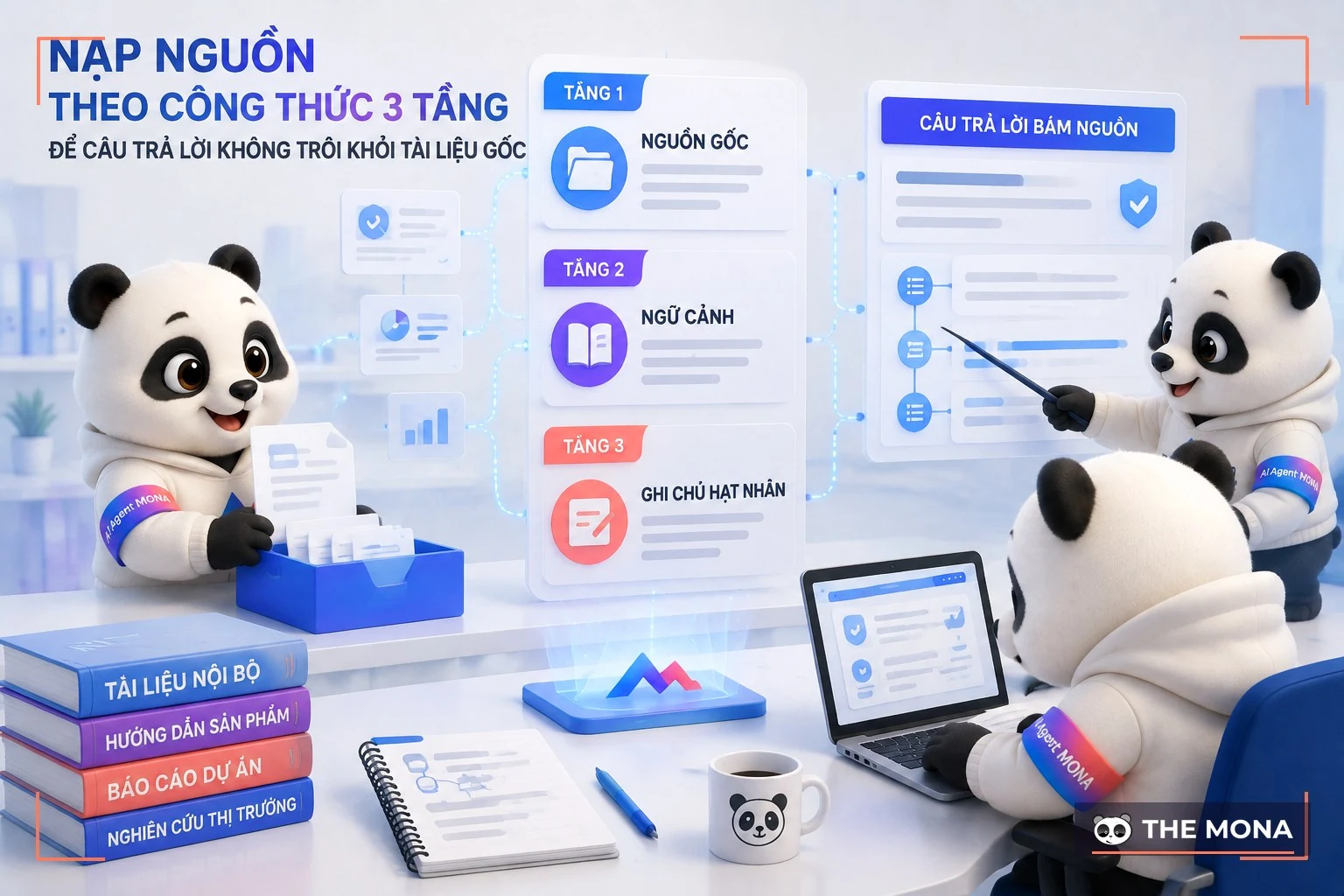
NotebookLM is only useful when the sources you feed it are clean enough. Messy sources make answers drift, lose context and become hard to reuse.
The way we teach MONA's internal team is to load sources in 3 tiers. Do it right from the start, and every later question gets a steadier answer.
Tier 1 is the backbone of your NotebookLM notebook. Load the documents that are officially in use at work.
Easy examples include service quotes, contract templates, customer care processes, training materials, product documents and sales policies.
For a marketing team, the main documents might be customer personas, a service table, content standards and plans SEO. For a sales team, they are quotes, consulting scripts and an objection-handling table.
Don't load too broadly. Start narrow. One notebook should serve one clear group of tasks.
Tier 2 gives NotebookLM more context. It's the reference layer that makes answers more complete.
You can add your company website, expert blog posts, policy pages, publicly available competitor materials or guides from tool vendors.
MONA usually splits secondary sources into small groups. An SEO notebook shouldn't be mixed with recruiting documents. A sales notebook shouldn't be mixed with internal meeting minutes.
The clearer the boundaries, the tighter the answers.
Tier 3 is the part many people skip. Yet it's what helps NotebookLM understand how the company really operates.
Paste short, clear, structured internal notes. They can explain brand voice, forms of address, customer groups, things to avoid and how to close a consultation.
For example, for marketing, you could paste a short passage like: “Content is written for Vietnamese business owners, prioritizes clarity, avoids an exaggerated tone, and always ties back to cash flow.”
For example, for sales, you could paste: “Customers usually care about cost, deployment time, maintenance responsibility and ability to connect CRM”.
The closer the context, the less the answers drift.
On a phone, a long source list is hard to scan. Vague file names make you waste time scrolling, opening and re-checking each source.
We recommend a fixed naming formula. The structure should include document type, department, topic and update date.
Names don't need to be long. They just need to be easy to recognize. When you open the app, you'll filter sources faster and pick the wrong document less often.
If a document has several versions, put the update date in the source name. This helps marketing, sales and operations teams avoid using an outdated version.
This section should use real screenshots from a phone. Don't use generic illustrations, because readers need to see exactly where to tap.
When MONA trains customers to use internal AI tools, we always prioritize real screenshots of the actions. Learners who see the exact screen work faster and ask fewer follow-up questions.
NotebookLM handles personal lookup and studying documents well. But standalone tools still have a ceiling when data needs to be seamless, permissioned and run automatically along a process.
For businesses that need to connect CRM, ERP, website, SEO and operations, MONA usually advises building custom software. AI is just a support layer; the system is where the money flow is kept.

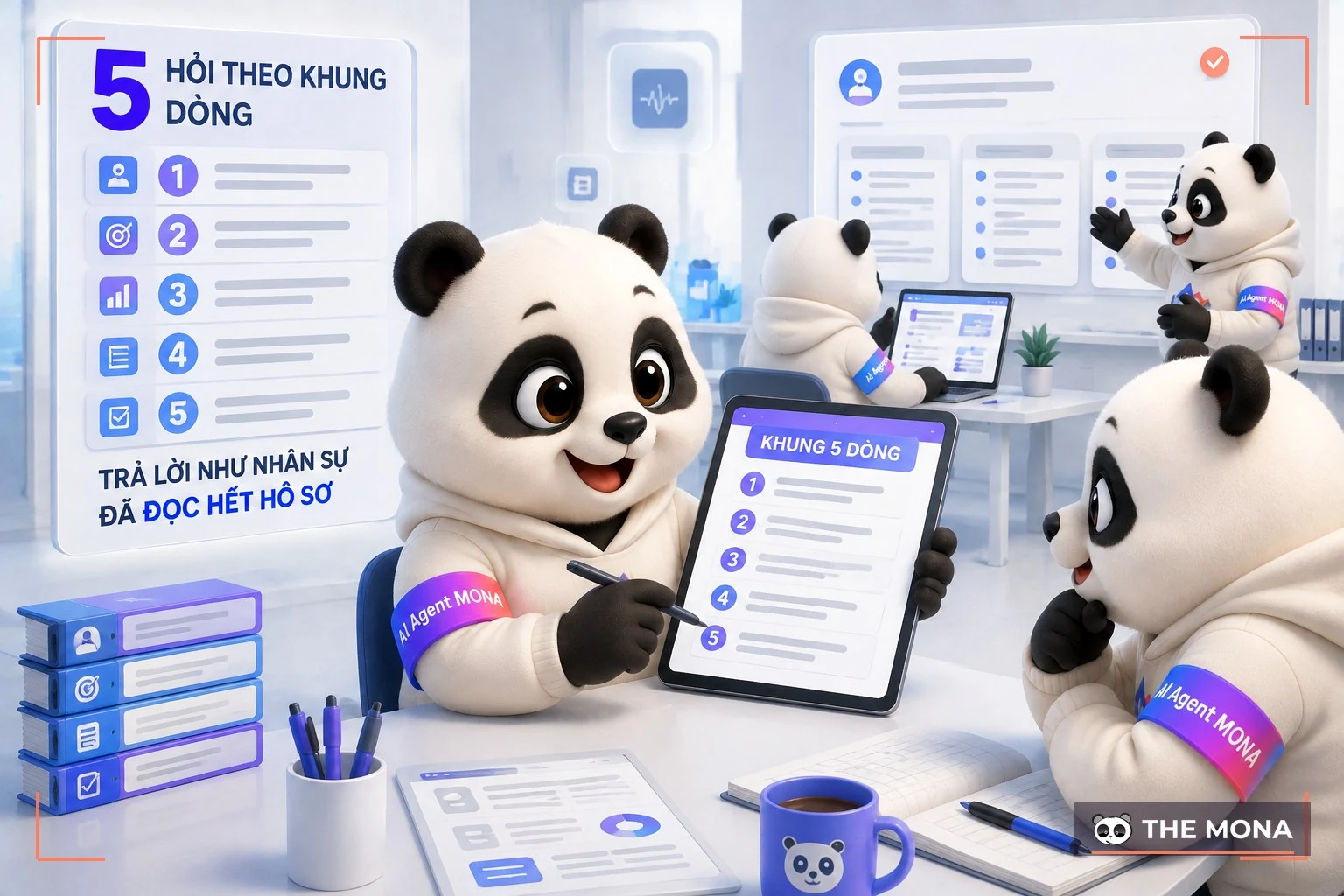
NotebookLM answers noticeably better when you assign the task in a fixed frame. Don't type one vague sentence and wait for the machine to figure it out.
The 5-line formula keeps answers tied to the sources, on task and ready to use. We use it when summarizing internal documents, analyzing SEO content and preparing consulting scripts for customers.
Image needed: a real screenshot of the NotebookLM chat box on a phone, showing the 5-line prompt and the answer below it. Don't use a recreated illustration.
The first line must say clearly who NotebookLM is acting as. The closer the role is to the actual job, the less the answer rambles.
A simple example.
MONA usually doesn't let the tool guess its own role. We lock the role in from the start so the answer follows the context of the job.
After the role comes the goal. This decides whether NotebookLM should summarize, analyze, rewrite or turn the documents into specific tasks.
Write it short. Write it clear.
For marketing, the goal should tie to articles, sales pages, email or social media content. For sales, it should tie to calls, quotes or objection handling.
NotebookLM is strong at reading the documents you load. So line 3 needs to lock the scope tightly.
Don't let the machine guess beyond the sources. It's easy to drift off task.
This suits businesses with many separate files. Staff don't need to dig through each document, yet they keep a basis for their work.
From the same sources, each department needs a different kind of output. Marketing needs an outline. Sales needs a script. Customer care needs sample replies.
Specify the format right in the prompt.
MONA uses this when turning raw documents into clear tasks. From one set of sources, the content team, the consulting team and the operations team each get the part they need.
The last line lets you check whether the answer stays true to the documents. It's a small step, but well worth keeping.
The machine has to show its basis.
A complete prompt template you can use right away.
NotebookLM is very handy for reading documents and producing personal output. But standalone tools still have a ceiling when data is scattered, processes depend on individual users and access isn't seamless.
For businesses that need real automation, MONA usually brings AI into custom software such as CRM, ERP or internal automation chains. There, data, permissions, processes and reports live in one system that MONA designs around how you actually operate.

Long product documents often leave sales teams reading unevenly, consulting off-message and missing the closing points. You can do this right on your phone. Use NotebookLM to break a document into an actionable checklist, then send it to your team via Zalo, Messenger or Google Docs.
We often use this approach when we need to quickly pull content from a product page, landing page, quote or internal training document. No need to rewrite from scratch. Just make NotebookLM answer in the exact structure sales needs.
On your phone, open NotebookLM and go to a notebook that already has source documents. These could be PDFs, Google Docs, websites or text you've already pasted in.
If a PDF needs editing before you load it, convert the PDF to Word right in your phone's browser, with no extra app to install.
Then enter a short prompt with a clear role and a clear number of points to extract. Don't ask vaguely. Make NotebookLM read like a sales team lead preparing a document for the consulting team.
You can use this sample prompt:
“Read all the source documents. Extract the 10 key points the sales team needs to know when advising customers. Each point includes: the customer's problem, the product benefit, details to state clearly, and what not to say.”
This prompt turns a thick document into sales points. Very compact. Easy to assign. Easy to check.
Once you have the 10 key points, keep prompting NotebookLM to turn them into a checklist. This step matters, because a sales team needs things to do, not long paragraphs.
We usually force the output into action form. Each line must start with a verb such as ask, confirm, explain, send, close or note.
Sample prompt:
“From the 10 points above, turn them into a customer consulting checklist for sales staff. Each line is one task. Write it short, clear and ready to use on a call or in a message.”
This helps new team members follow along faster. Experienced staff also stop consulting out of personal habit. We cut information drift from the very first step.
A checklist only tells the team what to do. A comparison table tells them what to say when a customer hesitates. It suits sales, marketing and customer care very well.
Next, ask NotebookLM to build a 4-column table. The structure should include benefit, evidence in the documents, common objection and suggested response.
Sample prompt:
“Create a table for the sales team with 4 columns: benefit, evidence from the source documents, common objection, suggested response. Responses must be short, natural and not exaggerated.”
MONA uses this kind of board for internal training on website content, SEO and digital solution consulting. The team doesn't have to guess what a document means. Every piece of advice traces back to a source.
Once you have the checklist and the objection table, don't leave the results sitting in NotebookLM. Move them to where your team works every day.
On your phone, select the part of the result you need, copy it, then paste it into Zalo, Messenger or Google Docs. If you need to edit together, Google Docs is more convenient.
Images needed for this section: a real screenshot of the checklist result in NotebookLM on a phone. The second image is a screenshot of the share or copy action into Zalo, Messenger or Google Docs.
NotebookLM is very convenient for individuals. But standalone tools still have a ceiling. When sales, website, SEO, CRM and customer care data need to flow together, a business needs its own software.
MONA uses NotebookLM and other AI tools internally, and trains customers to use them for the right jobs. For serious operations, we still land on custom software, a website and SEO so your data moves with your revenue.

Audio Overview is very handy on a phone, but rambling audio turns your documents into background noise. Ideas slip away easily. It's easy to think you understood.
Treat the audio as a guide, not a replacement for the source document. At MONA, we usually lock in the 3 points to extract first, then tap to generate the audio.
Images needed: a real screenshot of the Audio Overview button in NotebookLM and the audio playback screen in the phone app.
Input sources decide the quality of the audio. The messier the documents, the more likely Audio Overview is to talk broadly and miss usable points.
Clean up first. Don't rush to generate.
Then open the notebook on your phone, go to Audio Overview and generate the audio. With clean sources, the audio usually stays on track better.
Audio Overview is good for getting the framework. It shouldn't replace careful reading of the important parts.
A more practical way to listen is in 2 passes. The first pass is only to learn how the document is structured.
Don't write down too much. Too many notes get messy.
At MONA, we use Audio Overview as a quick-read layer before working through long documents. Then a team member goes back to the source to check the important points.
What matters is the 3 ideas you can use immediately, not finishing the whole audio.
Prepare a short note template before you listen. It helps your brain filter information instead of chasing the voice.
For example, with a product document, the 3 ideas could be customer pain points, what sets you apart, and answers to common objections.
With an SEO document, the 3 ideas could be topic clusters, the angle to take, and where you need more data. This way the audio produces real work.
Once you have the 3 ideas, turn them into concrete tasks right away. Don't leave the notes sitting in NotebookLM.
Do it the same day. Fewer ideas get lost.
MONA also uses AI tools internally this way: to read, summarize, train and prepare content faster. But we always keep a check by someone who knows the work.
NotebookLM is convenient for individuals and small teams. It still hits a ceiling when data is scattered, steps are still manual and the process isn't connected to your systems.
When a business needs data connected from its website, CRM, ERP, SEO and marketing, only custom software solves the long-term problem. MONA usually combines AI with the automation software we build to turn data into a process that actually runs.
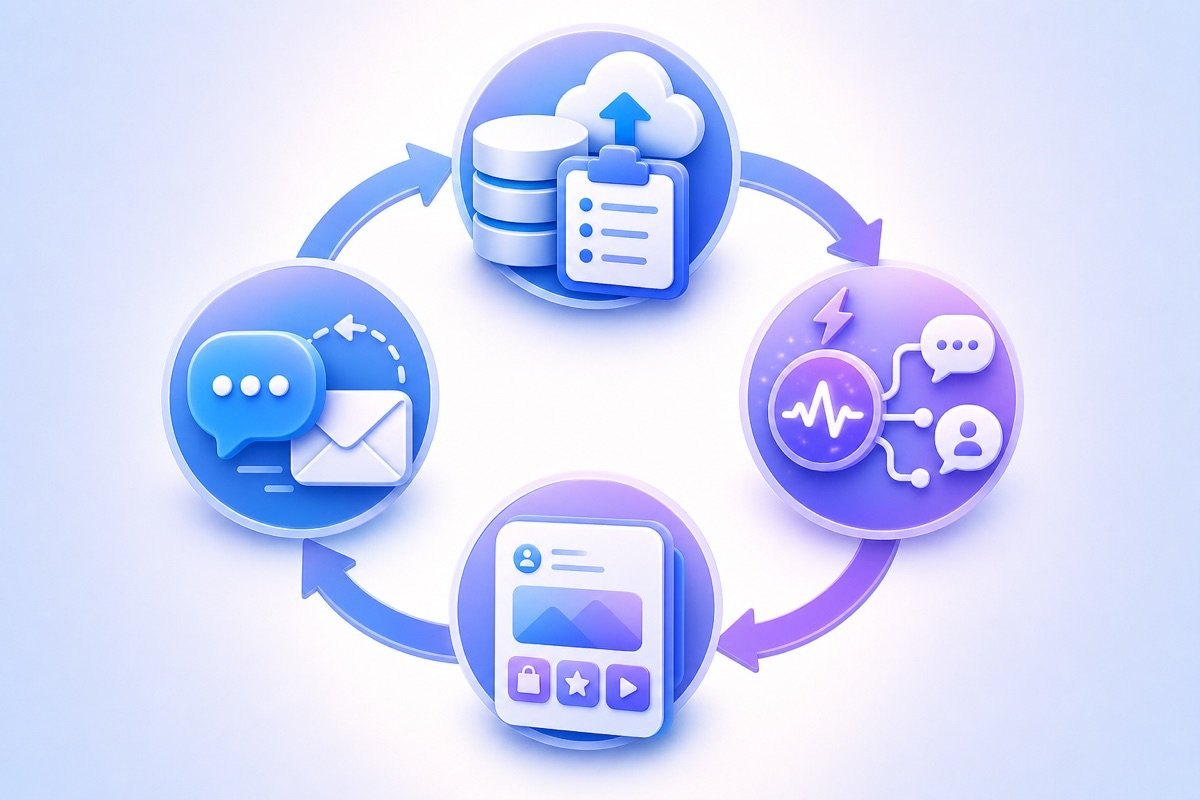
When several people load documents into NotebookLM, information gets mixed up easily. Very easily. An old quote file, a training note with no date, or an unapproved plan can lead the whole team to misunderstand.
You don't need to turn NotebookLM into a complicated document warehouse. What you need is to set the rules from the start, so marketing, sales and training all use it the same clear way.
When MONA uses NotebookLM internally, we usually split notebooks by working purpose. We don't let each person name things by personal habit, because that makes data hard to control.
A notebook name should make sense to anyone at a glance. Don't use names like “new document”, “good ideas” or “summary”. They're very hard to find.
Agree on a naming structure by department, campaign and time period. For example: “Marketing | Course launch | June” or “Sales | Consulting script | Q2”.
Do it now. This naming style lets newcomers still find the right notebook. Managers can also review which documents serve which campaign.
Sources in NotebookLM should be divided into clear document groups. Clear enough. If everything is thrown together, NotebookLM's answers can blend sales, training and customer care documents.
For marketing teams, you can split sources into customer research, ad content, campaign plans and past reports. For sales teams, split them into price lists, consulting scripts, customer feedback and internal policies.
We often advise customers to put a prefix right in the source name. For example: “Pricing | Business website packages”, “Training | Consulting process”, “Marketing | Content ideas”.
Each notebook should have a conventions note. It helps the whole team understand which documents are for asking questions and which are for reference only.
You can create a first note called “Notebook usage conventions”. It should state the owner, the scope of documents, the preferred sources, and the sources that must not be used when advising customers.
MONA uses this approach to reduce misunderstandings when several departments view the same notebook. We see it as a light layer of control that doesn't weigh down the process but still keeps things in order.
NotebookLM is great for quick questions on your phone. But important results shouldn't stay on a personal device forever. They get lost easily.
After NotebookLM summarizes, outlines or pulls out the key points, move the result to a shared document. Marketing can save it to the content plan, sales to the consulting script, and training to the internal lesson plan.
This makes NotebookLM a step for processing information, not the final place to store it. The shared document stays where the whole team reads, edits and settles the official version.
The images needed for this section are real phone screenshots. Capture the notebook list, the source names set by your convention, and the action of sharing results to the shared document.
NotebookLM works very well for small teams once source rules are in place. Still, standalone tools hit a ceiling when data must flow together, needs deep permissions, or ties into a CRM, ERP or marketing system.
At the business level, MONA usually combines training on using AI internally with custom software built by MONA. That way, data isn't scattered across personal machines but runs in a controlled system.

NotebookLM is very handy when you need to study documents, summarize reports, ask questions grounded in sources and prepare content faster.
It helps each person work more neatly, especially when documents sit in Google Docs, PDFs, slides or selected links.
That's a line you need to look at squarely.
While work stays at the personal level, NotebookLM handles it well. When data has to move across departments, standalone tools start to hit a ceiling.
We need to separate two things clearly. One is personal productivity, the other is controlled data operations.
A business doesn't just have a few files to read. Sales data sits in the CRM, inventory in the ERP, orders on the website.
Ad data, SEO, customer care and revenue reports sit in still other places. Each one is slightly off, and decisions slow down.
Manual work starts to run out of breath.
A team member can upload documents to NotebookLM for quick questions. But they still have to copy data, cross-check by hand and send it back to another department.
That loop creates delay. It also raises the risk of wrong data, leaked data and dependence on whoever does the work.
MONA doesn't dismiss the tools.
We still use NotebookLM and many AI tools internally to read documents, pull out key points, draft outlines and check information faster.
MONA also trains customers to use AI for the right jobs. Where a tool does the job fast, you should use it to lighten your team's load.
This point is very important.
Businesses should avoid turning AI into a fad. We usually split work into three clear groups before going deeper.
MONA has operated since 2016 and has delivered 14,000+ projects. Those numbers help us look at AI more pragmatically.
AI only has value when it enters a real process. Custom software is what lets data play the right role, with the right permissions, at the right time.
NotebookLM is a good fit for learning fast and handling personal knowledge. But revenue doesn't run on a scattered tool.
Revenue needs a website that receives the right customers, SEO that builds steadier demand, marketing that can measure its sources, and software that connects operational data.
The rest needs a system.
When you need connected data, MONA starts from your business's real process. Then we design custom software around that data.
The software can connect your CRM, ERP, website, SEO and marketing touchpoints. The goal is to cut manual work and improve control.
If your business needs a more solid way to win customers, you can look at our website design package from MONA?
If your goal is growth from search, you can also look at SEO services to connect content with cash flow.
NotebookLM is a good starting point. Custom software is the long-term operating layer when a business needs data running end to end.

You can use the NotebookLM app on your own to read files quickly and check citations on the go. When your team needs to ask about documents on a phone and then create a task, update the CRM or request approval right inside the company system, we build a dedicated integrated mobile flow; call 1900 636 648 to choose which actions to connect.
Ask concisely, and stay grounded in the source.

CEO & Founder · The MONA
Founder of The MONA, who built a services company of 60+ staff with 14,000+ projects delivered. Khánh Hùng shares how he thinks about building systems that run themselves, automating a business, and the real lessons from delivering projects at MONA.
 353



Professional website
design services
Own a website with a beautiful, 100% exclusive design and a lifetime warranty, with the ability
to expand features flexibly as your business grows, starting today!






 MONA will never sell your information or send you spam


 MONA will never sell your information or send you spam
