
 MONA OS 2.0
 Hợp tác với MONA


 Tự động hoá doanh nghiệp
 Cẩm nang SEO
 Digital Marketing
 Kinh nghiệm thiết kế website
 Hạ Tầng Server
 Giáo dục


 VI
 EN



Message us on
Zalo Official


 ProductsNew

 ProductsProducts
 Mới ra mắtKHA AI 2027App tự edit video, tự đăng mọi mạng xã hội, 2 phút mỗi ngày










 Thiết kế websiteVừa đẹp vừa thuyết phục được khách.
Dịch vụ SEOKéo về khách đang tìm đúng thứ anh chị bán.
 Tư vấn digital marketingKéo khách từ nhiều kênh, đo bằng số thật.
Quay video doanh nghiệpVideo giới thiệu công ty, nhà xưởng, đội ngũ.
 MớiDựng video AIDựng phim câu chuyện công ty bằng AI.
 Custom software developmentCRM, ERP and HRM built for your business.
 Viết AI Agent theo yêu cầuĐặt riêng một trợ lý AI cho đúng việc của mình.
 Tư vấn chuyển đổi AIĐưa AI vào vận hành của cả công ty.
NewMONA LMSManagement for centers and schools.
MONA SkillHubInternal training for company staff.
 NHTQ systemEnd-to-end China–Vietnam shipping operations.
MONA JMSManagement for gold, diamond and pawn shops.
 MONA E-LearningA website with every feature you need to sell courses.
 How to sell online courses (course)More than 30 free lessons on selling courses on autopilot.
 MONA Cloudmonacloud.vnServers to get your apps and websites running.
 MONA Basemonabase.vnPostgres database, sign-in and file storage.
 MONA Mailmonamail.vnSend OTP, order and invoice emails from your software.
 MONA Paymonapay.vnAccept bank transfers via VietQR and notify your software when the money arrives.
 MONA eInvoiceComing soonIssue e-invoices that meet tax standards.
Gấu CườiTrả lời khách 24/7 trên web, Fanpage, Zalo và thu lead cho sale.
 Gấu TeleSalesGọi điện tư vấn, chăm khách như tổng đài viên thật.
Dê CườiTư vấn và chốt đơn cho shop ngay trong khung chat.
Gấu WebmasterNhắn nhóm Zalo là website được sửa xong.
 Gấu Pháp ChếSoạn hợp đồng, rà điều khoản trong vài phút.
 Gấu Báo GiáLên báo giá đúng mẫu và gửi khách ngay.
 AI chăm sóc khách hàngTheo dõi và giữ chân khách hàng cũ.
 Gấu Tuyển DụngLọc hồ sơ, hẹn lịch, phỏng vấn ứng viên.
 Mới ra mắt
KHA AI 2027
Xây kênh chuyên gia 2 phút mỗi ngày
Quay bằng điện thoại, AI tự edit video, tự đăng lên 16 nền tảng và tự trả lời bình luận, tin nhắn.
867.018lượt xem trên kênh CEO MONA sau 34 ngày
 Anh Khánh HùngCEO MONA đang dùng mỗi ngày
Xem app làm được gì
 AI
Gấu Cười MONA ĐANG TỰ XÀITrả lời khách 24/7 trên website, Zalo OA, Messenger và thu lead về cho sale.
Dê CườiChốt đơn bán lẻ và sàn: Shopee, TikTok Shop, web. Chăm cả khách sỉ, đại lý.
Gấu WebmasterCập nhật nội dung, tối ưu SEO website mỗi ngày.
Gấu TeleSalesGọi điện tư vấn, chăm khách như tổng đài viên thật.
Gấu Tuyển DụngLọc hồ sơ, hẹn lịch, phỏng vấn ứng viên tự động.
AI chăm sóc khách hàngGiữ khách cũ, cứu lead đã rớt cho phòng kinh doanh.
Gấu Pháp ChếSoạn hợp đồng, rà điều khoản trong vài phút.
Gấu Báo GiáLên báo giá đúng mẫu, gửi khách ngay khi có yêu cầu.
 Chuyển đổi AI toàn phầnGiải pháp tổng cho doanh nghiệp, 3 lớp triển khai.
 Viết AI Agent theo yêu cầuĐặt riêng một con AI gánh đúng nghiệp vụ của bạn.
 Custom softwareCRM, ERP and HRM with built-in AI automation.
 SEO & AEO thời đại AIĐược Google lẫn AI trích dẫn, không chỉ xếp hạng.
 Kiến thức AI cho doanh nghiệpBài phân tích, hướng dẫn ứng dụng AI vào vận hành.
 Free AI courses
 AI tools at work
App mới · KHA AI 2027
Xây kênh 2 phút mỗi ngày
AI tự edit video, tự đăng mọi mạng xã hội
Free consultation, 8am–10pm every day

15 June, 2026
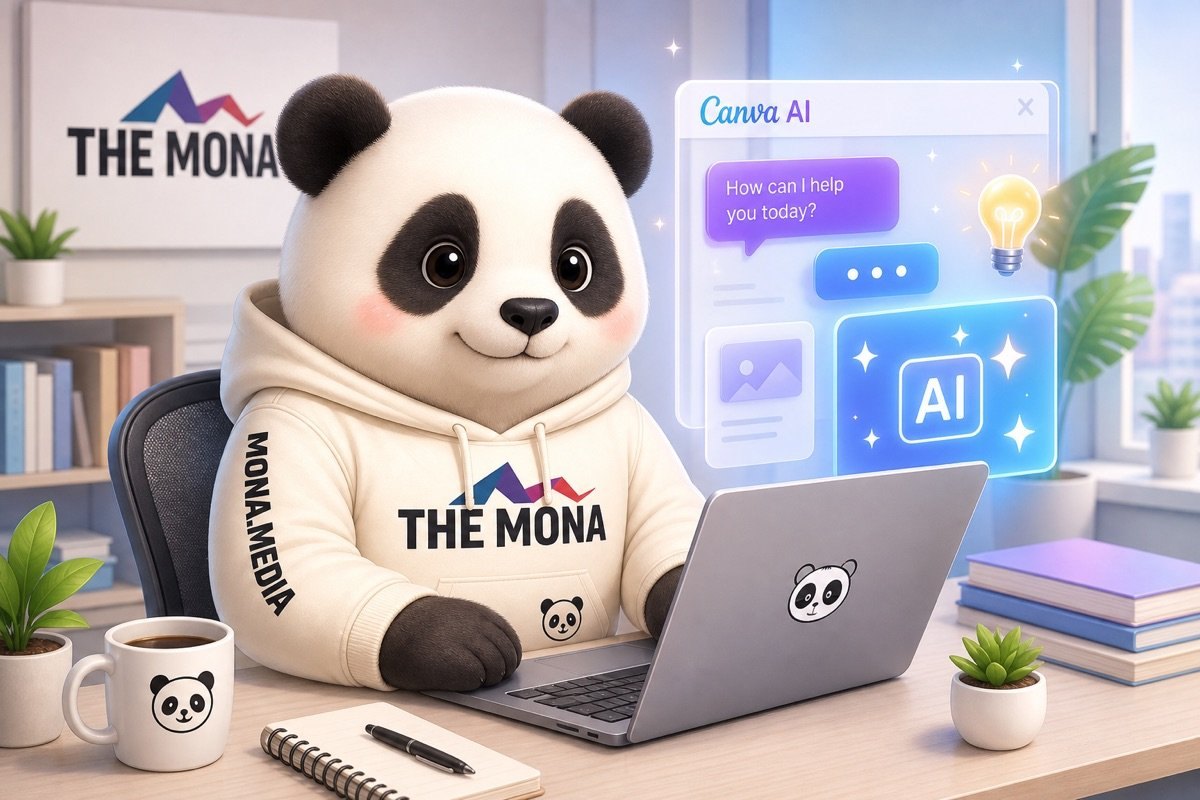
Your Canva AI prompt decides whether an image looks great or needs many rounds of fixes. Just by changing a few descriptive phrases, Canva AI can create product visuals, banners, social media images, illustrations for SEO articles and ad ideas that fit your goal more closely. In this article, MONA collects a library of prompts for real marketing needs, along with how to write a prompt with a clear layout, lighting, style, aspect ratio and things to avoid. We also point out the ceiling of using standalone tools, so you know when to use Canva AI and when you need your own marketing software system.
You can create your first batch of images in Canva AI by following the order below. Follow the order exactly.
Don’t edit too early. We usually tell marketing teams to create several versions first, then pick the images to use in advertising, posts, website banners and Zalo.
Log in to Canva, choose Create a design, then pick the size you need. Next, go to Apps and search for Magic Media.
Screenshot needed: the Apps bar on the left, the Magic Media search box and the prompt entry screen. The screenshot should show the whole interface clearly.
MONA often uses Canva AI for internal image drafts, before the design team finalizes them to match the brand identity. This gets ideas out faster.
A beautiful image in the wrong ratio can still fail once it goes live. Choose the ratio before you enter the prompt.
Canva AI creates images to fit the canvas that is open. So the design canvas decides whether the image fits a post, banner or product photo.
Screenshot needed: the design size selection screen, the empty canvas and the Magic Media panel open. Capture it before generating the image.
A prompt should state the product, setting, lighting, camera angle and space for text. Don’t make it too long.
You can use the 30 templates below right away. Replace the part in brackets with your real product.
Screenshot needed: the prompt box after pasting the template, the Generate button and the Canva screen returning images. This is the key walkthrough image.
Canva AI often returns images in several different directions. Don’t pick the first one right away.
Save 4 versions on the same design page. Compare them on whether the product is clear, the setting fits, there is enough space and the feel matches the brand.
Screenshot needed: 4 images side by side on the same Canva page. Then take another screenshot when the image is placed into a post or banner.
We often remind marketing teams not to stop at a pretty image. The image needs to lead viewers to e-commerce websites, a product page or a campaign SEO that is running.
Canva AI is very handy for creating one-off images. But when a business needs seamless data, content approval, permissions and performance measurement, MONA prioritizes dedicated software, CRM, ERP or automation chains that we build.

Canva AI images often miss the mark because prompts only say “beautiful,” “luxurious,” “professional.” Those words are too broad, so the image easily ends up with the wrong product, wrong industry or wrong sales feel.
We usually use a 5-layer framework when creating marketing images with Canva AI for internal MONA use and when guiding clients to make their own content. The framework covers subject, setting, lighting, style and what to avoid.
Use it the same way every day. You only swap in the content of each layer, and the images come out more stable with less retyping from scratch.
The subject is what viewers must see first. For marketing images, the subject shouldn’t be written in general terms like “a bottle of serum” or “a cake.”
Describe it by material, color, relative size and what is happening. Canva AI will understand much better what it needs to build.
Don’t skip this layer. The clearer the subject, the less Canva AI makes up its own details.
The setting decides what the image is used to sell. An ad image, a website banner and a Facebook post image shouldn’t share the same setting.
Tie the setting to a specific goal. MONA usually splits it into three easy-to-use groups: grab attention, explain the product and close with trust.
Example for the spa industry: “a serum bottle on a white stone tray in a minimalist skincare room, with a white towel and soft light behind it.” This helps the image sell the service, not just look nice.
Lighting is the layer many people skip. When you don’t lock it, Canva AI images tend to have harsh shadows, plastic-looking skin, fake-shiny products or backgrounds that lack depth.
Choose lighting to match the brand feel. For general sales images, we often use soft, natural light with a clear direction.
State the lighting right in the prompt. That is enough.
Don’t choose a style by gut feeling. Each industry needs a different kind of image for viewers to trust it and want to buy.
With Canva AI, you can lock the style with a few short phrases. Don’t mix too many styles in one prompt.
MONA keeps a separate style sheet for each brand. When we build a website, SEO or ads, the content team doesn’t have to guess from scratch again.
A negative prompt lists what you don’t want to appear. This layer helps cut errors in hands, warped text, wrong logos, extra objects or an overly fake feel.
Add the things to avoid at the end of the prompt. Canva AI will have extra guardrails to avoid details that ruin the image.
A complete sample prompt could be written like this: “An amber glass serum bottle with a matte white cap, placed on a white stone tray in a minimalist skincare room, soft window light, premium clean beauty style, with space on the right to add text. No warped text, no wrong logos, no human hands, no cluttered background, no over-saturated colors.”
This Canva AI prompt formula helps you make everyday marketing images faster and more consistently. Still, a standalone tool has a ceiling when you need brand data, an approval flow, an image library, and content that runs hand in hand with your website, SEO, CRM, or ERP.
At MONA, we use Canva AI as one part of our internal workflow and train clients to use it for the right jobs. When a business needs real automation, MONA writes custom software so data, security, and operations work together.

Keep the product fixed. Change the setting. The image changes direction right away.
Many marketing teams get stuck on visuals because they keep asking Canva AI to recreate the product from scratch. That easily distorts the packaging, gets colors wrong, and loses brand identity.
We usually tell MONA's internal team and our clients to keep the product description unchanged. Then change just one setting line to get 6 different campaign directions.
This works well for social posts, ad images, and illustrations for e-commerce websites and content SEO. You don't need to rethink from scratch every time you need a new image.
A lifestyle setting puts the product in a real usage situation. The image looks less staged and fits sharing posts on social media.
The setting line should describe the user, the space, and the moment. Don't change the product. Only change the scene around it.
Sales images need to show the product clearly more than they need to tell a story. A studio setting gives a clean background, even lighting, and room for the price text.
Use this style for product pages, e-commerce marketplaces, and ad posts. Fewer side details help the eye focus.
A seasonal setting is a quick way to refresh visuals without changing the product. The same serum bottle can become a Tet image, a March 8 image, or a year-end holiday image.
You only need to swap the props and color palette for the occasion. The product stays at the center to keep brand identity.
Service industries need images that show the change. A before and after setting helps viewers grasp the result faster than a single pretty image.
With Canva AI, describe the 2 halves of the frame clearly. Each half needs the same angle so viewers can compare easily.
A landing page needs images that feel more polished than everyday posts. A premium setting makes the top of the page look clean, elegant, and focused.
This type of image should leave space for the headline, the button, and the main benefit. We usually lock the image layout before moving it into the web design.
Canva AI helps marketing teams produce many visual directions faster once they know how to change the setting properly. But a standalone tool still has a ceiling when data, website, SEO, and sales are not connected.
For businesses that need to run things properly, MONA usually combines internal AI training with a custom system for web, SEO, CRM, and automation. That way, good-looking images flow into the order-creation process.

Canva AI makes images fast, but the feel can drift if the prompt only describes the product. One ad looks young, the website looks luxurious, the SEO article looks serious.
Lock the visual feel with a 7-word table before generating images. We use this when training marketing teams to keep visuals consistent across the website, SEO, and ads.
The first three words keep the overall brand feel. They help Canva AI understand what quality the image should show.
Avoid words that are too broad like beautiful, professional, fancy. These make Canva AI interpret vaguely and return images with no identity.
The next two words describe the group of people the image serves. For the same product, an image for new moms looks different from one for a CEO or an office worker.
This part makes the image less generic. You will see the layout, lighting, and characters in the image get closer to the buyer.
The last two words help Canva AI understand the positioning. An image for a mass-market product should not look like one for a premium plan.
You can build the 7-word table with this template: brand feel, target customer, price positioning. Save this table permanently in your marketing documents.
When writing a Canva AI prompt, put the image description first, then attach the 7-word table at the end. This keeps the instruction clear while preserving brand direction.
This structure lets you reuse the prompt for many image types. The marketing team can also edit each part without breaking the whole idea.
A good-looking image on its own is not enough for marketing. The image has to fit the main colors, fonts, and layout of your sales website.
MONA usually guides clients to check Canva AI images against the website interface before using them in an SEO article or ad. You can also see our service website design and SEO services to understand how images connect to revenue.
Canva AI makes images quickly, but it still has a ceiling when each person works by hand and by feel. At that point, a business needs to sync data, the image approval flow, and brand assets with custom software.
MONA uses internal AI to speed up content production and trains clients to follow the right process. When deeper automation is needed, we build custom software for CRM, ERP, and a seamless marketing chain.

Canva AI generates images very fast, but a banner that brings in orders needs one more round of manual work. Do this loop right and you get clean images, readable text, and files in the right format for each channel.
The process we often use inside MONA is to generate many backgrounds, pick a few, fix small flaws, add text, check on mobile, and only then export. Going step by step cuts down on images that look good but can't be used.
Don't pick an image just because it looks eye-catching. A marketing banner needs empty space for the headline, the benefit, and the call-to-action button.
Keep it simple.
Our tip is to favor images with clean backgrounds over images with too much detail. Sales text needs room to breathe.
AI images often fail in small details. A warped table corner, an extra object, or a fake logo can all make a banner lose its professional feel.
Fix it right inside Canva with Magic Edit. No need to move the image through several separate tools.
Only fix small areas. Fixing too much makes the image lose its original texture.
Once the background is solid, the text decides whether the banner earns clicks. Set the text in 3 clear layers.
Example for a website service banner: “Sales website design”, “Clear product layout, easy to send a request”, “See pricing”. Short lines are easier to read on a phone.
Don't cram in text.
MONA usually limits each banner to one main message. An image should lead the viewer to one action only.
Many banners look fine on a computer screen but break on a phone. This is a very common problem when making images for Facebook, Zalo, and the website.
Shrink the view in Canva before exporting. If you have to squint to read the text, the banner needs adjusting.
Clarity comes first.
Beauty comes after.
Each channel needs a different export method. Exporting in the wrong format can make an image heavy, blurry, or cut off important text.
Canva AI helps you produce banners fast, but it still has a ceiling when you do each image by hand. When product data, campaigns, website, and ads need to connect, a business should use custom software.
That is the part MONA usually builds for clients after the standalone-tool stage. Canva AI helps create content, while a custom system keeps marketing running more steadily.

The hard part is not opening Canva AI. The hard part is prompts that are too generic, so the images look good but don't sell.
MONA usually groups prompts by weekly task. You only need to change the industry, product, offer, brand color, and posting channel.
This helps the marketing team redo less from scratch. Very easy to scale.
A product introduction image needs to show the benefit, the setting, and the feeling of buying. Don't just write the product name and wait for Canva AI to figure it out.
Our tip is to always keep text separate from the image. Canva AI creates the background and the feel, and the marketing team adds the headline afterward.
That makes edits easier. Fewer broken layouts.
A promo image easily looks cheap if the prompt only says discount. Describe the sense of urgency, the benefit, and the space for text.
MONA often advises marketing teams to keep images clean, text short, and benefits clear. Canva AI handles the visuals, while the professional controls the message.
That's what makes it work.
A website banner is not the same as a social media image. It has to hold the viewer's eye in the first few seconds and lead them to the next action.
When MONA does website design, we don't treat a banner as decoration. A banner has to serve the layout, reading speed, and the act of buying.
A beautiful image is not enough. The image needs room to sell.
SEO images need to help readers grasp ideas faster. If an image is only generically pretty, the article still lacks the power to keep readers.
The SEO services, MONA uses images to clarify content, not just to fill empty space. The right image makes an article read more smoothly.
Google doesn't buy. Readers do.
A product photo on a white background is still needed, but it's not enough for marketing. Buyers need to see the product in real life.
We usually let the marketing team create many variants from the same prompt frame. Then pick the images that suit the website, SEO, ads, and posts.
Canva AI is very handy for one-off jobs. But when data, approvals, and measurement need to flow together, a business still needs custom software.
MONA uses Canva AI and other AI tools internally while training clients to use them for the right jobs. Deep automation still needs a system built by MONA.

Canva AI is very handy for producing images fast, especially when you need visuals for ads, social posts, website banners, or everyday sales content.
But a good-looking image is only a small piece. The money trail only becomes clearer when images connect to your website, SEO, CRM, and sales data.
This is where many marketing teams get stuck. After making an image, they still download by hand, post by hand, measure by hand, and report by gut feeling.
Canva AI suits jobs that need speed and repetition. You can use it to create visual drafts, switch design styles, write text on images, and turn one idea into many versions.
Doing this part right cuts the marketing team's content production time. The workload visibly lightens.
MONA also uses Canva AI and many other AI tools internally to speed up ideation, sketching, and client training. We see this as a production support layer, not where the whole marketing problem ends.
Images created by Canva AI still need a person to check them. Colors, tone of text, sales promises, and legal elements should not be left entirely to the tool.
We work faster, but we can't let standards slip. One image with wrong information can make the sales team spend effort explaining it all over again.
MONA usually guides clients to separate these two layers clearly. AI helps create quickly, while the person in charge of the brand approves the parts that carry reputation and legal risk.
A pretty image doesn't prove its own results. You need to know which clicks, forms, calls, orders, or customer data that image brought in.
The bottleneck is fragmented data. The image sits in Canva, the post sits on social media, customers leave details on the website, and the sales team enters them into the CRM later.
Break one link and you lose the trail. Reports turn into estimates.
For website design and SEO services, MONA always sees images as part of the conversion flow. An image needs to lead to the right page, the right search intent, and the right sales data.
Canva AI handles individual tasks well and part of the marketing team's work. The ceiling appears when a business needs a seamless process, clear permissions, and secure data.
At that point, a standalone tool is not enough. A business then needs custom software to connect the CRM, website, SEO, sales, customer care, and management reports.
MONA builds automation software around each business's real process. We don't force businesses into a ready-made mold.
MONA started in 2016 and has .000+ projects. The rate of clients who keep working with us is 85%.
So Canva AI should be the point that speeds up image production. The part that pulls in revenue needs the website, SEO, CRM, and custom software running together.


CEO & Founder · The MONA
Founder of The MONA, who built a services company of 200+ staff with 14,000+ projects delivered. Khánh Hùng shares how he thinks about building systems that run themselves, automating a business, and the real lessons from delivering projects at MONA.
 421



Professional website
design services
Own a website with a beautiful, 100% exclusive design and a lifetime warranty, with the ability
to expand features flexibly as your business grows, starting today!






 MONA will never sell your information or send you spam


 MONA will never sell your information or send you spam
