
 MONA OS 2.0
 Partner with MONA


 Tự động hoá doanh nghiệp
 Cẩm nang SEO
 Digital Marketing
 Kinh nghiệm thiết kế website
 Hạ Tầng Server
 Giáo dục


 VI
 EN





Message us on
Zalo Official


 ProductsNew

 ProductsProducts
 Mới ra mắtKHA AI 2027App tự edit video, tự đăng mọi mạng xã hội, 2 phút mỗi ngày





 Website designLooks good and wins customers over.
SEO servicesBrings in customers searching for exactly what you sell.
 Tư vấn digital marketingKéo khách từ nhiều kênh, đo bằng số thật.
Corporate video productionVideos introducing your company, factory and team.
 NewAI video productionCompany story films made with AI.
 Custom software developmentCRM, ERP and HRM built for your business.
 Viết AI Agent theo yêu cầuĐặt riêng một trợ lý AI cho đúng việc của mình.
 Tư vấn chuyển đổi AIĐưa AI vào vận hành của cả công ty.
NewMONA LMSManagement for centers and schools.
MONA SkillHubInternal training for company staff.
 NHTQ systemEnd-to-end China–Vietnam shipping operations.
MONA JMSManagement for gold, diamond and pawn shops.
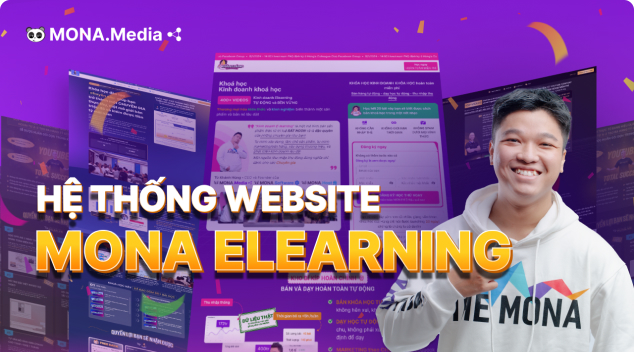 MONA E-LearningA website with every feature you need to sell courses.
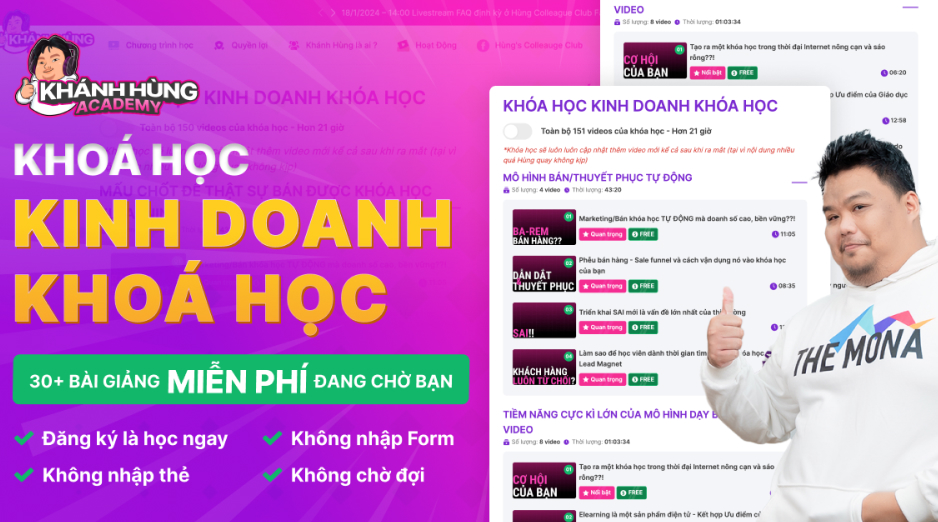 How to sell online courses (course)More than 30 free lessons on selling courses on autopilot.
 MONA Cloudmonacloud.vnServers to get your apps and websites running.
 MONA Basemonabase.vnPostgres database, sign-in and file storage.
 MONA Mailmonamail.vnSend OTP, order and invoice emails from your software.
 MONA Paymonapay.vnAccept bank transfers via VietQR and notify your software when the money arrives.
 MONA eInvoiceComing soonIssue e-invoices that meet tax standards.
Gấu CườiTrả lời khách 24/7 trên web, Fanpage, Zalo và thu lead cho sale.
 Gấu TeleSalesGọi điện tư vấn, chăm khách như tổng đài viên thật.
Dê CườiTư vấn và chốt đơn cho shop ngay trong khung chat.
Gấu WebmasterNhắn nhóm Zalo là website được sửa xong.
 Gấu Pháp ChếSoạn hợp đồng, rà điều khoản trong vài phút.
 Gấu Báo GiáLên báo giá đúng mẫu và gửi khách ngay.
 AI chăm sóc khách hàngTheo dõi và giữ chân khách hàng cũ.
 Gấu Tuyển DụngLọc hồ sơ, hẹn lịch, phỏng vấn ứng viên.
 Mới ra mắt
KHA AI 2027
Xây kênh chuyên gia 2 phút mỗi ngày
Quay bằng điện thoại, AI tự edit video, tự đăng lên 16 nền tảng và tự trả lời bình luận, tin nhắn.
924.584lượt xem trên kênh CEO MONA sau 41 ngày
 Anh Khánh HùngCEO MONA đang dùng mỗi ngày
Xem app làm được gì
 AI
Gấu Cười MONA ĐANG TỰ XÀITrả lời khách 24/7 trên website, Zalo OA, Messenger và thu lead về cho sale.
Dê CườiChốt đơn bán lẻ và sàn: Shopee, TikTok Shop, web. Chăm cả khách sỉ, đại lý.
Gấu WebmasterCập nhật nội dung, tối ưu SEO website mỗi ngày.
Gấu TeleSalesGọi điện tư vấn, chăm khách như tổng đài viên thật.
Gấu Tuyển DụngLọc hồ sơ, hẹn lịch, phỏng vấn ứng viên tự động.
AI chăm sóc khách hàngGiữ khách cũ, cứu lead đã rớt cho phòng kinh doanh.
Gấu Pháp ChếSoạn hợp đồng, rà điều khoản trong vài phút.
Gấu Báo GiáLên báo giá đúng mẫu, gửi khách ngay khi có yêu cầu.
 Chuyển đổi AI toàn phầnGiải pháp tổng cho doanh nghiệp, 3 lớp triển khai.
 Viết AI Agent theo yêu cầuĐặt riêng một con AI gánh đúng nghiệp vụ của bạn.
 Custom softwareCRM, ERP and HRM with built-in AI automation.
 SEO & AEO thời đại AIĐược Google lẫn AI trích dẫn, không chỉ xếp hạng.
 Kiến thức AI cho doanh nghiệpBài phân tích, hướng dẫn ứng dụng AI vào vận hành.
 Free AI courses
 AI tools at work
App mới · KHA AI 2027
Xây kênh 2 phút mỗi ngày
AI tự edit video, tự đăng mọi mạng xã hội
Free consultation, 8am–10pm every day

15 June, 2026

Canva AI errors usually come from how you enter the request, pick the template, handle text and check the file before publishing. Whether you use Canva AI for social posts, web banners, sales slides or ad images, you can run into a nice-looking image that misses the point, warped Vietnamese text, a messy layout or colors off from your brand. MONA wrote this article around real steps, pointing out each common error and how to fix it right in Canva. We also share how to use Canva AI within limits, so your marketing team works faster without blindly depending on a standalone tool.
Canva AI is worth using when you need images fast for marketing, sales and internal communication. The key is choosing the right starting point.
Don't generate on a whim. Doing so easily throws off the layout, the message and the audience.
We usually guide teams to start from marketing team your business goal first, and only then pick the matching Canva AI feature. This keeps the design on task.
Canva AI isn't just one generate button. Each feature suits a different job, so choose the right one from the start.
Pick the wrong one and you're off right away. The image may look good, but it won't sell the idea.
Inside MONA, we split these 3 jobs into 3 clear steps. Layout first, imagery second, text last.
This approach cuts down on going in circles while editing. The marketing team also finds errors more easily.
Canva AI gives better results when you state the output type clearly. A Facebook post is completely different from a web banner.
This is a very common error. A vague prompt pulls the whole design in the wrong direction.
Write the output type right into the prompt. For example: “Create a web banner for SEO services, clean style, with space for a sign-up button”.
The clearer you are, the less you have to fix.
Canva AI doesn't understand your business unless you give it the inputs. The tool only guesses based on the input data.
Prepare 3 things first. It's well worth doing.
At MONA, when we train customers to use Canva AI, we always ask them to gather brand assets first. Doing so keeps images from “drifting off voice”.
Canva AI should only help with quick drafts. Positioning, messaging and identity must still be controlled by the business.
For a Canva AI how-to article, the illustrations should be real screenshots. Readers need to see the exact button, the exact position and the exact action.
No decorative images. No vague illustrations.
Number the images by step. For example: Step 1 choose Magic Design, step 2 enter the description, step 3 choose a template.
Read it and you can do it right away. That's the standard.
Canva AI quickly handles many small marketing tasks. But the tool still has a ceiling when a business needs connected data, permissions, content review and workflow automation.
MONA using AI internally and training customers in a practical way. When the problem goes beyond manual work, we move to custom software, CRM, ERP or automation chains built by MONA.

Canva AI often produces images that look fine but miss the sales goal. It happens fast.
This error appears when the prompt only says “beautiful design”, “modern”, “eye-catching”. The machine doesn't understand the industry, the viewer, the posting channel or the action you want to drive.
We usually use the 4-layer prompt formula when making ad content, posts and landing pages for MONA customers. Lock down the context first.
The first layer helps Canva AI understand which marketing asset it is creating. State the design role, the industry and the specific goal.
Don't make the machine guess. The clearer the goal in the prompt, the less likely the image is pretty but useless.
Canva AI doesn't know whether the viewer is in a hurry, doubtful or comparing prices. This layer steers the image toward the right buying mindset.
This is the layer many people skip. An image with the wrong emotion often makes ads cost money but rarely convert.
Canva AI drifts toward a generic style if you don't lock the aesthetic. A phrase like “beautiful and professional” is still too broad.
MONA usually locks the style before generating batches of variations. That way the design keeps the same voice as the website, SEO and ads.
Prohibitions keep Canva AI from getting too creative. This part is especially important for industries that depend on high trust.
The prohibitions are guardrails. They don't make the design dry; they help the image stay closer to the sales message.
You can use the 3 templates below right away. Swap in the industry, offer, colors and action to fit your real campaign.
For website design projects and SEO services, we use Canva AI as a tool for quick sketching. The deciding factors are still the content strategy, the page structure and the business data.
Canva AI handles small jobs well. But when you need connected data, a content approval process and marketing automation, a business needs custom software built by MONA around how it really operates.

Canva AI errors usually aren't about whether the image looks good or bad. They come from each team member dragging in their own direction, picking their own color and swapping their own font, so the design looks fine but no longer feels like the brand.
This error is very easy to run into. Especially when you hand Canva to many people making sales posts, recruitment posts, web banners, ad images or social content.
The fix is to lock 3 things first: color, text and layout. Do this step before using Magic Design, and Canva AI will stick to the frame better and produce fewer off-brand templates.
Go into Brand Kit to save your logo, main colors, secondary colors and brand typefaces. If your account doesn't have a Brand Kit yet, create a manual color palette inside a template file.
Do this first. Don't let Canva guess.
When MONA trains marketing teams to use Canva AI internally, we always ask them to lock the color palette before the prompt. The templates produced afterward are easier to control, because AI no longer pulls colors by feel.
A design with too many typefaces tires the viewer's eyes. For sales content, this error also weakens the message because the eye doesn't know what to read first.
Keep the text tidy.
You can note it right in the file: headlines use font A, body uses font B. A new team member just opens the template and does it right, without asking every time.
Canva AI generates fast, but starting from scratch each time makes the layout drift over time. Today a sales post uses one style, tomorrow a recruitment post looks like an event poster.
You need a master template.
Create a few fixed layouts for each group, then let Magic Design make variations within that range. This keeps your speed without losing brand character.
Old logos, blurry photos and icons that don't match the style are why designs look inconsistent. This usually happens when everyone saves assets in a different place.
Don't let assets sit scattered around.
At MONA, when we use Canva AI for customer training content, we always keep approved assets separate from draft assets. This cuts down on grabbing the wrong file and means the next person doesn't have to guess.
Many Canva files get ruined because the next person doesn't know the previous person's intent. They change colors, move the logo, drag the text, and then the whole team spends time fixing it back to standard.
Notes help keep the habit.
Put the notes right in the template file or on the first page of the template set. When staff open the file, they understand the rules before clicking to create a new design.
Canva AI is very handy for producing templates quickly. But if a business needs connected data, tight permissions and a marketing process tied to its web, SEO and CRM, custom software is still the foundation you need.
MONA uses AI internally and trains customers in that spirit. Standalone tools speed up each task, while a dedicated system helps the whole team operate to one standard.

Canva AI easily makes nice images that are off-style, off-product and off the sales context. A version that looks fine may still be unusable.
You need to bring in reference images from the start. A sample image helps AI stay close to the real idea instead of making things up from general data.
This approach is well worth doing.
Before creating a new design, upload real product photos, store photos, team photos or templates from old campaigns.
These images are visual anchors. Canva AI then has a basis for color, layout, material and brand feel.
For example, for a promotional post, provide real product photos and a past post that ran well.
Don't just type a generic prompt. A prompt with no sample image often makes AI pick the wrong visual tone.
After uploading the images, say clearly which areas must stay. The logo, main colors, typography and main product usually should be fixed.
List the parts that may change separately. For example the background, effects, text position, decorative graphics or how the price is emphasized.
A short prompt can look like this:
We usually split prompts into two groups: what must not be touched and what AI may get creative with. AI understands the boundary better.
The more boundaries a prompt has, the less the image drifts.
One reference image only shows AI one angle. 3 images in the same style help AI recognize a stable taste.
Choose 3 samples with the same color tone, the same typography and the same layout rhythm. Don't mix too many styles.
For example, a cosmetics brand should use 3 samples with light backgrounds, thin text and wide white space. AI will then produce fewer heavily colored images.
An F&B brand can use 3 samples with lots of warm colors, large food photos and a clear call to action.
Taste needs to be repeated.
After Canva AI creates a new image, don't approve it by gut feeling. Compare it with the old sample using a short checklist.
If one item is wrong, fix exactly that item in the next prompt. Don't ask AI to redo everything.
Fixing one point at a time saves effort. The new version also drifts less from the original sample.
Once you have a version that works, save it as a template. Next time you only need to swap the image, change the content and lightly adjust the layout.
Templates help the marketing team keep a steady design rhythm. New people are also less likely to throw off the brand's taste.
Inside MONA, we apply the same principle when guiding customers on running content with Canva AI.
Canva AI handles the small parts quickly. But when data, the approval process and brand assets need to stay connected, a business needs its own system.
MONA usually closes this gap with custom software, a website, SEO and automation tied to real data. Standalone tools support the tasks, and the system is what protects revenue.

Canva AI builds layouts fast, but Vietnamese easily breaks in diacritics, line breaks and sentence tone. The errors are tiny. On a sales banner, a single wrong diacritic makes the brand look careless.
We usually handle text in 2 separate review rounds. The first round reviews the content. The second round reviews how it displays in the design.
Don't let Canva AI think up sentences, build the layout and decide the line breaks all at once. The machine tends to pick long sentences and then squeeze the text into the image frame.
A safer way is to separate the content first. We usually write the sales lines outside Canva, tighten them up, and only then paste them into the design.
This process keeps you from getting caught up too early in dragging text, swapping fonts and changing colors. Get the content right first. Make the design look good after.
The dangerous errors usually aren't in the layout. They are in accented text, the brand name, the phone number, the price and the promotion conditions.
MONA usually reviews these parts with a fixed list. It is a simple method, but it cuts a lot of small mistakes when marketing staff work fast.
Read the content aloud once before exporting the image. A strange sentence shows up very quickly. So does a robotic one.
A banner isn't the place to drop in a long ad paragraph. The longer the sentence, the more likely Canva AI is to break the line badly and shift the visual focus.
We usually cut long sentences into short phrases. Each phrase keeps just one clear selling point.
Short phrases fit into an image more easily. They are easier to read on a phone. They are easier to keep on the sales focus.
Once the text is right, then adjust how it displays. This is the second review round in the process we use when guiding marketing teams to work with Canva AI.
Look closely at three things: line spacing, letter spacing and the safe area. Text that looks good in the design frame can still get cut off when posted to Facebook, Zalo or a website.
MONA always prefers to view the design at the size users actually see. An image that looks good on a large screen may not read well on a phone.
A content approval file helps the marketing team avoid editing over each other in Canva. You can also check the edit history and who is responsible.
We usually suggest splitting the file into clear columns. Only approved content goes into Canva.
This works well for teams making many banners each week. New staff can follow it easily too. Managers don't have to inspect every text layer in Canva.
Canva AI is very handy for quickly making individual designs. The ceiling of the tool is that data, content approval and process stay disconnected. When a business needs web, SEO, marketing and sales to run together smoothly, MONA usually turns the repetitive parts into custom software or controlled automation chains.

A design that looks great in Canva AI can still turn out blurry, with a cropped logo or the wrong ratio once posted for real. This error usually shows up at the last step, when you export the file too fast.
Don't skip this step. MONA usually asks the design, content and SEO teams to check 6 points before putting an image on the web, Facebook, Zalo, slides or sales documents.
Each channel has a different display frame. An image that suits Facebook can look bad on a website or sales slide.
Before exporting, open the Resize panel in Canva again. If you don't have Canva Pro, make a copy and adjust the size by hand.
Slow down for 30 seconds. Save yourself from many rounds of redoing.
Logos, phone numbers and call-to-action buttons often get placed right at the edge. On a phone, these can be covered or cut off by the app interface.
Move the logo and important text a little closer to the center. Judge the safe margin by eye in zoomed-out view.
MONA often previews on a phone before approving an image for posting. This catches errors that a computer screen easily misses.
Your users' eyes are on the phone. The design has to be checked there too.
Canva AI has many export formats. Choosing the wrong one makes the image heavy, blurry or hard to send to customers.
If an image has a lot of small text, go with PNG. If the image is mostly people, products or scenery, JPG is usually enough.
Don't choose out of habit. Choose by where it will be used.
A beautiful but oversized image slows down the page. On a sales website, a few heavy images in the wrong spot make the buying experience worse.
Compress images before putting them on the website. For SEO article images, category images and banner images, this step matters even more and should be done consistently.
When doing website design and SEO services, MONA always treats images as part of page loading speed. Images are there to look good, and they also affect conversion and search ranking.
Lighter files. Smoother pages.
A file name like “untitled-design-final-final.png” is hard to find, hard to manage and does nothing for image SEO. The error is small but repeats constantly in marketing teams.
Name files by image content, product, campaign or landing page. File names should be meaningful, without diacritics and in lowercase.
This naming approach helps your internal team find files faster. When images go on the website, the SEO team can also optimize image titles and descriptions more easily.
Clear from the file name. Fewer lost assets.
Many teams only keep the PNG or JPG after exporting. When they need to change a price, swap an image or reword text, the whole team has to rebuild from scratch.
Keep the original Canva file for each campaign. If a design has many variants, create separate folders for the original, the approved version and the published version.
MONA applies this too when using Canva AI and AI tools internally. Tools make work faster, but a solid storage structure makes the team run more durably.
Canva AI handles quick creation of individual designs well. But when a business needs connected data, a clear approval process, tight permissions and performance tracking by channel, a standalone tool hits a ceiling.
At that point, custom software built by MONA is a better fit. MONA can connect your CRM, website, SEO, marketing and internal processes so data doesn't get lost among scattered files.

Canva AI is very useful when you need to quickly create banners, social posts, illustrations or presentations. This tool makes everyday design work lighter.
But Canva AI still stops at single files. That is the ceiling. When a business needs connected data, internal approval, CRM, ERP and role-based security, we need a dedicated system.
Canva AI errors usually don't come from the prompt alone. They appear when each team member works by feel, saves files, names them and sends them for approval on their own.
It drifts very easily. One person who writes good requests produces fairly solid templates. Another who enters a prompt without enough context gets a design that misses the point right away.
MONA also uses Canva AI and many other AI tools internally for the right jobs. We don't treat standalone tools as an operating system.
Canva AI suits jobs that need speed, many versions and low risk. You can use it for quick posts, idea sketches, illustrations or internal presentations.
Use it for this part. The marketing team will save many repetitive steps. People who aren't designers also get a clearer starting point.
This boundary keeps us from expecting the wrong things. Canva AI handles creating design assets well. A dedicated system handles the operations that rely on data.
A beautiful banner alone doesn't create cash flow. Design needs to go to the right landing page, with the right SEO message, to the right customer group and with the right campaign status.
The bottleneck is the connection. If a design is finished and then passed around several teams, with data re-entered many times, errors grow with scale.
For the website and SEO, MONA usually separates the content layer, the interface layer and the data layer. You can look at our website design service and SEO services package from MONA?
Canva AI creates the input assets. The website and SEO turn those assets into measurable touchpoints. CRM and the approval process keep data from getting lost.
When a business has many people working on content, sales and customer care, standalone tools hit a ceiling. That's when custom software solves the problem at its root.
MONA builds custom software around a business's real processes. We write custom code, connect data, set permissions and automate the work machines can do.
MONA has operated since 2016, with .000+ projects. The 85% retention rate comes from how we stay with real systems, not just hand over files.
Canva AI is still worth using in daily work. But when you need connected data flow, a clear approval process and role-based security, custom software is the more durable path.


CEO & Founder · The MONA
Founder of The MONA, who built a services company of 60+ staff with 14,000+ projects delivered. Khánh Hùng shares how he thinks about building systems that run themselves, automating a business, and the real lessons from delivering projects at MONA.
 332


Professional website
design services
Own a website with a beautiful, 100% exclusive design and a lifetime warranty, with the ability
to expand features flexibly as your business grows, starting today!






 MONA will never sell your information or send you spam


 MONA will never sell your information or send you spam
