
 MONA OS 2.0
 Partner with MONA


 Tự động hoá doanh nghiệp
 Cẩm nang SEO
 Digital Marketing
 Kinh nghiệm thiết kế website
 Hạ Tầng Server
 Giáo dục


 VI
 EN







Message us on
Zalo Official


 ProductsNew

 ProductsProducts
 Mới ra mắtKHA AI 2027App tự edit video, tự đăng mọi mạng xã hội, 2 phút mỗi ngày








 Website designLooks good and wins customers over.
SEO servicesBrings in customers searching for exactly what you sell.
 Tư vấn digital marketingKéo khách từ nhiều kênh, đo bằng số thật.
Corporate video productionVideos introducing your company, factory and team.
 NewAI video productionCompany story films made with AI.
 Custom software developmentCRM, ERP and HRM built for your business.
 Viết AI Agent theo yêu cầuĐặt riêng một trợ lý AI cho đúng việc của mình.
 Tư vấn chuyển đổi AIĐưa AI vào vận hành của cả công ty.
NewMONA LMSManagement for centers and schools.
MONA SkillHubInternal training for company staff.
 NHTQ systemEnd-to-end China–Vietnam shipping operations.
MONA JMSManagement for gold, diamond and pawn shops.
 MONA E-LearningA website with every feature you need to sell courses.
 How to sell online courses (course)More than 30 free lessons on selling courses on autopilot.
 MONA Cloudmonacloud.vnServers to get your apps and websites running.
 MONA Basemonabase.vnPostgres database, sign-in and file storage.
 MONA Mailmonamail.vnSend OTP, order and invoice emails from your software.
 MONA Paymonapay.vnAccept bank transfers via VietQR and notify your software when the money arrives.
 MONA eInvoiceComing soonIssue e-invoices that meet tax standards.
Gấu CườiTrả lời khách 24/7 trên web, Fanpage, Zalo và thu lead cho sale.
 Gấu TeleSalesGọi điện tư vấn, chăm khách như tổng đài viên thật.
Dê CườiTư vấn và chốt đơn cho shop ngay trong khung chat.
Gấu WebmasterNhắn nhóm Zalo là website được sửa xong.
 Gấu Pháp ChếSoạn hợp đồng, rà điều khoản trong vài phút.
 Gấu Báo GiáLên báo giá đúng mẫu và gửi khách ngay.
 AI chăm sóc khách hàngTheo dõi và giữ chân khách hàng cũ.
 Gấu Tuyển DụngLọc hồ sơ, hẹn lịch, phỏng vấn ứng viên.
 Mới ra mắt
KHA AI 2027
Xây kênh chuyên gia 2 phút mỗi ngày
Quay bằng điện thoại, AI tự edit video, tự đăng lên 16 nền tảng và tự trả lời bình luận, tin nhắn.
938.878lượt xem trên kênh CEO MONA sau 43 ngày
 Anh Khánh HùngCEO MONA đang dùng mỗi ngày
Xem app làm được gì
 AI
Gấu Cười MONA ĐANG TỰ XÀITrả lời khách 24/7 trên website, Zalo OA, Messenger và thu lead về cho sale.
Dê CườiChốt đơn bán lẻ và sàn: Shopee, TikTok Shop, web. Chăm cả khách sỉ, đại lý.
Gấu WebmasterCập nhật nội dung, tối ưu SEO website mỗi ngày.
Gấu TeleSalesGọi điện tư vấn, chăm khách như tổng đài viên thật.
Gấu Tuyển DụngLọc hồ sơ, hẹn lịch, phỏng vấn ứng viên tự động.
AI chăm sóc khách hàngGiữ khách cũ, cứu lead đã rớt cho phòng kinh doanh.
Gấu Pháp ChếSoạn hợp đồng, rà điều khoản trong vài phút.
Gấu Báo GiáLên báo giá đúng mẫu, gửi khách ngay khi có yêu cầu.
 Chuyển đổi AI toàn phầnGiải pháp tổng cho doanh nghiệp, 3 lớp triển khai.
 Viết AI Agent theo yêu cầuĐặt riêng một con AI gánh đúng nghiệp vụ của bạn.
 Custom softwareCRM, ERP and HRM with built-in AI automation.
 SEO & AEO thời đại AIĐược Google lẫn AI trích dẫn, không chỉ xếp hạng.
 Kiến thức AI cho doanh nghiệpBài phân tích, hướng dẫn ứng dụng AI vào vận hành.
 Free AI courses
 AI tools at work
App mới · KHA AI 2027
Xây kênh 2 phút mỗi ngày
AI tự edit video, tự đăng mọi mạng xã hội
Free consultation, 8am–10pm every day

12 June, 2026
Canva AI is not just for making pictures for fun. Used well, it can turn a sales idea into a consistent set of banners, social posts, slides, short videos and ad content. MONA uses Canva AI internally as an accelerator for sketching, presenting ideas and training clients on practical AI tools. This article goes straight to advanced tips with clear step-by-step actions, for business owners, marketers and operations staff who want to work faster while keeping brand quality.
This section goes straight to the actions. Open the right group of AI features in Canva, choose the right output, then quickly filter for drafts worth using.
In real guides, we always include actual screenshots at each step. The images should clearly show the button positions, search bar, prompt box and where to choose a template.
Many people waste time opening Canva and picking templates by feel. Start from the job to be done, not from a pretty template.
A neater way is to go to the Canva home page and look at the search bar and the suggestions below it. The screenshot should highlight this search bar.
A tip MONA often uses is to name the job before designing. For example: “spa combo introduction post”, “furniture quotation slide”, “white-background product photo”.
The closer the description is to the job, the less rambling the templates Canva AI returns. We save the first round of layout fixes.
Magic Design fits when you have an idea but no layout yet. This is where to use AI to open a draft, rather than dragging every block by hand.
In Canva, open the create-design area, choose Magic Design, or type a description in the suggestion box. The screenshot should show the Magic Design button.
We do not treat Magic Design as the place to finalize a design right away. MONA usually uses it to get a quick frame, then adjusts it to the brand identity.
That is faster than building a layout from a blank page, and you still keep control of the sales message.
After Canva AI returns many drafts, you should not edit all of them. What matters is quickly dropping the ones not worth the investment.
We usually use 4 criteria to review in a few minutes. Screenshots should sit next to the drafts to show how to choose.
For a sales post, a draft worth keeping must make one thing clear. A viewer should understand the product, the benefit and the next step.
For slides, a draft worth keeping must lead the eye in order. The headline, main idea, illustration and conclusion must not compete for attention.
Canva AI helps you get from scattered ideas to a draft faster. The rest still needs marketing thinking, a website and SEO to turn the design into revenue.
If you are using Canva AI for sales content, you can connect this visual work with website design and SEO services. MONA usually shows clients how to use AI for the right jobs, then moves the data into a dedicated system when the business needs seamless operations.
Magic Design often misses the goal when you only type a few generic words like “design a promotion post” or “make a sales slide”. It still produces pretty templates, but they easily get the industry, audience and usage context wrong.
This is a very common mistake. We run into it as well when training in-house marketing teams to use Canva AI for social posts, website banners, Zalo and sales materials.
MONA does not write prompts on inspiration. We use a 4-layer formula to lock the industry, channel, audience and format before hitting create.
A very short formula.
The first layer helps Magic Design understand the business context. The more clearly you state the industry, product and value level, the less the output drifts toward generic design.
Do not enter “design a course ad”. Be clearer: “design an ad for a conversational English course for office workers, studying after work, with online classes”.
Be clear on the industry first.
For sales, you can write: “design a slide introducing SEO services for businesses that have a website but are not getting customers steadily”. For internal operations, write: “design a poster reminding staff to update customer data into CRM every day”.
Specifics make the difference.
Content for Facebook is completely different from a website banner. A Zalo message is not the same as a sales slide sent to a purchasing director.
Magic Design needs to know the channel to choose a layout. Without this layer, you easily get a pretty template that is not usable in practice.
State the channel directly.
A better prompt example: “Create a design for a Facebook post introducing a monthly website care package, for owners of small and medium businesses”.
A design is not just for looking good. It serves a specific action such as sending a message, leaving contact details, clicking to view a service or reading on.
This layer helps Canva AI choose the focus of the content. State who the viewer is and what they should do after seeing the design.
Do not let the AI guess.
Example: “The viewer is a marketing manager who needs more customers from SEO, and the desired action is clicking through to the website to view the SEO service”.
This line is very important.
The last layer turns the idea into a design you can use right away. Fix the size, style, main color and required text before generating templates.
Skip this layer and Magic Design may produce the wrong image ratio, the wrong brand colors or miss the main message. Then your marketing team loses time fixing it by hand.
Fix it from the start.
A complete prompt could read: “Create a square Facebook image for a website design service in Ho Chi Minh City, for business owners who need a clear sales website. The goal is to get them to click through to the service. Professional style, light background, deep blue and white. Main text: A clearer sales website, easier for customers to leave their details”.
You can reuse the same structure for Zalo, a website or a sales slide. Just change the channel, the audience and the desired action.
MONA uses layered prompts when training internal teams and showing clients how to make content faster. Since 2016, MONA has worked on 14,000+ projects, so we favor formulas that are easy for real teams to apply, not just pretty on screen.
Canva AI handles individual designs quickly. But when customer data, the website, SEO, CRM and the sales process need to connect, scattered tools hit a ceiling. That is when a business needs its own software to automate the right processes and keep data seamless.
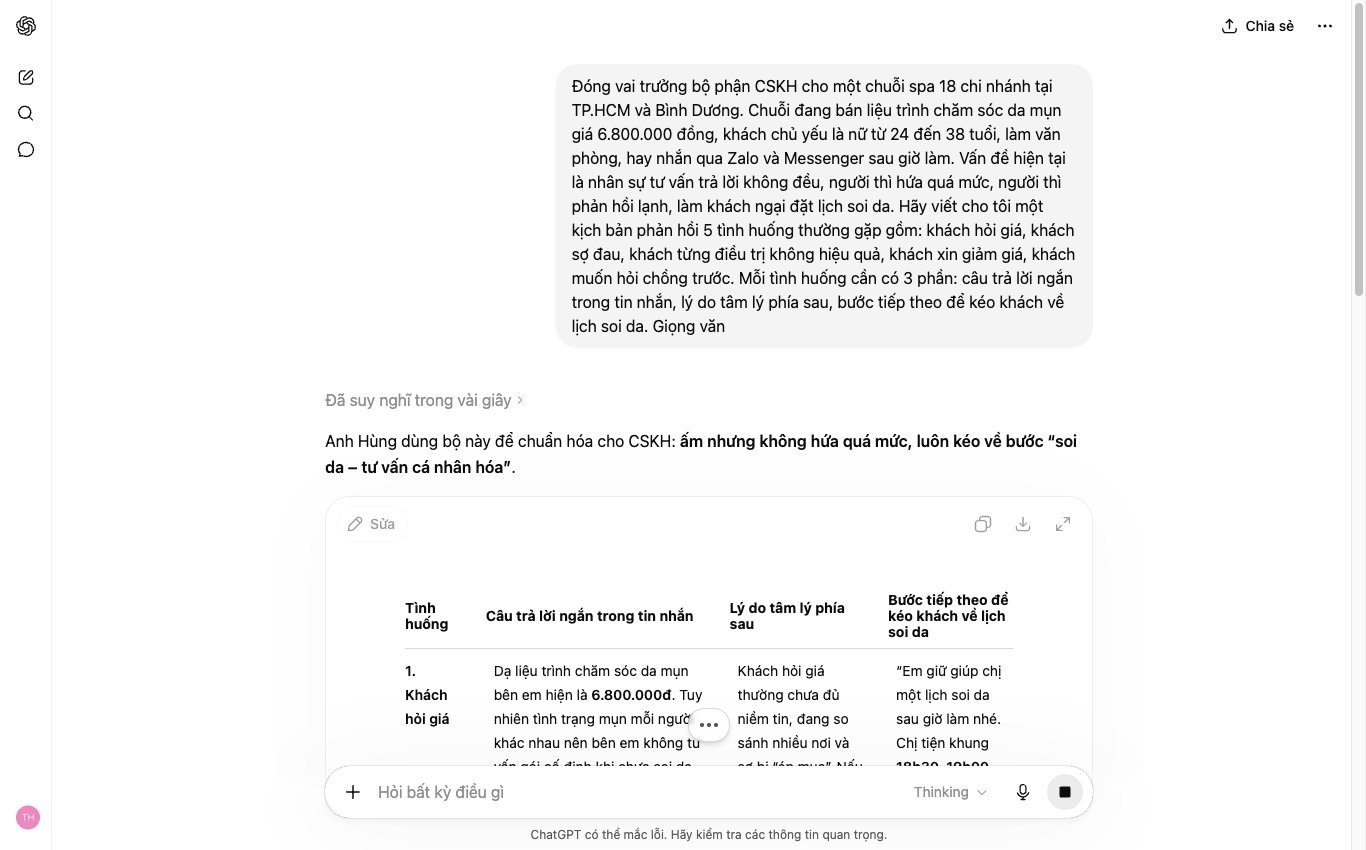
Canva AI makes drafts very quickly, but your identity easily drifts if you let the tool guess colors, logo and fonts.
Even small drifts are tiring. One post uses dark blue, the next light blue, and the quotation slide switches fonts.
Professional content teams usually lock the Brand Kit before hitting create. It is a small habit, but it keeps designs on brand from the first draft.
Go to Brand Kit in Canva, then upload your main logo, horizontal logo, short logo and a transparent-background version.
Do this step first. Do not fix it later.
Next, add your brand color palette. If you do not have the color codes, take them from your website, company profile or old design files.
We usually advise marketing teams to name colors by purpose. For example: button color, light background color, warning color, main text color.
This naming helps new staff make fewer wrong picks with Canva AI, and makes designs less subjective.
After Canva AI creates a draft, do not edit the text right away. Apply the Brand Kit to the template first.
The order matters. Lock the identity first, edit the content after.
Choose a template, open Style or Brand, then apply the saved brand set. Canva automatically changes colors, fonts and part of the layout to match the Brand Kit.
MONA uses this method when training internal content teams and clients working with Canva AI. The goal is to cut small fixes after the machine has made the draft.
Faster, but still within a framework.
The Brand Kit helps keep your identity, but you still need to recheck a few spots that drift easily. Canva AI does not fully understand brand context.
Don't skip this step.
A tip we often use is to shrink the design down to phone-screen size. If the logo, headline and button are still clear, the draft is safe to keep editing.
Canva AI is handy for personal work and quick drafts. When a business needs a seamless identity across its website, SEO, ads and sales data, MONA still recommends building a dedicated system so the operations team runs more steadily.
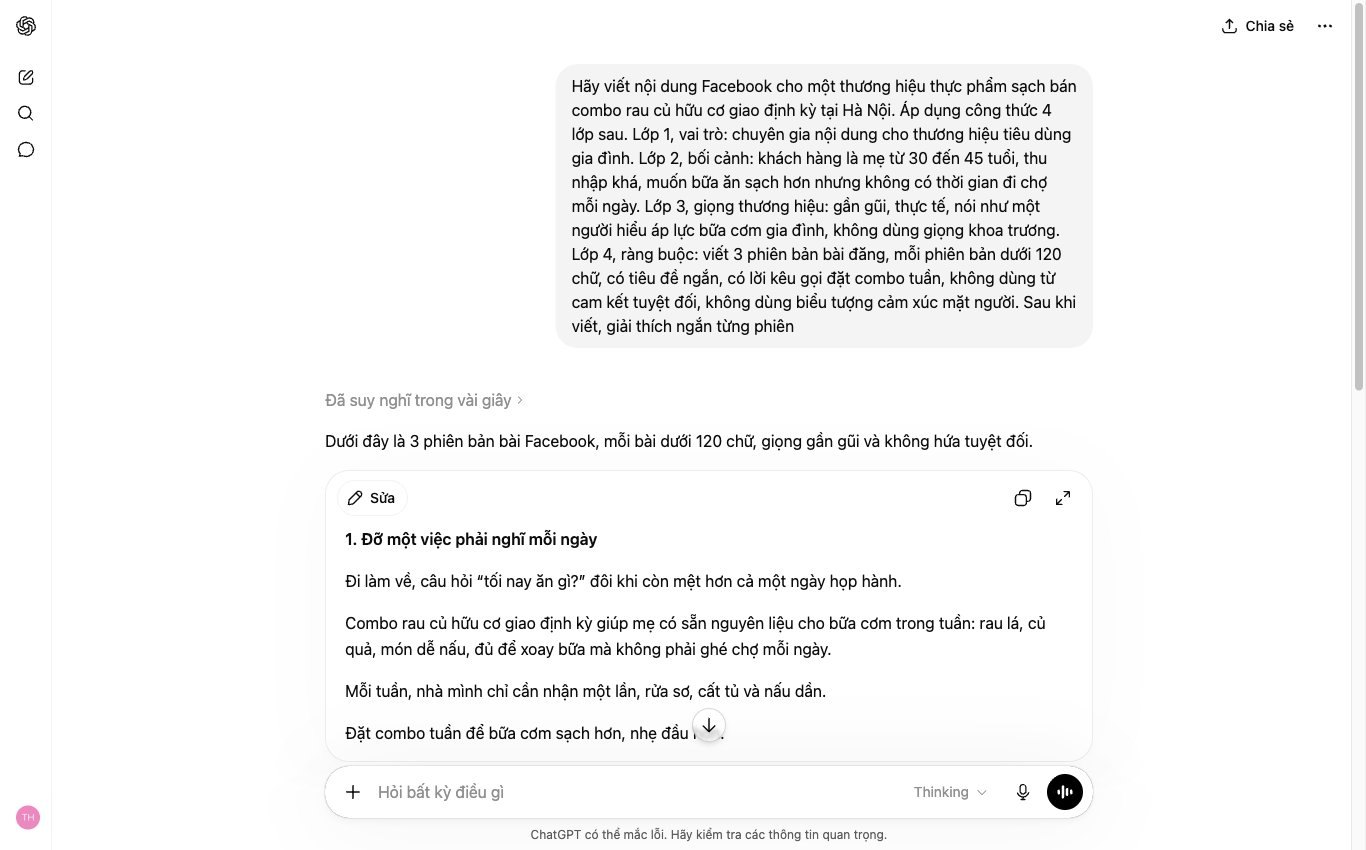
A sales idea easily loses its voice when you stretch it across many channels. The post says one thing, the story says another, and the banner becomes a different sentence again.
A shifting voice makes readers feel disconnected. MONA usually handles this by locking the main message first, then using Magic Switch to duplicate formats.
Do not duplicate too early. Pick one channel as the original, usually a Facebook post or a square design.
The original needs three layers of content: one main pitch line, one specific benefit and one call to action.
For example, the original line could be: “Sales website design with clear products, clear value, clear path to order”. This line is the backbone.
That reduces voice drift. After that, each channel only changes the length and layout.
In Canva, open the original design, choose Magic Switch, then choose Resize. Next, select the formats to export.
From the same idea, you can create 12 variants for posts, stories, slides, banners and horizontal website images. Canva re-lays out the frame automatically.
After Canva creates the new versions, do not post right away. Open each one to check for cut-off text, misaligned buttons and images that lost their focal point.
It is a small step, but well worth doing.
The key tip is not to rewrite all the content. Keep the main pitch line, then shorten it to fit the area of each format.
For a post, the pitch line can be complete. For a story, it should be shorter, split into 2 easy-to-read lines.
The message stays the same. Only the presentation changes by channel.
In website design, SEO and marketing, we follow the same principle. One core message must run through the website, SEO articles and ad content.
Canva AI helps you produce visual variants quickly. But standalone tools still hit a ceiling when data, content approval and posting schedules are not connected.
That is why MONA uses Canva AI as part of its internal process and in client training. When a business needs more automated operations, we usually propose custom software that connects CRM, the website, SEO and sales data.
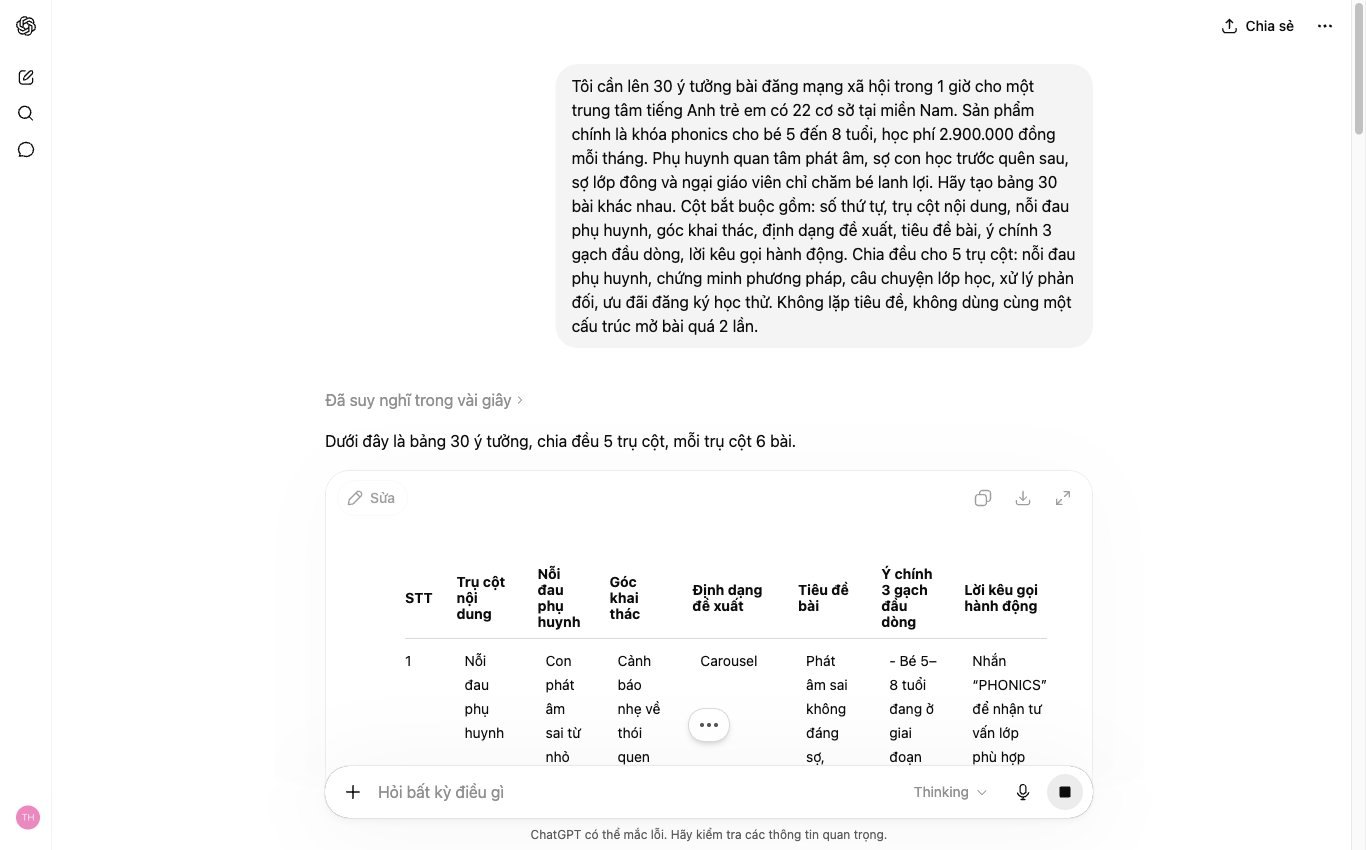
Bulk Create turns one data table into many designs from the same template. It suits product catalogs, promotions and per-branch posts.
Making each banner by hand easily leads to wrong prices, wrong codes or a forgotten image swap. One wrong cell makes the marketing team recheck everything from the start.
The right way is to standardize the table first, connect the data to the template second, then check the first few designs. Going slowly at the preparation step keeps the bulk export clean.
Keep it lean first.
Create the table in Google Sheets or Excel, or upload a CSV file straight to Canva. Each row is one product or one post.
Each column should represent one part that changes on the design. For example: product name, selling price, product code, branch, short description and image link.
We usually advise marketing teams to give columns clear Vietnamese names. Do not use columns named too briefly, such as “A”, “B”, “C”.
It is very easy to mix them up.
Open the banner template you have already designed in Canva. Then go to Bulk Create and upload the data table.
Canva reads the columns in the table and lets you connect each column to an element on the template. Select the price text, then connect it to the price column.
Do the same for product name, product code and branch name. For images, select the image frame and connect it to the image column.
MONA often uses this method for content sets that need to go out fast while keeping the identity. Canva AI supports the creative part, and Bulk Create handles the repetitive part.
Do not rush to connect.
After connecting the data, create a preview with Bulk Create. Check the first 3 designs before exporting everything.
Three common errors are names that are too long, prices that wrap onto a new line and images that crop out the important part. They are small errors, but they directly affect how professional it feels.
If the first 3 look fine, then export everything as image files or PDF. For social posts, export PNG to keep images sharp.
Post only when that is done.
Bulk Create is very handy when a marketing team has to process repetitive work from a table. But standalone tools still hit a ceiling, because the data does not automatically connect to the web, CRM, warehouse or posting schedule.
For businesses that need more seamless and secure data, MONA usually advises building custom software for CRM, ERP or marketing automation. We still use Canva AI internally and in client training, but the core operations need a system designed by MONA.
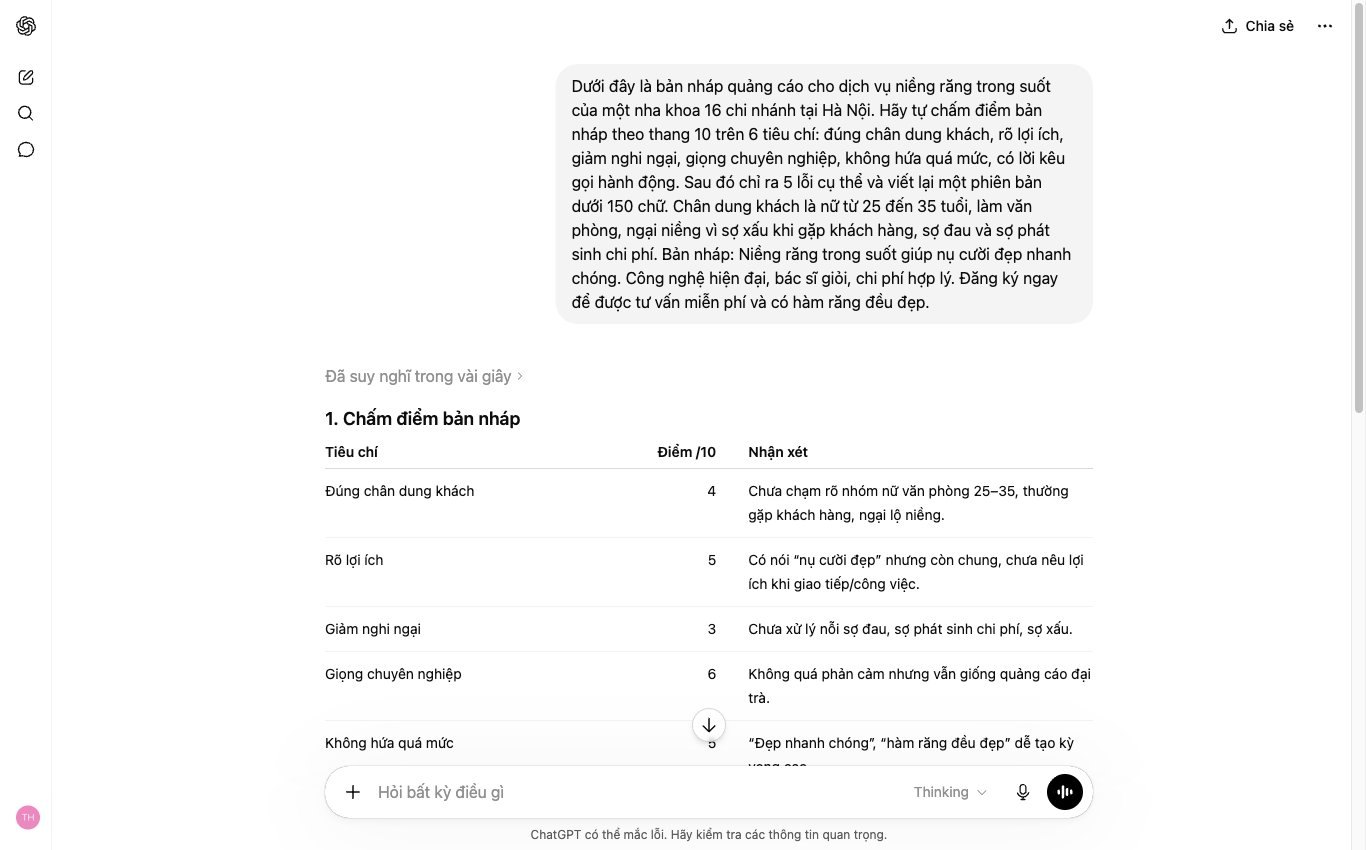
Product photos on a website often suffer from messy backgrounds, misaligned text, stray objects or distracting details. These small flaws make a sales page look untidy, even when the product itself is fine.
With Canva AI, you can quickly fix the basic flaws right in the browser. MONA usually uses this group of actions for demo photos, banners, landing pages and internal social content.
Background Remover fits when the photo has a clear product but a busy background or colors that do not suit the brand. This is the action to do before designing a sales banner.
Our practical tip is to place the product on a white, light gray or brand-color background after removal. This keeps the image cleaner when it goes into e-commerce websites.
For photos with hair, fur, glass or shiny products, zoom in to check the edges. Canva works fast, but human eyes still need to check before you post.
Magic Grab fits when you want to drag an object to another position without cutting the photo out by hand. It is useful for banners where text overlaps the product or the layout is off.
In marketing, we often use Magic Grab to push the product to one side, leaving room for the headline and call-to-action button. This layout works for homepage banners, popups and ad images.
Avoid dragging objects too far from the original background. If the background behind is complex, the automatic fill can look fake when zoomed in.
Magic Eraser fits when the photo has a power outlet, charging cable, stray label, stain, a person’s shadow or a foreign object in the back. This is the final check before exporting images for the website.
MONA’s tip is to brush small areas instead of sweeping a large patch. The tighter the brushed area, the more naturally Canva can patch the background.
After removing extra details, export the photo for its intended use. Website photos need to be light, ad photos need to be clear, and SEO article photos need the right display ratio.
Canva AI processes photos quickly, but it still has a ceiling when a business needs to work in bulk. Staff using standalone tools usually still have to download photos, rename them, compress them, enter data and post by hand.
MONA uses Canva AI and many other AI tools internally, and trains clients to use them for the right jobs. When you need seamless data, security and real automation, we still advise building custom software.
Since 2016, MONA has developed websites, SEO and custom software for over 14,000+ projects. Tools make individual tasks faster, while a dedicated system keeps cash flow running longer.

Canva AI is very handy when you need a quick template, an urgent photo fix, or short content for a running campaign.
But standalone tools still have a ceiling. Sales data, permissions, security and reports cannot sit scattered across each employee’s account.
This is a point worth separating. Canva AI speeds up the visible part, while a dedicated system keeps the business running seamlessly.
Canva AI suits jobs that need speed and flexibility. You can use it to create drafts before your marketing team refines them.
It is great for personal work. It does not replace a system.
We also use Canva AI internally for jobs that need quick sketching. The right way is to treat it as an accelerating assistant, not a place to store all your operating data.
When a business starts having many people working together, the problem is no longer making one nice image. The problem is that data must flow the right way.
Leads from the website need to reach the CRM. Orders need to connect to the ERP. SEO content needs to follow a long-term strategy, not just chase inspiration.
Data must be seamless.
Canva AI was not built to handle this whole layer. You still need a dedicated platform so your data does not break into pieces.
MONA usually separates creative tools from the operational core. The core needs to be designed as custom software, with permissions and a clear process.
MONA does not sell Canva AI as a replacement for an operating system. MONA uses AI tools for the right jobs, then connects them to the platform the business needs to control.
We build custom software, website design, SEO and train client teams to use AI tools in the right context.
What a machine can do, a machine should do. What needs standard data, a standard process and security must be carried by a dedicated system.
MONA started in 2016, now has 60+ staff, serves 14,000+ projects and maintains 85% retention. These numbers help us see the line between a handy tool and a real system.
Canva AI helps you design faster. Custom software helps your business run more solidly, with more measurability and less dependence on scattered manual actions.


CEO & Founder · The MONA
Founder of The MONA, who built a services company of 60+ staff with 14,000+ projects delivered. Khánh Hùng shares how he thinks about building systems that run themselves, automating a business, and the real lessons from delivering projects at MONA.
 360



Professional website
design services
Own a website with a beautiful, 100% exclusive design and a lifetime warranty, with the ability
to expand features flexibly as your business grows, starting today!






 MONA will never sell your information or send you spam


 MONA will never sell your information or send you spam
