
 MONA OS 2.0
 Partner with MONA


 Tự động hoá doanh nghiệp
 Cẩm nang SEO
 Digital Marketing
 Kinh nghiệm thiết kế website
 Hạ Tầng Server
 Giáo dục


 VI
 EN










Message us on
Zalo Official


 ProductsNew

 ProductsProducts
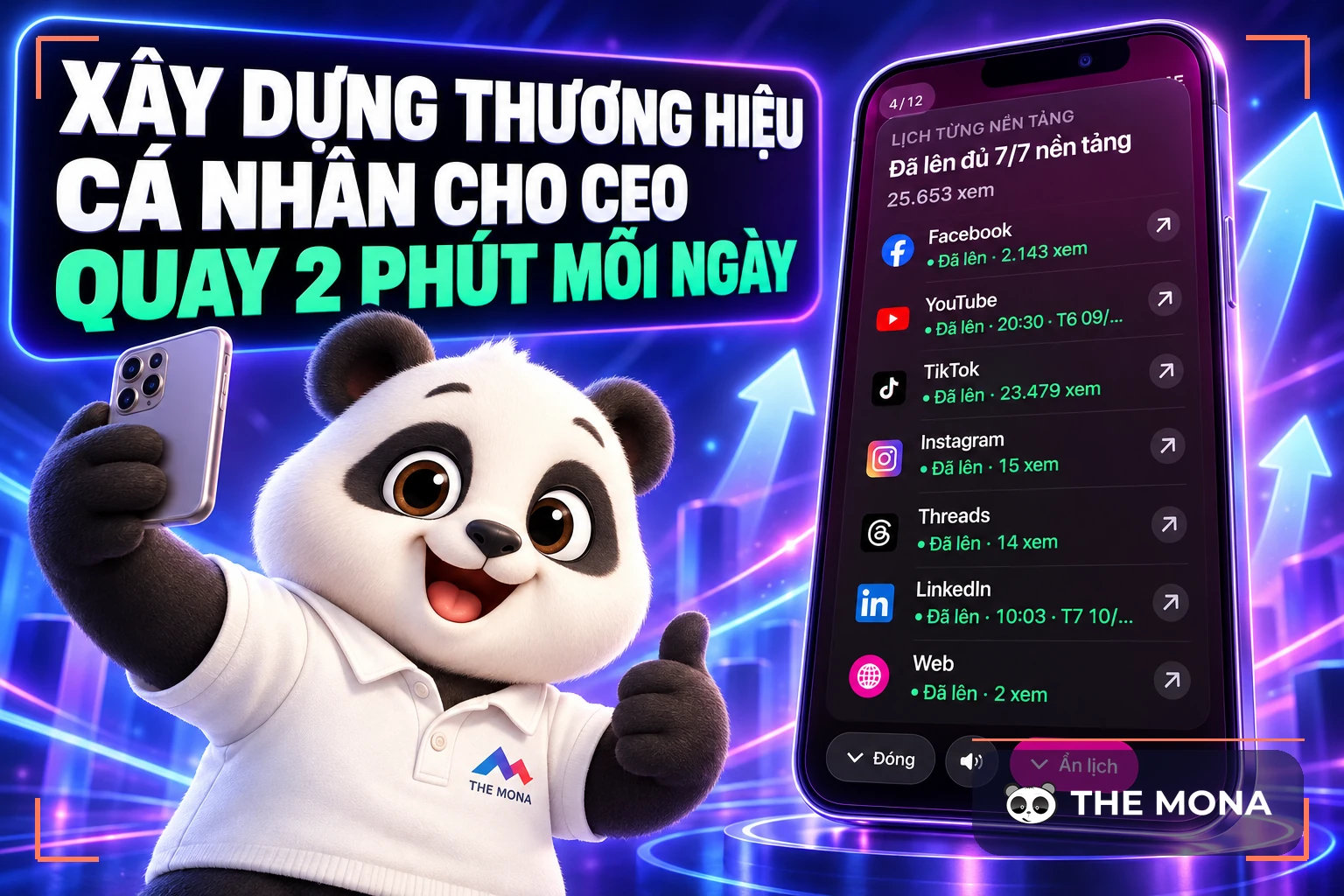
 Mới ra mắtKHA AI 2027App tự edit video, tự đăng mọi mạng xã hội, 2 phút mỗi ngày










 Website designLooks good and wins customers over.
SEO servicesBrings in customers searching for exactly what you sell.
 Tư vấn digital marketingKéo khách từ nhiều kênh, đo bằng số thật.
Corporate video productionVideos introducing your company, factory and team.
 NewAI video productionCompany story films made with AI.
 Custom software developmentCRM, ERP and HRM built for your business.
 Viết AI Agent theo yêu cầuĐặt riêng một trợ lý AI cho đúng việc của mình.
 Tư vấn chuyển đổi AIĐưa AI vào vận hành của cả công ty.
NewMONA LMSManagement for centers and schools.
MONA SkillHubInternal training for company staff.
 NHTQ systemEnd-to-end China–Vietnam shipping operations.
MONA JMSManagement for gold, diamond and pawn shops.
 MONA E-LearningA website with every feature you need to sell courses.
 How to sell online courses (course)More than 30 free lessons on selling courses on autopilot.
 MONA Cloudmonacloud.vnServers to get your apps and websites running.
 MONA Basemonabase.vnPostgres database, sign-in and file storage.
 MONA Mailmonamail.vnSend OTP, order and invoice emails from your software.
 MONA Paymonapay.vnAccept bank transfers via VietQR and notify your software when the money arrives.
 MONA eInvoiceComing soonIssue e-invoices that meet tax standards.
Gấu CườiTrả lời khách 24/7 trên web, Fanpage, Zalo và thu lead cho sale.
 Gấu TeleSalesGọi điện tư vấn, chăm khách như tổng đài viên thật.
Dê CườiTư vấn và chốt đơn cho shop ngay trong khung chat.
Gấu WebmasterNhắn nhóm Zalo là website được sửa xong.
 Gấu Pháp ChếSoạn hợp đồng, rà điều khoản trong vài phút.
 Gấu Báo GiáLên báo giá đúng mẫu và gửi khách ngay.
 AI chăm sóc khách hàngTheo dõi và giữ chân khách hàng cũ.
 Gấu Tuyển DụngLọc hồ sơ, hẹn lịch, phỏng vấn ứng viên.
 Mới ra mắt
KHA AI 2027
Xây kênh chuyên gia 2 phút mỗi ngày
Quay bằng điện thoại, AI tự edit video, tự đăng lên 16 nền tảng và tự trả lời bình luận, tin nhắn.
916.694lượt xem trên kênh CEO MONA sau 39 ngày
 Anh Khánh HùngCEO MONA đang dùng mỗi ngày
Xem app làm được gì
 AI
Gấu Cười MONA ĐANG TỰ XÀITrả lời khách 24/7 trên website, Zalo OA, Messenger và thu lead về cho sale.
Dê CườiChốt đơn bán lẻ và sàn: Shopee, TikTok Shop, web. Chăm cả khách sỉ, đại lý.
Gấu WebmasterCập nhật nội dung, tối ưu SEO website mỗi ngày.
Gấu TeleSalesGọi điện tư vấn, chăm khách như tổng đài viên thật.
Gấu Tuyển DụngLọc hồ sơ, hẹn lịch, phỏng vấn ứng viên tự động.
AI chăm sóc khách hàngGiữ khách cũ, cứu lead đã rớt cho phòng kinh doanh.
Gấu Pháp ChếSoạn hợp đồng, rà điều khoản trong vài phút.
Gấu Báo GiáLên báo giá đúng mẫu, gửi khách ngay khi có yêu cầu.
 Chuyển đổi AI toàn phầnGiải pháp tổng cho doanh nghiệp, 3 lớp triển khai.
 Viết AI Agent theo yêu cầuĐặt riêng một con AI gánh đúng nghiệp vụ của bạn.
 Custom softwareCRM, ERP and HRM with built-in AI automation.
 SEO & AEO thời đại AIĐược Google lẫn AI trích dẫn, không chỉ xếp hạng.
 Kiến thức AI cho doanh nghiệpBài phân tích, hướng dẫn ứng dụng AI vào vận hành.
 Free AI courses
 AI tools at work
App mới · KHA AI 2027
Xây kênh 2 phút mỗi ngày
AI tự edit video, tự đăng mọi mạng xã hội
Free consultation, 8am–10pm every day

13 June, 2026
CapCut AI is becoming a useful tool for anyone who wants automatic subtitles and dubbing for videos. It saves time and improves content quality. In this article, we will walk you through each step of using CapCut AI as effectively as possible, so you can streamline your video workflow.

CapCut AI helps you create high-quality videos in just a few clicks. We will walk you through each step to use this tool well. Making videos is no longer a challenge.
First, sign in to the CapCut app. Then choose “Create new project”. The simple interface makes it easy to get started.
Next, upload the videos and images you want to use. CapCut supports drag and drop, so it finishes quickly.
CapCut has many smart AI features for editing video. You can add effects, background music and text in just a few clicks. The final product will look very professional.
Finally, just tap “Export” to save the video. Share it easily on social media platforms and catch your customers' attention.
CapCut AI is an effective tool for marketers. However, to automate and optimize further, a business needs its own software developed by MONA. We are committed to delivering an effective solution for you.

Adding subtitles to a video is now simpler than ever with CapCut AI. We will walk you through each step of generating subtitles automatically, so you save editing time.
First, open the CapCut AI app. Then choose “Upload video” to bring in the video you want to edit. This makes subtitling quick and convenient.
Next, choose the “Auto captions” feature. CapCut AI will analyze the audio and generate subtitles on your video within seconds.
Once the subtitles are generated, you can review and edit them if necessary. CapCut AI lets you change the text, font and color of the subtitles to fit your video's style.
Finally, choose “Export video” to save the finished product with subtitles. Exporting quickly saves you time and effort during editing.
CapCut AI makes subtitling convenient, but to work more efficiently and professionally, you may need your own software built by MONA. We can help you automate your workflow to save time and raise productivity.

The CapCut AI tool offers automatic dubbing, which saves video production time. Using this feature makes production more efficient. Below is a detailed step-by-step guide.
First, open the CapCut AI app and choose the video you want to dub. This defines the content that needs editing.
After choosing the video, find and tap the automatic dubbing feature. It helps you produce a voiceover quickly and accurately.
Next, you can fine-tune the voice and volume to suit the video's content. This makes sure every line comes across clearly and engagingly.
Finally, export the finished video with the dubbing. The process takes just a few minutes, so you have something ready to share right away.
CapCut AI is a very convenient tool for dubbing videos. However, if you need to automate video production over the long term, MONA can help build your own software. MONA's automation software connects data and processes more seamlessly.

Automatic sound effects from CapCut AI make your videos more engaging. Using sound effects gives viewers a better experience. Below is a specific step-by-step guide to optimizing the audio of your videos.
First, open CapCut and choose the video you want to edit. Then go to the audio section in the app interface. You will see the audio options there.
Choose the automatic sound effects feature. CapCut AI will suggest effects that fit your video's content. Just tap the effect you want to use.
After adding the effects, you can adjust their volume and timing. This helps them fit your video better.
When you are happy with the audio, choose export. CapCut will save the video with the optimized sound effects. Now you have a more polished and engaging video.
CapCut AI is a useful tool for creating engaging content. However, to automate the process professionally, a business should consider building its own software developed by MONA. MONA offers software design and automation solutions that help you manage efficiently and keep data in sync.
Every video needs its copyright protected. Inserting logos and watermarks automatically helps you keep your brand firmly in place. Below is a step-by-step guide to doing this in CapCut AI.
Open CapCut AI and choose the video that needs a logo. Find the logo insertion feature in the tools menu. This feature is very easy to access.
Tap the upload button to bring in your logo. Then adjust the logo size so it fits the video. Make sure the logo does not cover other important content.
Choose the best position for the logo on the video. Place it where viewers can easily recognize it without hurting the look of the video.
When you are done, export the video with the logo inserted. Just tap export and wait a moment for the video to be saved with your brand on it.
Inserting logos and watermarks automatically helps protect your video copyright. However, to optimize your content production process, you may need your own software developed by MONA. This software will help you automate the process and attract customers more effectively.

CapCut AI makes subtitles and automatic dubbing convenient. However, it has limits when producing video at scale.
CapCut AI is very useful for short, personal or social media videos. Every step is quick and easy. These videos usually do not need much detail or complexity.
With large videos that have a lot of detail, CapCut AI can struggle. The system does not connect its features seamlessly, which costs time and effort. This kind of work calls for more professional management software.
MONA builds dedicated automation software that solves these problems. MONA's software connects data and processes, delivering higher efficiency in large-scale video production.
If your business wants to take control of automated video production, software developed by MONA is the best choice. MONA provides tools and training support to help your staff use them effectively.

Experts who need to publish videos every day have a shorter path than fumbling through CapCut. We package editing, subtitles and posting into nhanhieu.ai, an MONA Software app designed for each individual. You talk for 2 minutes, and the AI builds a video with explanatory visuals, subtitles and music in your own brand identity, then posts it to your channels.
Main topic: CapCut AI
See more:
Use CapCut AI yourself when making individual videos, with someone checking the script, adjusting the voice and checking watermark positions before export. When you need subtitles, multilingual dubbing, brand identity inserted and hundreds of videos processed in batches, call us through 1900 636 648 to build a dedicated tool.
Subtitles and voiceover must be checked before running at volume.
Further reading on the same topic:
If you need a finished video for your company and don't have time to figure out CapCut AI yourself, take a look at MONA builds videos with AI: MONA handles everything from the script to the final cut, and delivers it with a cut for each channel.

CEO & Founder · The MONA
Founder of The MONA, who built a services company of 60+ staff with 14,000+ projects delivered. Khánh Hùng shares how he thinks about building systems that run themselves, automating a business, and the real lessons from delivering projects at MONA.
 450




Professional website
design services
Own a website with a beautiful, 100% exclusive design and a lifetime warranty, with the ability
to expand features flexibly as your business grows, starting today!






 MONA will never sell your information or send you spam


 MONA will never sell your information or send you spam
