
 MONA OS 2.0
 Partner with MONA


 Tự động hoá doanh nghiệp
 Cẩm nang SEO
 Digital Marketing
 Kinh nghiệm thiết kế website
 Hạ Tầng Server
 Giáo dục


 VI
 EN









Message us on
Zalo Official


 ProductsNew

 ProductsProducts
 Mới ra mắtKHA AI 2027App tự edit video, tự đăng mọi mạng xã hội, 2 phút mỗi ngày










 Website designLooks good and wins customers over.
SEO servicesBrings in customers searching for exactly what you sell.
 Tư vấn digital marketingKéo khách từ nhiều kênh, đo bằng số thật.
Corporate video productionVideos introducing your company, factory and team.
 NewAI video productionCompany story films made with AI.
 Custom software developmentCRM, ERP and HRM built for your business.
 Viết AI Agent theo yêu cầuĐặt riêng một trợ lý AI cho đúng việc của mình.
 Tư vấn chuyển đổi AIĐưa AI vào vận hành của cả công ty.
NewMONA LMSManagement for centers and schools.
MONA SkillHubInternal training for company staff.
 NHTQ systemEnd-to-end China–Vietnam shipping operations.
MONA JMSManagement for gold, diamond and pawn shops.
 MONA E-LearningA website with every feature you need to sell courses.
 How to sell online courses (course)More than 30 free lessons on selling courses on autopilot.
 MONA Cloudmonacloud.vnServers to get your apps and websites running.
 MONA Basemonabase.vnPostgres database, sign-in and file storage.
 MONA Mailmonamail.vnSend OTP, order and invoice emails from your software.
 MONA Paymonapay.vnAccept bank transfers via VietQR and notify your software when the money arrives.
 MONA eInvoiceComing soonIssue e-invoices that meet tax standards.
Gấu CườiTrả lời khách 24/7 trên web, Fanpage, Zalo và thu lead cho sale.
 Gấu TeleSalesGọi điện tư vấn, chăm khách như tổng đài viên thật.
Dê CườiTư vấn và chốt đơn cho shop ngay trong khung chat.
Gấu WebmasterNhắn nhóm Zalo là website được sửa xong.
 Gấu Pháp ChếSoạn hợp đồng, rà điều khoản trong vài phút.
 Gấu Báo GiáLên báo giá đúng mẫu và gửi khách ngay.
 AI chăm sóc khách hàngTheo dõi và giữ chân khách hàng cũ.
 Gấu Tuyển DụngLọc hồ sơ, hẹn lịch, phỏng vấn ứng viên.
 Mới ra mắt
KHA AI 2027
Xây kênh chuyên gia 2 phút mỗi ngày
Quay bằng điện thoại, AI tự edit video, tự đăng lên 16 nền tảng và tự trả lời bình luận, tin nhắn.
951.843lượt xem trên kênh CEO MONA sau 50 ngày
 Anh Khánh HùngCEO MONA đang dùng mỗi ngày
Xem app làm được gì
 AI
Gấu Cười MONA ĐANG TỰ XÀITrả lời khách 24/7 trên website, Zalo OA, Messenger và thu lead về cho sale.
Dê CườiChốt đơn bán lẻ và sàn: Shopee, TikTok Shop, web. Chăm cả khách sỉ, đại lý.
Gấu WebmasterCập nhật nội dung, tối ưu SEO website mỗi ngày.
Gấu TeleSalesGọi điện tư vấn, chăm khách như tổng đài viên thật.
Gấu Tuyển DụngLọc hồ sơ, hẹn lịch, phỏng vấn ứng viên tự động.
AI chăm sóc khách hàngGiữ khách cũ, cứu lead đã rớt cho phòng kinh doanh.
Gấu Pháp ChếSoạn hợp đồng, rà điều khoản trong vài phút.
Gấu Báo GiáLên báo giá đúng mẫu, gửi khách ngay khi có yêu cầu.
 Chuyển đổi AI toàn phầnGiải pháp tổng cho doanh nghiệp, 3 lớp triển khai.
 Viết AI Agent theo yêu cầuĐặt riêng một con AI gánh đúng nghiệp vụ của bạn.
 Custom softwareCRM, ERP and HRM with built-in AI automation.
 SEO & AEO thời đại AIĐược Google lẫn AI trích dẫn, không chỉ xếp hạng.
 Kiến thức AI cho doanh nghiệpBài phân tích, hướng dẫn ứng dụng AI vào vận hành.
 Free AI courses
 AI tools at work
App mới · KHA AI 2027
Xây kênh 2 phút mỗi ngày
AI tự edit video, tự đăng mọi mạng xã hội
Free consultation, 8am–10pm every day

14 June, 2026

Adobe Firefly is a powerful AI tool that helps you create images quickly, but there are plenty of times when errors leave the results short of what you expected. From distorted images and missing details to the AI not understanding the prompt, these problems waste time and drag down productivity. We understand the frustrations you are facing. This article goes straight to the 3 most common errors when using Adobe Firefly and shares effective fixes, so you can streamline AI image creation for your marketing campaigns and website design.
Adobe Firefly has been changing how we create visual content. The tool promises to take a significant load off design teams, especially when marketing needs large numbers of images.
But using Firefly is not always smooth. Many business owners tell us their teams run into small, seemingly harmless errors that “swallow” hours of work.
At MONA, we have found that simply understanding and avoiding 3 basic errors can improve your team's efficiency by up to 30% of their time. That is no small number, and it lets you move resources into higher-value work.
Adobe Firefly is a suite of a generative AI image tool, deeply integrated into the Adobe Creative Cloud ecosystem. It lets your team create images, text effects and photo transformations from simple commands.
Practical uses of Firefly in Vietnamese businesses are very diverse. For example, a furniture company needs hundreds of product images for its website and ad campaigns. Instead of photographing every angle or paying for expensive 3D design, Firefly generates many rendered versions in minutes.
Likewise, a fashion brand can quickly test new photo concepts, or change outfit colors and backgrounds, just by typing a description. That cuts sample production costs and shortens the design cycle.
MONA also uses Firefly in client website design and SEO projects. We use it to create article illustrations, ad banners and landing page backgrounds when we need something fast and distinctive. This saves the content creation team a lot of time and makes articles more engaging.
You can quickly generate different image versions for effective A/B testing on digital ad platforms. That is a big advantage in digital marketing campaigns.
Small errors with Firefly usually come from not understanding how the tool “thinks”. Teams assume Firefly is just type a command and get a result, but the reality is more complicated.
For example, entering a prompt (a descriptive command) that is not detailed enough or is vague is a common mistake. It makes Firefly produce images that miss the intent, forcing users to repeat the trial and error again and again. Every retry is a few minutes of waiting and adjusting, and that adds up to hours.
A professional travel company want to create a majestic mountain landscape for a blog post. If the prompt is just “beautiful mountain”, Firefly may return an image with the wrong style, lighting or detail. The team has to edit and add keywords like “sunset”, “flowing river” and “cinematic style” to get the result they want.
Not using the post-generation editing features also wastes time. Instead of editing right inside Firefly, many people download the image and adjust it in other software. Switching back and forth between apps significantly reduces productivity.
When a team has not been properly trained in optimizing prompts or using Firefly's full feature set, overall performance suffers. That wastes time and lowers staff satisfaction and motivation. MONA regularly runs internal training sessions on using AI tools effectively, including Firefly, so our team always works at its most productive.
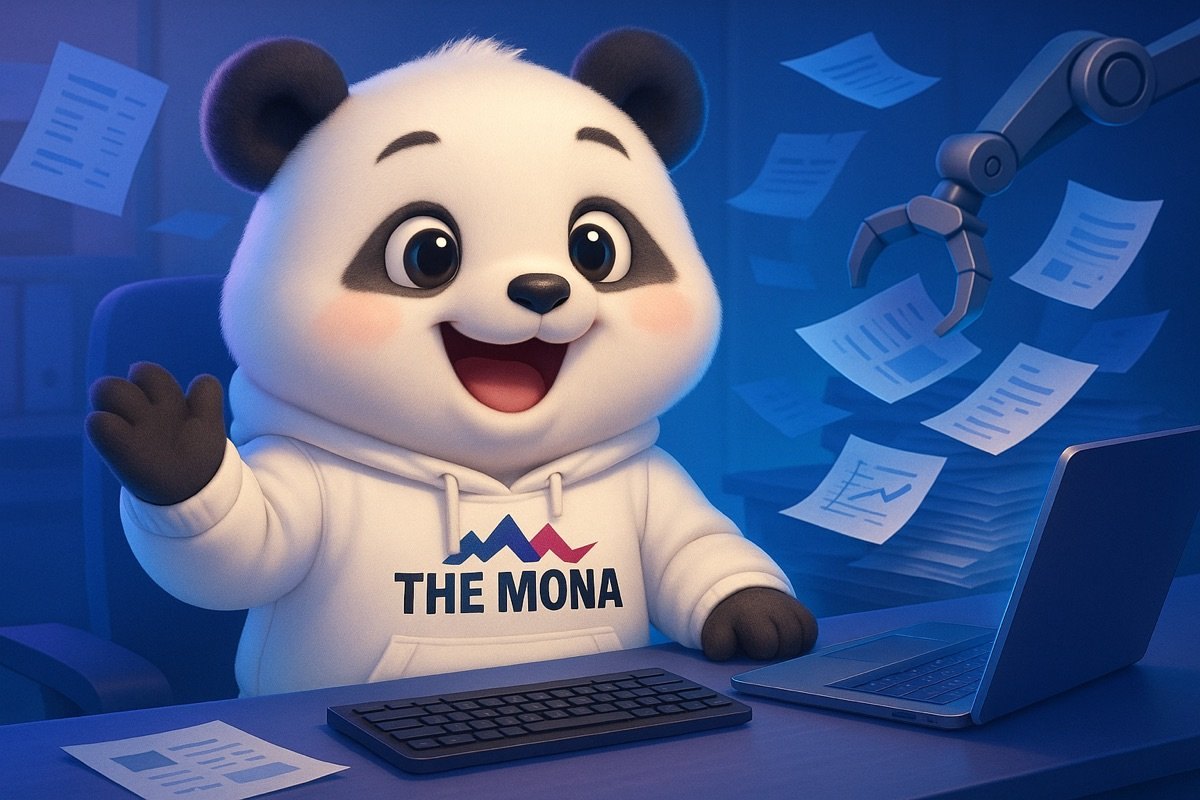
Many business owners and marketing teams find that Adobe Firefly produces unwanted images. Even after writing the prompt carefully, the image still has “strange” details or drifts from the original idea. We need a more rigorous method.
The secret is to use a three-layer prompt structure. It steers the AI's context tightly, which reduces the “misunderstandings” from the tool.
We have applied this method internally when designing image assets for projects website design and campaigns SEO for our clients. It delivers clear results. MONA also regularly shares this technique in internal training sessions for our team.
The first layer is the foundation of every prompt. State clearly the main subject and what it is doing. Clarity here is the key factor.
For example, instead of just writing “a woman”, be more specific. Try “a female CEO presenting to the board”. This keeps the AI focused on the main idea.
For product photos, describe “a silver smartphone resting on a wooden table”. Short and complete. We often use this approach when creating product mockups for eCommerce projects. It keeps the AI from going off track.
Imagine you are writing a story. The opening sentence needs to introduce the main character and the situation. The same goes for an AI prompt. Simplify the idea and it becomes easier to understand.
Once the subject is defined, add the visual elements. The second layer focuses on art style, color palette and lighting conditions. This is where you add the “seasoning” to the picture.
Think about the feeling you want to convey. A bright, colorful picture? Or a subdued image with dark tones?
For example, you could add “minimalist style, turquoise and white palette, natural light from a window”. Or “macro photography, warm tones, soft studio lighting”. Every detail matters.
When MONA helps F&B businesses design images for menus or social media posts, we are very particular about lighting and sharpness. An appetizing food photo needs the right light. The colors must look true. This adds professionalism and helps customers picture the product.
This is an important line of defense. Proactively remove elements that could ruin the picture. The AI sometimes adds irrelevant details or misreads the context.
Using “negative prompts” or exclusion keywords is an effective tactic. For example, if you do not want people in the image, add “[no people]”. If you do not want the color red, add “[no red]”.
When creating ad banners for events, we usually exclude “text”, “logo” and “lettering”. This keeps the image clean and stops the AI from inserting meaningless text. MONA's design team then adds the text by hand, which is easier to control.
A fashion retail chain with 18 stores in Hanoi and Da Nang worked with MONA. They wanted ad images for a new product without an overly busy background. We used the exclusion keywords “cluttered background”, “trees” and “architecture”. The result was a clean image focused on the product, and ad performance improved.
Let's apply the three keyword layers to a concrete case. Say you want to create a product image for an ad campaign. The product is a premium wristwatch.
The original prompt might be: “beautiful wristwatch”. The result will be very generic. The AI may produce many different kinds of watches, possibly with a person wearing one or an unsuitable background. That is not effective.
Now use the three-layer method:
The complete prompt would be: “A premium men's wristwatch, sapphire crystal, stainless steel case, close-up (macro) photography, soft studio lighting, neutral colors, solid dark gray background, luxurious style, [no people], [no text], [no logo], [no glaring reflections], [no cheap fake-metal details]”.
The difference is huge. The generated image matches the brief very closely, and we can use it for ads right away. This saves editing time and helps the design team streamline its workflow. MONA uses this approach to ensure image quality for clients who demand refinement, such as jewelry or premium accessories. We have seen clear results.
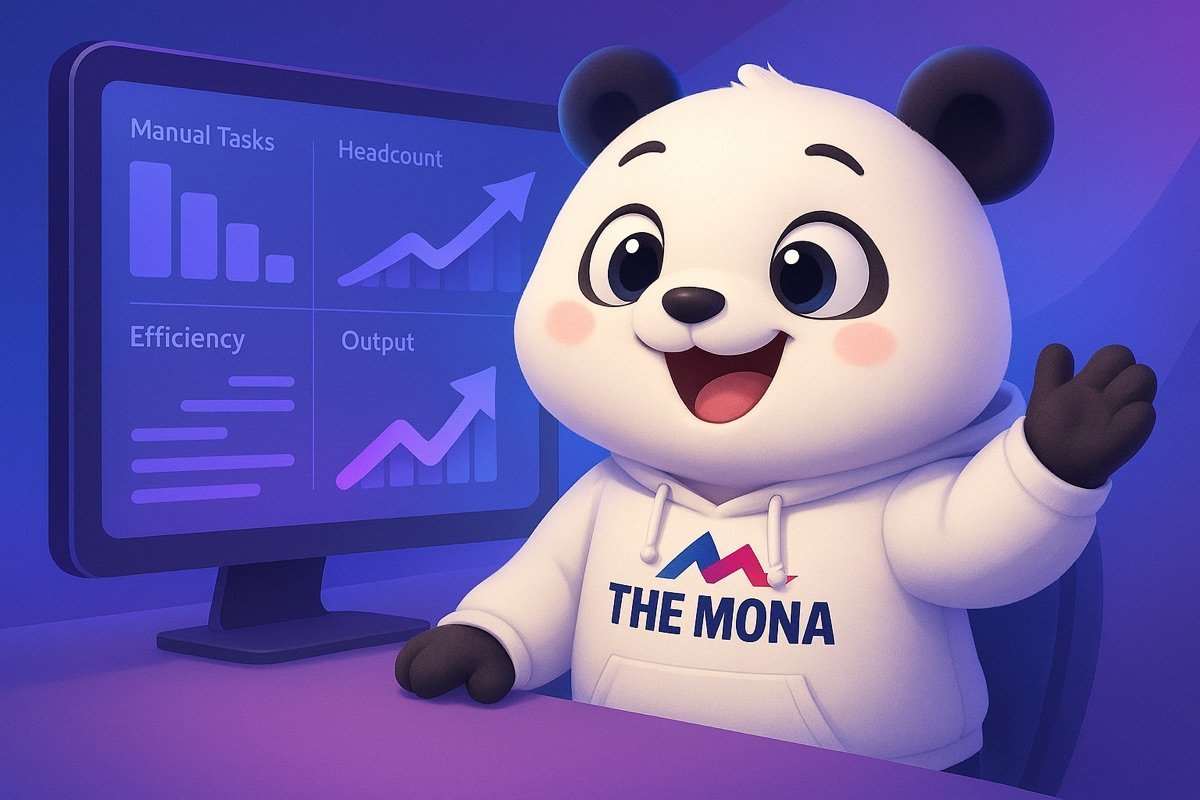
The biggest worry when you use Adobe Firefly to create images is inconsistency. Each time the AI gives a different result that does not match the original brand “tone”. That undermines professionalism and weakens your communication.
We need a clear process. Here is our 5-step formula to help you control the image style Firefly produces. It is how you keep the AI true to your brand's own “voice”.
Before giving Firefly a request, make sure you know your brand's visual identity well. List every essential element, including the main colors and the fonts used in your designs.
Also define the image types and layouts you commonly use. The emotion the brand wants to convey matters too. For example, a premium fashion brand has a distinct style.
It favors luxury, minimalism and natural light. By contrast, a children's toy store needs bright, cheerful, colorful images. This helps the AI understand the “template” it must follow, and you will spend less time fixing things again and again.
Once you have the identity, turn it into effective keywords. These are the detailed “instructions” for Firefly. For example, instead of just writing “beautiful image”, use “minimalist style, pastel tones, soft light, symmetrical composition”.
Build a distinct keyword set for each campaign. A Tet promotion campaign needs keywords like “festive atmosphere, red and gold, apricot blossoms, family reunion”. A new product launch is different. It calls for modern, tech, blue lighting. Prepare carefully.
Adobe Firefly has a “Reference Image” feature. It is a powerful tool. You can upload a sample image, and Firefly learns the style, colors and composition from it. This is extremely useful.
Choose the reference image carefully. It must best represent the style you want. Do not use low-quality images. Do not use images with so much detail that it creates noise. For example, a retail chain that wants consistent ad imagery can use an old banner as the reference. Firefly will create similar variations. Do not overuse this feature. Combine it with a detailed prompt.
After Firefly generates an image, do not use it right away. Add a checking step. Use color or font identification tools to compare, and check whether the AI image matches your brand color palette.
You can use an online Color Picker or Font Identifier. They are very handy. Compare the results against the identity you defined in Step 1. A large branding company always has a specialist review this step. If there is a small deviation, adjust the prompt or reference image right away. It is a simple step, and it ensures a high level of consistency.
To make sure your whole marketing team uses Firefly consistently, build a standard prompt library. It is a collection of sample prompts that have been reviewed and give good results. The library must be easy to access.
Each sample prompt needs a clear explanation, and can include example images. That way even new staff can create images in the right “tone”. For example, MONA also maintains an internal prompt library. We train staff to use it fluently, which minimizes errors. A prompt library is a valuable asset. It saves a lot of time and keeps image quality consistent. You will end up with a tighter process.
When Adobe Firefly suddenly “freezes” or loses connection, your work is easily interrupted. We need to deal with it quickly so you do not miss a deadline. Here are 3 rapid checks to help you fix the problem.
These technical errors usually come from the computer's working environment. Understanding the cause will save you a lot of time. Let's go through each check in detail.
These are hands-on tips that MONA's design team uses regularly. They keep work moving without interruption. You can apply them right away to get Firefly running again.
A stable internet connection is a prerequisite for Firefly. Check your network speed right now. Firefly needs plenty of bandwidth to process high-quality AI images. A weak connection will make the app hang or stop responding.
Close unneeded apps and browser tabs. This frees up a significant amount of RAM. Every open browser tab consumes system resources. Reducing the load gives Firefly enough resources to run.
Clear your browser cache and cookies regularly. Old data can conflict with Firefly. Look for the “Clear browsing data” option in your browser settings, and choose to clear the cache and cookies over a suitable time range.
Then try a different browser. For example, if you are using Chrome, switch to Edge or Firefox. This rules out errors caused by a specific browser. Sometimes a new browser update can cause conflicts.
A web designer in Ho Chi Minh City ran into this error once. He was creating a banner for a summer travel promotion. Firefly kept hanging at the step of rendering a complex image. After closing 10 research tabs and clearing the cache, everything ran smoothly and he got back to work quickly.
A firewall or antivirus software sometimes blocks Firefly's connection. Check their settings on your computer and make sure Firefly is allowed full internet access. Some overly strict security programs can mistake Firefly for a threat.
If you are using a VPN, try turning it off temporarily. A VPN can slow the connection or conflict with Adobe's cloud services. After turning off the VPN and checking again, you can pinpoint the cause. It is a simple but effective step.
Also review the permission settings in your browser. Some Firefly features may require certain permissions. Although Firefly does not directly use the microphone or camera, general browser permissions still matter. Make sure no setting is overly restricted.
In a corporate environment, the internal network may even have its own policies. Contact your IT department to check. Sometimes a proxy server or network filter causes the problem. This is especially true for businesses with many staff.
A communications manager in Da Nang once had a headache with this error. His team could not sign in to Firefly. The cause was the company firewall blocking the connection to Adobe's servers. After the internal network policy was adjusted, everyone worked normally, with no more “lost connection” midway.
The graphics card handles most generative AI tasks. Make sure your graphics driver is always up to date. Visit the graphics card manufacturer's website (NVIDIA, AMD, Intel) to download the latest version. An old driver can cause display errors or make Firefly hang.
Updating your web browser to the latest version is also important. Updates usually include bug fixes and performance improvements. They also optimize compatibility with new web technologies. An old browser may not fully support Firefly's features.
After updating the driver and browser, restart your computer. This makes sure the changes are fully applied. A simple restart can fix many minor software issues. Do not skip this step.
MONA's content creation team checks for these updates regularly. We need to make sure our software always runs properly. A stable system keeps work flowing, and you avoid needless interruptions.
If you have tried all the checks above and the error persists, contact Adobe support. They can check your account and may offer a deeper solution. Do not hesitate to seek professional help.
Have the details of the steps you tried ready, along with the specific error message (if any). A project manager at a web design company did this. After providing the error details, he received guidance, and the issue was resolved quickly.
At MONA Media, we always use AI tools in our internal workflows, and we train clients on how to make the most of them. However, standalone tools like Firefly have limits. They work well for personal use or manual tasks, but they cannot replace a complete automation system.
For a business to run smoothly, you need a custom software. This software integrates data seamlessly and keeps information secure. With experience since 2016, MONA has helped 14,000+ projects automate their businesses. If you need a solution, contact us on our hotline 1900 636 648.
Reviewing ad images usually takes a lot of time. To shorten this stage, you need a varied pool of ideas to test and choose from. Adobe Firefly lets you create a batch of image variations in a short time for A/B testing or multichannel campaigns. It streamlines the internal review process. We have seen many marketing teams apply this tip successfully.
Having many image options is a big advantage. You can compare performance easily and decide faster, which reduces bottlenecks in the design stage and keeps your campaigns on time.
The first step to producing many quality image variations is writing a really good base prompt. It should be specific enough while staying flexible. Focus on the main subject and the core message.
For example, a coffee shop wants to promote its new iced latte. Instead of an overly long prompt, you can start with: “iced latte, glass cup, wooden table, natural light”. That is a good start. Then add small details to enrich it. Try “iced latte, glass cup with condensation, light wooden table, soft sunlight through the window”. Firefly will return many results, and you can pick the ones you like best. This small tip is very effective and gives us dozens of different images.
To increase variety, use different descriptive keywords. Try many synonyms, which widens the AI's creative range. Do not be afraid to try unusual phrases. Firefly will respond with many distinctive image suggestions.
Firefly offers powerful “Style” and “Composition” options. You can change the mood and layout of an image in just a few clicks. The “Style” section lets you choose an art style, such as “Photo”, “Art”, “Graphic” or “3D”. Each choice gives a different look, so you get more options.
A fashion retail chain wants to promote a new collection. They can use the same prompt describing the outfit, then change “Style” to “Photo” for a realistic model shot, or switch to “Graphic” for a striking illustration. This creates variety fast.
Likewise, “Composition” settings such as “Lighting”, “Angle” and “Aspect Ratio” are very useful. We can change the shooting angle or the lighting. A product shot from several angles helps customers picture it better. Just keep the prompt unchanged and adjust the sliders. The result is a whole batch of new image variations.
Firefly lets you create variations from an existing source image. The “Generative Fill” feature is a handy tool. Upload the image you want, then use the selection tool to pick the area to change. For example, say we want to change the color of a model's shirt. Just select the shirt area and enter the prompt “blue shirt”. Firefly will generate new options.
A professional travel company has a beautiful landscape photo. They want to add people or objects to make it livelier. Upload the photo and use Generative Fill to add “a couple strolling on the beach”, or “a sailboat gliding across the water”. Everything happens quickly and takes little effort.
This feature is extremely useful for quick edits. You do not have to start over from scratch, and it saves a lot of time. The generated variations blend in seamlessly, which keeps things consistent.
Creating dozens of image variations is only part of the job. More importantly, we need to manage them systematically. Firefly usually keeps a history of generated images. Name your files clearly, and use tags or folders to organize them. This makes them easy to find later.
A business's marketing department often runs many campaigns at once. They can create a separate folder for each campaign, and inside it sort by theme or image type. This keeps everything organized, and the team can find and use files easily.
Efficient organization streamlines the review process. You can quickly pick out the right images. It also makes A/B testing simpler, and the whole workflow runs seamlessly.
Adobe Firefly is a powerful AI image tool that helps you and your team quickly produce distinctive designs. But when you look at running a large-scale business, this standalone tool still has clear limits. Firefly solves only a small part of the full automation picture, and it cannot replace a software system built specifically for your business processes.
We understand that taking advantage of new technology is essential. But to see clear gains and high performance, a business needs a more seamless solution, where all data and processes are tightly connected.
A standalone tool like Firefly is hard to integrate deeply into a company's data systems, which creates important information security risks. Data gets scattered. When a team uses Firefly to create image assets, those files are usually stored locally or on separate platforms. That creates data silos and makes centralized management difficult.
Picture a marketing agency with 30 staff, each using Firefly to create ad images for 5 to 7 different clients. Those images have to be approved, stored and tagged by hand. There is a risk of leaking information. Without an integrated digital asset management (DAM) system, controlling access and complying with security rules becomes extremely complicated. Information can leak. You will spend a lot of time and resources reviewing and checking each file individually.
When each person uses Firefly in their own way, output quality is inconsistent, which affects the shared brand voice. Performance swings. Prompt engineering, meaning writing effective commands for the AI, is a personal skill. Some people are good at it and some are not. One designer can produce an on-brand image in minutes, while a colleague needs many rounds of trial and error and spends extra time.
Take a 5-person marketing team at a large e-commerce company, each creating product images with Firefly. The experienced ones produce great images, while newer ones miss the brand's color tone and fonts. The brand voice gets diluted. This inconsistency breaks the coherence of campaigns and forces extra manual review steps, which slows down the whole workflow. The team's overall performance gets dragged down.
Firefly automates a single task, creating images, but it cannot automate the entire chain from idea to marketing rollout. It is just one link. The tool is a strong aid in the content creation stage and shortens design time. But a marketing campaign or a complete business process involves many other steps.
A retail chain with 15 stores needs to run a new promotion every week. Firefly helps create banners, but it cannot automatically schedule posts across 5 different social channels, send email to 50,000 potential customers, or update inventory when products sell. A long chain needs a system. The steps from planning, assigning tasks and approving content to multichannel rollout and performance tracking all require an overall management system. Firefly cannot connect these parts together on its own.
MONA Media specializes in developing software systems that automate production and manage data, helping businesses move past the limits of standalone tools. We understand how important the right solution is. Since 2016, MONA has worked on 14,000+ projects, building systems that fit each need.
We can integrate AI technology like Firefly into a custom software system designed by MONA. That software manages the entire chain, from content creation and approval to distribution and measurement. The system automatically tags and securely stores assets, and makes sure every digital asset follows the brand voice. This helps you achieve consistent performance, airtight data security, and business operations optimized with the highest precision.


CEO & Founder · The MONA
Founder of The MONA, who built a services company of 60+ staff with 14,000+ projects delivered. Khánh Hùng shares how he thinks about building systems that run themselves, automating a business, and the real lessons from delivering projects at MONA.
 400




Professional website
design services
Own a website with a beautiful, 100% exclusive design and a lifetime warranty, with the ability
to expand features flexibly as your business grows, starting today!






 MONA will never sell your information or send you spam


 MONA will never sell your information or send you spam
