
 MONA OS 2.0


 Tự động hoá doanh nghiệp
 Cẩm nang SEO
 Digital Marketing
 Kinh nghiệm thiết kế website
 Hạ Tầng Server
 Giáo dục


 VI
VI
 EN
EN















Message us on
Zalo Official


 ProductsNew

 ProductsProducts
 Mới ra mắtKHA AI 2027App tự edit video, tự đăng mọi mạng xã hội, 2 phút mỗi ngày










 Website designLooks good and wins customers over.
SEO servicesBrings in customers searching for exactly what you sell.
Website designLooks good and wins customers over.
SEO servicesBrings in customers searching for exactly what you sell.
 Tư vấn digital marketingKéo khách từ nhiều kênh, đo bằng số thật.
Corporate video productionVideos introducing your company, factory and team.
Tư vấn digital marketingKéo khách từ nhiều kênh, đo bằng số thật.
Corporate video productionVideos introducing your company, factory and team.
 NewAI video productionCompany story films made with AI.
 Custom software developmentCRM, ERP and HRM built for your business.
 Viết AI Agent theo yêu cầuĐặt riêng một trợ lý AI cho đúng việc của mình.
 Tư vấn chuyển đổi AIĐưa AI vào vận hành của cả công ty.
NewMONA LMSManagement for centers and schools.
MONA SkillHubInternal training for company staff.
Tư vấn chuyển đổi AIĐưa AI vào vận hành của cả công ty.
NewMONA LMSManagement for centers and schools.
MONA SkillHubInternal training for company staff.
 NHTQ systemEnd-to-end China–Vietnam shipping operations.
MONA JMSManagement for gold, diamond and pawn shops.
NHTQ systemEnd-to-end China–Vietnam shipping operations.
MONA JMSManagement for gold, diamond and pawn shops.
 MONA E-LearningA website with every feature you need to sell courses.
 How to sell online courses (course)More than 30 free lessons on selling courses on autopilot.
 MONA Cloudmonacloud.vnServers to get your apps and websites running.
 MONA Basemonabase.vnPostgres database, sign-in and file storage.
 MONA Mailmonamail.vnSend OTP, order and invoice emails from your software.
 MONA Paymonapay.vnAccept bank transfers via VietQR and notify your software when the money arrives.
 MONA eInvoiceComing soonIssue e-invoices that meet tax standards.
Gấu CườiTrả lời khách 24/7 trên web, Fanpage, Zalo và thu lead cho sale.
MONA eInvoiceComing soonIssue e-invoices that meet tax standards.
Gấu CườiTrả lời khách 24/7 trên web, Fanpage, Zalo và thu lead cho sale.
 Gấu TeleSalesGọi điện tư vấn, chăm khách như tổng đài viên thật.
Dê CườiTư vấn và chốt đơn cho shop ngay trong khung chat.
Gấu WebmasterNhắn nhóm Zalo là website được sửa xong.
Gấu TeleSalesGọi điện tư vấn, chăm khách như tổng đài viên thật.
Dê CườiTư vấn và chốt đơn cho shop ngay trong khung chat.
Gấu WebmasterNhắn nhóm Zalo là website được sửa xong.
 Gấu Pháp ChếSoạn hợp đồng, rà điều khoản trong vài phút.
 Gấu Báo GiáLên báo giá đúng mẫu và gửi khách ngay.
 AI chăm sóc khách hàngTheo dõi và giữ chân khách hàng cũ.
 Gấu Tuyển DụngLọc hồ sơ, hẹn lịch, phỏng vấn ứng viên.
 Mới ra mắt
KHA AI 2027
Xây kênh chuyên gia 2 phút mỗi ngày
Quay bằng điện thoại, AI tự edit video, tự đăng lên 16 nền tảng và tự trả lời bình luận, tin nhắn.
355.527lượt xem trên kênh CEO MONA sau 21 ngày
Mới ra mắt
KHA AI 2027
Xây kênh chuyên gia 2 phút mỗi ngày
Quay bằng điện thoại, AI tự edit video, tự đăng lên 16 nền tảng và tự trả lời bình luận, tin nhắn.
355.527lượt xem trên kênh CEO MONA sau 21 ngày
 Anh Khánh HùngCEO MONA đang dùng mỗi ngày
Xem app làm được gì
Anh Khánh HùngCEO MONA đang dùng mỗi ngày
Xem app làm được gì
 AI
Gấu Cười MONA ĐANG TỰ XÀITrả lời khách 24/7 trên website, Zalo OA, Messenger và thu lead về cho sale.
Dê CườiChốt đơn bán lẻ và sàn: Shopee, TikTok Shop, web. Chăm cả khách sỉ, đại lý.
Gấu WebmasterCập nhật nội dung, tối ưu SEO website mỗi ngày.
Gấu TeleSalesGọi điện tư vấn, chăm khách như tổng đài viên thật.
Gấu Tuyển DụngLọc hồ sơ, hẹn lịch, phỏng vấn ứng viên tự động.
AI chăm sóc khách hàngGiữ khách cũ, cứu lead đã rớt cho phòng kinh doanh.
Gấu Pháp ChếSoạn hợp đồng, rà điều khoản trong vài phút.
Gấu Báo GiáLên báo giá đúng mẫu, gửi khách ngay khi có yêu cầu.
AI
Gấu Cười MONA ĐANG TỰ XÀITrả lời khách 24/7 trên website, Zalo OA, Messenger và thu lead về cho sale.
Dê CườiChốt đơn bán lẻ và sàn: Shopee, TikTok Shop, web. Chăm cả khách sỉ, đại lý.
Gấu WebmasterCập nhật nội dung, tối ưu SEO website mỗi ngày.
Gấu TeleSalesGọi điện tư vấn, chăm khách như tổng đài viên thật.
Gấu Tuyển DụngLọc hồ sơ, hẹn lịch, phỏng vấn ứng viên tự động.
AI chăm sóc khách hàngGiữ khách cũ, cứu lead đã rớt cho phòng kinh doanh.
Gấu Pháp ChếSoạn hợp đồng, rà điều khoản trong vài phút.
Gấu Báo GiáLên báo giá đúng mẫu, gửi khách ngay khi có yêu cầu.
 Chuyển đổi AI toàn phầnGiải pháp tổng cho doanh nghiệp, 3 lớp triển khai.
 Viết AI Agent theo yêu cầuĐặt riêng một con AI gánh đúng nghiệp vụ của bạn.
 Custom softwareCRM, ERP and HRM with built-in AI automation.
 SEO & AEO thời đại AIĐược Google lẫn AI trích dẫn, không chỉ xếp hạng.
 Kiến thức AI cho doanh nghiệpBài phân tích, hướng dẫn ứng dụng AI vào vận hành.
 Free AI courses
 AI tools at work
App mới · KHA AI 2027
Xây kênh 2 phút mỗi ngày
AI tự edit video, tự đăng mọi mạng xã hội
Free consultation, 8am–10pm every day
AI tools at work
App mới · KHA AI 2027
Xây kênh 2 phút mỗi ngày
AI tự edit video, tự đăng mọi mạng xã hội
Free consultation, 8am–10pm every day

13 June, 2023

For an article to reach the top of Google search results, you need an effective SEO strategy. Using Image SEO qua Geotag is one of the most effective ways. In practice, though, many people overlook geotags and only know image ALT tags, image titles and so on. So What is a geotag? how do you add SEO-friendly image geotags? Let's MONA Media find out in the article below.
Geotag is a term from geolocation (GPS) and digital photography. Specifically, a geotag attaches geographic location information to a file or piece of data, such as a photo, video, social media post or any other data that can be linked to a specific place. An online geotag also lets users pinpoint exactly where the item was created or shared.
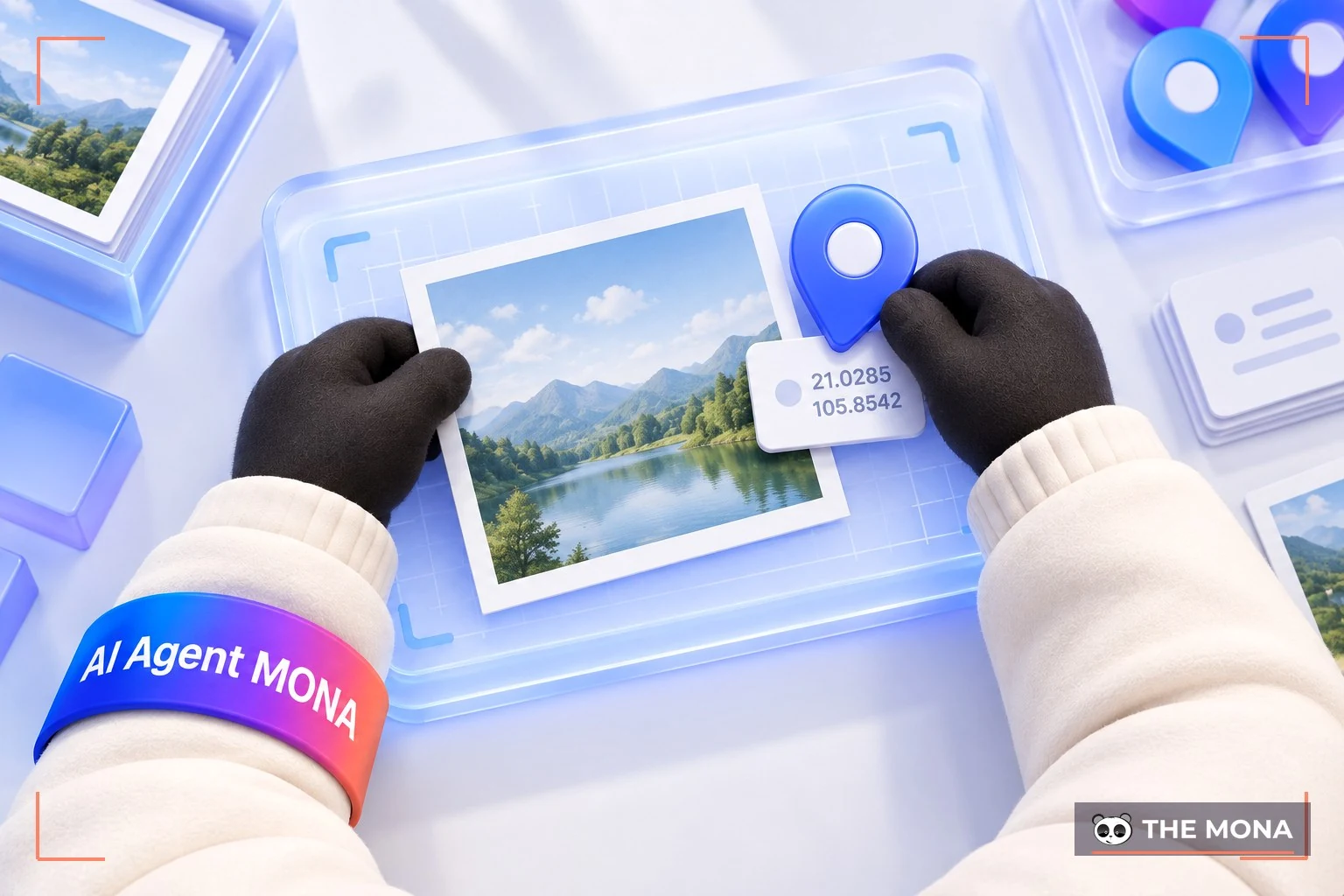
Location information is usually stored as geographic coordinates, such as longitude and latitude. It can be embedded directly in the data or saved as metadata in the object's metadata file. When it is attached to data, location information tells others where that data was created or shared.
A geotag can be attached in many formats and on many platforms. Let's go through them one by one.
A geotag can be attached to image and video files. It records the geographic location where the photo or video was taken or created.
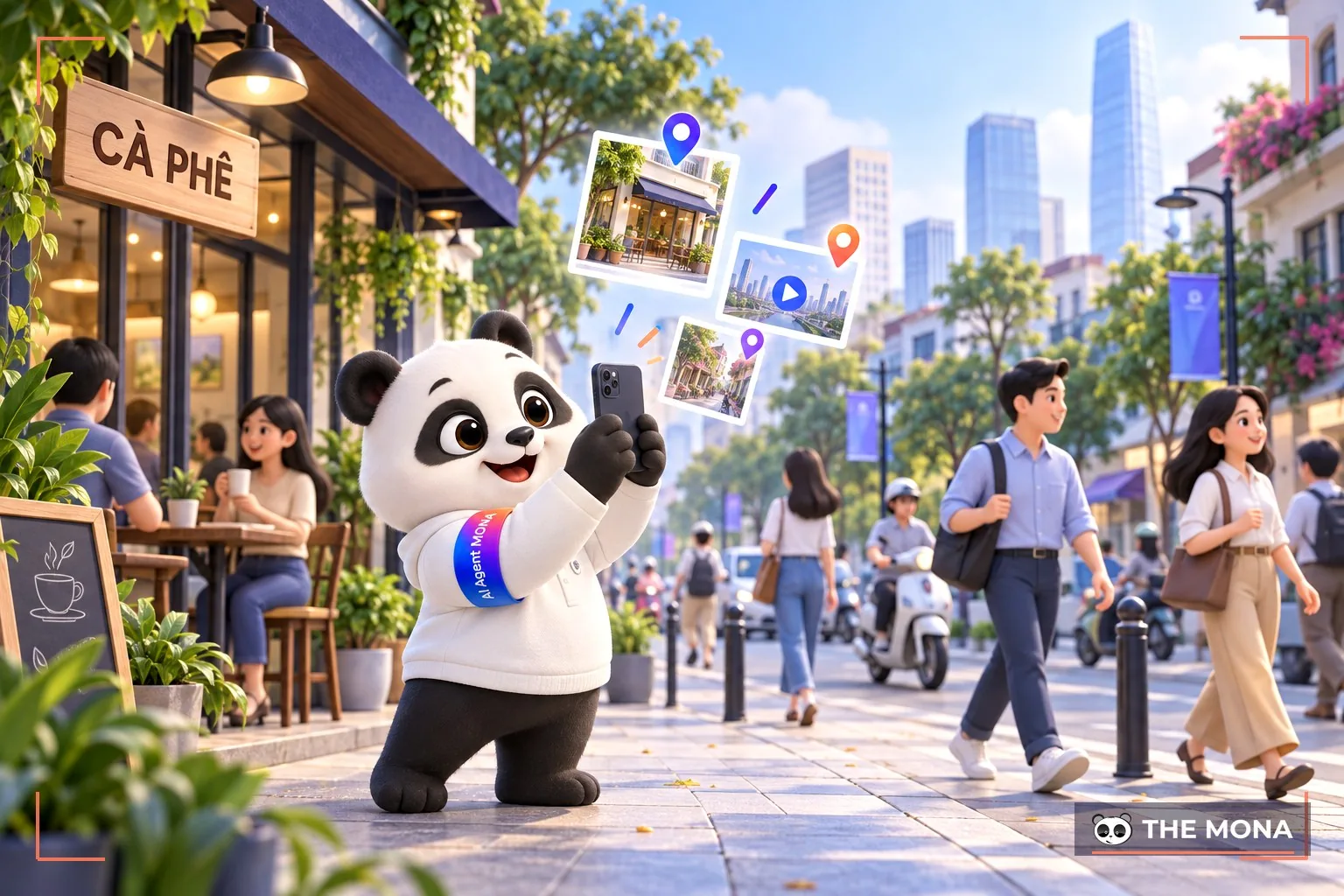
When you write a post or upload a photo, you can choose to attach a geographic location to it. Examples include Facebook, Instagram, Twitter and Foursquare.
If you have a blog or website, you can attach a geotag to articles, images or maps. This gives readers location information and improves your chances of appearing in local search results.
Location apps and services such as Google Maps, Apple Maps and Foursquare let you attach a geotag to geographic data. Need to build trust in a location fast? Take a look at our Google Maps review service that MONA runs for shops, clinics and restaurants.

Geotagging images brings many benefits to your website. The main ones are:
Geotagged images are more likely to appear in local search results. A geotag also links an image directly to a specific place, which can lead people to your website and raise traffic trang web.
Images with a specific location can also be more engaging and encourage people to share them on social media. And when someone searches for a specific place, a geotagged image gives them information about it and a better experience.
When you geotag images with places connected to your business, you tie your brand to those places. That creates a strong link between brand and location and builds recognition.
An image with location information gives viewers something distinctive to remember. If your brand is tied to a local place, people in that area feel closer to it and respond to it more positively.
When you geotag an image with geographic information, search engines can see that your content relates to a specific place. Geotagged images give local users useful location information. When people search for a place or a product by location, a geotagged image gives them helpful information and a picture of that place.
Geotagging photos can also stimulate local activity and social interaction. That increases engagement, builds a local community and makes your content more likely to spread.
Trying to get your website to the top of Google with your own SEO, but not getting results? MONA Media is here to help. We offer SEO services built for each individual website.

We are a Vietnamese agency with more than 10 years of experience in SEO and premium website design,, we having completed over 300 projects as well as and helped more than 12,000 clients in Vietnam and abroad reach the top of Google. grow revenue 300 times over.
You can get the same results with SEO. Ask CONTACT US with MONA via Hotline 1900 636 648 and our SEO specialists us to quote SEO pricing and recommend the approach that fits your website and business best.
Geotagged images encourage users to interact and share. When an image relates to a specific place, people tend to click on it, look at the location information and share it with friends and family.
Geotagging images online also lets you tell a story around a place and your experience of it. When you attach location information to an image, you can tell a story about that place and bring back particular feelings and memories. That makes a stronger, more lasting impression on users.

Geotagging images connects you with a specific target audience. When your content is tied to a place your target audience cares about, it builds a strong connection and improves your conversion rate.
In practice, online geotagging can inspire and guide users. They get curious to explore more of your content and may become customers or buyers. Finally, a geotagged image creates a strong link with a place and feels closer and more personal.
Some popular tools you can use to geotag images online are:
Step 1: Download and unzip, then install the software GeoSetter (Windows only, not supported on macOS). Or you can use Parallels to run a virtual Windows machine and install GeoSetter as usual.
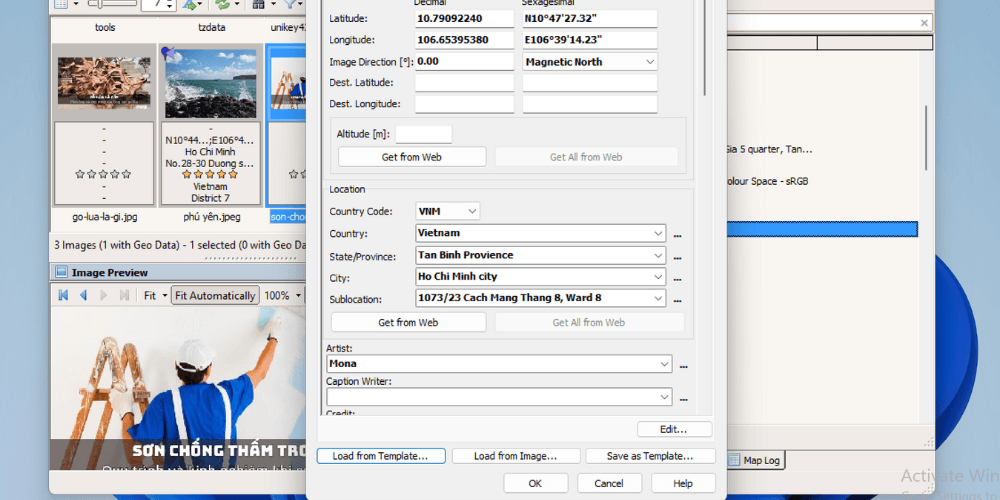
Step 2: Open GeoSetter and select the photo you want to geotag (it must be a JPEG). Then right-click the image you want to geotag and choose “Edit Data“
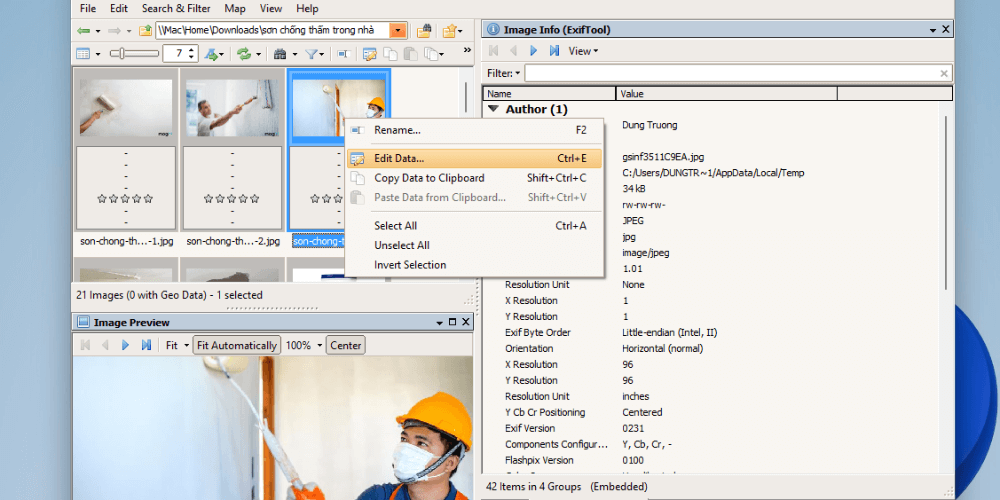
Step 3: Enter all the details of your business, or of the website you want to SEO, into the image.
Latitude and longitude come from Google Maps, using your business's exact location. You need a business location to fill in longitude and latitude. If you don't know how to get them, you can Google “how to get coordinates on Google Maps“.
For the Location field, fill it in the same way as MONA does if you are in Ho Chi Minh City), otherwise enter your company's exact address.
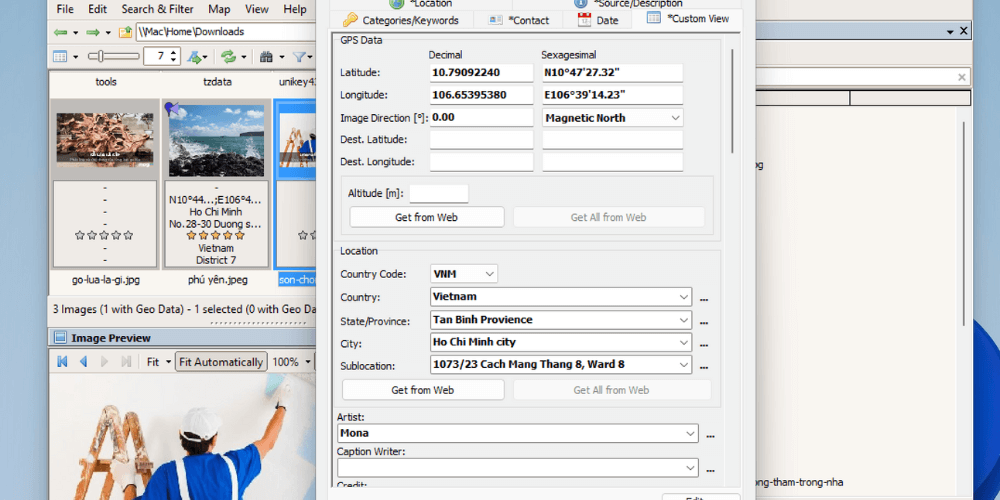
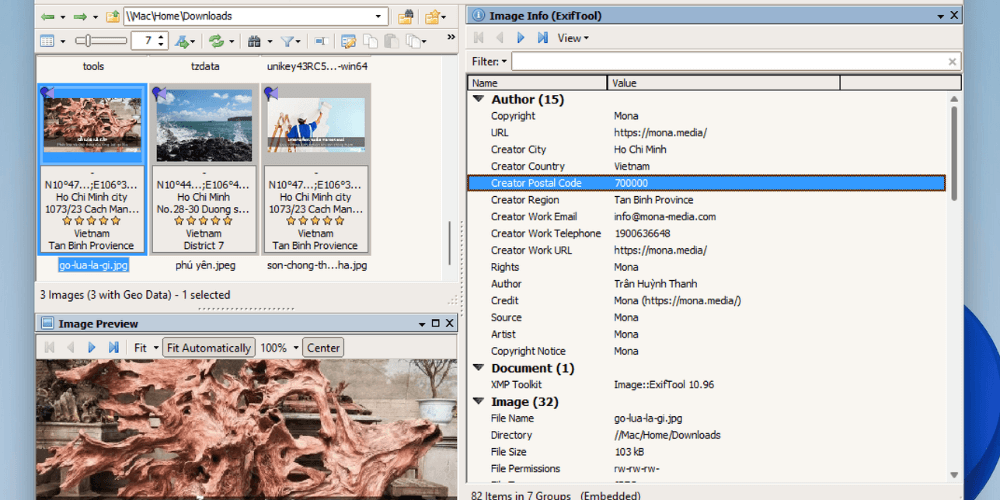
In the Artist, Credit, Source, URL, Copyright section, enter your business details following MONA's example below.
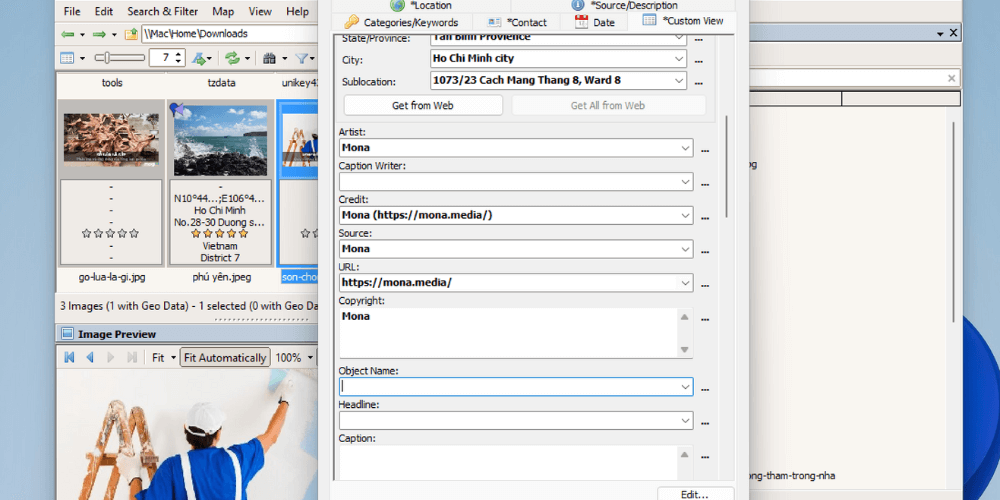
Once you have filled in everything above, scroll down. In the Contact Citysection, enter your business's location and details (use an address that matches your website and your Google Maps listing). You can copy how MONA fills it in.
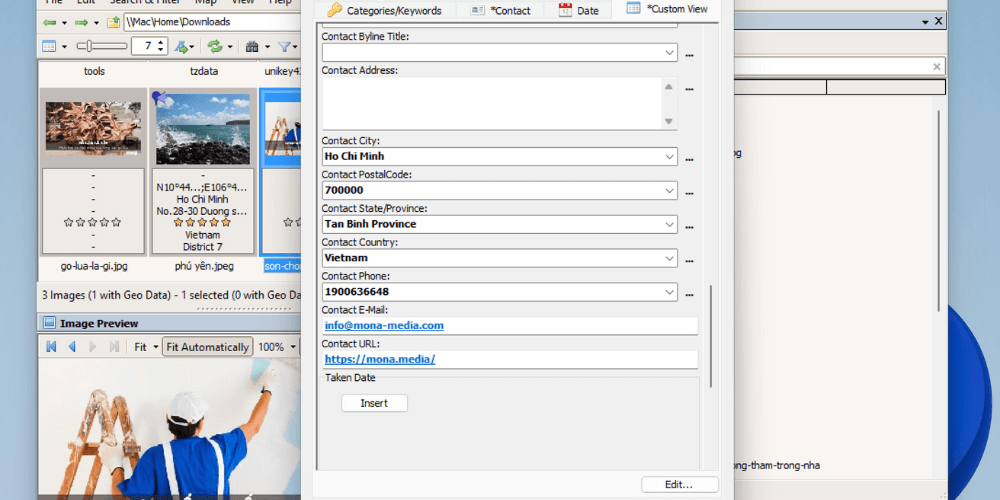
Step 4: When everything is filled in, click “Save as Template“
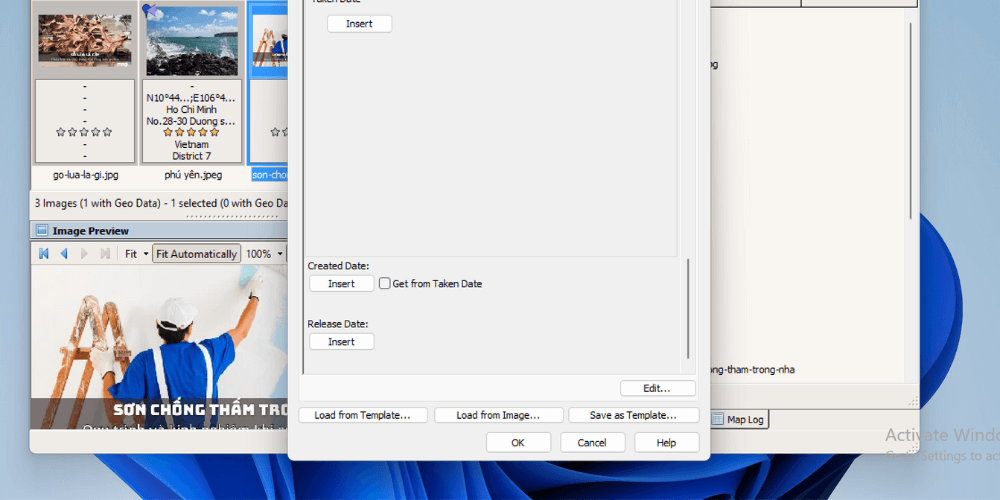
Step 5: Select all the details you entered. MONA's example below shows what this looks like.
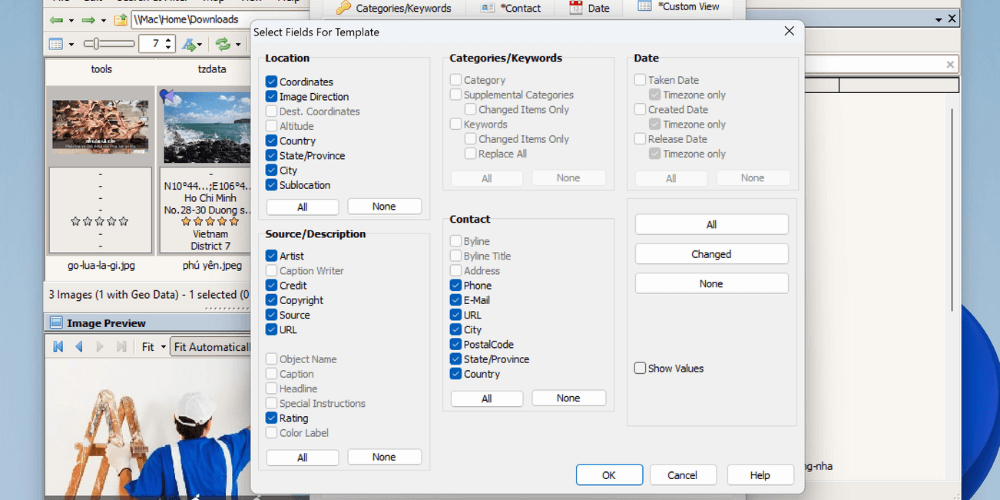
Step 6: After selecting the checked boxes and the details above, click “OK”. Then just name the template you created in the “Name” field. It is best to use your business name so it is easy to manage and reuse later.
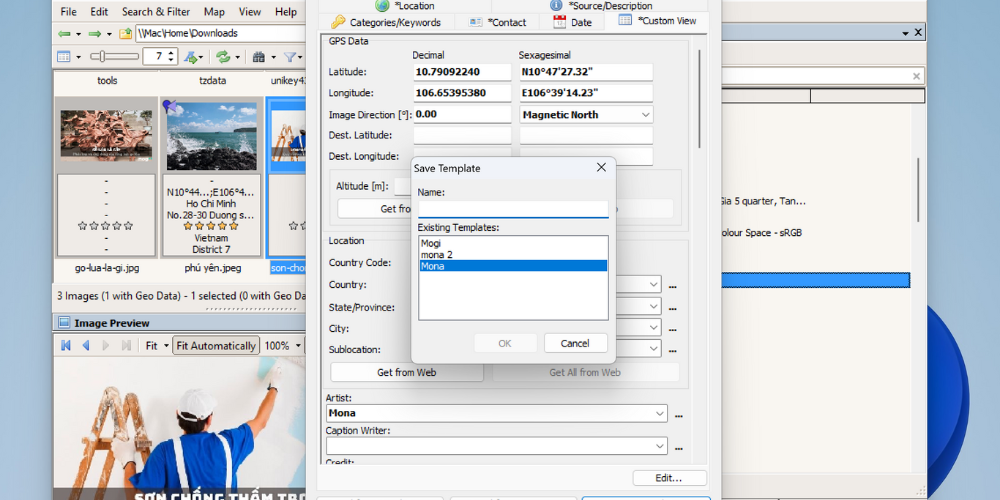
Step 7: Your image now carries all your business details and location. Click “OK“.
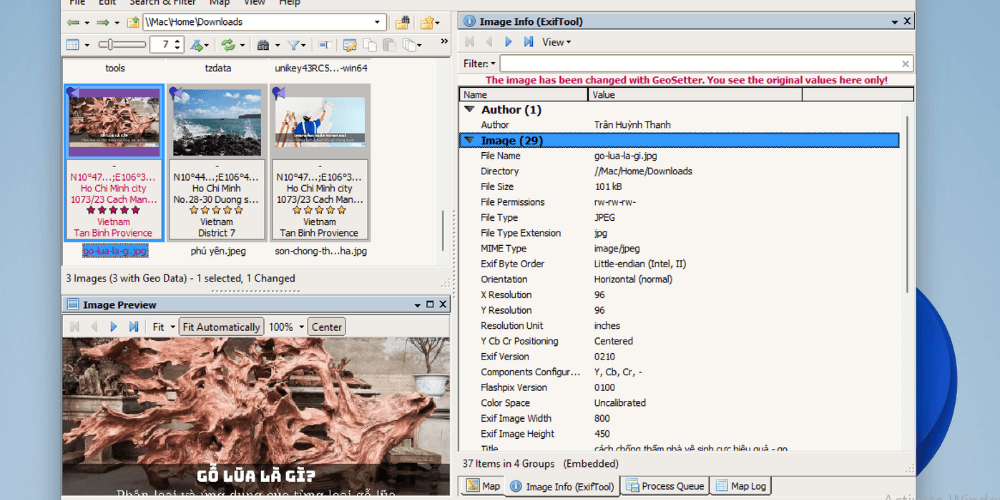
Step 8: After you click “OK”, the photo you want to geotag turns red and shows 5 red stars icon as shown below.
Step 9: Once the image turns red, press the key combination “Ctrl+S” to save the changes. After you press it, the image turns yellow. At this point you have geotagged the image successfully.
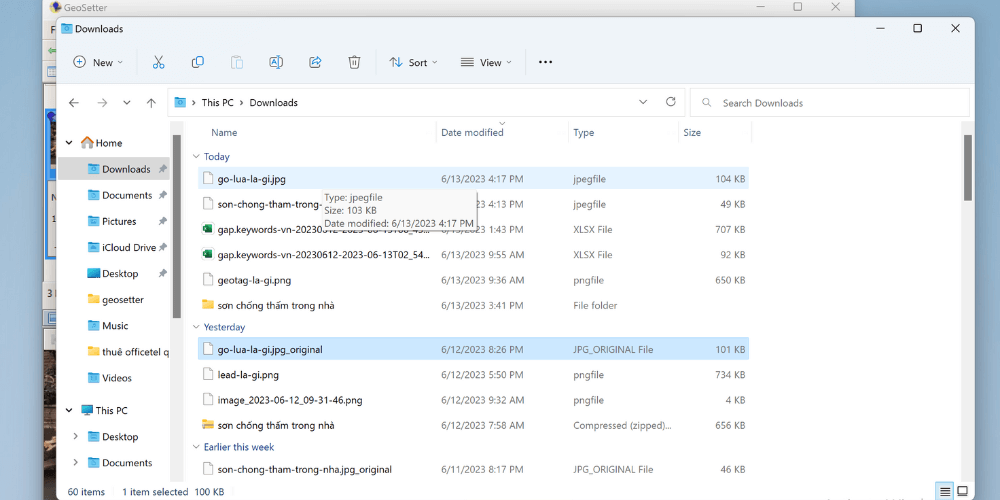
Step 10: Go back to the original folder and you will see 2 identical image files. One has the suffix “original”, the other does not. The file ending in original is the original file, without a geotag. When you upload images to your website, remember to choose the file without the “original” suffix , the new geotagged one, which is better for your website's SEO.
With GeoSetter, you only need to create a template once for your business, then reuse it for every image afterwards, which is fast and convenient. Geotagging an image is as simple as steps 1 and 2 above.
There are 2 basic ways to add a geotag Image SEO effectively that you can use:

To geotag an image on a mobile phone, you can use the apps and features already on your phone, such as:
To geotag images for SEO, there are many easy-to-use online geotagging tools you can choose from, such as:
To get the most from website geotagging, here are some important tips:
Make sure your images are high resolution and good quality for a better user experience. Sharp, appealing images catch attention and improve conversion.
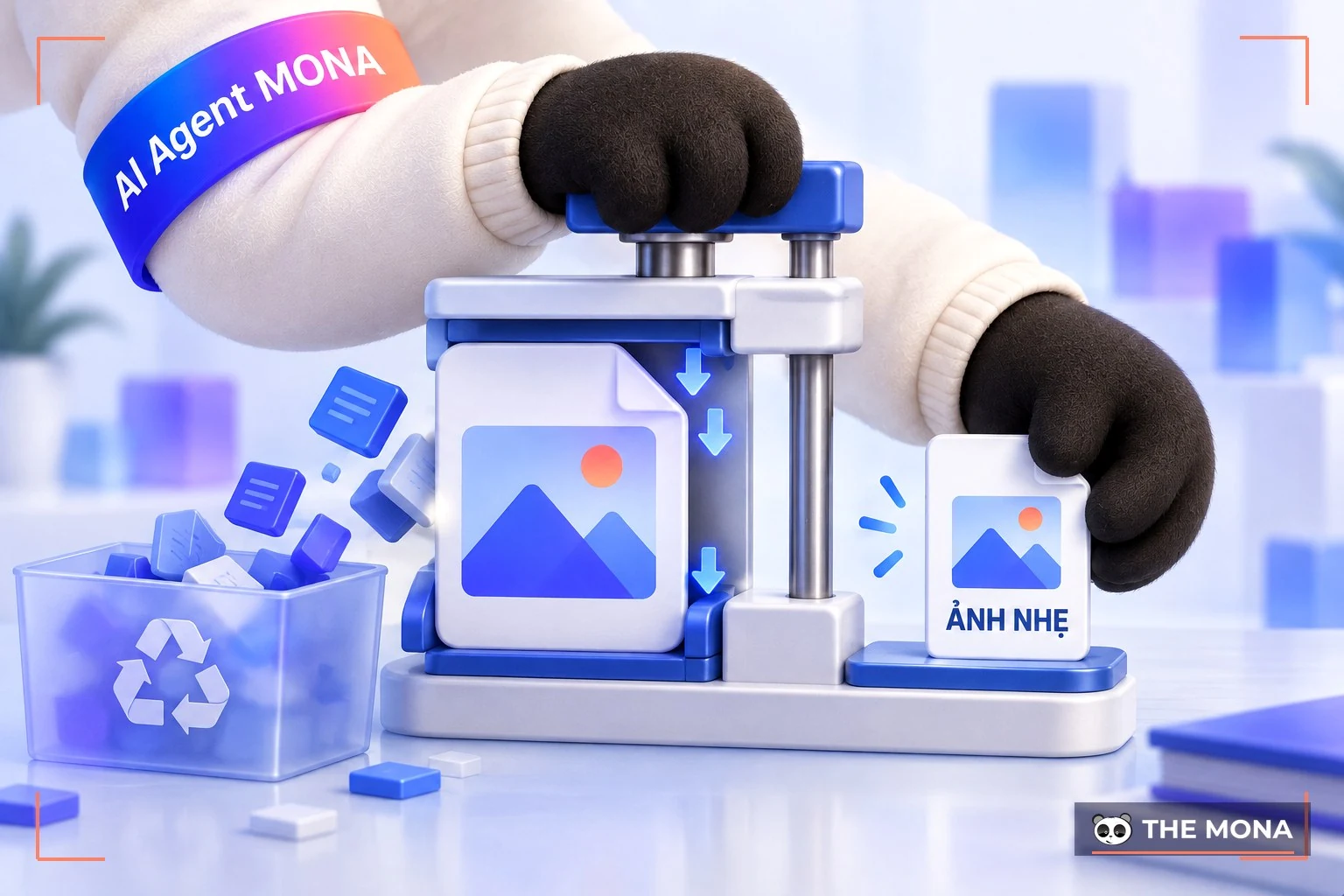
Large files make images sharper and more professional, but they also make your page heavy and slow to load. Even a correct Google geotag can't rescue a slow page.
So check the file size before you upload an image. If it is too large, compress it first with online tools such as: imagecompressor, compressjpeg.com, iloveimg,… and then continue with the geotag.
Using related keywords Use keywords related to the image content, and make sure the file name reflects what the image is and what it is for.
Pick the image format that fits the content and type of image. For example, use JPEG for images with rich colors and PNG for images that need transparency or precise color accuracy.
Add alternative text to images with the alt tag's alt attribute. Describe the image in detail and include relevant keywords for SEO.
A caption should describe the content of the image accurately when you geotag maps. Use clear wording, describe the image and its key elements in detail, and don't make the caption too long.
In this article, MONA MONA has shared the basics, from A to Z, of Geotag that businesses need to know and use when building their websites. Use image geotags to bring your content closer to your customers.
-> Related topics to explore:

CEO & Founder · The MONA
Founder of The MONA, who built a services company of 200+ staff with 14,000+ projects delivered. Khánh Hùng shares how he thinks about building systems that run themselves, automating a business, and the real lessons from delivering projects at MONA.
 1,6K
1,6K




Professional website
design services
Own a website with a beautiful, 100% exclusive design and a lifetime warranty, with the ability
to expand features flexibly as your business grows, starting today!



NHẬN TƯ VẤN SEO MIỄN PHÍ !







 MONA will never sell your information or send you spam
MONA will never sell your information or send you spam
MONA will never sell your information or send you spam


 MONA will never sell your information or send you spam