
 MONA OS 2.0
 Hợp tác với MONA


 Tự động hoá doanh nghiệp
 Cẩm nang SEO
 Digital Marketing
 Kinh nghiệm thiết kế website
 Hạ Tầng Server
 Giáo dục


 VI
 EN





Message us on
Zalo Official


 ProductsNew

 ProductsProducts
 Mới ra mắtKHA AI 2027App tự edit video, tự đăng mọi mạng xã hội, 2 phút mỗi ngày








 Thiết kế websiteVừa đẹp vừa thuyết phục được khách.
Dịch vụ SEOKéo về khách đang tìm đúng thứ anh chị bán.
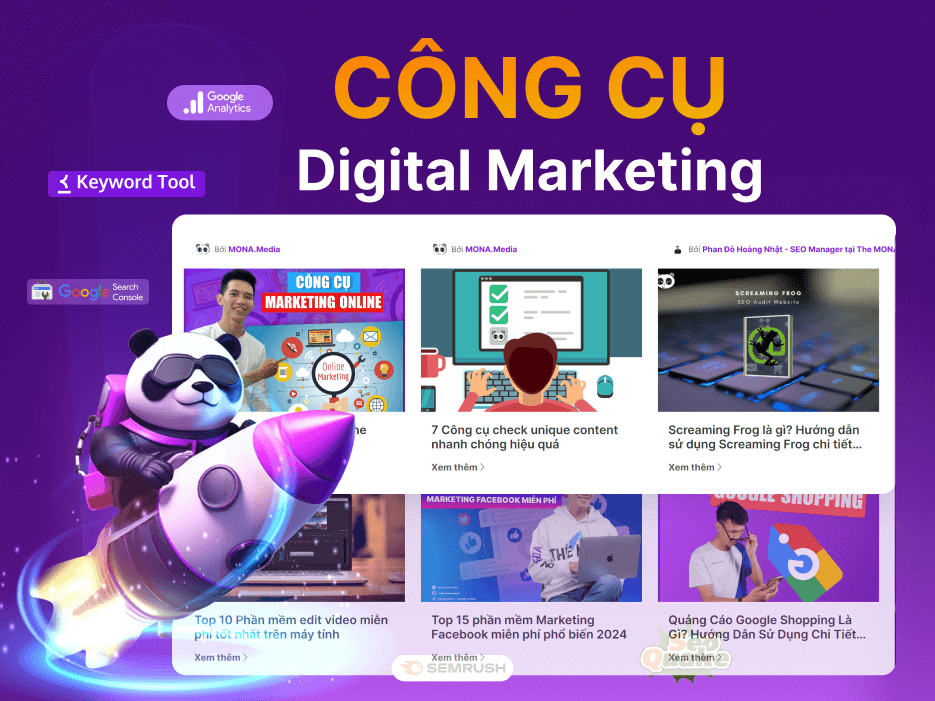 Tư vấn digital marketingKéo khách từ nhiều kênh, đo bằng số thật.
Quay video doanh nghiệpVideo giới thiệu công ty, nhà xưởng, đội ngũ.
 MớiDựng video AIDựng phim câu chuyện công ty bằng AI.
 Custom software developmentCRM, ERP and HRM built for your business.
 Viết AI Agent theo yêu cầuĐặt riêng một trợ lý AI cho đúng việc của mình.
 Tư vấn chuyển đổi AIĐưa AI vào vận hành của cả công ty.
NewMONA LMSManagement for centers and schools.
MONA SkillHubInternal training for company staff.
 NHTQ systemEnd-to-end China–Vietnam shipping operations.
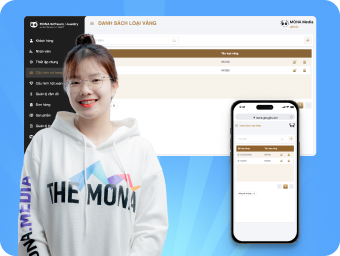
MONA JMSManagement for gold, diamond and pawn shops.
 MONA E-LearningA website with every feature you need to sell courses.
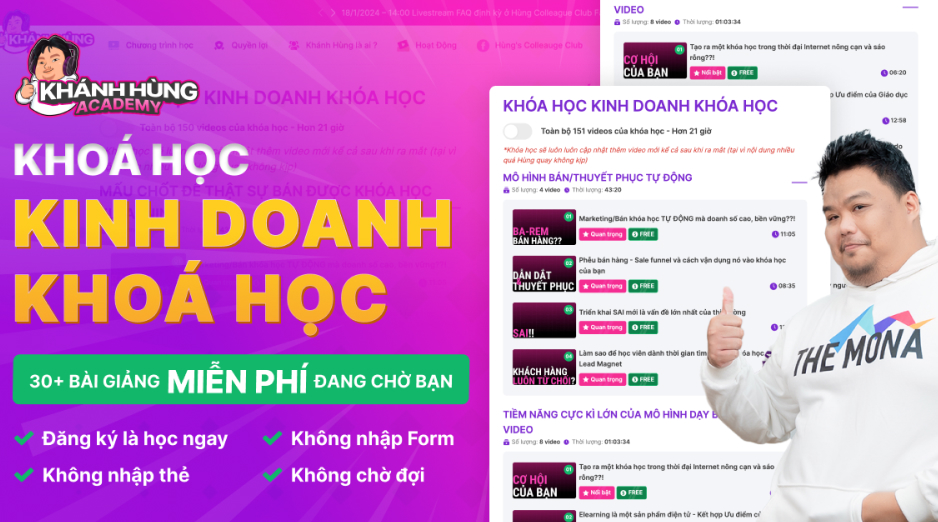 How to sell online courses (course)More than 30 free lessons on selling courses on autopilot.
 MONA Cloudmonacloud.vnServers to get your apps and websites running.
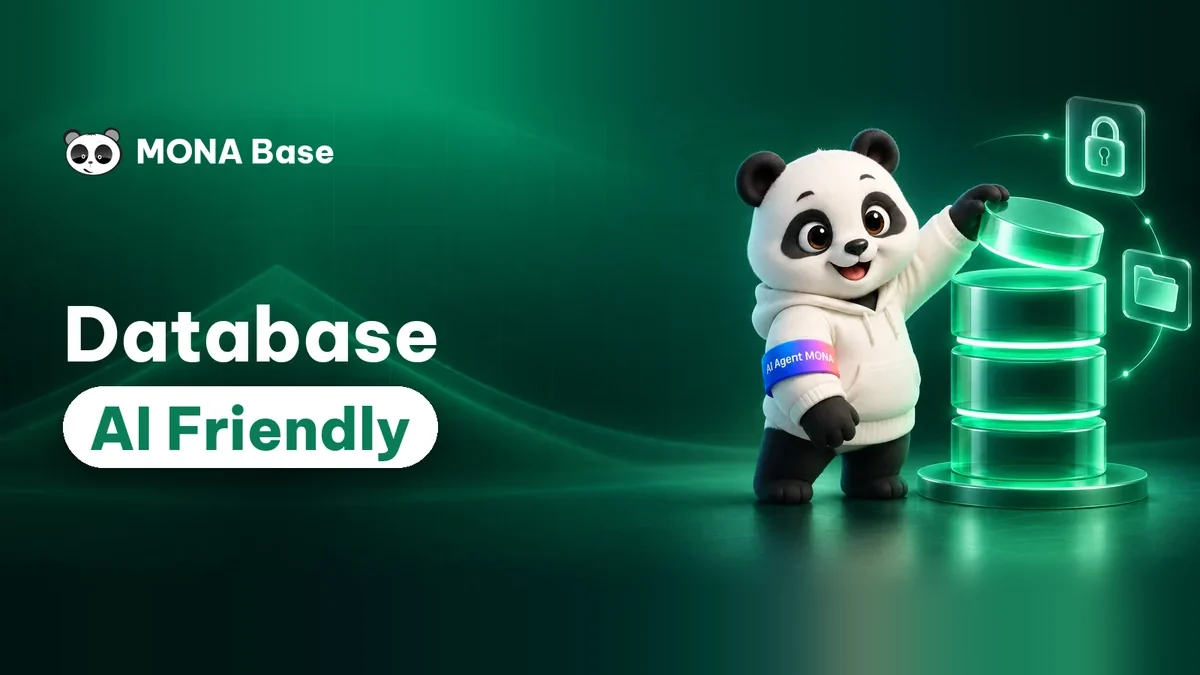 MONA Basemonabase.vnPostgres database, sign-in and file storage.
 MONA Mailmonamail.vnSend OTP, order and invoice emails from your software.
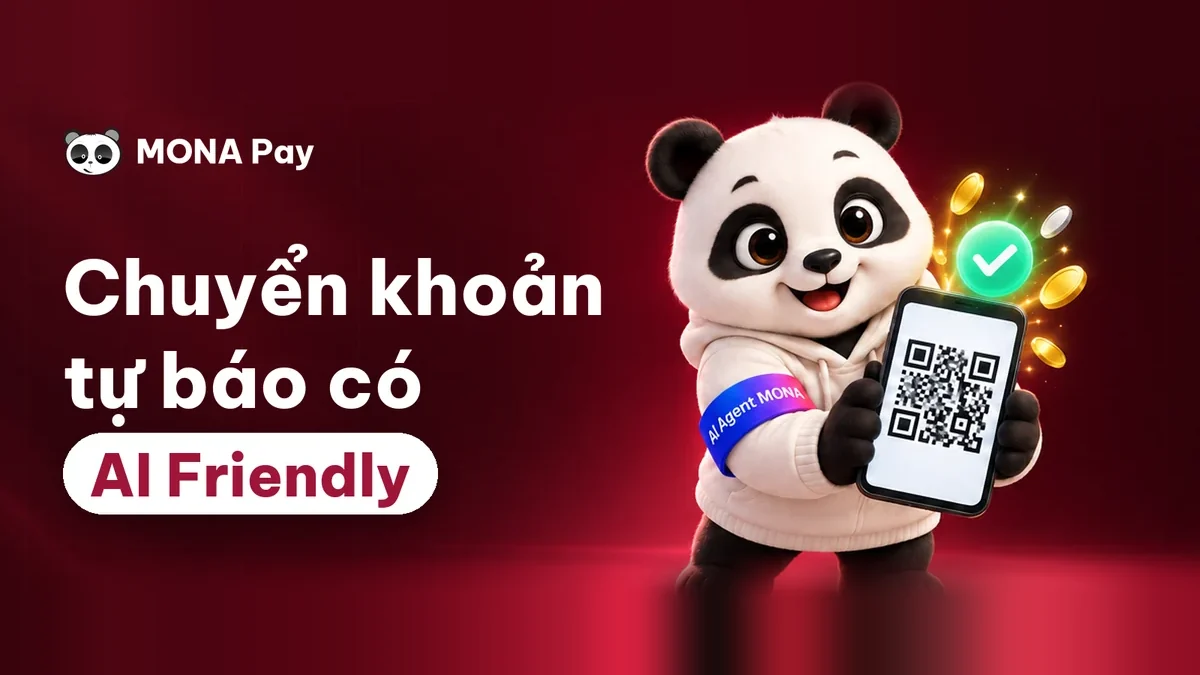 MONA Paymonapay.vnAccept bank transfers via VietQR and notify your software when the money arrives.
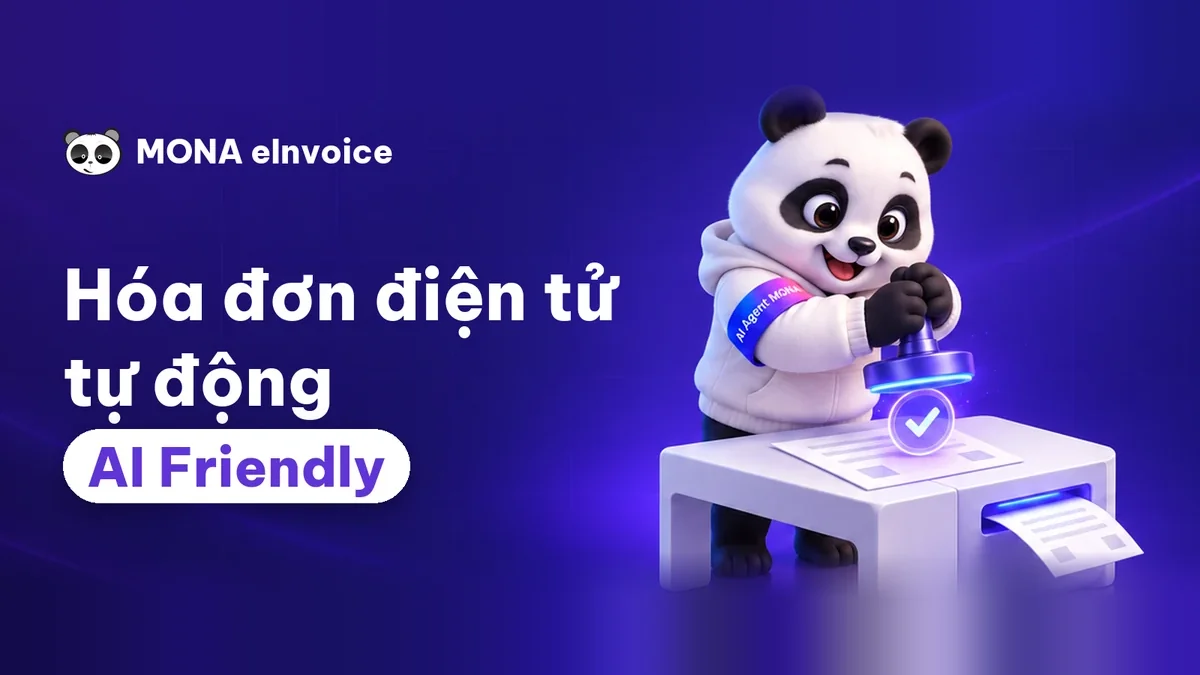 MONA eInvoiceComing soonIssue e-invoices that meet tax standards.
Gấu CườiTrả lời khách 24/7 trên web, Fanpage, Zalo và thu lead cho sale.
 Gấu TeleSalesGọi điện tư vấn, chăm khách như tổng đài viên thật.
Dê CườiTư vấn và chốt đơn cho shop ngay trong khung chat.
Gấu WebmasterNhắn nhóm Zalo là website được sửa xong.
 Gấu Pháp ChếSoạn hợp đồng, rà điều khoản trong vài phút.
 Gấu Báo GiáLên báo giá đúng mẫu và gửi khách ngay.
 AI chăm sóc khách hàngTheo dõi và giữ chân khách hàng cũ.
 Gấu Tuyển DụngLọc hồ sơ, hẹn lịch, phỏng vấn ứng viên.
 Mới ra mắt
KHA AI 2027
Xây kênh chuyên gia 2 phút mỗi ngày
Quay bằng điện thoại, AI tự edit video, tự đăng lên 16 nền tảng và tự trả lời bình luận, tin nhắn.
865.811lượt xem trên kênh CEO MONA sau 33 ngày
 Anh Khánh HùngCEO MONA đang dùng mỗi ngày
Xem app làm được gì
 AI
Gấu Cười MONA ĐANG TỰ XÀITrả lời khách 24/7 trên website, Zalo OA, Messenger và thu lead về cho sale.
Dê CườiChốt đơn bán lẻ và sàn: Shopee, TikTok Shop, web. Chăm cả khách sỉ, đại lý.
Gấu WebmasterCập nhật nội dung, tối ưu SEO website mỗi ngày.
Gấu TeleSalesGọi điện tư vấn, chăm khách như tổng đài viên thật.
Gấu Tuyển DụngLọc hồ sơ, hẹn lịch, phỏng vấn ứng viên tự động.
AI chăm sóc khách hàngGiữ khách cũ, cứu lead đã rớt cho phòng kinh doanh.
Gấu Pháp ChếSoạn hợp đồng, rà điều khoản trong vài phút.
Gấu Báo GiáLên báo giá đúng mẫu, gửi khách ngay khi có yêu cầu.
 Chuyển đổi AI toàn phầnGiải pháp tổng cho doanh nghiệp, 3 lớp triển khai.
 Viết AI Agent theo yêu cầuĐặt riêng một con AI gánh đúng nghiệp vụ của bạn.
 Custom softwareCRM, ERP and HRM with built-in AI automation.
 SEO & AEO thời đại AIĐược Google lẫn AI trích dẫn, không chỉ xếp hạng.
 Kiến thức AI cho doanh nghiệpBài phân tích, hướng dẫn ứng dụng AI vào vận hành.
 Free AI courses
 AI tools at work
App mới · KHA AI 2027
Xây kênh 2 phút mỗi ngày
AI tự edit video, tự đăng mọi mạng xã hội
Free consultation, 8am–10pm every day

18 March, 2023

Security certificates are currently offered in paid and free versions. Let’s Encrypt SSL is one of the free security certificates created for the public benefit by the nonprofit Internet Security Research Group, abbreviated ISRG. Let’s find out Mona Media explains what Let’s Encrypt SSL is, how it works and the benefits of using these Let’s Encrypt SSL certificates.
A Let’s Encrypt SSL digital certificate is a SSL security certificates for websites worldwide. The project was launched on a nonprofit basis to provide free certificates for the “poor web”. About 260 million websites around the world currently use Let’s Encrypt SSL certificates. The nonprofit Internet Security Research Group (ISRG) has been backed by many large organizations such as Google, Facebook, Sucuri, Moz and Cisco for its Let’s Encrypt project.
Let’s Encrypt works for the public benefit, helping create an internet that is safer and more respectful of users’ personal privacy. Let’s Encrypt is different from other premium SSL certificates. A Let’s Encrypt SSL certificate is valid for only 90 days. After that, your website needs another free SSL certificate installed.

Let’s Encrypt works through the “ACME protocol”. The server issues a Let’s Encrypt SSL certificate after verifying the domain. The next steps are issuing and revoking the certificate. Once you have a Let’s Encrypt certificate, your domain switches from HTTP to HTTPS. The process works as follows:
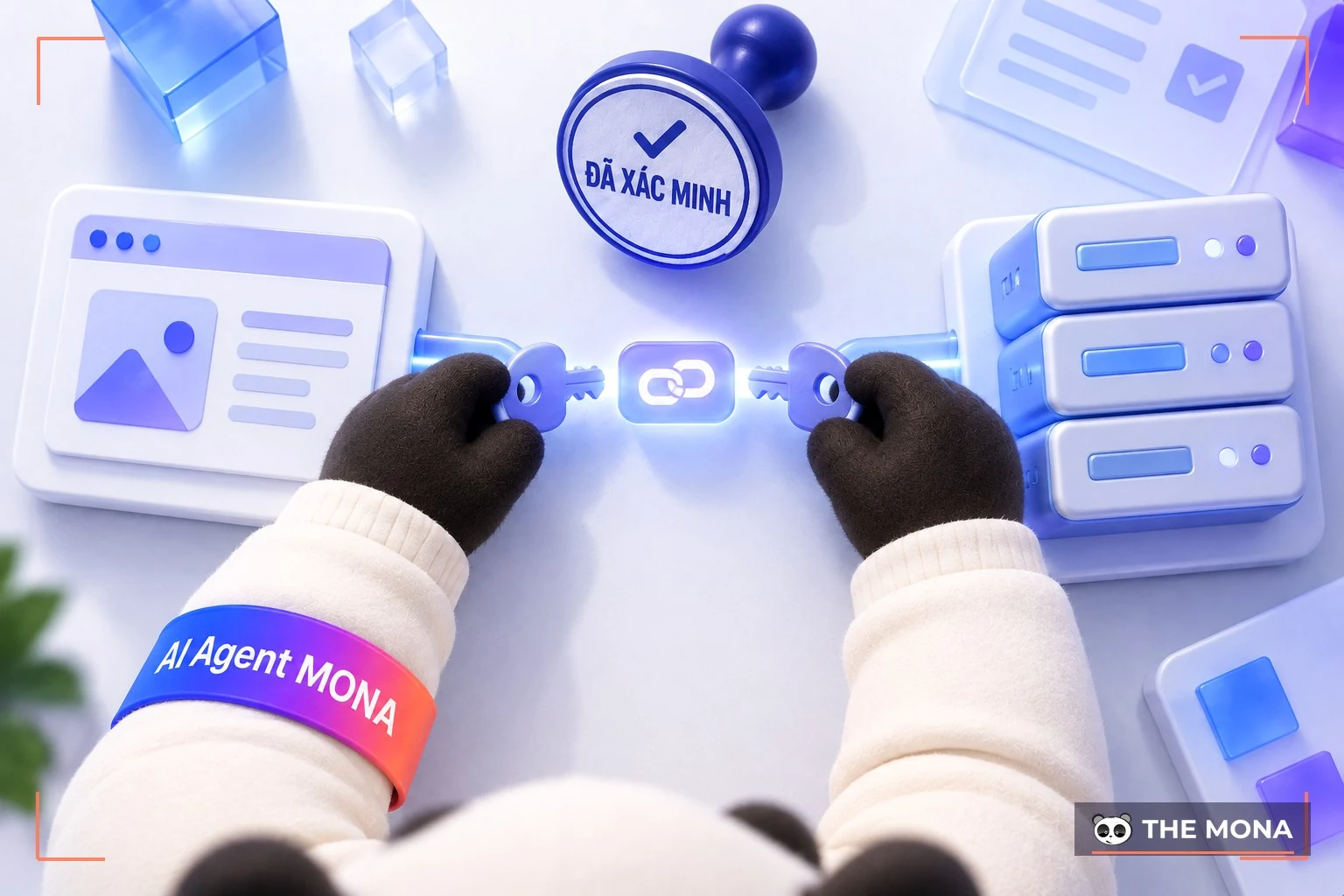
Let’s Encrypt is fairly easy to install on your website. You can register an SSL certificate for free through the steps below:
Once you have the Let’s Encrypt SSL key pair, go to the Control Panel, choose the domain to install on and follow these steps:
Then click “Install”. Wait a moment for the process to finish. Press F5 to reload the browser and check whether your site now loads over HTTPS. If your domain shows HTTPS, you have succeeded.
To use a Let’s Encrypt certificate safely, avoid risk and not worry about key pairs being stolen, users usually set up a cron job to renew the certificate.
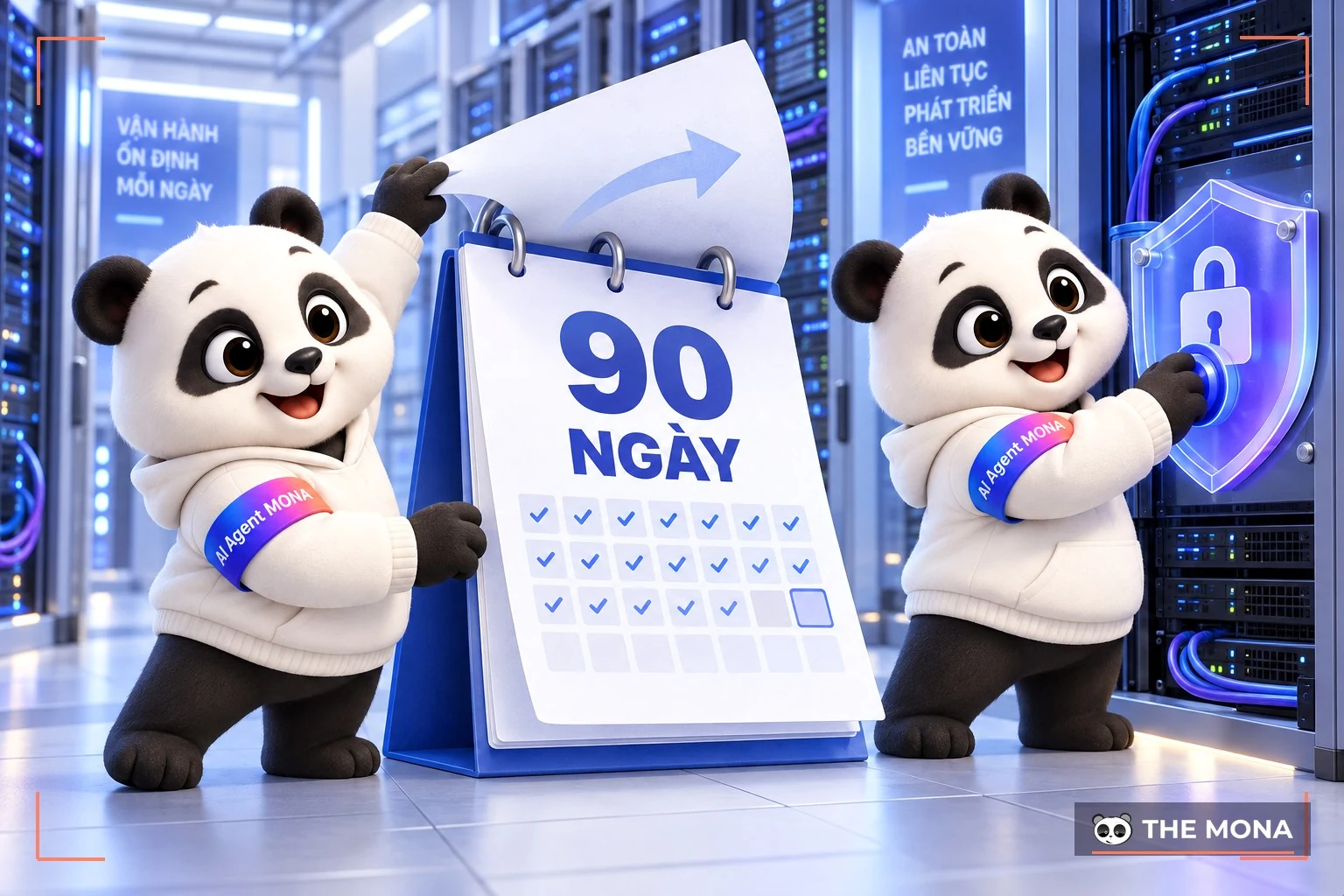
To renew a Let’s Encrypt security certificate, set up a cron job to renew it automatically.
Log in to your website with an administrator account. Then go to the Control Panel. Choose the feature “Advanced Cron Job”. In Command, enter the following code to run: php acme-client/bin/acme issue –domains.m
260 million websites worldwide use an SSL certificate from Let’s Encrypt. Before paying for an SSL certificate, you can use this one for 60 to 90 days first.
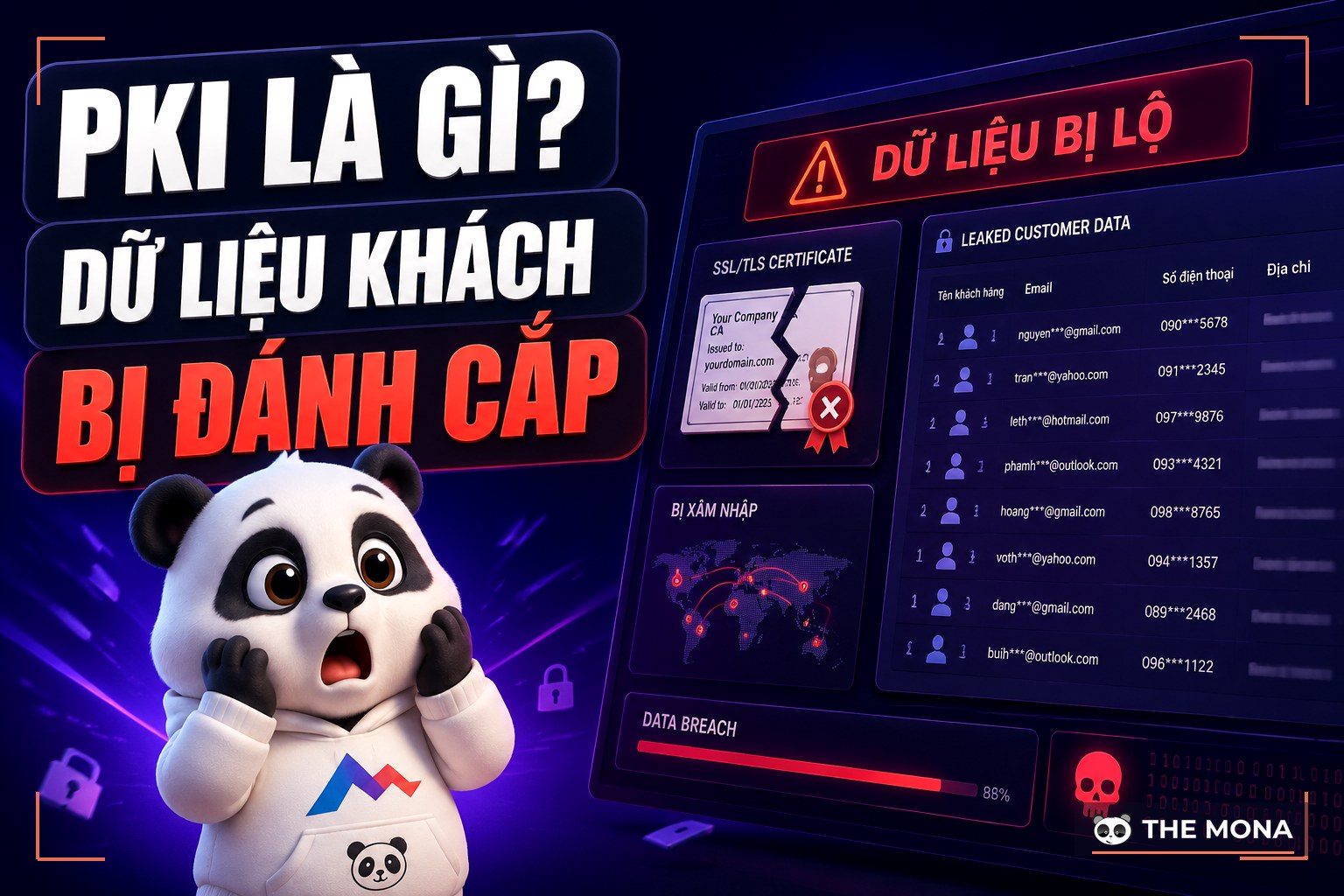
If you want to understand the groundwork behind this in more depth, the article What is PKI and how to protect customer data explains it in detail and describes how we do it for our clients.

CEO & Founder · The MONA
Founder of The MONA, who built a services company of 200+ staff with 14,000+ projects delivered. Khánh Hùng shares how he thinks about building systems that run themselves, automating a business, and the real lessons from delivering projects at MONA.
 1,5K




Professional website
design services
Own a website with a beautiful, 100% exclusive design and a lifetime warranty, with the ability
to expand features flexibly as your business grows, starting today!






 MONA will never sell your information or send you spam


 MONA will never sell your information or send you spam
