
 MONA OS 2.0
 Partner with MONA


 Tự động hoá doanh nghiệp
 Cẩm nang SEO
 Digital Marketing
 Kinh nghiệm thiết kế website
 Hạ Tầng Server
 Giáo dục


 VI
 EN
















Message us on
Zalo Official


 ProductsNew

 ProductsProducts
 Mới ra mắtKHA AI 2027App tự edit video, tự đăng mọi mạng xã hội, 2 phút mỗi ngày










 Website designLooks good and wins customers over.
SEO servicesBrings in customers searching for exactly what you sell.
 Tư vấn digital marketingKéo khách từ nhiều kênh, đo bằng số thật.
Corporate video productionVideos introducing your company, factory and team.
 NewAI video productionCompany story films made with AI.
 Custom software developmentCRM, ERP and HRM built for your business.
 Viết AI Agent theo yêu cầuĐặt riêng một trợ lý AI cho đúng việc của mình.
 Tư vấn chuyển đổi AIĐưa AI vào vận hành của cả công ty.
NewMONA LMSManagement for centers and schools.
MONA SkillHubInternal training for company staff.
 NHTQ systemEnd-to-end China–Vietnam shipping operations.
MONA JMSManagement for gold, diamond and pawn shops.
 MONA E-LearningA website with every feature you need to sell courses.
 How to sell online courses (course)More than 30 free lessons on selling courses on autopilot.
 MONA Cloudmonacloud.vnServers to get your apps and websites running.
 MONA Basemonabase.vnPostgres database, sign-in and file storage.
 MONA Mailmonamail.vnSend OTP, order and invoice emails from your software.
 MONA Paymonapay.vnAccept bank transfers via VietQR and notify your software when the money arrives.
 MONA eInvoiceComing soonIssue e-invoices that meet tax standards.
Gấu CườiTrả lời khách 24/7 trên web, Fanpage, Zalo và thu lead cho sale.
 Gấu TeleSalesGọi điện tư vấn, chăm khách như tổng đài viên thật.
Dê CườiTư vấn và chốt đơn cho shop ngay trong khung chat.
Gấu WebmasterNhắn nhóm Zalo là website được sửa xong.
 Gấu Pháp ChếSoạn hợp đồng, rà điều khoản trong vài phút.
 Gấu Báo GiáLên báo giá đúng mẫu và gửi khách ngay.
 AI chăm sóc khách hàngTheo dõi và giữ chân khách hàng cũ.
 Gấu Tuyển DụngLọc hồ sơ, hẹn lịch, phỏng vấn ứng viên.
 Mới ra mắt
KHA AI 2027
Xây kênh chuyên gia 2 phút mỗi ngày
Quay bằng điện thoại, AI tự edit video, tự đăng lên 16 nền tảng và tự trả lời bình luận, tin nhắn.
932.833lượt xem trên kênh CEO MONA sau 42 ngày
 Anh Khánh HùngCEO MONA đang dùng mỗi ngày
Xem app làm được gì
 AI
Gấu Cười MONA ĐANG TỰ XÀITrả lời khách 24/7 trên website, Zalo OA, Messenger và thu lead về cho sale.
Dê CườiChốt đơn bán lẻ và sàn: Shopee, TikTok Shop, web. Chăm cả khách sỉ, đại lý.
Gấu WebmasterCập nhật nội dung, tối ưu SEO website mỗi ngày.
Gấu TeleSalesGọi điện tư vấn, chăm khách như tổng đài viên thật.
Gấu Tuyển DụngLọc hồ sơ, hẹn lịch, phỏng vấn ứng viên tự động.
AI chăm sóc khách hàngGiữ khách cũ, cứu lead đã rớt cho phòng kinh doanh.
Gấu Pháp ChếSoạn hợp đồng, rà điều khoản trong vài phút.
Gấu Báo GiáLên báo giá đúng mẫu, gửi khách ngay khi có yêu cầu.
 Chuyển đổi AI toàn phầnGiải pháp tổng cho doanh nghiệp, 3 lớp triển khai.
 Viết AI Agent theo yêu cầuĐặt riêng một con AI gánh đúng nghiệp vụ của bạn.
 Custom softwareCRM, ERP and HRM with built-in AI automation.
 SEO & AEO thời đại AIĐược Google lẫn AI trích dẫn, không chỉ xếp hạng.
 Kiến thức AI cho doanh nghiệpBài phân tích, hướng dẫn ứng dụng AI vào vận hành.
 Free AI courses
 AI tools at work
App mới · KHA AI 2027
Xây kênh 2 phút mỗi ngày
AI tự edit video, tự đăng mọi mạng xã hội
Free consultation, 8am–10pm every day

10 June, 2026

Signing up for Claude is more than creating an account and logging in. Many people get stuck choosing a region, verifying, picking a plan and setting things up so Claude answers properly for business, marketing, content or operations. In this guide, MONA goes straight to the practical steps, from preparing your account, installing in the browser, logging in and changing settings, to starting your first conversation. We also spell out which tasks suit Claude as a personal tool and which need custom software for connected, more secure data.
Once you've signed up for Claude, you can start using it right away for text-based work. The first thing to do is hand Claude a real document.
Very quick to get started. But using it well takes discipline.
In the first 15 minutes, check 3 things: how Claude reads a document, how it rewrites content, and whether its summary keeps the main points. We usually start MONA's internal team with this set of tasks before using Claude for bigger plans.
Claude suits tasks that need careful reading, clear writing and organized ideas. You can use it right away for sales documents, emails, website content, plans SEO and marketing ideas.
One point MONA always reminds our web, SEO and marketing teams of: never give Claude a vague task. The clearer the role, data and the desired result, the more usable the output.
For example, instead of writing "summarize this document," write: "Read this document and summarize it in 5 points for the CEO, each under 25 words, keeping the important figures." A short instruction, but with a frame.
This is what decides quality. Not the sign-up.
Before signing up for Claude, have the basics ready to avoid interruptions halfway through. This step is simple, but it keeps setup running smoothly.
We recommend preparing a real document, such as a quote, a website article or a content plan. Claude is only valuable when tested on your business's real work.
Once installed, it works. Getting real results takes the right way of giving instructions.
For businesses that already have a website, SEO and customer data, Claude should be treated as a personal support tool first. When you need connected data, permissions and automation that follow your process, MONA usually turns this part into custom software to your business.
For this section, the illustrations should be real screenshots. Don't use mocked-up or generic images, because you need to see the exact interface to follow along quickly.
Each image should have a short caption below it. The caption only needs to say which step you're on and what to click next.
MONA uses this approach when training customers to use AI tools at work. Newcomers who follow real screenshots make fewer mistakes, especially at the login, verification and account selection steps.
Signing up for Claude usually gets stuck on supported regions, the verification email and the phone number. Doing things in the right order helps you avoid creating a faulty account from the start.
We usually guide MONA's customers through 7 fixed steps. Each step has one thing to check before you click continue.
Go a little slower. Save yourself from redoing it.
Open your browser and go to claude.ai. This is the official Claude login and sign-up page.
If the system says your region isn't supported, don't try to enter false information. Region errors often lead to verification errors later.
Screenshots needed: the claude.ai home page, the login or sign-up button, and the address bar showing the correct domain.
Enter the email you actually use at work. A company email is easier to manage than scattered personal ones.
One wrong character costs time. It's a very common mistake when staff sign up in a rush.
MONA usually advises marketing, SEO and content teams to use department-based emails. This makes accounts easier to manage when rolling out internally.
Screenshots needed: the email field, the continue button, and the notice that the system sent a verification code.
After submitting your email, open your inbox to get the verification code. The code usually expires, so do it right away.
Don't rush to click resend. Sending several times can make you enter an old code by mistake.
If you can't find the email, go back and check the address you entered. A wrong email is why many people think Claude is broken.
Screenshots needed: the email containing the verification code, the code field in Claude, and the successful verification notice.
Claude may ask for your name and a few basic details. Fill them in to match your work profile.
Clear information makes it easier to control how Claude is used across the team. Especially when a business has many people using AI tools.
At MONA, we separate accounts by job role when training customers on AI. This avoids mixing data between marketing, customer support and operations.
Screenshots needed: the name entry screen, the basic information screen, and the state after saving.
Some accounts are asked to verify a phone number. Use a number you own that can still receive messages.
This step is easy to get stuck on. A wrong country code or a number that can't receive messages will stall the sign-up.
If the code doesn't arrive, wait a bit longer before asking for it again. Repeated attempts often get flagged as unusual activity by the system.
Screenshots needed: the country code selection screen, the phone number field, and the verification code field.
Before you enter Claude, the system shows the terms of use or a safety notice. Skim the main parts.
Don't click through this part just to be quick. For a business, a personal AI account still carries risk if staff enter data the wrong way.
MONA uses Claude and other AI tools internally under clear rules. When training customers, we always separate tool usage from data governance.
Screenshots needed: the terms screen, the agree button, and the safe-use guidance notice.
Once you've finished, you'll land in Claude's chat interface. Don't start by entering real data right away.
A quick test example: "Summarize this SEO service description into 5 easy-to-understand bullet points." The test message should be short and contain no sensitive data.
If it all works, carry on. Don't rush to load data.
For marketing teams, Claude helps draft content, summarize documents, analyze ideas and prepare outlines. But a standalone tool still has a ceiling.
When a business needs connected data, clear permissions and automation that follows real processes, MONA usually advises building custom software. That path suits CRM, ERP and internal automation chains better.
If you're running a website or SEO as your main revenue stream, you may also want to look at the website design service at MONA and SEO servicesservice. AI tools help you work faster, while the right system helps your business run more durably.
Screenshots needed: the first chat interface, the first test message, the first response, and the account settings area.
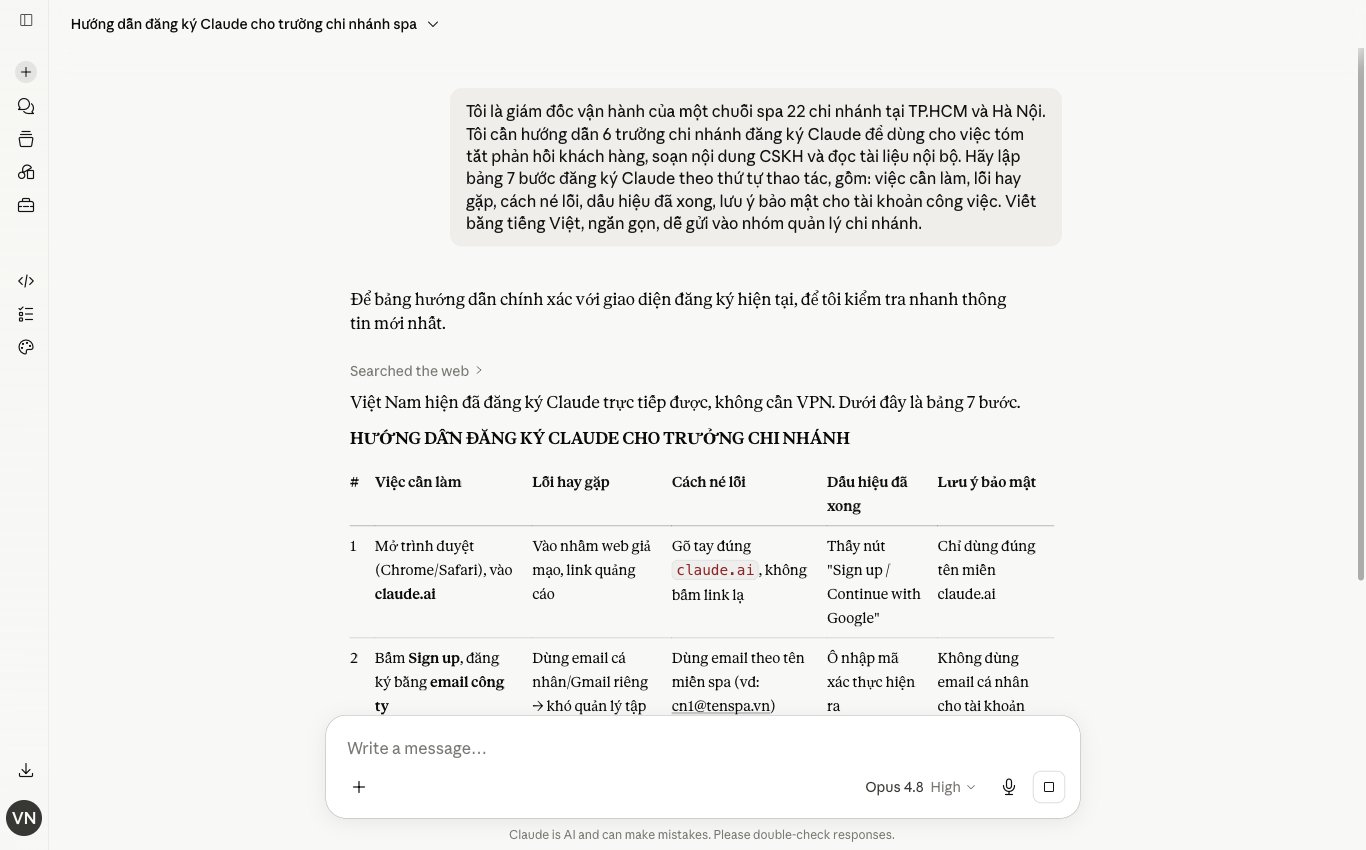
Claude is only useful if you can open it the moment you need to write, edit, summarize or check a document. Hunting for the login page again and again breaks your flow.
What we do inside MONA is pin Claude in 3 fixed places: the desktop browser, the phone app and a shortcut on the home screen. Open it and you're working.
The browser suits long tasks. For example, writing SEO articles, analyzing website content, reading documents, drafting sales emails or reviewing a marketing plan.
Open Claude in your browser, log in, then pin the tab. That keeps Claude right next to the tools you use every day.
Long tasks need a wide screen. Well worth pinning.
For marketers, we usually keep Claude next to the keyword document, the article draft and the website admin page. Work flows better, with less window switching.
The phone suits short tasks. You can summarize messages, sketch ideas, fix wording or jot down meeting notes quickly.
Go to your phone's app store, search for Claude, and install the official app. Then log in with the same account you use on your computer.
Small jobs get handled on the spot.
Business owners can use Claude on their phone to quickly draft replies to staff. Office staff can use it to summarize key points before writing the full version.
Claude should sit where you see it every day. When a tool is buried deep in the browser, you'll use it less.
On a computer, you can add Claude to the bookmarks bar. On a phone, put the Claude app on the home screen, next to Zalo, email or your calendar.
Placement shapes the habit.
MONA usually advises customers to place AI tools right next to where work arises. Writing goes next to documents, sales next to the CRM, customer care next to the messaging channel.
Using Claude on several devices keeps your flow unbroken. An idea noted on your phone can be continued on your computer.
The key is account safety. Don't share one personal account across a whole department if it holds customer data, quotes or internal plans.
Safety comes before convenience.
In training sessions, MONA usually reminds marketing and operations teams to use Claude under clear data rules. Good tools still need disciplined use.
This section should use real screenshots. The images need to show exactly where to click, not generic illustrations.
Images should have legible text. No need for fancy colors.
Claude helps you handle personal tasks faster, but it still has a ceiling. When a business needs connected data, permissions and real automation, we need custom software.
That's the part MONA usually builds with CRM, ERP and automation chains that follow real processes. Claude supports people, while a custom system helps your business run more durably.
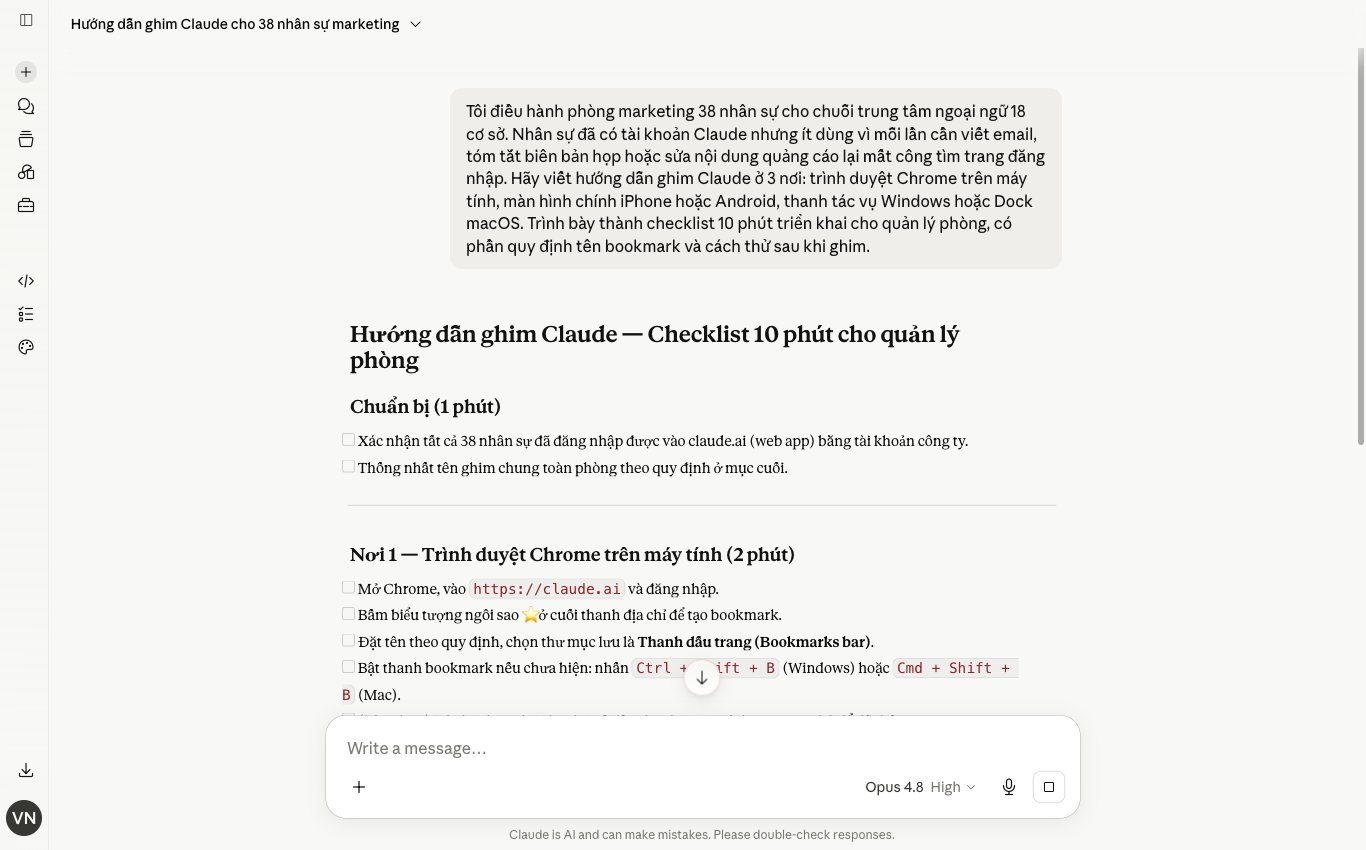
After signing up for Claude, spend 5 minutes tidying the account before using it for work. Doing it from the start avoids chat history that mixes personal matters with projects, contracts and customer data.
MONA usually guides our internal team and customers to set up a small layer of discipline before using AI tools. It doesn't make Claude smarter, but it gives you clearer control of context.
Keep it tidy from the start.
Name the account so colleagues can tell at a glance who's using it. A name that's too generic causes mix-ups when sharing screens or recording training materials.
For example, an account used for marketing should have a clear name like "Nguyen An Marketing" or "MONA Content". This makes the activity history easier to review.
Clear name, clear job.
The login email is something many people overlook after creating a Claude account. If you use a personal email by mistake, work chat history can end up separated from your internal management system.
At MONA, we always keep personal accounts separate from work accounts. This habit makes training, handover and reviewing conversation history less messy.
Don't mix them.
Claude's chat history balloons quickly if you use it for writing content, SEO analysis, ad planning and drafting sales documents. Vague chat names make finding things again a waste of time.
MONA's way is to name each chat after the project right after the first exchange. When we need to get back to the context, we find it faster and mix up fewer sessions.
Saves time, minute by minute.
Claude is a great work aid, but a standalone account shouldn't become the place that holds all sensitive data. Treat it as a support tool, not an internal storage vault.
Instead of the original data, mask proper names, swap real numbers for sample ones and keep only the structure Claude needs to process. That still gives enough context to work with.
Safety first.
MONA uses Claude and other AI tools as an internal support layer, but important data always needs its own process. For a business, a standalone tool account can't replace a CRM, ERP or automation software with permissions.
In this section, the guide should use real screenshots so you can check against them quickly. Generic illustrations aren't clear enough for someone installing for the first time.
After this step, your Claude account is tidier for everyday work. What's left is keeping up the discipline: naming chats, separating data, and not turning ad hoc chats into a place for important information.
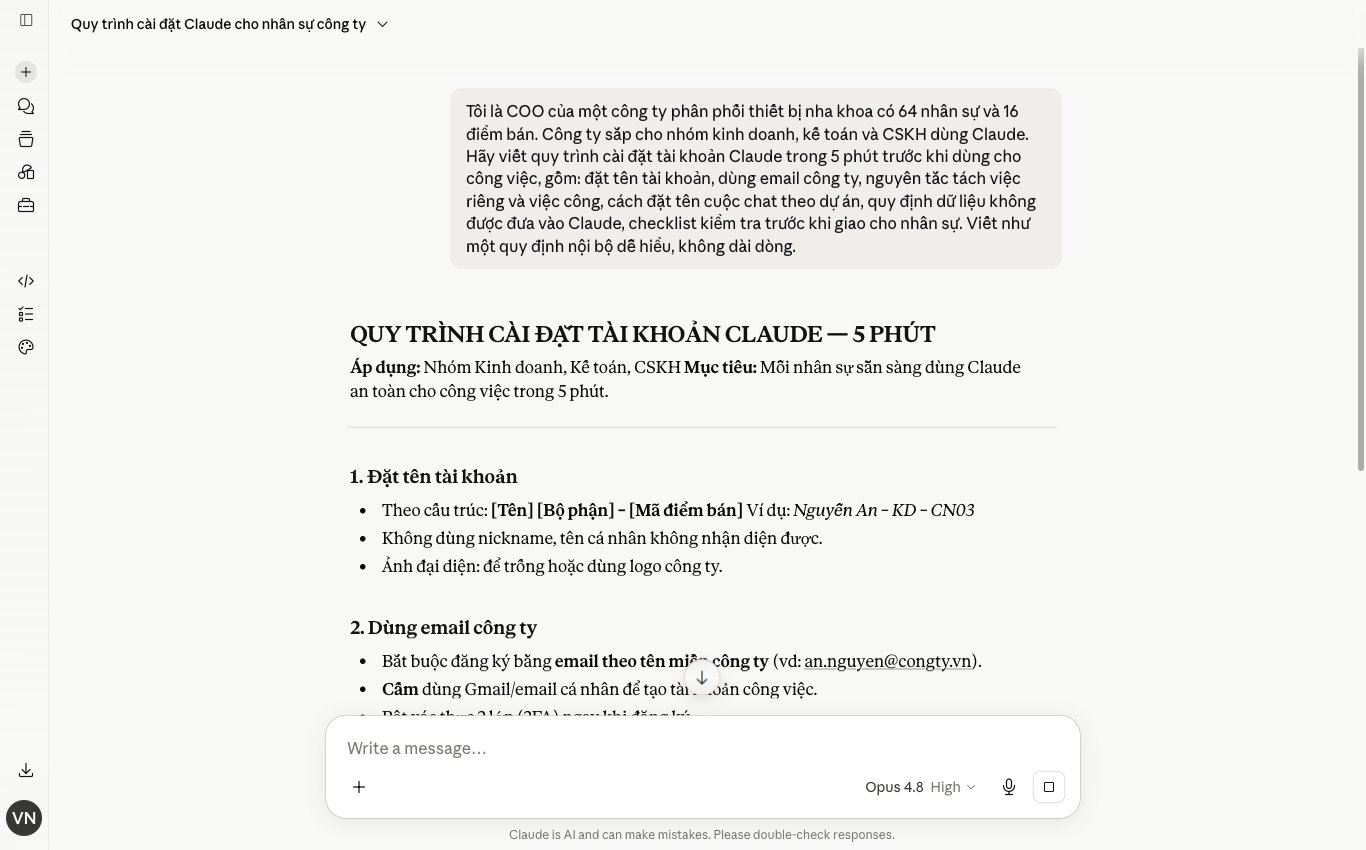
Claude answers generically when the prompt is too thin. The more you hand over work as "write this for me," the more bland, off-tone and time-consuming to fix the result becomes.
Prompt structure is what decides quality. We usually use a 4-layer formula when guiding MONA's internal team and training customers to use Claude for marketing, sales and operations.
A very compact formula. Easy to apply right away.
Claude needs to know whose role it is playing. The clearer the role, the more the answer sticks to the profession and the less generic it gets.
Don't write "write sales content." That sentence lacks a role, a perspective and professional standards.
Assign a role like this:
A role creates a frame of thinking. Well worth doing.
MONA often uses this when drafting website content, SEO outlines and internal training materials. Claude doesn't replace the professional, but it helps professionals get a more purposeful first draft.
Claude can't understand your business unless you give it data. Without context, Claude writes the way the average crowd does.
The context should cover 4 groups of information. Short is fine.
An example of good context:
"My company sells sales management software for fashion stores. The customers are shop owners with 2 to 5 branches who struggle with inventory mismatches and slow staff reporting. The content is for a service page on the website. The tone is clear and practical, with no exaggeration."
The closer the information is to real work, the closer Claude's answer will be. It doesn't need to be long.
Claude does better when you say exactly what you want back. Don't just ask it to "write better."
Describe the format. State the length, structure and layout too.
A clear format cuts editing time. This is the part many people skip.
For SEO and website design work, MONA usually asks Claude to return outlines, headlines, short descriptions or comparison tables. The person in charge still reviews them before publishing.
The self-check layer makes Claude re-examine its answer before sending it. A small tip, but an effective one.
You can add a closing section to your prompt like this:
Claude drifts less when it has a standard to check against. You'll also find it easier to judge the answer.
This is what we often use when we need Claude to support a draft. The final version still needs someone who understands the product, the market and the company's voice to review it.
Sample prompt:
"You are an e-commerce website content specialist. Write a product description for a household air purifier, for a sales page. The customers are families living in apartments who care about fine dust, cooking smells and noise. The output has 1 opening paragraph of 60 words, 5 benefits as bullet points and 1 soft call to action. The tone is clear and practical, with no exaggeration. Before answering, check that the content states specific benefits and avoids clichés."
This prompt has all 4 layers. A role. Context. A format. A check standard.
You can swap the product, customers and channel. The structure stays the same.
Sample prompt:
"You are an operations assistant for the head of sales. Summarize the meeting content below so the department head can catch up quickly. The context is that the sales team is reviewing customer follow-up progress after a seminar. The output has 5 key points, an action list, the person in charge, the deadline and risks to monitor. Keep it short and clear, and add nothing beyond the meeting content. Before answering, check that every task has a specific action."
Then paste the meeting notes at the end of the prompt. Claude will turn the scattered notes into a summary that's easy to assign work from.
This suits busy department heads. Few words. Easy to hand off work.
Sample prompt:
"You are a customer support agent with a polite and clear voice. Write a customer care email for after they've tried the software for 7 days. The context is that the customer has created an account but hasn't finished the initial setup. The goal is to remind them to finish setup and offer help if needed. The output has an email subject under 50 characters, an opening, 3 key points and a soft closing. Don't pressure them. Before answering, check that the email is friendly enough, concise and has a clear next step."
This kind of email works for sales and post-purchase care. Just change the timing, the customer's status and the purpose of the contact.
Claude helps produce a quick draft. The person in charge should still adjust it to the real customer data.
The 4-layer formula helps you use Claude with more control. It's especially good for writing content, summarizing, drafting emails, building SEO outlines and preparing internal documents.
That said, a standalone tool still has a ceiling. Staff have to enter data, copy results and put them into the system themselves.
At MONA, we use Claude and other AI tools to speed up internal work while training customers to use them properly. When a business needs connected data, security and real automation, MONA advises custom software, a CRM, an ERP or an automation chain that fits real operations.
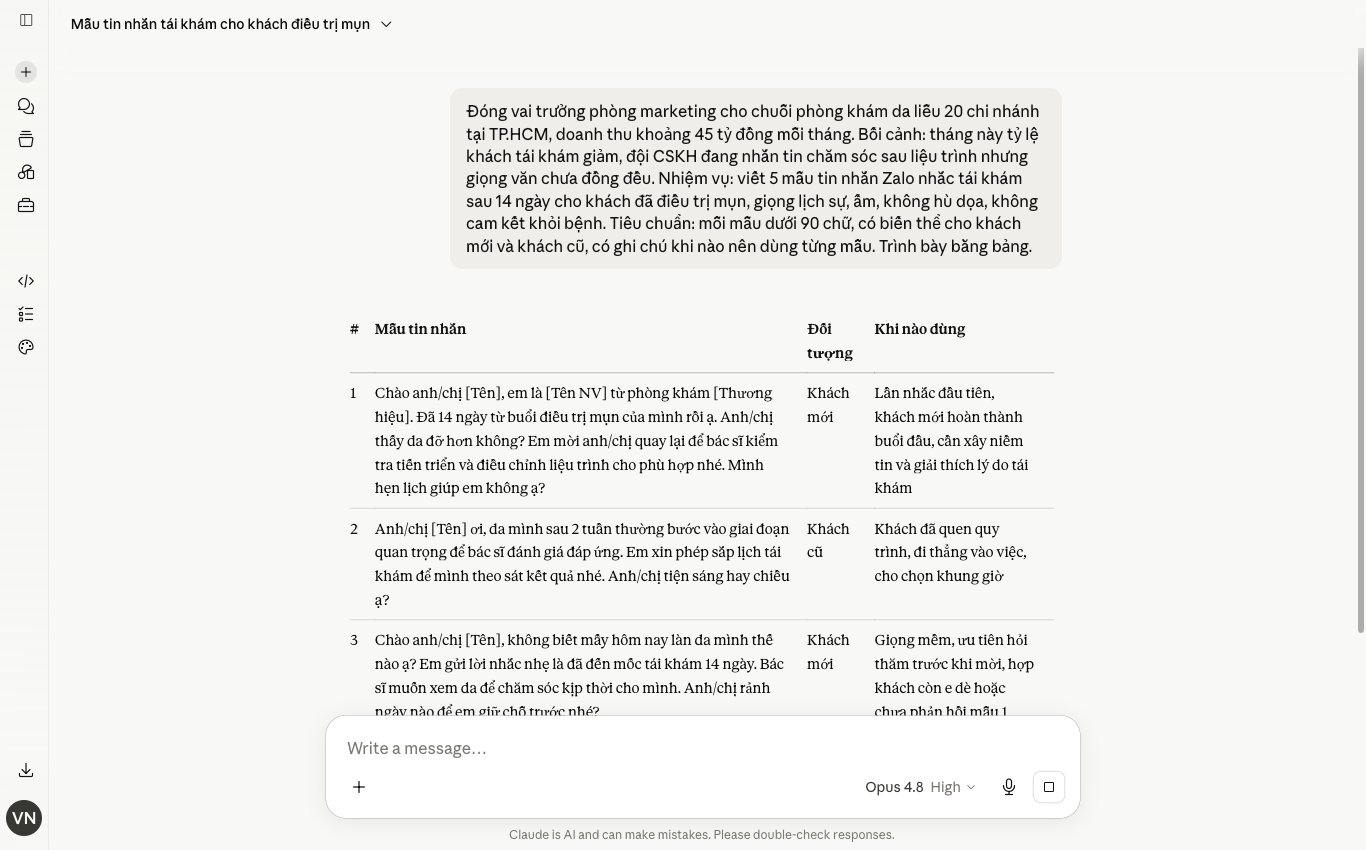
Claude reads documents very well when you give it the right context. Don't make Claude guess from a few scattered lines of description.
The cleaner way is to upload the file, paste the important content, then give a clear task. This suits contracts, product documents, content plans, reports and meeting notes.
Keep it tidy from the start.
Before uploading, review the file. The cleaner the file, the less the answer drifts.
Don't feed in 5 contracts at once when you only need to read 1. Claude can handle multiple documents, but you'll find it harder to check the results.
Fewer, but right.
After uploading a file, state clearly what you're reading for. Claude summarizes, and it can also read in a given role.
You can use this sample instruction:
"Read the attached file as a head of marketing. The goal is to find information usable for a 30-day content plan. Return 3 parts: key points, points to double-check, next actions."
The clearer the instruction, the more Claude sticks to the task. MONA usually guides the internal team to write instructions by goal, role and output.
A general summary is often not enough. Ask Claude to split the output into clear groups.
For contracts, you can ask Claude to list the payment terms, penalties, termination and confidentiality clauses. For reports, Claude should separate trends, anomalies and items that need verification.
Don't accept generic results.
A compact sample instruction:
"From this document, extract 10 key points, 5 risks to note and a list of actions. Each action needs a suggested owner, a priority level and a reason."
Claude is stronger when it has a standard to check against. You can paste internal standards, a checklist template or review criteria before asking for analysis.
The instruction should be written plainly:
"Below is the company's content approval standard. Check the attached file against this standard. Return a table with criteria, pass or fail status, evidence in the document and suggested fixes."
This helps you cut down on manual reading. It also lets marketing, sales and operations check documents against the same standard.
MONA uses this approach in customer training when rolling out AI for office work. A standalone tool handles things quickly, but the operating standard still has to be owned by the business.
This section should use real screenshots. Don't use generic illustrations.
Images should mask sensitive information. Customer names, contract values, emails and phone numbers should be blurred.
Safety first.
Claude helps you read documents faster, but it still has a ceiling when everyone uses it their own way. When a business needs connected data, clear permissions and processes that run themselves, MONA usually advises building custom software such as a CRM, an ERP or an internal automation system.
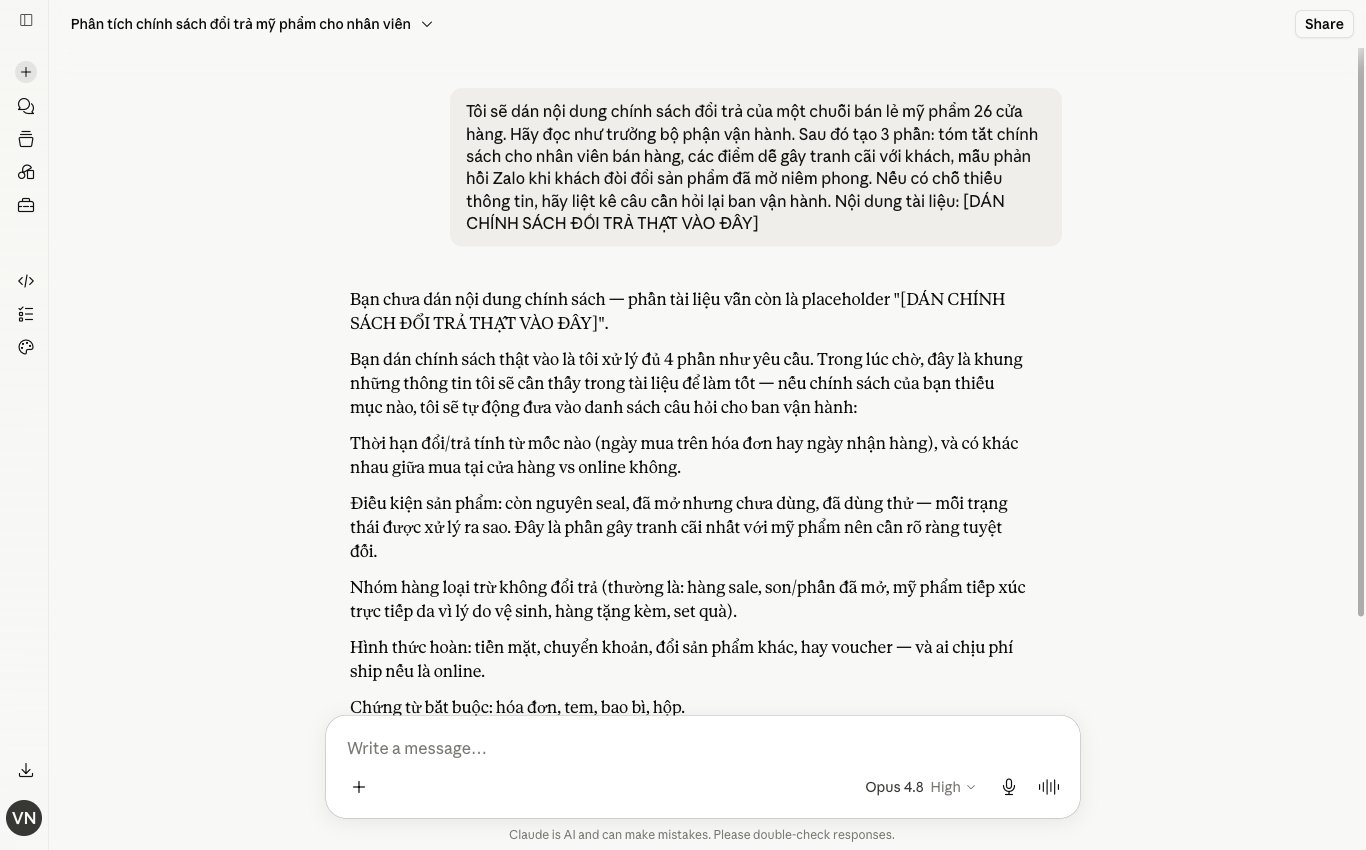
Claude is very handy for individuals and small teams. You can use it to write content, summarize documents, outline and analyze ideas.
But scattered use hits a ceiling. Everyone saves prompts their own way, names files their own way, checks results their own way.
Data gets fragmented. Managers can't see the big picture. Marketing has content, but the CRM doesn't update itself. The website has forms, but customer support still enters data by hand.
We shouldn't make Claude carry the work of the whole system. Claude suits speeding up mental tasks, while a business needs its own software to connect data.
You can split work into 2 layers. The personal layer uses Claude to work faster. The system layer needs software to run reliably.
A clear split avoids confusion. Staff use tools in the right place. Important data doesn't end up scattered across personal accounts.
This split helps you keep speed while keeping control. A standalone tool isn't pushed beyond its role.
MONA uses Claude along with many other AI tools internally. We use them to speed up writing, review content, standardize documents and train staff.
What matters is the process. We don't hand all decisions to the tool. People still check the tone, the facts, the context and the business goals.
MONA also brings this approach into customer training. You learn to give clearer instructions, check output more carefully and use AI for the right part of the job.
MONA started in 2016 and now has 60+ staff, serving 14,000+ projects and maintaining 85% retention. These figures come from real work on websites, SEO, marketing and software.
When a business needs connected data, standalone Claude is no longer enough. At that point, custom software is the foundation.
MONA builds CRMs, ERPs and automation chains around a business's real processes. Data flows from the website, forms, sales and customer support to management reports.
AI, LLMs, OCR or Voice are only the means. The value lies in custom-coded systems, correct permissions, clean data and processes that run reliably.
This is the difference between using a tool and building a system. One makes an individual faster. The other makes the business run more smoothly.
For businesses running web, SEO and marketing, Claude should be a support layer. Revenue still needs a solid website infrastructure, data and measurement.
You can start with website design to collect customer data properly. After that, SEO services gives your content a more durable growth channel.
As data volume grows, MONA can build custom automation software. The CRM, ERP, website and marketing will no longer run in isolation.
Claude is handy for each person. Custom software keeps the whole system in step. MONA chooses to go in that direction when working alongside you.

CEO & Founder · The MONA
Founder of The MONA, who built a services company of 60+ staff with 14,000+ projects delivered. Khánh Hùng shares how he thinks about building systems that run themselves, automating a business, and the real lessons from delivering projects at MONA.
 337




Professional website
design services
Own a website with a beautiful, 100% exclusive design and a lifetime warranty, with the ability
to expand features flexibly as your business grows, starting today!






 MONA will never sell your information or send you spam


 MONA will never sell your information or send you spam
