
 MONA OS 2.0


 Tự động hoá doanh nghiệp
 Cẩm nang SEO
 Digital Marketing
 Kinh nghiệm thiết kế website
 Hạ Tầng Server
 Giáo dục


 VI
VI
 EN
EN














Message us on
Zalo Official


 ProductsNew

 ProductsProducts
 Mới ra mắtKHA AI 2027App tự edit video, tự đăng mọi mạng xã hội, 2 phút mỗi ngày









 Website designLooks good and wins customers over.
SEO servicesBrings in customers searching for exactly what you sell.
Website designLooks good and wins customers over.
SEO servicesBrings in customers searching for exactly what you sell.
 Tư vấn digital marketingKéo khách từ nhiều kênh, đo bằng số thật.
Corporate video productionVideos introducing your company, factory and team.
Tư vấn digital marketingKéo khách từ nhiều kênh, đo bằng số thật.
Corporate video productionVideos introducing your company, factory and team.
 NewAI video productionCompany story films made with AI.
 Custom software developmentCRM, ERP and HRM built for your business.
 Viết AI Agent theo yêu cầuĐặt riêng một trợ lý AI cho đúng việc của mình.
 Tư vấn chuyển đổi AIĐưa AI vào vận hành của cả công ty.
NewMONA LMSManagement for centers and schools.
MONA SkillHubInternal training for company staff.
Tư vấn chuyển đổi AIĐưa AI vào vận hành của cả công ty.
NewMONA LMSManagement for centers and schools.
MONA SkillHubInternal training for company staff.
 NHTQ systemEnd-to-end China–Vietnam shipping operations.
MONA JMSManagement for gold, diamond and pawn shops.
NHTQ systemEnd-to-end China–Vietnam shipping operations.
MONA JMSManagement for gold, diamond and pawn shops.
 MONA E-LearningA website with every feature you need to sell courses.
 How to sell online courses (course)More than 30 free lessons on selling courses on autopilot.
 MONA Cloudmonacloud.vnServers to get your apps and websites running.
 MONA Basemonabase.vnPostgres database, sign-in and file storage.
 MONA Mailmonamail.vnSend OTP, order and invoice emails from your software.
 MONA Paymonapay.vnAccept bank transfers via VietQR and notify your software when the money arrives.
 MONA eInvoiceComing soonIssue e-invoices that meet tax standards.
Gấu CườiTrả lời khách 24/7 trên web, Fanpage, Zalo và thu lead cho sale.
MONA eInvoiceComing soonIssue e-invoices that meet tax standards.
Gấu CườiTrả lời khách 24/7 trên web, Fanpage, Zalo và thu lead cho sale.
 Gấu TeleSalesGọi điện tư vấn, chăm khách như tổng đài viên thật.
Dê CườiTư vấn và chốt đơn cho shop ngay trong khung chat.
Gấu WebmasterNhắn nhóm Zalo là website được sửa xong.
Gấu TeleSalesGọi điện tư vấn, chăm khách như tổng đài viên thật.
Dê CườiTư vấn và chốt đơn cho shop ngay trong khung chat.
Gấu WebmasterNhắn nhóm Zalo là website được sửa xong.
 Gấu Pháp ChếSoạn hợp đồng, rà điều khoản trong vài phút.
 Gấu Báo GiáLên báo giá đúng mẫu và gửi khách ngay.
 AI chăm sóc khách hàngTheo dõi và giữ chân khách hàng cũ.
 Gấu Tuyển DụngLọc hồ sơ, hẹn lịch, phỏng vấn ứng viên.
 Mới ra mắt
KHA AI 2027
Xây kênh chuyên gia 2 phút mỗi ngày
Quay bằng điện thoại, AI tự edit video, tự đăng lên 16 nền tảng và tự trả lời bình luận, tin nhắn.
356.271lượt xem trên kênh CEO MONA sau 21 ngày
Mới ra mắt
KHA AI 2027
Xây kênh chuyên gia 2 phút mỗi ngày
Quay bằng điện thoại, AI tự edit video, tự đăng lên 16 nền tảng và tự trả lời bình luận, tin nhắn.
356.271lượt xem trên kênh CEO MONA sau 21 ngày
 Anh Khánh HùngCEO MONA đang dùng mỗi ngày
Xem app làm được gì
Anh Khánh HùngCEO MONA đang dùng mỗi ngày
Xem app làm được gì
 AI
Gấu Cười MONA ĐANG TỰ XÀITrả lời khách 24/7 trên website, Zalo OA, Messenger và thu lead về cho sale.
Dê CườiChốt đơn bán lẻ và sàn: Shopee, TikTok Shop, web. Chăm cả khách sỉ, đại lý.
Gấu WebmasterCập nhật nội dung, tối ưu SEO website mỗi ngày.
Gấu TeleSalesGọi điện tư vấn, chăm khách như tổng đài viên thật.
Gấu Tuyển DụngLọc hồ sơ, hẹn lịch, phỏng vấn ứng viên tự động.
AI chăm sóc khách hàngGiữ khách cũ, cứu lead đã rớt cho phòng kinh doanh.
Gấu Pháp ChếSoạn hợp đồng, rà điều khoản trong vài phút.
Gấu Báo GiáLên báo giá đúng mẫu, gửi khách ngay khi có yêu cầu.
AI
Gấu Cười MONA ĐANG TỰ XÀITrả lời khách 24/7 trên website, Zalo OA, Messenger và thu lead về cho sale.
Dê CườiChốt đơn bán lẻ và sàn: Shopee, TikTok Shop, web. Chăm cả khách sỉ, đại lý.
Gấu WebmasterCập nhật nội dung, tối ưu SEO website mỗi ngày.
Gấu TeleSalesGọi điện tư vấn, chăm khách như tổng đài viên thật.
Gấu Tuyển DụngLọc hồ sơ, hẹn lịch, phỏng vấn ứng viên tự động.
AI chăm sóc khách hàngGiữ khách cũ, cứu lead đã rớt cho phòng kinh doanh.
Gấu Pháp ChếSoạn hợp đồng, rà điều khoản trong vài phút.
Gấu Báo GiáLên báo giá đúng mẫu, gửi khách ngay khi có yêu cầu.
 Chuyển đổi AI toàn phầnGiải pháp tổng cho doanh nghiệp, 3 lớp triển khai.
 Viết AI Agent theo yêu cầuĐặt riêng một con AI gánh đúng nghiệp vụ của bạn.
 Custom softwareCRM, ERP and HRM with built-in AI automation.
 SEO & AEO thời đại AIĐược Google lẫn AI trích dẫn, không chỉ xếp hạng.
 Kiến thức AI cho doanh nghiệpBài phân tích, hướng dẫn ứng dụng AI vào vận hành.
 Free AI courses
 AI tools at work
App mới · KHA AI 2027
Xây kênh 2 phút mỗi ngày
AI tự edit video, tự đăng mọi mạng xã hội
Free consultation, 8am–10pm every day
AI tools at work
App mới · KHA AI 2027
Xây kênh 2 phút mỗi ngày
AI tự edit video, tự đăng mọi mạng xã hội
Free consultation, 8am–10pm every day

18 March, 2023

SMTP stands for Simple Mail Transfer Protocol, a system that receives and transmits the data in a user's email. It only works with email on devices that are connected to a network. The devices that do this job are called SMTP machines, and servers are connected through TCP port 25, an Internet network port.
Many clients tell MONA that they can send and receive email normally even though they know nothing about an SMTP server or SMTP configuration . That is completely TRUE because the mailbox still belongs to you. But what if you need to send large files or videos?
Email services normally set a limit on file size. If the file you want to send is close to or over that limit, it is hard or even impossible to send. In that case you need to configure SMTP – a system that shortens the transfer time and lets you send much larger data.
Whenever your company sends an email, if you have set up SMTP, the system uses that email address and sends the message to the SMTP server. On receiving the signal, the SMTP server talks to the DNS server to find the root domain in the Hostname.
After these steps, the system checks whether the user's information and the email information match. If they do, your company can send or receive emails with larger attachments.
To prevent the SMTP server from failing to reach the DNS server, any signal that gets no response is passed on to intermediate servers. After receiving the original signal, the system passes it along through other servers until it reaches the original server. The system keeps trying until a signal reports that it has expired or can no longer be used.
 Besides helping your company reach customers effectively, Gmail SMTP offers other notable benefits:
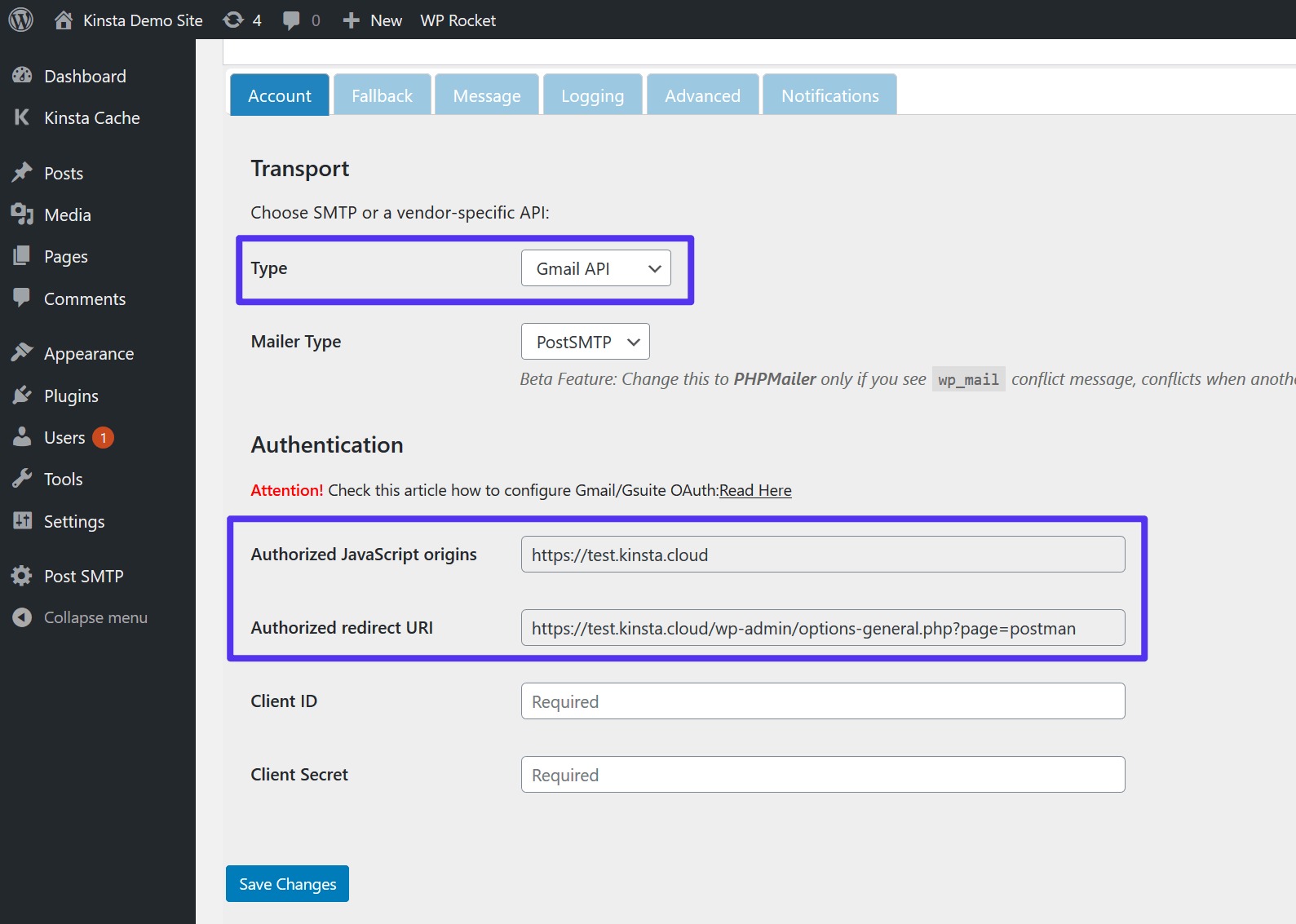
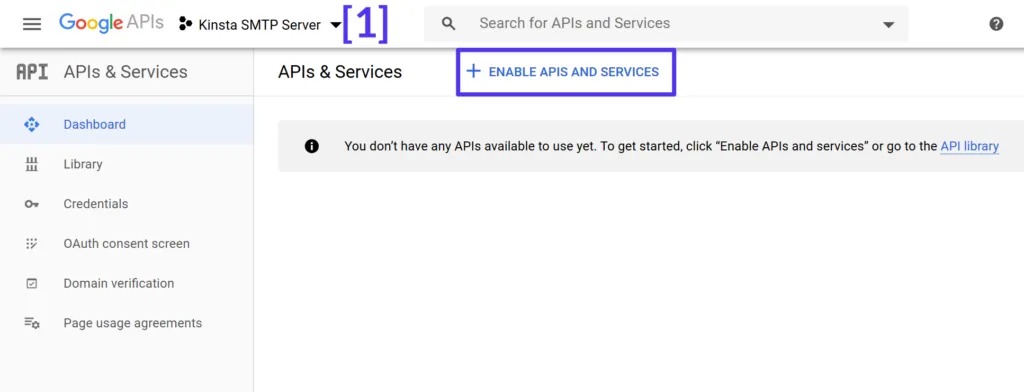
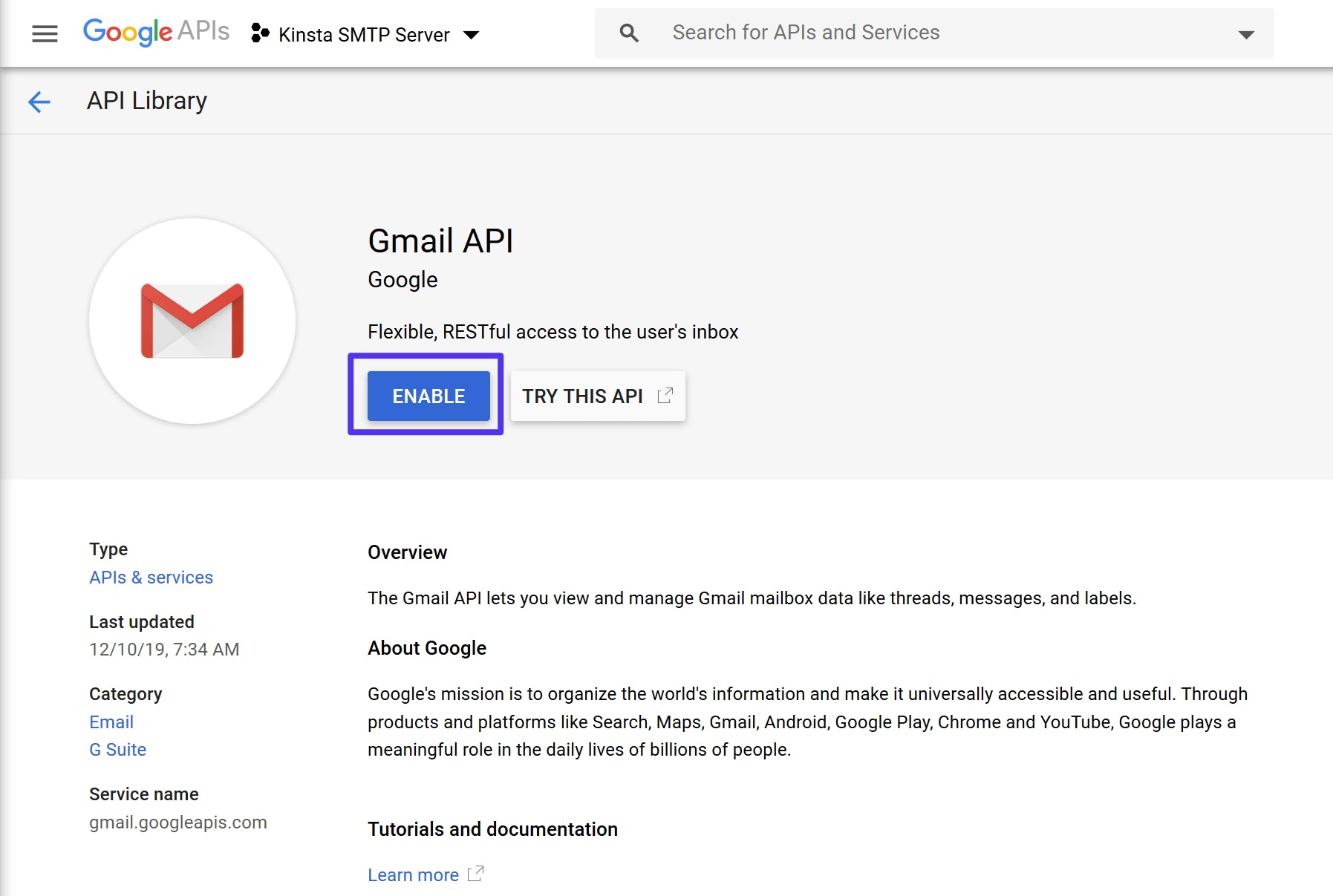
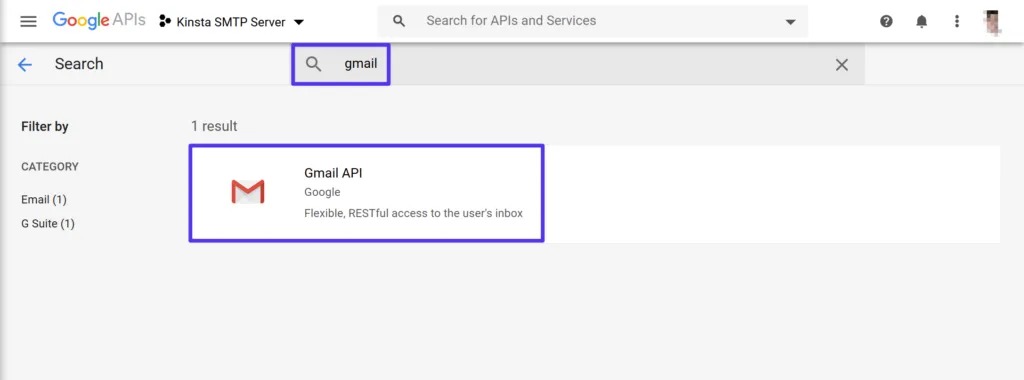 Click the Enable button as shown in the image below
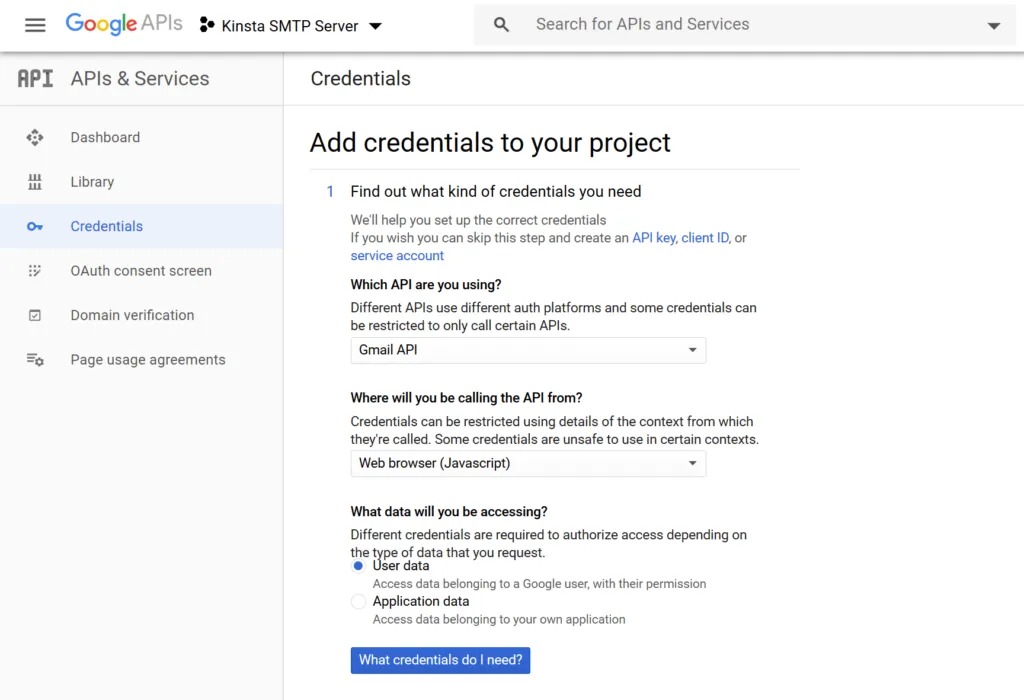
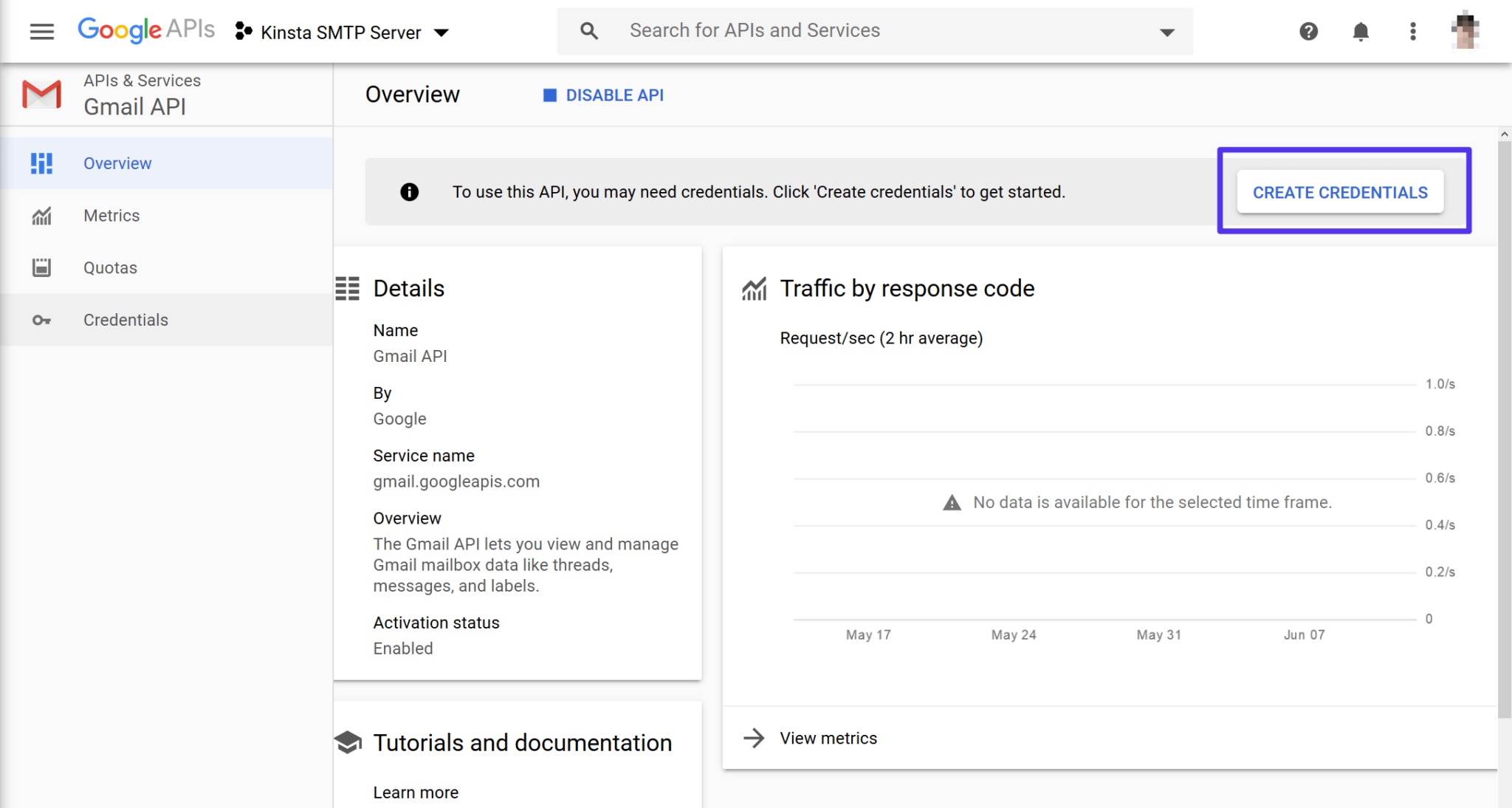 Fill in the credentials form with the following information:
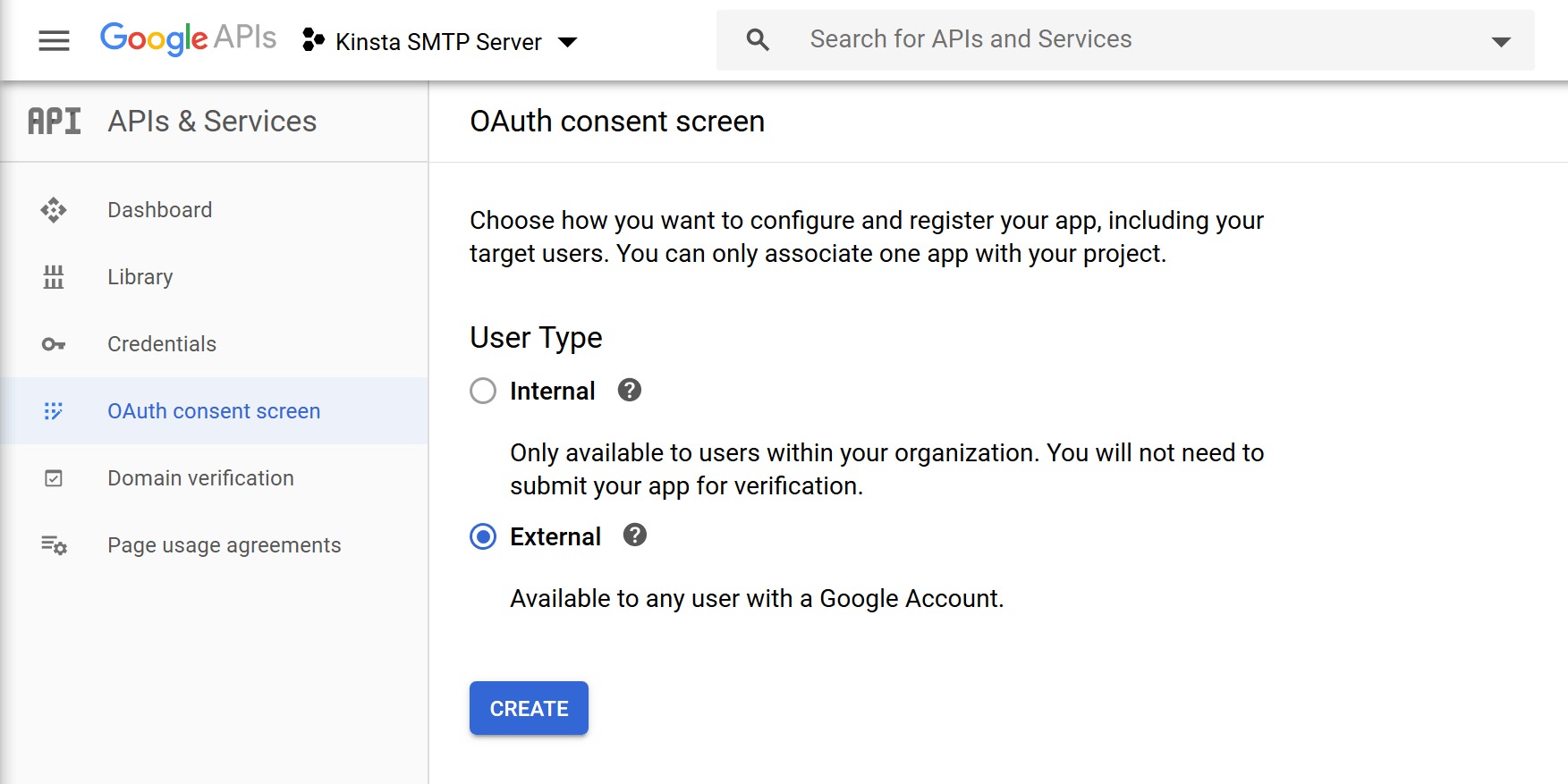
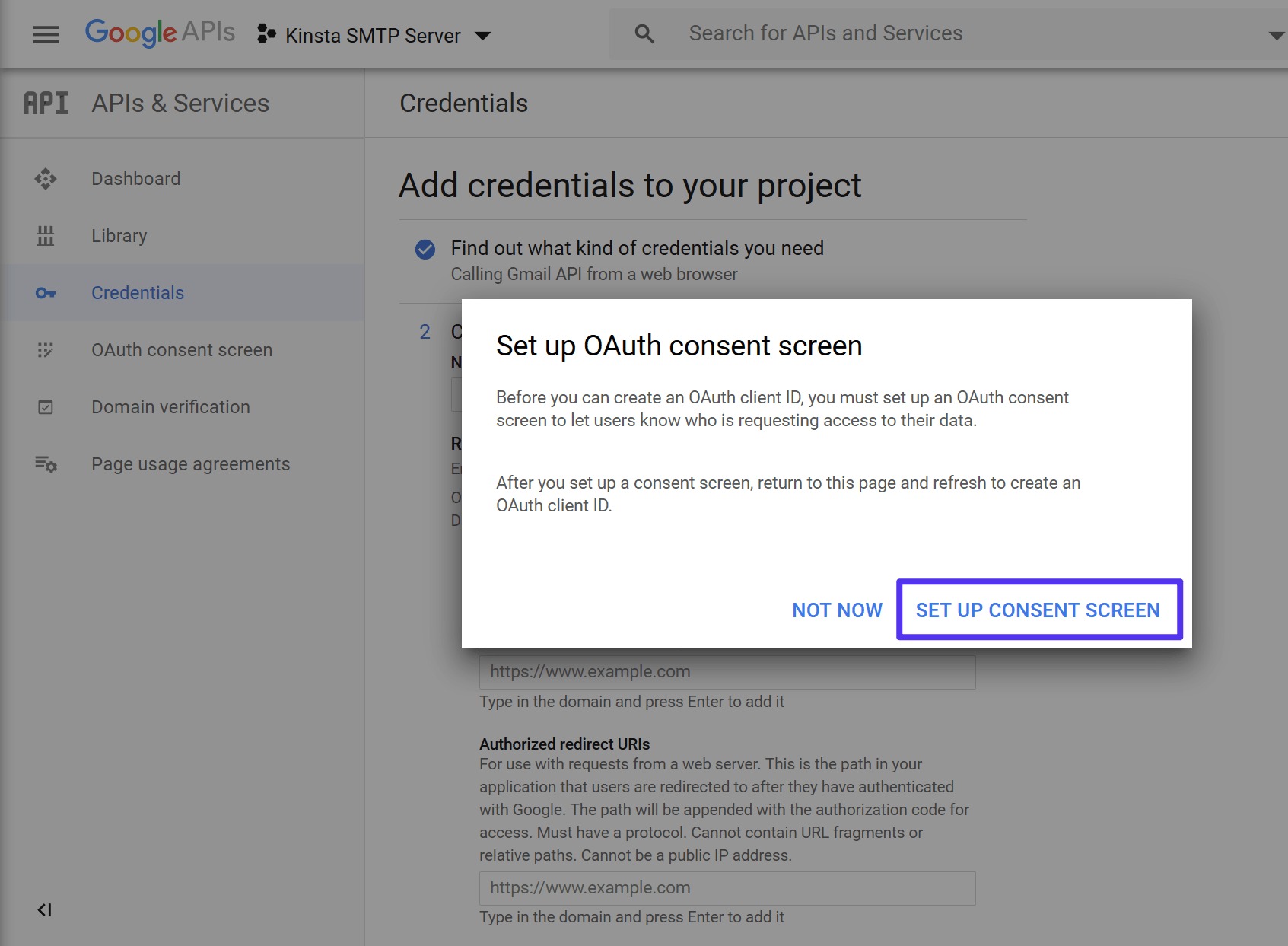 The browser opens a new tab for configuration OAuth content screen. In the section User Type, choose External and press Create
 Fill in the basic information for your site (only you can see this, so don't worry about it)
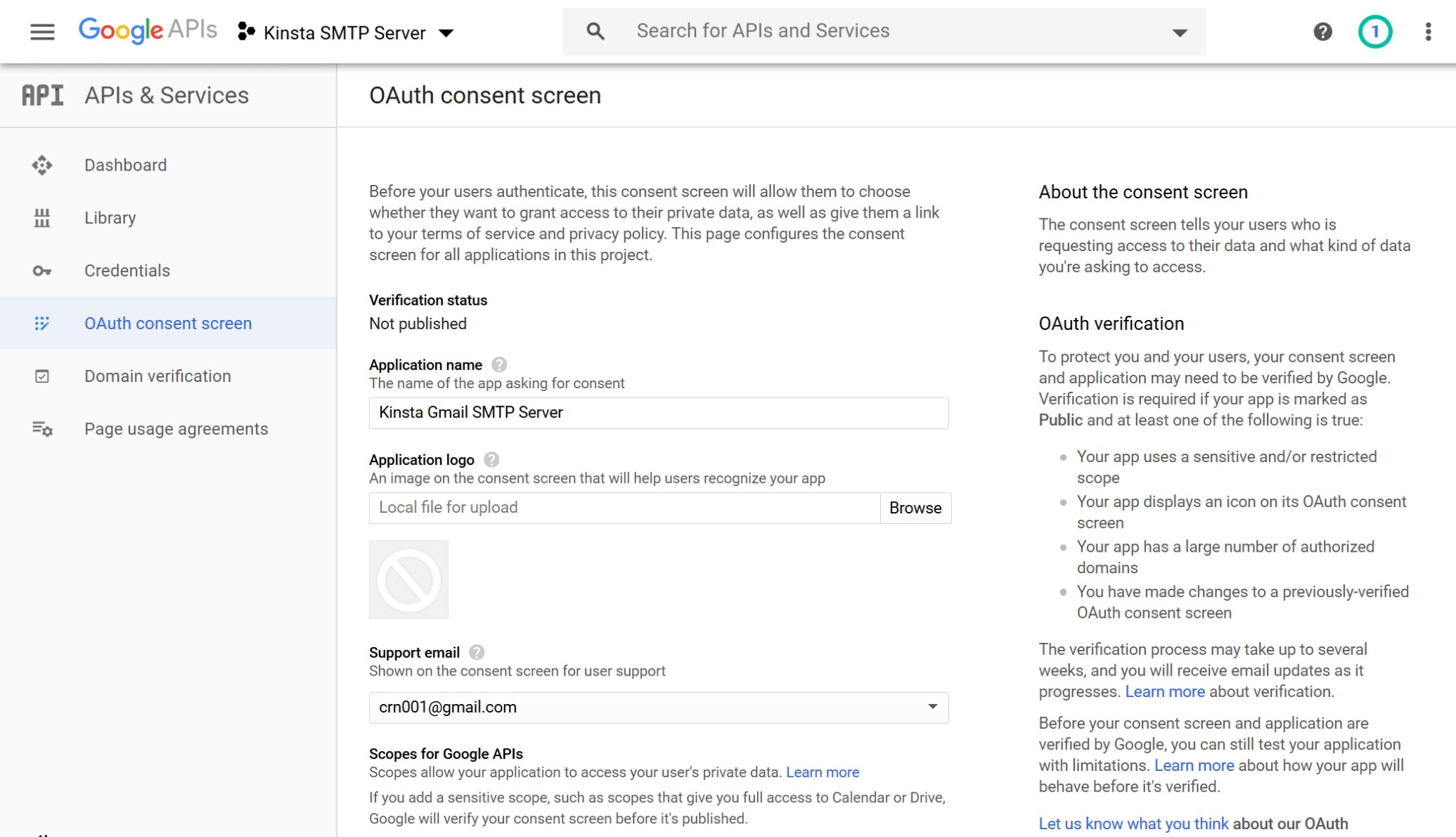 Once you've filled in everything, click Save to finish.
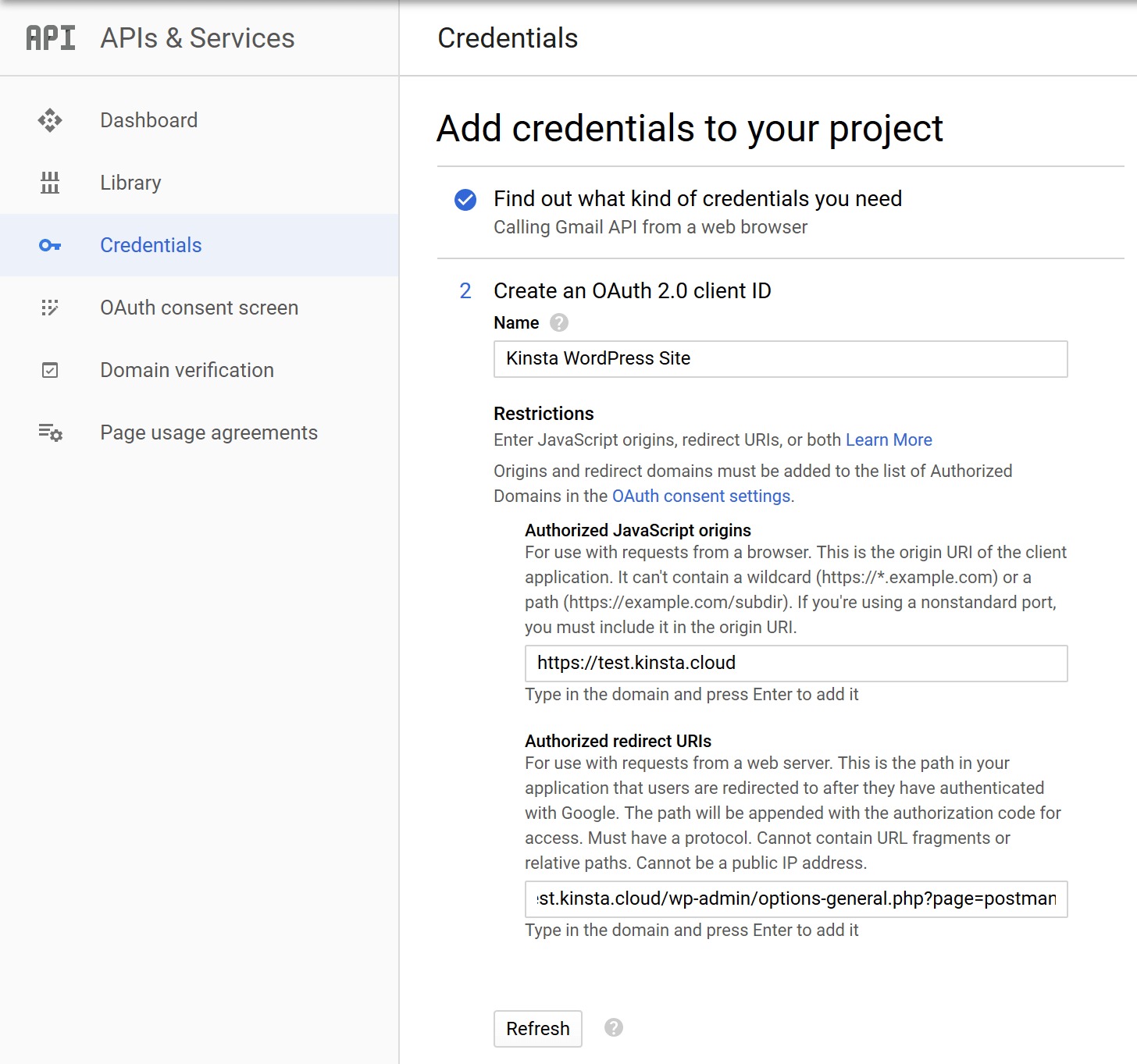 Select Refresh –> Create OAuth client ID then Click Done. After you click Done, you'll see a section for OAuth 2.0 Client IDs. Click the project you just created.
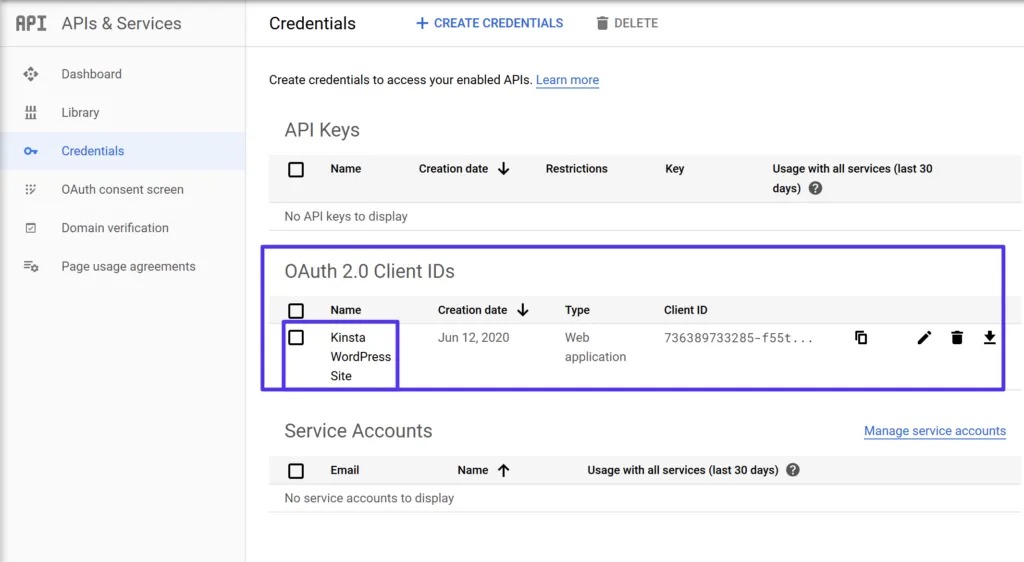 Then you need to find two pieces of information:
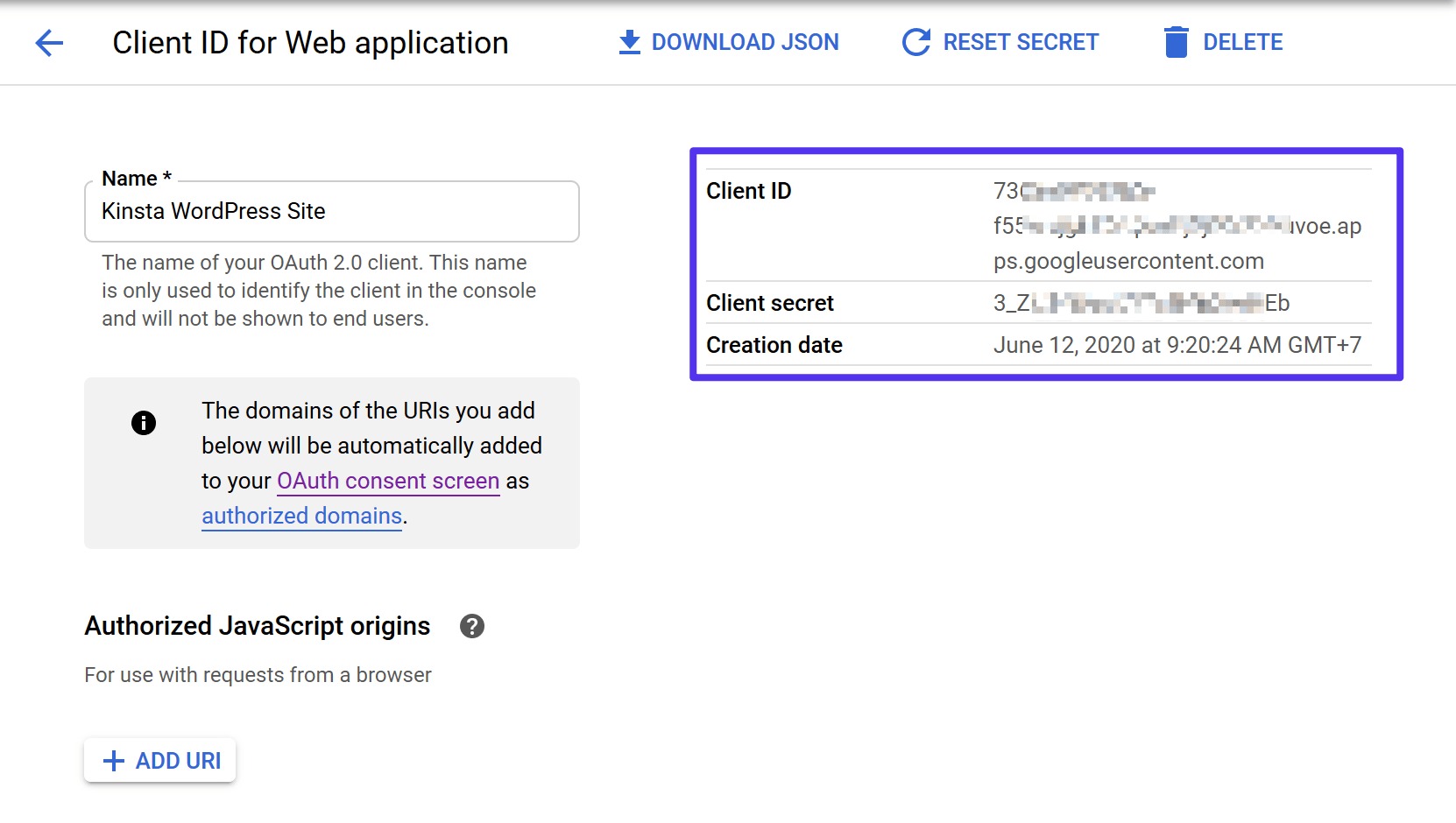
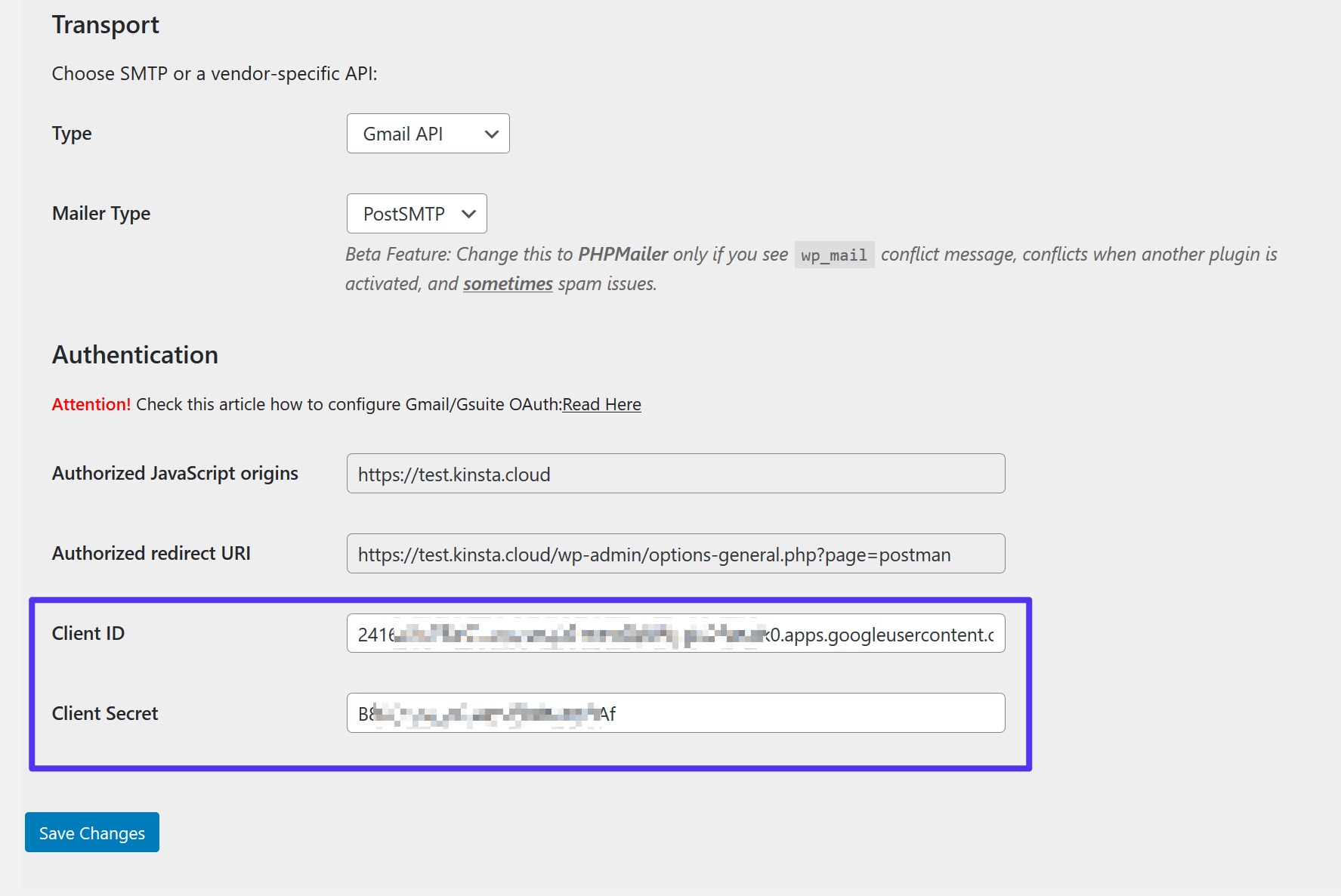 A Google permission request will then appear.
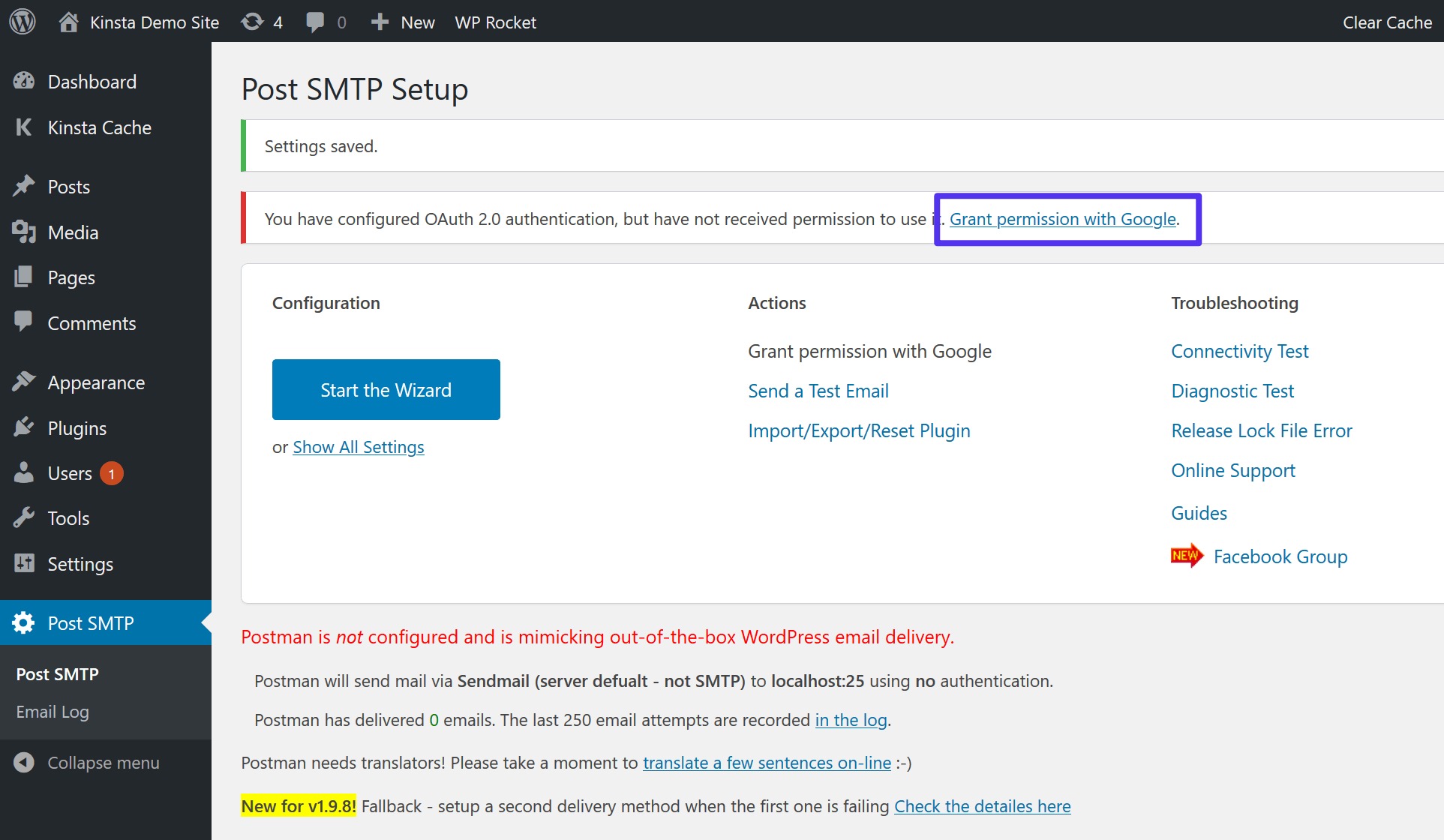 Click Grant permission with Google, the screen shows a warning This app isn’t verified. Click Go to …. (unsafe)
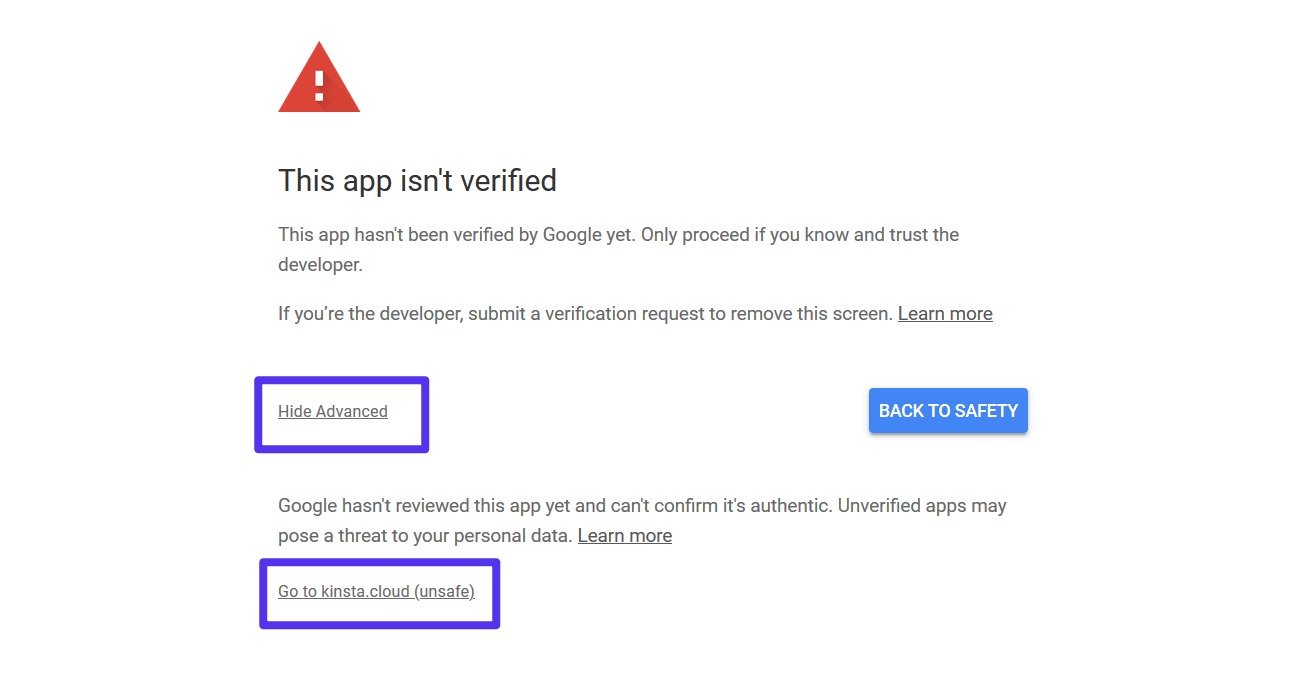 For authentication to go through, make sure you select Allow, which lets your WordPress site access your Google account to send email through Server Gmail SMTP.
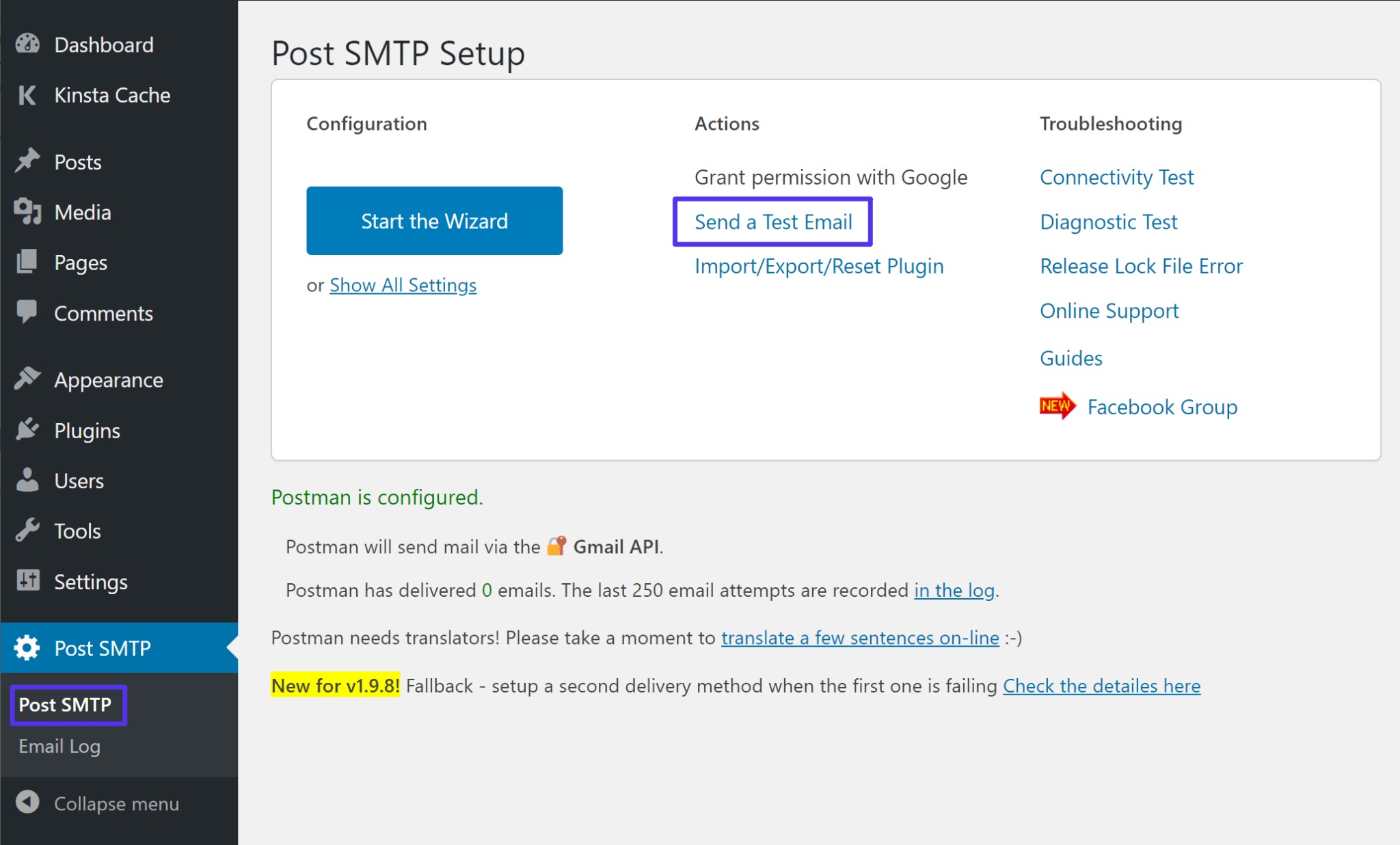 Enter the email content and the recipient address
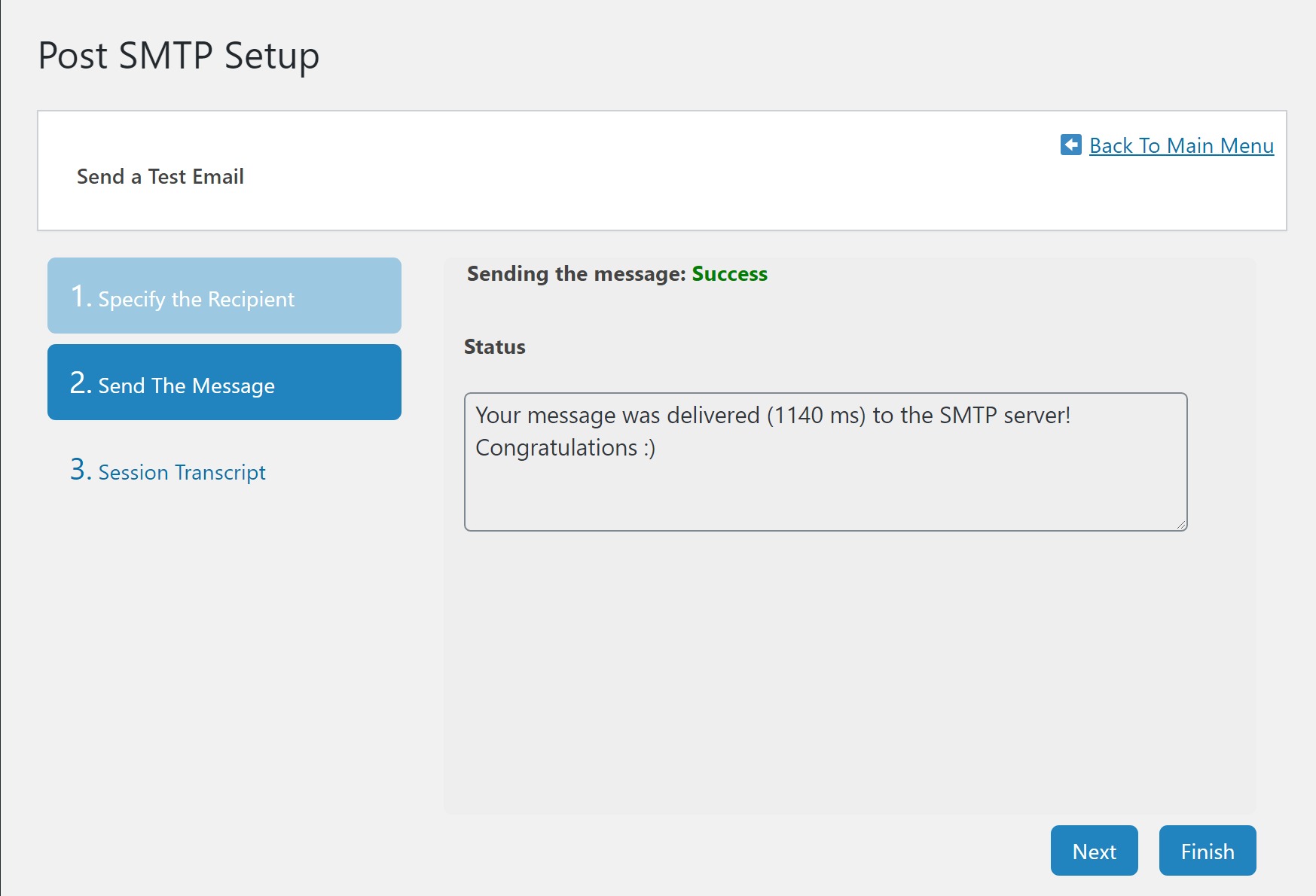 Then check your inbox. That is the full answer to the question "What is Gmail SMTP" and the guide to configuring SMTP in WordPress quickly and easily. We hope the information we have shared MONA Media is useful to you. Good luck with your setup!

A customer opens your app and places an order. The screen spins and says the order was received, but fifteen minutes later the OTP never reaches their phone. The shop is open and orders keep coming in, but notifications go silent. The customer leaves. This is a familiar scene once your customer volume starts to grow and your notification emails get stuck.
You might blame a slow network or a system bug, but the culprit is often the free email account itself. Gmail limits a regular account to 500 emails a day, and a Google Workspace account to 2,000 a day. That is plenty for internal communication between departments. But it becomes a bottleneck that chokes your revenue when used for website running cost software that runs automatically.
Since 2016, across more than 14,000 projects we have delivered for clients, one thing has been clear. Gmail SMTP only suits small websites sending a few dozen emails a day. We send automated transactional email to clients through MONA Cloud. As soon as an app sends OTPs or order confirmations to hundreds of customers, it hits the 500 cap and the sending channel is locked for a full 24 hours. Borrowing a personal mailbox as a notification server looks like it saves money, but it breaks the flow of revenue into your business to save a few trivial coins.
Sending notifications through a self-built server also tends to land in spam because the IP address has no reputation. That is risky, and it is why developers usually move to a third-party platform rather than carry the load on a self-managed server. Our advice: if your site only collects a handful of leads a week, Gmail is fine. But if your system has member sign-ups or automated selling with a steady stream of orders and OTP codes, never put your business at risk on a trial account.

With automated software, one second of delay is a customer abandoning the cart for someone else. Customers today won't wait longer than the blink of an eye for a confirmation email, and slow means lost customers. To solve the notification problem across many sites and apps, we use MONA Mail as our main transactional email channel.
You get 3,000 free emails a month, more than enough for a startup. Domain verification is simple, with a single DKIM record using selector mona1 and RSA 2048 encryption. We return queued while an email is waiting in line, and we never report delivered until the receiving server has actually logged a successful receipt. You can see the status of each email through webhook settings instead of guessing whether it arrived. Everything is clear. The word delivered is often misunderstood in most of the projects we take over: people assume that sent means done, when the email hasn't yet reached the customer's mailbox.
If something goes wrong temporarily, our server retries automatically after one second, five seconds, twenty-five seconds, two minutes and then ten minutes before reporting failed. Compared with foreign providers like Resend (we checked on 19/09/2026 and its standard plan costs 20 USD), with us you pay in VND, get VAT invoices, and your servers and all your data stay in Vietnam. Behind it is a system with AI calls straight through MCP, a Vietnamese-language support line on call, and MONA specialists ready to debug.
Our 85% client retention comes from having real people behind the service. Our straight advice: don't use MONA Mail if you plan to send millions of marketing emails, because the platform is still in testing and uses a shared IP range. That is our honest advice. This system exists only to handle transactional notification emails and secure OTP flows for your company's own operating software.
A manifesto for growing together
MONA is a software, digital transformation and AI transformation company, but above all, MONA is a B2B service company that benefits directly from this: THE MORE SUCCESSFUL VIETNAMESE BUSINESSES BECOME, THE MORE MONA BENEFITS, while a declining, slow market with weak technology is exactly what kills MONA's future business opportunities. So, more than anyone, MONA wants you to succeed, and MONA actually steps in to help you succeed.
And AI transformation is the key to that success for all of us.
MONA
A blocked notification flow doesn't just annoy customers, it stops revenue coming in. MONA Mail is free for 3,000 emails per month, with webhooks for the status of every email. Try it at https://monamail.vn/ first. It takes about 5 minutes. Just click and you're done.

CEO & Founder · The MONA
Founder of The MONA, who built a services company of 200+ staff with 14,000+ projects delivered. Khánh Hùng shares how he thinks about building systems that run themselves, automating a business, and the real lessons from delivering projects at MONA.
 1,5K
1,5K




Professional website
design services
Own a website with a beautiful, 100% exclusive design and a lifetime warranty, with the ability
to expand features flexibly as your business grows, starting today!








 MONA will never sell your information or send you spam
MONA will never sell your information or send you spam
MONA will never sell your information or send you spam


 MONA will never sell your information or send you spam