
 MONA OS 2.0
 Partner with MONA


 Tự động hoá doanh nghiệp
 Cẩm nang SEO
 Digital Marketing
 Kinh nghiệm thiết kế website
 Hạ Tầng Server
 Giáo dục


 VI
 EN









Message us on
Zalo Official


 ProductsNew

 ProductsProducts
 Mới ra mắtKHA AI 2027App tự edit video, tự đăng mọi mạng xã hội, 2 phút mỗi ngày









 Website designLooks good and wins customers over.
SEO servicesBrings in customers searching for exactly what you sell.
 Tư vấn digital marketingKéo khách từ nhiều kênh, đo bằng số thật.
Corporate video productionVideos introducing your company, factory and team.
 NewAI video productionCompany story films made with AI.
 Custom software developmentCRM, ERP and HRM built for your business.
 Viết AI Agent theo yêu cầuĐặt riêng một trợ lý AI cho đúng việc của mình.
 Tư vấn chuyển đổi AIĐưa AI vào vận hành của cả công ty.
NewMONA LMSManagement for centers and schools.
MONA SkillHubInternal training for company staff.
 NHTQ systemEnd-to-end China–Vietnam shipping operations.
MONA JMSManagement for gold, diamond and pawn shops.
 MONA E-LearningA website with every feature you need to sell courses.
 How to sell online courses (course)More than 30 free lessons on selling courses on autopilot.
 MONA Cloudmonacloud.vnServers to get your apps and websites running.
 MONA Basemonabase.vnPostgres database, sign-in and file storage.
 MONA Mailmonamail.vnSend OTP, order and invoice emails from your software.
 MONA Paymonapay.vnAccept bank transfers via VietQR and notify your software when the money arrives.
 MONA eInvoiceComing soonIssue e-invoices that meet tax standards.
Gấu CườiTrả lời khách 24/7 trên web, Fanpage, Zalo và thu lead cho sale.
 Gấu TeleSalesGọi điện tư vấn, chăm khách như tổng đài viên thật.
Dê CườiTư vấn và chốt đơn cho shop ngay trong khung chat.
Gấu WebmasterNhắn nhóm Zalo là website được sửa xong.
 Gấu Pháp ChếSoạn hợp đồng, rà điều khoản trong vài phút.
 Gấu Báo GiáLên báo giá đúng mẫu và gửi khách ngay.
 AI chăm sóc khách hàngTheo dõi và giữ chân khách hàng cũ.
 Gấu Tuyển DụngLọc hồ sơ, hẹn lịch, phỏng vấn ứng viên.
 Mới ra mắt
KHA AI 2027
Xây kênh chuyên gia 2 phút mỗi ngày
Quay bằng điện thoại, AI tự edit video, tự đăng lên 16 nền tảng và tự trả lời bình luận, tin nhắn.
952.061lượt xem trên kênh CEO MONA sau 50 ngày
 Anh Khánh HùngCEO MONA đang dùng mỗi ngày
Xem app làm được gì
 AI
Gấu Cười MONA ĐANG TỰ XÀITrả lời khách 24/7 trên website, Zalo OA, Messenger và thu lead về cho sale.
Dê CườiChốt đơn bán lẻ và sàn: Shopee, TikTok Shop, web. Chăm cả khách sỉ, đại lý.
Gấu WebmasterCập nhật nội dung, tối ưu SEO website mỗi ngày.
Gấu TeleSalesGọi điện tư vấn, chăm khách như tổng đài viên thật.
Gấu Tuyển DụngLọc hồ sơ, hẹn lịch, phỏng vấn ứng viên tự động.
AI chăm sóc khách hàngGiữ khách cũ, cứu lead đã rớt cho phòng kinh doanh.
Gấu Pháp ChếSoạn hợp đồng, rà điều khoản trong vài phút.
Gấu Báo GiáLên báo giá đúng mẫu, gửi khách ngay khi có yêu cầu.
 Chuyển đổi AI toàn phầnGiải pháp tổng cho doanh nghiệp, 3 lớp triển khai.
 Viết AI Agent theo yêu cầuĐặt riêng một con AI gánh đúng nghiệp vụ của bạn.
 Custom softwareCRM, ERP and HRM with built-in AI automation.
 SEO & AEO thời đại AIĐược Google lẫn AI trích dẫn, không chỉ xếp hạng.
 Kiến thức AI cho doanh nghiệpBài phân tích, hướng dẫn ứng dụng AI vào vận hành.
 Free AI courses
 AI tools at work
App mới · KHA AI 2027
Xây kênh 2 phút mỗi ngày
AI tự edit video, tự đăng mọi mạng xã hội
Free consultation, 8am–10pm every day

14 June, 2026

Creating high-quality images for marketing campaigns or website content is no longer a big challenge. Adobe Firefly can turn text into images, text effects or vectors in seconds. We know you need an **Adobe Firefly learning path for beginners** that is genuinely effective and doesn't ramble. This article gives you a 7-day guide to master the tool, from basic prompts to advanced techniques. Together we will explore how to get the most from each feature, to create distinctive work for design, website building and image SEO for your business.

Adobe Firefly makes it possible to create ad images faster than ever. You can now cut design time from hours to just minutes. This tool helps your marketing team speed up significantly.
We will produce dozens of high-quality images for different campaigns in a single hour. This is how you keep pace in the market, and it also helps you optimize your design budget.
Adobe Firefly's interface is intuitive and user-friendly. Even if you have never used an AI image tool, it is easy to get started. Every important function is clearly displayed.
When you open Firefly, you will see the prompt box front and center on the screen. This is where we “tell” the AI what image to create, and it matters a lot.
On the right is a control panel with options. You can fine-tune style, aspect ratio, color and effects. For example, to create a product ad image, choose “Text to image” mode and enter a detailed description.
Try creating an ad image for a promotion event. Just enter “a smiling young woman holding a cup of bubble tea, modern cafe background, natural light”. Firefly instantly gives you several options. It saves a lot of time compared with having to search for stock photos or hire a designer.
To create 30 ad images in an hour, you need a clear process. We have distilled it into the 5 steps below, which make the best use of Firefly.
Step 1: Define the goal and image style. You need to know exactly which channel the image is for. For example, Facebook Ads images need to be eye-catching, while website images need to look professional. We list the main ideas first.
Step 2: Prepare a list of basic prompts. Write your main prompts in advance. Think about your products, services and target customers. For example: “photo of a premium leather handbag on a marble background”, “model wearing an elegant evening gown at an event”.
Step 3: Enter prompts and refine quickly. Start entering prompts in Firefly. The system produces 4 different images each time. Just pick the one you like best, then download it right away.
Step 4: Use variations to create more images. From one great base image, use Firefly's “Variations” feature. It generates more similar versions that keep the original style, so you get plenty of extra options with a single click.
Step 5: Repeat the process with other ideas. Keep going with your prepared prompts until you have the number of images you need. With this approach, we believe you can create 30 quality ad images in just 60 minutes.
This process works well for many businesses. A mid-to-large online fashion company in Hanoi adopted it. They cut image design time by 70% for new collections, which let them launch products to market faster. Return on investment (ROI) from advertising also improves.

For Adobe Firefly to produce images that match your brand identity closely, you need a prompt formula with a clear structure. This 4-layer formula controls every element, from subject to style. Often you type a short one-line prompt and Firefly's result isn't quite what you wanted. The image looks good but the tone is off and doesn't suit the campaign. That makes using Firefly a lot of trial and error.
At MONA we tested many approaches and finally distilled a 4-layer prompt formula. It helps you get high-quality images that always stay consistent with brand identity. Let's go through each layer and understand how Firefly processes the information.
To work more effectively, you can also look at other useful AI tools for work that MONA uses. Combining the right tools streamlines each process.
The first layer of the prompt describes the main subject and what they are doing in the image. This helps Firefly identify the focus. State the subject, gender, age and clothing, then describe the specific action. Think about what story you want to tell through the image.
For example, an office fashion chain wants ad images for its new summer collection. You could prompt: “A young businesswoman, 28 years old, wearing a beige linen suit, walking confidently down the street.” The main subject keyword must come at the start of the prompt, so the AI prioritizes the most important elements. This is the foundation that keeps the image on topic. Keep the prompt short and concise.
Once the subject is set, the second layer adds the setting and supporting details to create a vivid space. Describe the surroundings, the time of day and the secondary objects in the frame. Every small detail makes the image more realistic.
Continuing the example, to give the suit ad realism and depth, you could add: “The background is a modern financial district downtown, pale afternoon sun, street trees, a few people walking in the distance.” Don't hesitate to add small details like “a leather bag beside the bench” or “a folder in hand”. They give the image more depth and meaning, so it carries its message more strongly and feels more alive.
The third layer determines the aesthetic quality and overall mood of the image, including art style and lighting effects. This is where you shape your image's “brand voice” Choose a style: “realistic”, “flat illustration”, “high-quality studio photo”, “anime style” or “oil painting”.
For lighting, you can specify: “natural light”, “soft studio light”, “warm golden light”, “cool blue light”, “hazy”, “sharp”, “HDR”, “backlit”. This sets the atmosphere and makes the fashion chain's ad more professional. Add to the prompt: “High-end fashion photography style, soft natural light, warm tones, 4K resolution.”
Choosing the right style and lighting is key. It keeps your images consistent with website design and your other channels. Strong images leave a strong impression, and this is how Firefly better understands what you want.
The last layer of the prompt formula is exclusion keywords. Their purpose is to keep Firefly from producing unwanted details or styles. This is an important step for refining the image and making sure everything is right. Think about what no should not appear.
For example, you want a suit ad but don't want vehicles or modern billboards to distract. Add an exclusion to the prompt: “exclude cars, exclude billboards, exclude unrelated passersby.” This keeps Firefly focused on the subject and the image cleaner.
A tech company creating product illustrations might use: “exclude cartoon elements, exclude bright colors, exclude unprofessional fonts.” This layer is especially useful when Firefly generates random details. It controls output quality and saves you editing time, so we stay fully in control.
If you need in-depth support with content and imagery strategy, SEO service team at MONA will help you optimize your online presence. We use the latest tools and knowledge, including AI, to deliver the best results for your business.

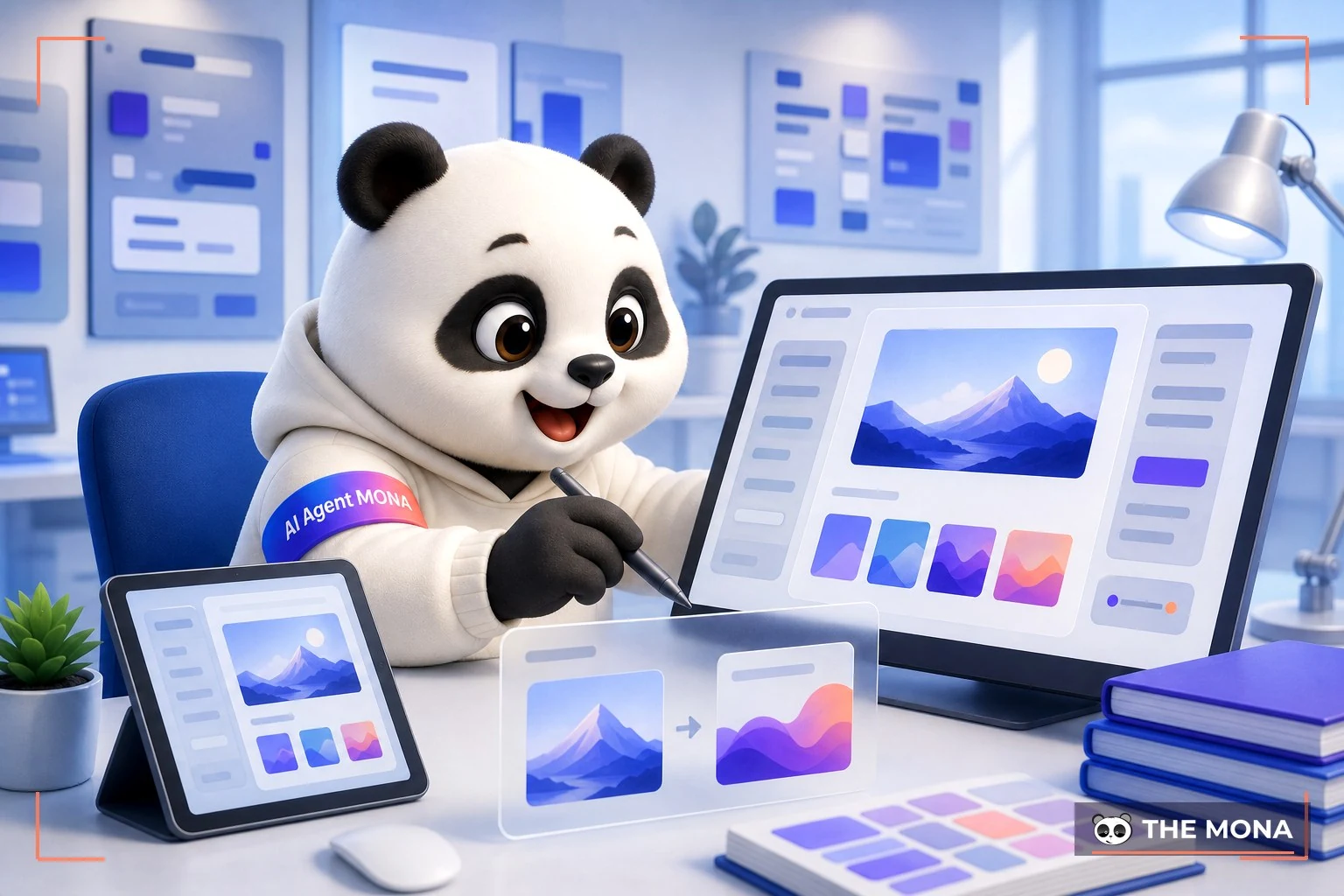
Keeping a consistent visual style is a big challenge, especially when you need to produce marketing materials in bulk. Firefly solves this effectively. ‘Reference Image’ mode clones the style from a sample image, so you don't have to rewrite complicated prompts.
This tool keeps things consistent across every platform and helps your business hold its brand identity. It also saves a lot of time, making image creation fast and easy.
To start, upload a reference image to Firefly. This is the most important step. The image sets the style for everything you create next. For example, say we have a sample image of product packaging.
MONA once helped a fashion store chain design new ads. They wanted to keep their minimalist style and neutral colors, but needed a variety of layouts. Instead of long prompts, our team used a sample image. We uploaded an old ad design, and Firefly automatically analyzed it and applied the style to the new images.
Uploading is simple. Find the “Reference Image” section in the interface, choose “Upload Image” and select the file from your computer. Firefly processes the sample right away. It is a simple step.
After uploading a reference image, you can adjust its strength. This controls how strongly Firefly applies the style from the sample. A fast-food chain in Da Nang with 18 branches wanted to create a new menu. They needed dishes with the same photographic style, but also wanted a little variation. We used the reference strength setting.
At high strength, Firefly copies almost exactly, which guarantees complete consistency. At low strength, there is more room for creativity and the images keep their own character. The restaurant chain's marketing team tried many levels and found the sweet spot at 70%. That level gave consistent quality across images.
Drag the reference strength slider, which sits right next to the upload box. Try different levels to find the balance that best fits each project. That is careful control.
‘Reference Image’ mode works even better in multi-channel marketing campaigns. We often need many different images that share the same style. A household appliance manufacturer with revenue of over 60 billion VND a year, present in all three regions of Vietnam, needed a new set of ad images for Tet. The set was used on its website, Facebook, Zalo and email marketing.
We used one hero image as the reference. Firefly then produced dozens of variations in different sizes and layouts, all keeping the same colors, lighting and overall feel. That consistency makes the brand cohesive, helps customers recognize the products easily and boosts the campaign.
You can use ‘Reference Image’ to create website banners, social media covers, print posters or illustrations for blog posts. Each channel may have its own requirements, and Firefly helps us adapt quickly while staying professional. It is a big competitive advantage, and it also saves design costs or shortens content production time.

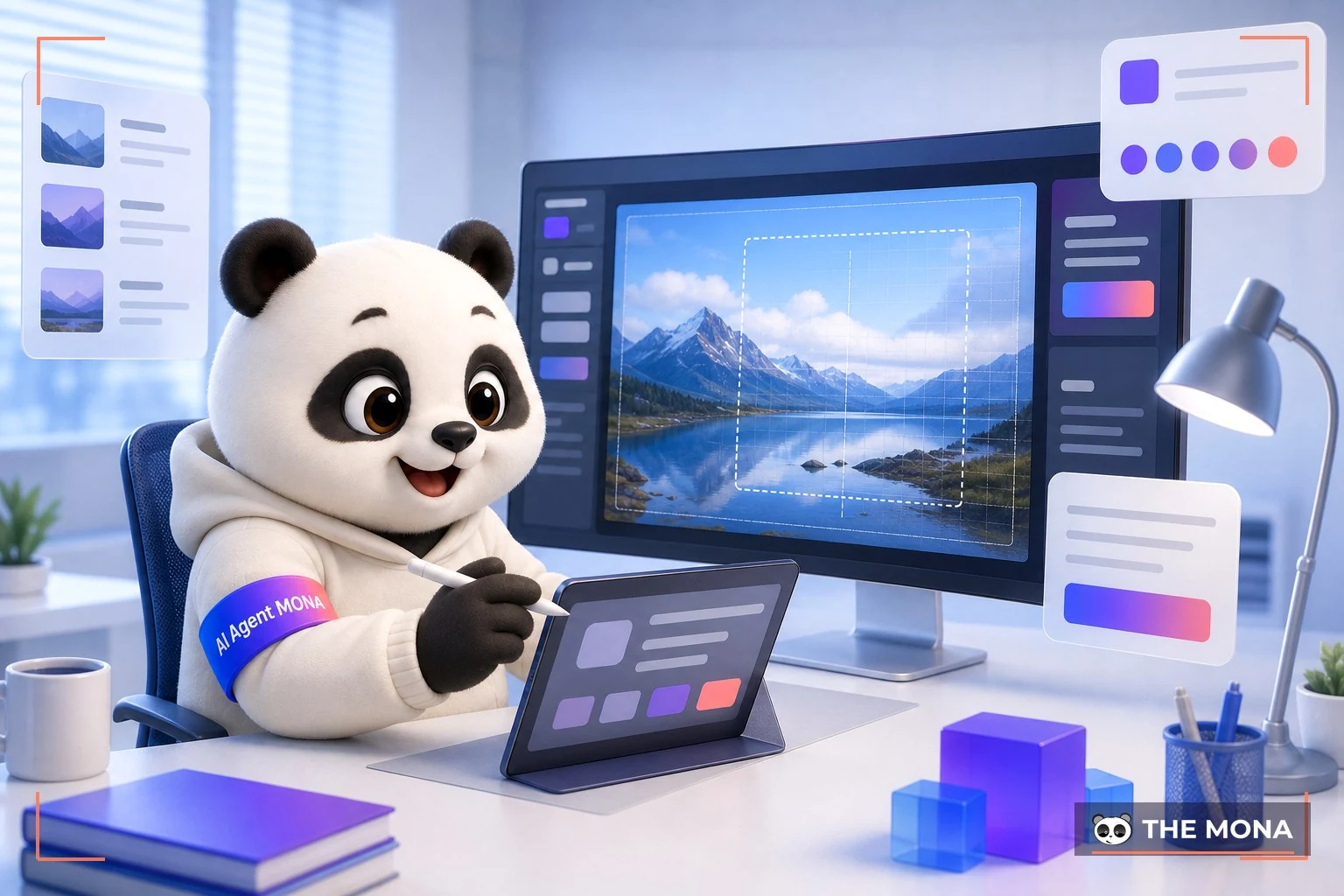
Adobe Firefly offers two powerful features: Generative Fill and Generative Expand. These tools let you adjust composition, add or remove objects and keep your images maximally flexible.
Complex photo editing is now much easier. We see many marketing teams spend hours to get an image they are happy with.
With these tricks, you can produce professional work in minutes. This is how you boost your productivity.
Generative Fill lets you quickly add or remove any object in a photo. It solves the worry of product photos that aren't polished or are missing an important element.
We can adjust even the smallest details. Manual editing takes a great deal of time and effort.
To use Generative Fill, select the area you want to add to or remove from, then enter a simple description in Vietnamese.
For example, a cosmetics chain with 18 branches in Hanoi, Da Nang and other cities needs new product images. Instead of reshooting everything, the marketing team can use Generative Fill. They add a small rose to a serum bottle or remove an unwanted smudge from the packaging. This saves a lot of content production cost and time.
This feature is also useful for Image SEOprojects. Creating many distinctive versions of product images improves your chances of appearing on Google Images.
Generative Expand lets you extend the original frame without distorting the content. It solves the problem of a photo that is too narrow, lacks space for ad copy or doesn't fit the aspect ratio you want.
We can turn a portrait photo into a wide panorama, making the image more flexible for many uses.
Just select the image and drag the frame outward. The tool automatically fills in details that match the original context.
For instance, a travel company wants to use a landscape photo as a website banner. The original aerial shot is beautiful but has no empty space for a slogan and logo. Generative Expand extends the sky or the ground to create the ideal space. The design team doesn't need to ask a photographer to reshoot.
This is a big advantage when optimizing images for social platforms, since each platform needs a different ratio. Generative Expand lets you adjust flexibly without losing quality.
For the best results, combine Generative Fill and Generative Expand. Together they produce a consistent, high-quality product photo set that suits every campaign.
We can handle more complex requests. Even a good original photo still needs fine-tuning to look polished.
First, use Generative Expand to widen the frame and create plenty of background space. Next, use Generative Fill to add supporting elements such as accessories or flowers, or to remove unnecessary details.
An F&B restaurant chain with more than 20 branches needs food images. They shot the main dish on a plate but wanted a more upscale setting. First, they used Generative Expand to extend the dining table and create more space. Then they used Generative Fill to add a wine glass, candles or a small vase. The result is a lively image that attracts customers and boosts engagement on digital marketing channels.
This lets you create many image variations from a single original. Each version can serve its own purpose, from your website to Facebook and Google Ads.

Adobe Firefly has a powerful ‘Text Effects’ feature. It is a handy tool for designing distinctive text effects, so your ad headlines catch the eye and your main marketing message stands out.
We see many business owners and marketers spend a lot of time struggling to make striking lettering. Now it is much simpler. Firefly turns your boldest ideas into reality in just a few clicks.
This tool boosts your creativity and makes your content stand out. Firefly helps you produce professional work.
Firefly's 3D text and real-material effects are genuinely impressive. You can turn flat text into vivid 3D forms. Imagine the word “SALE” embossed in solid gold, or “KHUYẾN MÃI” (promotion) carved in granite.
Firefly's interface is very intuitive. Enter the text you want to style, then choose the 3D look you like. There are countless material options, from glossy metal, natural wood and clear glass to soft velvet. Each one creates its own impression.
For example, a real estate company launching a premium project needs the headline “Diamond City” to sparkle like real diamonds. Firefly does that. Or a handmade shop wants the words “Thủ Công Tinh Hoa” (Handcrafted Excellence) to stand out in a rustic material. The tool handles that right away, giving the brand an authentic feel.
Adjusting color and transparency is important. It makes the text effect blend with the whole design. Firefly offers a rich color palette, so you can easily pick the right tone, either solid colors or smooth gradients.
Transparency is a creative lever too. You control how visible the text is, which creates a subtle effect and keeps the text from overwhelming the design. The text blends more naturally into the background.
An upscale restaurant chain needs the words “Món Ngon Mỗi Ngày” (Delicious Dishes Every Day) to look both elegant and easy to read. They use a bronze-gold color with moderate transparency, which harmonizes with the food photos. This is how you create emphasis without overpowering. It matters for aesthetics.
The flexibility of ‘Text Effects’ is a big strength. You can use these text effects on any channel, from website banners and event posters to social media posts. Each platform can have its own text effect.
On a website ad banner, a standout 3D headline draws viewers in, and they click to see the product. On a poster, a striking text effect carries the message more strongly. Facebook and Instagram posts also come alive, boosting customer engagement.
A new fashion brand launching its spring-summer collection needs to promote on Instagram. Using a “Bloom Collection” text effect made of leaves and flowers in fresh colors made a strong impression. Or an English center that wants to attract new students: the headline “Học Tiếng Anh Chuẩn” (Learn Proper English) with a fun, friendly text effect creates instant goodwill. Let's make good use of these tools.
At MONA we know that tools like Adobe Firefly bring big benefits. They support your marketing and website design work. Professional website from MONA always incorporates the latest trends. We optimize the user experience, which helps your business increase sales.

You have gone through many image creation techniques with Adobe Firefly alongside us. It is a powerful tool that opens up many creative possibilities. However, Firefly and other personal AI tools all have limits, and we need to understand them when applying AI at business scale.
Personal tools usually solve only one aspect. They cannot automate the entire process. At this point a business needs to look further, toward a more seamless solution.
We know you are always looking for results. Investing in marketing and in your website has to deliver real value. This is the time to consider a more specialized platform.
Using separate AI tools such as Firefly or ChatGPT for each task carries many hidden risks. They can't connect with each other automatically. For example, an education group with 15 branches across three major cities runs hundreds of ad campaigns a month. Marketing staff use Firefly to create images and ChatGPT to write copy.
Every step is manual. They have to copy, paste and cross-check constantly, which takes a lot of time, slows the workflow and raises the error rate. Customer data, images and articles end up scattered, and other departments struggle to access them in sync.
Data security is also a concern. Sensitive company information risks being exposed. Free or cheap tools don't guarantee a solid infrastructure. You will see operating costs rise and performance drop noticeably.
A household appliance manufacturer in Dong Nai, with revenue of over 60 billion VND a year, ran into exactly this. The marketing team used 5 to 7 different AI tools. At the end of the month they couldn't compile a report. Reconciling costs and the results of each campaign became extremely complicated. That was when they realized they were paying for fragmentation.
MONA adopted AI in internal operations very early, back in 2016. We use AI to streamline website design, SEO and digital marketing campaigns. For example, MONA's creative team uses AI modules to automatically generate image variations and content ideas based on a trained set of brand rules. This shortens concept development time significantly.
The results are easy to see. MONA staff don't have to redo repetitive work and can focus on creativity and strategy. This raises the quality of service across the 14,000+ projects we have worked on. MONA's customer retention rate holding at 85% is the proof.
We also run specialized training programs. MONA teaches customers to use AI effectively in their daily work. For example, at MONA EduCenter we offer courses on optimizing SEO-standard content with AI. You learn to use AI to write and to analyze keywords and article structure, so your website ranks better in search engines.
Our KhanhHung. Academy has trained more than 40,000 students, 760 of them SEO experts. They are equipped with practical AI knowledge and skills, which helps MONA's customers run their AI systems themselves. We sell tools and also pass on the knowledge.
To get past the limits of personal AI tools, a business needs an overall solution. MONA Media provides custom automation software: closed-loop module chains designed for each business need.
MONA's software integrates marketing tasks seamlessly. It connects everything from content and image creation to campaign management. Customer data is centralized in one place, which gives you a complete view of performance and makes it easy to track the ROI of every activity.
For example, a fashion retail chain with more than 20 stores in Hanoi and Da Nang and monthly revenue of around 45 billion VND deployed MONA's marketing automation software. The system automatically generates hundreds of varied ad designs. Content is personalized for each customer segment. The software also sends emails and messages automatically. Conversion rate rose noticeably.
Data security is a priority for MONA. Our software is built to the highest security standards, so you can feel fully confident about your business information. We don't sell generic “AI”. MONA provides “AUTOMATION SOFTWARE” that delivers real value and helps your business grow sustainably.
The same capabilities also apply to:

Go ahead and teach yourself Adobe Firefly when you need to get used to prompts, try styles and create a few image variations each week. When your marketing team has to produce many image sets that match your brand identity and the ratio of each channel, and publish straight to your website, we can build a dedicated image creation and approval workflow.
Talk to us through 1900 636 648 to settle on the right Firefly workflow for the team that is running it. Learn as far as you can, and use what you learn.

CEO & Founder · The MONA
Founder of The MONA, who built a services company of 60+ staff with 14,000+ projects delivered. Khánh Hùng shares how he thinks about building systems that run themselves, automating a business, and the real lessons from delivering projects at MONA.
 266




Professional website
design services
Own a website with a beautiful, 100% exclusive design and a lifetime warranty, with the ability
to expand features flexibly as your business grows, starting today!






 MONA will never sell your information or send you spam


 MONA will never sell your information or send you spam
