
 MONA OS 2.0
 Partner with MONA


 Tự động hoá doanh nghiệp
 Cẩm nang SEO
 Digital Marketing
 Kinh nghiệm thiết kế website
 Hạ Tầng Server
 Giáo dục


 VI
 EN











Message us on
Zalo Official


 ProductsNew

 ProductsProducts
 Mới ra mắtKHA AI 2027App tự edit video, tự đăng mọi mạng xã hội, 2 phút mỗi ngày









 Website designLooks good and wins customers over.
SEO servicesBrings in customers searching for exactly what you sell.
 Tư vấn digital marketingKéo khách từ nhiều kênh, đo bằng số thật.
Corporate video productionVideos introducing your company, factory and team.
 NewAI video productionCompany story films made with AI.
 Custom software developmentCRM, ERP and HRM built for your business.
 Viết AI Agent theo yêu cầuĐặt riêng một trợ lý AI cho đúng việc của mình.
 Tư vấn chuyển đổi AIĐưa AI vào vận hành của cả công ty.
NewMONA LMSManagement for centers and schools.
MONA SkillHubInternal training for company staff.
 NHTQ systemEnd-to-end China–Vietnam shipping operations.
MONA JMSManagement for gold, diamond and pawn shops.
 MONA E-LearningA website with every feature you need to sell courses.
 How to sell online courses (course)More than 30 free lessons on selling courses on autopilot.
 MONA Cloudmonacloud.vnServers to get your apps and websites running.
 MONA Basemonabase.vnPostgres database, sign-in and file storage.
 MONA Mailmonamail.vnSend OTP, order and invoice emails from your software.
 MONA Paymonapay.vnAccept bank transfers via VietQR and notify your software when the money arrives.
 MONA eInvoiceComing soonIssue e-invoices that meet tax standards.
Gấu CườiTrả lời khách 24/7 trên web, Fanpage, Zalo và thu lead cho sale.
 Gấu TeleSalesGọi điện tư vấn, chăm khách như tổng đài viên thật.
Dê CườiTư vấn và chốt đơn cho shop ngay trong khung chat.
Gấu WebmasterNhắn nhóm Zalo là website được sửa xong.
 Gấu Pháp ChếSoạn hợp đồng, rà điều khoản trong vài phút.
 Gấu Báo GiáLên báo giá đúng mẫu và gửi khách ngay.
 AI chăm sóc khách hàngTheo dõi và giữ chân khách hàng cũ.
 Gấu Tuyển DụngLọc hồ sơ, hẹn lịch, phỏng vấn ứng viên.
 Mới ra mắt
KHA AI 2027
Xây kênh chuyên gia 2 phút mỗi ngày
Quay bằng điện thoại, AI tự edit video, tự đăng lên 16 nền tảng và tự trả lời bình luận, tin nhắn.
947.821lượt xem trên kênh CEO MONA sau 47 ngày
 Anh Khánh HùngCEO MONA đang dùng mỗi ngày
Xem app làm được gì
 AI
Gấu Cười MONA ĐANG TỰ XÀITrả lời khách 24/7 trên website, Zalo OA, Messenger và thu lead về cho sale.
Dê CườiChốt đơn bán lẻ và sàn: Shopee, TikTok Shop, web. Chăm cả khách sỉ, đại lý.
Gấu WebmasterCập nhật nội dung, tối ưu SEO website mỗi ngày.
Gấu TeleSalesGọi điện tư vấn, chăm khách như tổng đài viên thật.
Gấu Tuyển DụngLọc hồ sơ, hẹn lịch, phỏng vấn ứng viên tự động.
AI chăm sóc khách hàngGiữ khách cũ, cứu lead đã rớt cho phòng kinh doanh.
Gấu Pháp ChếSoạn hợp đồng, rà điều khoản trong vài phút.
Gấu Báo GiáLên báo giá đúng mẫu, gửi khách ngay khi có yêu cầu.
 Chuyển đổi AI toàn phầnGiải pháp tổng cho doanh nghiệp, 3 lớp triển khai.
 Viết AI Agent theo yêu cầuĐặt riêng một con AI gánh đúng nghiệp vụ của bạn.
 Custom softwareCRM, ERP and HRM with built-in AI automation.
 SEO & AEO thời đại AIĐược Google lẫn AI trích dẫn, không chỉ xếp hạng.
 Kiến thức AI cho doanh nghiệpBài phân tích, hướng dẫn ứng dụng AI vào vận hành.
 Free AI courses
 AI tools at work
App mới · KHA AI 2027
Xây kênh 2 phút mỗi ngày
AI tự edit video, tự đăng mọi mạng xã hội
Free consultation, 8am–10pm every day

18 March, 2023
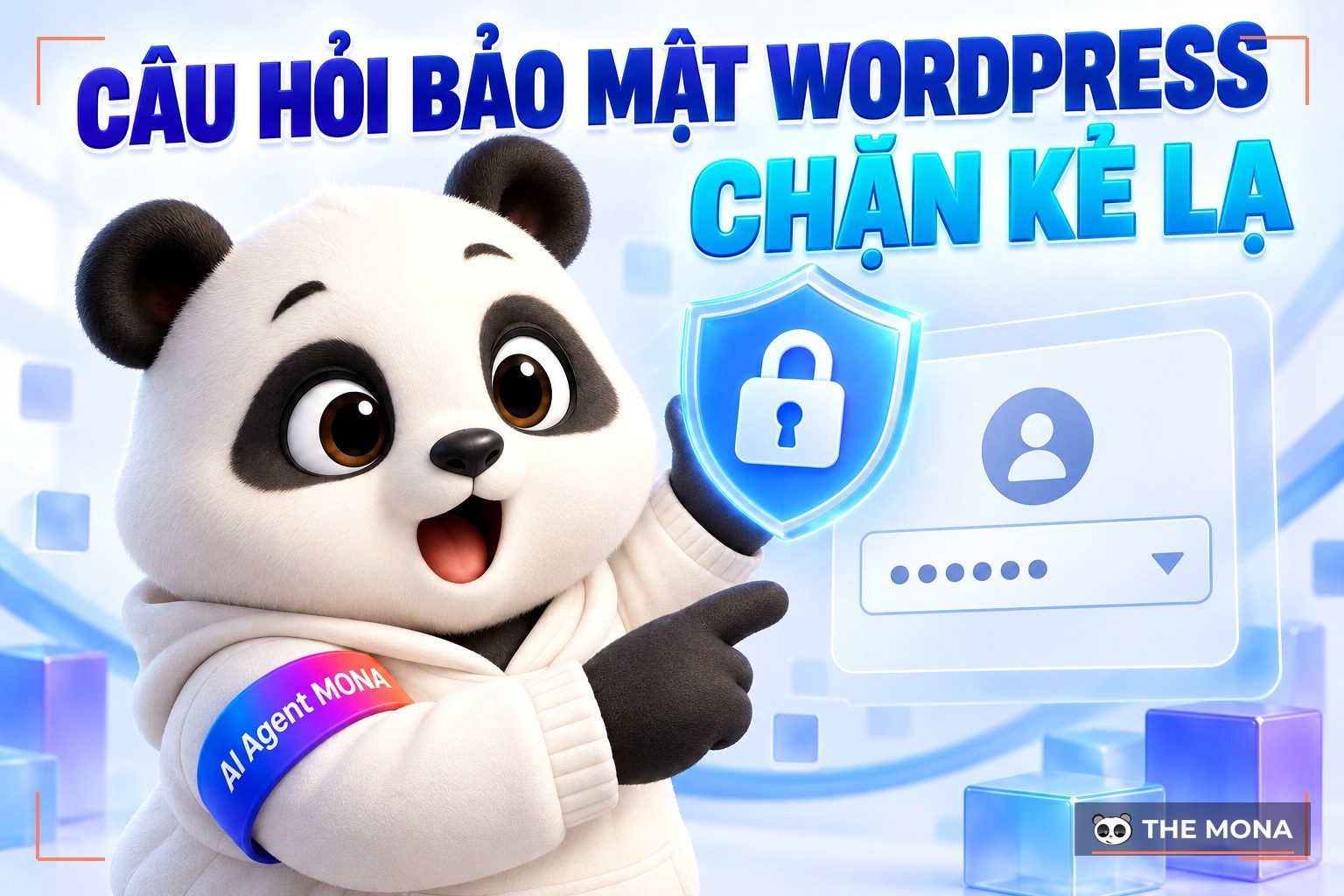
Hundreds of websites around the world are attacked every day. Setting up a security question for the WordPress login has become a task administrators always care about. A security question adds an extra layer of protection to your WordPress site. How to add a security question to the WordPress login is covered in detail in this article. If you want to make your website safer and more secure, take a moment to read on below.
A security question is something every website should set up. This simple method protects WordPress from hackers and malicious activity that affects how your site runs.
Personal data, web data and customer information get top-level protection with WordPress security questions. This is the best way for you to upgrade your website's security level. So what is a security question, and how do you set one up?
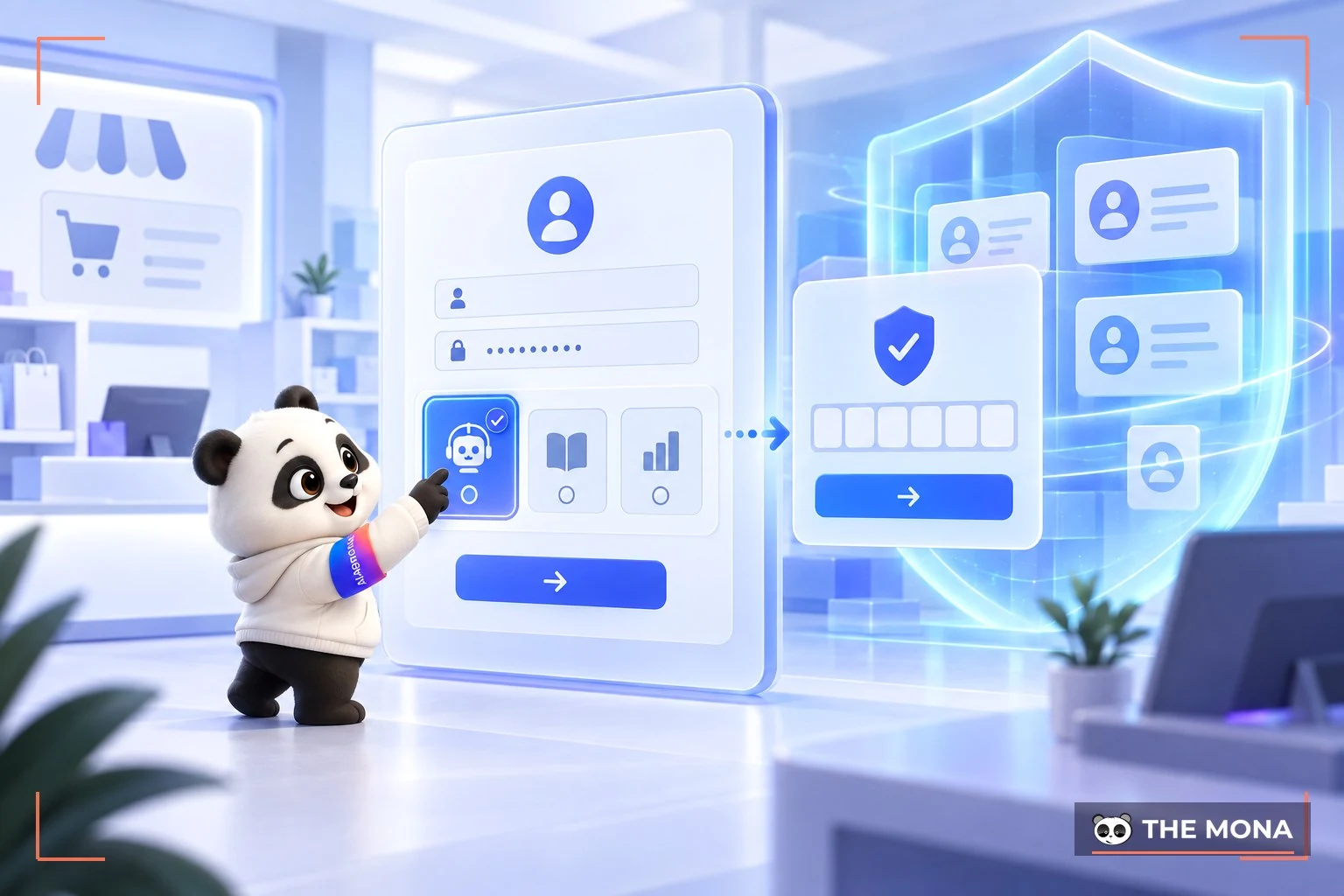
A security question is a key to logging in to WordPress. It works much like the username and password you use to access the site. Security questions help verify a user's identity better, they are personal and only the person who set them up knows the answer. Hackers will find them hard to guess, which makes it very hard to break into your website.
For example, some people set a security question like "The most beautiful place you have seen in the world" or "The most important person in your life"… With these questions and answers, almost only the person who set them up will know.
See more:
Add an extra layer of security to WordPress. Prevent unauthorized access, hackers to attack. It is a perfect additional password for administrators. With ordinary passwords or email, hackers will not be able to get into your WordPress.
A highly secure website will also increase your site's trust on Google. It is also how you protect your site information and user data. The higher your website ranks on Google, the faster these protections get rolled out.
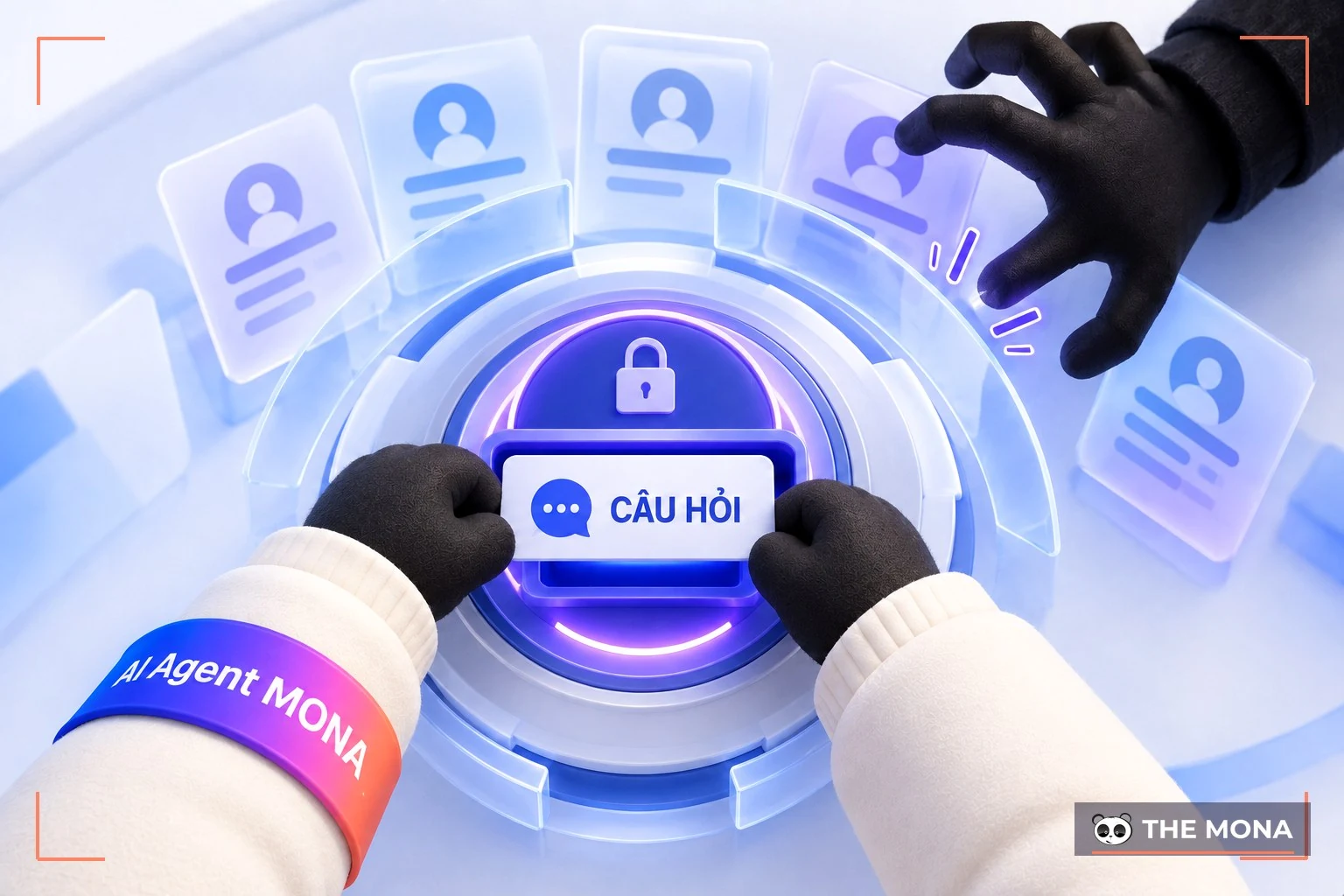
A WordPress security question helps you lock down permissions on management files. You get your own authority and protection over important files to prevent unwanted intrusion or changes.
Strengthen the safety of WordPress Core. With a security question set up, you can safely auto-update WordPress Core. You should choose long, personal questions that only you know the answer to. The more unique the question, the more secure your website.
Some administrators using WordPress for the first time do not yet know how to add a question in WordPress. We will walk you through the process of adding a security question to the WordPress login in detail below.
To add a security question to WordPress, log in to your website's admin page. Then follow these steps:
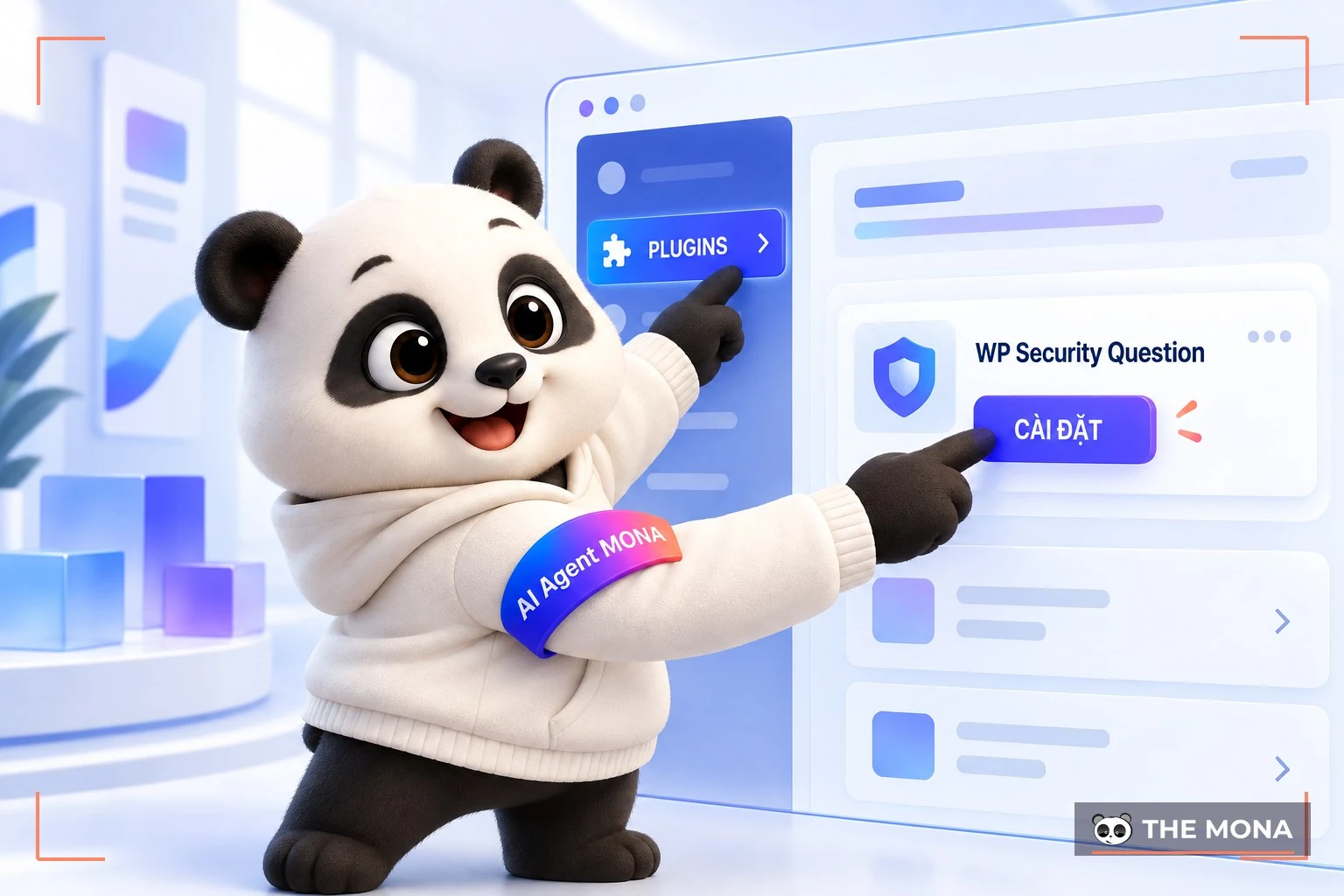
Once installed, click Activate to finish and enable the plugin.
To set up the security question, follow these steps:

After choosing your options and setting the security questions and their answers, click Save Settings to save.
Note: Choose unique security questions. It is better to create entirely new questions instead of picking the suggestions that come with WordPress. Also make sure you remember your answers. Don't pick a tricky answer on impulse and then forget it after a while.
Security questions for users work through a different process. They apply to users with permissions on the website. Follow these steps:

In My Security Questions you will need to fill in the following:
When you finish, click Update Profile and your information is updated.
It matters to set a long question and pick a unique answer that only you know. If you choose questions that are too easy, such as your date of birth, where you live or your favorite number, hackers can crack them easily. It is best to choose questions that only you know the answer to.
Double-checking your WordPress security question setup is a necessary precaution. Usually, once you finish, it is 99% correct. But checking never hurts and makes sure everything is accurate. Try opening your website's login page, choose the question and enter the answer to log in. Raising your website's security is fairly easy, effective and quick to do.

Another option to secure your website is to buy an SSL certificate. These certificates increase security, Google values them, and they make it easier to collect your customers' cookie information.
Keep your website as secure as possible by adding a security question to the WordPress login screen today. It matters for your website and for keeping customer information safer. Just remember to choose a valuable, unique, personal security question that only you know, to get the highest level of security.
To improve WordPress security and set up a highly secure website, please contact Mona Media. Our webmaster, website design specialists will provide you with good, affordable and professional services.
See more:
A suggestion from MONA
For security, we have MONA Shield, MONA's licensed plugin: a firewall, bad IP blocking, spam protection and WordPress core file scanning. Every request goes through four layers of checks, and visitors are protected from spam without having to solve a captcha.
See the details at plugin.mona.software, or see more reviews in the plugin WordPress section of our blog. For advice based on your website's current state, call 1900 636 648.

CEO & Founder · The MONA
Founder of The MONA, who built a services company of 60+ staff with 14,000+ projects delivered. Khánh Hùng shares how he thinks about building systems that run themselves, automating a business, and the real lessons from delivering projects at MONA.
 1,5K


Professional website
design services
Own a website with a beautiful, 100% exclusive design and a lifetime warranty, with the ability
to expand features flexibly as your business grows, starting today!






 MONA will never sell your information or send you spam


 MONA will never sell your information or send you spam
