
 MONA OS 2.0
 Partner with MONA


 Tự động hoá doanh nghiệp
 Cẩm nang SEO
 Digital Marketing
 Kinh nghiệm thiết kế website
 Hạ Tầng Server
 Giáo dục


 VI
 EN











Message us on
Zalo Official


 ProductsNew

 ProductsProducts
 Mới ra mắtKHA AI 2027App tự edit video, tự đăng mọi mạng xã hội, 2 phút mỗi ngày










 Website designLooks good and wins customers over.
SEO servicesBrings in customers searching for exactly what you sell.
 Tư vấn digital marketingKéo khách từ nhiều kênh, đo bằng số thật.
Corporate video productionVideos introducing your company, factory and team.
 NewAI video productionCompany story films made with AI.
 Custom software developmentCRM, ERP and HRM built for your business.
 Viết AI Agent theo yêu cầuĐặt riêng một trợ lý AI cho đúng việc của mình.
 Tư vấn chuyển đổi AIĐưa AI vào vận hành của cả công ty.
NewMONA LMSManagement for centers and schools.
MONA SkillHubInternal training for company staff.
 NHTQ systemEnd-to-end China–Vietnam shipping operations.
MONA JMSManagement for gold, diamond and pawn shops.
 MONA E-LearningA website with every feature you need to sell courses.
 How to sell online courses (course)More than 30 free lessons on selling courses on autopilot.
 MONA Cloudmonacloud.vnServers to get your apps and websites running.
 MONA Basemonabase.vnPostgres database, sign-in and file storage.
 MONA Mailmonamail.vnSend OTP, order and invoice emails from your software.
 MONA Paymonapay.vnAccept bank transfers via VietQR and notify your software when the money arrives.
 MONA eInvoiceComing soonIssue e-invoices that meet tax standards.
Gấu CườiTrả lời khách 24/7 trên web, Fanpage, Zalo và thu lead cho sale.
 Gấu TeleSalesGọi điện tư vấn, chăm khách như tổng đài viên thật.
Dê CườiTư vấn và chốt đơn cho shop ngay trong khung chat.
Gấu WebmasterNhắn nhóm Zalo là website được sửa xong.
 Gấu Pháp ChếSoạn hợp đồng, rà điều khoản trong vài phút.
 Gấu Báo GiáLên báo giá đúng mẫu và gửi khách ngay.
 AI chăm sóc khách hàngTheo dõi và giữ chân khách hàng cũ.
 Gấu Tuyển DụngLọc hồ sơ, hẹn lịch, phỏng vấn ứng viên.
 Mới ra mắt
KHA AI 2027
Xây kênh chuyên gia 2 phút mỗi ngày
Quay bằng điện thoại, AI tự edit video, tự đăng lên 16 nền tảng và tự trả lời bình luận, tin nhắn.
895.765lượt xem trên kênh CEO MONA sau 37 ngày
 Anh Khánh HùngCEO MONA đang dùng mỗi ngày
Xem app làm được gì
 AI
Gấu Cười MONA ĐANG TỰ XÀITrả lời khách 24/7 trên website, Zalo OA, Messenger và thu lead về cho sale.
Dê CườiChốt đơn bán lẻ và sàn: Shopee, TikTok Shop, web. Chăm cả khách sỉ, đại lý.
Gấu WebmasterCập nhật nội dung, tối ưu SEO website mỗi ngày.
Gấu TeleSalesGọi điện tư vấn, chăm khách như tổng đài viên thật.
Gấu Tuyển DụngLọc hồ sơ, hẹn lịch, phỏng vấn ứng viên tự động.
AI chăm sóc khách hàngGiữ khách cũ, cứu lead đã rớt cho phòng kinh doanh.
Gấu Pháp ChếSoạn hợp đồng, rà điều khoản trong vài phút.
Gấu Báo GiáLên báo giá đúng mẫu, gửi khách ngay khi có yêu cầu.
 Chuyển đổi AI toàn phầnGiải pháp tổng cho doanh nghiệp, 3 lớp triển khai.
 Viết AI Agent theo yêu cầuĐặt riêng một con AI gánh đúng nghiệp vụ của bạn.
 Custom softwareCRM, ERP and HRM with built-in AI automation.
 SEO & AEO thời đại AIĐược Google lẫn AI trích dẫn, không chỉ xếp hạng.
 Kiến thức AI cho doanh nghiệpBài phân tích, hướng dẫn ứng dụng AI vào vận hành.
 Free AI courses
 AI tools at work
App mới · KHA AI 2027
Xây kênh 2 phút mỗi ngày
AI tự edit video, tự đăng mọi mạng xã hội
Free consultation, 8am–10pm every day

18 March, 2023

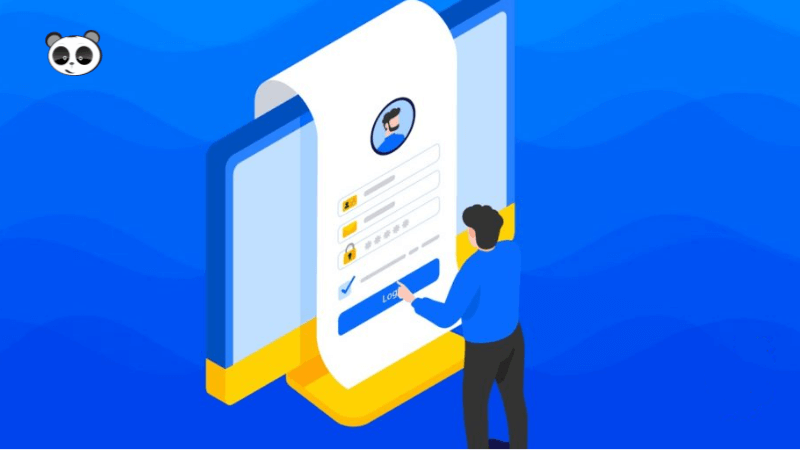
Is this your first time as the administrator of a website? Are there errors keeping you out and are you trying to find out how to fix them? The error of not being able to access the WordPress admin usually has many possible causes. We will help you understand some of the most common errors and how to fix them effectively. We hope this article from Mona Media will give new website administrators more experience website management.
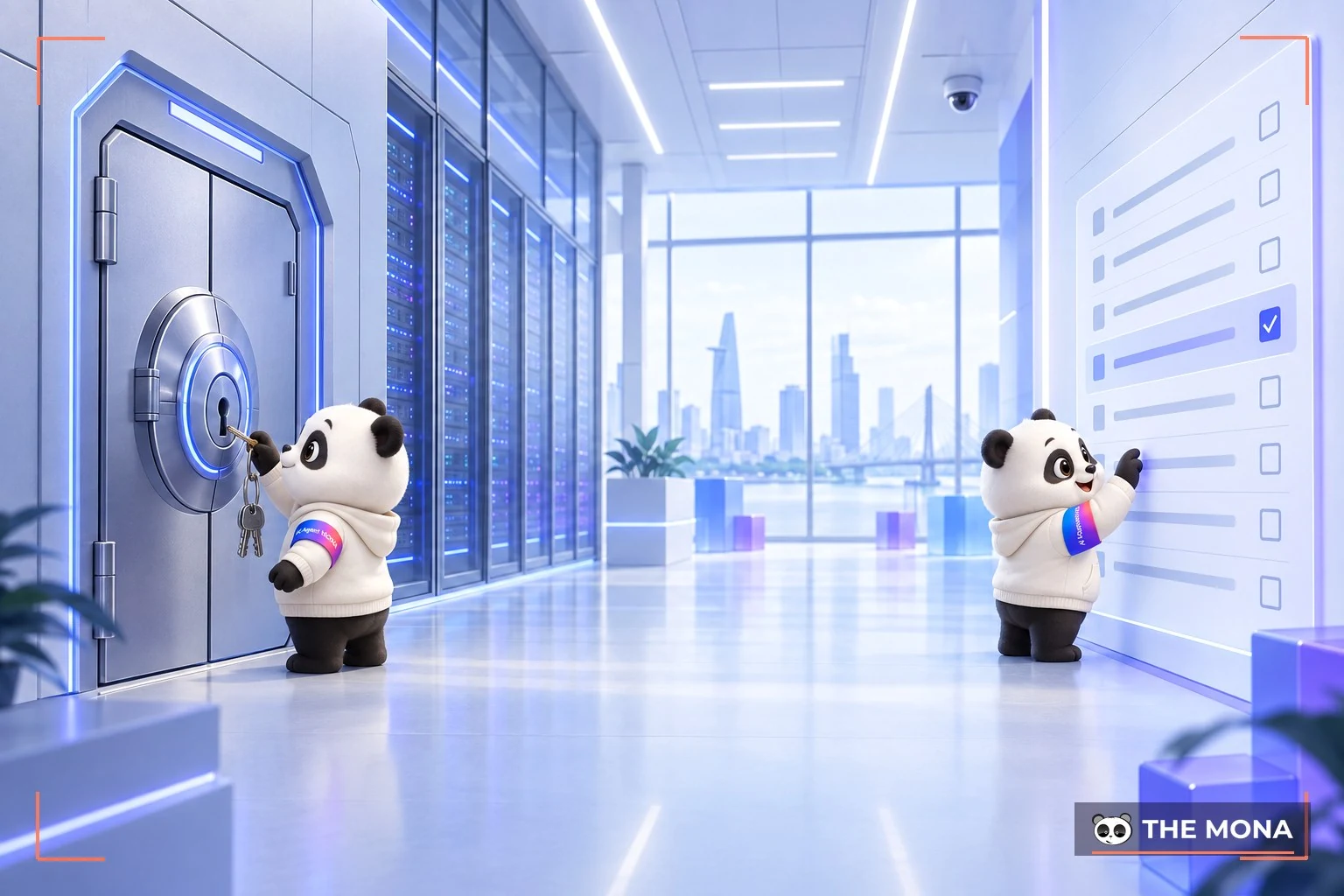
Switching Web Hosting or a plugin conflict will cause errors on your website. Problems such as the page loading forever or a message saying you cannot access the WordPress admin come up often. In these cases, you can fix it with one of the following 4 methods:
Method 1

This is one of the simplest ways to fix the error of not being able to access the WordPress admin. If it does not work, move on to the next fix.
Method 2
In this method, we edit the wp-config.php file by accessing your website's hosting. Then add this code:
Method 3
If the wp-login.php file does not exist on your admin site, you cannot log in either, so upload this file to your server again.
Then find a way to re-identify user_login by copying the code below:
// Delete this line
$user_login = $user_data[“user_login”];
// Replace it with this line
$user_login = $user_data->user_login;
Method 4

If plugins are not compatible with each other, you will need to deactivate them. Use your FTP account and go through the hosting server to reach wp-content/plugins. Then rename the plugin folder or add old to the end of the name to tell it apart: plugins_old.
Besides hosting changes and plugin conflicts, there are many other errors that can keep you out of the WordPress admin. Each error has different symptoms and a different fix.
See some notable WordPress plugins:
Some errors that block access to the WordPress admin are caused by:
For these errors, you should check the wp-config file, MySQL or the /wp-admin/ file. You can also ping the site to measure its load speed. Once you find what is blocking access to the admin area, fix it there. As you work as an administrator and learn about the web, you will accumulate experience with many errors and learn to handle them well over time.
Sometimes these errors do not come from your website but from the internet connection. You can turn off the internet for about 5 minutes and restart it, or switch your connection to a different TP-Link router.

This case is quite rare, but it can happen with the error of not being able to access your admin area. The core WordPress files are corrupted. Unzip the WordPress zip folder and upload it to your server over FTP. With this error you must be sure of the problem before you overwrite the files in use on the server.
Browser cookies can stop you from accessing the WordPress admin. If you cannot get in, try clearing the cache and browser cookies to test whether the problem comes from there. However, the cache and cookies store login information and collect data from users, so learn how to clear and set them up again when needed.

One cause of not being able to access the WordPress admin is that memory has run out. Check and raise the PHP memory limit for your website, or delete plugins and files you no longer need. If the problem is beyond what you can handle, you can turn to another administrator.

If the admin page shows the message “login page refreshing error”, there is a problem with your .htaccess file. Create a new .htaccess file by accessing the hosting root to copy a new one, and delete the old file from your web folder. Once you can get into your Dashboard, go to Settings and choose Permalinks. You do not need to change anything there, just click Save.
It is possible that a hacker has attacked your website and taken over the administrator account. In other cases you may simply have forgotten your password and entered it wrongly. The best fix is to go into phpMyAdmin and reset it to a password that is easy to remember, to avoid this error in later logins.
Many people change their passwords constantly for better security, and end up forgetting the last password they used. Choose “Forgot your password” and follow the instructions to set a password that is easier to remember and still safe.
Installing extra themes and plugins can cause conflicts and incompatibility with other add-ons. The theme may also be incompatible with WordPress. If this happens after installing a theme, deactivate the theme you just installed. A simpler way is to go to wp-content/themes and rename the themes you just installed.

If you lose all top-level administrator privileges on your website, the most likely cause is a hacker intrusion. At this point you should start the backup database system and disconnect it, to stop the infection spreading to your other satellite sites and home pages. Then assess the level of danger, analyze the malicious components and investigate the source of the attack. Fix the problem of not being able to access the admin area thoroughly.
A PHP error that locks you out of the admin area may be caused by pasting unsuitable code into your website. To fix it, use an FTP program with your login and delete that piece of code.
You entered your website URL wrongly, so it does not match your access rights. Check your URL again instead of trying to log in to the admin area.
With these fixes for the error of not being able to access the WordPress admin, we hope we have helped you. Many other errors come up while building a website, managing admin permissionsand more. We will keep studying the errors that happen on websites and share them with you in later articles.
See more WordPress errors and how to fix them:

CEO & Founder · The MONA
Founder of The MONA, who built a services company of 60+ staff with 14,000+ projects delivered. Khánh Hùng shares how he thinks about building systems that run themselves, automating a business, and the real lessons from delivering projects at MONA.
 1,5K



Professional website
design services
Own a website with a beautiful, 100% exclusive design and a lifetime warranty, with the ability
to expand features flexibly as your business grows, starting today!






 MONA will never sell your information or send you spam


 MONA will never sell your information or send you spam
