
 MONA OS 2.0
 Partner with MONA


 Tự động hoá doanh nghiệp
 Cẩm nang SEO
 Digital Marketing
 Kinh nghiệm thiết kế website
 Hạ Tầng Server
 Giáo dục


 VI
 EN























Message us on
Zalo Official


 ProductsNew

 ProductsProducts
 Mới ra mắtKHA AI 2027App tự edit video, tự đăng mọi mạng xã hội, 2 phút mỗi ngày










 Website designLooks good and wins customers over.
SEO servicesBrings in customers searching for exactly what you sell.
 Tư vấn digital marketingKéo khách từ nhiều kênh, đo bằng số thật.
Corporate video productionVideos introducing your company, factory and team.
 NewAI video productionCompany story films made with AI.
 Custom software developmentCRM, ERP and HRM built for your business.
 Viết AI Agent theo yêu cầuĐặt riêng một trợ lý AI cho đúng việc của mình.
 Tư vấn chuyển đổi AIĐưa AI vào vận hành của cả công ty.
NewMONA LMSManagement for centers and schools.
MONA SkillHubInternal training for company staff.
 NHTQ systemEnd-to-end China–Vietnam shipping operations.
MONA JMSManagement for gold, diamond and pawn shops.
 MONA E-LearningA website with every feature you need to sell courses.
 How to sell online courses (course)More than 30 free lessons on selling courses on autopilot.
 MONA Cloudmonacloud.vnServers to get your apps and websites running.
 MONA Basemonabase.vnPostgres database, sign-in and file storage.
 MONA Mailmonamail.vnSend OTP, order and invoice emails from your software.
 MONA Paymonapay.vnAccept bank transfers via VietQR and notify your software when the money arrives.
 MONA eInvoiceComing soonIssue e-invoices that meet tax standards.
Gấu CườiTrả lời khách 24/7 trên web, Fanpage, Zalo và thu lead cho sale.
 Gấu TeleSalesGọi điện tư vấn, chăm khách như tổng đài viên thật.
Dê CườiTư vấn và chốt đơn cho shop ngay trong khung chat.
Gấu WebmasterNhắn nhóm Zalo là website được sửa xong.
 Gấu Pháp ChếSoạn hợp đồng, rà điều khoản trong vài phút.
 Gấu Báo GiáLên báo giá đúng mẫu và gửi khách ngay.
 AI chăm sóc khách hàngTheo dõi và giữ chân khách hàng cũ.
 Gấu Tuyển DụngLọc hồ sơ, hẹn lịch, phỏng vấn ứng viên.
 Mới ra mắt
KHA AI 2027
Xây kênh chuyên gia 2 phút mỗi ngày
Quay bằng điện thoại, AI tự edit video, tự đăng lên 16 nền tảng và tự trả lời bình luận, tin nhắn.
941.976lượt xem trên kênh CEO MONA sau 45 ngày
 Anh Khánh HùngCEO MONA đang dùng mỗi ngày
Xem app làm được gì
 AI
Gấu Cười MONA ĐANG TỰ XÀITrả lời khách 24/7 trên website, Zalo OA, Messenger và thu lead về cho sale.
Dê CườiChốt đơn bán lẻ và sàn: Shopee, TikTok Shop, web. Chăm cả khách sỉ, đại lý.
Gấu WebmasterCập nhật nội dung, tối ưu SEO website mỗi ngày.
Gấu TeleSalesGọi điện tư vấn, chăm khách như tổng đài viên thật.
Gấu Tuyển DụngLọc hồ sơ, hẹn lịch, phỏng vấn ứng viên tự động.
AI chăm sóc khách hàngGiữ khách cũ, cứu lead đã rớt cho phòng kinh doanh.
Gấu Pháp ChếSoạn hợp đồng, rà điều khoản trong vài phút.
Gấu Báo GiáLên báo giá đúng mẫu, gửi khách ngay khi có yêu cầu.
 Chuyển đổi AI toàn phầnGiải pháp tổng cho doanh nghiệp, 3 lớp triển khai.
 Viết AI Agent theo yêu cầuĐặt riêng một con AI gánh đúng nghiệp vụ của bạn.
 Custom softwareCRM, ERP and HRM with built-in AI automation.
 SEO & AEO thời đại AIĐược Google lẫn AI trích dẫn, không chỉ xếp hạng.
 Kiến thức AI cho doanh nghiệpBài phân tích, hướng dẫn ứng dụng AI vào vận hành.
 Free AI courses
 AI tools at work
App mới · KHA AI 2027
Xây kênh 2 phút mỗi ngày
AI tự edit video, tự đăng mọi mạng xã hội
Free consultation, 8am–10pm every day

26 May, 2023

Anyone who wants to succeed at SEO needs to understand many concepts and tools. That is tough and takes a lot of time, especially for “newbie”. That is why there is now plenty of software that helps SEOs work effectively. The best known is SEO PowerSuite. If you are new and don't know what SEO PowerSuite is or how to use it, this article from MONA Media explains it all step by step.

SEO Powersuite Colocation is a SEO tools powerful and made up of 4 for apps with standout features that help you optimize your website more effectively. Its combined analysis gives you a full picture of your site's condition, so you can plan content improvements and a suitable backlink campaign.
SEO PowerSuite is a set of 4 tools:

Let's look at what the main advantages of SEO PowerSuite are. SEO PowerSuite offers the following:
⇒ Helps a business saves as much time and money as possible when running SEO campaigns, helping businesses reach a growing number of customers every day.
Although SEO PowerSuite is a reliable and useful SEO tool, it also has a few drawbacks:
Even so, given the advantages above, SEO PowerSuite is still a good choice for professional SEOs and businesses.
If you are looking for an effective, all-round tool to support teaching yourself SEO then SEO PowerSuite is a name you can't skip. With features such as keyword analysis, backlink checking, rank tracking and on-page optimization, it gives users powerful tools to learn and practice SEO systematically.

Rank Tracker is a tool that checks a website's SERP rankings and researches keywords. It helps you easily find keywords with a low level of Keyword Difficulty competition with ease.
Keyword Research
This Rank Tracker feature generates ideas related to a given keyword. It includes these tools:
Target Keywords
Target Keywords tracks the rankings of Organic Search. Use Google Rank Tracking to see SERP rankings and visibility. Customize the display tabs to see the data you want. To update rankings, check keywords manually or use the automatic check to get email notifications about ranking changes.

You can focus on the SEO factors and links of your website by using SEO Spyglass in SEO PowerSuite. This tool provides all the data on the quality of the links in your profile, including organic links and links created from your Link Building you project.
Backlink Profile
To check the Link Profile of a website, you can use the Backlink Profile feature. Linking domains are the most important factor in this process. The Backlink from reputable domains are of higher quality than thousands of backlinks from a single website.
The SEO SpyGlass tool helps you analyze linking domains and shows the number of linking domains that are Dofollow and have a high Domain InLink Rank.
Penalty Risk
Links to spam domains usually do more harm than good. They can lower your website's SERP rankings. You can identify backlinks from harmful sites with the Penalty Risk tool in SEO SpyGlass and create a disavow file by selecting backlinks from spam domains.
You need to tell which links hurt your website so you can disavow them in time. Be careful, to avoid Google penalties such as: Google's Penguin algorithm and the Google Panda penalty.
Instead of constantly disavowing harmful links, you can build better links to your website for the strongest defense.
Domain Comparison
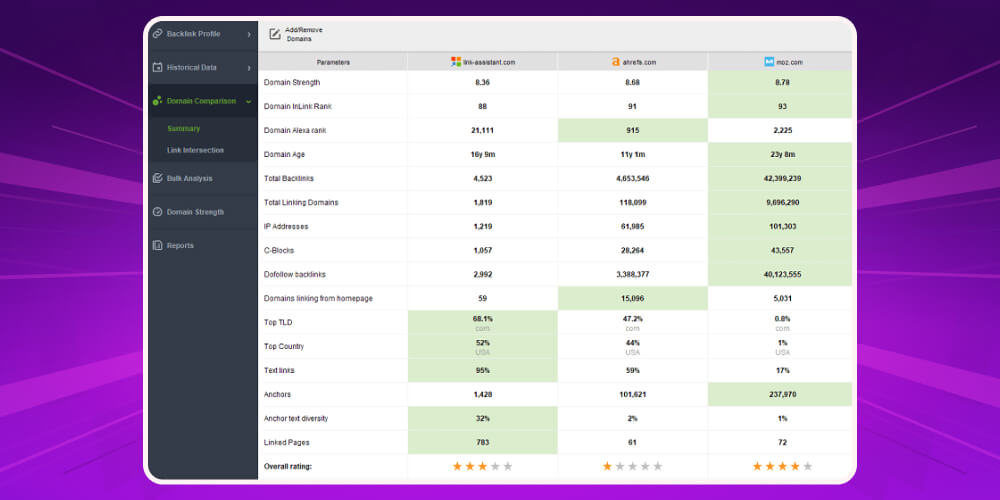
Domain Comparison lets you see the links on competitors' sites that your site doesn't have. After you enter the domains you want to track, the search takes a while. Don't worry: the longer it runs, the more domains it finds.
After you share your backlink list with the comparison sites, the list of Backlink will appear. You can focus on promising domains to get the links you don't have yet and build stronger links. You can also view Domain InLink and the number of links Dofollow of each website to target more reputable sites and provide Backlink Dofollow.
To verify a competitor's backlinks, hover over the row-number column or click the three-bar icon to show the links. This gives you a broader and more detailed view of your competitor's SEO strategy.
Tools Website Auditor of the SEO PowerSuite software helps you find and fix technical errors on your website before they get worse. This tool has 2 standout features.
Content Analytics
The Content Analysis tool shows how well your content is optimized, and Page Audit scores optimization for your target keyword. If you don't want to use the Content Editor, you can also edit content in this tool.
Content Analysis suggests keywords and questions that better match the keyword you are optimizing for. This helps you create better content and rank higher in organic search. Measuring with the weighting TF – IDF shows the importance of a word or phrase on a page.
Site Structure
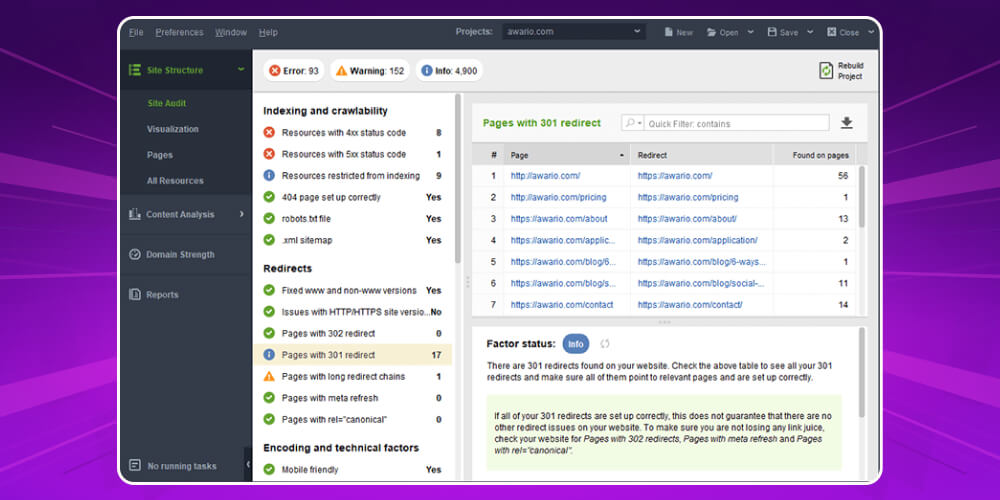
Site Structure lets you see the SEO components of a website. Site Audit checks the site and breaks problems down. These errors are the reason a page drops in Google rankings.
Site Structure flags problems and shows which pages are affected. The software explains the obstacles and how to fix them so you can act before a page loses organic search traffic.
Internal Link helps Google crawl and index your website's pages more easily. It also shows the click depth of pages and where inbound and outbound links lead. Based on Google Analytics, users can build an internal link strategy for each page based on page views.
How well a page is optimized can be seen in the Page on Tab OnPage. Viewers can analyze each page using information collected from the website. If you don't see the optimization rate, enter a target keyword so the tool can analyze it.
Community outreach
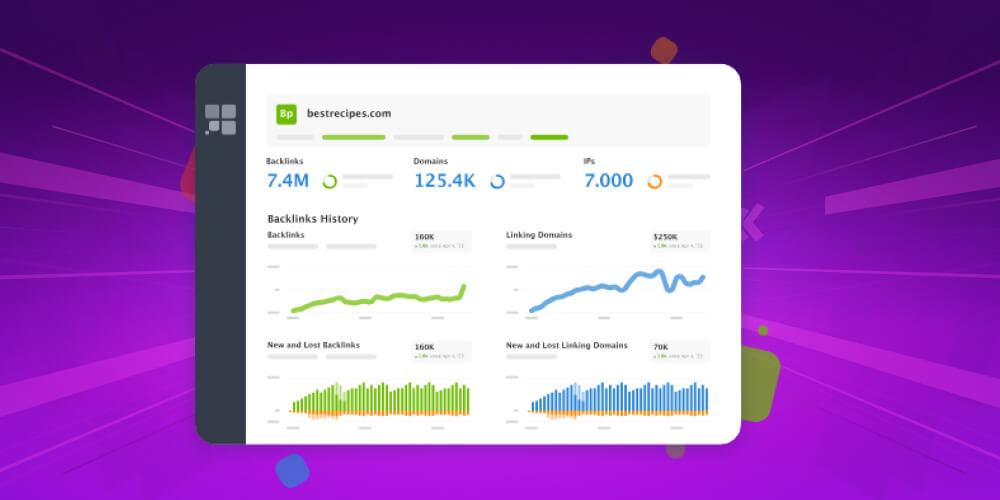
Link Assistant is an outreach and link building campaign tool. To reach potential prospects, just choose a method and enter your customers' keywords or topics. Finding prospects related to the keywords you entered SEO PowerSuite can take hours.
So before you do other tasks on the site, let it run in the background. When it finishes, you will see the websites with the prospects you want to target. You can find other domains through SEO Spyglass and add URLs by choosing Add from the menu and pasting them in.
To see Domain InLink Rank, Domain Age, Alexa Ranking and other information about each website, go to Tab Prospect Quality. Use these metrics to filter the results and show only the best websites. That way you find the best prospects for your campaign.
Identify email addresses
Building Deepscan, click the Verify button on the Menu bar and find an email address to verify for each page. You can write your own email template or use a ready-made one to personalize your message. You can also add tags to personalize for each recipient. Then send emails by customer type and track the status of the emails you sent.
To use SEO PowerSuite, you need to install the software on your computer. Here is how to do it quickly.
Step 1: Download SEO PowerSuite Full the latest version, extract it and install the .exe file.

Step 2: Download the Privoxy software from https://sourceforge.net/projects/ijbswa/
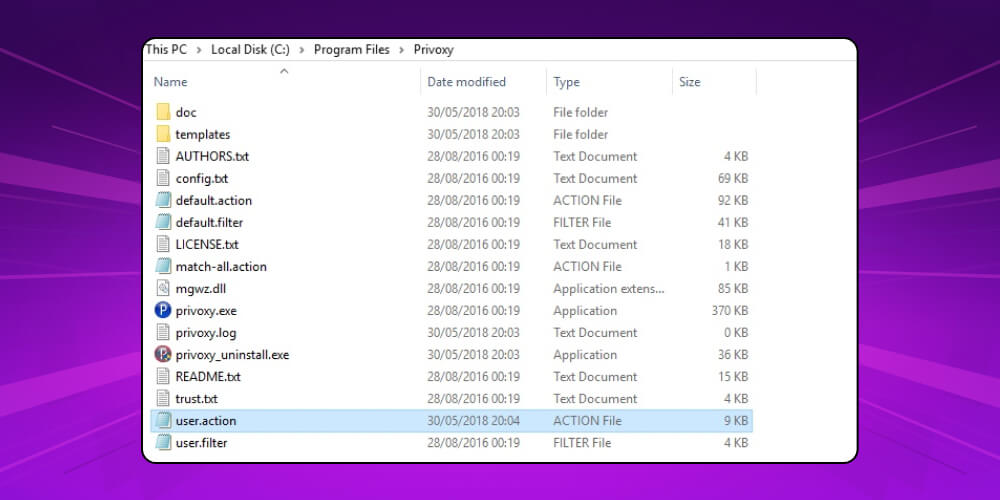
Step 3: Open the user.action file in the C:\Program Files\Privoxy folder after installing the software Privoxy.
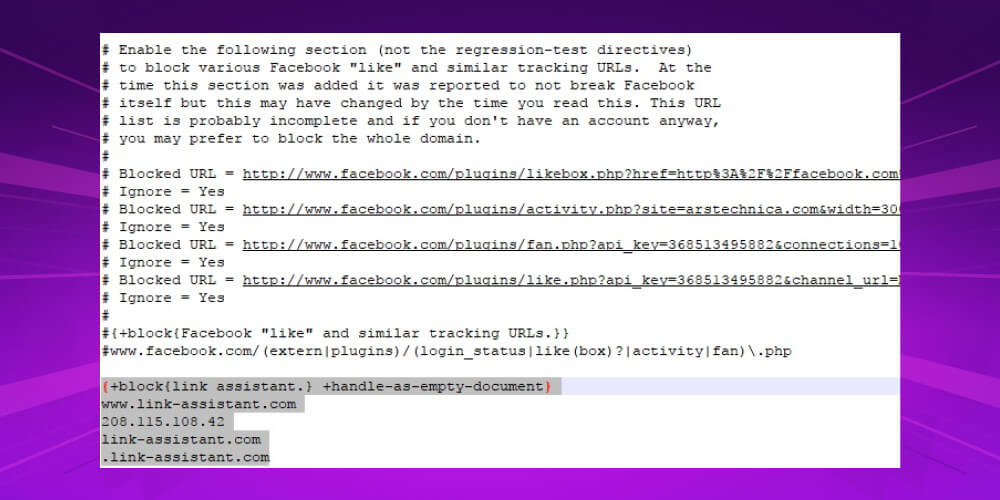
Step 4: Insert the following code to block the software's requests to the server:
{+block{link assistant.} +handle-as-empty-document}www.link-assistant.com208.115.108.42link-assistant.com.link-assistant.com
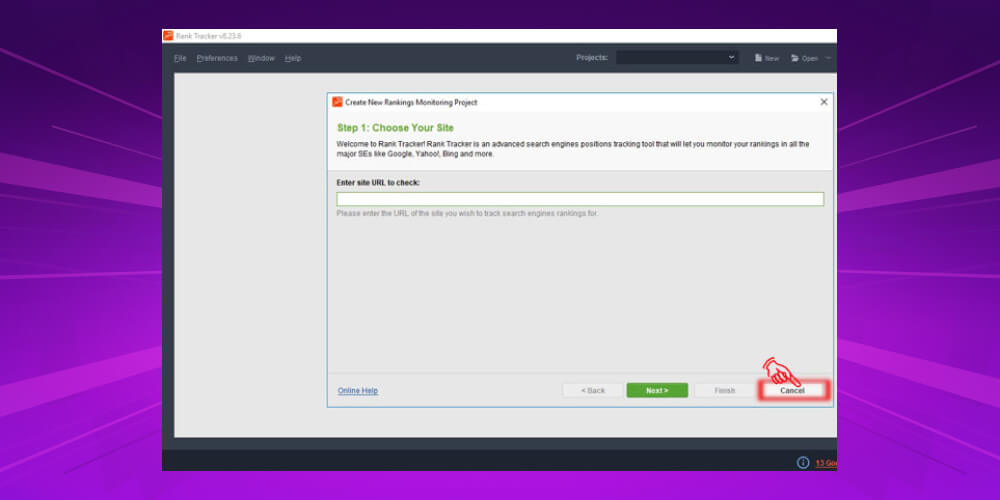
Step 5: Add proxy to the SEO PowerSuite software by launching the tool Rank Tracker and choose “Cancel” when the software asks whether to create a new campaign.
Step 6: Click Preferences >> Proxy Setting, check “Use proxy” and enter the settings “Address” 127.0.0.1 and “Port” 8118.
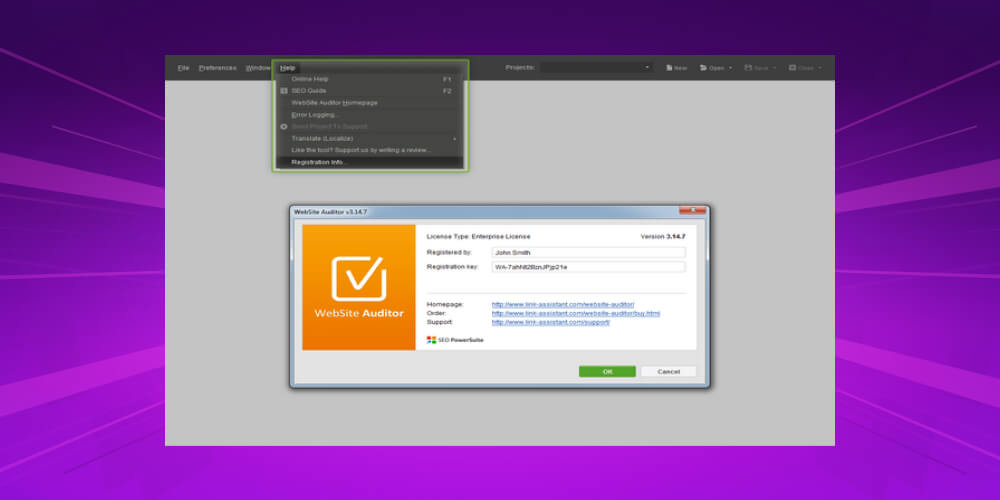
Step 7: Select “Help” >> “Registration info” and enter the name and key. Done!
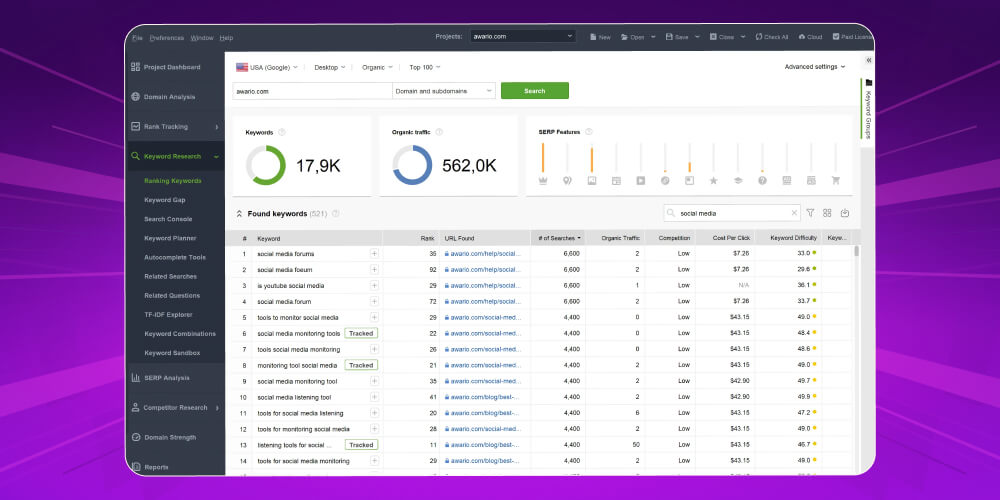
Click “check ranking” to check your website's rankings.
Click “check rankings” in the Rank Tracker tool and choose a search engine to check your website's rankings for the selected keywords.
Click to see each keyword's current ranking. Keywords that already rank high can be left alone, but you need to focus SEO more on the keywords that don't rank yet.
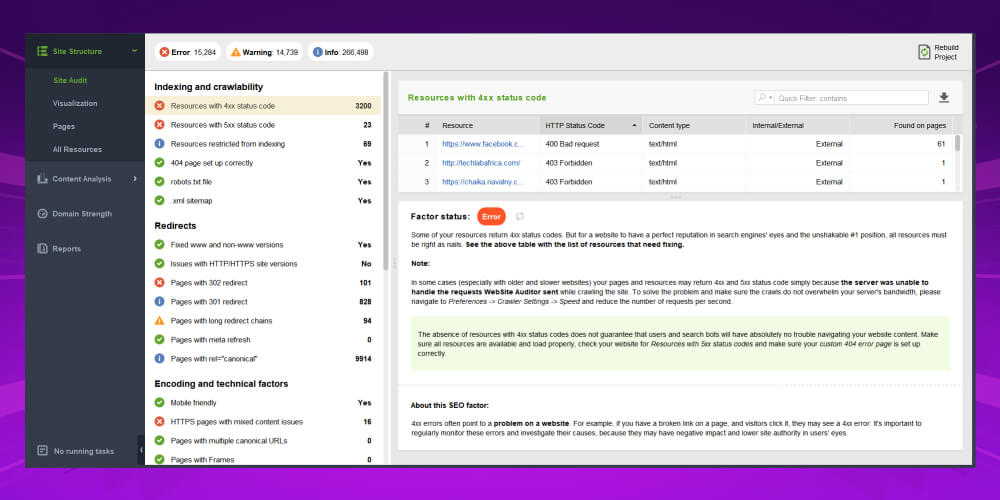
Run the Audit tool to find and fix errors and bring the website back to its original ranking.
Make sure you fix errors and resolve warnings to make your website more search-engine-friendly.
To optimize a landing page:
Use the WebSite Auditor to analyze the page and see its current optimization rate, keyword use and other SEO status.
Pay attention to factors marked as Error – errors or Warning – or flagged with warnings.
Switch to the “Competitors” tab to see how top-ranking competitors optimize page factors. Then switch to the “Details” tab to get advice on optimizing your page.
Follow the instructions in step 1. The status on-page optimization and optimization rate on the left update in real time as you type.
After editing the page, click “Save page” to save the newly optimized HTML and upload it to your website. Check the results to assess the optimization.
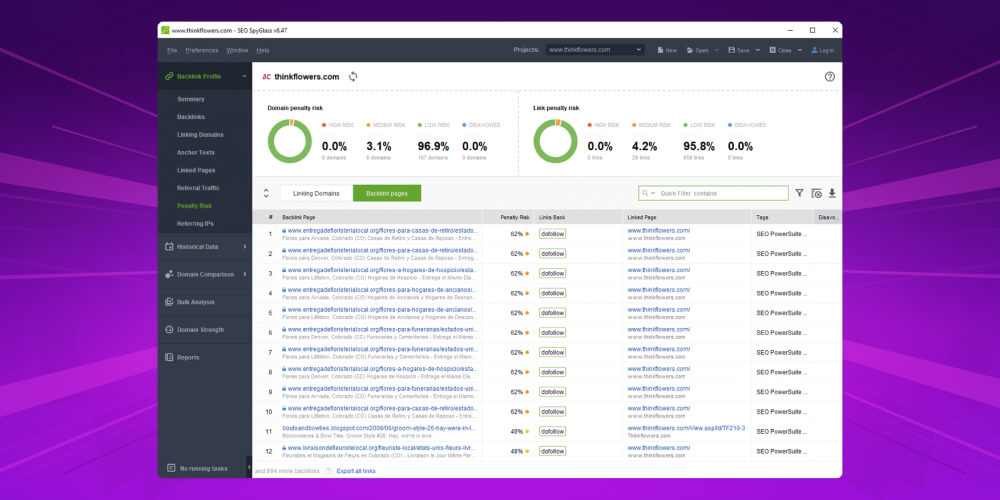
To raise your website's ranking, check your backlink list and remove links that pull your rankings down. You can follow these steps:
To create a disavow file in the “SEO SpyGlass” tool, select the links you want to disavow, right-click and choose “Disavow backlinks”. Then review your disavow list and choose Export to save the list to your computer. Submit the file to Google Disavow Tool and Google will know which links are removed when judging your website's trustworthiness.
So what are the specific steps for using SEO PowerSuite? Here are 10 standard steps that need no adjustment, so you can use the tool easily.
Step 1: Create a project
Create a new project by going to File > New Project or clicking New in the menu.
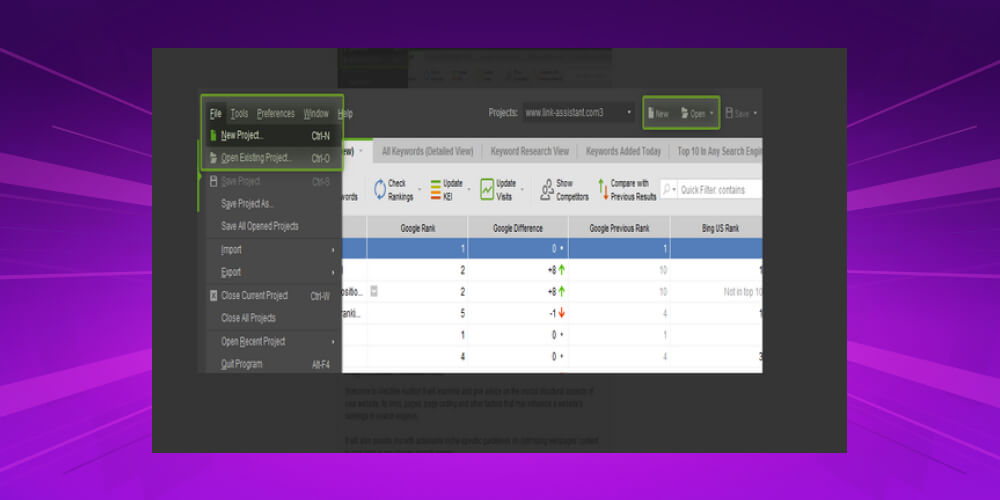
Or open an existing project through File → Open Existing Project or Open. Then enter the URL of the website you want to optimize.
Step 2: Enter keywords
Enter keywords when you start the project (step 3) in Rank Tracker, or add them by clicking Add.
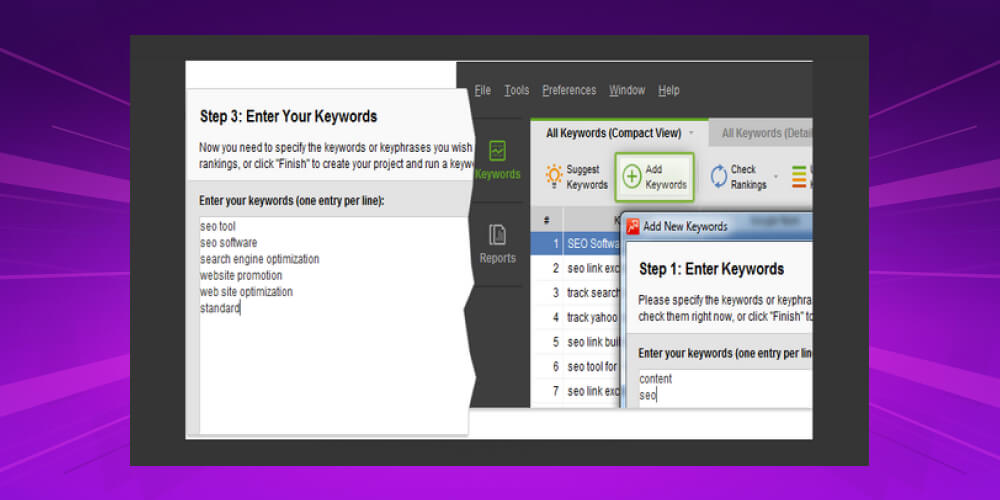
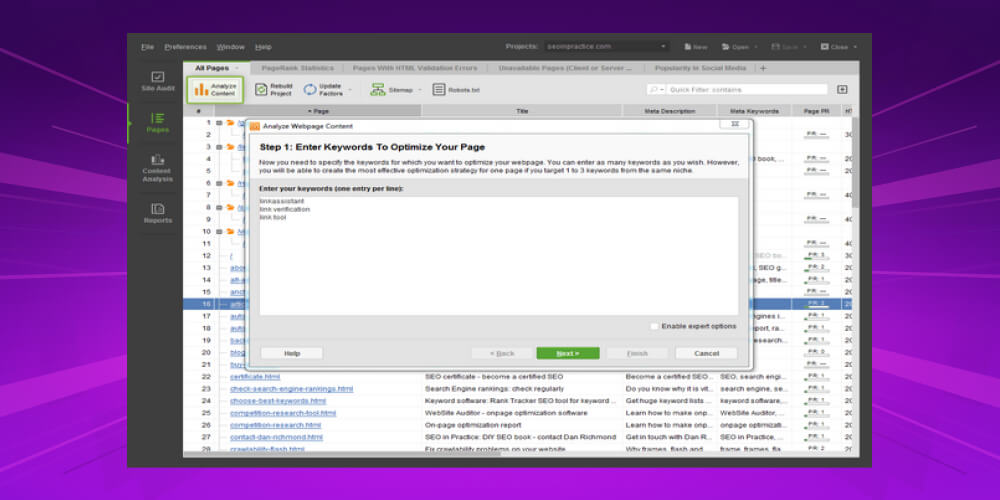
Add project keywords in Website Auditor by selecting the website you want to optimize and clicking Analyze.
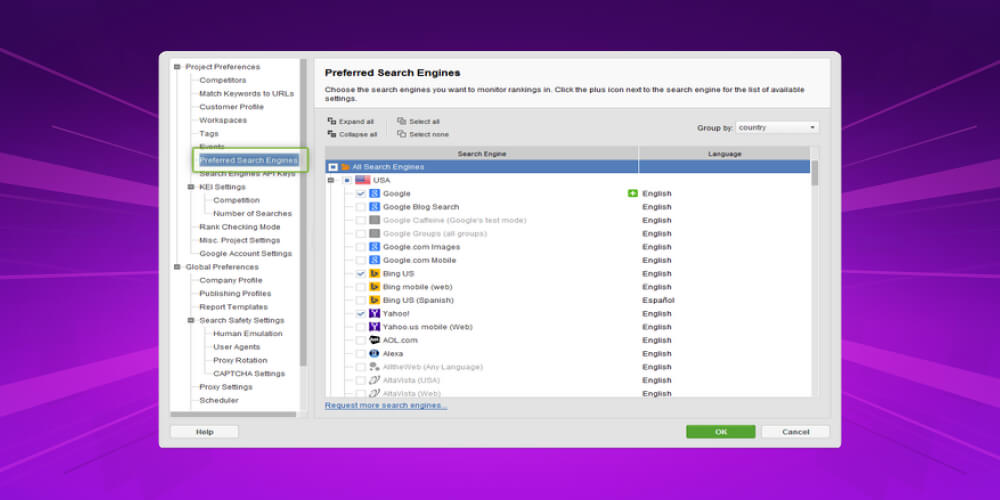
Step 3: Choose a search engine
Change the search engine option by going to Preferences > Preferred Search Engines.
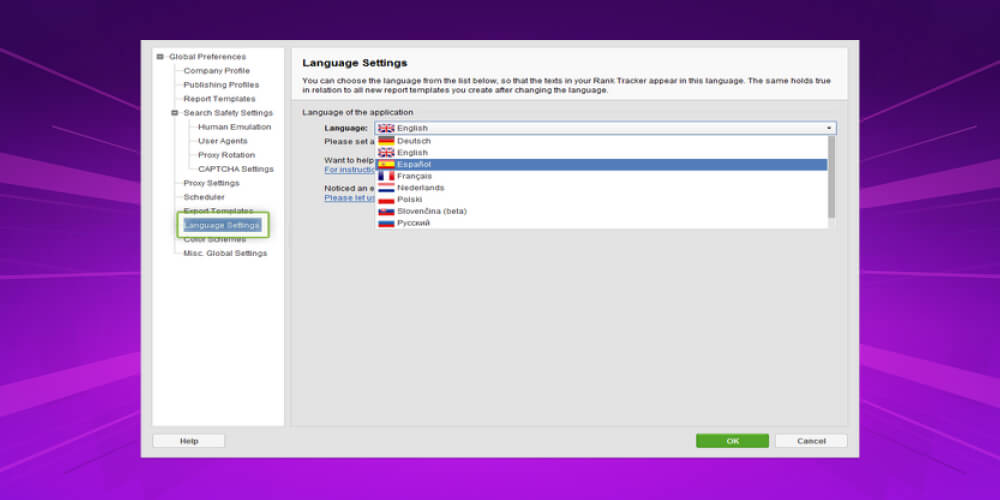
Step 4: Set the language
Set the language by going to Preferences and choose Language Settings.
Step 5: Switch between locations in the Workspace
Switch between workspaces by clicking the arrow at the top right, next to the gear icon.
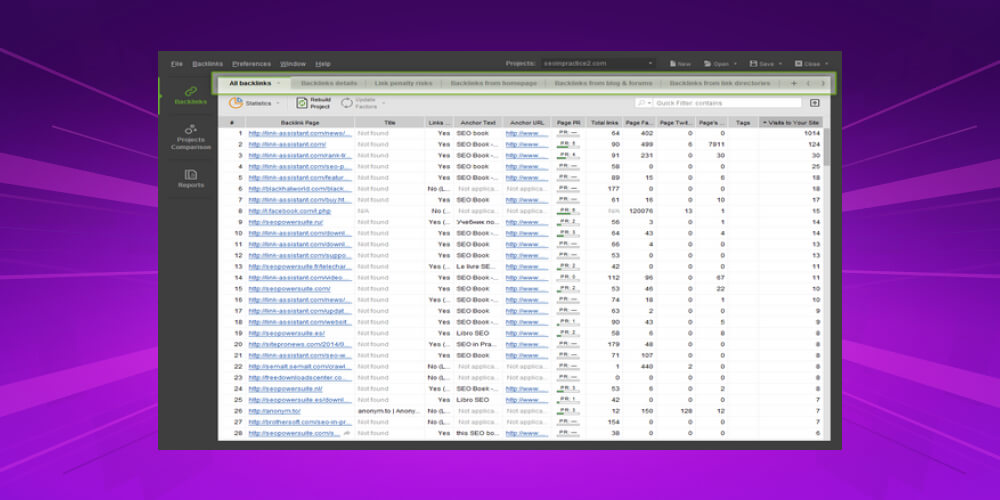
Step 6: Add or remove columns in the Workspace
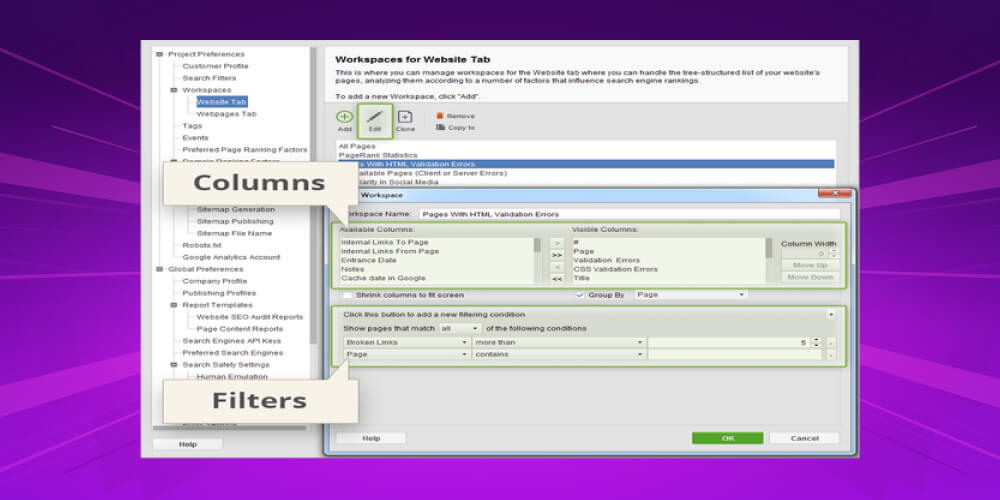
Select Gear at the top right, choose Workspace to edit and choose Edit to check the columns in Workspace.
Then add the options Filter to display data that fits your preset criteria.
Step 7: Import/export project data
Click File and choose Import hay Export from the menu. In the Import/Export section, import or export data Project.
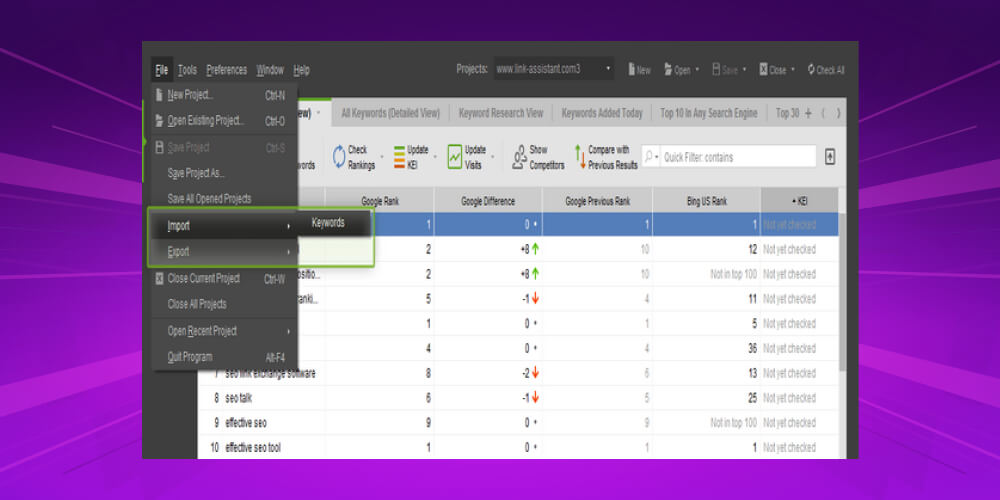
Then copy the SEO PowerSuite data into Clipboard by right-clicking > choose Copy To Clipboard.
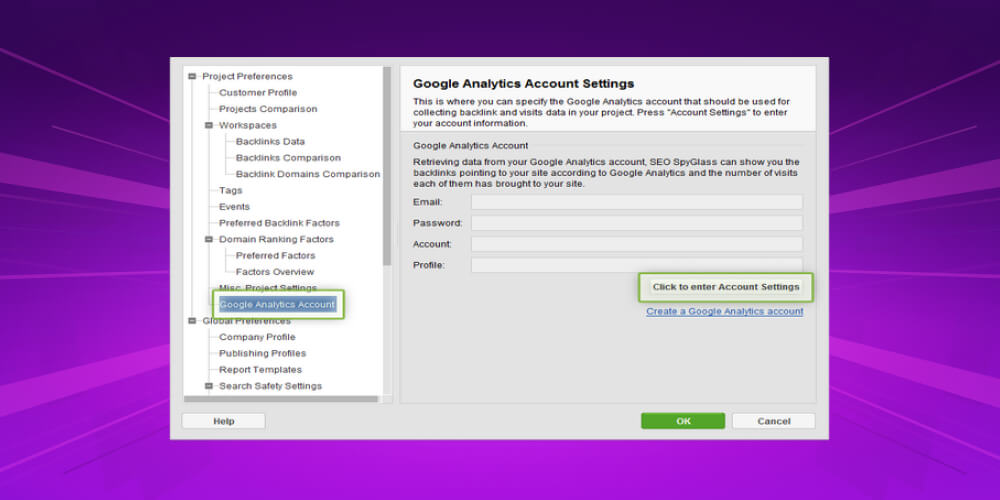
Step 8: Add Google Analytics
Go to Preferences → Google Analytics Account → Click To Enter Account Setting.
Step 9: Create an SEO report
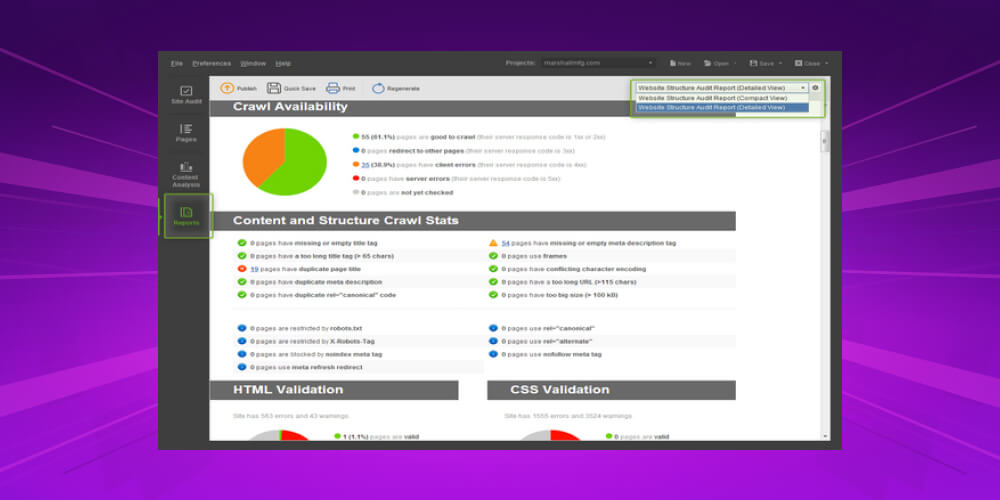
Switch to Tab Report to create a report. Click the arrow at the top right to change the type of report you want to create.
Step 10: Log in to the license
Go to the Help → Registration Info… → Enter the registration details → Click OK so the tool works with your original settings.
SEO PowerSuite offers plans with prices suited to different customer groups:
| Free plan | Professional plan – $299/month | Business plan – $699/month |
|
|
|
We hope this article from MONA has answered your questions about the concept of SEO Powersuite is and related useful information. This tool is rated as useful for SEOs. Understanding it well and using it skillfully will help you succeed.
Looking for a reliable SEO partner? MONA is a choice you shouldn't overlook!
CLICK THE IMAGE BELOW to learn more about SEO services at MONA Media

The more than 8 years of experience in Digital Marketing and end-to-end website design, SEO standards, MONA Media is an SEO service provider in Vietnam. We have worked with more than 300 businesses of all sizes and industries, from startups and SMEs to large corporations, helping them move up keyword rankings and grow revenue steadily.
When you partner with MONA, you get:
And there are many more offers waiting for you. Why wait? Just contact with us through the channels below to get SEO quote and receive advice on the SEO strategy that best fits your business:

CEO & Founder · The MONA
Founder of The MONA, who built a services company of 60+ staff with 14,000+ projects delivered. Khánh Hùng shares how he thinks about building systems that run themselves, automating a business, and the real lessons from delivering projects at MONA.
 1,5K




Professional website
design services
Own a website with a beautiful, 100% exclusive design and a lifetime warranty, with the ability
to expand features flexibly as your business grows, starting today!



NHẬN TƯ VẤN SEO MIỄN PHÍ !






 MONA will never sell your information or send you spam


 MONA will never sell your information or send you spam
