
 MONA OS 2.0
 Partner with MONA


 Tự động hoá doanh nghiệp
 Cẩm nang SEO
 Digital Marketing
 Kinh nghiệm thiết kế website
 Hạ Tầng Server
 Giáo dục


 VI
 EN
















Message us on
Zalo Official


 ProductsNew

 ProductsProducts
 Mới ra mắtKHA AI 2027App tự edit video, tự đăng mọi mạng xã hội, 2 phút mỗi ngày










 Website designLooks good and wins customers over.
SEO servicesBrings in customers searching for exactly what you sell.
 Tư vấn digital marketingKéo khách từ nhiều kênh, đo bằng số thật.
Corporate video productionVideos introducing your company, factory and team.
 NewAI video productionCompany story films made with AI.
 Custom software developmentCRM, ERP and HRM built for your business.
 Viết AI Agent theo yêu cầuĐặt riêng một trợ lý AI cho đúng việc của mình.
 Tư vấn chuyển đổi AIĐưa AI vào vận hành của cả công ty.
NewMONA LMSManagement for centers and schools.
MONA SkillHubInternal training for company staff.
 NHTQ systemEnd-to-end China–Vietnam shipping operations.
MONA JMSManagement for gold, diamond and pawn shops.
 MONA E-LearningA website with every feature you need to sell courses.
 How to sell online courses (course)More than 30 free lessons on selling courses on autopilot.
 MONA Cloudmonacloud.vnServers to get your apps and websites running.
 MONA Basemonabase.vnPostgres database, sign-in and file storage.
 MONA Mailmonamail.vnSend OTP, order and invoice emails from your software.
 MONA Paymonapay.vnAccept bank transfers via VietQR and notify your software when the money arrives.
 MONA eInvoiceComing soonIssue e-invoices that meet tax standards.
Gấu CườiTrả lời khách 24/7 trên web, Fanpage, Zalo và thu lead cho sale.
 Gấu TeleSalesGọi điện tư vấn, chăm khách như tổng đài viên thật.
Dê CườiTư vấn và chốt đơn cho shop ngay trong khung chat.
Gấu WebmasterNhắn nhóm Zalo là website được sửa xong.
 Gấu Pháp ChếSoạn hợp đồng, rà điều khoản trong vài phút.
 Gấu Báo GiáLên báo giá đúng mẫu và gửi khách ngay.
 AI chăm sóc khách hàngTheo dõi và giữ chân khách hàng cũ.
 Gấu Tuyển DụngLọc hồ sơ, hẹn lịch, phỏng vấn ứng viên.
 Mới ra mắt
KHA AI 2027
Xây kênh chuyên gia 2 phút mỗi ngày
Quay bằng điện thoại, AI tự edit video, tự đăng lên 16 nền tảng và tự trả lời bình luận, tin nhắn.
883.362lượt xem trên kênh CEO MONA sau 36 ngày
 Anh Khánh HùngCEO MONA đang dùng mỗi ngày
Xem app làm được gì
 AI
Gấu Cười MONA ĐANG TỰ XÀITrả lời khách 24/7 trên website, Zalo OA, Messenger và thu lead về cho sale.
Dê CườiChốt đơn bán lẻ và sàn: Shopee, TikTok Shop, web. Chăm cả khách sỉ, đại lý.
Gấu WebmasterCập nhật nội dung, tối ưu SEO website mỗi ngày.
Gấu TeleSalesGọi điện tư vấn, chăm khách như tổng đài viên thật.
Gấu Tuyển DụngLọc hồ sơ, hẹn lịch, phỏng vấn ứng viên tự động.
AI chăm sóc khách hàngGiữ khách cũ, cứu lead đã rớt cho phòng kinh doanh.
Gấu Pháp ChếSoạn hợp đồng, rà điều khoản trong vài phút.
Gấu Báo GiáLên báo giá đúng mẫu, gửi khách ngay khi có yêu cầu.
 Chuyển đổi AI toàn phầnGiải pháp tổng cho doanh nghiệp, 3 lớp triển khai.
 Viết AI Agent theo yêu cầuĐặt riêng một con AI gánh đúng nghiệp vụ của bạn.
 Custom softwareCRM, ERP and HRM with built-in AI automation.
 SEO & AEO thời đại AIĐược Google lẫn AI trích dẫn, không chỉ xếp hạng.
 Kiến thức AI cho doanh nghiệpBài phân tích, hướng dẫn ứng dụng AI vào vận hành.
 Free AI courses
 AI tools at work
App mới · KHA AI 2027
Xây kênh 2 phút mỗi ngày
AI tự edit video, tự đăng mọi mạng xã hội
Free consultation, 8am–10pm every day

15 June, 2026

Microsoft Copilot has become a powerful AI assistant, helping thousands of Vietnamese businesses streamline operations and boost productivity. Knowing how to learn Microsoft Copilot gives you a real competitive edge. We understand that you and your team need a clear, practical roadmap to start using this tool in daily work quickly. This article shares a 7-day Copilot learning plan, focused on core skills and hands-on tips that MONA Media has gathered from rolling it out internally and guiding clients.


To get through mastering Microsoft Copilot smoothly, we need to prepare carefully. This is the first and most important step. It saves you time later. We will guide you through the basic steps one by one, and you will be ready quickly.
Understanding this tool from the start is essential. It helps us get the most out of AI. Speeding up office work is the main goal, and good preparation brings better results.
The first step is making sure your system meets the requirements. Microsoft Copilot needs certain software versions. It also needs the right access. Check your Microsoft 365 license, and make sure it is Business Standard or higher.
Next, confirm that Copilot is activated. You can look for it in the Microsoft 365 apps. Word, Excel and PowerPoint all have it built in. If you don't see it yet, contact your IT team or check the Microsoft account admin page. Make sure everything is ready.
This helps avoid needless errors and keeps usage smooth. We want everything to run without friction. A compatible system is a solid foundation.

Your working environment directly affects how well Copilot performs. We need to tune a few settings so the AI understands context better. Start by checking your default language.
Data sync is key. Make sure documents and emails are stored on OneDrive or SharePoint. Copilot can then access and process the information easily and give more accurate suggestions. This tip speeds things up noticeably.
You should also reorganize your data: clear folders and easy-to-understand file names. This helps Copilot “read” information faster and gives you higher quality results. We will work more efficiently.

Copilot's power lies in how we instruct it. You need the right mindset. Treat Copilot as a smart assistant that needs clear direction. We have to give commands that hit the point.
A good command is specific and short. It should include context and a goal. For example: “Summarize this email. List three main points. Suggest a quick reply.” Avoid vague commands. An AI assistant needs clarity.
Experimenting is the key to getting better. Don't be afraid to adjust your prompts. Every use is a lesson, and we gradually learn how Copilot responds. This skill will raise your productivity noticeably.
At MONA Media we use Copilot regularly. It helps our web development and SEO teams streamline their work. We can use it to sketch ideas or to do a first pass at data analysis. Good prompting skills pay off a lot.
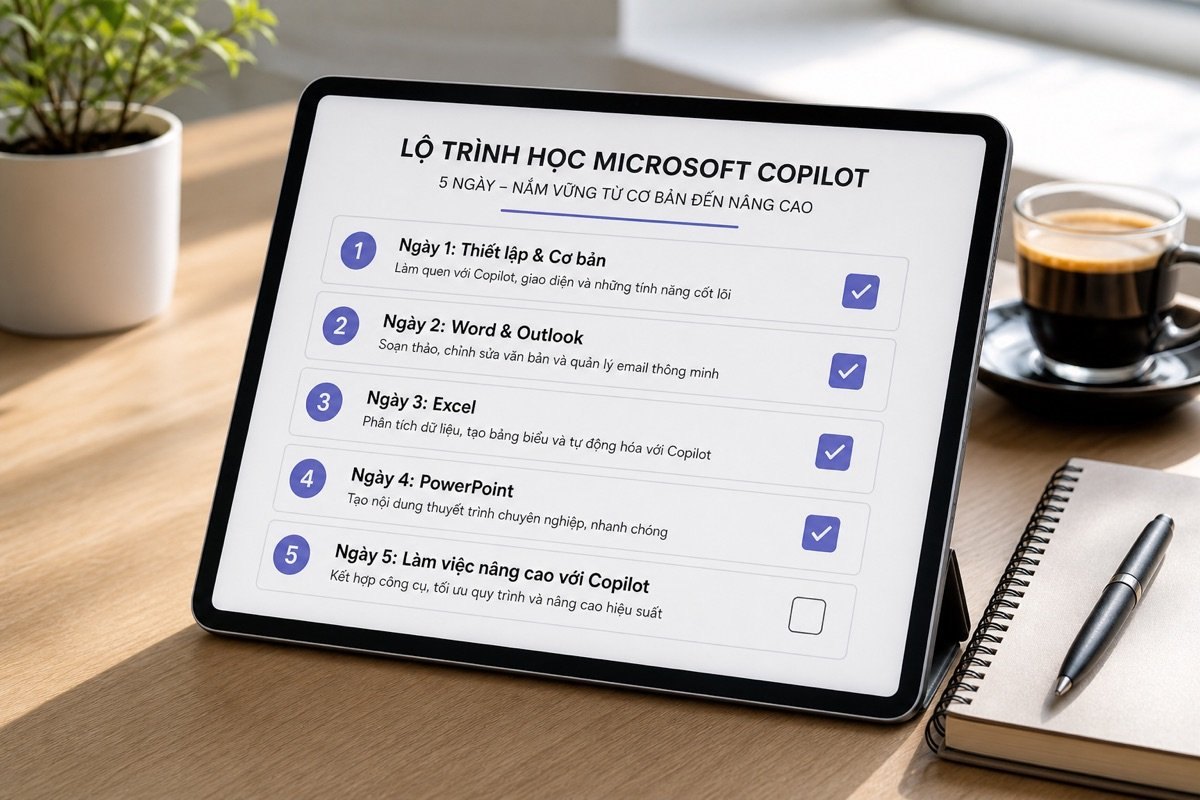

Microsoft Copilot gives office work a significant speed boost. You can absolutely create professional content at a better pace. We will share tips and effective prompt formulas. These tricks help you master Copilot in Word and Outlook, and writing time drops considerably.
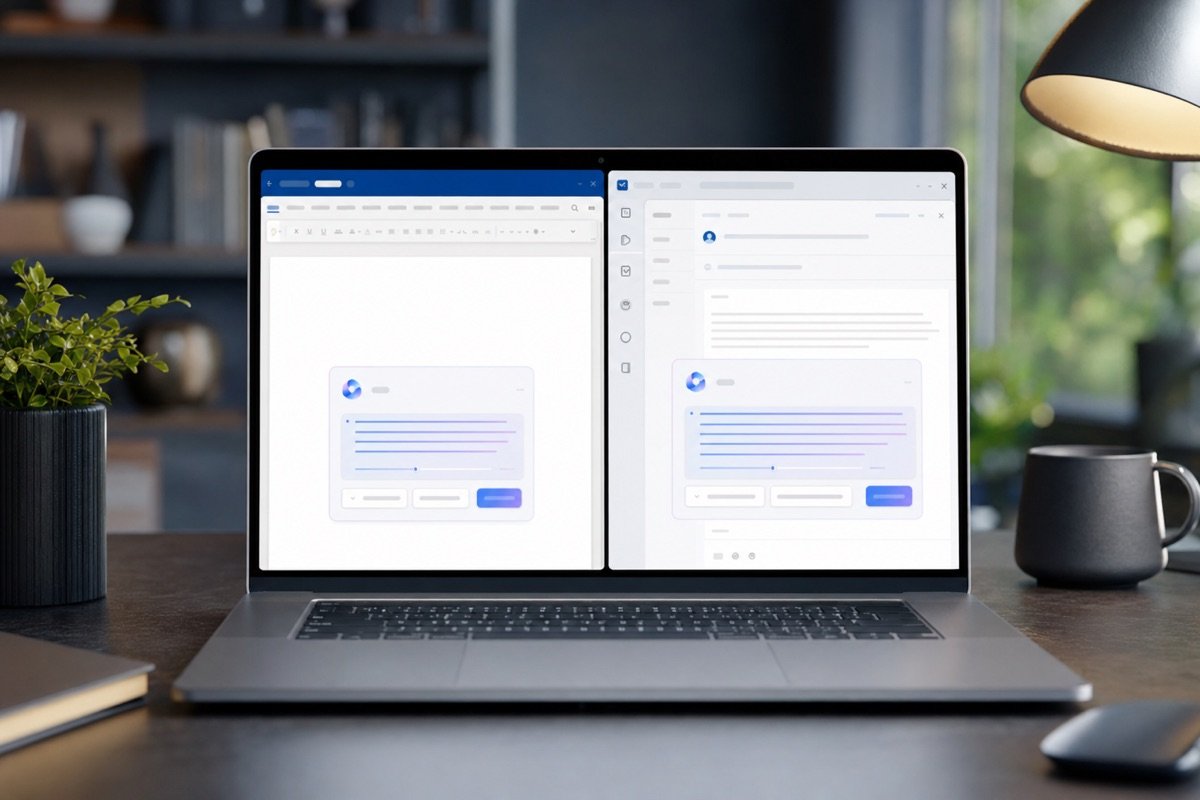
Writing effective sales copy usually takes a lot of time. It takes finesse and persuasion. With Copilot, you can use this three-step prompt formula, made of “Role”, “Goal” and “Format”.
First, define Copilot's “Role”. You can ask Copilot to be “an experienced sales consultant”, or “a creative copywriter“.
Next, state the “Goal” of the text. The goal could be “introduce the new product XYZ”, “persuade customers to sign up for a trial”, or “encourage people to buy today”.
Finally, the “Format” you want. You can ask for “a 200-word email”, “a draft Facebook post”, or “a short sales call script”.
For example, you might say: “As a sales consultant, write an email introducing MONA's website design service. The goal is to persuade businesses to sign up for a free consultation. The format is a friendly, personal email of about 150 words.” Copilot will produce a quality draft, and you only need minor edits. See more about the service website design from us.
Your inbox is surely full of long emails. Reading all of them takes a lot of time. Copilot can summarize the main content. You will grasp the information quickly.
In Outlook, open the email you want summarized. Click the Copilot icon, then choose “Summarize email”. Copilot reads the content quickly and gives a short summary, usually 3 to 5 bullet points. This helps you save hours every day. You will focus on the more important emails.
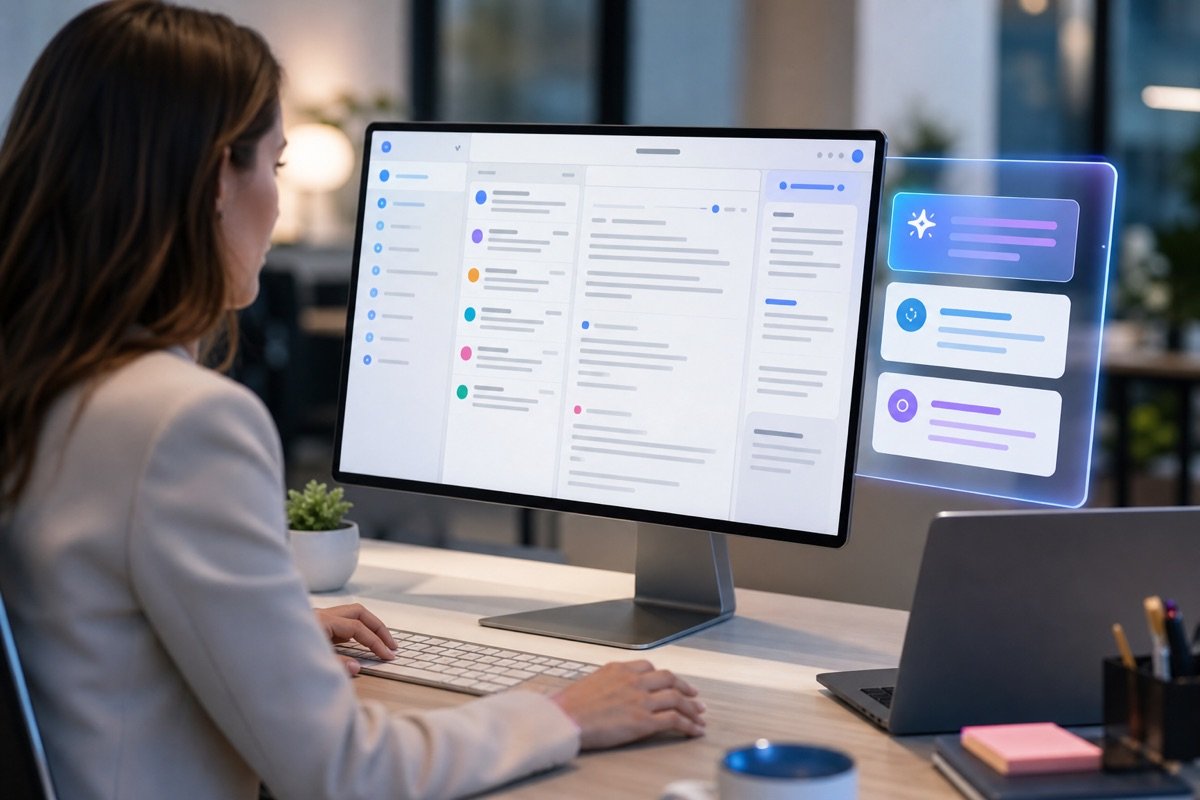
Keeping a consistent brand voice is essential. It matters most in emails replying to customers. Copilot helps you do this effectively. You can set a style, and Copilot will learn that tone.
When writing a reply, ask Copilot to “draft a reply in MONA's friendly and professional style”. Or “write a reply to a customer about SEO services, in a confident, expert tone”. Copilot produces replies that match the request. You make sure every email reflects the right brand image. Learn more about SEO services from MONA to see how we stay professional.




Microsoft Copilot is changing how we work with numbers. In Excel, the tool is a capable assistant. You turn raw data into valuable insight, all through plain-language prompts.
Manual data entry shrinks a lot. We will show you how to use Copilot to build reports and in-depth charts.
You often spend hours compiling revenue. Copilot changes that. Just open an Excel sheet with your data, then ask Copilot to analyze it.
For example, type: “What is the total revenue for Q2?”. Or “List revenue by product type last month”. Copilot quickly scans the data, filters, calculates and shows the results. The data is summarized, and you get an overview right away.
The work happens instantly. It's impressive. It saves a lot of time, and you focus more on strategy.
Finding the “hot spots” in a sales report is important. These are areas with unusually high or low performance. You used to go through every row yourself. Copilot does that for you.
Try typing: “Find regions where sales dropped last quarter”. Or “Which product sold best in the last 6 months?”. Copilot uses algorithms to spot trends quickly and flags every outlier.
These findings are very useful. You can make business decisions in time and never miss an opportunity.
Charts help us grasp information easily. Building one usually takes many steps. With Copilot it is much simpler: you only need a single prompt.
For example, type: “Draw a column chart comparing sales of group A and group B”. Or “Create a line chart showing monthly revenue growth”. Copilot automatically picks a suitable chart type, arranges the data and presents it professionally.
The result is surprising. A finished chart appears, ready for meetings. You have saved a lot of effort.


Copilot turns rough ideas into a professional presentation in just a few minutes.
Building a professional presentation usually takes a lot of time. You have to weigh layout, images and fonts. With Microsoft Copilot in PowerPoint, we can turn ideas into striking slides. The tool saves a lot of effort.
You get a presentation with a clear structure, and the slide design looks more attractive. It all happens in a few minutes, with no complex graphic skills needed.

With just an outline, Copilot creates a first draft for you.
From a rough outline, Copilot can build a draft presentation. The process is simple. We follow three basic steps:
A small tip: use clear bullet points. The more structured the outline, the easier it is for Copilot to understand. This gives us a high-quality draft.

Copilot automatically picks images and adjusts layouts as you ask.
Once you have a draft, you need to make the slides more visual. Copilot can help us optimize images and layouts, making the presentation livelier.
Be specific in your requests and state the style you want. This helps Copilot produce accurate results, and we can quickly get a finished presentation.

Copilot turns business data into easy-to-read charts.
In business, reports need to be clear and persuasive. Copilot is a capable helper. It helps you present business data effectively.
Use direct language when giving commands and state clearly what you want. Copilot will help you present impressive business reports that are highly persuasive. It is a good way to save time, so we can focus on the main content.

Microsoft Copilot in Teams changes how we interact. The tool helps you work more efficiently by handling repetitive tasks. Meetings get smarter, and project management is streamlined too. Many business owners say it saves a lot of time.
At MONA we use Copilot to streamline internal discussions. It really works. You will see it cut down administrative work, so we can focus more on strategy.
Every meeting needs sharp focus, but taking notes eats a lot of time. Copilot solves this by automatically summarizing the meeting.
You just turn on Copilot. It listens and compiles. The summary highlights the main points, including questions that are still unanswered. No detail is missed.
This lets you and your team review quickly. After the meeting, everyone knows what was said, and it saves a lot of time. We see MONA's Marketing team using this feature very often. They no longer worry about forgetting big ideas.
After each meeting, pinning down tasks is essential. Who does what? When is it due? These are the key questions.
Copilot in Teams can do this automatically. The tool identifies the “action items” and clearly names the person responsible. The result is complete transparency.
You can ask Copilot to “List the tasks to be done”. Or “Who is responsible for this item?”. The software answers accurately. This speeds up progress and reduces confusion in the team.
MONA applies this method to software development projects. Tracking tasks becomes very simple, everyone knows their job, and progress stays on track.
Updating progress by hand takes effort and sometimes gets delayed. Now it's different: you can use your voice.
Copilot lets you update projects with voice commands. Just say: “Copilot, update the progress of the Website project for client X”. Or “Add a new task for the SEO team”. The software records it.
It processes these requests and then syncs them into the system, so information always stays in sync. This makes your team more flexible, since they can update anytime, anywhere. It is a big convenience and raises team productivity.
At MONA we train clients to use Copilot. They pick it up very quickly. Projects website design hay SEO services stay tightly managed. Voice updates are a big step forward.

Streamlining internal workflows is the goal of every business. Repetitive work often takes up a lot of staff time. Copilot can become a capable virtual assistant. You will learn how to combine Copilot's features to create simple, personalized automation chains that handle recurring tasks efficiently.

Copilot helps you automate report creation. It saves a lot of time on manual data compiling and raises your team's productivity.
Compiling reports from data usually takes hours, especially when it needs constant updating. Copilot helps automate this step. We can use Copilot in Excel, where it summarizes the key points from a spreadsheet.
The steps:
Select the data range for the report. Open Copilot and ask “Summarize the main revenue trends this quarter, highlighting the 3 best-selling products.” Copilot analyzes the data and gives quick insights. This is the foundation for your report.
Create a new document and paste in the summary points from Excel. Ask Copilot “Write a detailed report based on these points, in a professional tone, with an introduction, data analysis and conclusion.” Copilot automatically drafts the report, and you only need to refine it. This process is fast and effective.

Streamline customer support with Copilot. It helps the team reply faster and focus on more complex issues.
Answering repeated customer questions takes a lot of time. Customer support teams are often overloaded. Copilot can help draft replies quickly, keeping them consistent and effective.
The steps:
When you get a customer email or message, open Copilot and give it context. For example: “A customer asked about the return policy for product X. Write a reply email based on the company's policy document.” Copilot retrieves the information and drafts a detailed reply. You can review it and send it.
We can give Copilot additional internal FAQ documents. Ask Copilot “Based on this document, create 5 draft replies to frequently asked questions about delivery.” Copilot will build a library of sample replies, helping the support team respond faster.

Prompt chains help Copilot raise output quality, cut mistakes and keep every task accurate.
Sometimes the AI's first output isn't polished. We need a technique to improve quality. “Prompt chaining” lets Copilot review itself and fix errors against specific criteria. This noticeably improves accuracy.
The steps:
Instead of a single command, break it into several steps. Each step is one specific request. For example, to write a blog post: Step 1: “Write a draft blog post on ‘the benefits of SEO’ with 500 words.” Step 2: “Check this draft. Make sure it has at least 3 SEO-related keywords and doesn't repeat words too much.” Step 3: “Review the grammar and spelling, then adjust the tone to be friendly for small and medium businesses.”
Copilot works through each step in order. The final result is more refined and has fewer errors, and the content is optimized more effectively. This is the secret to high-quality output.
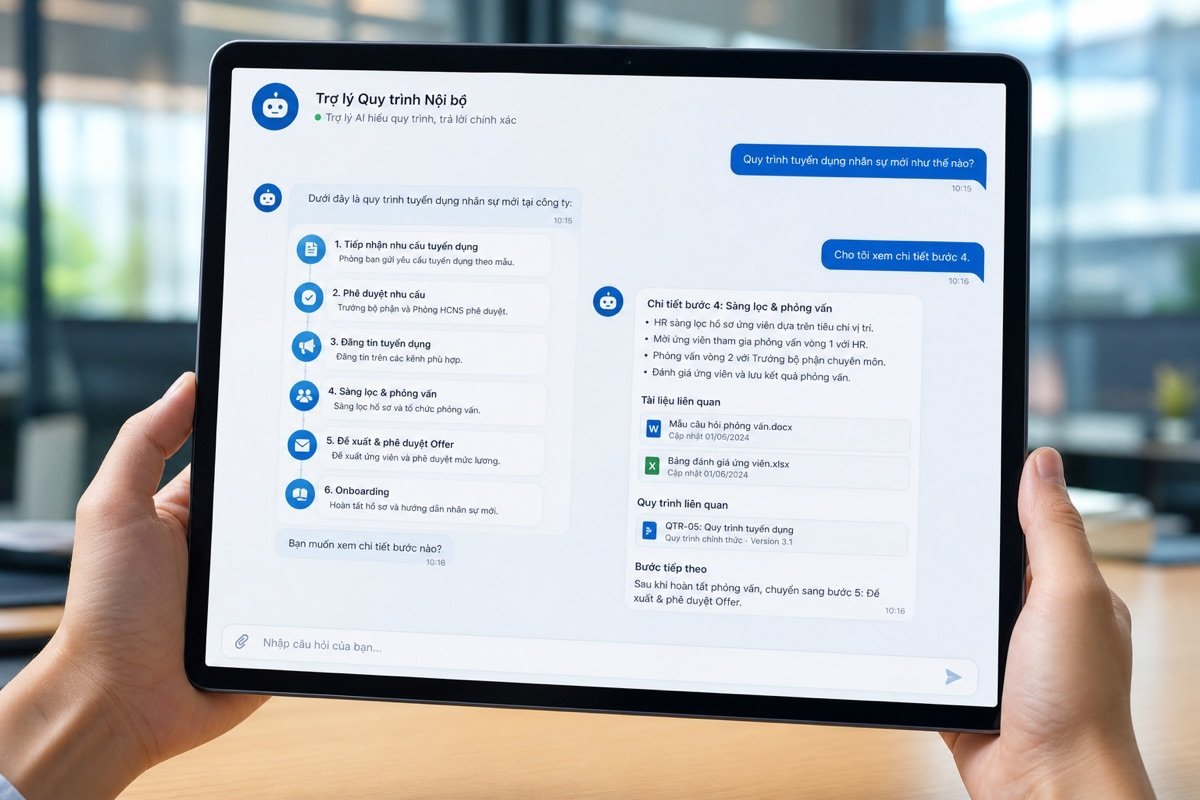
Microsoft Copilot is a powerful tool. It boosts personal productivity very well. But looking at the big picture of a business, Copilot is still only one piece of the puzzle. We need a more unified system.
Full automation takes more. It needs seamless connections. MONA understands this well.
Separate AI tools like Copilot are valuable. They support specific tasks, and your staff can use them for everything from writing emails to summarizing documents.
But data usually sits in different places. Each tool is its own silo, and they can't talk to each other.
This creates many risks. Information can get duplicated. Sensitive data is easier to leak. Security control becomes hard.
It's hard for you to manage everything. Workflows get interrupted and overall performance drops. Scattered data is a major challenge.
MONA focuses on solutions. We build custom software, a closed chain of modules.
This system integrates deeply into your infrastructure. All data moves through it, passing across departments, always seamless and secure.
Each module is designed specifically for your business. It fits your particular operations, from sales to customer care, from inventory management to accounting.
AI technology, including large language models (LLMs) like Claude, is only a means. It helps unlock automation, and machines can now do far more.
MONA's software ensures consistency. It boosts performance better, so you can feel at ease.
MONA doesn't just supply software. We are also a strategic partner, and together we build a solid foundation.
This is the technology “backbone” of a business. It helps you grow sustainably. We have over 10 years of experience, since 2016.
The MONA team has . We have served 14,000+ projects. Our client retention rate is 85%. MONA understands the Vietnamese market.
We use AI internally, from process optimization SEO to website design. Together we are heading toward an automated future, and you will be in command of the technology.

You can teach yourself Copilot with the real documents and the Role + Goal + Format formula in this article. When your team needs to turn those prompts into a shared workflow running across Word, Outlook, Excel and internal data, we will build custom integration software. Call 1900 636 648 to choose exercises that can go into real operations.
Learn it once and use it right away.

CEO & Founder · The MONA
Founder of The MONA, who built a services company of 60+ staff with 14,000+ projects delivered. Khánh Hùng shares how he thinks about building systems that run themselves, automating a business, and the real lessons from delivering projects at MONA.
 361




Professional website
design services
Own a website with a beautiful, 100% exclusive design and a lifetime warranty, with the ability
to expand features flexibly as your business grows, starting today!






 MONA will never sell your information or send you spam


 MONA will never sell your information or send you spam
