
 MONA OS 2.0
 Partner with MONA


 Tự động hoá doanh nghiệp
 Cẩm nang SEO
 Digital Marketing
 Kinh nghiệm thiết kế website
 Hạ Tầng Server
 Giáo dục


 VI
 EN






Message us on
Zalo Official


 ProductsNew

 ProductsProducts
 Mới ra mắtKHA AI 2027App tự edit video, tự đăng mọi mạng xã hội, 2 phút mỗi ngày







 Website designLooks good and wins customers over.
SEO servicesBrings in customers searching for exactly what you sell.
 Tư vấn digital marketingKéo khách từ nhiều kênh, đo bằng số thật.
Corporate video productionVideos introducing your company, factory and team.
 NewAI video productionCompany story films made with AI.
 Custom software developmentCRM, ERP and HRM built for your business.
 Viết AI Agent theo yêu cầuĐặt riêng một trợ lý AI cho đúng việc của mình.
 Tư vấn chuyển đổi AIĐưa AI vào vận hành của cả công ty.
NewMONA LMSManagement for centers and schools.
MONA SkillHubInternal training for company staff.
 NHTQ systemEnd-to-end China–Vietnam shipping operations.
MONA JMSManagement for gold, diamond and pawn shops.
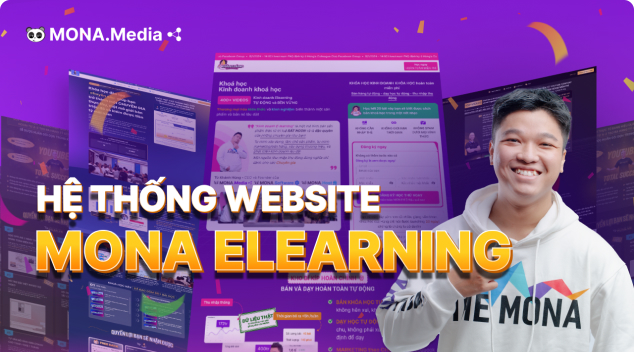 MONA E-LearningA website with every feature you need to sell courses.
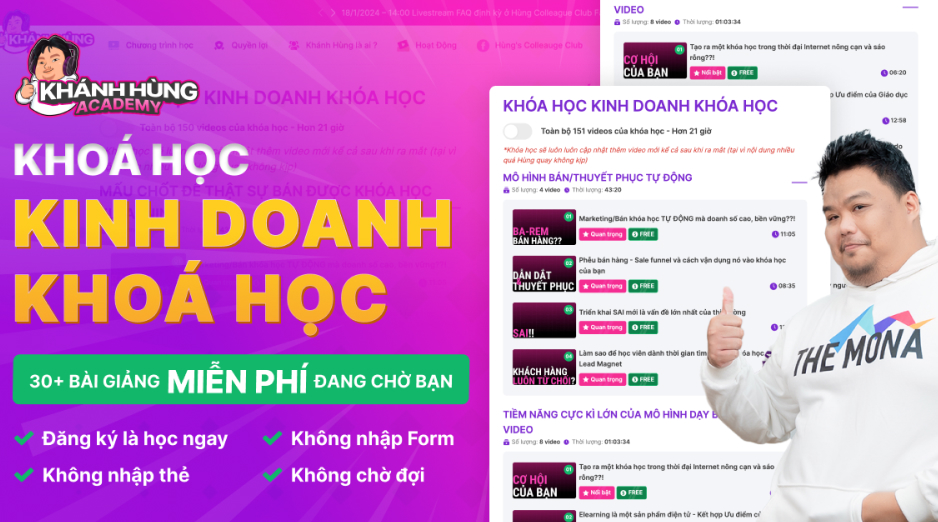 How to sell online courses (course)More than 30 free lessons on selling courses on autopilot.
 MONA Cloudmonacloud.vnServers to get your apps and websites running.
 MONA Basemonabase.vnPostgres database, sign-in and file storage.
 MONA Mailmonamail.vnSend OTP, order and invoice emails from your software.
 MONA Paymonapay.vnAccept bank transfers via VietQR and notify your software when the money arrives.
 MONA eInvoiceComing soonIssue e-invoices that meet tax standards.
Gấu CườiTrả lời khách 24/7 trên web, Fanpage, Zalo và thu lead cho sale.
 Gấu TeleSalesGọi điện tư vấn, chăm khách như tổng đài viên thật.
Dê CườiTư vấn và chốt đơn cho shop ngay trong khung chat.
Gấu WebmasterNhắn nhóm Zalo là website được sửa xong.
 Gấu Pháp ChếSoạn hợp đồng, rà điều khoản trong vài phút.
 Gấu Báo GiáLên báo giá đúng mẫu và gửi khách ngay.
 AI chăm sóc khách hàngTheo dõi và giữ chân khách hàng cũ.
 Gấu Tuyển DụngLọc hồ sơ, hẹn lịch, phỏng vấn ứng viên.
 Mới ra mắt
KHA AI 2027
Xây kênh chuyên gia 2 phút mỗi ngày
Quay bằng điện thoại, AI tự edit video, tự đăng lên 16 nền tảng và tự trả lời bình luận, tin nhắn.
931.055lượt xem trên kênh CEO MONA sau 42 ngày
 Anh Khánh HùngCEO MONA đang dùng mỗi ngày
Xem app làm được gì
 AI
Gấu Cười MONA ĐANG TỰ XÀITrả lời khách 24/7 trên website, Zalo OA, Messenger và thu lead về cho sale.
Dê CườiChốt đơn bán lẻ và sàn: Shopee, TikTok Shop, web. Chăm cả khách sỉ, đại lý.
Gấu WebmasterCập nhật nội dung, tối ưu SEO website mỗi ngày.
Gấu TeleSalesGọi điện tư vấn, chăm khách như tổng đài viên thật.
Gấu Tuyển DụngLọc hồ sơ, hẹn lịch, phỏng vấn ứng viên tự động.
AI chăm sóc khách hàngGiữ khách cũ, cứu lead đã rớt cho phòng kinh doanh.
Gấu Pháp ChếSoạn hợp đồng, rà điều khoản trong vài phút.
Gấu Báo GiáLên báo giá đúng mẫu, gửi khách ngay khi có yêu cầu.
 Chuyển đổi AI toàn phầnGiải pháp tổng cho doanh nghiệp, 3 lớp triển khai.
 Viết AI Agent theo yêu cầuĐặt riêng một con AI gánh đúng nghiệp vụ của bạn.
 Custom softwareCRM, ERP and HRM with built-in AI automation.
 SEO & AEO thời đại AIĐược Google lẫn AI trích dẫn, không chỉ xếp hạng.
 Kiến thức AI cho doanh nghiệpBài phân tích, hướng dẫn ứng dụng AI vào vận hành.
 Free AI courses
 AI tools at work
App mới · KHA AI 2027
Xây kênh 2 phút mỗi ngày
AI tự edit video, tự đăng mọi mạng xã hội
Free consultation, 8am–10pm every day

15 June, 2026

A Canva AI review should start with what it does in a real workday: quick designs, short copy, background removal, simple videos, and turning ideas into images. For business owners and marketing staff, the hard part is keeping the brand intact, controlling quality, and keeping every design from looking alike. MONA uses Canva AI for some internal tasks and when training clients, so we look at this tool pragmatically: which parts are worth using, which need a close check, and which you shouldn't hand over entirely to the machine.
Think of Canva AI as an assistant that speeds up content, not the person responsible for publishing. A quick summary before you use it.
The pain point usually sits in rushed publishing. A design that looks fine can still be off-brand, contain wrong information, or use an unsuitable image.
MONA also uses Canva AI internally to speed up drafts, but we always keep a human review layer. The machine is fast. People hold the standard.
We usually group Canva AI by work need, not by feature name. This helps the marketing, sales and content teams assign work more clearly.
Tasks to give the machine are drafting, layout suggestions, background removal, and idea expansion. Tasks that need a human reviewer are messaging, legal, brand, and real data.
The scoring table below helps you decide quickly. The goal is to know which features you can use right away and which need a locked review process.
This scoring doesn't make Canva AI your lead designer. It helps us put the machine in the right role so the content team redoes less work from scratch.
MONA usually guides clients to use AI tools with a review layer. Staff get faster, while the business owner keeps control of the output.
The free plan is good for trying things out, building drafts, and testing fit in a small team. Don't assign major brand work from day one.
Canva AI is very handy for personal work and small teams. Its ceiling is scattered data, manual steps, and each person's skill level.
For businesses that need seamless data, a clear approval process, and real automation, MONA usually recommends custom software. MONA has been building since 2016, with .000+ projects delivered.

Canva AI creates templates very fast, but brand identity easily drifts if the foundation isn't locked at the start.
Each staff member picks a color, swaps a font, nudges the logo slightly. After 3 rounds of edits, the template still looks good but no longer looks like your brand.
This is a very common mistake. It's not that staff are careless. Most of the time the business has no clear enough Brand Kit before handing work to Canva AI to create designs.
Inside MONA, we always put the "lock the brand foundation" step before the template step. Doing it in this order makes designs faster, reduces rework, and makes handoff easier when several people work together.
Start from the Brand Kit, not from Canva AI's template box.
First, upload your main logo, horizontal logo, square logo, and light and dark background versions. The logos need to cover every use case.
Then enter your brand color palette using exact color codes. Don't let staff eyeball colors.
Color drift is hard to spot right away. But when you post constantly, your fanpage loses its consistent feel.
Next come brand fonts. Choose clear fonts for headlines, body text, and small text.
MONA usually guides clients to put these pieces together into one base kit before training the marketing team on Canva AI. It's a small step, but it keeps design discipline.
Once you have the Brand Kit, create 3 master templates before rolling it out to the team.
Don't create too many at first. It gets messy.
The three master templates should cover the 3 most common needs: sales posts, educational posts, and recruitment posts.
A sales post needs a strong headline area, a clear product image, and a short call to action. An educational post needs an easy-to-read layout with plenty of breathing room.
A recruitment post needs prominent spots for the job title, benefits, and contact information. Each type of post has a different goal.
When MONA trains clients to use Canva AI for marketing, we usually ask the internal team to finalize the master templates first. Only then do we use Canva AI to create content variations.
This way Canva AI does the fast part, while brand identity stays within the business's control.
The logo, background color, and contact information are usually the parts most likely to break in a design. These three need a careful check.
These details look small. But a mistake shows right away.
Lock the logo in a fixed position, lock the main background color, and lock the contact information block. Staff should edit only the content they're allowed to edit.
For sales posts, the price, offer, and call-to-action can be left open for editing. For recruitment posts, the open role and job description can be open.
Anything that belongs to brand identity should be locked. Don't open it up to everyone. The faster Canva AI creates, the clearer the lock rules need to be.
MONA applies this principle when building template sets for internal use and when guiding clients to run design with AI tools. The goal is that non-specialists can still produce on-standard templates.
Canva AI is good for speeding up everyday design. But standalone tools still have a ceiling when data, the approval process, and brand permissions aren't connected.
For businesses that need deeper control, MONA usually recommends custom software, CRM, ERP, or automation systems built around your real processes. Canva AI handles the design, while the custom system keeps data and operations on standard.

Magic Design often produces off-target templates when you type only a few generic words. The template looks fine, but it's wrong for the channel, the customer segment, and the sales tone.
Don't type too little. Canva AI needs enough context to understand what goal the design serves. We usually use a 4-layer formula for website banners, Facebook posts, sales slides, and recruitment posters.
The first layer helps Magic Design understand the right usage frame. For the same offer, a website banner needs a different layout than a Facebook post.
Just write it clearly. Include the size or format if you know it. For example: "Create a horizontal banner for the website, used at the top of a service page."
This layer decides whether the template has the right sales feel. Canva AI doesn't know on its own whether customers need trust, a premium feel, or a youthful rhythm.
MONA usually writes this part before opening Canva. When the message is clear, Magic Design makes fewer templates that look good but say nothing.
AI designs easily drift toward a mass-market style. Constraints keep the template closer to your brand identity.
The "what not to use" part is very important. It cuts the number of templates you have to throw out in the first round.
Don't force Magic Design to produce exactly one template. A more effective approach is to ask for 3 variations in 3 clear directions.
Pick a direction first. Then edit by hand. This helps the marketing team agree on a design taste before fine-tuning details.
A complete prompt could read: "Create a horizontal banner for an SEO service website. The customer is a mid-sized business owner who needs more orders from their website. The emotion to create is clear, trustworthy, tidy. Use dark blue and white, a large headline, a short subheadline, and a clear call-to-action button. Content on the left, illustration on the right. Don't use robots, flying money, or overly techy icons. Create 3 variations: minimalist, eye-catching, and lots of white space."
We use this approach inside MONA when we need to quickly set the initial visual direction. For clients, MONA also guides marketing teams to write clearer prompts before adjusting designs in Canva AI.
Canva AI is very handy for personal work and one-off templates. But when you need seamless data, a template approval process, permissions, and brand identity storage, standalone tools hit a ceiling. That's when custom software MONA builds for CRM, ERP, or marketing automation fits better.

A good idea often gets wasted when every channel rewrites it from scratch. Marketing teams drift off message and off visuals, then lose more time reviewing each version.
Canva AI handles this well if you prepare a clear original message. We often use this approach for content that must go out fast but still follow one sales thread.
The principle is simple. One message, six formats. A long post can be split into a square image, a story, a slide, a thumbnail, a poster, and an email image.
Before opening Canva AI, settle on one original content frame. This frame keeps every format heading the same way, instead of each template saying something different.
Don't start with the image. Start with the idea.
For example, a long post about SEO services might have the headline "Sustainable search growth from content that fits real needs." The benefit is more customers from Google. The proof is a keyword group that has climbed in rankings or a landing page with real traffic.
MONA often standardizes this part before bringing it into Canva. That way the designer doesn't have to guess what the writer meant.
Once you have the original design, Magic Switch resizes it for many channels faster. Choose the right format from the start so important text doesn't get cut off.
Follow the steps in a clear order.
This is where you save the most effort. One idea gets copied into 6 versions, but they still share the same colors, fonts, and message.
Don't download right away. Resized versions always need another check.
Each channel holds a different amount of text. A story needs to be short. A slide needs to be clear. A poster needs to be understood from a distance.
Magic Write is useful at the shortening step. You can ask the tool to rewrite the same idea at each length.
You can use a short command like "Shorten this paragraph to one headline under 10 words." For sales content, also ask it to keep the brand voice and avoid exaggeration.
MONA usually reminds our internal team to recheck the wording after Magic Write suggests it. The tool helps quickly, but the professional still has to keep the meaning right.
Duplicated designs easily pick up small errors. Text too close to the edge, an image covering the headline, a sunk action button, or key information in the wrong place.
This step is required. Don't skip it.
The 1-content-to-6-formats process suits everyday marketing. It makes the team faster, keeps messages more consistent, and cuts down on everyone editing by gut feeling.
Canva AI still has a clear ceiling. This tool handles individual tasks well, but it can't replace a content system, customer data, CRM, website, and seamless reporting.
For businesses that need to run marketing at the system level, MONA usually combines internal AI tools, team training, and custom software. Once data connects to the website, SEO, CRM, and the sales process, automation creates steadier cash flow.

AI images in Canva easily end up pretty in a generic way. The problem is a vague description, a missing sales context, and no check layer before posting.
You don't need to write long prompts. We usually use a 3-step filter at MONA: describe the right context, lock the visual style, then remove errors before putting it into the design.
Don't skip this step.
In Canva AI, you can go to Magic Media or Text to Image, then enter a description of the image you want. An image that serves the right place of use is the important part.
A weak description usually just says "premium cosmetics user." Canva can still make an image, but it tends to look like stock photography and lacks your business's own character.
The more real, the easier to use.
A better example: "A Vietnamese office woman about 32 years old placing a serum bottle on a light wooden desk, next to a laptop and a glass of water, for a cosmetics website banner."
This description gives Canva AI more real details. The image comes out fitting a marketing layout better and feels less like a lifeless illustration.
Canva AI tends to make images with lots of detail when the prompt lacks constraints. The image looks busy, is hard to put text on, and is hard to use as an ad background.
We usually add 4 layers of constraints before clicking generate. This layer makes images less cheesy and closer to a business's design language.
This is an important filter layer.
A more complete prompt example: "Minimalist commercial photo, soft natural light, 45-degree camera angle, light beige background, leave empty space on the right for a headline."
This phrasing suits banners, blog posts, and social media images. You'll spend less time deleting extra details after Canva generates the image.
A beautiful AI image can still be wrong in small places. Hand errors, text on packaging, a warped logo, or a strange object can all make a brand lose credibility.
A beautiful image isn't enough.
Before using it, zoom into the image in Canva and check each area. We usually review in this order: faces, hands, text, logo, product, then background.
In MONA's training sessions for clients using Canva AI, we always stress this error check. Marketing staff often skip it because they want to post fast, but this is where brand risk shows up.
Canva AI is very useful when you need illustrative backgrounds, mood images, opening images, or supporting visuals for content. It shouldn't replace real product photos at the place where people decide to buy.
The line must be clear.
On sales pages, catalogs, service pages, and closing content, real photos should still play the main role. AI images should only support the setting, serve as a background, or illustrate emotion.
Canva is only a tool.
MONA uses Canva AI internally for some quick idea-building and to train clients in basic design operations. But when a business needs seamless data, a content approval process, an asset library, and permissions, standalone tools hit a ceiling.
That's when you need custom software or a web, SEO, and marketing system designed around your real process. We build that part so Canva AI becomes one link in the chain, not the place where the whole team does manual work every day.

A sales deck falls apart when the maker cares only about looks. Canva AI can build the frame fast, but the argument still has to be yours.
We usually treat Canva AI as an assistant that builds the draft. MONA doesn't let the tool decide the message, the proof, or the final proposal.
The simple way is a 7-slide rhythm. Each slide has one clear sales job.
This rhythm is easy to control.
Don't open the first slide with a long company introduction. Viewers need to know right away who the product is for and what it helps them achieve.
Open Canva, choose Magic Write, then enter your request in a clear structure. The prompt should state the product, the customer group, the main benefit, and the tone of presentation.
After Canva AI returns the content, edit the wording to fit your industry. A good promise is specific, realistic, and doesn't overstate.
This is the slide that sets the pace.
The next two slides help viewers see the context before they hear the solution. Weak sales decks jump into features too early.
Slide 2 should describe the problem that's happening. Slide 3 should state clearly what happens if the problem drags on.
You can use Magic Write to turn loose notes into tight sentences. Then the person making the deck has to filter out the details that fit the market.
Canva AI writes fast. The seller has to understand the pain.
Slide 4 is where you show how the product solves the problem. This slide shouldn't turn into a long feature list.
MONA usually guides our internal team to write using the formula: the job to be done, how the product helps, the result the customer gets. This formula keeps slides from rambling.
Slide 5 should present proof. Proof can be an interface screenshot, an implementation process, real feedback, a certification, or sourced figures.
If you have no number, don't invent one.
If you don't have strong proof yet, use descriptions that can be verified. For example, real operation photos, a real admin screen, or a real consulting process.
Slide 6 needs to lock in the proposal with one clear choice. Viewers shouldn't have to guess the next step after the presentation.
You can ask Magic Write to rewrite the proposal in three versions. A short one for the CEO, a detailed one for the operations team, and a friendly one for new customers.
The last slide should hold only information that calls for action. Too many logos, slogans, and intro paragraphs make viewers lose focus.
Short is easier to remember.
Canva AI helps you build the frame fast, draft text, and suggest layouts. The tool's ceiling is that data stays scattered and the work still depends on each person.
For businesses that need slides, a website, SEO, a CRM or a smooth sales process, MONA usually builds custom software and a dedicated marketing system. We use AI internally and train clients in a way that keeps data, processes and delivery quality under control.

Canva AI is very handy for design, content and presentations. That is a clear strength.
But when a business uses Canva AI across many departments, the operational ceiling starts to show. Files are scattered, approval rights are vague, and data does not flow back into the CRM or ERP.
MONA still uses Canva AI alongside many other AI tools internally and when training clients. We see Canva AI as a tool that speeds things up, not as the core of operations.
The first sign is that staff work faster, but managers still have to review everything by hand. Work speeds up for each person, but not for the whole system.
The second sign is that design assets are scattered across many accounts. When someone leaves, changes departments or forgets to hand over, the business loses control.
The third sign is that marketing data is not connected to sales. The designs look great and posts go out more regularly, but customer information still sits outside the follow-up process.
The fourth sign is that approval rights lack a standard. The person who edits content, the person who changes prices and the person who publishes can all create inconsistent information if there is no review flow.
This ceiling is very real. You are not wrong to find Canva AI convenient, but you can still feel that operations are not tidy.
Canva AI suits personal or semi-manual work. Examples include brainstorming visual ideas, creating presentations, writing short descriptions and putting together sales materials.
These tasks need speed. Canva AI does them well.
Custom software suits work that needs data, permissions and a processing flow. Examples include CRM, ERP, order management, price approval permissions and automated customer care.
The boundary should be drawn clearly. Canva AI creates content, and custom software coordinates operations.
This split keeps the marketing team from being slowed down. At the same time, leadership keeps control of the data.
When one department uses Canva AI, the risk is small. When many departments use it together, operating standards have to come first.
We need to agree on where design assets are stored, how files are named, and who can edit and who can publish. This reduces repeated mistakes.
Businesses also need a customer data standard. An ad creative should not stand apart from the form, the landing page, the CRM and the conversion report.
MONA usually advises you to split things into 3 layers: the content layer, the data layer and the automation layer.
Canva AI sits in the content layer. Custom software has to hold the data layer and the automation layer.
Put each tool in the right role and it delivers value. Put it in the wrong role and a handy tool just adds more mess.
MONA started in 2016 and has .000+ projects. Our client retention rate is 85%.
We do not use these numbers to flatter Canva AI. We use them to make one thing clear: MONA has done enough work to tell supporting tools apart from operating systems.
For websites and SEO, Canva AI can help with images, presentation layouts and content ideas. The core is still the web structure, load speed, SEO strategy and conversion tracking.
For marketing, Canva AI helps the content team work faster. What MONA handles is the landing page, CRM, automated follow-up and reports based on real data.
For operations, Canva AI cannot replace custom software. At this point, a business needs a CRM, an ERP or an automation chain built around each department's real process.
MONA's direction is very clear. Use Canva AI for fast creative work, and use custom software for what needs control.
Canva AI is a tool worth using in daily work. But a business that wants smooth operations needs custom software that MONA builds around real data.


CEO & Founder · The MONA
Founder of The MONA, who built a services company of 60+ staff with 14,000+ projects delivered. Khánh Hùng shares how he thinks about building systems that run themselves, automating a business, and the real lessons from delivering projects at MONA.
 198



Professional website
design services
Own a website with a beautiful, 100% exclusive design and a lifetime warranty, with the ability
to expand features flexibly as your business grows, starting today!






 MONA will never sell your information or send you spam


 MONA will never sell your information or send you spam
