
 MONA OS 2.0


 Tự động hoá doanh nghiệp
 Cẩm nang SEO
 Digital Marketing
 Kinh nghiệm thiết kế website
 Hạ Tầng Server
 Giáo dục


 VI
VI
 EN
EN















Message us on
Zalo Official


 ProductsNew

 ProductsProducts
 Mới ra mắtKHA AI 2027App tự edit video, tự đăng mọi mạng xã hội, 2 phút mỗi ngày









 Website designLooks good and wins customers over.
SEO servicesBrings in customers searching for exactly what you sell.
Website designLooks good and wins customers over.
SEO servicesBrings in customers searching for exactly what you sell.
 Tư vấn digital marketingKéo khách từ nhiều kênh, đo bằng số thật.
Corporate video productionVideos introducing your company, factory and team.
Tư vấn digital marketingKéo khách từ nhiều kênh, đo bằng số thật.
Corporate video productionVideos introducing your company, factory and team.
 NewAI video productionCompany story films made with AI.
 Custom software developmentCRM, ERP and HRM built for your business.
 Viết AI Agent theo yêu cầuĐặt riêng một trợ lý AI cho đúng việc của mình.
 Tư vấn chuyển đổi AIĐưa AI vào vận hành của cả công ty.
NewMONA LMSManagement for centers and schools.
MONA SkillHubInternal training for company staff.
Tư vấn chuyển đổi AIĐưa AI vào vận hành của cả công ty.
NewMONA LMSManagement for centers and schools.
MONA SkillHubInternal training for company staff.
 NHTQ systemEnd-to-end China–Vietnam shipping operations.
MONA JMSManagement for gold, diamond and pawn shops.
NHTQ systemEnd-to-end China–Vietnam shipping operations.
MONA JMSManagement for gold, diamond and pawn shops.
 MONA E-LearningA website with every feature you need to sell courses.
 How to sell online courses (course)More than 30 free lessons on selling courses on autopilot.
 MONA Cloudmonacloud.vnServers to get your apps and websites running.
 MONA Basemonabase.vnPostgres database, sign-in and file storage.
 MONA Mailmonamail.vnSend OTP, order and invoice emails from your software.
 MONA Paymonapay.vnAccept bank transfers via VietQR and notify your software when the money arrives.
 MONA eInvoiceComing soonIssue e-invoices that meet tax standards.
Gấu CườiTrả lời khách 24/7 trên web, Fanpage, Zalo và thu lead cho sale.
MONA eInvoiceComing soonIssue e-invoices that meet tax standards.
Gấu CườiTrả lời khách 24/7 trên web, Fanpage, Zalo và thu lead cho sale.
 Gấu TeleSalesGọi điện tư vấn, chăm khách như tổng đài viên thật.
Dê CườiTư vấn và chốt đơn cho shop ngay trong khung chat.
Gấu WebmasterNhắn nhóm Zalo là website được sửa xong.
Gấu TeleSalesGọi điện tư vấn, chăm khách như tổng đài viên thật.
Dê CườiTư vấn và chốt đơn cho shop ngay trong khung chat.
Gấu WebmasterNhắn nhóm Zalo là website được sửa xong.
 Gấu Pháp ChếSoạn hợp đồng, rà điều khoản trong vài phút.
 Gấu Báo GiáLên báo giá đúng mẫu và gửi khách ngay.
 AI chăm sóc khách hàngTheo dõi và giữ chân khách hàng cũ.
 Gấu Tuyển DụngLọc hồ sơ, hẹn lịch, phỏng vấn ứng viên.
 Mới ra mắt
KHA AI 2027
Xây kênh chuyên gia 2 phút mỗi ngày
Quay bằng điện thoại, AI tự edit video, tự đăng lên 16 nền tảng và tự trả lời bình luận, tin nhắn.
310.136lượt xem trên kênh CEO MONA sau 17 ngày
Mới ra mắt
KHA AI 2027
Xây kênh chuyên gia 2 phút mỗi ngày
Quay bằng điện thoại, AI tự edit video, tự đăng lên 16 nền tảng và tự trả lời bình luận, tin nhắn.
310.136lượt xem trên kênh CEO MONA sau 17 ngày
 Anh Khánh HùngCEO MONA đang dùng mỗi ngày
Xem app làm được gì
Anh Khánh HùngCEO MONA đang dùng mỗi ngày
Xem app làm được gì
 AI
Gấu Cười MONA ĐANG TỰ XÀITrả lời khách 24/7 trên website, Zalo OA, Messenger và thu lead về cho sale.
Dê CườiChốt đơn bán lẻ và sàn: Shopee, TikTok Shop, web. Chăm cả khách sỉ, đại lý.
Gấu WebmasterCập nhật nội dung, tối ưu SEO website mỗi ngày.
Gấu TeleSalesGọi điện tư vấn, chăm khách như tổng đài viên thật.
Gấu Tuyển DụngLọc hồ sơ, hẹn lịch, phỏng vấn ứng viên tự động.
AI chăm sóc khách hàngGiữ khách cũ, cứu lead đã rớt cho phòng kinh doanh.
Gấu Pháp ChếSoạn hợp đồng, rà điều khoản trong vài phút.
Gấu Báo GiáLên báo giá đúng mẫu, gửi khách ngay khi có yêu cầu.
AI
Gấu Cười MONA ĐANG TỰ XÀITrả lời khách 24/7 trên website, Zalo OA, Messenger và thu lead về cho sale.
Dê CườiChốt đơn bán lẻ và sàn: Shopee, TikTok Shop, web. Chăm cả khách sỉ, đại lý.
Gấu WebmasterCập nhật nội dung, tối ưu SEO website mỗi ngày.
Gấu TeleSalesGọi điện tư vấn, chăm khách như tổng đài viên thật.
Gấu Tuyển DụngLọc hồ sơ, hẹn lịch, phỏng vấn ứng viên tự động.
AI chăm sóc khách hàngGiữ khách cũ, cứu lead đã rớt cho phòng kinh doanh.
Gấu Pháp ChếSoạn hợp đồng, rà điều khoản trong vài phút.
Gấu Báo GiáLên báo giá đúng mẫu, gửi khách ngay khi có yêu cầu.
 Chuyển đổi AI toàn phầnGiải pháp tổng cho doanh nghiệp, 3 lớp triển khai.
 Viết AI Agent theo yêu cầuĐặt riêng một con AI gánh đúng nghiệp vụ của bạn.
 Custom softwareCRM, ERP and HRM with built-in AI automation.
 SEO & AEO thời đại AIĐược Google lẫn AI trích dẫn, không chỉ xếp hạng.
 Kiến thức AI cho doanh nghiệpBài phân tích, hướng dẫn ứng dụng AI vào vận hành.
 Free AI courses
 AI tools at work
App mới · KHA AI 2027
Xây kênh 2 phút mỗi ngày
AI tự edit video, tự đăng mọi mạng xã hội
Free consultation, 8am–10pm every day
AI tools at work
App mới · KHA AI 2027
Xây kênh 2 phút mỗi ngày
AI tự edit video, tự đăng mọi mạng xã hội
Free consultation, 8am–10pm every day

18 March, 2023
Google Maps is a digital mapping service developed by Google to replace paper maps. It has become one of the most powerful and popular apps today. With so many useful features, Google Maps is the first choice for many people looking for directions. Seeing this, many businesses now put Google Maps to work in online business.
In this article, Mona Media will walk you through the benefits of using Google Maps, how to embed Google Maps in a website, and finally how to register a business account on Google.
Google Maps is a digital mapping service built and run by Google, created to replace traditional paper maps as technology has moved on so quickly. It offers top-down images, satellite imagery, interactive 360-degree views, real-time traffic maps and route planning for many kinds of transport.
Google Maps is now very widely used (in 2020 it reached 1 billion users a month, according to figures from that year). Users can look up routes, calculate distances, search for specific addresses, pin favourite places and more.
Because of this, many businesses have noticed how people use Google Maps and built their marketing and online sales strategies on the platform. The most common use is embedding a Google map in a website so customers can easily find where to buy. It is also used for SEO local local business SEO, which drives increased traffic traffic to the website and helps increase sales to your business.
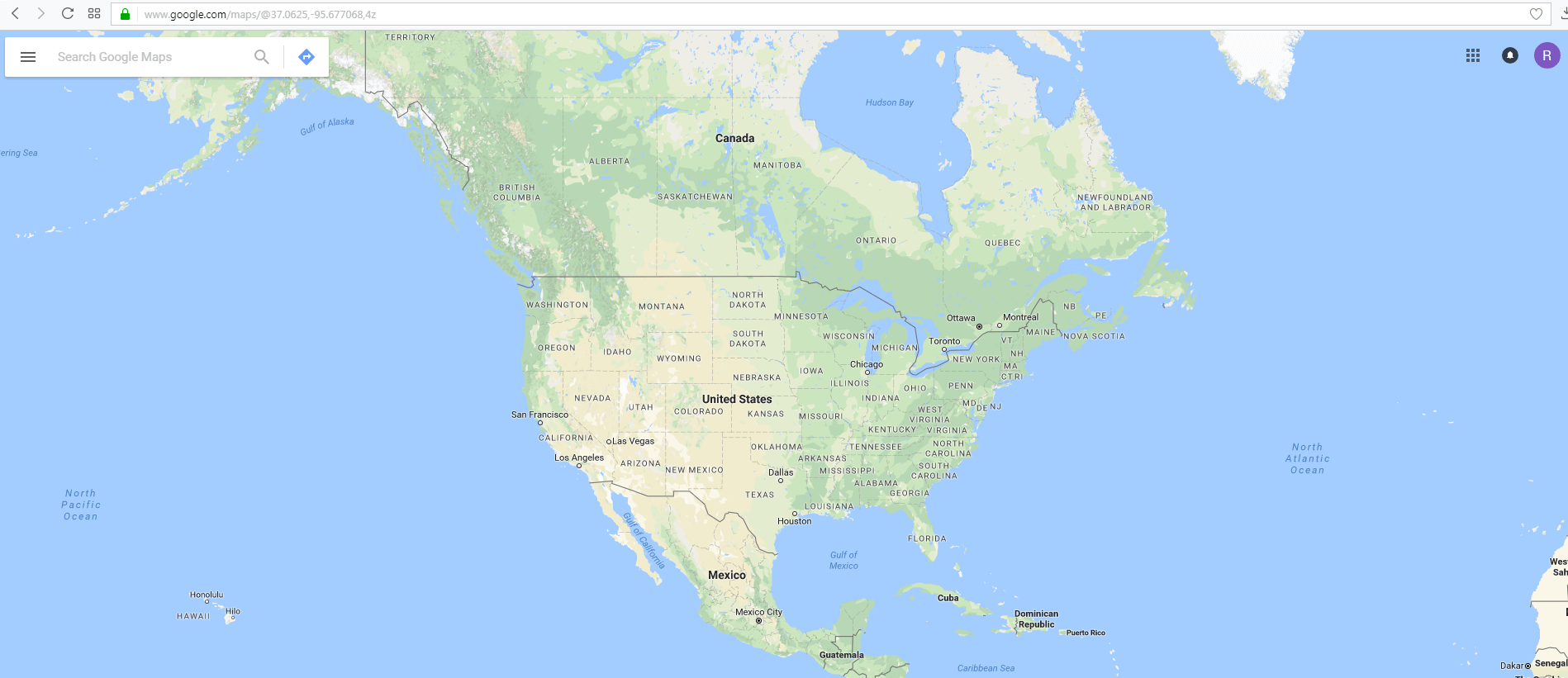
Enter your company address in the map search box.
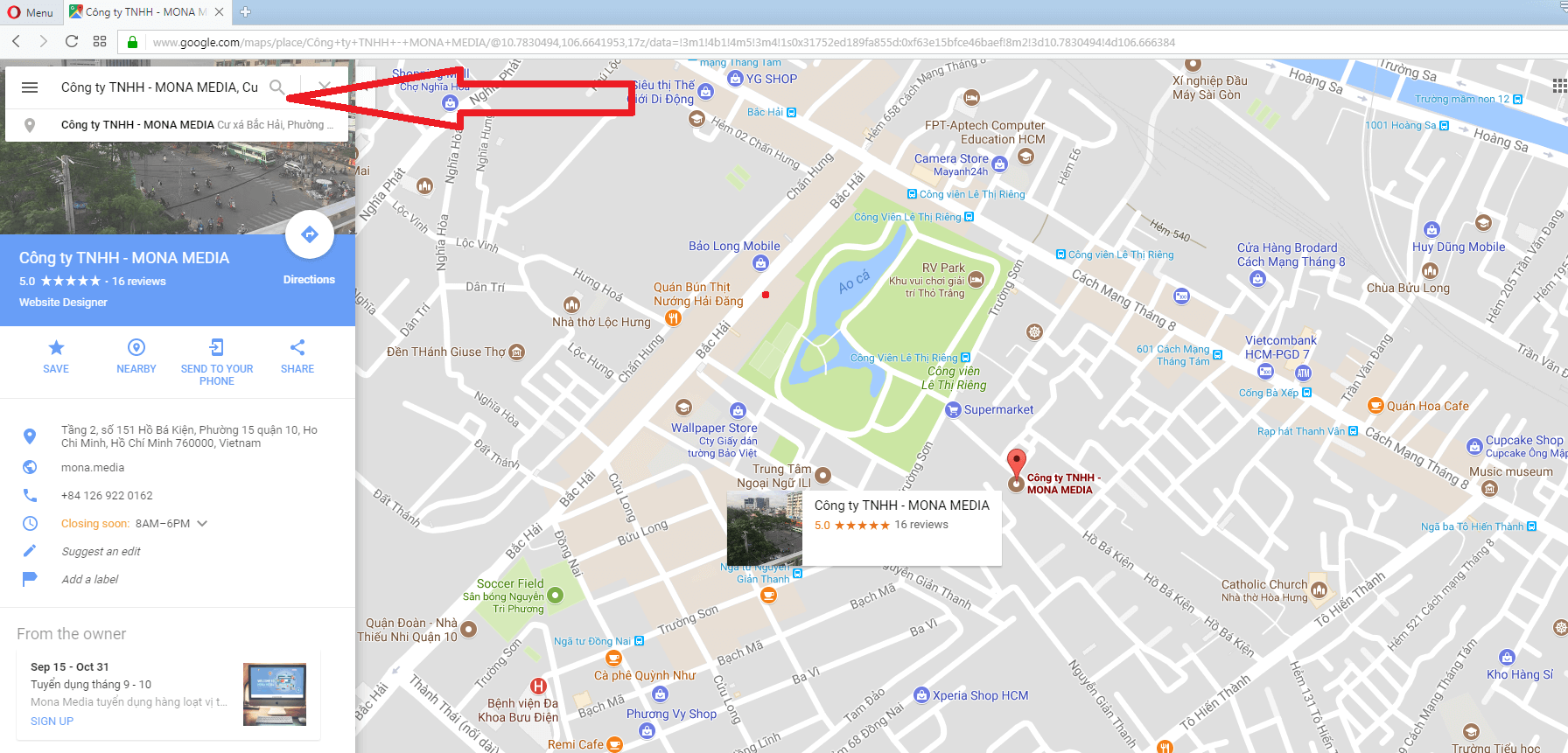
Move around the map to find and confirm your company's exact location.
Click the Google Maps menu
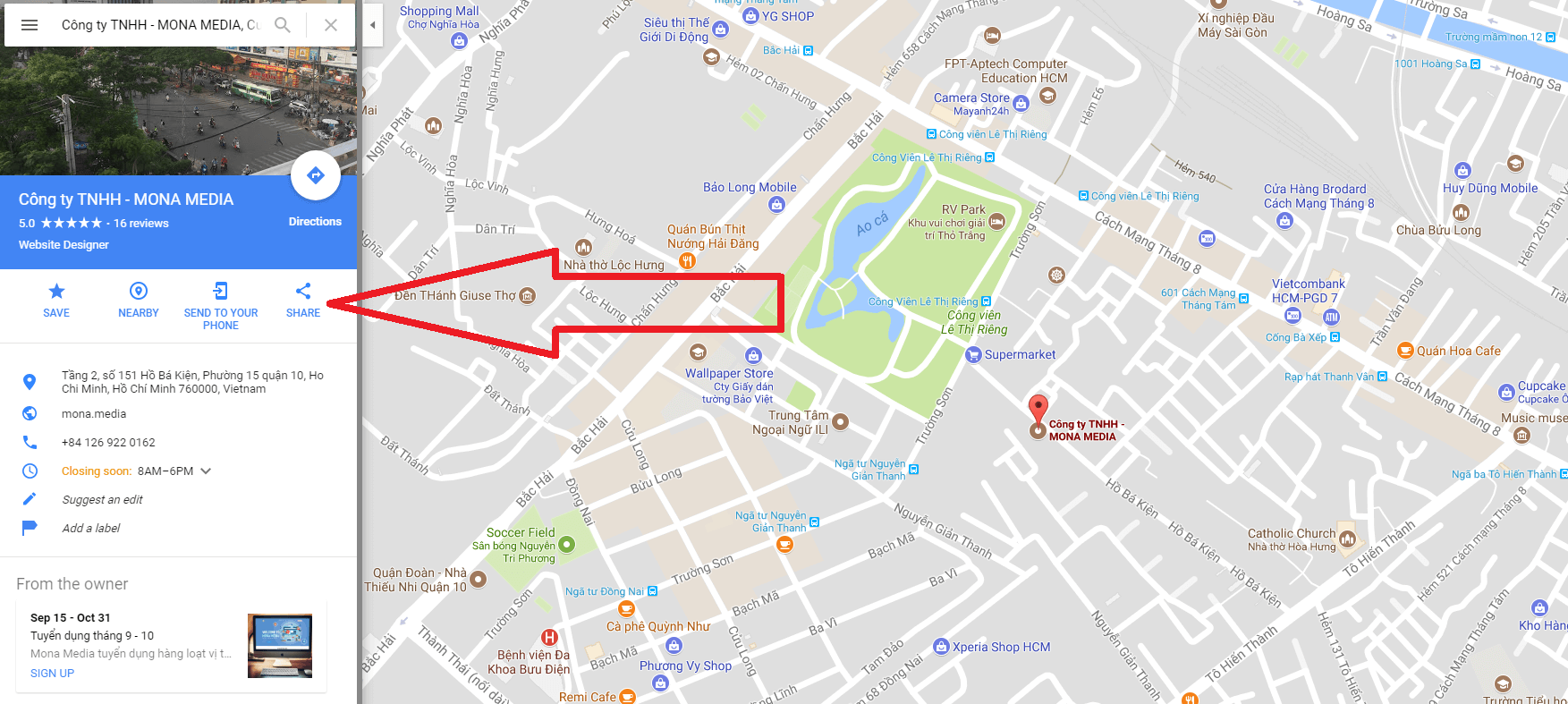
Click "Share & Embed map" to get the code
Click "Embed a map" and open the Embed maps tab
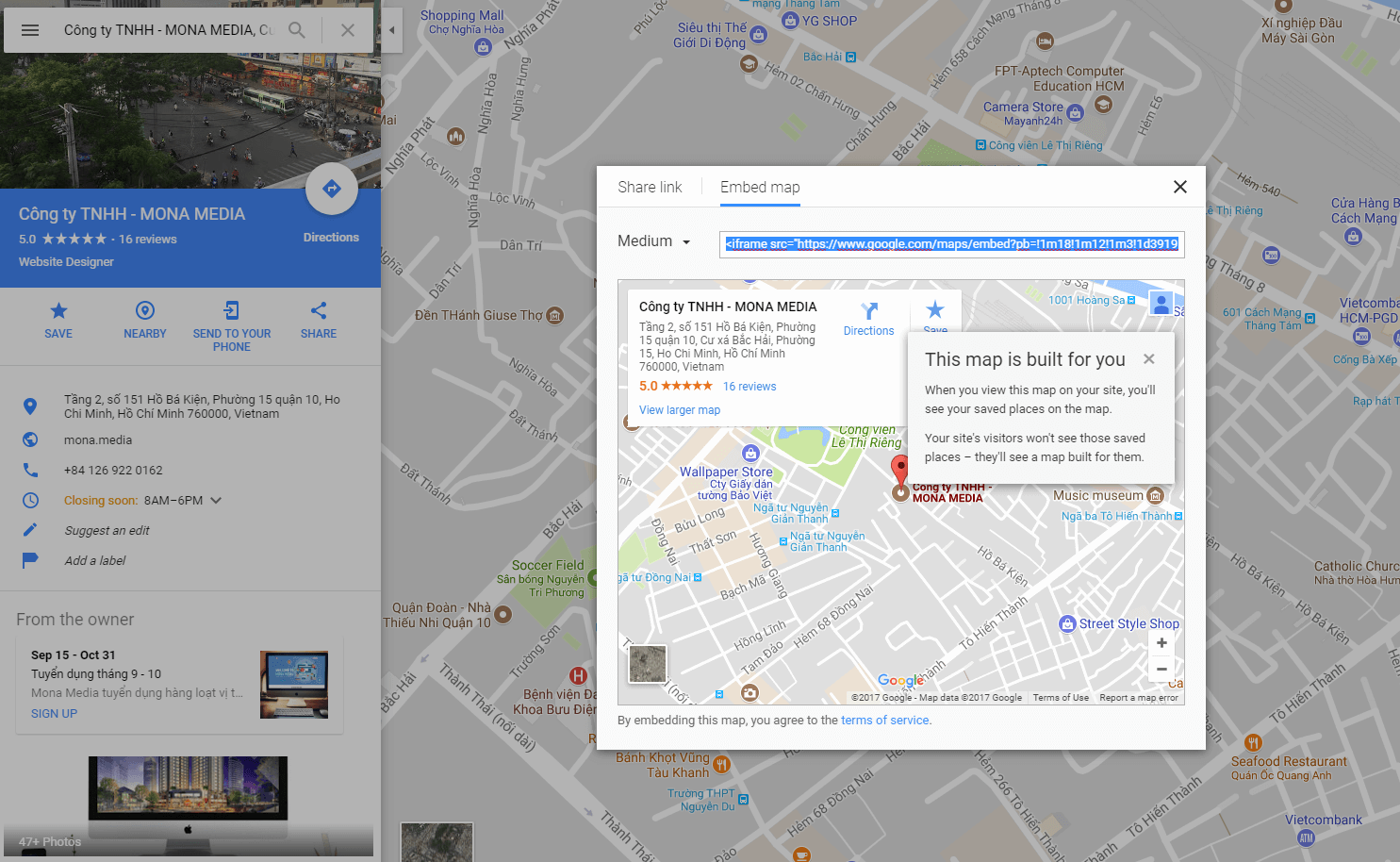
Copy the Google Maps embed code and paste it into your website
You can also add a basic Google Maps embed to your article content or your Facebook fanpage.
I see a lot of people in SEO who have never touched Google Business Profile, even though it is a free channel Google gives us to bring in customers and build trust in a website. In this video I will walk you through, step by step, how to put your website on Google Maps. Watch it and you will be able to do it yourself.
When you search on Google Maps, you will see some shops and businesses shown with a small map that points the way to their location. That is a business listing created on Google Maps.
In short, a business listing on Google Maps makes it easier for customers to find you, and easier to contact you, since the map also shows your phone number.
See more: 20 social media marketing tips from leading experts
To use Google Maps effectively, a business needs to prepare the following:
To add your company address to Google Maps, first go to this address: https://www.google.com/business/placesforbusiness/. Then click the sign-up button Get on Google.
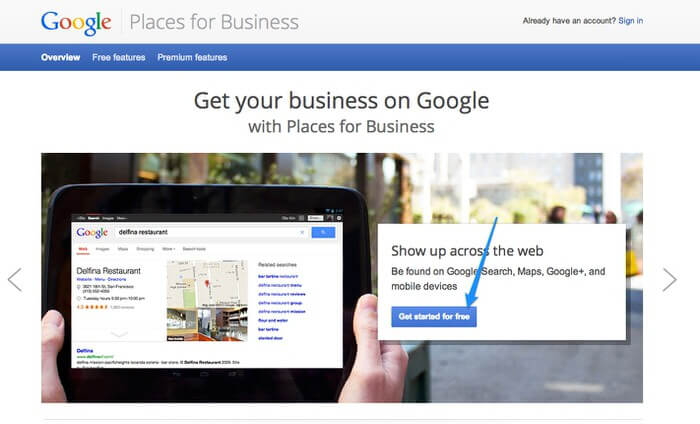
Go to the Google Maps business registration page
You need to sign in with your Gmail account to start creating the map listing. You will then be taken to the website https://www.google.com/local/business/add. Enter your company address here. If no existing business matches, choose to add your business.
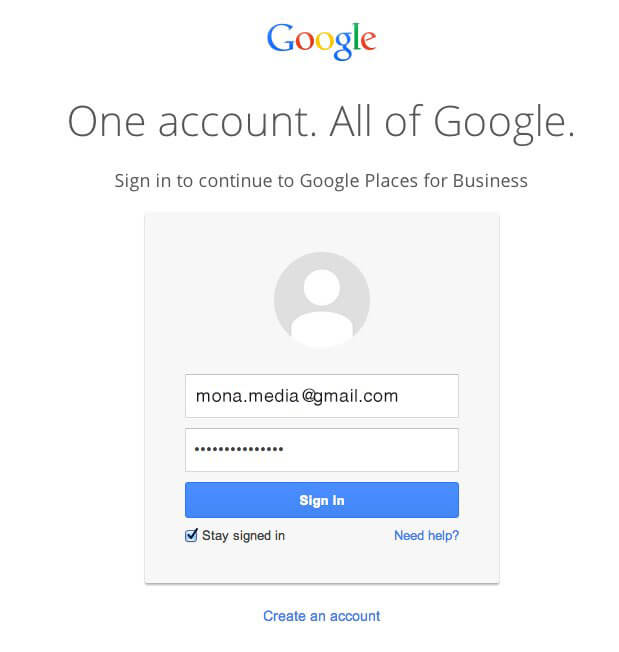
Sign in with your Gmail account
You will be taken to https://www.google.com/local/business/add/info. At this step, fill in the business name, country, street, province or city, phone number and category.
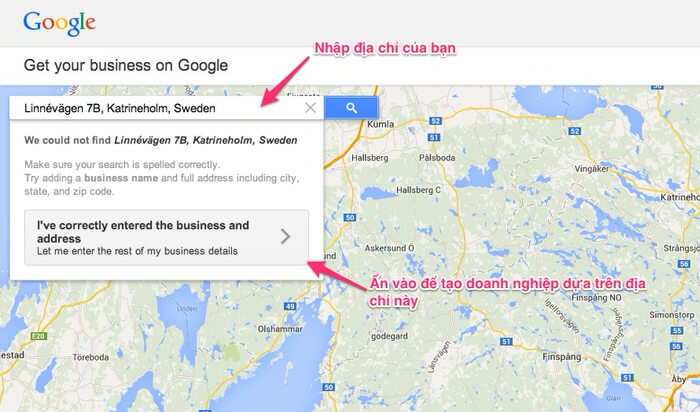
Enter your business address
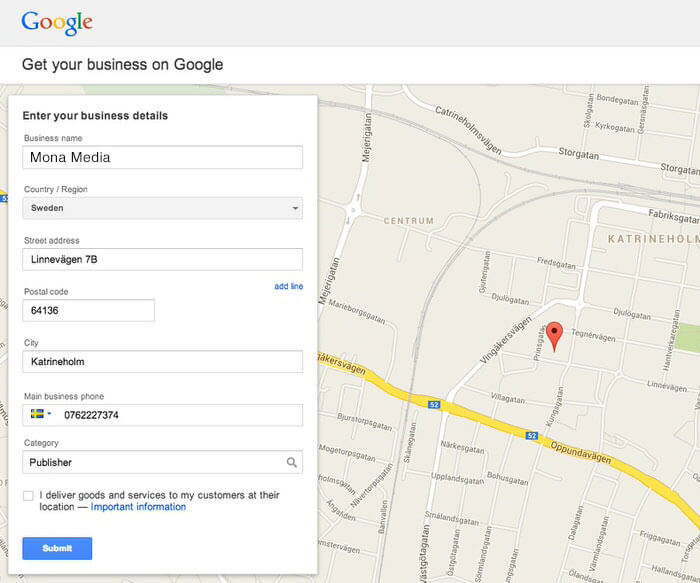
Enter your business details
Enter an accurate address so you can receive the verification PIN from Google.
Submit the business verification request and wait about 1 to 2 weeks, or longer, for Google to mail a postcard to your address.
When the letter from Google arrives, take the verification PIN and follow the instructions in the letter. At this point Google will tell you the process is complete, and your business address will start to appear on Google Maps.
To edit your profile on Google Maps, go to https://www.google.com/business/placesforbusiness/ to make your changes.
You know what your website is missing, but … you is never are not a website management expert and lack the skills for:
MONA Media offers website optimization and upgrade plans tailored to your needs so your website turns out exactly the way you want.
Contact MONA Media on the hotline 1900 636 648 for advice on FREE today.

Right now, Google Maps is considered the most popular digital map app in the world. To keep making it more detailed and cover more places in more countries, Google rolled out the Local Guides program for local guides. Taking part also gives users a chance to win attractive rewards.
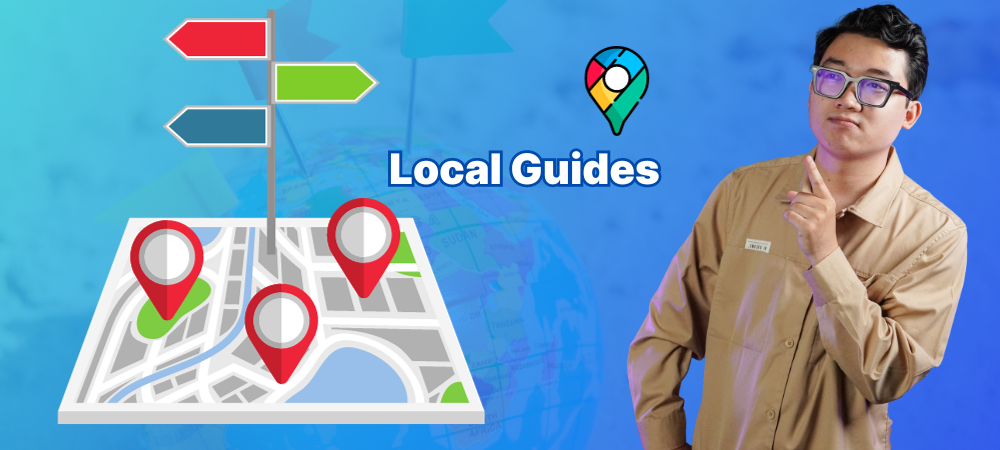
As a Local Guide, you can add places you visit to Google Maps and earn points for each contribution. Contributions fall into 5 types: writing reviews, uploading photos of a place, adding new places, correcting outdated information, and answering simple questions.
Each contribution earns 1 point, and each new place you add earns 5 points. Points add up over time, and rewards are split into the following levels:
For places you pass through, such as restaurants, cafes and tourist spots, it takes only a few minutes to share a review on Google Maps and you could win attractive rewards.
≫ Find out more: Google Ads professional and reputable
You can find any place on Google Maps by typing in a place name, street name or area. Sign in to Google Maps before you search so you can quickly see addresses from your earlier searches.
How to search:
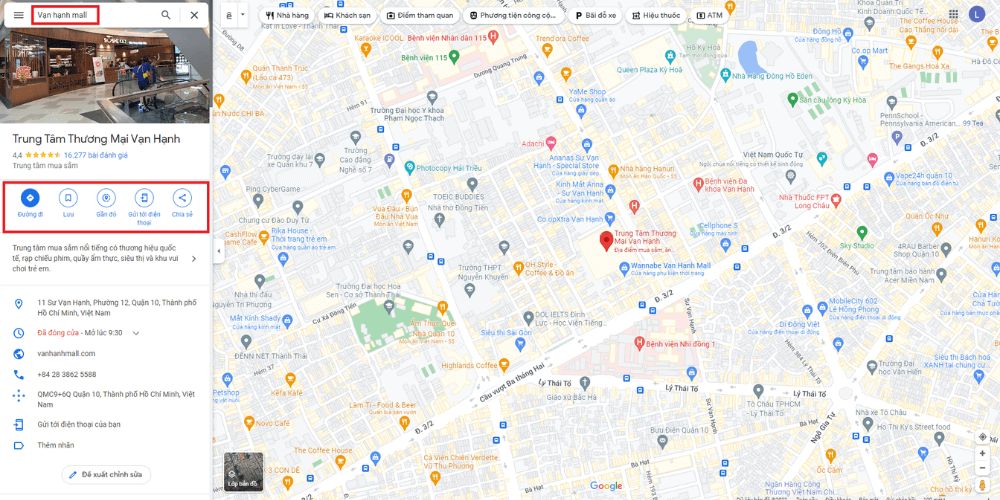
Step 5: For more details about a result, click the red pin on the map and choose one of these sections:
This is one of the main features that shows what Google Maps is for. With it you can look up driving directions, the transport options available for a route, the best route and alternative routes to your destination on the map.
How to use Google Maps for directions:
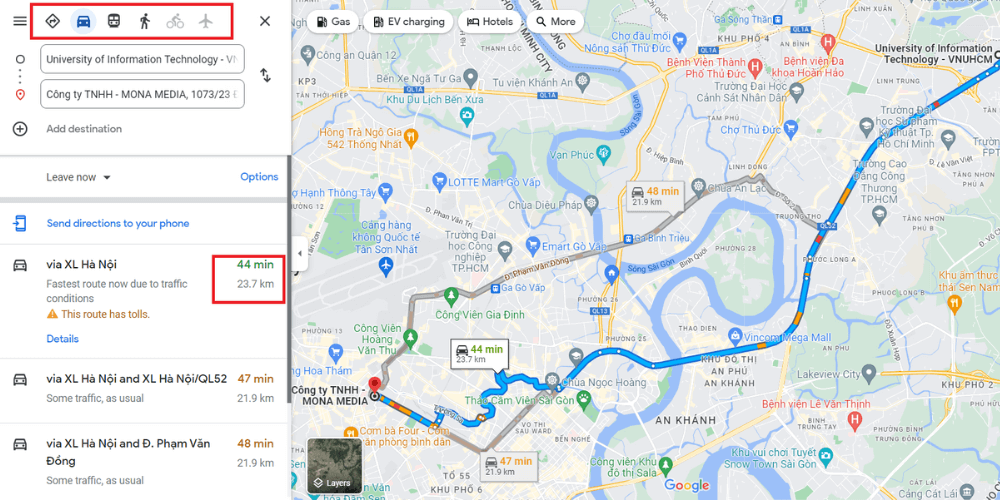
The results then show you the following:
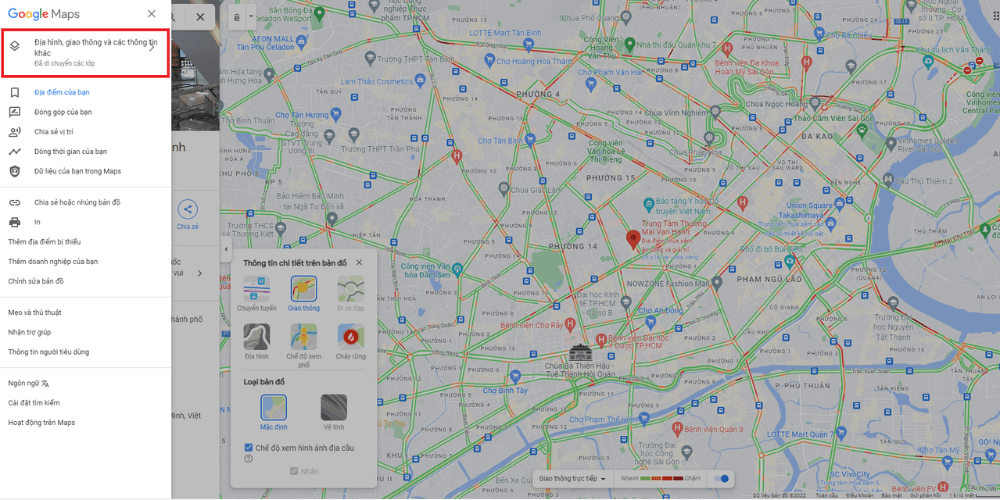
On a computer: Open Google Maps in your browser -> click the Menu icon (3 horizontal lines at the top right).
On a phone: Open the Google Maps app -> tap the Layers icon at the top right.
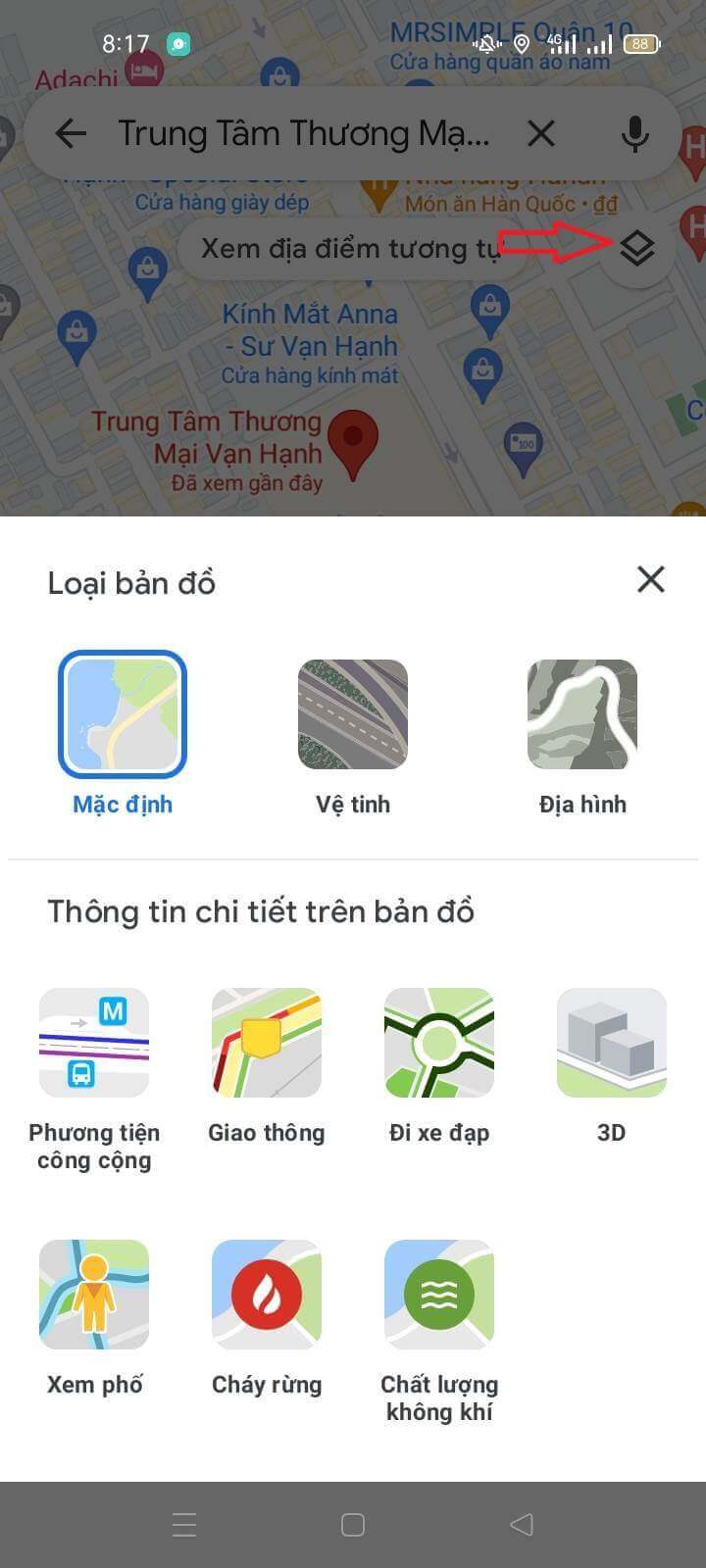
Choose the map type you want to see:
How to check traffic on the route you will take:
Choose "Traffic": this feature shows how busy the roads are, which sections are restricted or jammed and which are clear, so you can pick the right route.
Once selected, roads on the map are marked with different colours. Here is what they mean:
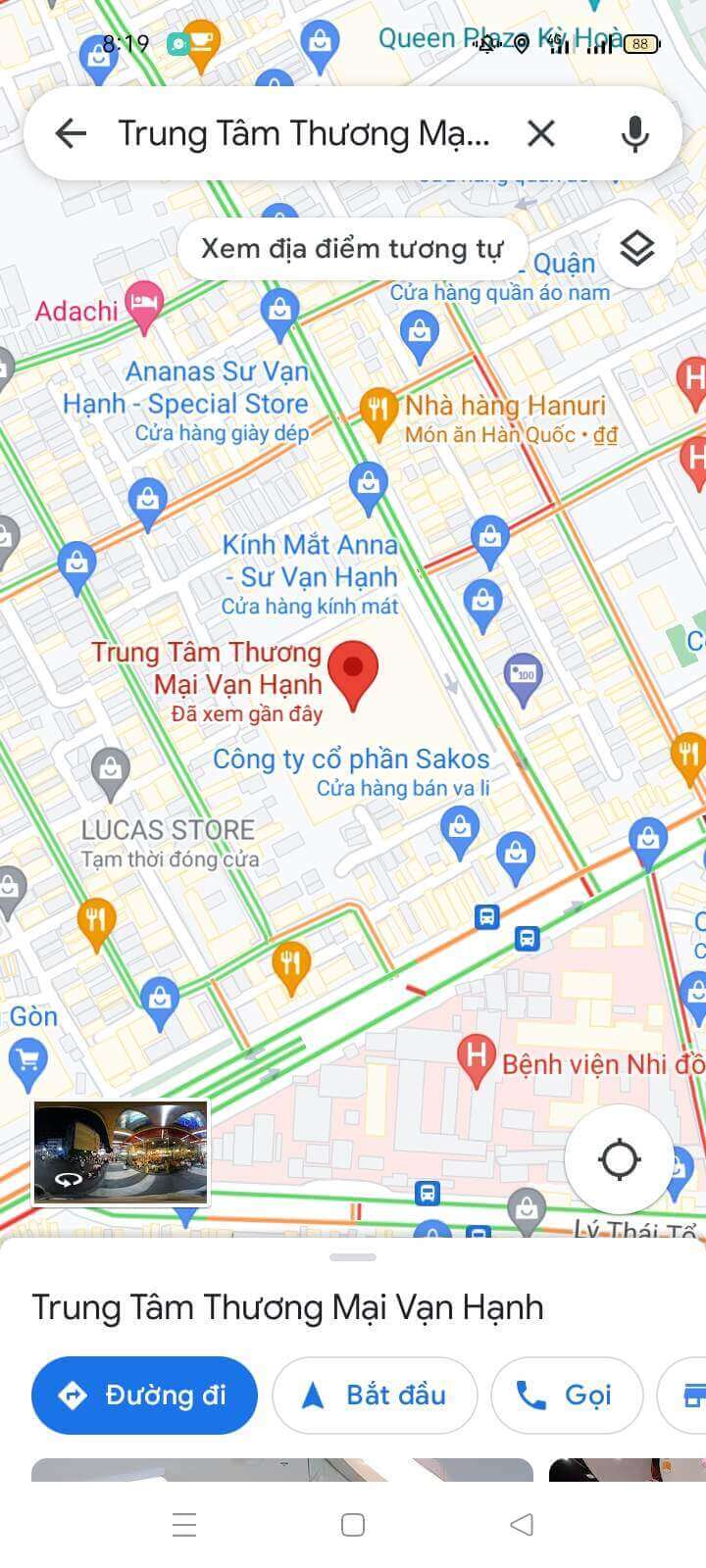
Another Google Maps feature is Street View, which lets you explore places on Google Maps with a very realistic virtual-reality feel, as if you were standing there. Keep in mind that the 360° images in Street View were captured at some point in the past, and not all of them have been updated with the latest images.
There are 3 ways to use Street View:
Method 1: Open Google Maps on a computer -> click the Menu icon (3 horizontal lines) -> choose "Street View" -> blue dots will appear on the map.
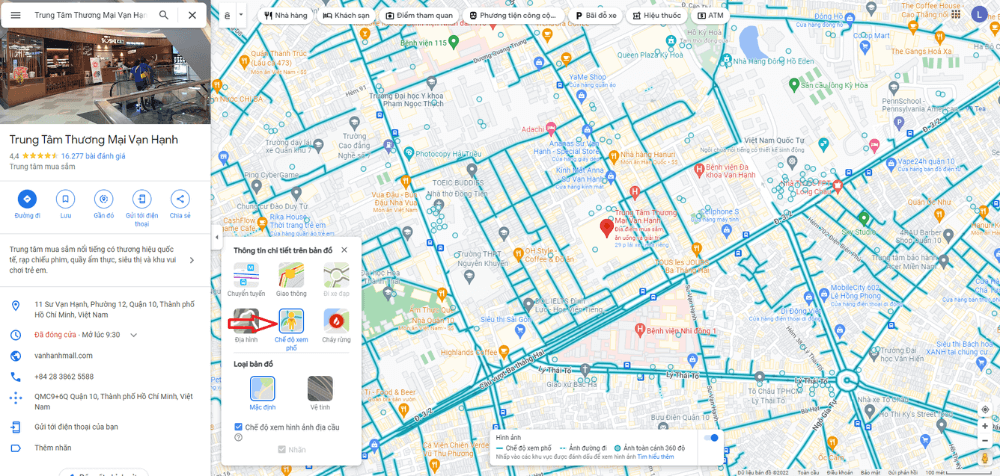
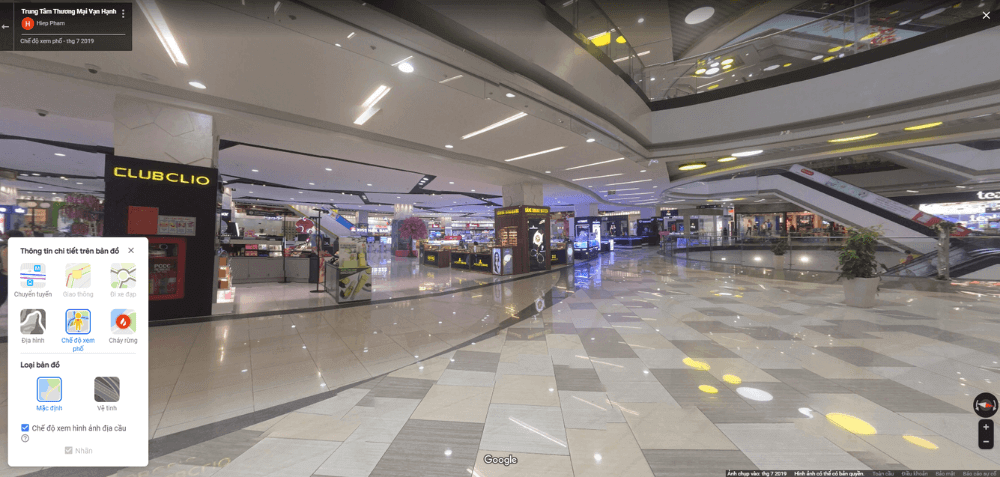
Click the blue dots in the area you want to explore to see the 360° street view.
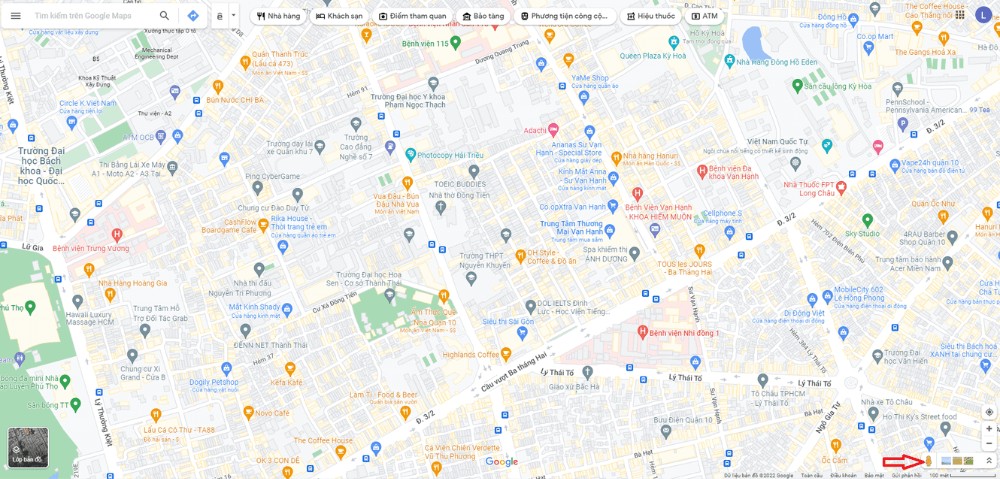
Method 2: Open Google Maps on a computer -> in the bottom right corner, click the yellow Pegman icon -> drag the Pegman to the area you want to explore -> release the mouse to drop him on a blue dot, a blue line or an orange dot on the map.
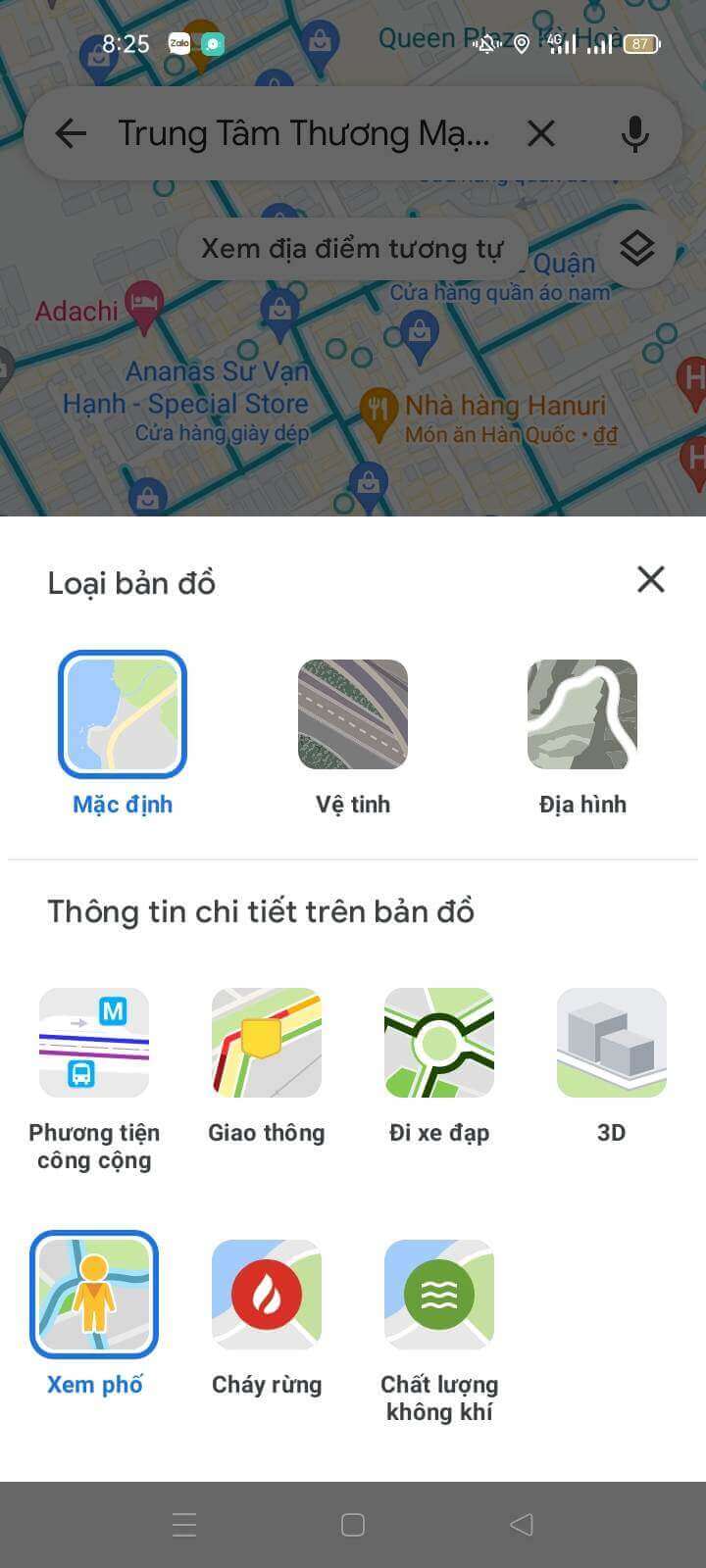
Method 3: In the Google Maps app on your phone -> tap the Layers icon at the top right -> choose "Street View" -> tap the blue dots to explore.
Google Maps lets you share your current location with friends and family in just a few steps:
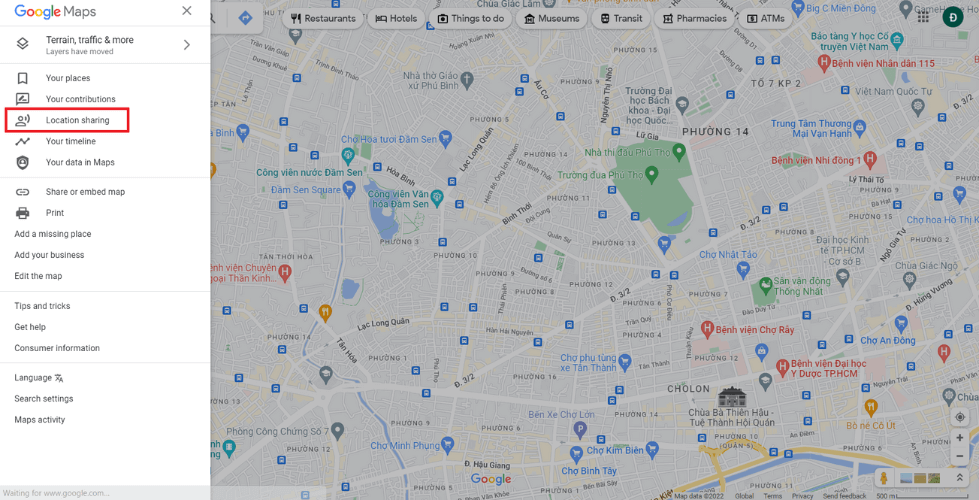
Note: Anyone with this link can see your location for 1 hour after the link is created.
Google Maps lets you save fixed places, which saves time when you look up routes to places you visit often, such as home or the office.
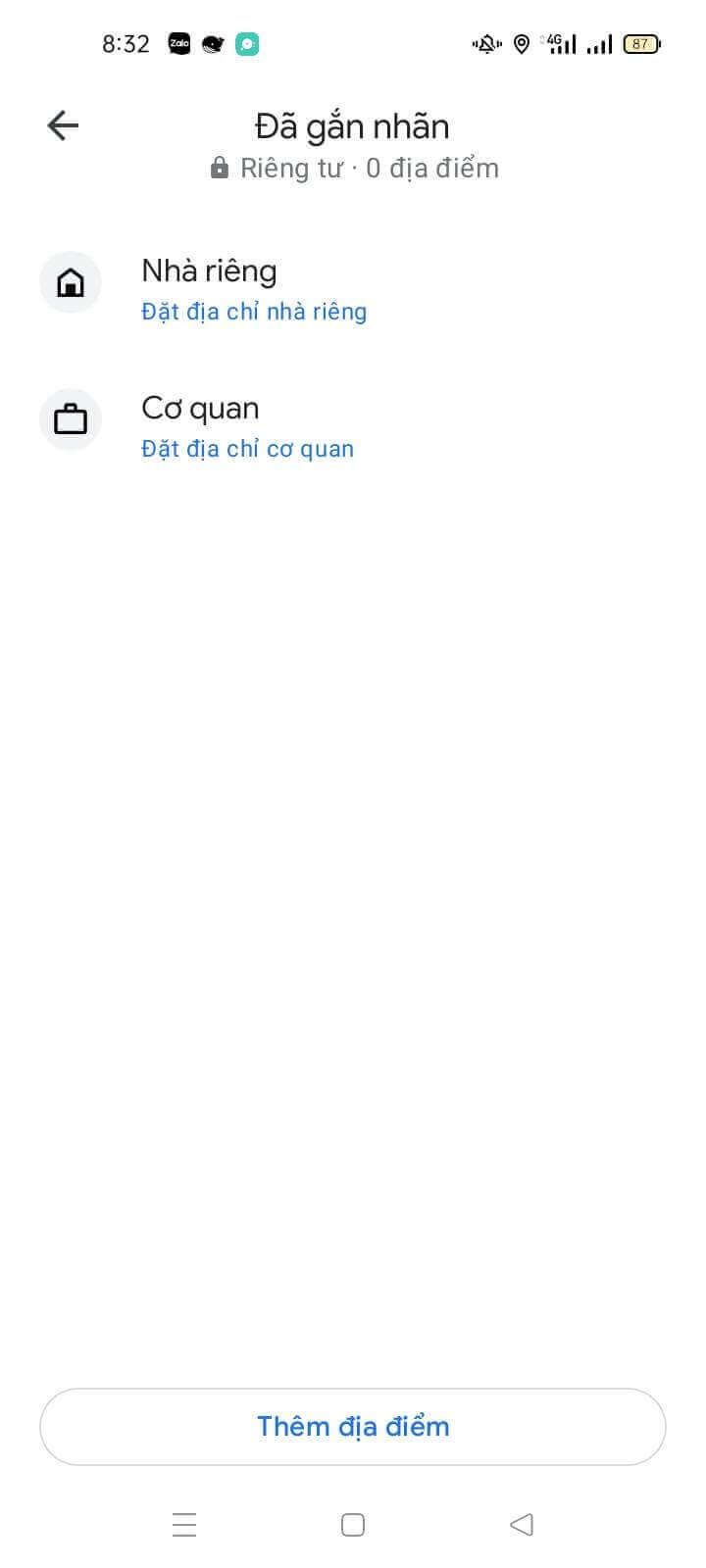
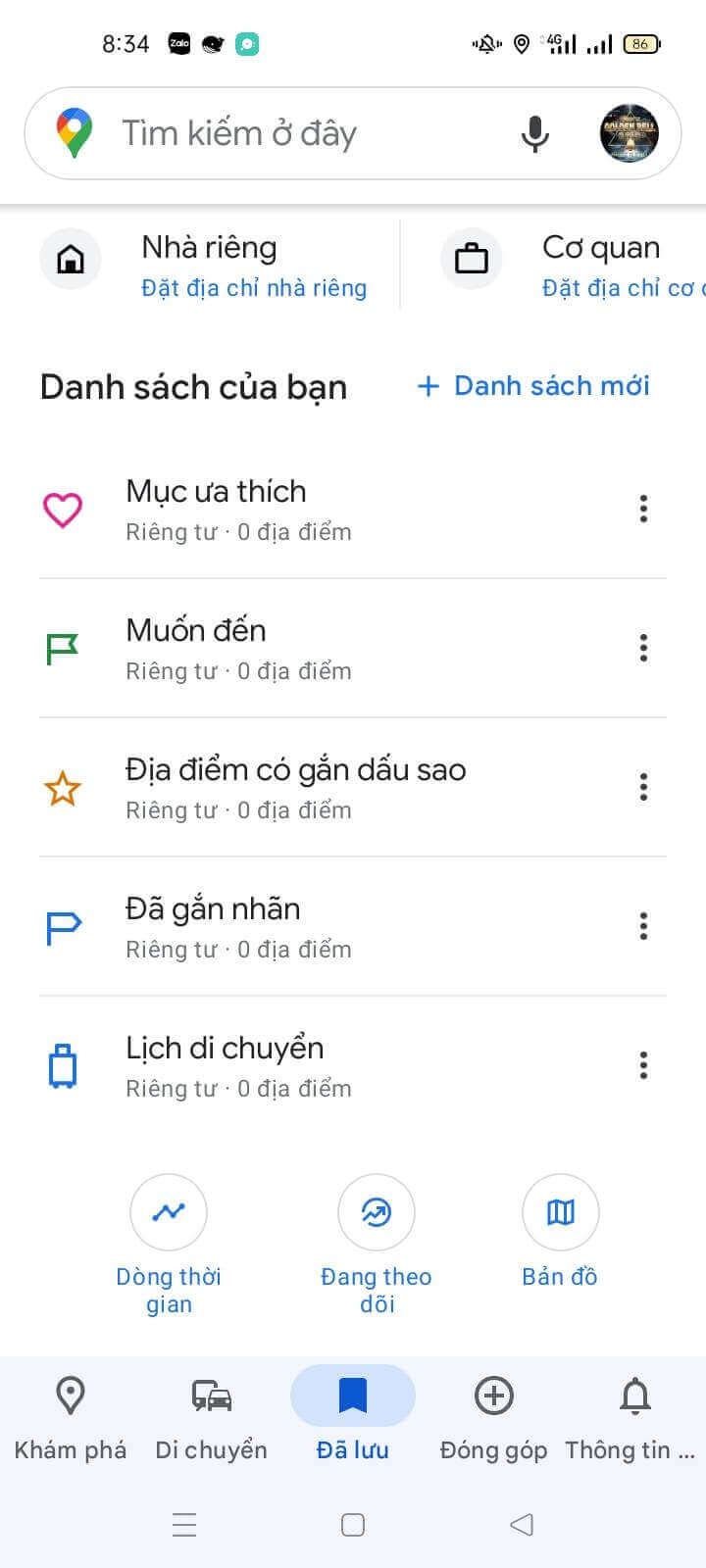
Once you know what Google Maps can do, you can save your favourite places straight from Google Maps with a few simple steps:
Choose the place you want to save on Google Maps -> tap the Save icon -> choose a list (Favourites | Want to go | Starred places) or create a new list -> Done.
One of the most loved Google Maps features is offline maps, which work without a network connection.
To use it, follow these steps:
Open the Google Maps app on your smartphone -> sign in to your Google account -> tap your profile picture or initials in the app -> choose Offline maps -> select your own map (zoom in or out to choose the area you want to download) -> Download
Whenever you search for a place or travel along a route you looked up on Maps, Google knows where you have been, and the Timeline feature lets you look back at those places. To use it, follow these steps:
Google Maps makes it easy to find petrol stations, ATMs, hotels, airports and more near you, accurately. Follow these steps:
Open the Google Maps app -> tap any suggested category under the search bar (petrol stations, restaurants, hotels, cafes, etc.).
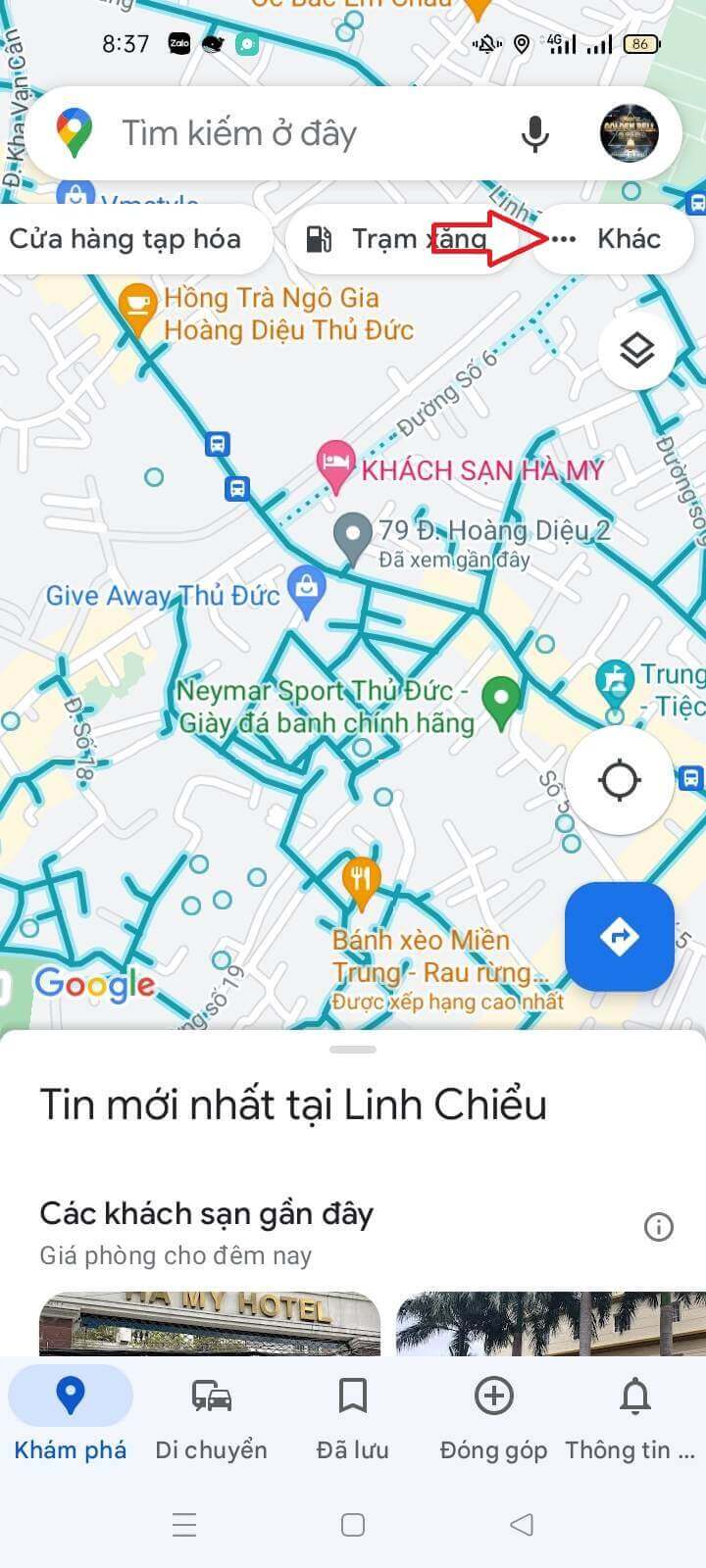
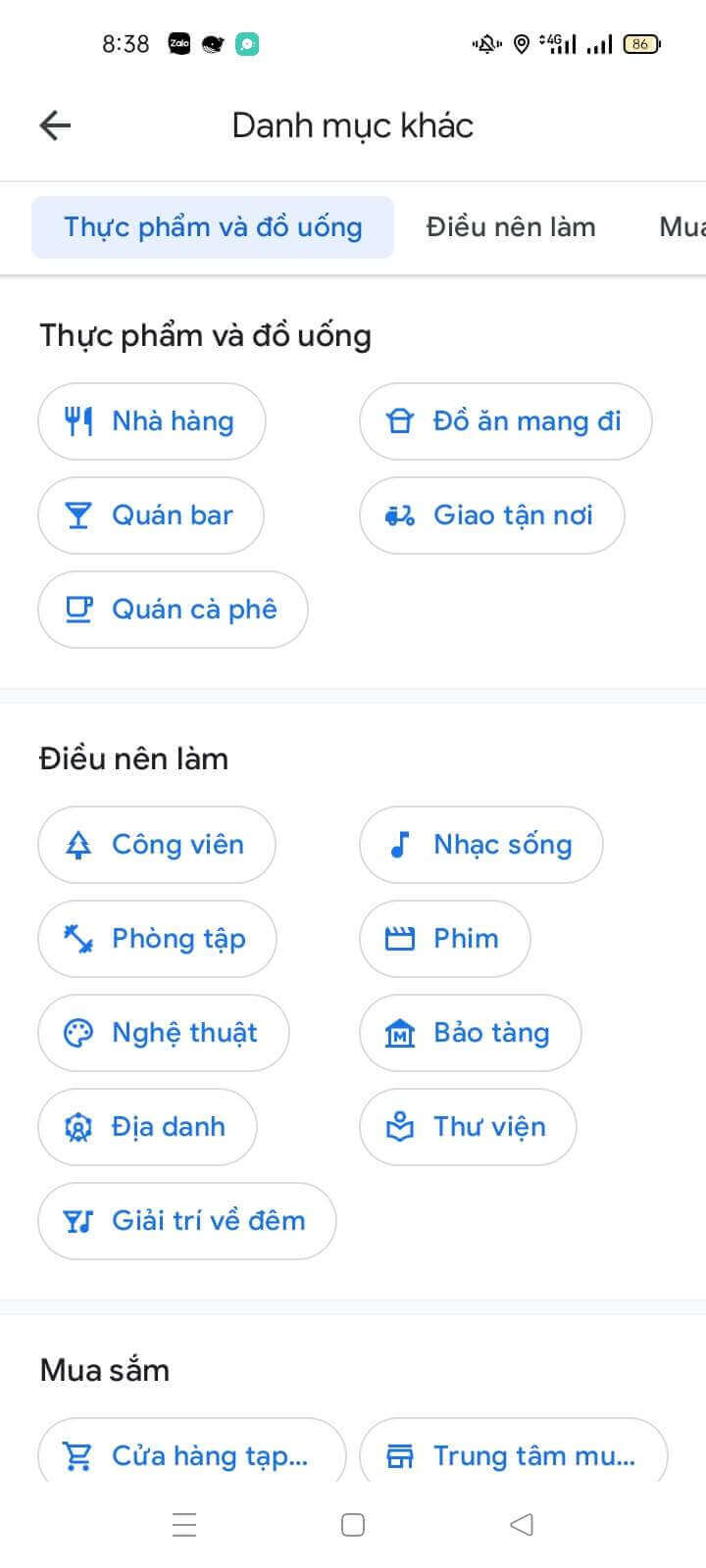
You can swipe left to choose, or tap More (…) to see all the other place categories Google Maps suggests.
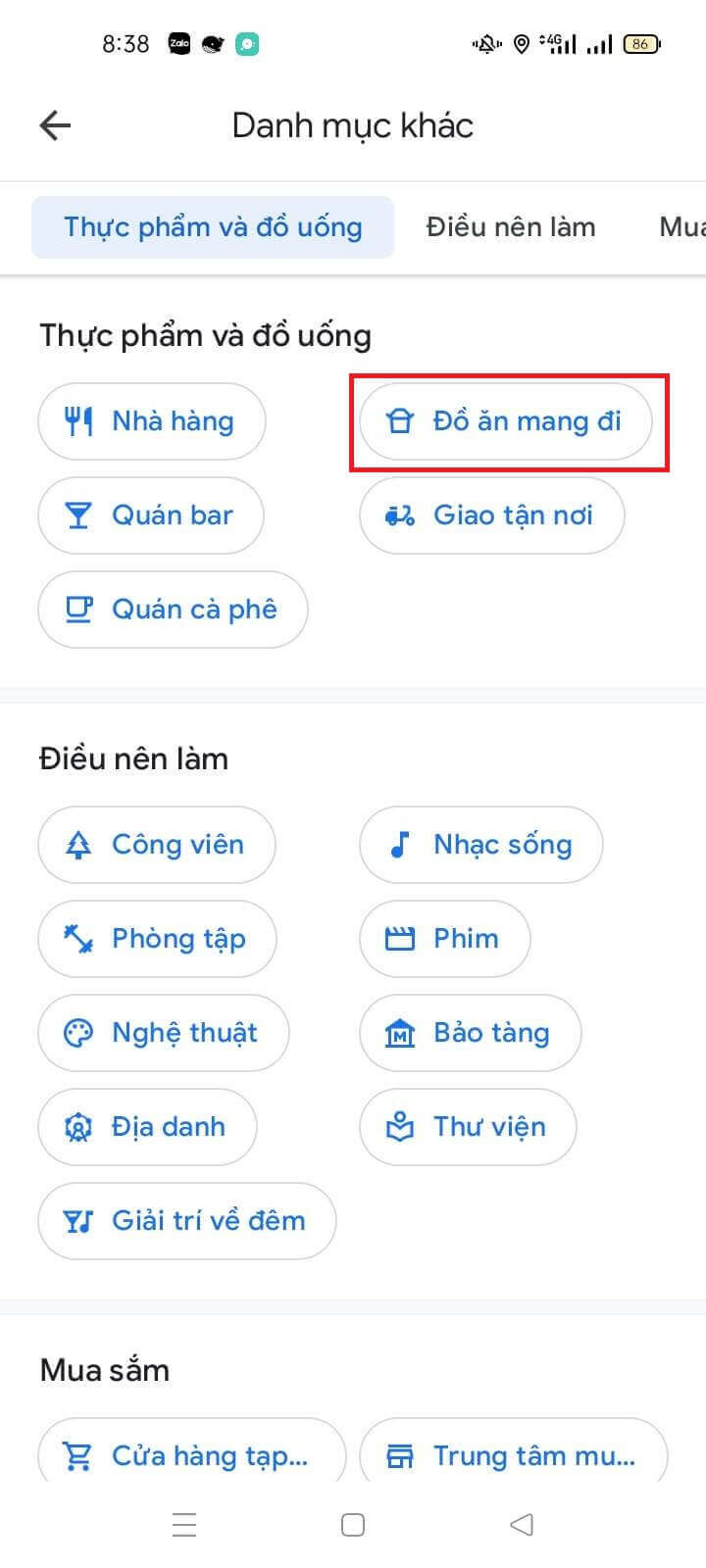
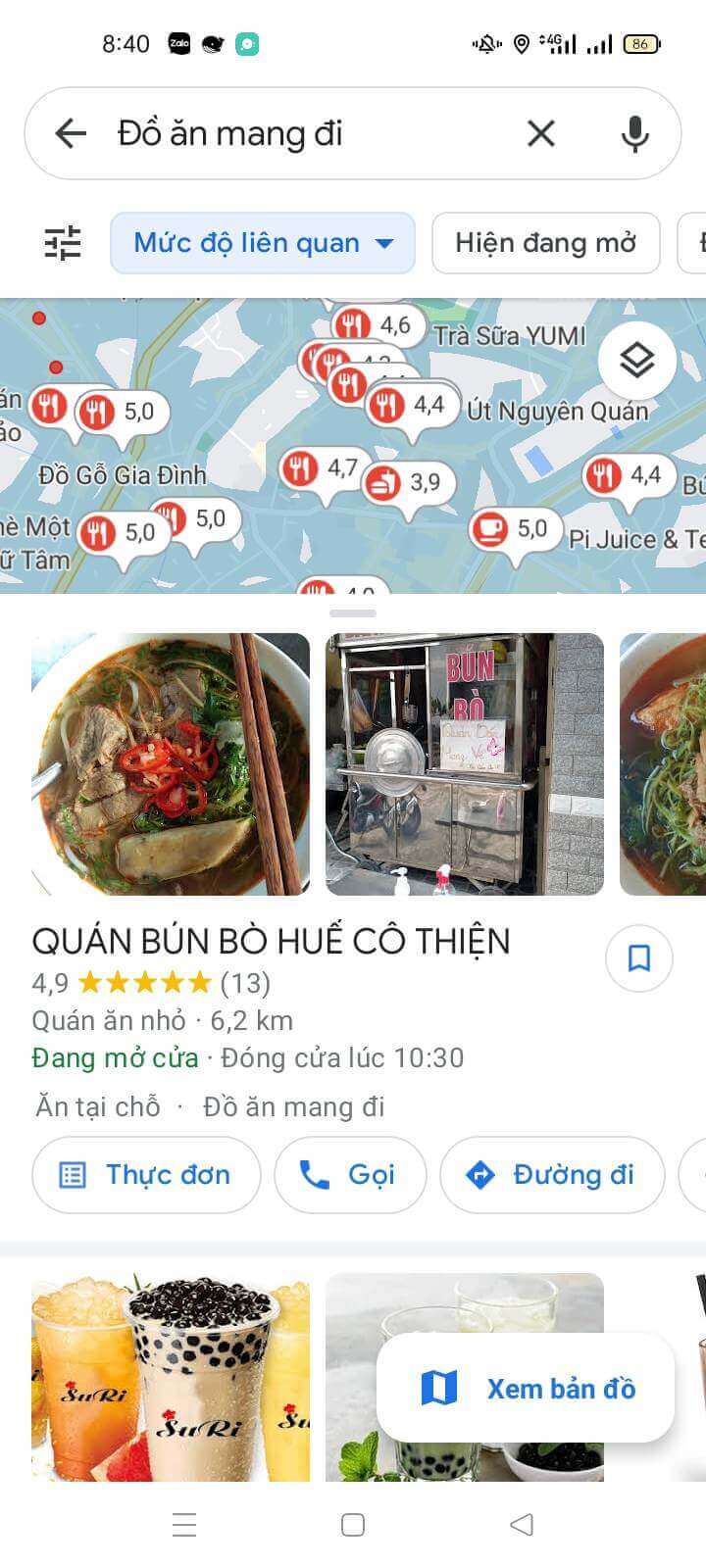
One of the most popular things Google Maps does is find restaurants near you that offer takeaway or delivery.
Steps: Open the Google Maps app -> choose the suggested category "Takeaway" under the search bar
The small red pins or red dots on the map are restaurants that offer takeaway or delivery -> tap each red dot to see an overview of the restaurant (phone, website, opening hours, photos, reviews, menu, reservations, etc.)
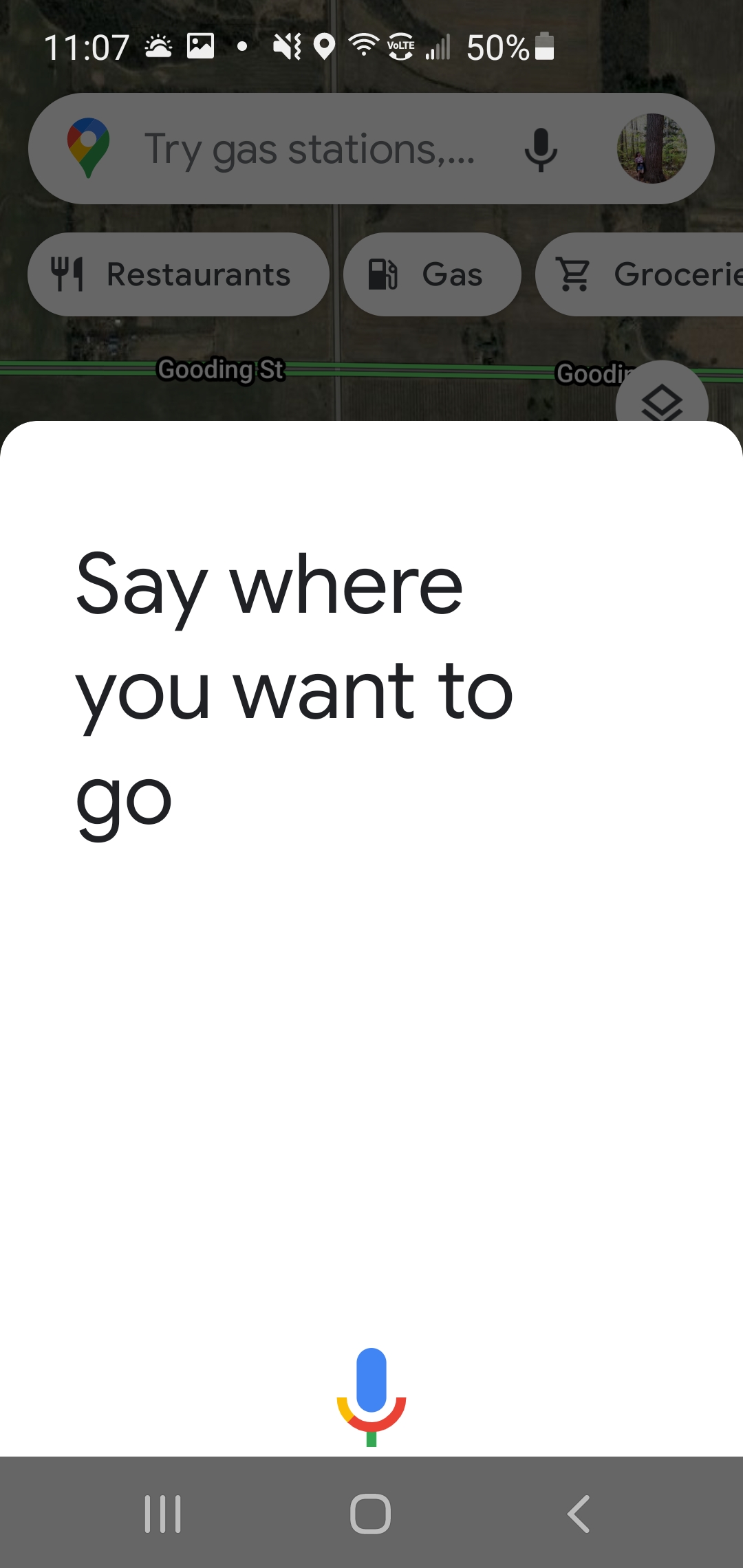
Google added voice commands to Google Maps for times when you can't type a destination by hand, for example when you are in traffic or carrying something.
Sending voice commands to Google Maps is simple. Follow these steps:
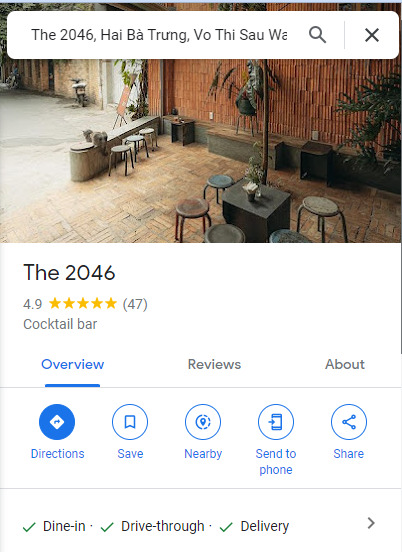
Google Maps works across platforms, so you can use it on a computer and on mobile devices. If you want to send directions for a place from your computer to your phone, it is easy to do in the steps below:
Sharing a place from your computer to your phone also lets you send places and directions to friends through many different apps.
Sharing a place on Google Maps is simple:
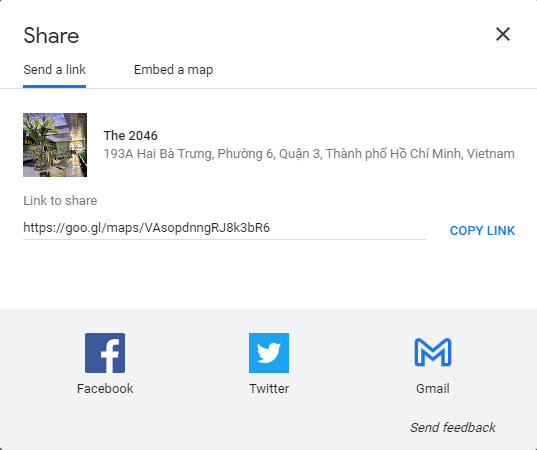
Share directions on Google Maps quickly:
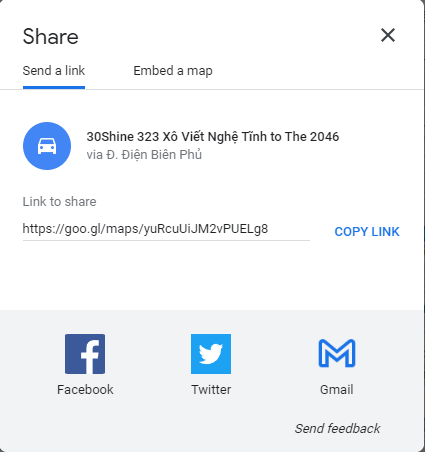
Transit information is ideal for people who often use public transport. This Google Maps feature tells you which public transport leaves from where, what stops it makes, when to change lines and more.
Steps to use Google Maps with this feature:
Google Maps has a built-in compass that adjusts your direction automatically, so the view fits how you are travelling, whether by motorbike, bicycle, car or on foot. Follow these steps to use the compass:
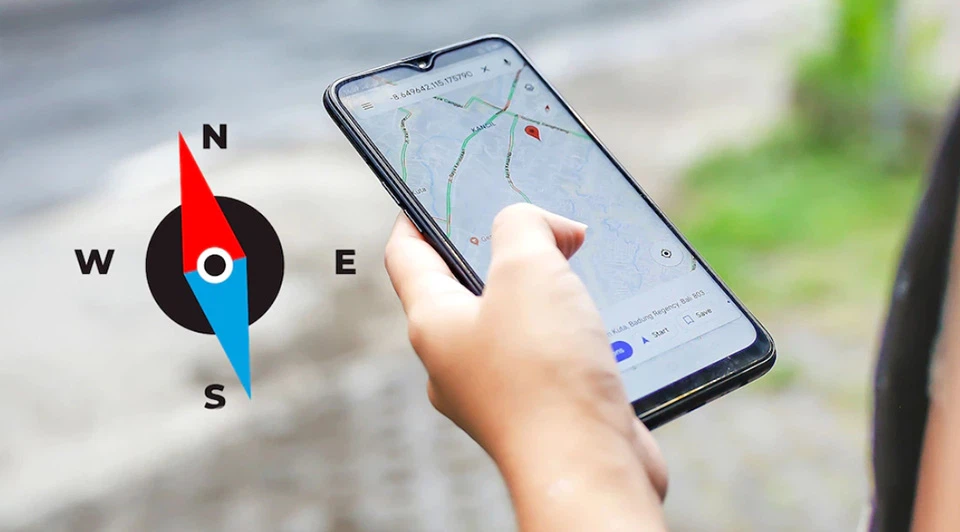
The navigation shortcut on Google Maps speeds up your searches. Follow these steps:
When you hold it, the route appears on the screen and Google Maps switches to navigation mode automatically.
When did Google Maps launch?
Google Maps was first announced on the Google Blog on 8 February 2005.
How does Google Maps give directions?
What is the difference between Google Maps and Google Earth?
In short, Google Maps is a tool for directions and for locating you and places, as its name says. Google Earth is a tool for learning about and exploring the Earth in detail.
Google Maps is a great app with plenty of useful features, and we hope it gives you a great experience. We hope what we have shared here helps you understand this digital map app better.
-> You may also want to explore: What is Google Translate? Benefits and how to use Google Translate effectively

CEO & Founder · The MONA
Founder of The MONA, who built a services company of 200+ staff with 14,000+ projects delivered. Khánh Hùng shares how he thinks about building systems that run themselves, automating a business, and the real lessons from delivering projects at MONA.
 1,7K
1,7K




Professional website
design services
Own a website with a beautiful, 100% exclusive design and a lifetime warranty, with the ability
to expand features flexibly as your business grows, starting today!








 MONA will never sell your information or send you spam
MONA will never sell your information or send you spam
MONA will never sell your information or send you spam


 MONA will never sell your information or send you spam