
 MONA OS 2.0


 Tự động hoá doanh nghiệp
 Cẩm nang SEO
 Digital Marketing
 Kinh nghiệm thiết kế website
 Hạ Tầng Server
 Giáo dục


 VI
VI
 EN
EN














Message us on
Zalo Official


 ProductsNew

 ProductsProducts
 Mới ra mắtKHA AI 2027App tự edit video, tự đăng mọi mạng xã hội, 2 phút mỗi ngày










 Website designLooks good and wins customers over.
SEO servicesBrings in customers searching for exactly what you sell.
Website designLooks good and wins customers over.
SEO servicesBrings in customers searching for exactly what you sell.
 Tư vấn digital marketingKéo khách từ nhiều kênh, đo bằng số thật.
Corporate video productionVideos introducing your company, factory and team.
Tư vấn digital marketingKéo khách từ nhiều kênh, đo bằng số thật.
Corporate video productionVideos introducing your company, factory and team.
 NewAI video productionCompany story films made with AI.
 Custom software developmentCRM, ERP and HRM built for your business.
 Viết AI Agent theo yêu cầuĐặt riêng một trợ lý AI cho đúng việc của mình.
 Tư vấn chuyển đổi AIĐưa AI vào vận hành của cả công ty.
NewMONA LMSManagement for centers and schools.
MONA SkillHubInternal training for company staff.
Tư vấn chuyển đổi AIĐưa AI vào vận hành của cả công ty.
NewMONA LMSManagement for centers and schools.
MONA SkillHubInternal training for company staff.
 NHTQ systemEnd-to-end China–Vietnam shipping operations.
MONA JMSManagement for gold, diamond and pawn shops.
NHTQ systemEnd-to-end China–Vietnam shipping operations.
MONA JMSManagement for gold, diamond and pawn shops.
 MONA E-LearningA website with every feature you need to sell courses.
 How to sell online courses (course)More than 30 free lessons on selling courses on autopilot.
 MONA Cloudmonacloud.vnServers to get your apps and websites running.
 MONA Basemonabase.vnPostgres database, sign-in and file storage.
 MONA Mailmonamail.vnSend OTP, order and invoice emails from your software.
 MONA Paymonapay.vnAccept bank transfers via VietQR and notify your software when the money arrives.
 MONA eInvoiceComing soonIssue e-invoices that meet tax standards.
Gấu CườiTrả lời khách 24/7 trên web, Fanpage, Zalo và thu lead cho sale.
MONA eInvoiceComing soonIssue e-invoices that meet tax standards.
Gấu CườiTrả lời khách 24/7 trên web, Fanpage, Zalo và thu lead cho sale.
 Gấu TeleSalesGọi điện tư vấn, chăm khách như tổng đài viên thật.
Dê CườiTư vấn và chốt đơn cho shop ngay trong khung chat.
Gấu WebmasterNhắn nhóm Zalo là website được sửa xong.
Gấu TeleSalesGọi điện tư vấn, chăm khách như tổng đài viên thật.
Dê CườiTư vấn và chốt đơn cho shop ngay trong khung chat.
Gấu WebmasterNhắn nhóm Zalo là website được sửa xong.
 Gấu Pháp ChếSoạn hợp đồng, rà điều khoản trong vài phút.
 Gấu Báo GiáLên báo giá đúng mẫu và gửi khách ngay.
 AI chăm sóc khách hàngTheo dõi và giữ chân khách hàng cũ.
 Gấu Tuyển DụngLọc hồ sơ, hẹn lịch, phỏng vấn ứng viên.
 Mới ra mắt
KHA AI 2027
Xây kênh chuyên gia 2 phút mỗi ngày
Quay bằng điện thoại, AI tự edit video, tự đăng lên 16 nền tảng và tự trả lời bình luận, tin nhắn.
310.136lượt xem trên kênh CEO MONA sau 17 ngày
Mới ra mắt
KHA AI 2027
Xây kênh chuyên gia 2 phút mỗi ngày
Quay bằng điện thoại, AI tự edit video, tự đăng lên 16 nền tảng và tự trả lời bình luận, tin nhắn.
310.136lượt xem trên kênh CEO MONA sau 17 ngày
 Anh Khánh HùngCEO MONA đang dùng mỗi ngày
Xem app làm được gì
Anh Khánh HùngCEO MONA đang dùng mỗi ngày
Xem app làm được gì
 AI
Gấu Cười MONA ĐANG TỰ XÀITrả lời khách 24/7 trên website, Zalo OA, Messenger và thu lead về cho sale.
Dê CườiChốt đơn bán lẻ và sàn: Shopee, TikTok Shop, web. Chăm cả khách sỉ, đại lý.
Gấu WebmasterCập nhật nội dung, tối ưu SEO website mỗi ngày.
Gấu TeleSalesGọi điện tư vấn, chăm khách như tổng đài viên thật.
Gấu Tuyển DụngLọc hồ sơ, hẹn lịch, phỏng vấn ứng viên tự động.
AI chăm sóc khách hàngGiữ khách cũ, cứu lead đã rớt cho phòng kinh doanh.
Gấu Pháp ChếSoạn hợp đồng, rà điều khoản trong vài phút.
Gấu Báo GiáLên báo giá đúng mẫu, gửi khách ngay khi có yêu cầu.
AI
Gấu Cười MONA ĐANG TỰ XÀITrả lời khách 24/7 trên website, Zalo OA, Messenger và thu lead về cho sale.
Dê CườiChốt đơn bán lẻ và sàn: Shopee, TikTok Shop, web. Chăm cả khách sỉ, đại lý.
Gấu WebmasterCập nhật nội dung, tối ưu SEO website mỗi ngày.
Gấu TeleSalesGọi điện tư vấn, chăm khách như tổng đài viên thật.
Gấu Tuyển DụngLọc hồ sơ, hẹn lịch, phỏng vấn ứng viên tự động.
AI chăm sóc khách hàngGiữ khách cũ, cứu lead đã rớt cho phòng kinh doanh.
Gấu Pháp ChếSoạn hợp đồng, rà điều khoản trong vài phút.
Gấu Báo GiáLên báo giá đúng mẫu, gửi khách ngay khi có yêu cầu.
 Chuyển đổi AI toàn phầnGiải pháp tổng cho doanh nghiệp, 3 lớp triển khai.
 Viết AI Agent theo yêu cầuĐặt riêng một con AI gánh đúng nghiệp vụ của bạn.
 Custom softwareCRM, ERP and HRM with built-in AI automation.
 SEO & AEO thời đại AIĐược Google lẫn AI trích dẫn, không chỉ xếp hạng.
 Kiến thức AI cho doanh nghiệpBài phân tích, hướng dẫn ứng dụng AI vào vận hành.
 Free AI courses
 AI tools at work
App mới · KHA AI 2027
Xây kênh 2 phút mỗi ngày
AI tự edit video, tự đăng mọi mạng xã hội
Free consultation, 8am–10pm every day
AI tools at work
App mới · KHA AI 2027
Xây kênh 2 phút mỗi ngày
AI tự edit video, tự đăng mọi mạng xã hội
Free consultation, 8am–10pm every day

18 March, 2023

In recent years, the internet has seen many people with bad intentions taking advantage of the chance to break into computers connected to it. After a string of large-scale attacks, computer security has become a bigger concern than ever. To stay safe online, you need to pay special attention to the firewall. This barrier acts as a solid wall that raises the security of your whole computer system. So what is a firewall to have such power? To learn more about firewalls, let's look at them together with Mona Media in the article below.
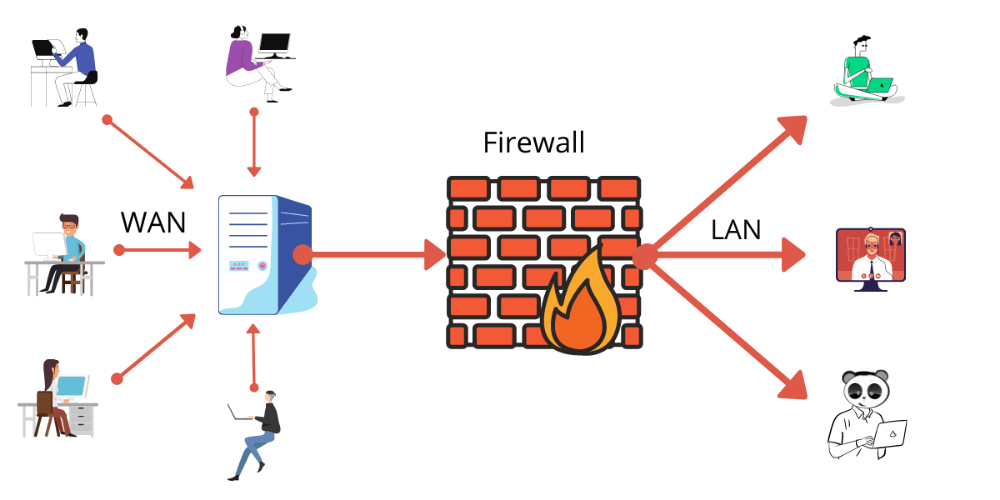
A firewall is a familiar technical term in computer networking. It is a hardware tool, a software tool, or both, built into a system to block unauthorized access and keep viruses out, so that internal information stays protected.
Put simply, a firewall is the security boundary between the inside and the outside of a computer network.

The firewall is essential for any computer system connected to the internet, because it manages what is allowed into the network and what goes out. Having a “gatekeeper” like this to watch over everything that happens is extremely important.
Firewalls fall into 2 main types: Personal firewall and Network firewall
This type is designed to protect a computer from unauthorized access from outside. A Personal Firewall also includes useful features such as monitoring antivirus software and intrusion prevention software to keep data safe
Common Personal firewalls include: Microsoft Internet connection firewall, Symantec personal firewall, Cisco Security Agent and others.
This type suits individuals best, because they usually only need to protect their own computer. The firewall is often built into laptops and PCs.
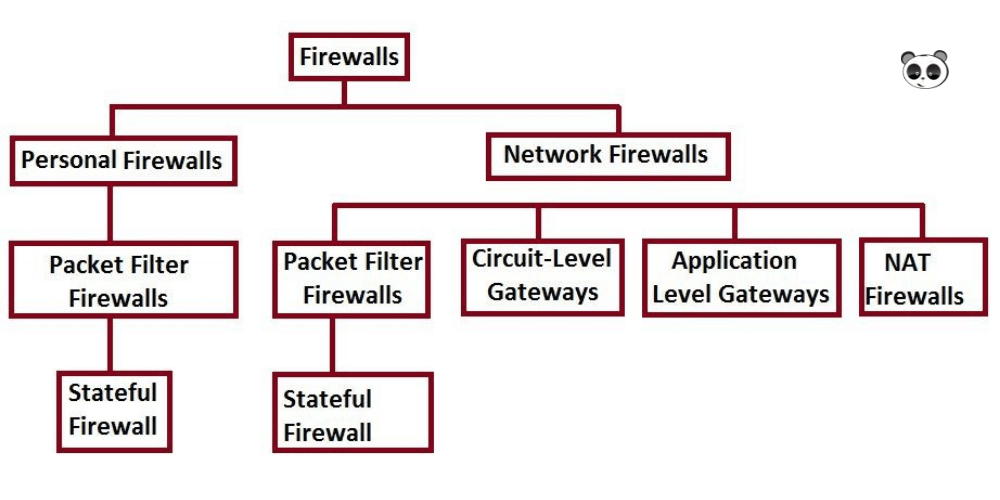
Designed to protect the hosts in a network from outside attacks. Examples are Appliance-Based network firewalls such as Cisco PIX, Nokia firewalls, Symantec's Enterprise Firewall, Juniper NetScreen firewall and Cisco ASA, or Software-Based firewalls such as Check Point's Firewall, Linux-based IPTables and Microsoft ISA Server.
The difference between the 2 types is the number of hosts the firewall has to protect. Remember that a Personal firewall can only protect a single machine, while a Network firewall can protect a whole computer network.
The main jobs of a firewall are listed below:
A firewall has a hard job, because a lot of legitimate data needs to move in and out of a networked computer. It has to tell normal, legitimate traffic apart from data that could cause harm.
A firewall uses rules and exceptions to let good connections through and block bad ones. All of this happens in the background, so users never see it and don't need to do anything.
To see how the firewall works in Windows XP, click Start → Control Panel and double-click the Windows Firewall icon. When the dialog box opens, click the Exceptions tab at the top to see which programs are allowed to receive connections, such as antivirus software and online storage services like Dropbox
On Windows 7 and Windows 10, click Start → Control Panel → System and Security → Windows Defenders Firewall. When the window opens, click the link Allow a program or feature through Windows Firewall in the list on the left to see which programs are allowed to communicate through the firewall.
Windows manages these rules and exceptions automatically, but this is where you go whenever you want to change anything.
No tool is perfect. A firewall offers a lot of useful protection, but it also has some clear limitations:
Even so, the firewall is still the most effective and most widely used protection available today.
Over the past decade, firewall technology has moved forward a lot, and you now have several types of firewall to choose from:
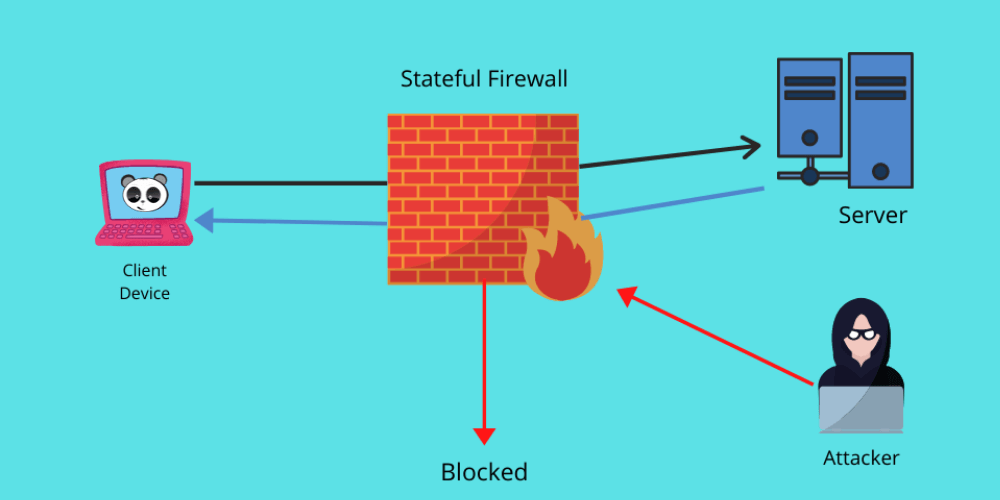
The first big step forward in firewall technology came in the mid to late 1990s. Firewalls began inspecting traffic based on the state and characteristics of each network connection, which gave far more complete protection. Tracking connection state lets a firewall allow certain traffic for one user while blocking the same traffic for another.
Over the years, firewalls have gained many new features, including Deep Packet Inspection (DPI), intrusion detection and prevention, and inspection of encrypted traffic.
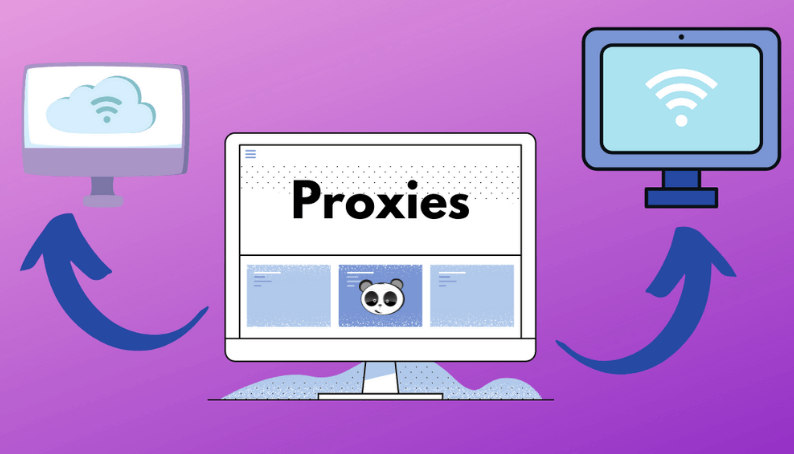
These firewalls act as a gateway between the end user requesting data and the source of that data. All traffic is filtered through the proxy before it reaches the end user. This protects the machine from threats by hiding the identity of whoever made the original request.
These firewalls protect specific applications instead of sitting at the entry or exit point of a wider network. The difference between a proxy-based firewall and a web application firewall (Web application firewall, WAF) is that a proxy-based firewall usually protects the end user's client machine, while a web application firewall is built to protect the application server.
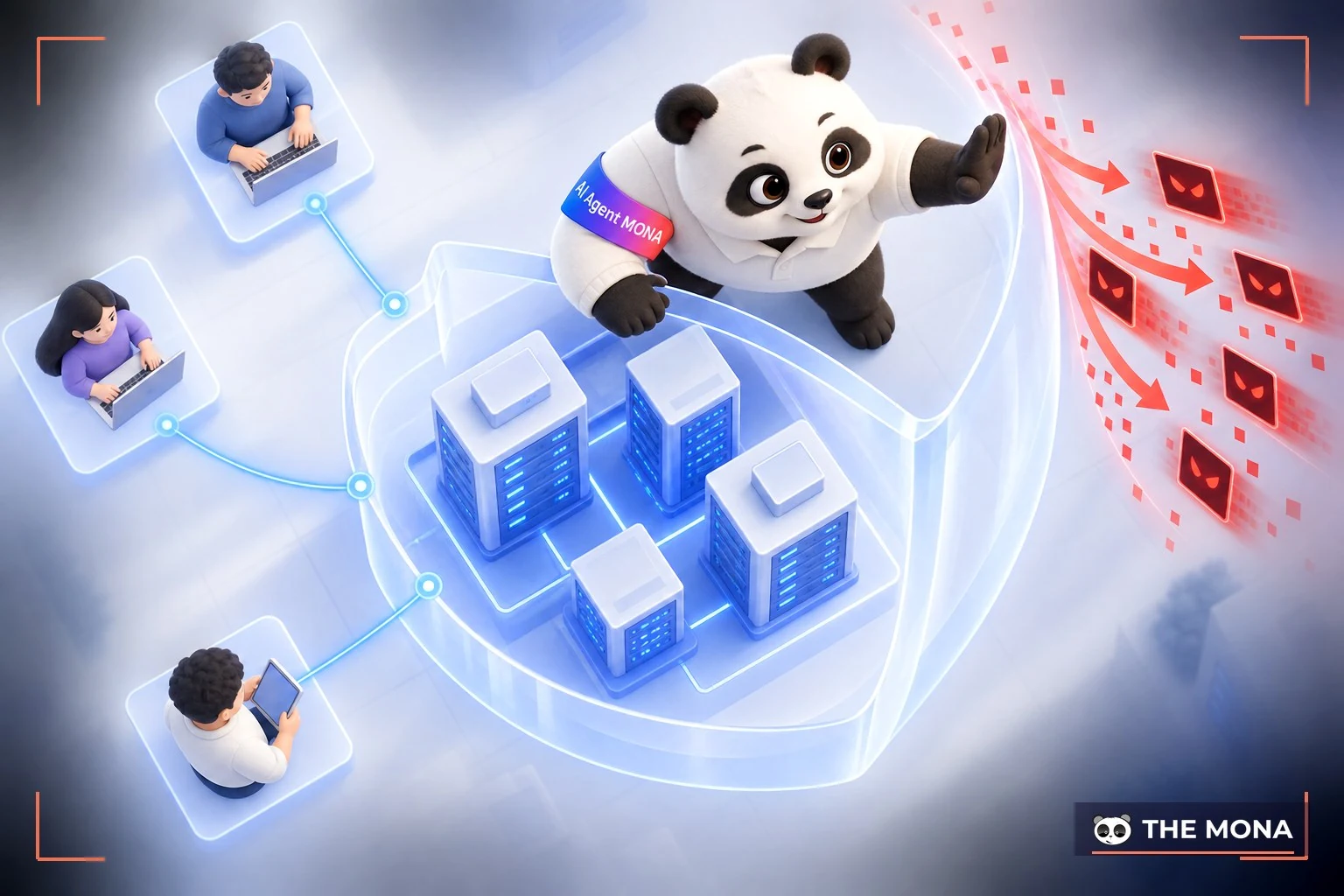
A hardware firewall is usually a simple server that works as a router, filtering traffic while running firewall software. These devices sit inside the company network, between the router and the internet service provider's connection point. A business may run dozens of physical firewalls in a single data center.
Most organizations deploy many endpoints across their hardware firewalls together with a central firewall software system. That central system is where threats are analyzed and responded to.
This is the basic firewall function: the device blocks unwanted traffic.
With up-to-date threat information, a firewall can quickly spot computer viruses and weak points in network traffic and protect against them.
SSL (Secure Sockets Layer) inspection checks encrypted traffic for threats. As more traffic is encrypted, SSL inspection has become a key part of the DPI technology built into next-generation firewalls. It acts as a buffer that decrypts traffic before it reaches its destination so it can be checked.
-> See also: Mua SSL, registering an SSL certificate for your website
This security layer can run on its own or be built into a next-generation firewall. A basic firewall identifies and blocks certain types of network traffic, while an IPS goes further, using signature matching and anomaly detection to stop threats from getting into the company network as soon as they appear.
DPI can be part of an IPS or work alongside one. It has become one of the key features of next-generation firewalls because it analyzes traffic in detail, especially packet headers and traffic data. DPI can also monitor outgoing traffic to make sure sensitive information doesn't leave the company network, a technology known as Data Loss Prevention (DLP).
Step 1: To find it quickly, go to your computer's search bar and type “Windows Defender Firewall”, then press enter and select the item with that name.
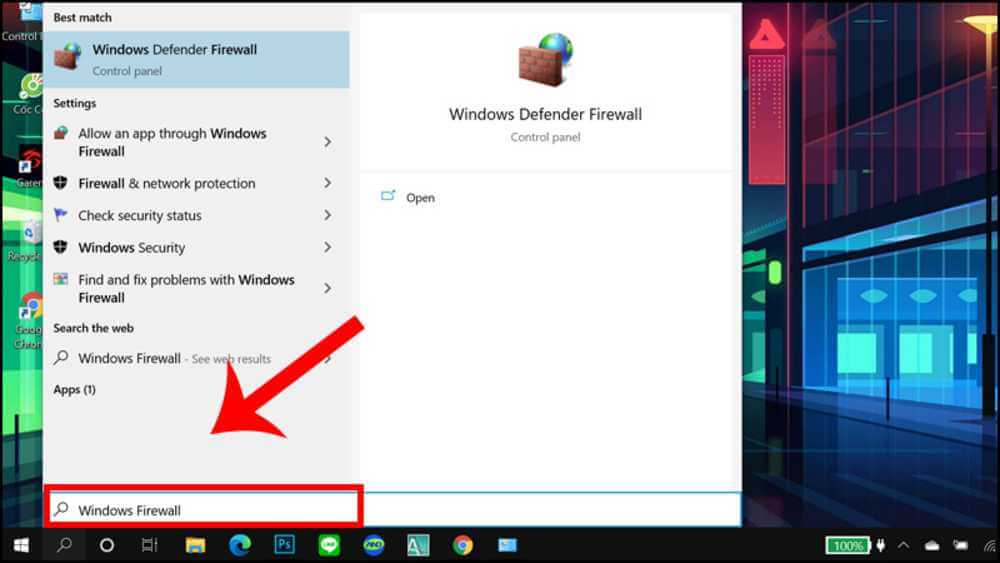
Step 2: Once you're in Windows Defender Firewall, select the sub-item “Turn Windows Defender Firewall on or off” to turn the firewall on or off.
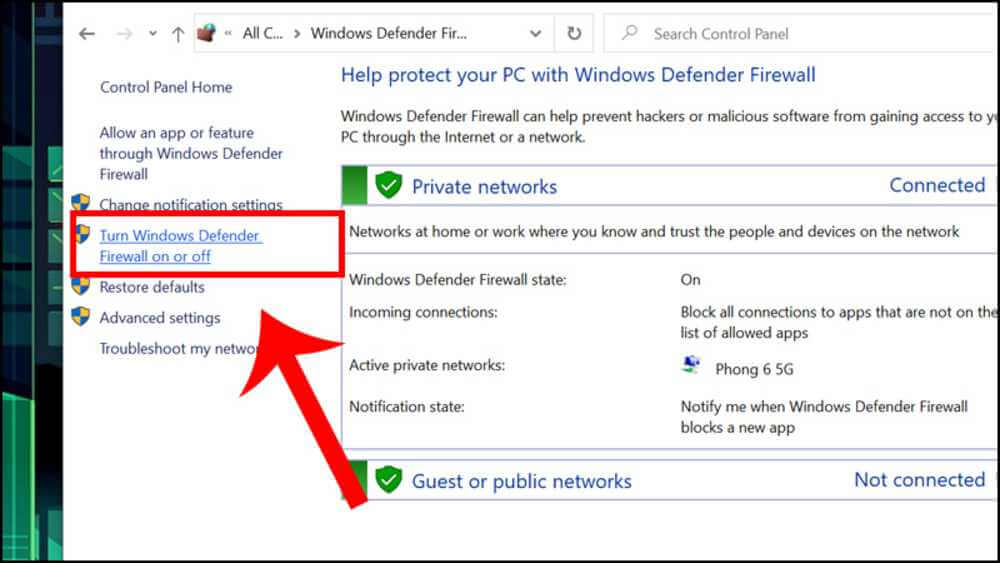
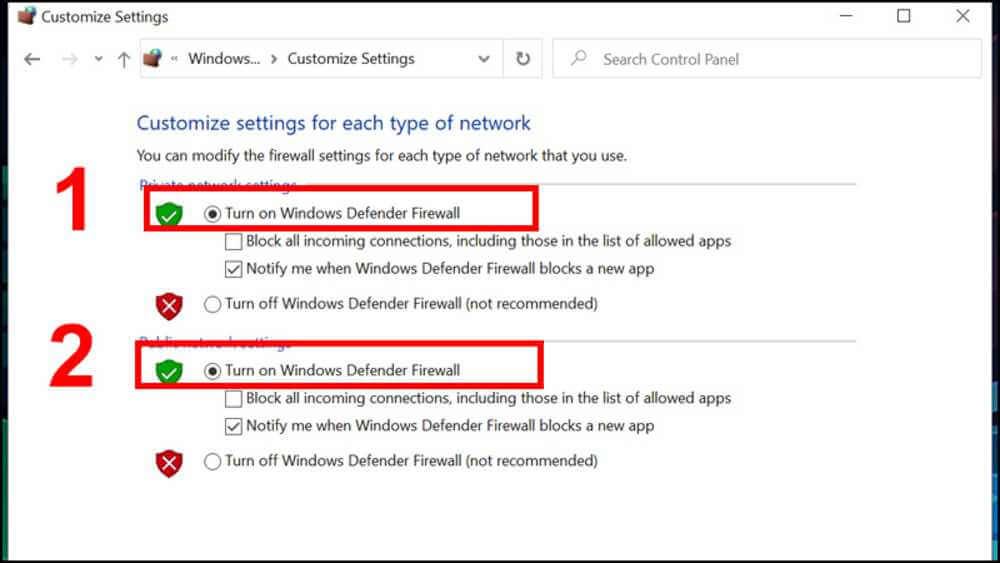
Step 3: In this last step, just select Turn on Windows Defender Firewall in both boxes on the screen and click “Ok”. That's it, your firewall is now on.
Method 1: Turn it off in Control Panel
To turn the firewall off, follow the first 2 steps for turning it on. In step 3, tick Turn off Windows Firewall (not recommended) and click OK, and the firewall will be turned off.
Method 2: Turn it off in Windows Security
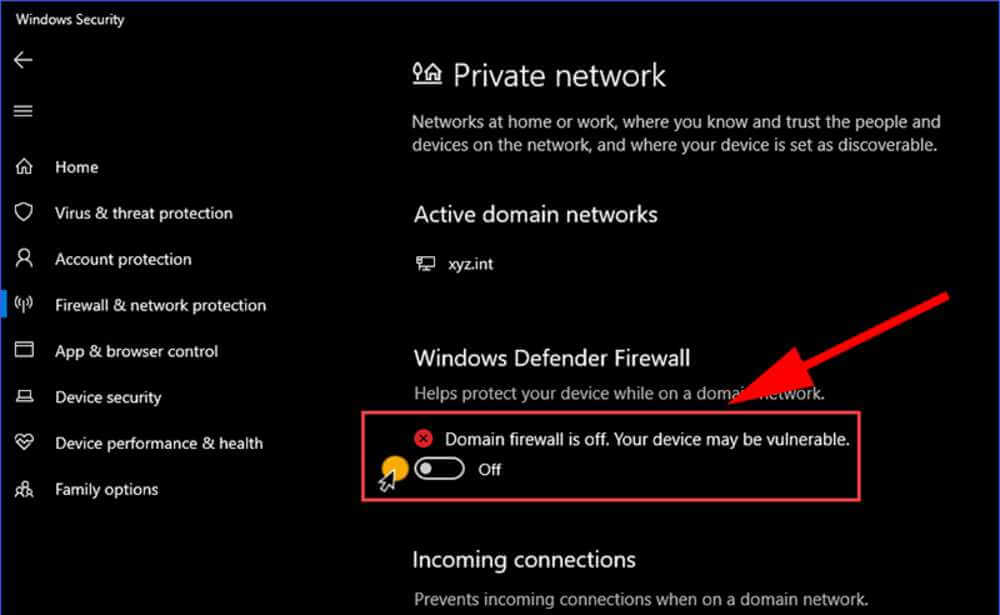
You can also turn off the Windows firewall through Windows Security:
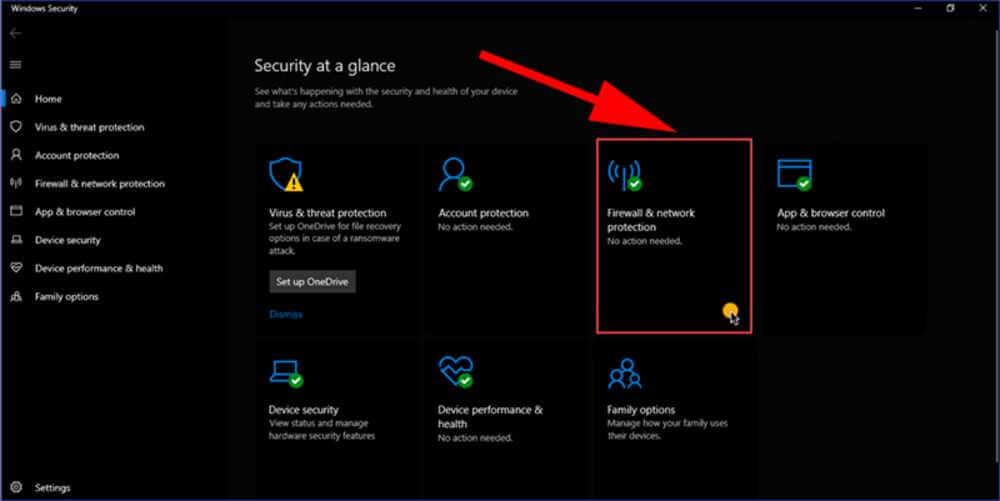
Step 4: Next, select “Private Network” if you're on a home network, or for a public network select “Public Network”.
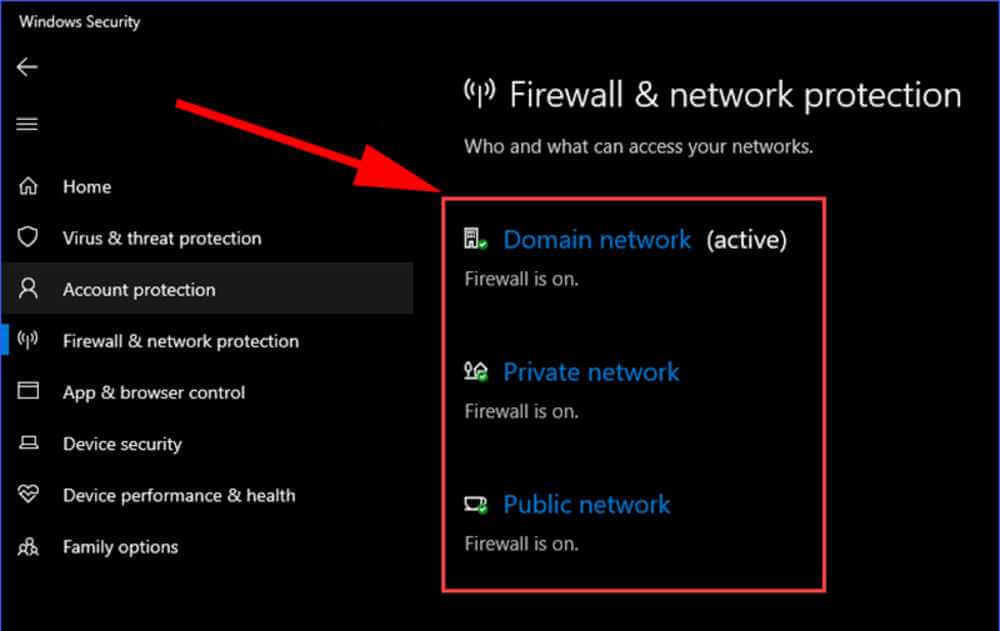
Step 5: Finally, just turn off Windows Defender Firewall and you're done.
That covers what a firewall is and the details you need to understand what is a firewall. While using it, check regularly that your firewall is working properly. It's also a good idea to run antivirus software and adjust other firewall settings so your computers and company network stay fully protected.

CEO & Founder · The MONA
Founder of The MONA, who built a services company of 200+ staff with 14,000+ projects delivered. Khánh Hùng shares how he thinks about building systems that run themselves, automating a business, and the real lessons from delivering projects at MONA.
 1,6K
1,6K




Professional website
design services
Own a website with a beautiful, 100% exclusive design and a lifetime warranty, with the ability
to expand features flexibly as your business grows, starting today!














 MONA will never sell your information or send you spam
MONA will never sell your information or send you spam
MONA will never sell your information or send you spam


 MONA will never sell your information or send you spam