
 MONA OS 2.0
 Hợp tác với MONA


 Tự động hoá doanh nghiệp
 Cẩm nang SEO
 Digital Marketing
 Kinh nghiệm thiết kế website
 Hạ Tầng Server
 Giáo dục


 VI
 EN






Message us on
Zalo Official


 ProductsNew

 ProductsProducts
 Mới ra mắtKHA AI 2027App tự edit video, tự đăng mọi mạng xã hội, 2 phút mỗi ngày










 Thiết kế websiteVừa đẹp vừa thuyết phục được khách.
Dịch vụ SEOKéo về khách đang tìm đúng thứ anh chị bán.
 Tư vấn digital marketingKéo khách từ nhiều kênh, đo bằng số thật.
Quay video doanh nghiệpVideo giới thiệu công ty, nhà xưởng, đội ngũ.
 MớiDựng video AIDựng phim câu chuyện công ty bằng AI.
 Custom software developmentCRM, ERP and HRM built for your business.
 Viết AI Agent theo yêu cầuĐặt riêng một trợ lý AI cho đúng việc của mình.
 Tư vấn chuyển đổi AIĐưa AI vào vận hành của cả công ty.
NewMONA LMSManagement for centers and schools.
MONA SkillHubInternal training for company staff.
 NHTQ systemEnd-to-end China–Vietnam shipping operations.
MONA JMSManagement for gold, diamond and pawn shops.
 MONA E-LearningA website with every feature you need to sell courses.
 How to sell online courses (course)More than 30 free lessons on selling courses on autopilot.
 MONA Cloudmonacloud.vnServers to get your apps and websites running.
 MONA Basemonabase.vnPostgres database, sign-in and file storage.
 MONA Mailmonamail.vnSend OTP, order and invoice emails from your software.
 MONA Paymonapay.vnAccept bank transfers via VietQR and notify your software when the money arrives.
 MONA eInvoiceComing soonIssue e-invoices that meet tax standards.
Gấu CườiTrả lời khách 24/7 trên web, Fanpage, Zalo và thu lead cho sale.
 Gấu TeleSalesGọi điện tư vấn, chăm khách như tổng đài viên thật.
Dê CườiTư vấn và chốt đơn cho shop ngay trong khung chat.
Gấu WebmasterNhắn nhóm Zalo là website được sửa xong.
 Gấu Pháp ChếSoạn hợp đồng, rà điều khoản trong vài phút.
 Gấu Báo GiáLên báo giá đúng mẫu và gửi khách ngay.
 AI chăm sóc khách hàngTheo dõi và giữ chân khách hàng cũ.
 Gấu Tuyển DụngLọc hồ sơ, hẹn lịch, phỏng vấn ứng viên.
 Mới ra mắt
KHA AI 2027
Xây kênh chuyên gia 2 phút mỗi ngày
Quay bằng điện thoại, AI tự edit video, tự đăng lên 16 nền tảng và tự trả lời bình luận, tin nhắn.
881.547lượt xem trên kênh CEO MONA sau 36 ngày
 Anh Khánh HùngCEO MONA đang dùng mỗi ngày
Xem app làm được gì
 AI
Gấu Cười MONA ĐANG TỰ XÀITrả lời khách 24/7 trên website, Zalo OA, Messenger và thu lead về cho sale.
Dê CườiChốt đơn bán lẻ và sàn: Shopee, TikTok Shop, web. Chăm cả khách sỉ, đại lý.
Gấu WebmasterCập nhật nội dung, tối ưu SEO website mỗi ngày.
Gấu TeleSalesGọi điện tư vấn, chăm khách như tổng đài viên thật.
Gấu Tuyển DụngLọc hồ sơ, hẹn lịch, phỏng vấn ứng viên tự động.
AI chăm sóc khách hàngGiữ khách cũ, cứu lead đã rớt cho phòng kinh doanh.
Gấu Pháp ChếSoạn hợp đồng, rà điều khoản trong vài phút.
Gấu Báo GiáLên báo giá đúng mẫu, gửi khách ngay khi có yêu cầu.
 Chuyển đổi AI toàn phầnGiải pháp tổng cho doanh nghiệp, 3 lớp triển khai.
 Viết AI Agent theo yêu cầuĐặt riêng một con AI gánh đúng nghiệp vụ của bạn.
 Custom softwareCRM, ERP and HRM with built-in AI automation.
 SEO & AEO thời đại AIĐược Google lẫn AI trích dẫn, không chỉ xếp hạng.
 Kiến thức AI cho doanh nghiệpBài phân tích, hướng dẫn ứng dụng AI vào vận hành.
 Free AI courses
 AI tools at work
App mới · KHA AI 2027
Xây kênh 2 phút mỗi ngày
AI tự edit video, tự đăng mọi mạng xã hội
Free consultation, 8am–10pm every day

18 March, 2023
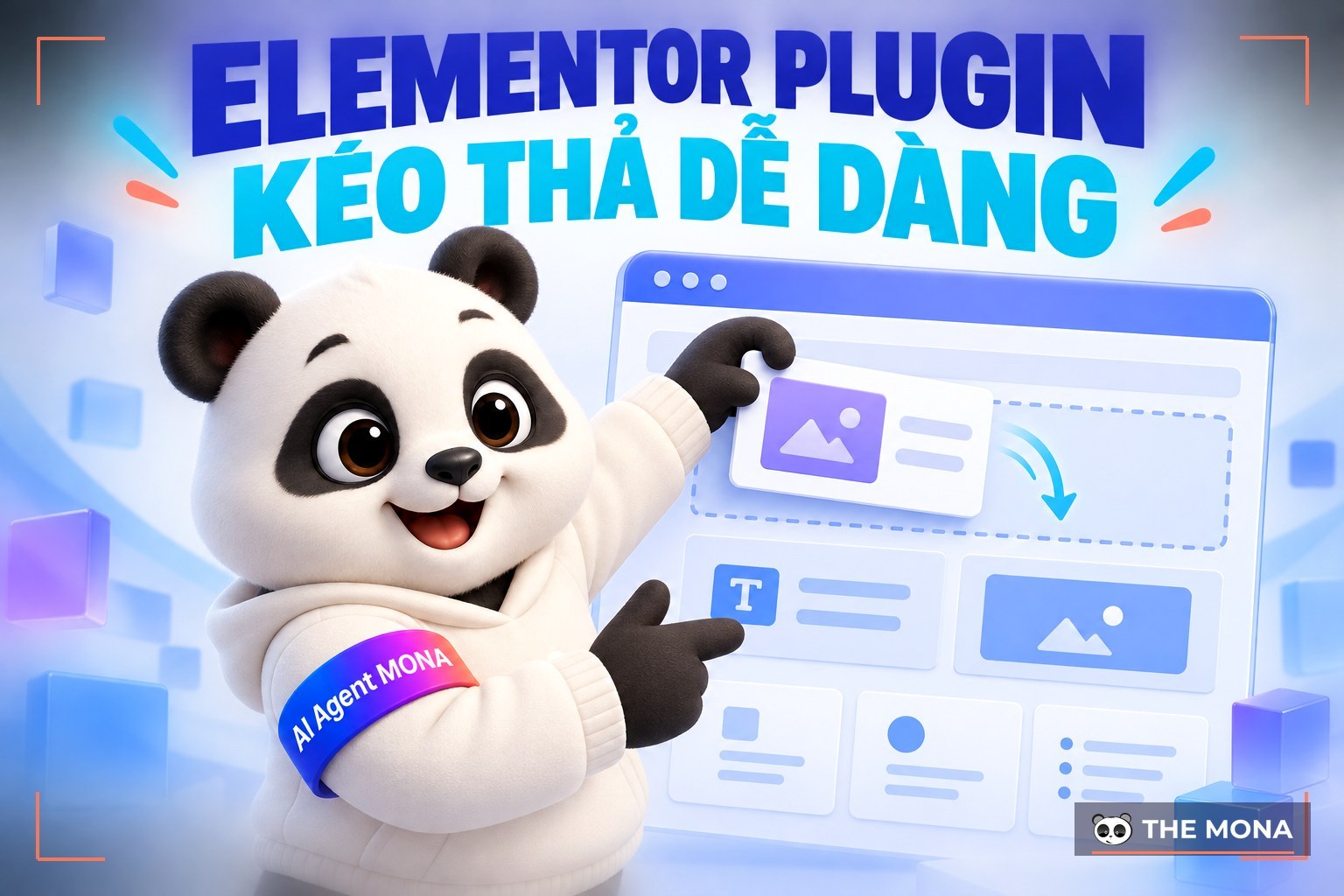
Page builders are plugins made to help people who can't code build simple pages. One of the simple page-building plugins anyone can use is the Elementor plugin. With just a few simple actions, Elementor users can create pages and use them flexibly. Let's look at the Mona Media explains Elementor plugin details below before you start using it.
The Elementor plugin is a drag-and-drop page builder plugin that many people now use for WordPress. Users can design pages visually by dragging and dropping, and control every part of the website's design on a single platform. Elementor offers many fonts and backgrounds to choose from.
Editing text, editing images and adding icons with the Elementor plugin are all very simple and easy. MONA Media is a professional and trusted provider of Elementor plugin services.

Elementor users can use the free version or paid plans at different price levels. With the free plan you only get some interface design features and widgets, plus 30 basic templates. With plans such as Personal or Business, you get up to 300 templates and more than 50 widgets.
People without technical knowledge who still want flexibility in building a website will need the Elementor plugin. It has many utilities and special optimization features. You can also customize freely and easily restore the original version.
For beginners with WordPress, from writing text to editing images, the Elementor plugin is very convenient. Both the free and paid versions of the plugin bring many utilities. The wide range of features supports visual website design without needing to understand languages such as HTML, CSS hay PHP.
The Elementor template library is rich, with hundreds of different designs, so you can complete your pages with many distinctive ideas. Designing a website with the Elementor plugin goes smoothly.

The Elementor plugin suits you if you are a hobbyist in WordPress Editor design who only needs the basic features, or if you are new to web coding and don't have much experience. It is also a good choice if you need to design Contact pages and Homepages quickly, in large numbers, for promotion and running ads.
If you are aiming for professional website design you can still use the Elementor plugin, but you should choose Elementor Pro to get more features. If you need advice on anything related to the Elementor plugin, contact MONA Media.
If you use the Elementor Pro plugin, pay attention to the following requirements:
Elementor currently supports desktop computers only, not mobile devices. If you need the Elementor plugin installed and set up professionally, contact us or read on below.
There are several ways to install the Elementor plugin, and each user can choose the one that suits them. For example:

Advanced settings in Elementor are enabled automatically when you choose an Elementor Pro plan. This version expands what you can do in your designs, and lets you view each element you have designed.
After installing the Elementor plugin, follow the instructions below to use it.
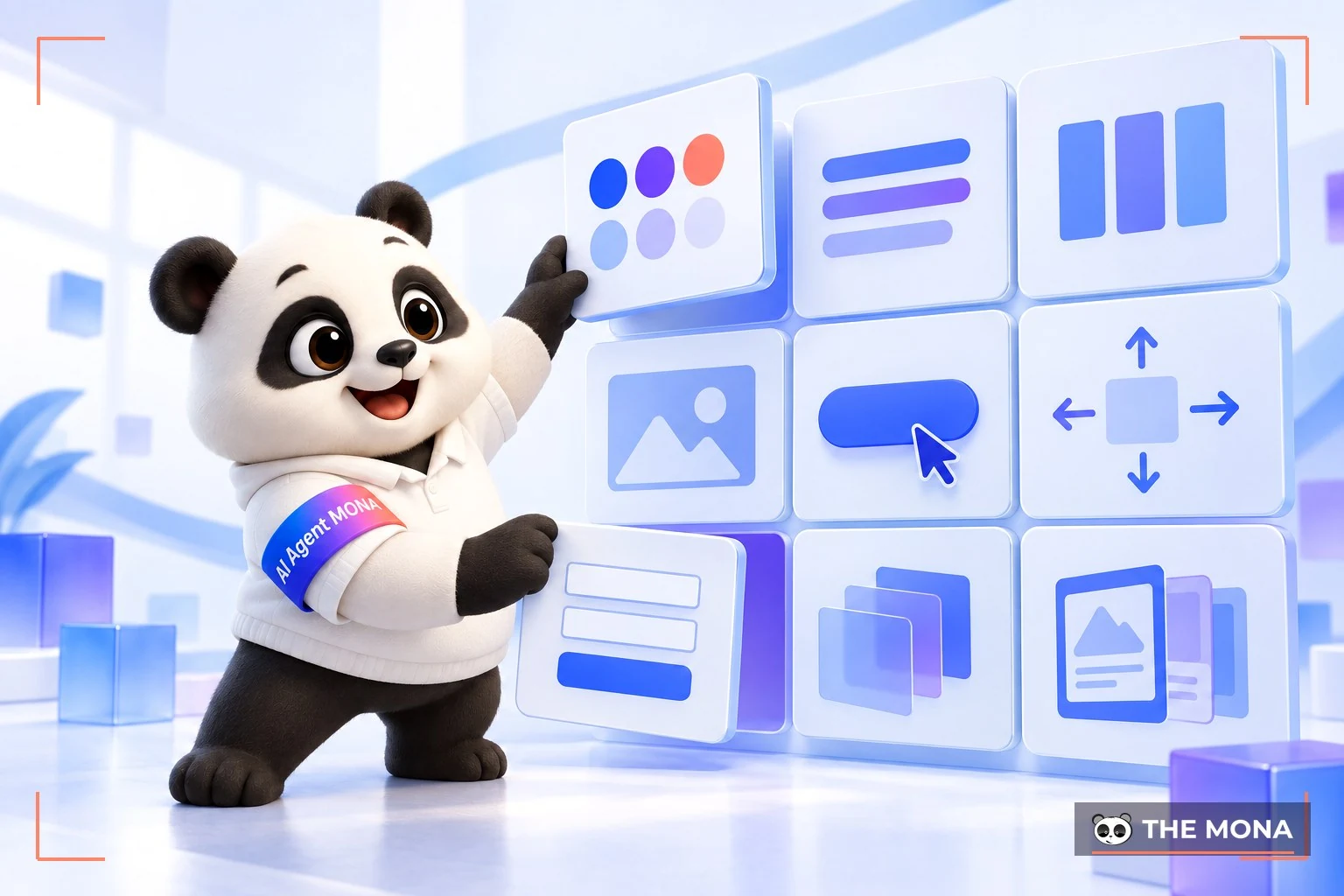
Elementor is divided into 9 groups of features:
WooCommerce is now a popular platform for e-commerce sites. From individuals to online businesses, many choose WooCommerce. Adding Elementor to your WordPress Dashboard lets you design WooCommerce features in more ways. Editing WooCommerce with the Elementor plugin works like this:
Elementor is a page builder used by many people. MONA Media can help you install Elementor Plugin professionally and quickly.
See more: Top 5 popular drag-and-drop web design tools
Elementor lets people with no coding skills build pages by dragging and dropping. For an intro page or a short-term promotion page, it really is fast.
What we often have to deal with when taking over a website built with a drag-and-drop builder is speed and structure. Every page carries extra layers of builder code, and the speed score slips as pages get more blocks. Content is mixed into the layout, so changing the design later means almost starting over. One block edited wrongly by a hand that means well can knock the whole page out of line, and nobody knows what the previous version looked like.
| Situation | Built with Elementor | Custom website built by MONA |
|---|---|---|
| Intro page, short campaign | Reasonable, quick to build, you can edit it yourself | Not necessary if it is only for short-term use |
| Multi-page website run by many people | Layout shifts easily, hard to control versions | The design is fixed to a frame, so whoever enters content can't break the layout |
| Speed on complex pages | Speed score drops as the number of blocks grows | Custom code that loads only what is needed |
| Rebranding after a few years | Usually every page has to be rebuilt | Swap the design layer and keep the content |
If you use Elementor for small pages, keep going, and track your speed with the articles in the WordPress speed optimizationsection. If your website is your main sales channel and several departments run it, think about the long term: we take on designing a website with WordPress with a custom-written design, together with the MONA licensed WordPress plugin suite so everything runs within one technical standard.
A suggestion from MONA
If you feel your website has too many separate plugins for individual tasks, we have the MONA licensed WordPress plugin suite: SEO, security, multilingual, forms, custom fields, content duplication and e-commerce, all built to the same technical standard. One license activates the whole suite on one domain, and if the license expires your website keeps running normally.
See the details at plugin.mona.software, or see more reviews in the plugin WordPress section of our blog. For advice based on your website's current state, call 1900 636 648.

CEO & Founder · The MONA
Founder of The MONA, who built a services company of 60+ staff with 14,000+ projects delivered. Khánh Hùng shares how he thinks about building systems that run themselves, automating a business, and the real lessons from delivering projects at MONA.
 1,5K



Professional website
design services
Own a website with a beautiful, 100% exclusive design and a lifetime warranty, with the ability
to expand features flexibly as your business grows, starting today!






 MONA will never sell your information or send you spam


 MONA will never sell your information or send you spam
