
 MONA OS 2.0


 Tự động hoá doanh nghiệp
 Cẩm nang SEO
 Digital Marketing
 Kinh nghiệm thiết kế website
 Hạ Tầng Server
 Giáo dục


 VI
VI
 EN
EN
















Message us on
Zalo Official


 Products

 ProductsProducts









 Website designLooks good and convinces your customers.
SEO servicesBrings in customers searching for exactly what you sell.
Website designLooks good and convinces your customers.
SEO servicesBrings in customers searching for exactly what you sell.
 Tư vấn digital marketingKéo khách từ nhiều kênh, đo bằng số thật.
Corporate video productionVideos introducing your company, factory and team.
Tư vấn digital marketingKéo khách từ nhiều kênh, đo bằng số thật.
Corporate video productionVideos introducing your company, factory and team.
 NewAI video productionCompany story films made with AI.
 Custom software developmentCRM, ERP and HRM built for your business.
 Viết AI Agent theo yêu cầuĐặt riêng một trợ lý AI cho đúng việc của mình.
 Tư vấn chuyển đổi AIĐưa AI vào vận hành của cả công ty.
NewMONA LMSManagement for centers and schools.
MONA SkillHubInternal training for company staff.
Tư vấn chuyển đổi AIĐưa AI vào vận hành của cả công ty.
NewMONA LMSManagement for centers and schools.
MONA SkillHubInternal training for company staff.
 NHTQ systemEnd-to-end China–Vietnam shipping operations.
MONA JMSManagement for gold, diamond and pawn shops.
NHTQ systemEnd-to-end China–Vietnam shipping operations.
MONA JMSManagement for gold, diamond and pawn shops.
 MONA E-LearningA website with every feature you need to sell courses.
 Course on selling online coursesMore than 30 free lessons on selling courses automatically.
 MONA Cloudmonacloud.vnServers to get your apps and websites running.
 MONA Basemonabase.vnPostgres database, sign-in and file storage.
 MONA Mailmonamail.vnSend OTP, order and invoice emails from your software.
 MONA Paymonapay.vnReceive bank transfers via VietQR, with payment alerts sent to your software.
 MONA eInvoiceComing soonIssue e-invoices that meet tax standards.
Gấu CườiTrả lời khách 24/7 trên web, Fanpage, Zalo và thu lead cho sale.
MONA eInvoiceComing soonIssue e-invoices that meet tax standards.
Gấu CườiTrả lời khách 24/7 trên web, Fanpage, Zalo và thu lead cho sale.
 Gấu TeleSalesGọi điện tư vấn, chăm khách như tổng đài viên thật.
Dê CườiTư vấn và chốt đơn cho shop ngay trong khung chat.
Gấu WebmasterNhắn nhóm Zalo là website được sửa xong.
Gấu TeleSalesGọi điện tư vấn, chăm khách như tổng đài viên thật.
Dê CườiTư vấn và chốt đơn cho shop ngay trong khung chat.
Gấu WebmasterNhắn nhóm Zalo là website được sửa xong.
 Gấu Pháp ChếSoạn hợp đồng, rà điều khoản trong vài phút.
 Gấu Báo GiáLên báo giá đúng mẫu và gửi khách ngay.
 AI chăm sóc khách hàngTheo dõi và giữ chân khách hàng cũ.
 Gấu Tuyển DụngLọc hồ sơ, hẹn lịch, phỏng vấn ứng viên.
 AI
Gấu Cười MONA ĐANG TỰ XÀITrả lời khách 24/7 trên website, Zalo OA, Messenger và thu lead về cho sale.
Dê CườiChốt đơn bán lẻ và sàn: Shopee, TikTok Shop, web. Chăm cả khách sỉ, đại lý.
Gấu WebmasterCập nhật nội dung, tối ưu SEO website mỗi ngày.
Gấu TeleSalesGọi điện tư vấn, chăm khách như tổng đài viên thật.
Gấu Tuyển DụngLọc hồ sơ, hẹn lịch, phỏng vấn ứng viên tự động.
AI chăm sóc khách hàngGiữ khách cũ, cứu lead đã rớt cho phòng kinh doanh.
Gấu Pháp ChếSoạn hợp đồng, rà điều khoản trong vài phút.
Gấu Báo GiáLên báo giá đúng mẫu, gửi khách ngay khi có yêu cầu.
AI
Gấu Cười MONA ĐANG TỰ XÀITrả lời khách 24/7 trên website, Zalo OA, Messenger và thu lead về cho sale.
Dê CườiChốt đơn bán lẻ và sàn: Shopee, TikTok Shop, web. Chăm cả khách sỉ, đại lý.
Gấu WebmasterCập nhật nội dung, tối ưu SEO website mỗi ngày.
Gấu TeleSalesGọi điện tư vấn, chăm khách như tổng đài viên thật.
Gấu Tuyển DụngLọc hồ sơ, hẹn lịch, phỏng vấn ứng viên tự động.
AI chăm sóc khách hàngGiữ khách cũ, cứu lead đã rớt cho phòng kinh doanh.
Gấu Pháp ChếSoạn hợp đồng, rà điều khoản trong vài phút.
Gấu Báo GiáLên báo giá đúng mẫu, gửi khách ngay khi có yêu cầu.
 Chuyển đổi AI toàn phầnGiải pháp tổng cho doanh nghiệp, 3 lớp triển khai.
 Viết AI Agent theo yêu cầuĐặt riêng một con AI gánh đúng nghiệp vụ của bạn.
 Custom softwareCRM, ERP and HRM with built-in AI automation.
 SEO & AEO thời đại AIĐược Google lẫn AI trích dẫn, không chỉ xếp hạng.
 Kiến thức AI cho doanh nghiệpBài phân tích, hướng dẫn ứng dụng AI vào vận hành.
 Free AI courses
 AI tools at work
18 March, 2023
“What is DNS?” – In fact, in the world of technology in general and website design in particular, even people who are not deep into IT may have heard of it and wondered. So MONA Media will share the most complete, easy-to-understand information about DNS after you buying a domain as well as the “enormous” impact of the DNS domain name system on today's Internet.
DNS (Domain Name System), also known as the domain name resolution system, acts like a notebook linking a domain (such as “mona.media” to its IP address (such as “192.168.16.142”). Its main purpose is to let users easily visit the website they want without remembering a complicated IP string.
In addition, the Domain Name System also handles security management, load distribution and routing to make sure DNS queries are fast, reliable and more secure on the network.
DNS will become even more important when IPv6 (Internet Protocol version 6) becomes widespread and replaces IPv4 completely. – Võ Nguyên Thoại – CTO Mona Host

DNS is just like a phone book. That means instead of remembering dozens of phone numbers with a pile of digits, you only need to remember the names of their owners. In this example, the phone number is the an IP address of the website, and the owner's name is the domains of website itself.
For example, when you type “www.google.com” into the browser, the DNS server fetches the address of Google's server, “74.125.236.37”. Then you see Google's home page load in the browser you are using. That is the Domain Name System resolution process.
In addition, each DNS also remembers the domains it has resolved, and on later visits, the Domain Name System uses them first. That is why you can use many online services such as researching information, watching films, playing games,… faster and more easily.
DNS works step by step according to its structure. The first step is a query to get information, called a “DNS query” .
Back to the example of searching for the website www.google.com in a web browser!
In the definition above, we can see that DNS Servers are all connected to each other. At this point many of you will surely be confused, unsure how to use them. Let MONA Media help untangle this for you!
Domain Name Systems have different resolution speeds, so users can choose which DNS Server to use. You can use the default Domain Name System of your Internet service provider, or another free or paid DNS; either is fine. But note that when using other DNS Servers, you must change the setting on your computer.
Note: Hackers can use Domain Name System servers to steal your personal information. So check website addresses carefully, and avoid fake websites and software of unknown origin.
A Record
The simplest DNS Record and the most widely used, pointing a website name to a specific IP address.
You can add a new name, a Time to Live (the time before the record automatically refreshes) and Points to (which IP it points to).
CNAME Record
A record that gives one or more other names to the main domain.
You can create a new name, set which original name it points to and set the TTL.
MX Record
A record that specifies which Server handles the Email for that domain.
You can point the domain to a Mail Server, set the Priority and set the TTL.
TXT Record
A record that lets you store text-format information about the domain.
You can add a new host, TXT value, TTL, Points to.
AAAA Record
Like the A Record, but the AAA Record is used to point a domain to an IPV6 Address.
You can add a new host, IPv6, TTL.
NS Record
The DNS Server Records of the domain, which let you specify the Name Server for each subdomain.
You can create a new host, Name Server name, TTL.
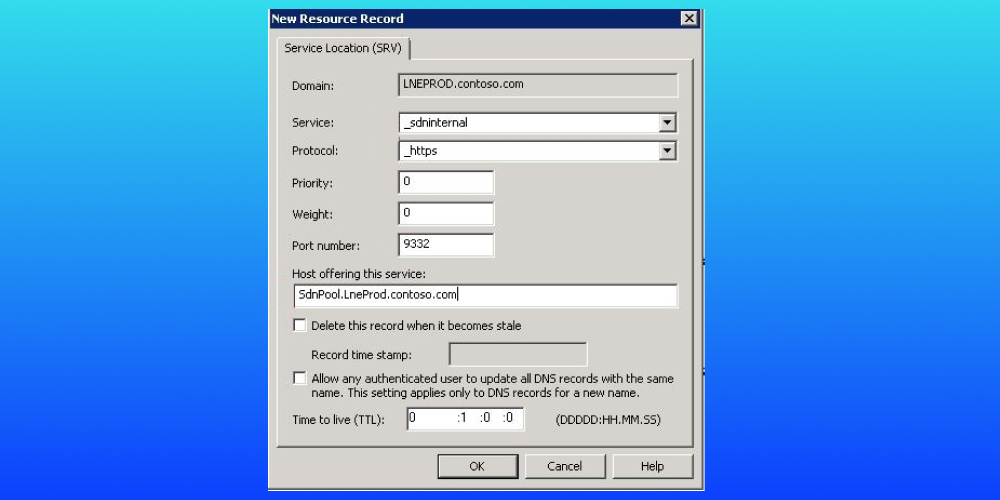
SRV Record
A special record in the Domain Name System, used to specify exactly which service runs on which port.
You can add Priority, Name, Port, Points to, Weight, TTL.
In practice, about 4 common DNS servers take part in the domain name resolution system, including:
Root Name Servers
Also often called the Name Server. This is the most important Server in the DNS hierarchy. You can think of the Root Name Server as a library that points your search in the right direction.
In the actual process, after receiving a request from the DNS Recursive Resolver, the Root Name Server responds with which top-level domain name servers (TLD Name Servers) it needs to look in.
TLD Nameserver
When you want to visit Google or Facebook, the extension is usually “.com”, right? Well, we want you to know that it is one of the Top-level Domain . And the server for this type of Top-level domain is called the TLD Nameserver. It manages all the information for a common domain extension.
In sequence, the TLD Name Server responds to the DNS Resolver, then refers it to an Authoritative DNS Server – the official source of that domain's data.
See more: What is a Name Server?
Authoritative Nameserver
When the DNS Resolver finds the Authoritative Nameserver, that is when domain resolution takes place. The Authoritative Name Server holds the information on which address the domain is attached to. It gives the Recursive Resolver the required IP address found in its list of records.

DNS Recursor
As mentioned above, this “trusty sidekick” works like a diligent employee, tasked with fetching information and returning it to the browser so it finds exactly what it needs.
In other words, the DNS Recursor is responsible for contacting other Servers to respond to the user's browser. Of course, while fetching information, it sometimes needs help from the Root DNS Server.
Go back to the section How to use DNS, did you notice our small warning about how “fragile” and vulnerable to attack it is? Let MONA explain why!
The process of translating a domain into an IP address is called Domain Name System resolution.
When someone enters a domain, for example www.google.com into a Web Browser, the browser immediately contacts a name server to get the corresponding IP address. There are 2 types of name servers:
So the issue we want to highlight lies with recursive name servers.
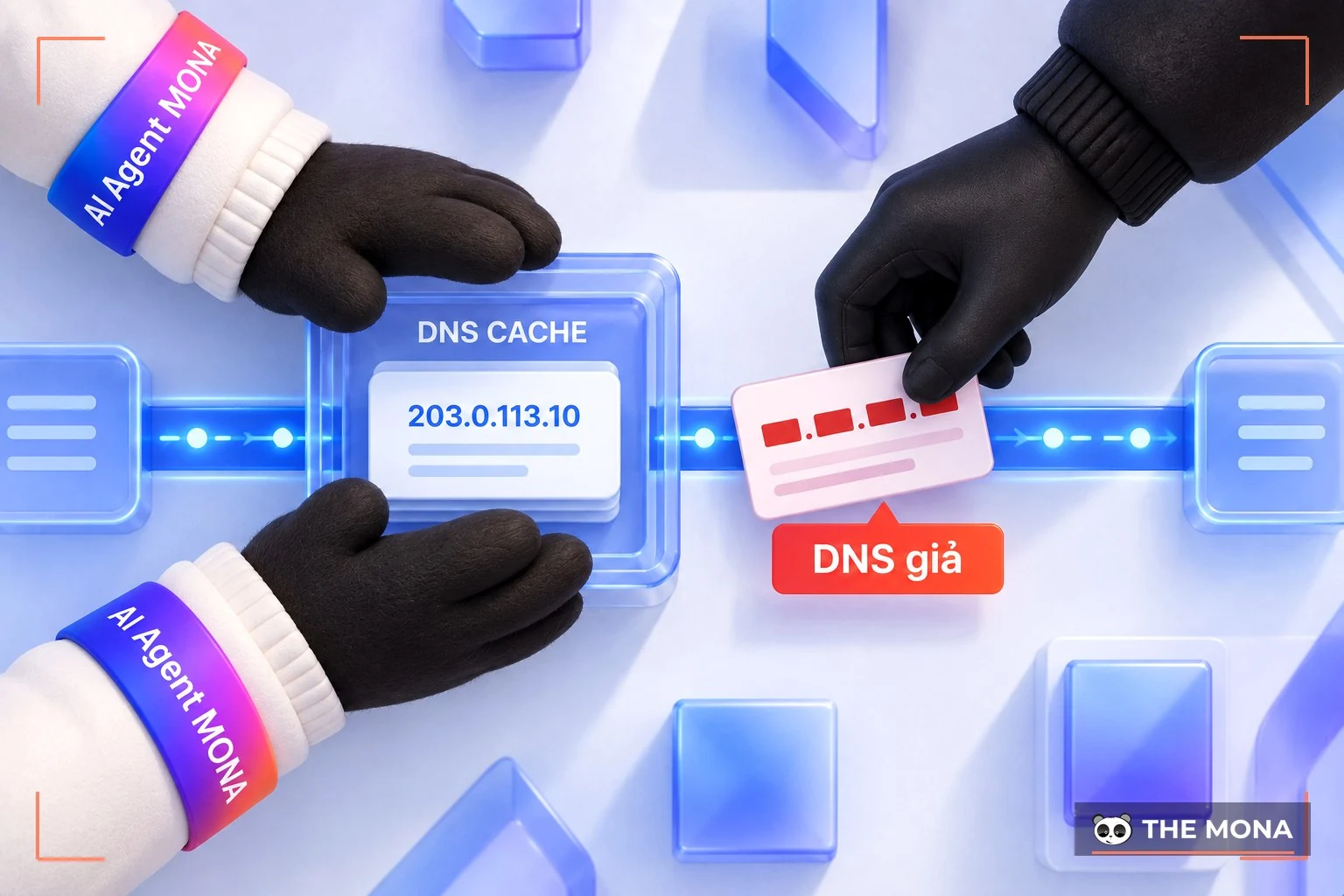
When a recursive server receives a response, it caches it to speed up later queries. The advantage of caching is fewer information requests, but it also creates a “serious” risk: vulnerability to man-in-the-middle attacks.
Through these “cloak and dagger” battles, cybercriminals can:
A DNS leak is when a user's Domain Name System information is exposed to the internet in an unsafe way. Normally, when you connect to a VPN (Virtual Private Network), DNS requests are routed through the VPN's DNS server to ensure privacy and security.
However, in a Domain Name System leak, your DNS information may be exposed to an unsafe DNS server or to your ISP (Internet Service Provider).
A DNS leak can have unpredictable consequences. Here are some of the risks:
There are many causes of Domain Name System leaks, such as:

To find out whether your server has a Domain Name System leak, try the checks below:
Many free online tools help you check whether your DNS information is leaking. The most widely used is DNS Leak Test. Here are the steps to use it:
You can use Torrent to check with the following steps:
Use a VPN (Virtual Private Network) service to encrypt internet traffic and route DNS requests through the VPN's DNS server.
When you are connected to a VPN, DNS requests are protected and do not leak your personal information.
If you get Domain Name System leaks when using IPv6, you can turn off IPv6 on your computer or device.
Note that fixing Domain Name System leaks may differ depending on your operating system and device. Basically, you need to make sure you are using a private DNS server or a VPN to route DNS requests and avoid leaking personal information.
See more: Overview of IPv4 and IPv6
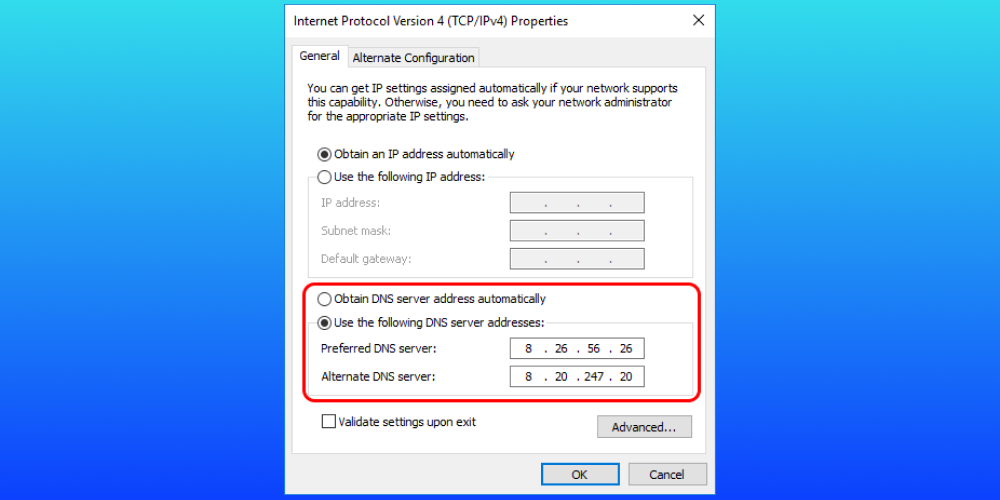
DNS Google (hay Google Public DNS) is a public DNS service, well known and widely used around the world. It is highly rated for speed, reliability and resistance to attacks from malicious websites.
→ To use Google Public DNS Server, change your network settings to the IP addresses below:
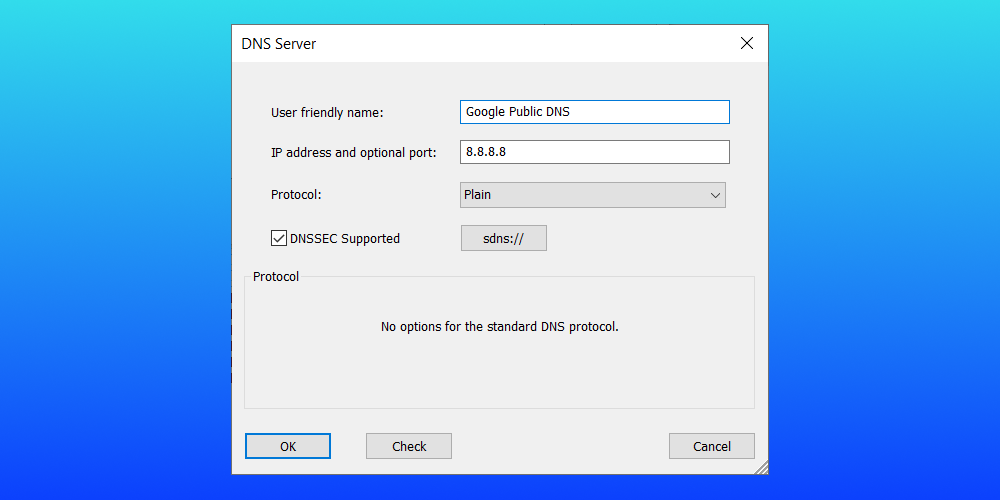
Cloudflare DNS is a DNS service provided by Cloudflare. It works as a recursive name server, turning a website's domain (e.g. mona.media) into its IP address (e.g. 192.168.24.21) so the website works normally and you can access it.
Network settings to use Cloudflare DNS:
Pros: Fast, highly secure and completely free. It also supports WARP for safer and more private web browsing.
Cons: Not as popular as Google Public DNS yet.
OpenDNS is a leading public Domain Name System Server with no downtime, offering a better browsing experience and protecting computers from attacks on the Internet.
→ To use OpenDNS Server, change your network settings to the IP addresses below:
In addition, OpenDNS also offers 2 free customisable solutions: OpenDNS Family Shield (pre-configured to block adult content) and OpenDNS Home (with custom filters that protect your computer from hackers and phishing).
→ Configure your network settings to use OpenDNS Family Shield:
Comodo Secure DNS gives you a better, safer browsing experience without installing any extra software or third-party program. You can browse easily and enjoy fast speeds without being bothered by malicious websites or ads.
→ To use Comodo Secure DNS, replace your network settings with the IP addresses below:
How does the Domain Name System work?
When you type a domain into your browser, the browser sends a request to the nearest DNS server. That Domain Name System server checks its database to find the IP address that matches the domain.
The DNS server then returns the IP address to the browser, and the browser uses that IP address to connect to and display the corresponding website.
How do you fix slow DNS?
To fix a slow Domain Name System, you can take the following steps:
What is Primary DNS?
Primary Domain Name System can be understood as follows:
What is a DNS service?
A Domain Name System service is the system that manages domains on the Internet. It provides a way to translate easy-to-remember domains into IP addresses and back again, and it makes searching and access easier for devices and applications on the Internet.
Above is the answer to the question “What is DNS?” along with a detailed overview of this system. We hope the information MONA Media shared above is useful to you and helps you make the most of the Domain Name System.

CEO & Founder · The MONA
Founder of The MONA, who built a services company of 200+ staff with 14,000+ projects delivered. Khánh Hùng shares how he thinks about building systems that run themselves, automating a business, and the real lessons from delivering projects at MONA.
 1,5K
1,5K




Professional website
design services
Own a website with a beautiful, 100% exclusive design and a lifetime warranty, with the ability
to expand features flexibly as your business grows, starting today!








 MONA promises never to use your information for sale or SPAM
MONA promises never to use your information for sale or SPAM
MONA promises never to use your information for sale or SPAM


 MONA promises never to use your information for sale or SPAM