
 MONA OS 2.0


 Tự động hoá doanh nghiệp
 Cẩm nang SEO
 Digital Marketing
 Kinh nghiệm thiết kế website
 Hạ Tầng Server
 Giáo dục


 VI
VI
 EN
EN









Message us on
Zalo Official


 ProductsNew

 ProductsProducts
 Mới ra mắtKHA AI 2027App tự edit video, tự đăng mọi mạng xã hội, 2 phút mỗi ngày









 Website designLooks good and wins customers over.
SEO servicesBrings in customers searching for exactly what you sell.
Website designLooks good and wins customers over.
SEO servicesBrings in customers searching for exactly what you sell.
 Tư vấn digital marketingKéo khách từ nhiều kênh, đo bằng số thật.
Corporate video productionVideos introducing your company, factory and team.
Tư vấn digital marketingKéo khách từ nhiều kênh, đo bằng số thật.
Corporate video productionVideos introducing your company, factory and team.
 NewAI video productionCompany story films made with AI.
 Custom software developmentCRM, ERP and HRM built for your business.
 Viết AI Agent theo yêu cầuĐặt riêng một trợ lý AI cho đúng việc của mình.
 Tư vấn chuyển đổi AIĐưa AI vào vận hành của cả công ty.
NewMONA LMSManagement for centers and schools.
MONA SkillHubInternal training for company staff.
Tư vấn chuyển đổi AIĐưa AI vào vận hành của cả công ty.
NewMONA LMSManagement for centers and schools.
MONA SkillHubInternal training for company staff.
 NHTQ systemEnd-to-end China–Vietnam shipping operations.
MONA JMSManagement for gold, diamond and pawn shops.
NHTQ systemEnd-to-end China–Vietnam shipping operations.
MONA JMSManagement for gold, diamond and pawn shops.
 MONA E-LearningA website with every feature you need to sell courses.
 How to sell online courses (course)More than 30 free lessons on selling courses on autopilot.
 MONA Cloudmonacloud.vnServers to get your apps and websites running.
 MONA Basemonabase.vnPostgres database, sign-in and file storage.
 MONA Mailmonamail.vnSend OTP, order and invoice emails from your software.
 MONA Paymonapay.vnAccept bank transfers via VietQR and notify your software when the money arrives.
 MONA eInvoiceComing soonIssue e-invoices that meet tax standards.
Gấu CườiTrả lời khách 24/7 trên web, Fanpage, Zalo và thu lead cho sale.
MONA eInvoiceComing soonIssue e-invoices that meet tax standards.
Gấu CườiTrả lời khách 24/7 trên web, Fanpage, Zalo và thu lead cho sale.
 Gấu TeleSalesGọi điện tư vấn, chăm khách như tổng đài viên thật.
Dê CườiTư vấn và chốt đơn cho shop ngay trong khung chat.
Gấu WebmasterNhắn nhóm Zalo là website được sửa xong.
Gấu TeleSalesGọi điện tư vấn, chăm khách như tổng đài viên thật.
Dê CườiTư vấn và chốt đơn cho shop ngay trong khung chat.
Gấu WebmasterNhắn nhóm Zalo là website được sửa xong.
 Gấu Pháp ChếSoạn hợp đồng, rà điều khoản trong vài phút.
 Gấu Báo GiáLên báo giá đúng mẫu và gửi khách ngay.
 AI chăm sóc khách hàngTheo dõi và giữ chân khách hàng cũ.
 Gấu Tuyển DụngLọc hồ sơ, hẹn lịch, phỏng vấn ứng viên.
 Mới ra mắt
KHA AI 2027
Xây kênh chuyên gia 2 phút mỗi ngày
Quay bằng điện thoại, AI tự edit video, tự đăng lên 16 nền tảng và tự trả lời bình luận, tin nhắn.
310.136lượt xem trên kênh CEO MONA sau 17 ngày
Mới ra mắt
KHA AI 2027
Xây kênh chuyên gia 2 phút mỗi ngày
Quay bằng điện thoại, AI tự edit video, tự đăng lên 16 nền tảng và tự trả lời bình luận, tin nhắn.
310.136lượt xem trên kênh CEO MONA sau 17 ngày
 Anh Khánh HùngCEO MONA đang dùng mỗi ngày
Xem app làm được gì
Anh Khánh HùngCEO MONA đang dùng mỗi ngày
Xem app làm được gì
 AI
Gấu Cười MONA ĐANG TỰ XÀITrả lời khách 24/7 trên website, Zalo OA, Messenger và thu lead về cho sale.
Dê CườiChốt đơn bán lẻ và sàn: Shopee, TikTok Shop, web. Chăm cả khách sỉ, đại lý.
Gấu WebmasterCập nhật nội dung, tối ưu SEO website mỗi ngày.
Gấu TeleSalesGọi điện tư vấn, chăm khách như tổng đài viên thật.
Gấu Tuyển DụngLọc hồ sơ, hẹn lịch, phỏng vấn ứng viên tự động.
AI chăm sóc khách hàngGiữ khách cũ, cứu lead đã rớt cho phòng kinh doanh.
Gấu Pháp ChếSoạn hợp đồng, rà điều khoản trong vài phút.
Gấu Báo GiáLên báo giá đúng mẫu, gửi khách ngay khi có yêu cầu.
AI
Gấu Cười MONA ĐANG TỰ XÀITrả lời khách 24/7 trên website, Zalo OA, Messenger và thu lead về cho sale.
Dê CườiChốt đơn bán lẻ và sàn: Shopee, TikTok Shop, web. Chăm cả khách sỉ, đại lý.
Gấu WebmasterCập nhật nội dung, tối ưu SEO website mỗi ngày.
Gấu TeleSalesGọi điện tư vấn, chăm khách như tổng đài viên thật.
Gấu Tuyển DụngLọc hồ sơ, hẹn lịch, phỏng vấn ứng viên tự động.
AI chăm sóc khách hàngGiữ khách cũ, cứu lead đã rớt cho phòng kinh doanh.
Gấu Pháp ChếSoạn hợp đồng, rà điều khoản trong vài phút.
Gấu Báo GiáLên báo giá đúng mẫu, gửi khách ngay khi có yêu cầu.
 Chuyển đổi AI toàn phầnGiải pháp tổng cho doanh nghiệp, 3 lớp triển khai.
 Viết AI Agent theo yêu cầuĐặt riêng một con AI gánh đúng nghiệp vụ của bạn.
 Custom softwareCRM, ERP and HRM with built-in AI automation.
 SEO & AEO thời đại AIĐược Google lẫn AI trích dẫn, không chỉ xếp hạng.
 Kiến thức AI cho doanh nghiệpBài phân tích, hướng dẫn ứng dụng AI vào vận hành.
 Free AI courses
 AI tools at work
App mới · KHA AI 2027
Xây kênh 2 phút mỗi ngày
AI tự edit video, tự đăng mọi mạng xã hội
Free consultation, 8am–10pm every day
AI tools at work
App mới · KHA AI 2027
Xây kênh 2 phút mỗi ngày
AI tự edit video, tự đăng mọi mạng xã hội
Free consultation, 8am–10pm every day

18 March, 2023
Most people who use internet-connected devices have heard of the IP address. Every device, whether a smartphone, laptop, desktop or server, has its own IP address. To help you see why IP addresses matter in everyday life, MONA Media explains everything you need to know about IP in this article.
IP stands for Internet Protocol, the protocol that runs the internet. An IP address is a unique network address that lets devices identify each other and communicate over a computer network using that protocol. In practice it works as an identifier that lets devices exchange information efficiently: it carries location information so that devices can find and talk to one another.
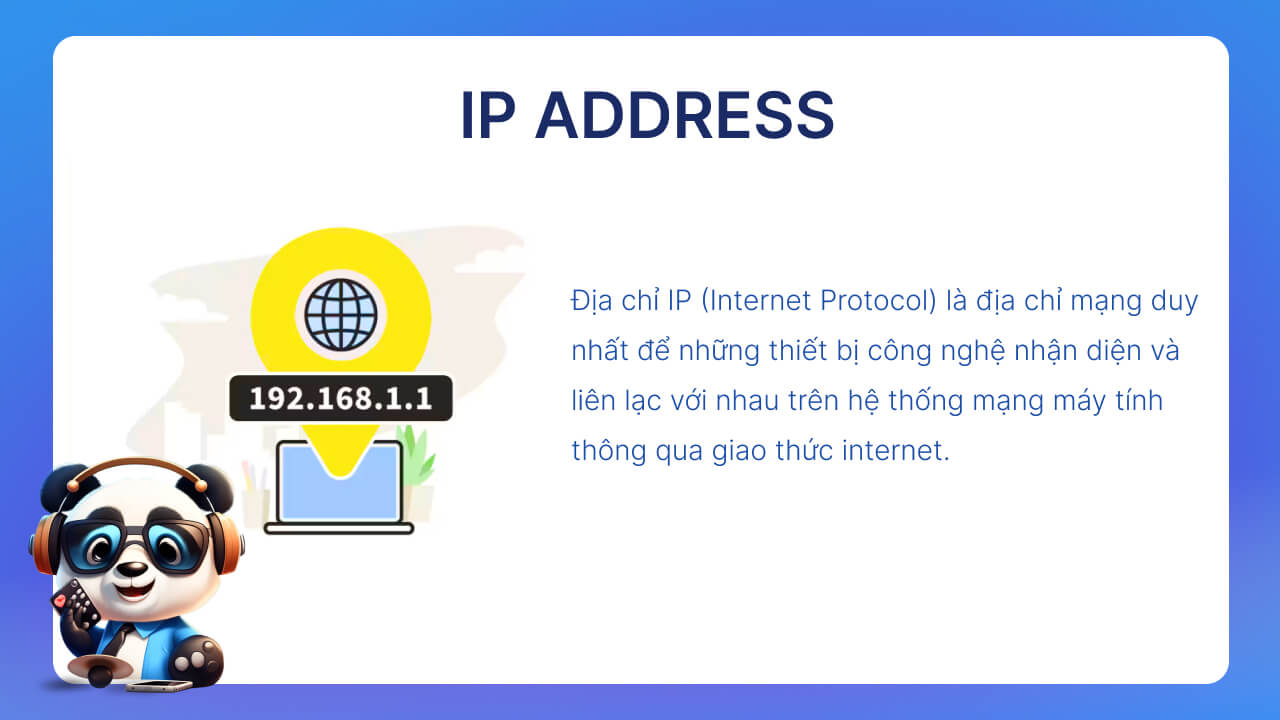
When you connect to the internet, there has to be a way to tell computers, routers and websites apart. The IP address does this job and is a core part of how the internet works. An IP address is written as a string of numbers separated by dots.
An example of an IP address is 192.158.1.39.
Each number in an IP address is between 0 and 255, so the full range of IP addresses runs from 0.0.0.0 to 255.255.255.255. Within the structure of ICANN, an important unit called the Internet Assigned Numbers Authority (IANA) is responsible for designing and applying the methods used to allocate IP addresses.
ICANN is a non-profit organization founded in the United States in 1998 to keep the internet safe and secure and to make sure everyone can access and use it easily.
When users register register a domain a domain on the internet, they do it through a domain name provider. To complete the registration, they pay the provider a fee.
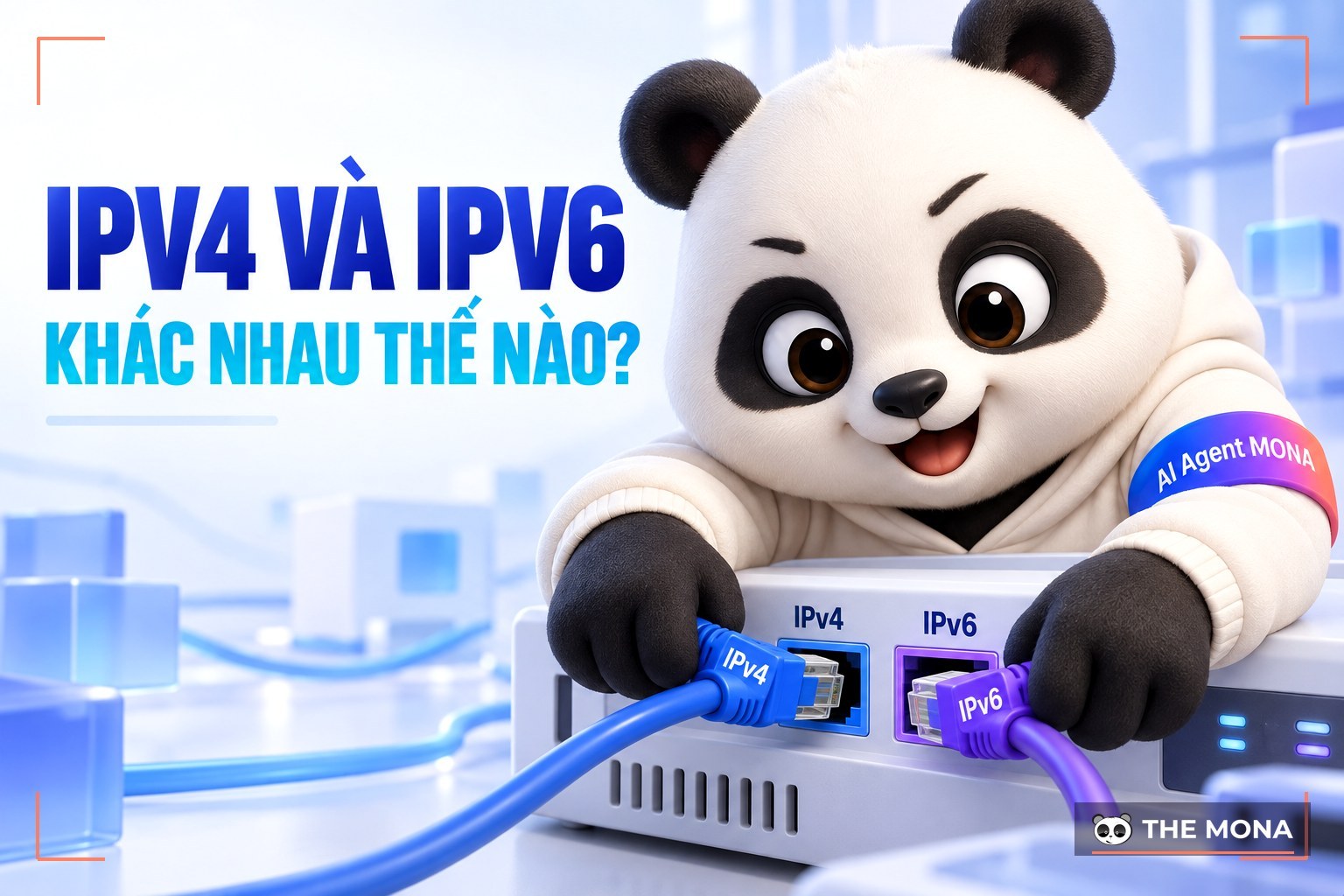
Two versions of the Internet Protocol are in use today: Internet Protocol version 4 and Internet Protocol version 6.
IPv4, or Internet Protocol version 4, is the fourth version of the Internet Protocol, designed to identify devices and carry data between them on a network. It is often discussed together with TCP/IP and sits at the internet layer of the network model. IPv4 was the first widely deployed version of IP and is still the foundation most networks around the world rely on.
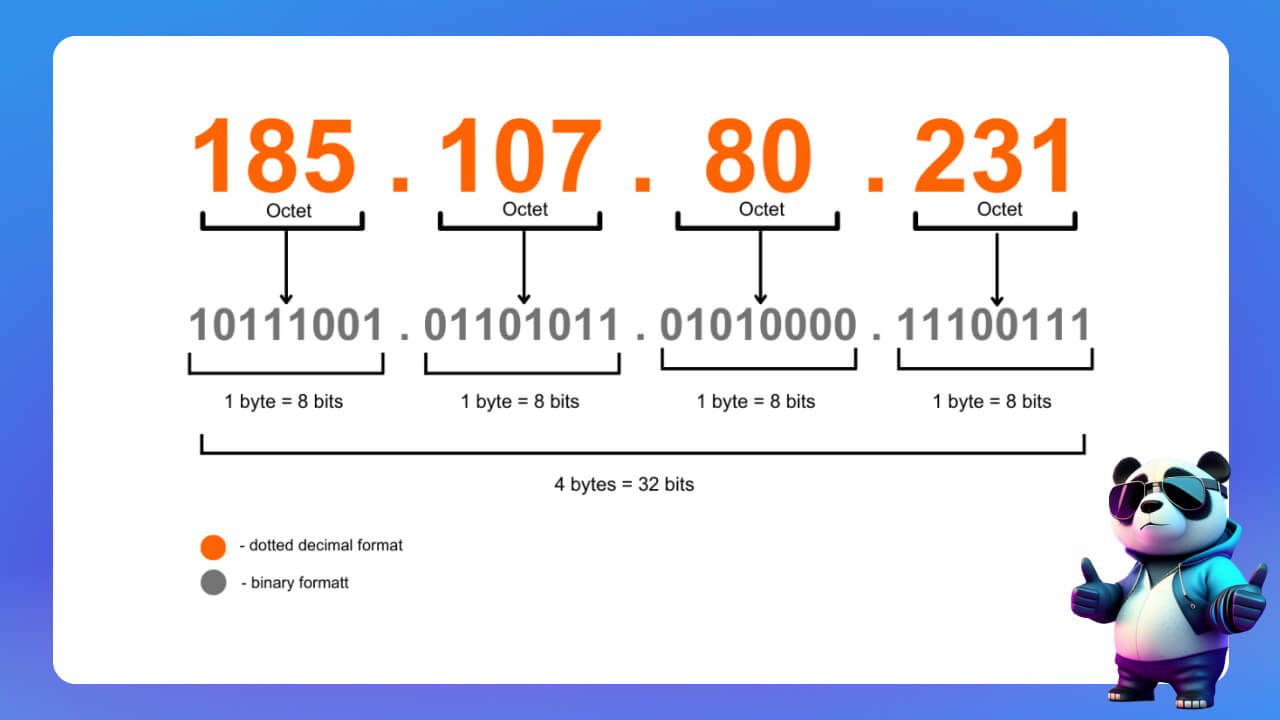
An IPv4 address is written as four decimal numbers separated by dots. Each number represents 8 bits, so the four groups add up to 32 bits. Each group is called an octet, a set of 8 binary digits. The value of an octet ranges from 0 (all 8 bits are 0) to 255 (all 8 bits are 1), which gives 256 possible values.
An IPv4 address has two parts: the network part and the host part.
Splitting an IP address into a network part and a host part makes routing and device identification easier.
IPv6 is the sixth and newest version of the IP protocol. Developed by the IETF, it was designed to solve the shortage of IPv4 addresses. This version brings many improvements and is now widely used.
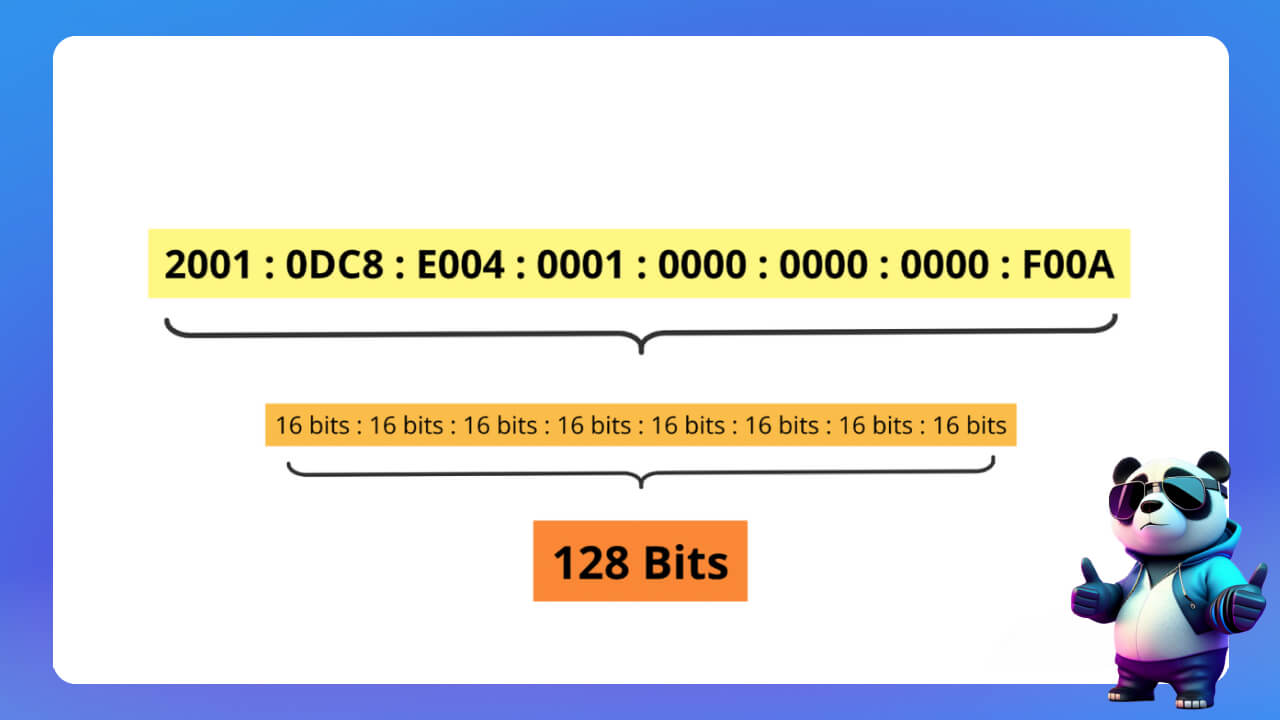
IPv6 uses 128 bits to encode an address, so it offers far more network addresses than IPv4. By one estimate it can provide (4*10^4)^4 (4 billion to the power of 5) IP addresses at the same time. With information technology growing so fast, rolling out IPv6 is increasingly necessary to deal with the shortage of IPv4 addresses.
However, because of compatibility problems with older equipment, the move from IPv4 to IPv6 has run into many challenges. Standards bodies have set out a transition plan, expected to run from 2019 to 2033.
IPv6 brings several clear improvements over IPv4, including:
An IP address gives each internet-connected device an identity, so devices on the internet can communicate, recognize each other and exchange information. The Internet Protocol works much like a language: it follows agreed rules to carry information, and it lets electronic devices find, send and exchange data with other devices. Because everyone speaks this common language, any computer, wherever it is, can connect to any other.
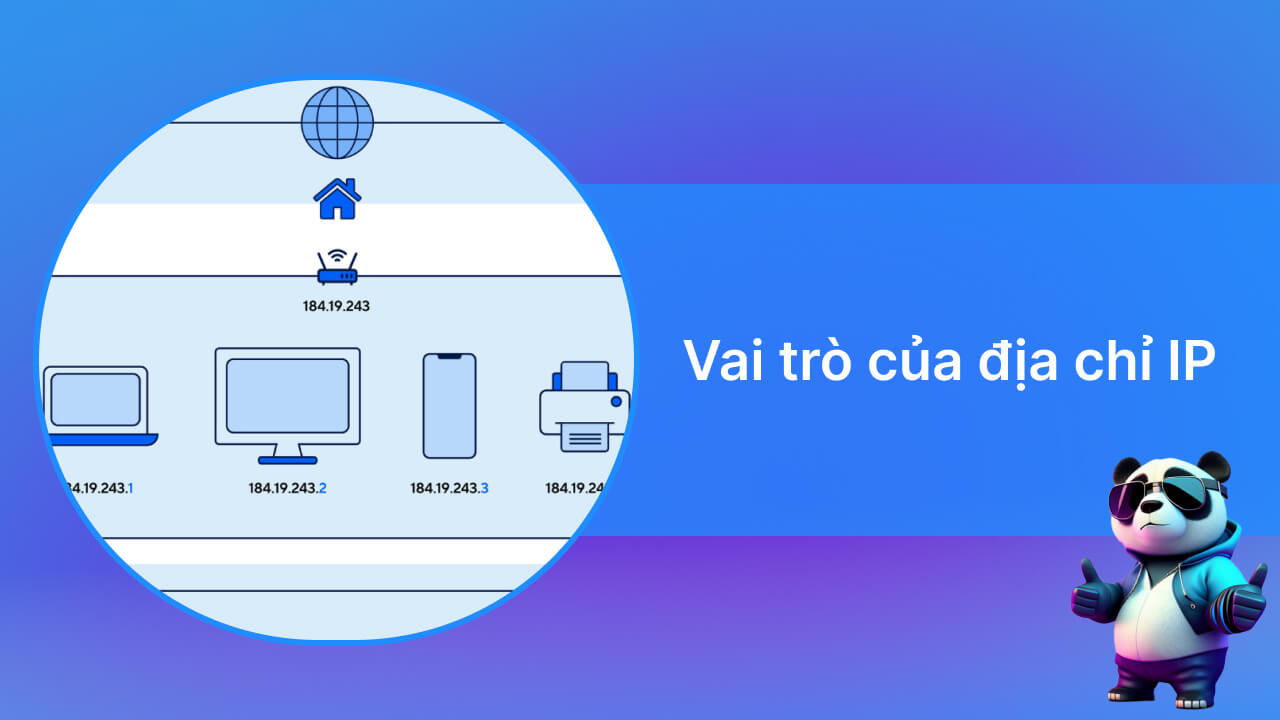
An IP address is also the foundation of many online services. From email and web browsing to video calls and streaming, every service needs an IP address to set up a connection and move data between devices.
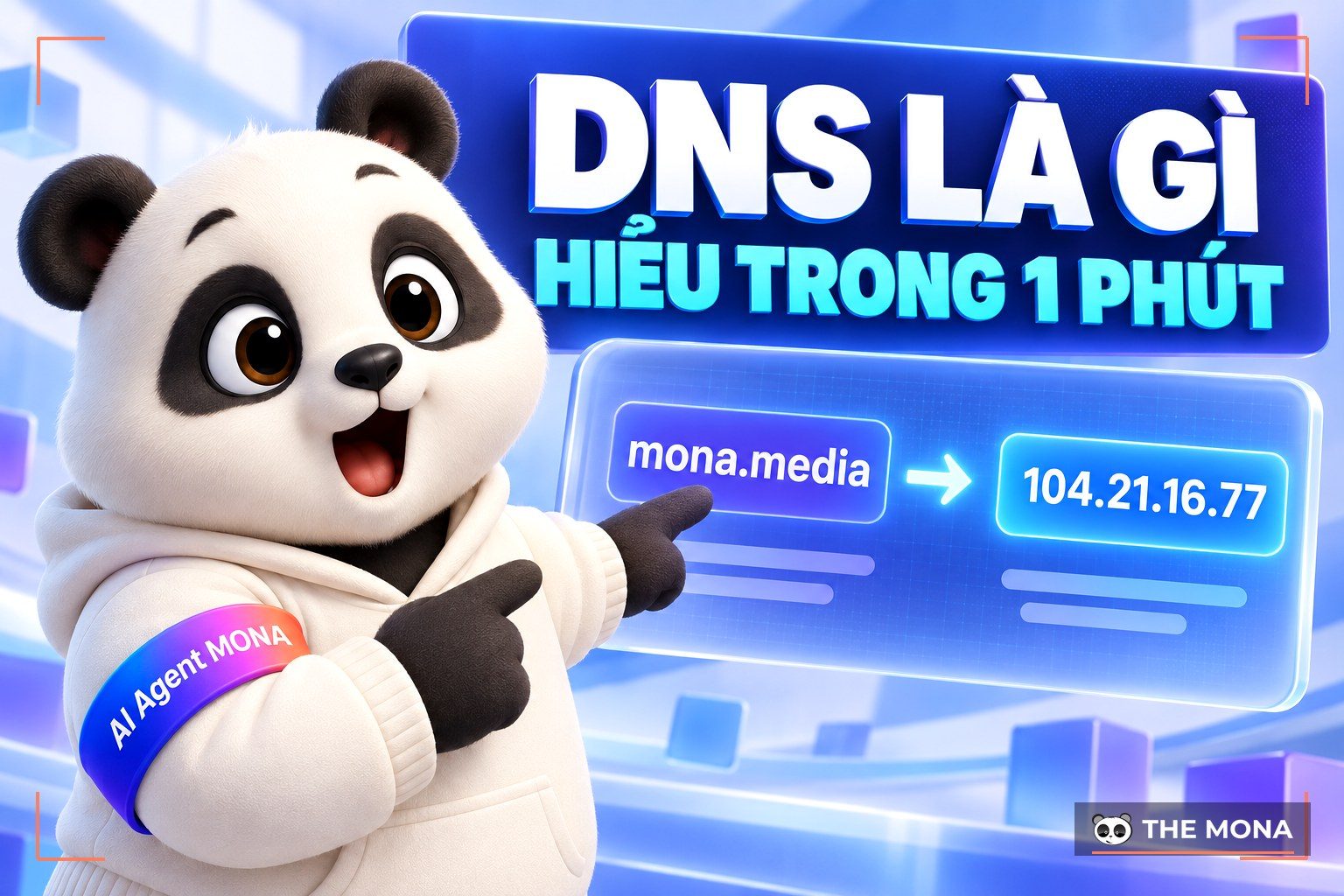
Think of sending a parcel to someone: you need their exact home address. An IP address works like your home address and routes data to the right destination. When you visit a website, your computer uses DNS to find the IP address of the server that hosts that site.
An IP address is made of four numbers separated by dots (.). IP addresses fall into 5 classes, A, B, C, D and E. Each class has its own structure and function and serves a different purpose when addresses are handed out to internet-connected devices.
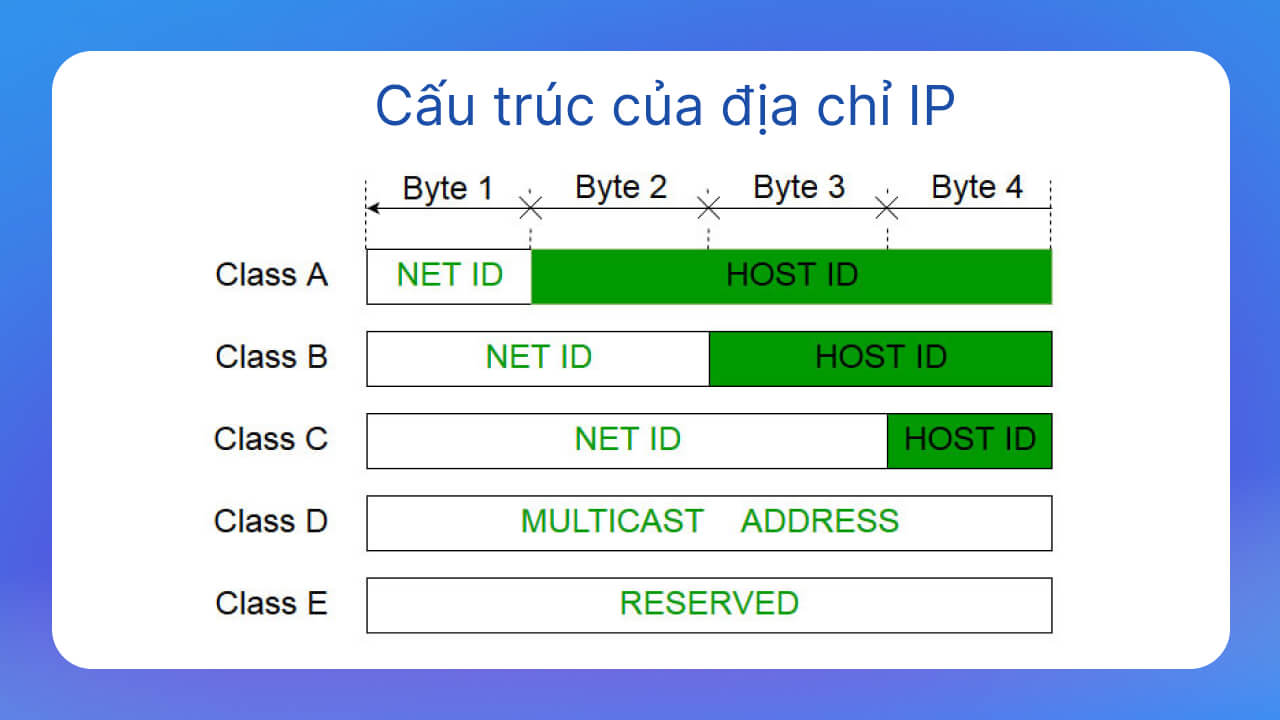
These are addresses whose first octet is between 1 and 126. This class is usually assigned to large organizations around the world. Class A addresses run from 1.0.0.1 to 126.0.0.0.
These are addresses whose first octet is between 128 and 191. Class B is meant for mid-sized organizations worldwide. Class B addresses run from 128.1.0.0 to 191.254.0.0.
These are addresses whose first octet is between 192 and 223. Class C is typically used by small organizations, including personal computers. The range runs from 192.0.1.0 to 223.255.254.0.
These are addresses whose first octet is between 224 and 239. The first 4 bits of a class D address are always 1110. Class D is generally reserved for multicast and broadcast, and spans 224.0.0.0 to 239.255.255.255.
These are addresses whose first octet is between 240 and 255. The first 4 bits of a class E address are always 1111. This class is usually reserved for research, with addresses from 240.0.0.0 to 254.255.255.255.
Unlike the 5 classes above, this range uses the address 127.x.x.x and is used for loopback testing. In practice, class A, B and C addresses are the ones widely assigned to network nodes. Class D is used in some multimedia applications. Class E is still experimental and kept in reserve for future projects.
>> What is the IP address 127.0.0.1?
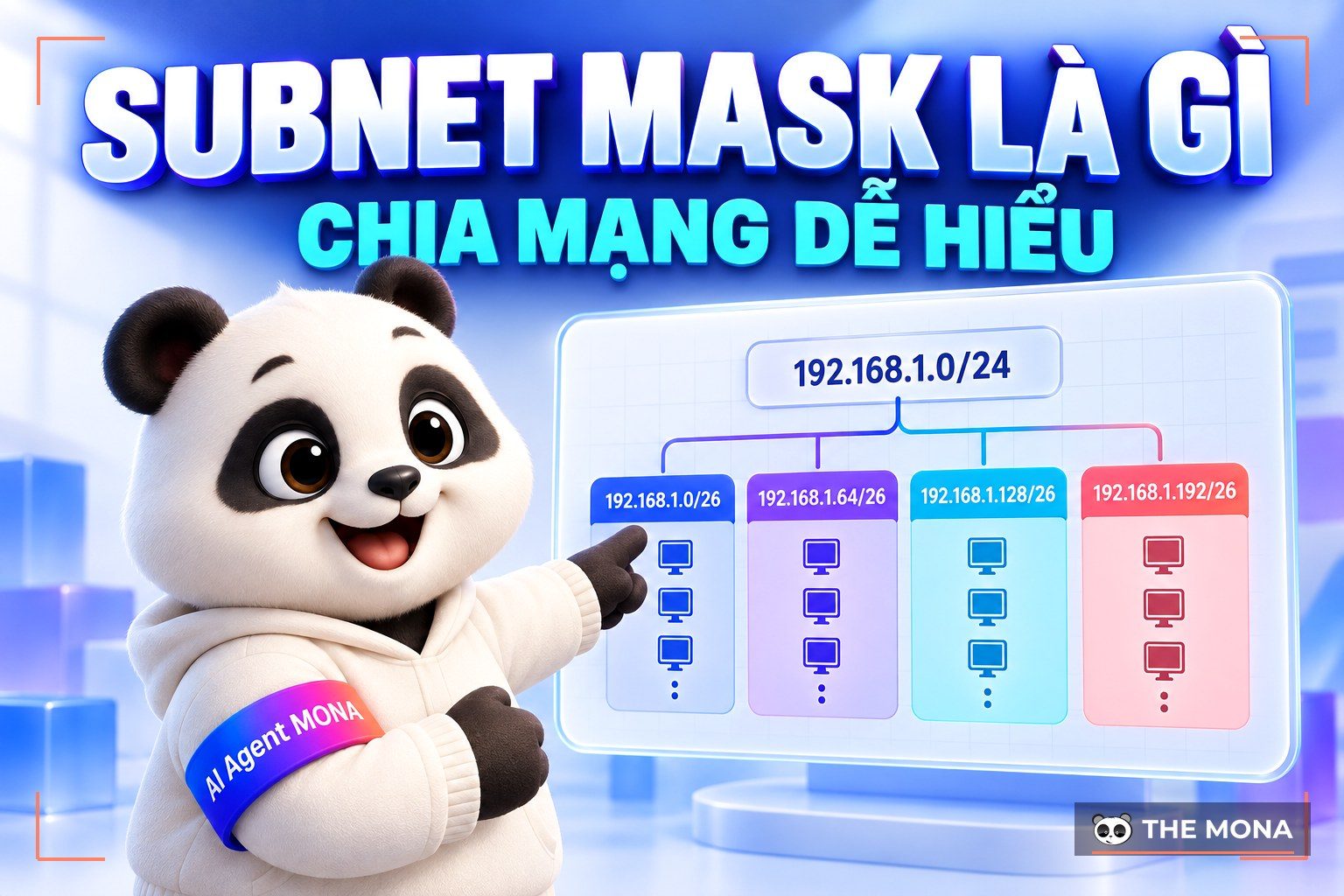
Subnet mask A subnet mask is a string of numbers expressed in 32 or 128 bits, used to divide an IP address on a TCP/IP network. Its job is to split an IP address into a network part (Network) and a host part (Host).
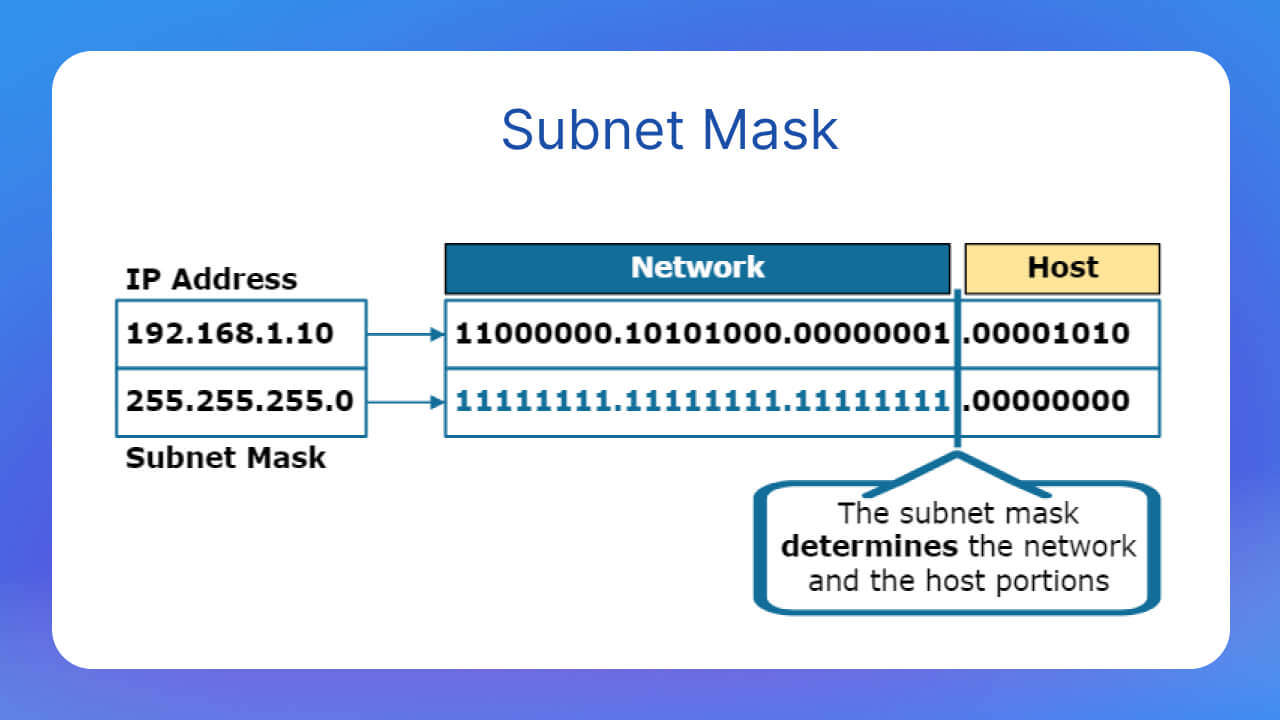
Dividing the host space of an IP into several subnets makes management and security more effective.
With subnet masks, a large network is divided into smaller subnets, which makes it easier to manage and route network traffic.
The most common subnet masks in IPv4 are /24 (255.255.255.0) and /16 (255.255.0.0). In IPv6, the subnet mask is usually expressed in 128 bits.
Four types of IP address are common today: public IP, private IP, static IP and dynamic IP. Each of them can be IPv4 or IPv6.
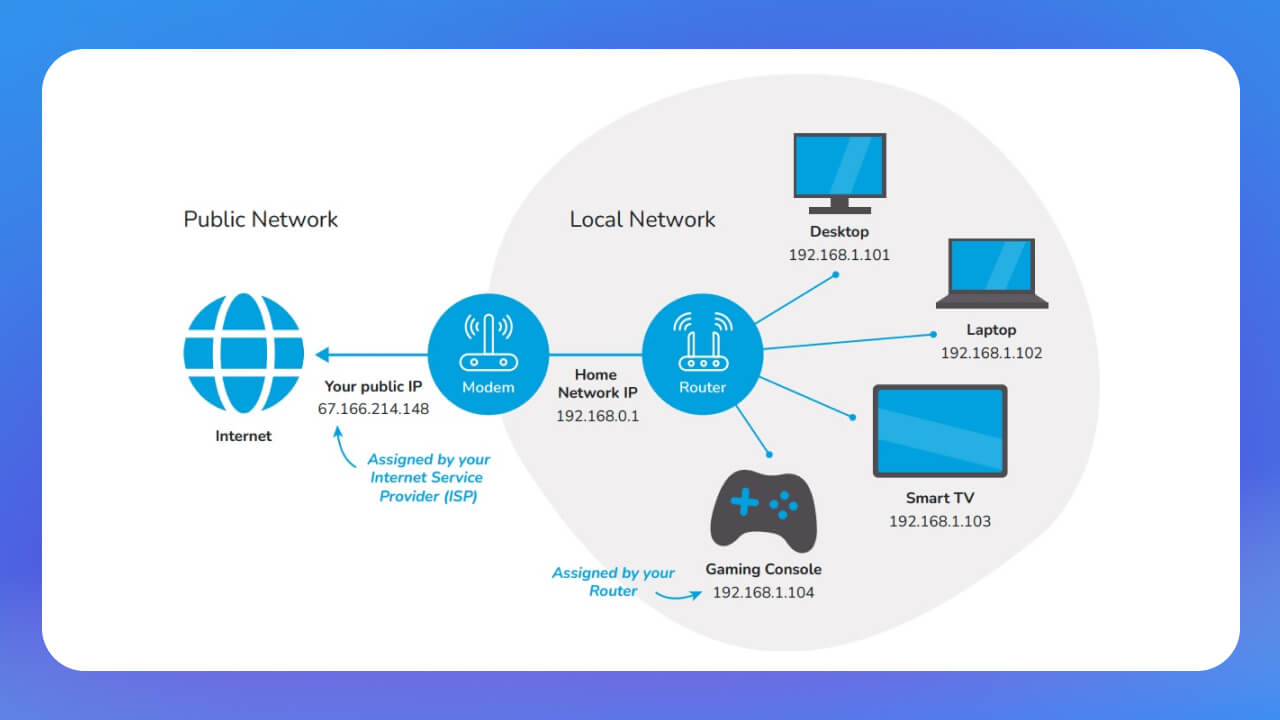
A private IP address is also called an internal IP address. It is widely used to connect devices inside a local network a LAN such as a home, company, office or school network. A private IP can be set manually or assigned automatically by the router. A private IP cannot connect directly to the internet or to computers outside the network.
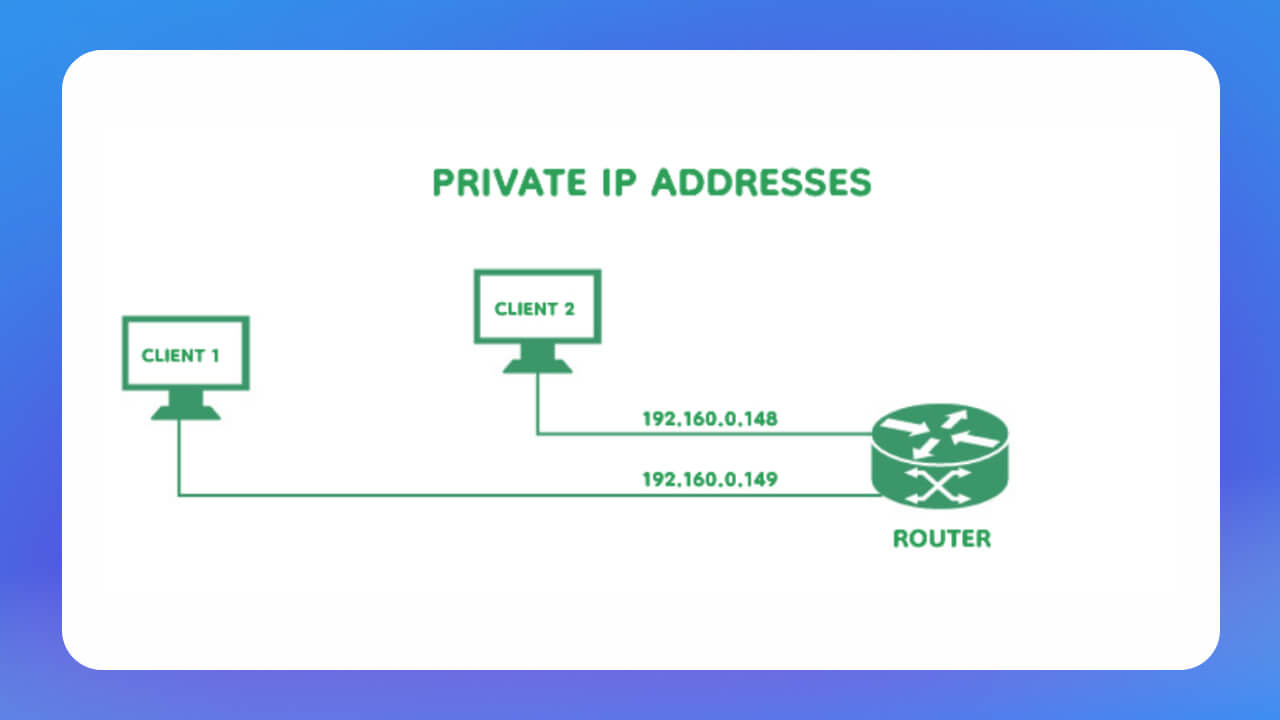
Private IP ranges:
A public IP address is provided by your ISP so devices can connect to the wider network. Homes, organizations and businesses commonly use it to get on the internet. A public IP is essential for devices to connect and communicate with the global internet. With a public IP, users can also control which devices on the permitted list can access the network.
A static IP is an address assigned permanently to one person or one group. The advantage of a a static IP static IP is fast access to websites, faster internet speeds, and easier tracking, management and file downloads. Because it never changes, a static IP is usually given to a server so that many people can reach it reliably.
A dynamic IP is an address that can change, the opposite of a static IP. Dynamic IPs are assigned automatically to each connection, such as a smartphone or a computer. This is the most widely used type. Providers hand out dynamic IPs to conserve the IP addresses that are running out today.
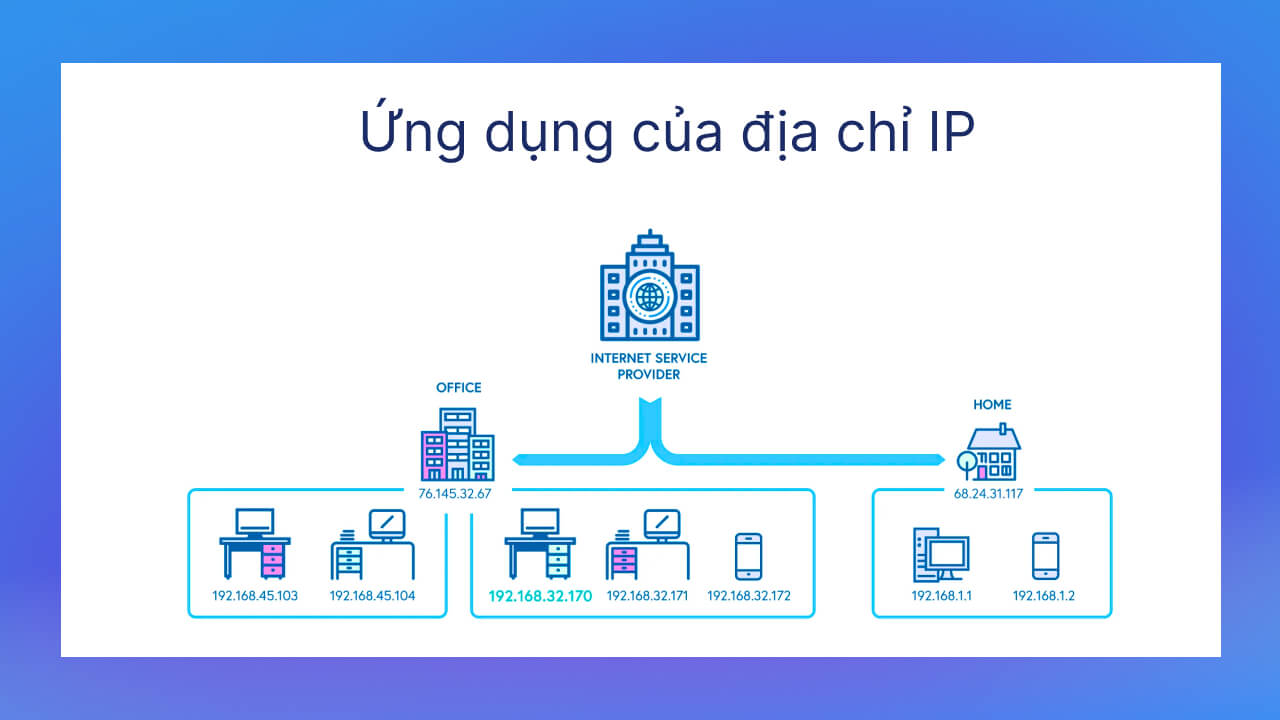
The IP address is a key internet protocol in computer networks. It makes network management more effective, but it also has limitations. MONA Media walks through the pros and cons of IP below so you can understand it better.
IP addresses matter a great deal in networking, and they bring clear benefits to users. But there are also risks on the internet: hackers use techniques such as social engineering and online stalking to get hold of your IP address for various purposes.
A hacker can track your IP address by watching your internet activity. Anything you do online, such as playing games or commenting on forums and websites, can give it away.
Once they have your IP address, hackers go to sites that track IP addresses, such as whatismyipaddress.comto collect information about your location. They can also check other open-source data to confirm that the IP really belongs to you. Next they search LinkedIn, Facebook or other social networks to find where you live and match it against the area the IP points to. Knowing your IP address, a hacker can then launch attacks by impersonating you.
Hackers can use compromised IP addresses to download content illegally or to carry out other attacks. This damages the victim's reputation and can even expose them to legal action.
Your IP address can reveal your approximate location, such as the region or city you are in. It cannot pinpoint your home address, but hackers can combine it with data from social networks to learn more about you.
Hackers can launch many kinds of network attacks, the best known being DDoS. In a DDoS attack, the hacker uses compromised devices to send a huge number of requests to a specific server or system. The server is overloaded, cannot cope with the sudden surge in traffic, and the service is disrupted or goes down.
Every internet-connected device uses an IP address and ports to communicate with other services and applications. Hackers can use open ports to break into your system and install malware on your device.
A computer's address is normally made up of an internal IP and a public IP. Checking your IP is simple: a few steps are all it takes, as shown below.
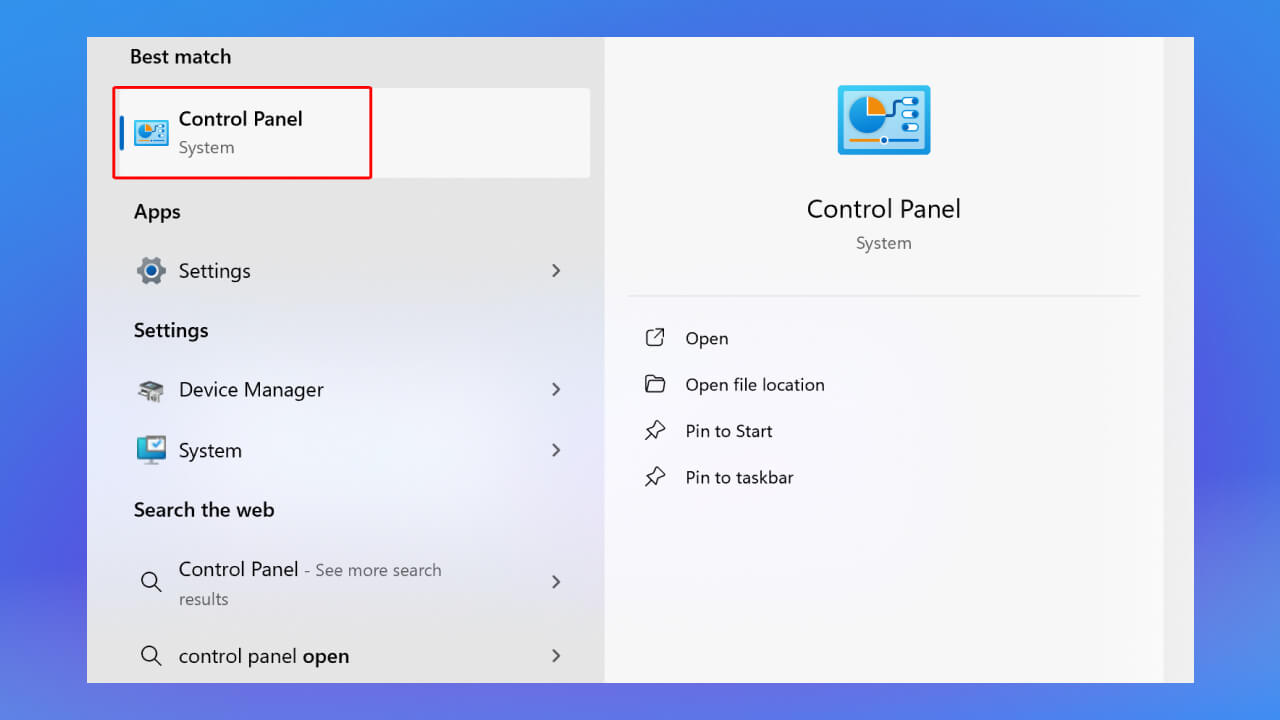
Step 1: Select Start Menu and go to Control Panel.
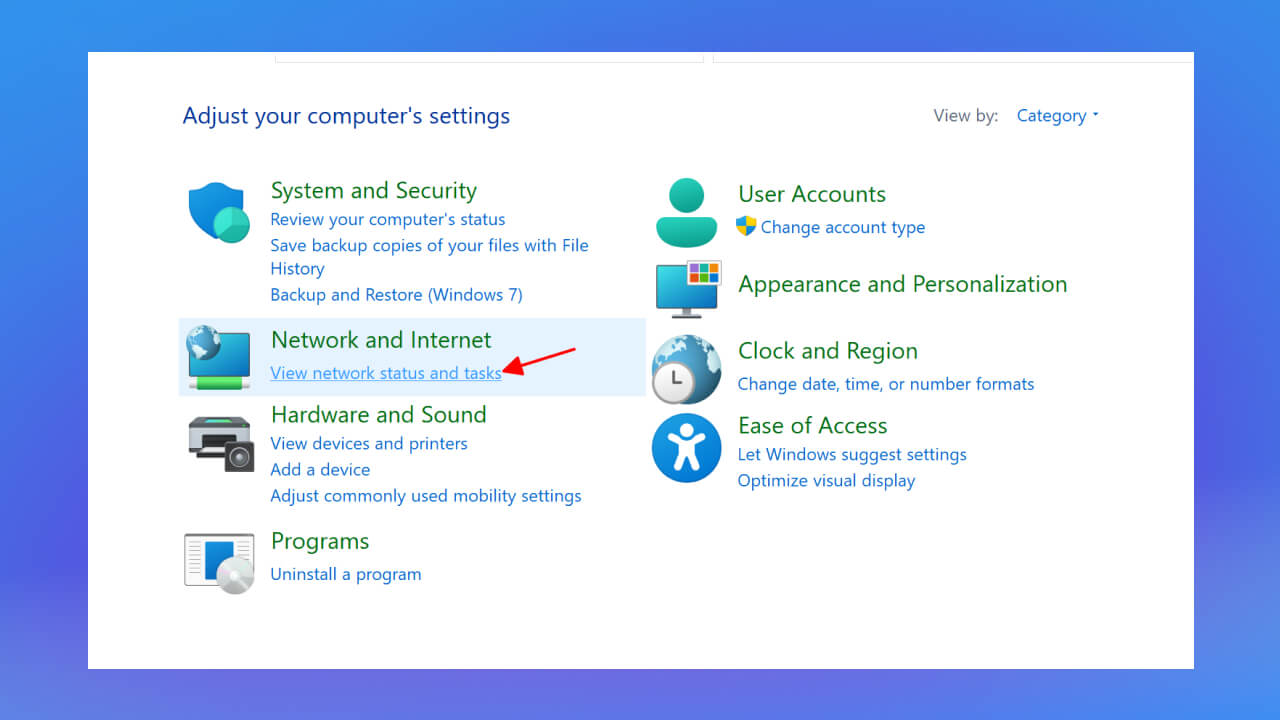
Step 2: Click View network status and tasks.
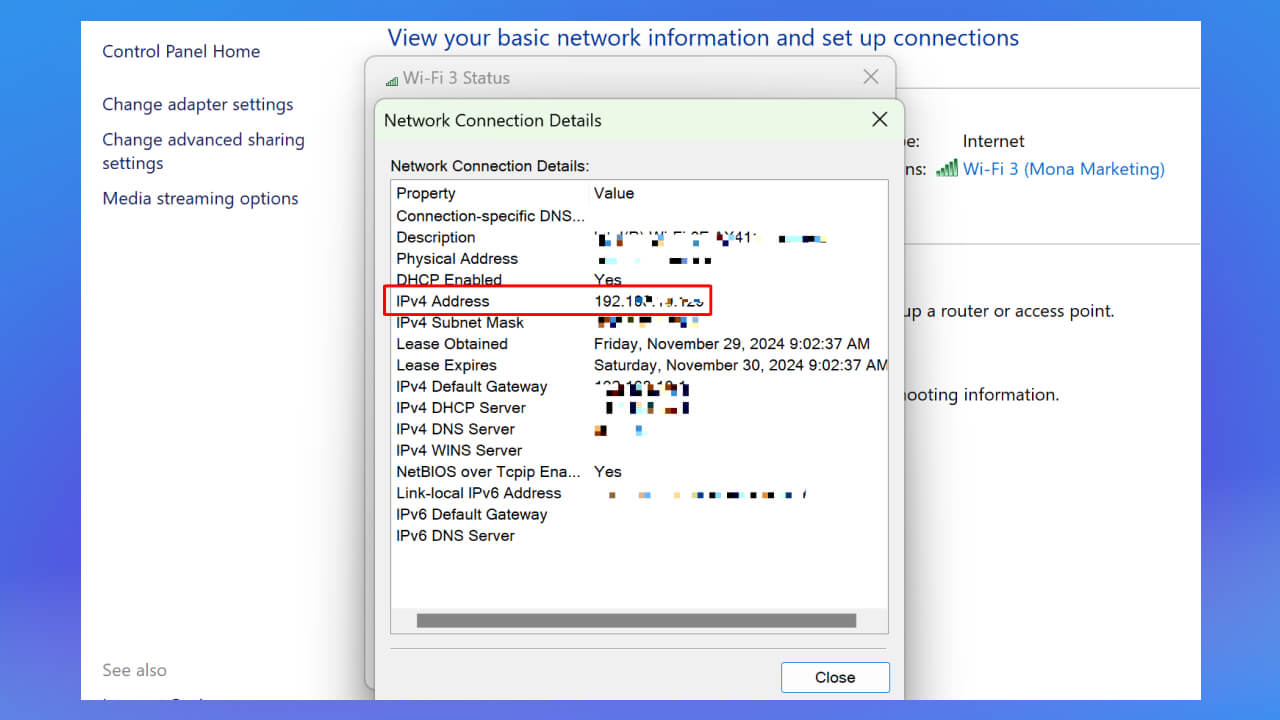
Step 3: Select the network you are connected to and click Details.
Step 4: The IPv4 Address line is your internal IP on the network.
You can also find your IP address faster with Command Prompt.
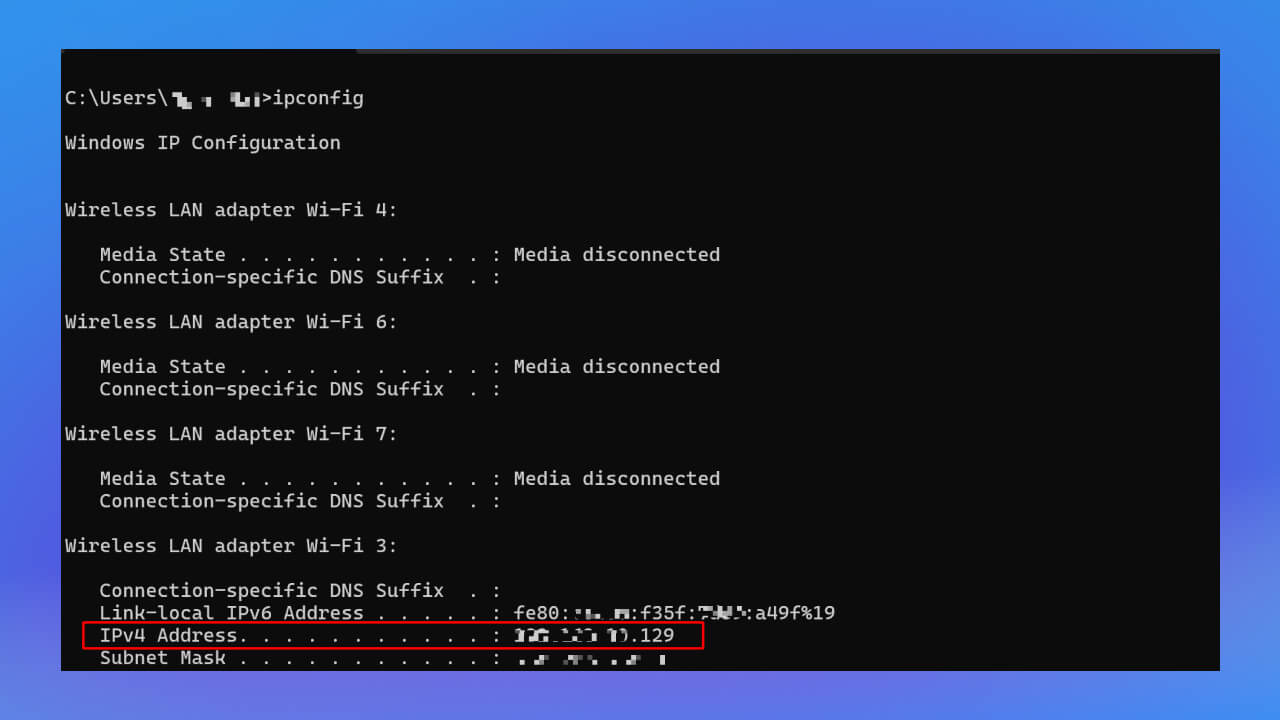
Step 1: Press the keys Windows + R to open Run. Type CMD
Step 2: Type the command "ipconfig" to find your IP address. The IPv4 Address line in the window that appears is your IP address.
To check your public IP address quickly, go to www.whatismyip.com. Looking up your IP on this site shows not only your IP address but also your provider and your position on a map.
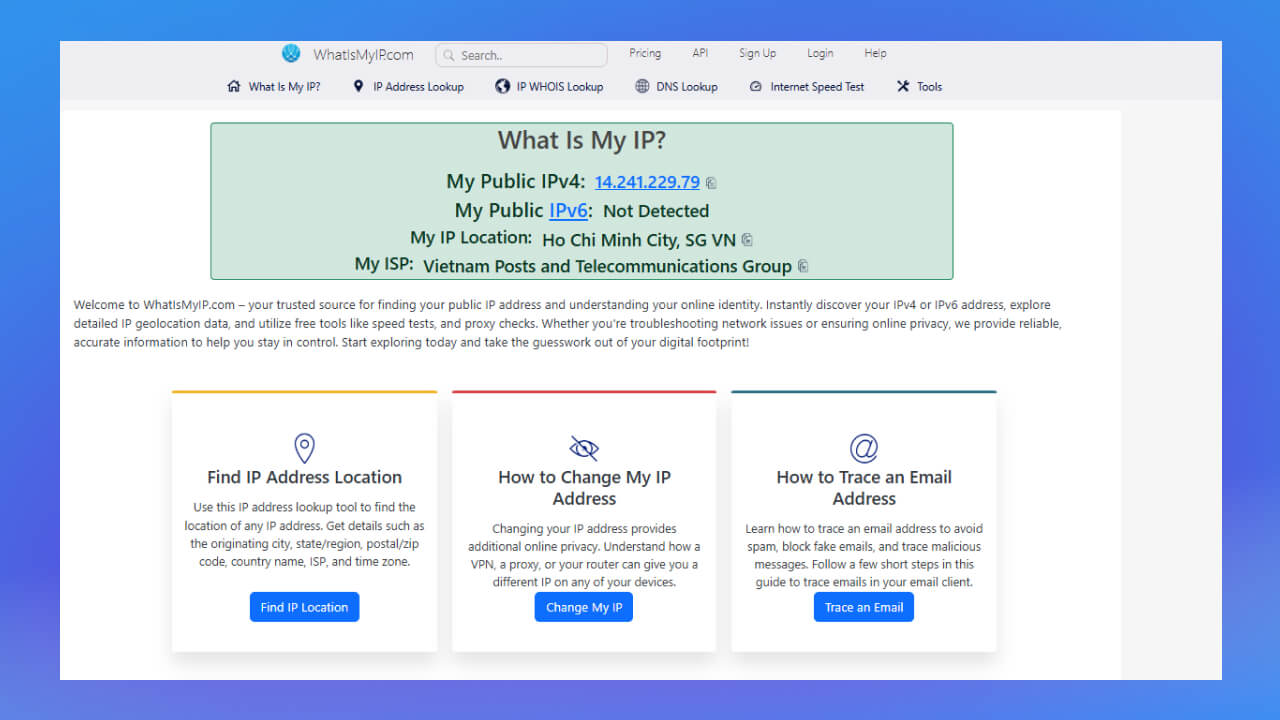
As mentioned above, an IP address is unique and cannot be duplicated. The IP you are given is not tied directly to your device, but you should still be careful: if your IP is exposed, your personal information can be stolen. For example, when you use the internet at a convenience store or a cafe, your IP address is shown and logged. Hackers can exploit this, break in through that address, steal personal information and get into your accounts in order to scam you. One of the most effective ways to prevent this is to hide your IP address, which keeps your personal information and your address from leaking.
Hiding your IP address is one way to protect your privacy and improve your network security. When you connect to public internet, especially in places like cafes and convenience stores, your device's IP address can be logged and become a target for hackers.
With just an IP address, bad actors can do a lot of damage, such as tracking your online activity, running scams or taking your personal data. Hiding your IP keeps you from being tracked, lowers the risk of attacks and keeps your device safe. It is an effective way to protect your personal information and avoid threats from the internet.
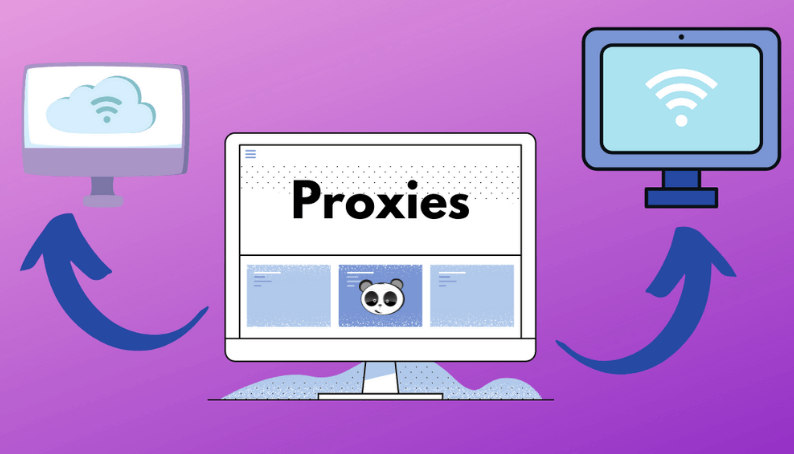
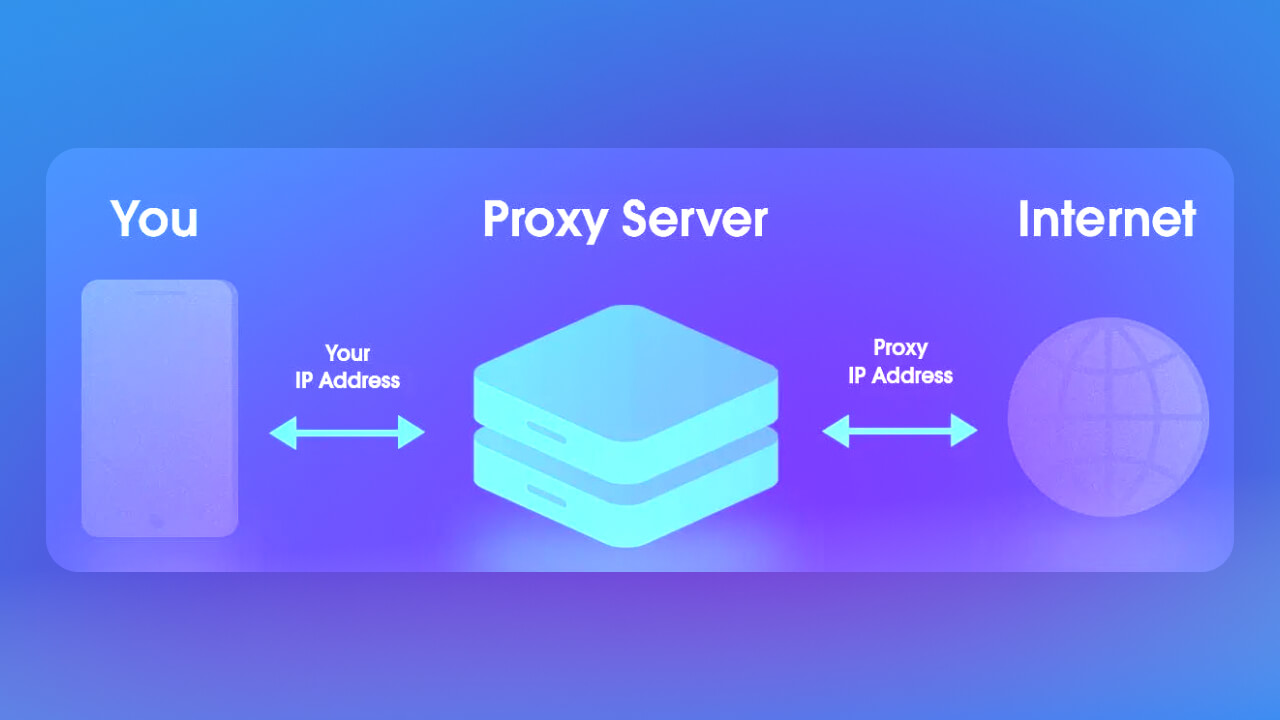
A proxy server is an intermediary server that routes your traffic. When you go online, the target server only sees the proxy's IP address, not your own. Responses from those servers go back to the proxy first and are then forwarded to you. Keep in mind that some services can monitor your activity through a proxy, so you need to consider how trustworthy it is. Depending on how it is used, a hacker may also be able to inject ads into your browser.
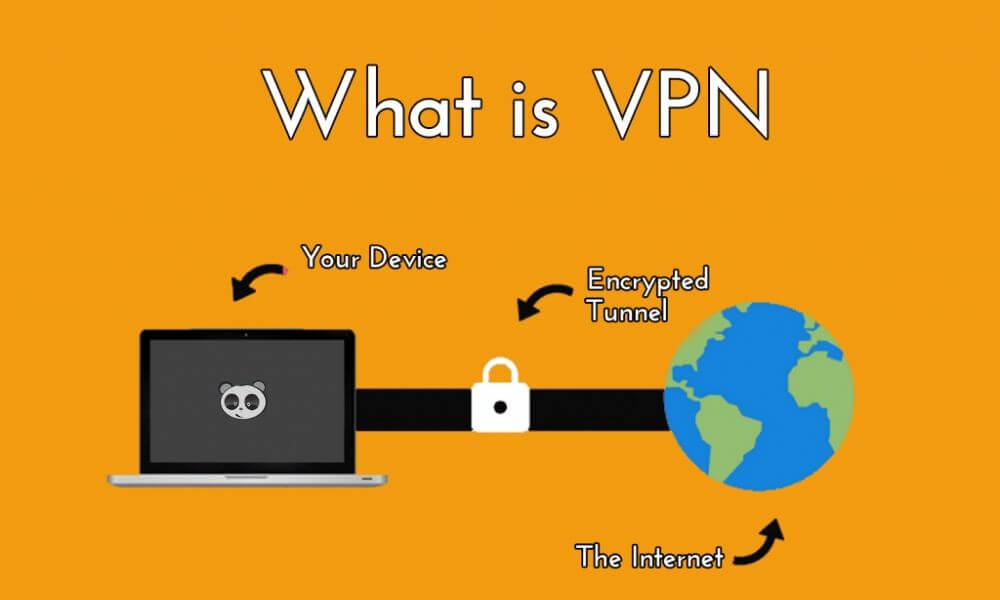
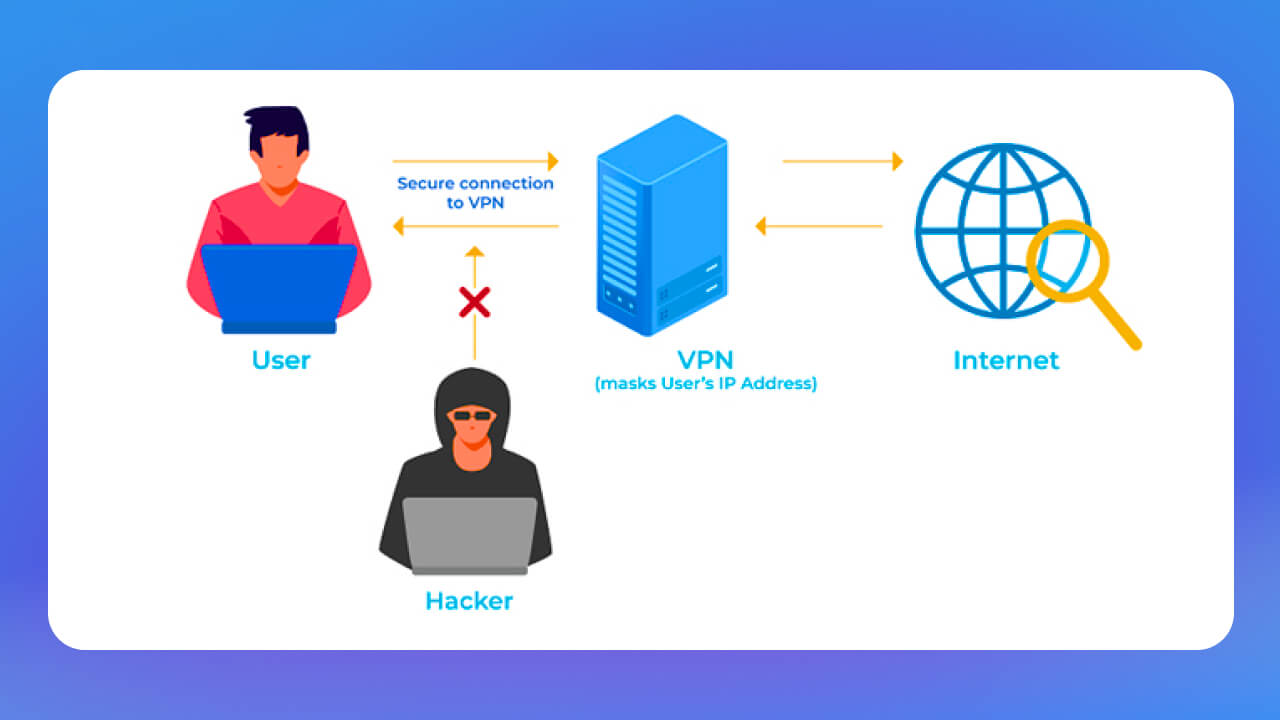
Unlike using a proxy server, when you use a VPN to hide your IP address, the virtual private network sends your internet traffic through another private server. Your real IP is hidden from the sites you visit and replaced by the server's IP. With a VPN you can use IP addresses from many different countries, because VPN servers are spread around the world. A VPN is also simple to use: download the app and a few clicks change your IP.
Here is how to look up your IP address on Windows and MacBook:
Method 1: Use Command Prompt
Method 2: Use Task Manager
Right-click the Taskbar and choose Task Manager.
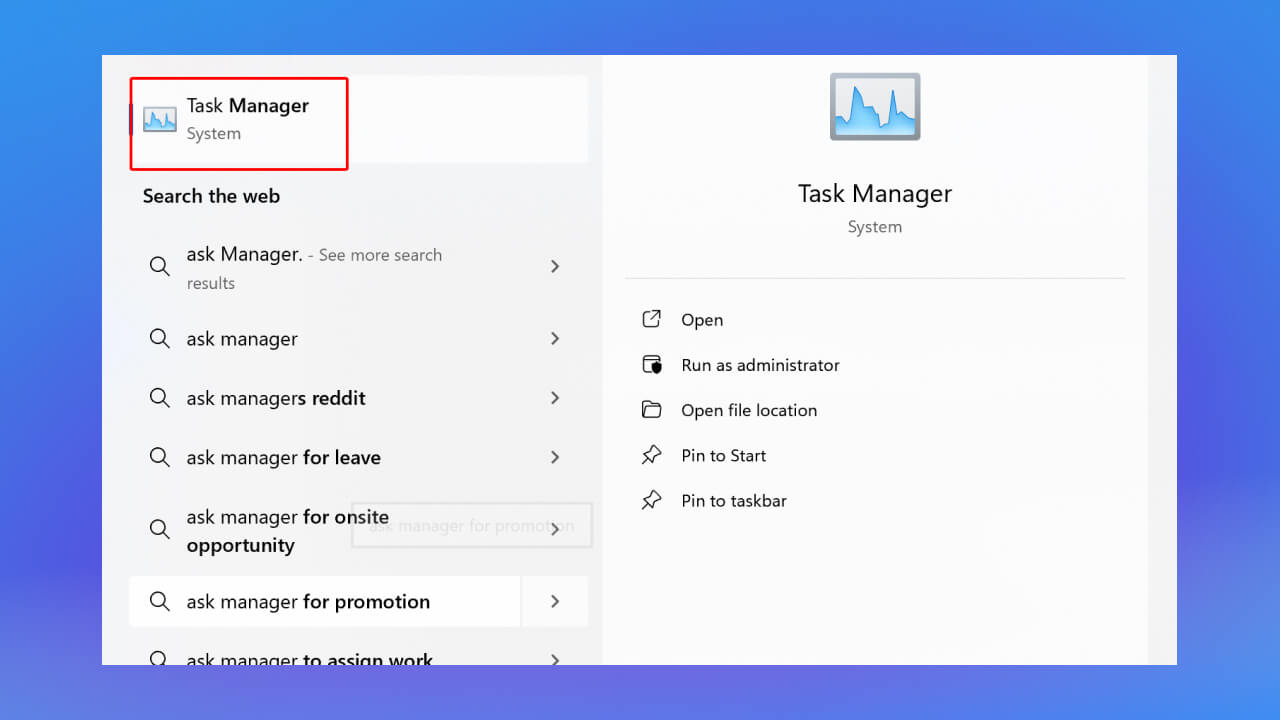
In the Task Manager window, switch to the Performance tab. Choose Wi-Fi (if you use a wireless network). The IP address is shown next to IPv4 Address.
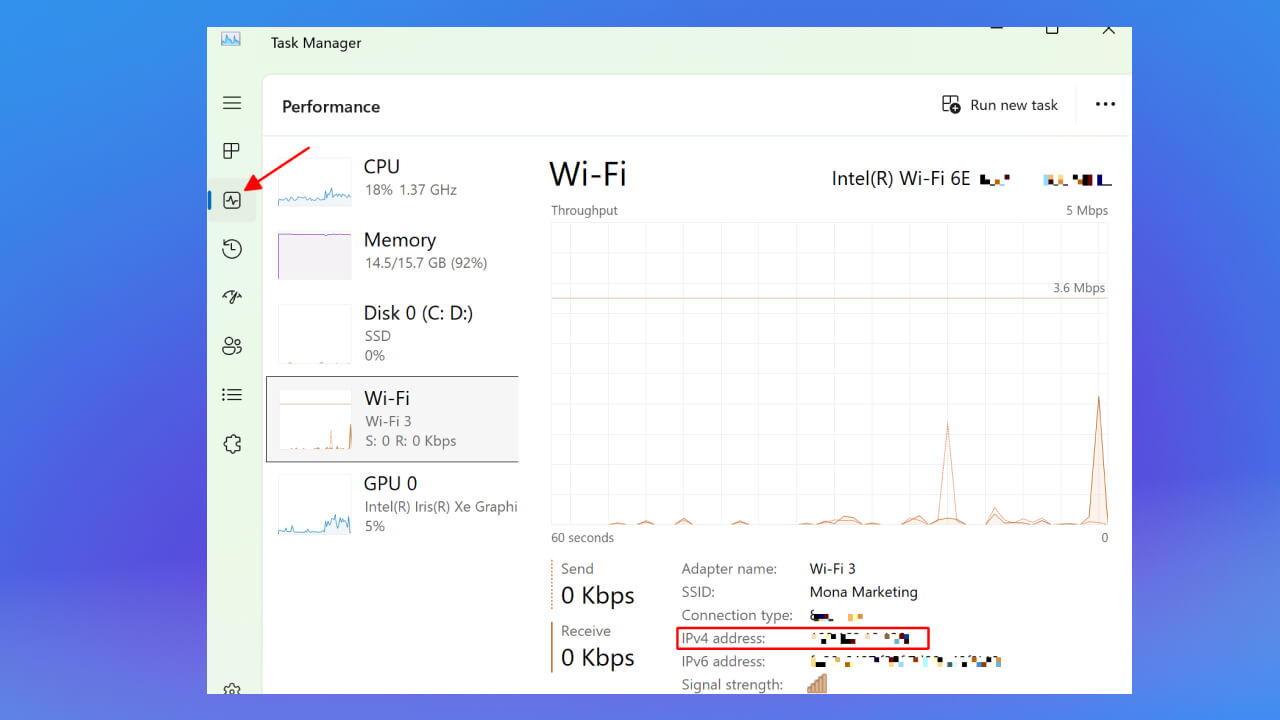
Both methods are simple and quick, and make it easy to check your IP address on a Windows computer.
Method 1: Check in System Preferences
Click the Apple logo in the top left corner of the screen, then choose System Preferences.
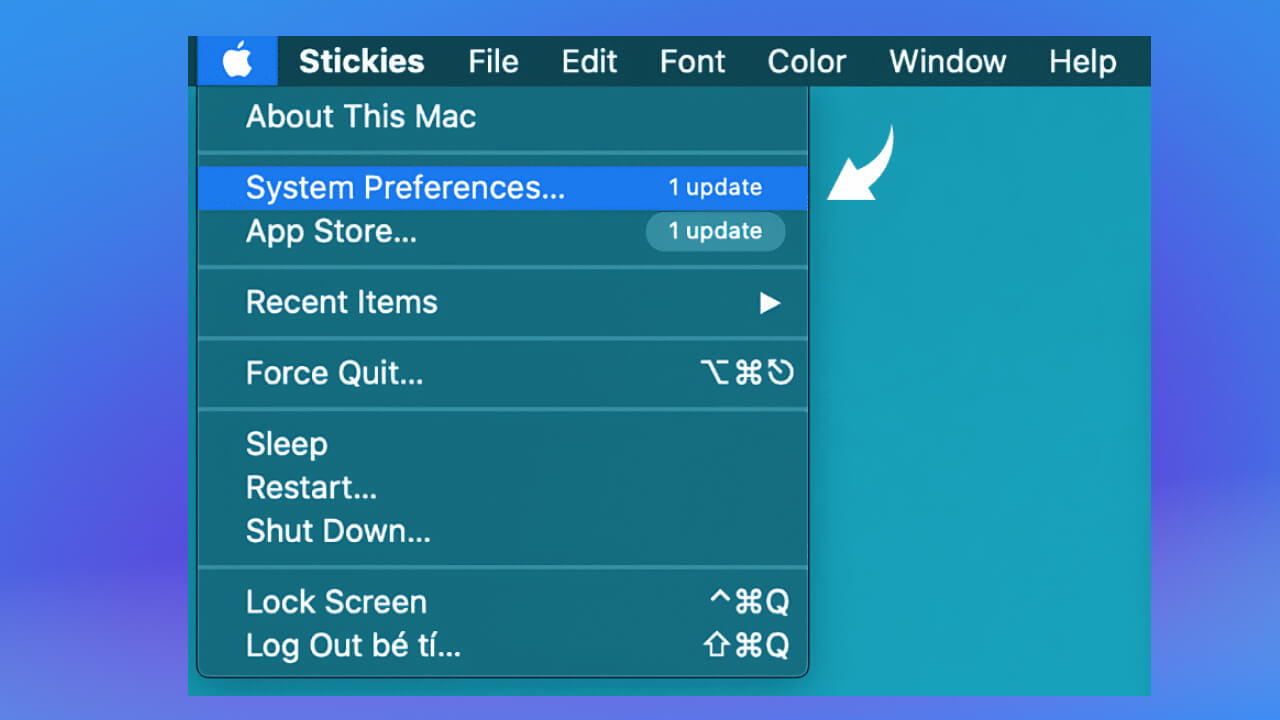
In the System Preferences window, choose Network.
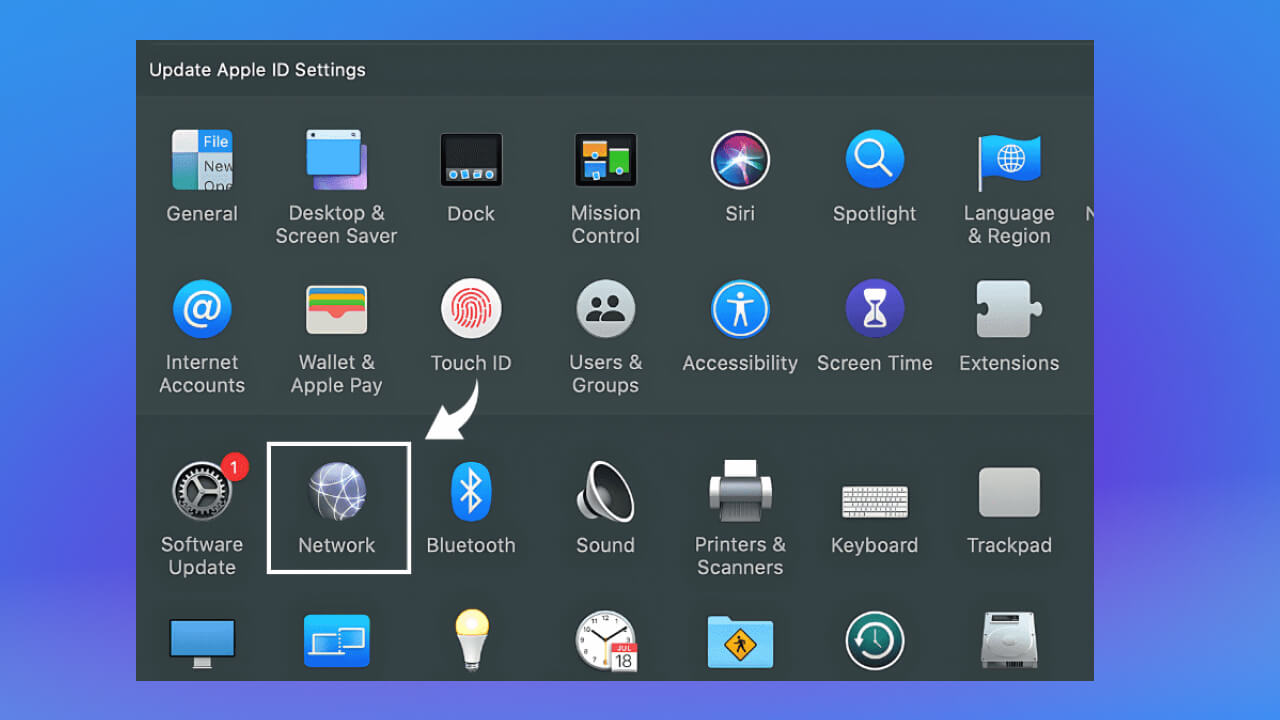
The MacBook's IP address appears below the status line of the network you are connected to.
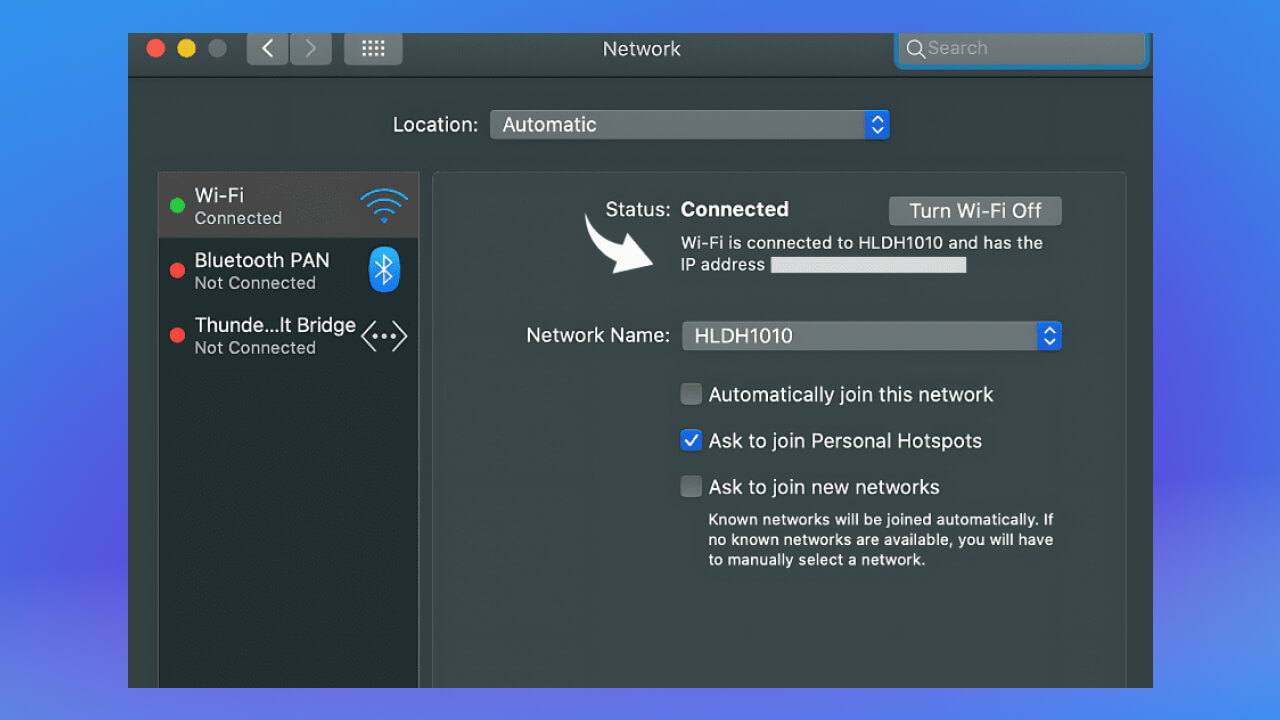
Method 2: Use Terminal
Press Cmd + Space to open Spotlight Search, then type Terminal and press Enter.
In the Terminal window, type the command:
ifconfig | grep 'inet ' | grep -v 127.0.0.1
Press Enter to run the command.
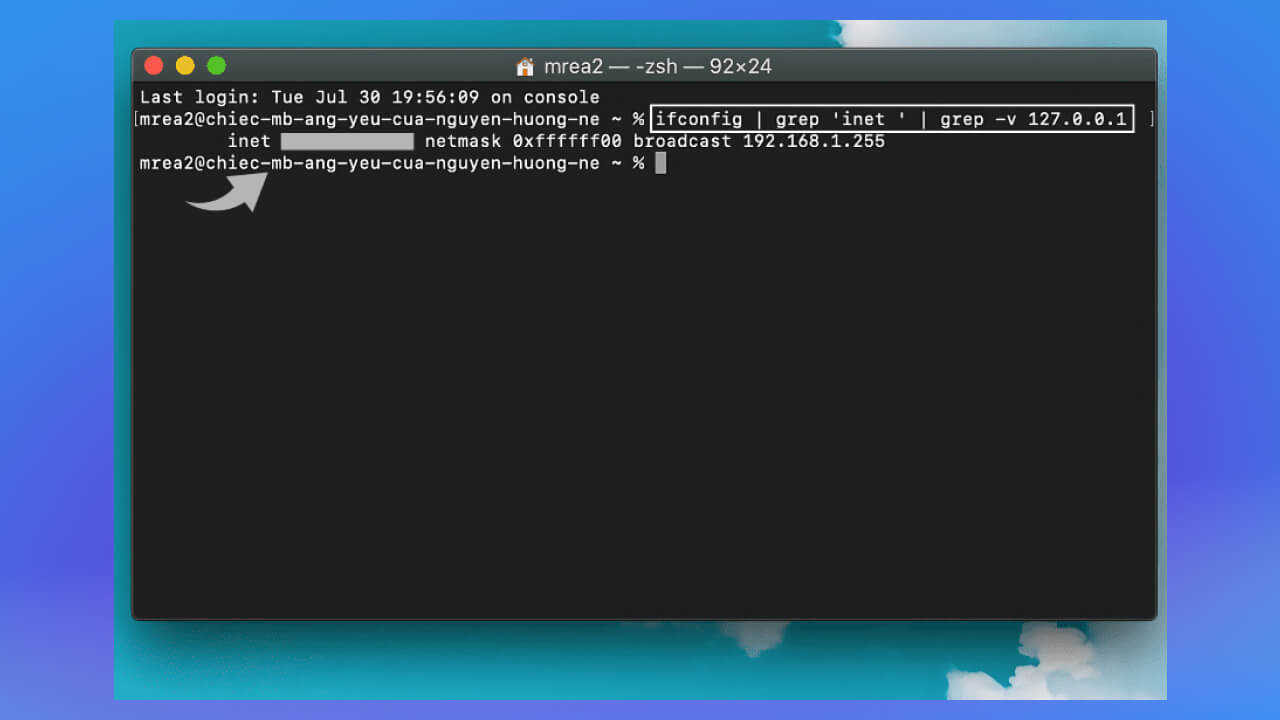
The MacBook's IP address is the string of numbers that appears after the word inet in the output.
Both methods are simple and suit a quick IP check on a MacBook.
To look up your IP address directly on an Android phone or an iPhone, follow these steps:
How to check your public IP address on Android and iPhone:
On an Android phone:
On an iPhone:
Note: You can also use other sites such as https://www.ipchicken.com or https://whatismyipaddress.com to check your public IP address. This works on phones and tablets alike.
Method 1: Look up the IP address on an iPhone
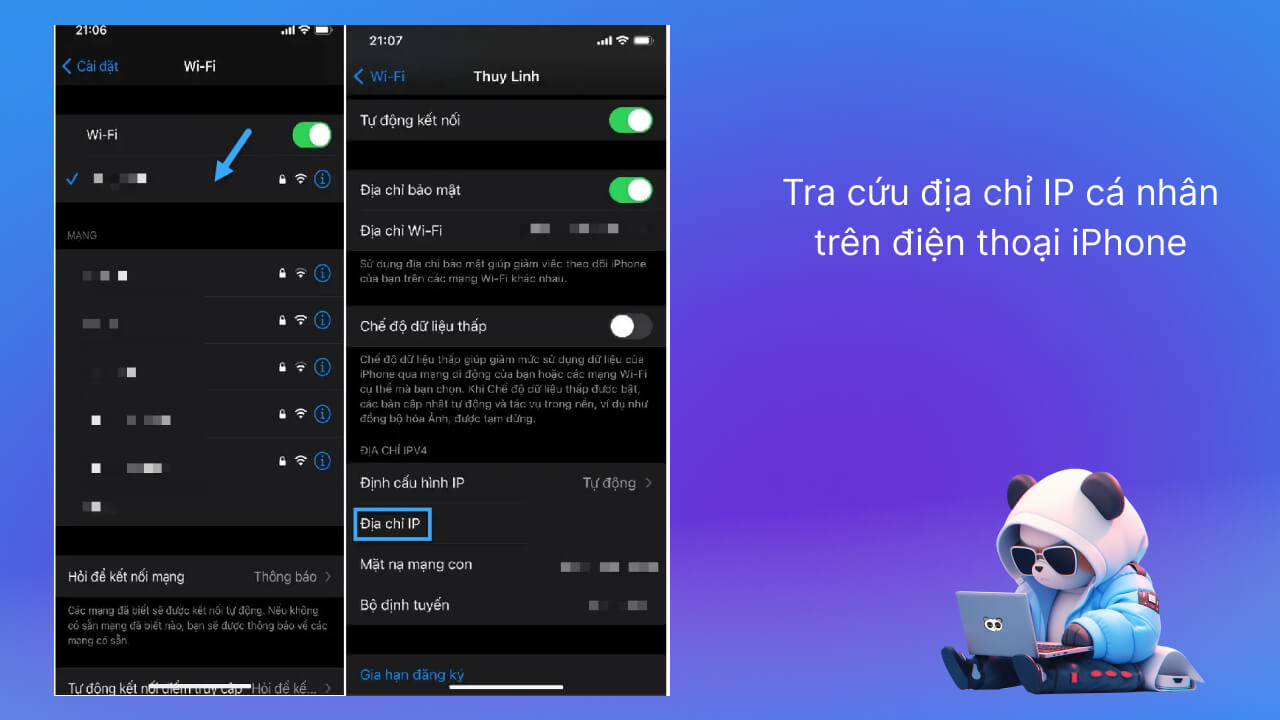
This method is simple and quick, and lets you check your IP address right on the phone.
Method 2: Look up your private IP address on an Android phone
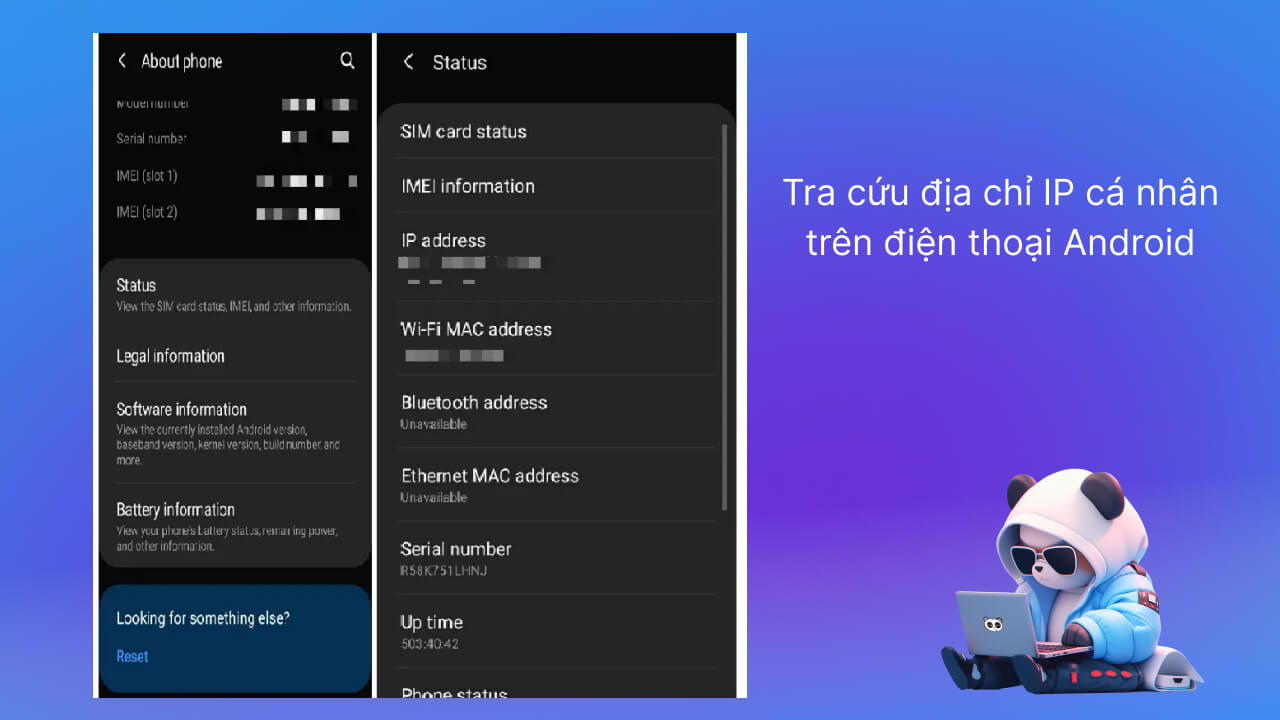
Step 1: Go to https://www.haztek-software.com/applications/trueip. Download the latest version of the software.
Step 2: Install the software
Open the installer you just downloaded. If a warning appears Windows Protected Your PC, click More Info, then choose Run Anyway to continue.
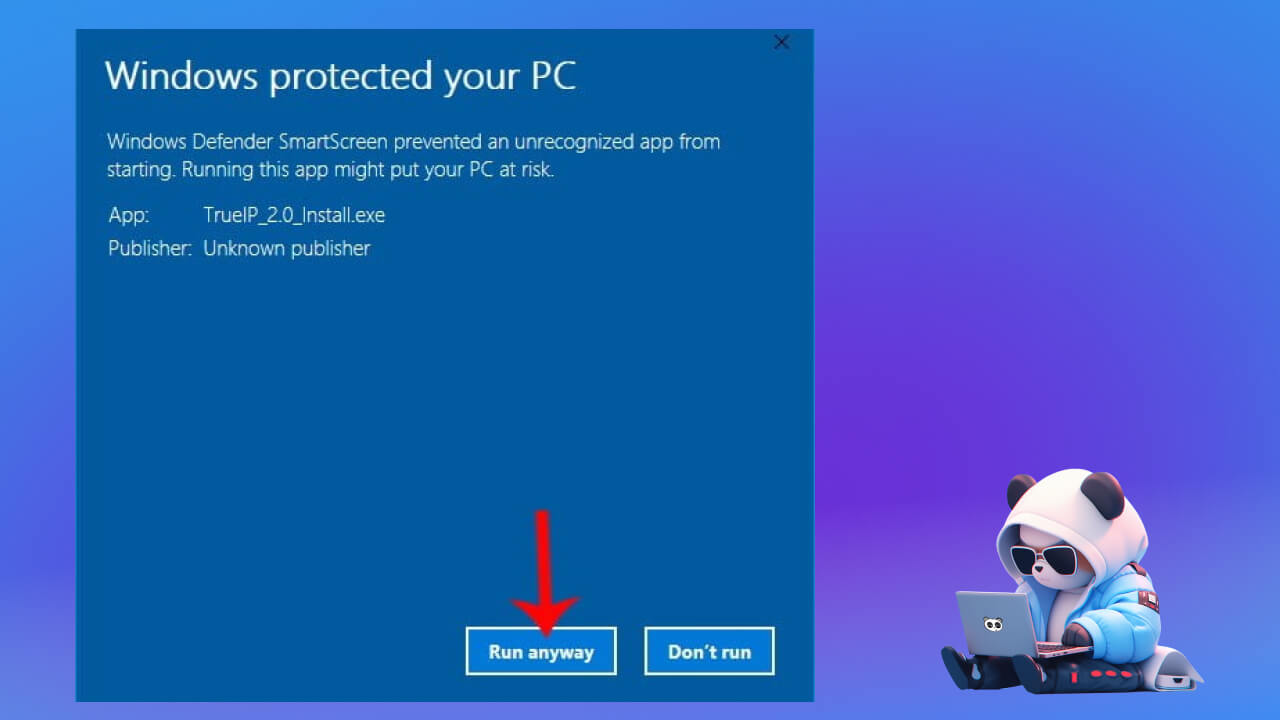
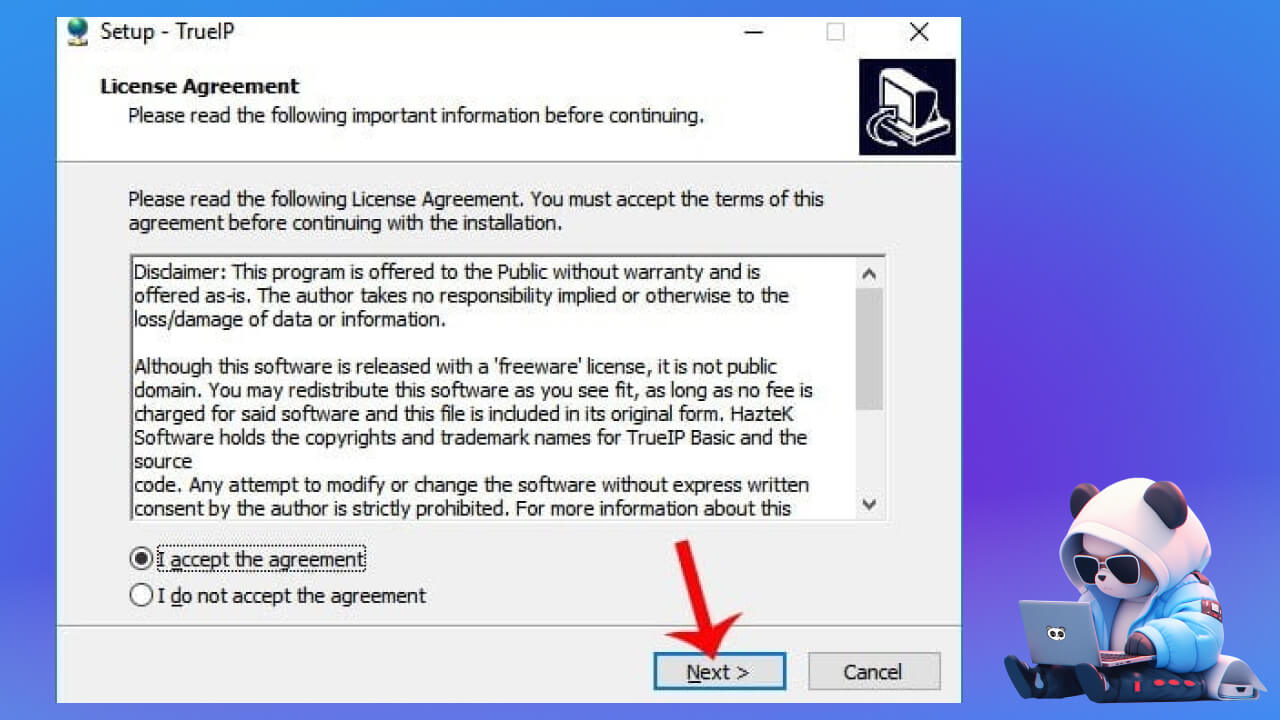
Accept the terms by ticking I Accept The Agreement, then click Next.
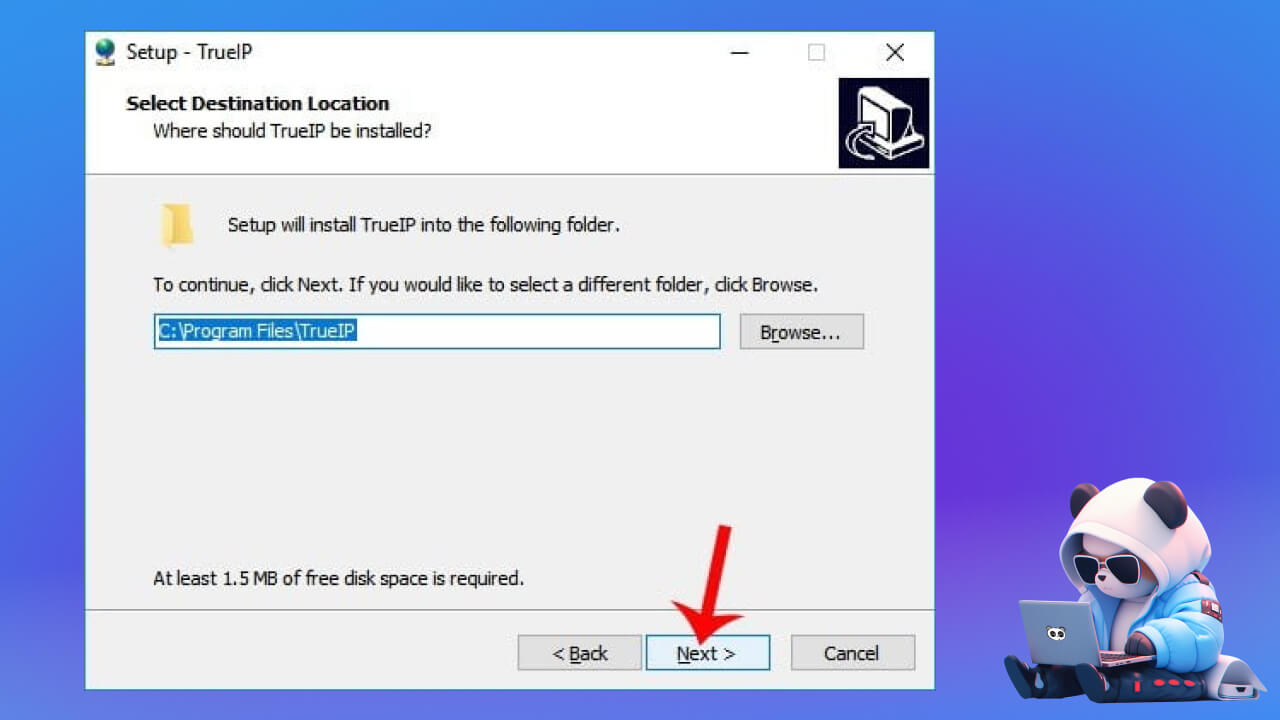
Choose an install location (if needed) or click Next to keep the default.
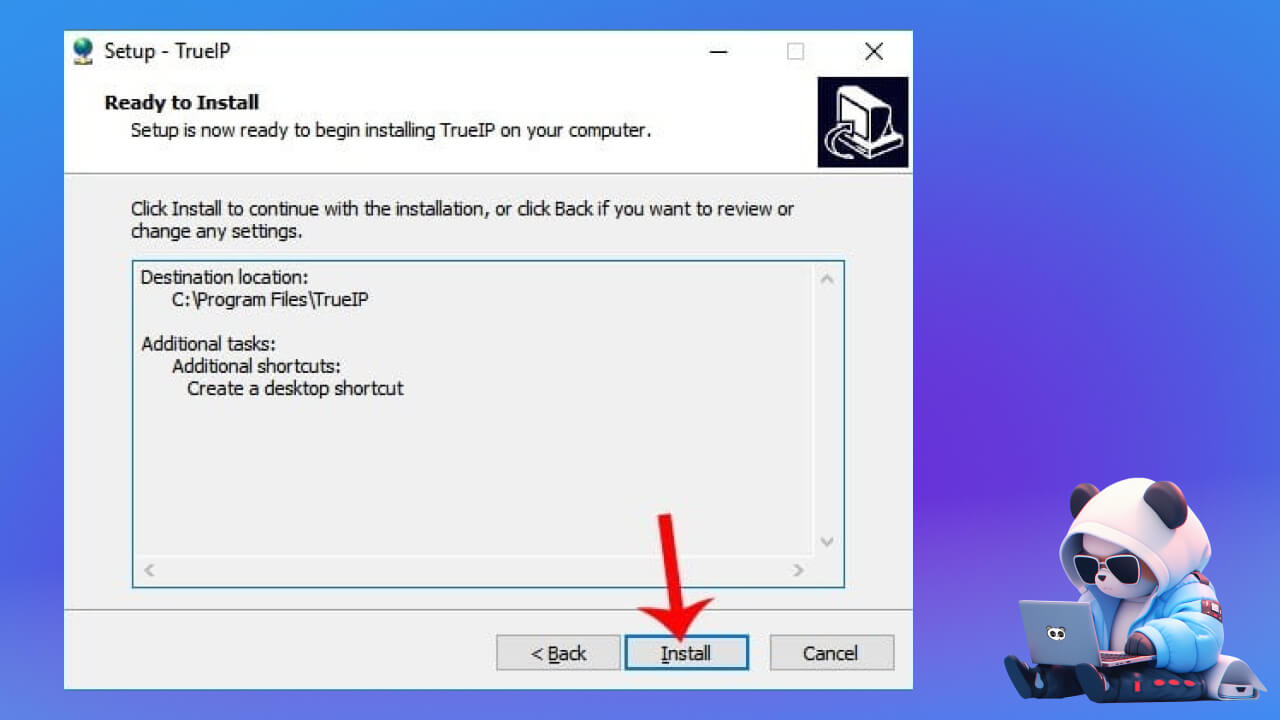
Click Install and wait for the installation to finish.
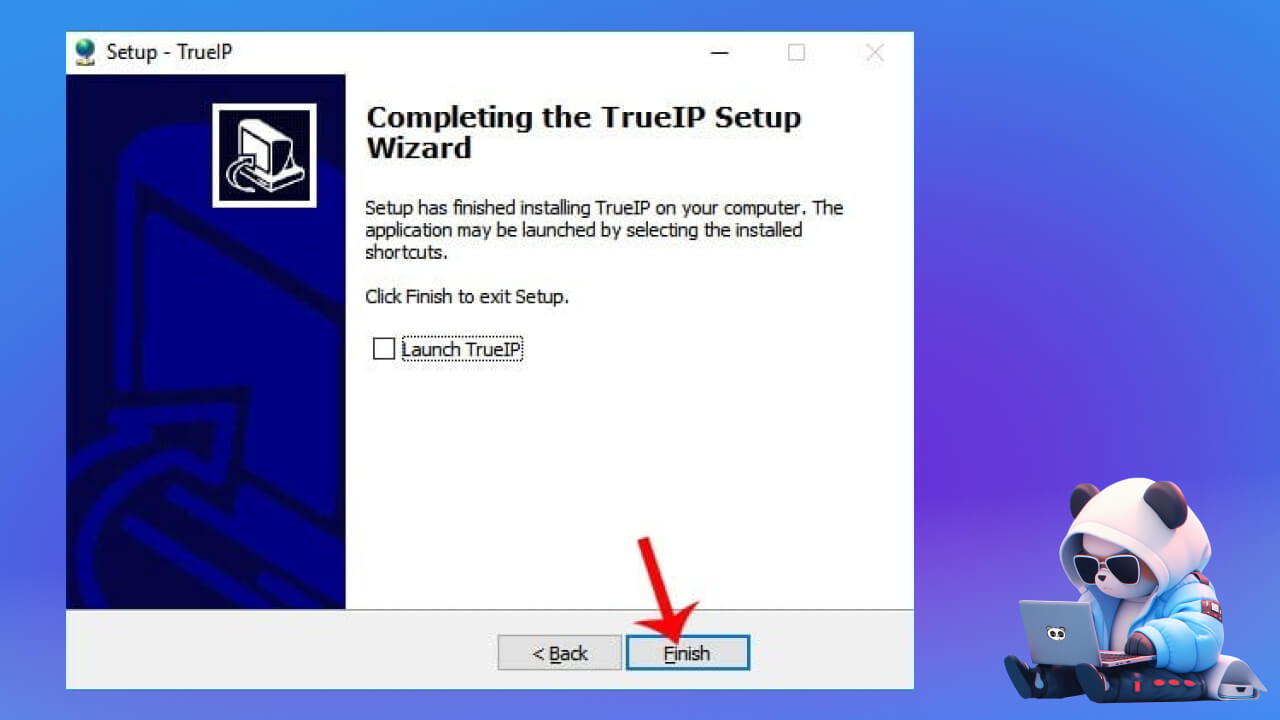
Click Finish to finish the installation.
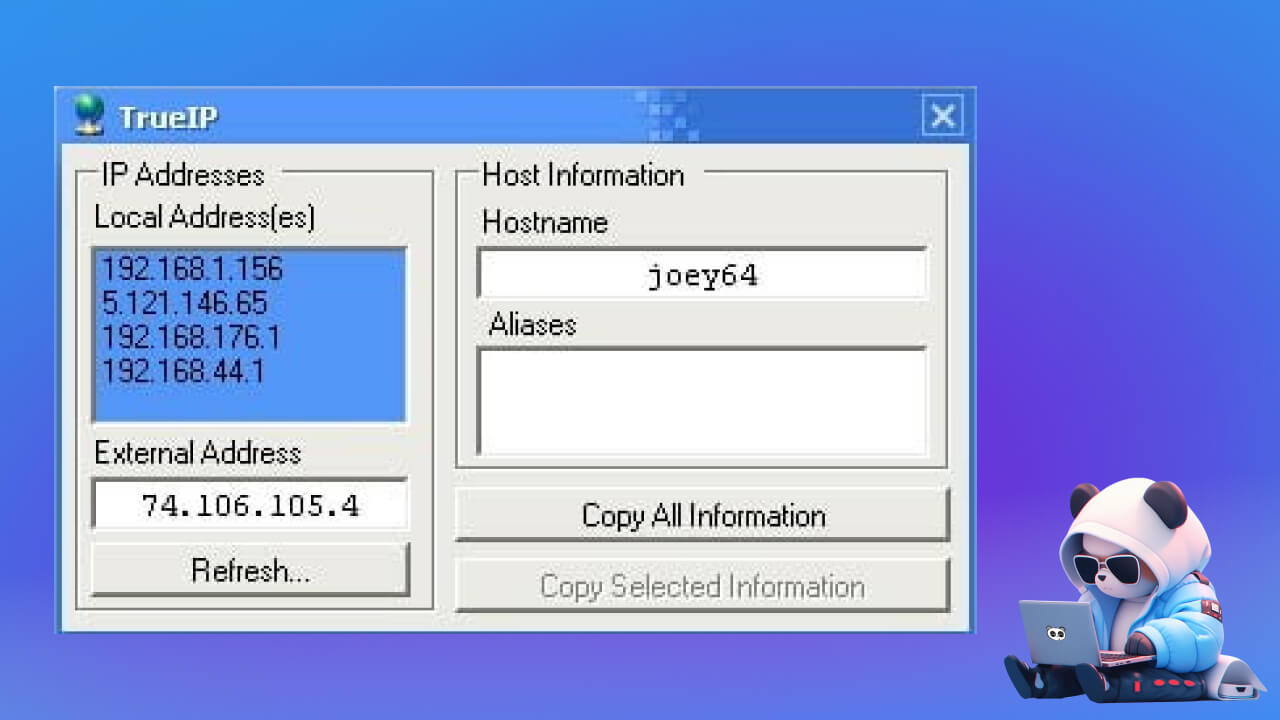
Step 3: Start TrueIP and read the IP details. The window shows the main details:
Step 4: Save or share the IP information
Click Copy All Information to copy all the IP information (Local IP and External IP). You can save or share it whenever you need.
Step 5: Right-click the TrueIP icon on the Taskbar and choose Options.
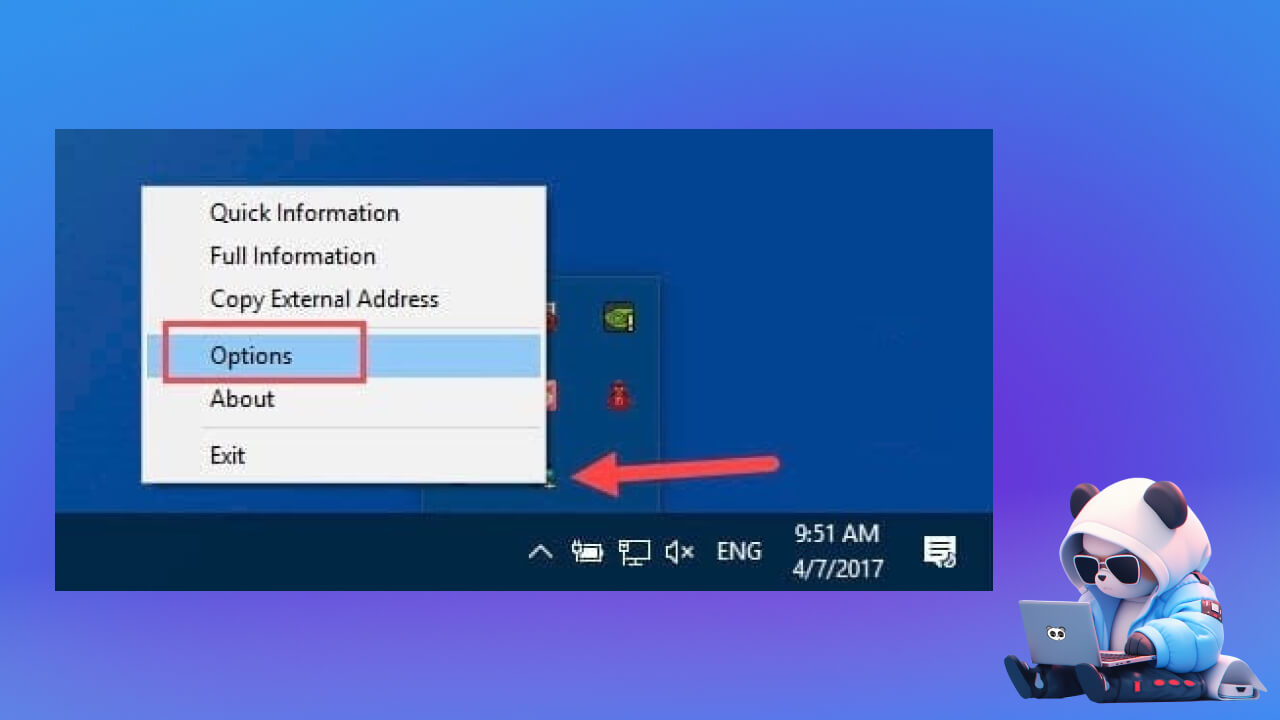
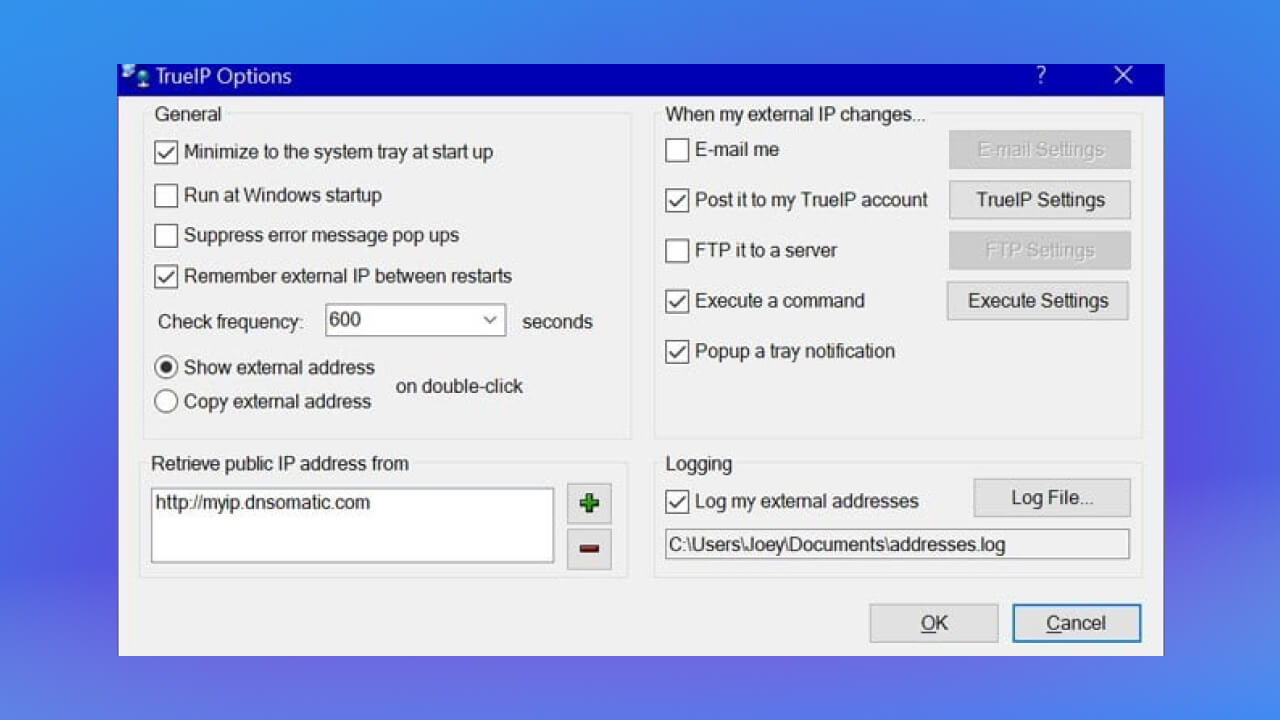
In Options, you can:
TrueIP does more than check your IP address quickly. It also gives you useful features such as IP change notifications and IP history.
Go to an IP lookup site. Reliable options include IP Location, IP Info and IP Stack. On the site's main page, find the Search box or Enter IP Address. Type the IP address you want to locate and press Enter or the Search button.
Common details these services provide:
Things to keep in mind when using IP lookup services:
To find the IP address of another computer on your LAN, follow these steps:
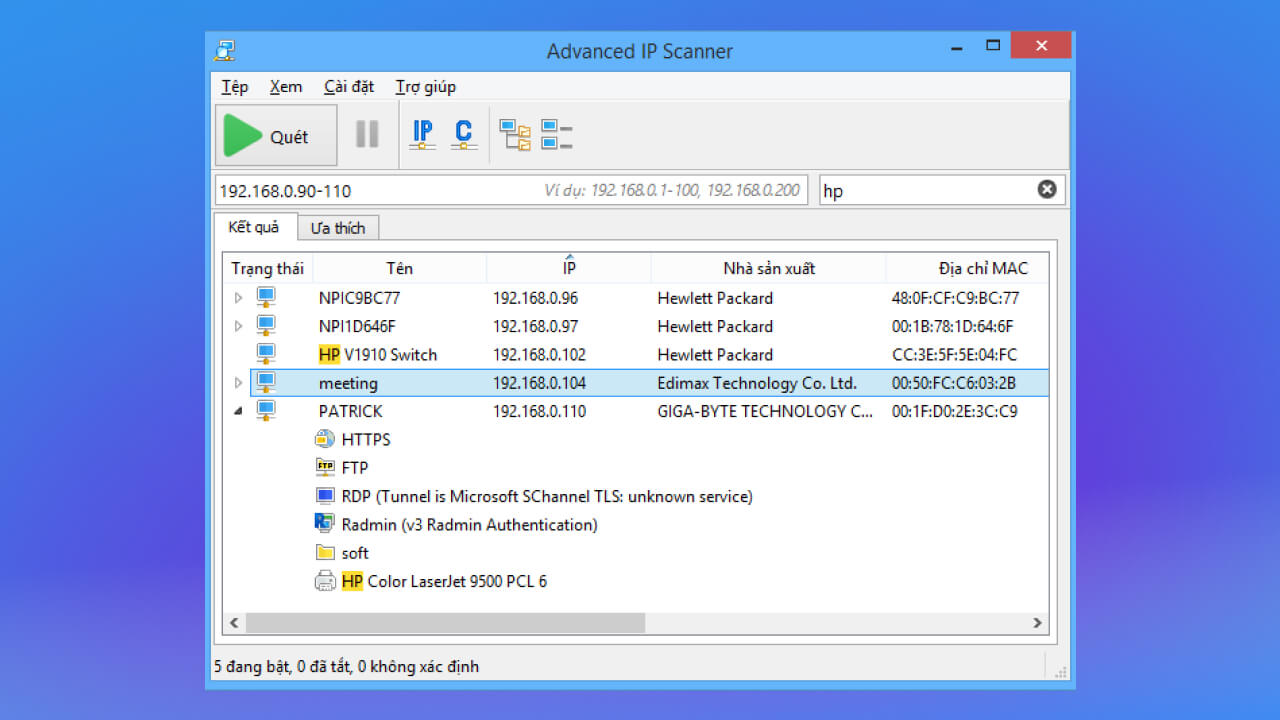
Advanced IP Scanner is a tool that lets you look up IPs on a LAN quickly. Follow these steps.
Step 1: Download the software from the Advanced IP Scanner website.
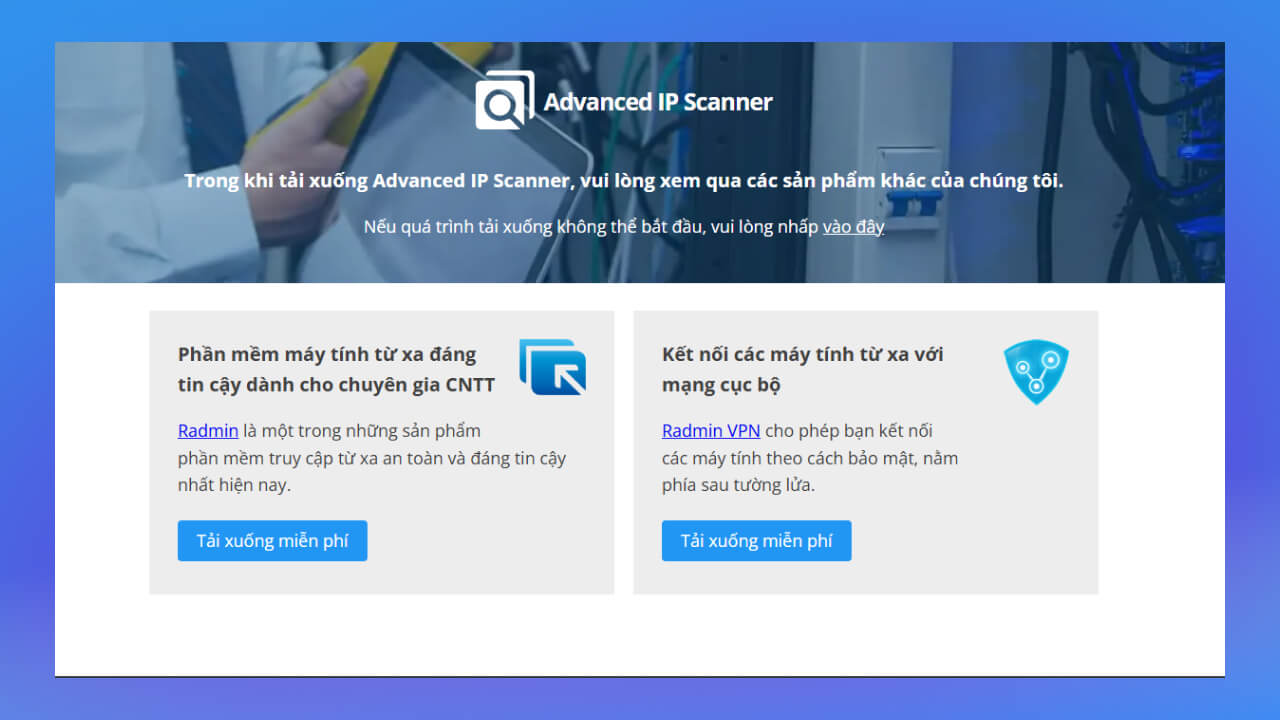
Open the installer and choose English as the language to make it easier to use.
Click Install and then choose Next.
Step 2: Accept the terms and finish the installation
Tick I Accept The Agreement to accept the terms.
Click Install to start installing the software.
When the installation is done, click Finish to open Advanced IP Scanner
Step 3: Scan the IP and MAC addresses on the LAN. On the main screen, click the Scan.
The software scans all devices connected to the same LAN.
Step 4: When the scan finishes, you will see a list of devices on the same LAN, including:
To check the IP addresses of other computers through Home Network, follow the steps below:
Step 1: Switch the network to Home Network. Open Control Panel by pressing Windows + R, type Control Panel, then press Enter.
Select Network and Internet and continue by choosing Network and Sharing Center.
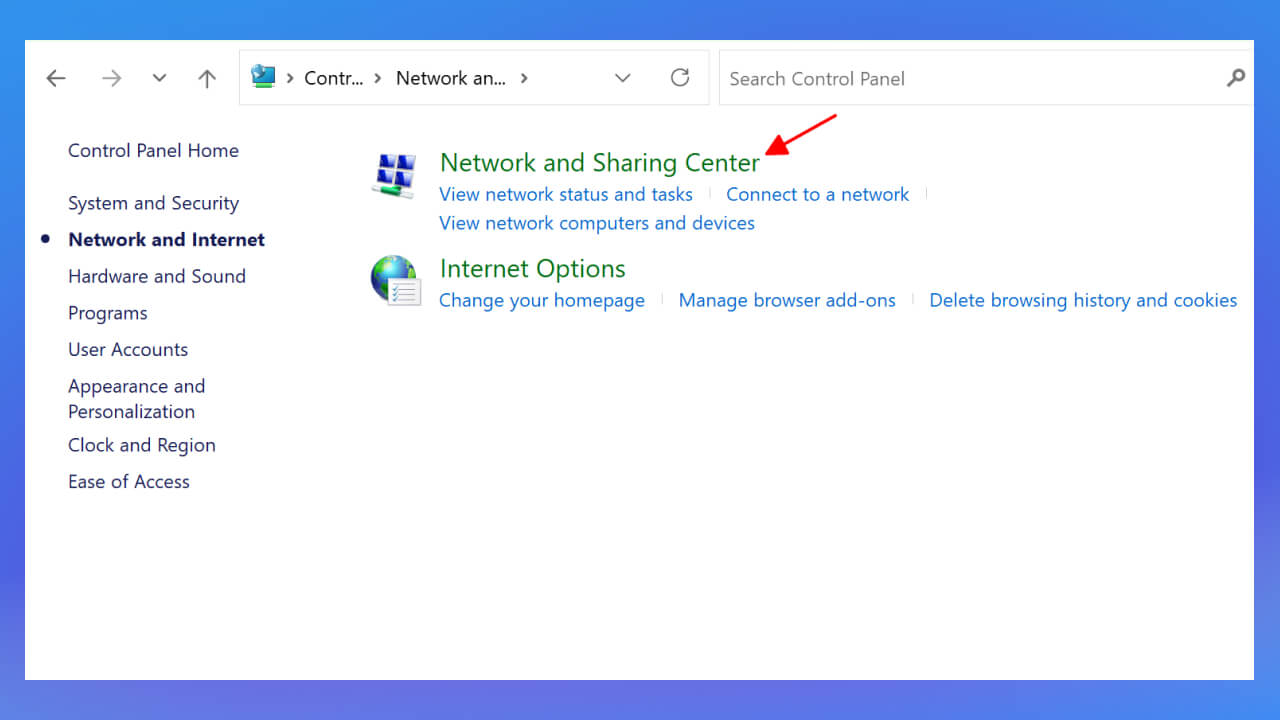
If your network is set to Public Network, you need to switch it to Home Network.
To do this, click Public Network and choose Home Network. Then click Cancel to finish the switch.
Step 2: Open Network and Sharing Center. Next, open Network and Sharing Center again (from Control Panel or by clicking the network icon at the right of the screen).
Step 3: Over Network and Sharing Center, click See Full Map.
The system loads and shows a map of your whole LAN, including the computers and devices connected to it.
Step 4: Once the network map is ready, move the mouse over the computers in the network. You will see each computer's IP address when you hover over it.
You can do the same with any other computer whose IP address you want to check.
Note:
An IP address conflict is a common error on computers, and it can have several causes. To deal with it, follow the steps below.
When an IP address conflict happens, you will see error messages like these:
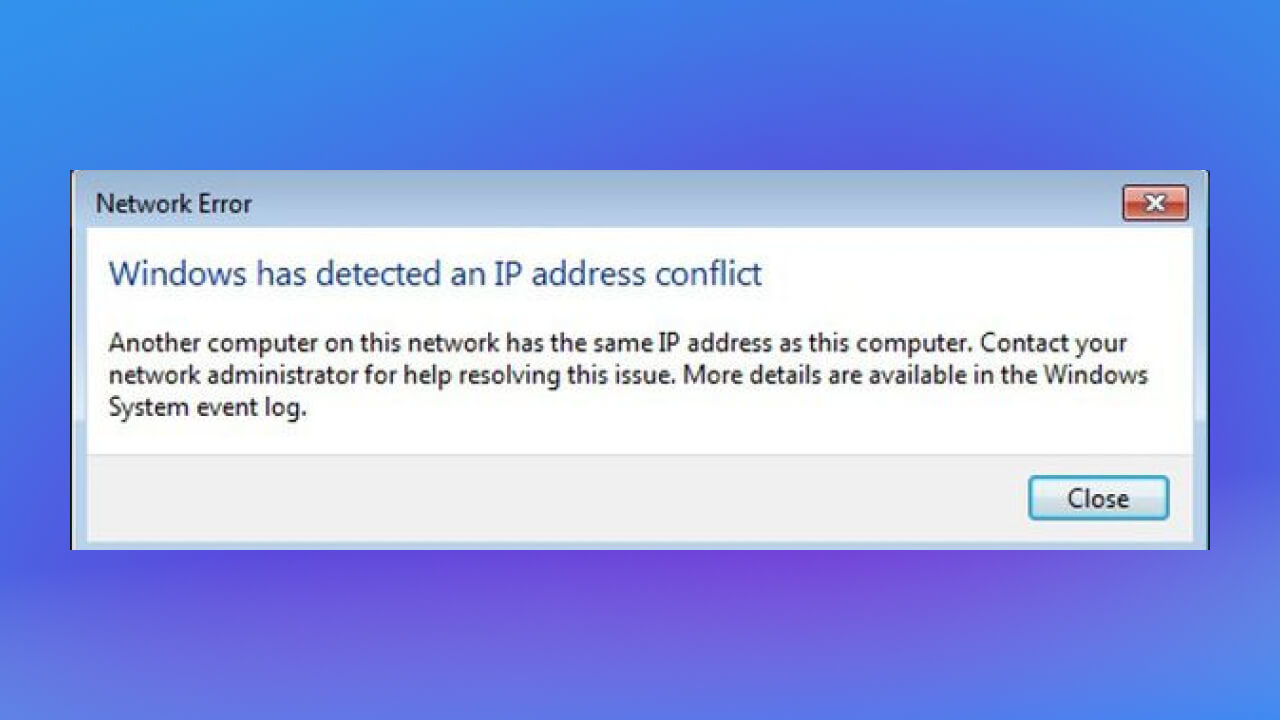
Or you may lose your network connection even though the modem and router are working normally. This usually happens when two devices on the same LAN are given the same IP address.
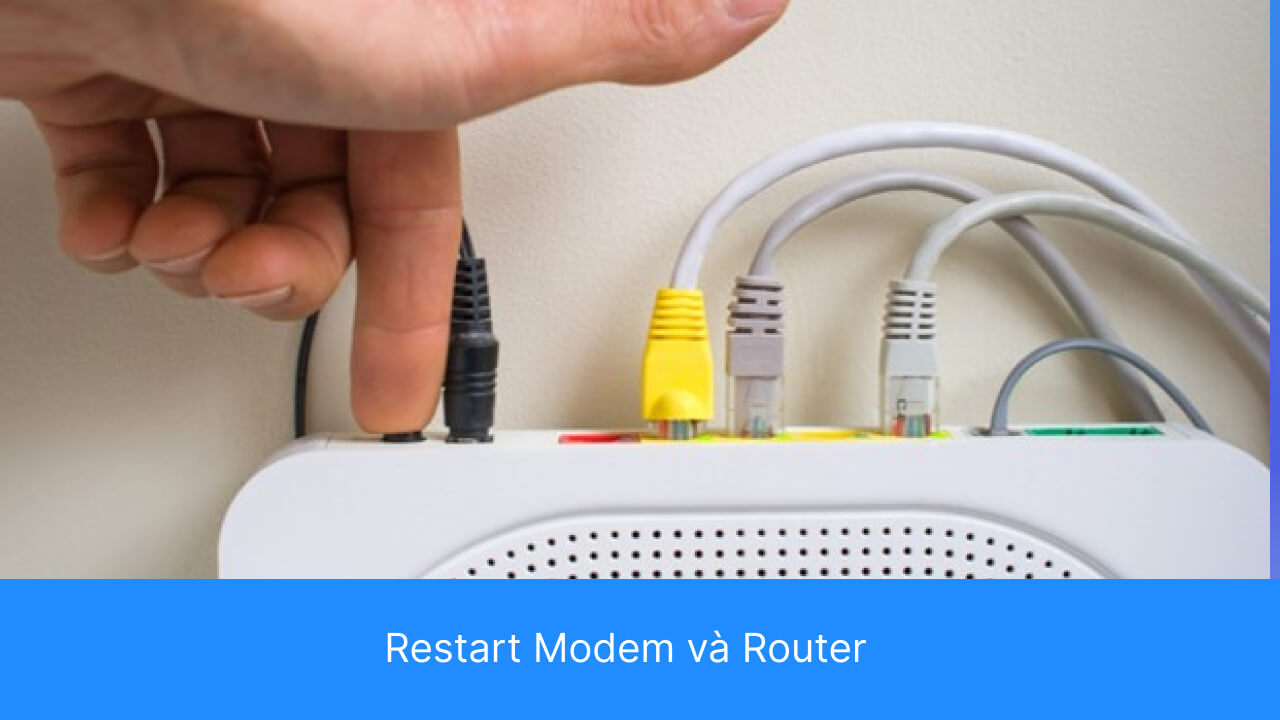
This is a simple but effective way to clear up IP conflicts and keep your network connection stable
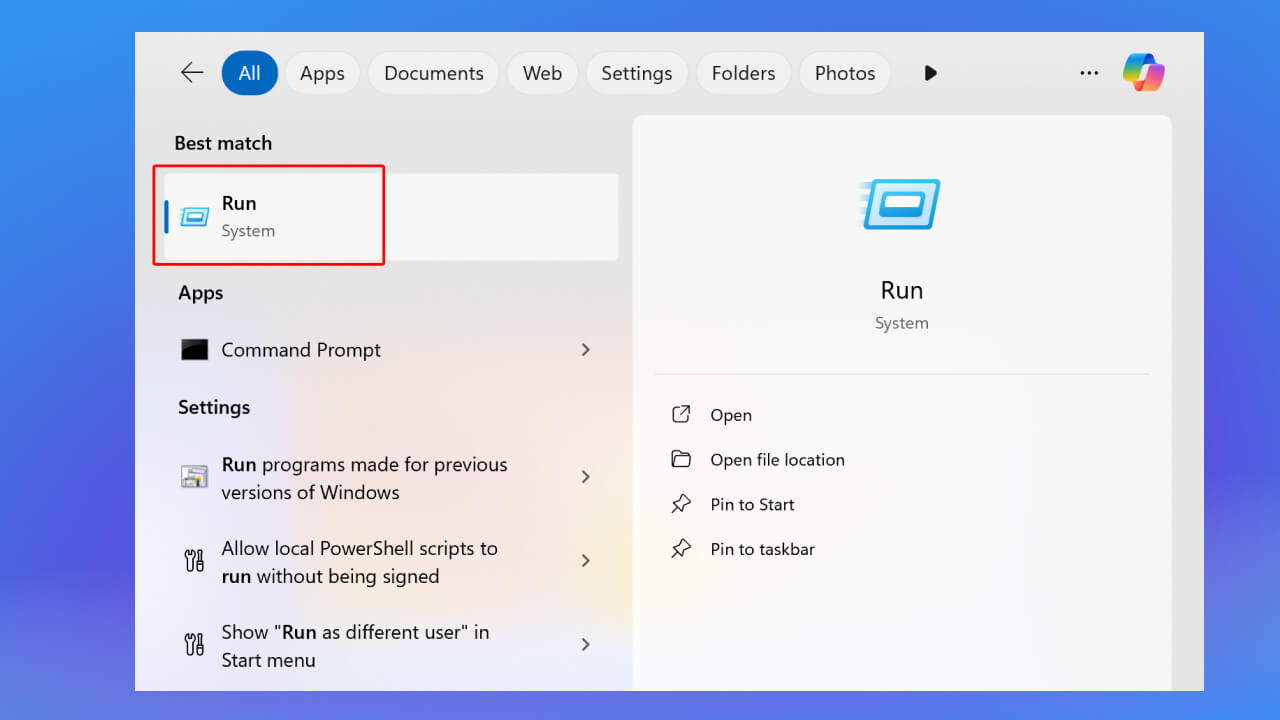
Click Start and type RUN, then open Run.
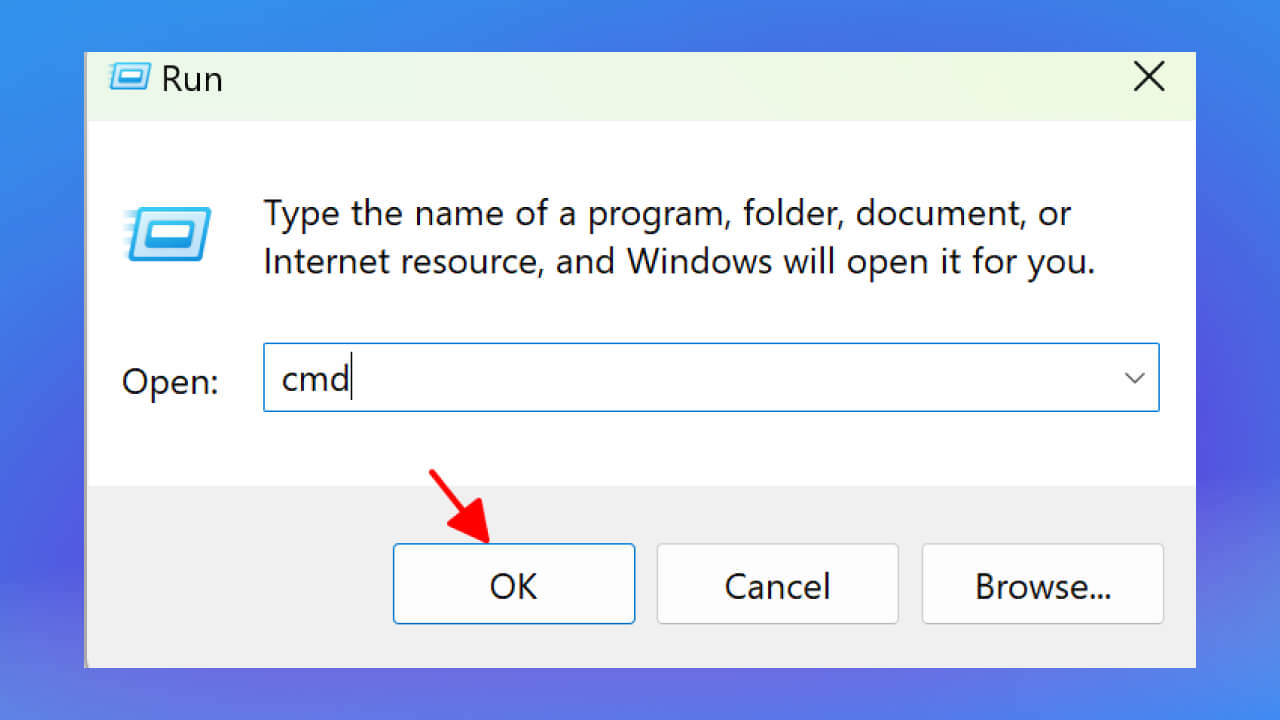
In the Run window, type CMD and press Enter to open Command Prompt.
In the Command Prompt window, enter the following command and press Enter:
ipconfig /release
This command releases your current IP address, and your computer temporarily loses its network connection. If your computer uses a static IP, you may get this error message:
The operation failed as no adapter is in the state permissible for this operation.
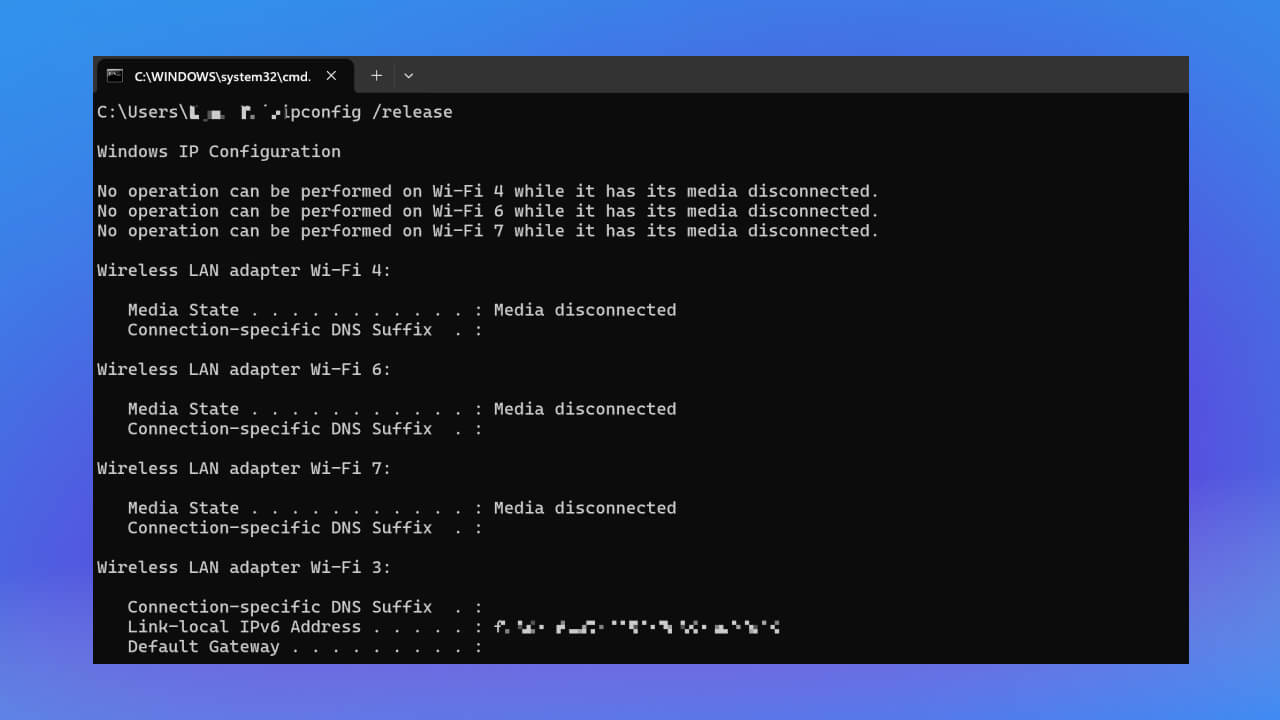
After the old IP address is released, enter the following command to ask the system for a new IP address:
ipconfig /renew
You can ignore this message and move on to the next step. The computer will automatically ask DHCP for a new IP address. The new address appears under the IPv4 Address line in the command output.
When you use a static IP, choosing the address carefully is important to avoid conflicts with other devices on the same network. Below are the detailed steps to configure a static IP, or to let DHCP assign your computer a new IP address automatically:
Step 1: Open Network Settings
Open Control Panel (Control Panel). Choose Network and Sharing Center (Network and Sharing Center). Under Network and Sharing Center, choose Change adapter settings (Change adapter settings).
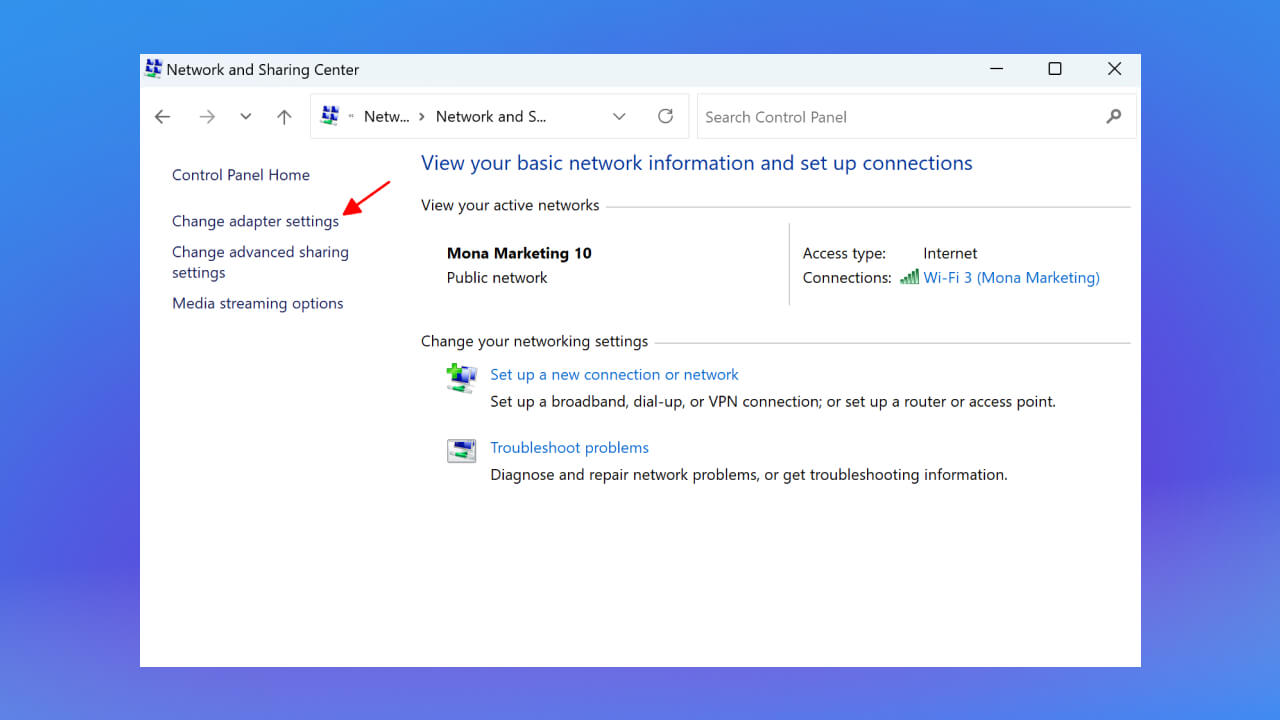
Step 2: Right-click the network connection your computer is using (Wi-Fi or Ethernet). Choose Properties (Properties) from the menu.
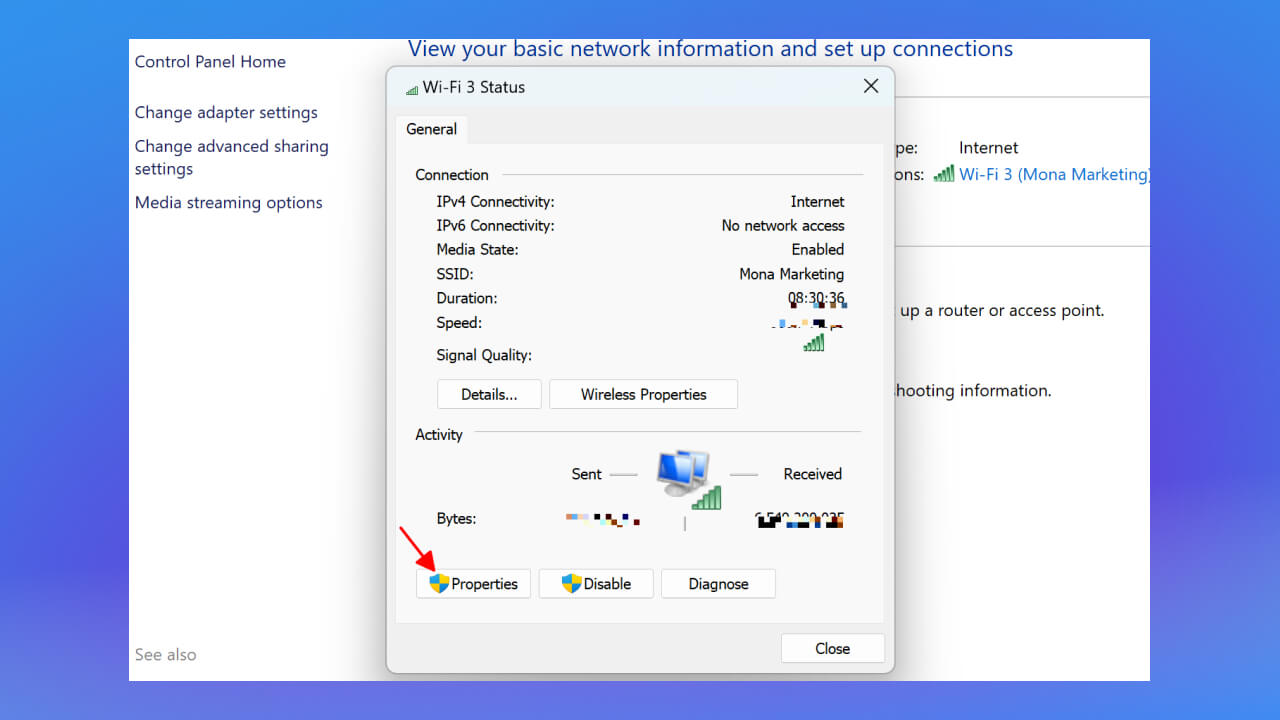
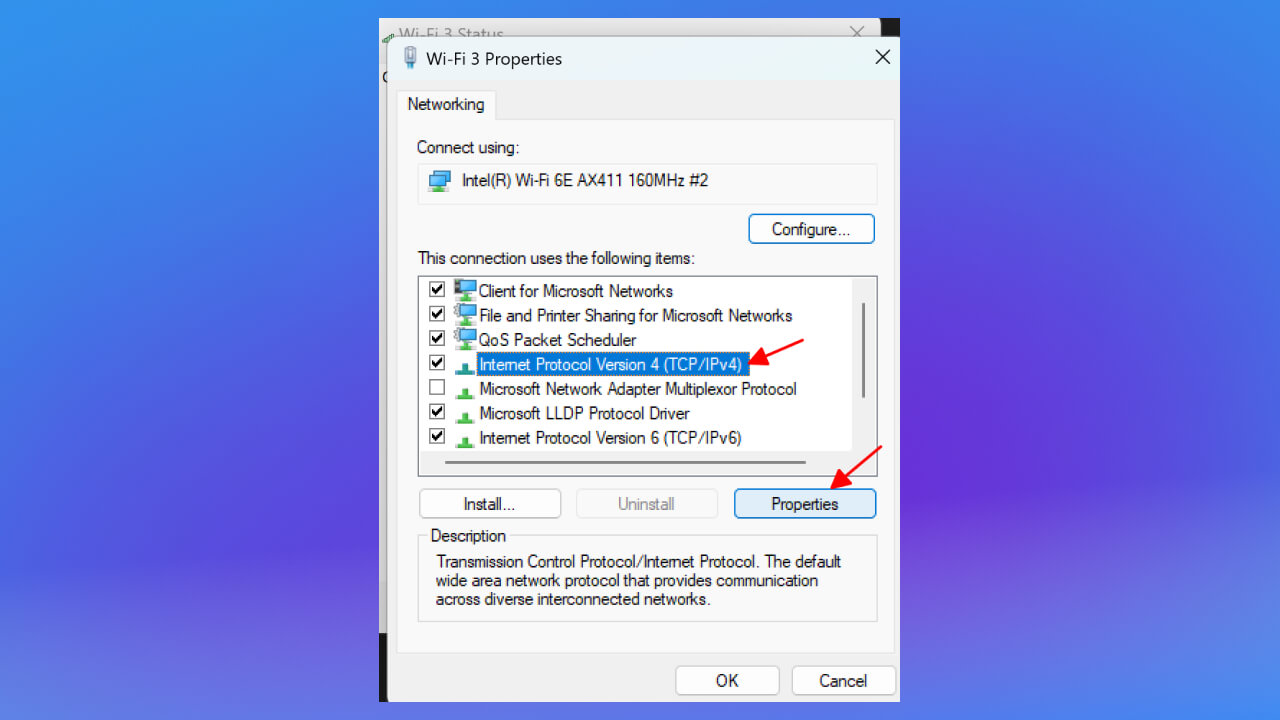
Step 3: In the Properties window, find and choose Internet Protocol Version 4 (TCP/IPv4). Click Properties (Properties).
Step 4: Choose the IP configuration. You have two options:
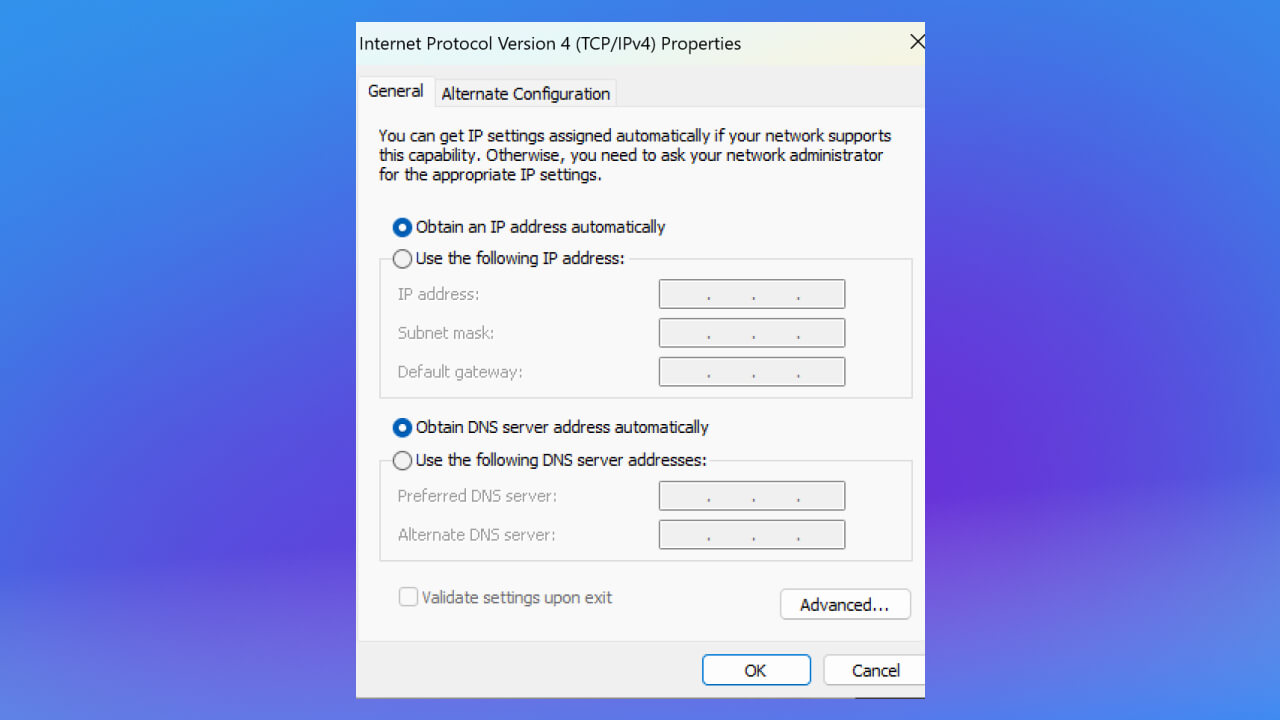
Note on using a static IP: when you set a static IP, choose an address inside your network's address range that no other device uses. To avoid conflicts, you can check which IPs have already been assigned on the network, or let the computer use DHCP to find an unused IP automatically.
To find the country of the IP address behind a website, you can use either of these approaches:
You can change the IP address of a personal device in these ways:
Protecting your IP address and checking for leaks is important for staying safe and private online. To find out whether your device's IP address is leaking, you can use either of these two approaches:
That is everything MONA Media wanted to share about IP addresses. We hope it helps you understand why IP addresses matter. If you have any questions about IP addresses, leave them in the form below and the MONA Media team will answer them for you.

CEO & Founder · The MONA
Founder of The MONA, who built a services company of 200+ staff with 14,000+ projects delivered. Khánh Hùng shares how he thinks about building systems that run themselves, automating a business, and the real lessons from delivering projects at MONA.
 1,6K
1,6K




Professional website
design services
Own a website with a beautiful, 100% exclusive design and a lifetime warranty, with the ability
to expand features flexibly as your business grows, starting today!








 MONA will never sell your information or send you spam
MONA will never sell your information or send you spam
MONA will never sell your information or send you spam


 MONA will never sell your information or send you spam