
 MONA OS 2.0


 Tự động hoá doanh nghiệp
 Cẩm nang SEO
 Digital Marketing
 Kinh nghiệm thiết kế website
 Hạ Tầng Server
 Giáo dục


 VI
VI
 EN
EN














Message us on
Zalo Official


 ProductsNew

 ProductsProducts
 Mới ra mắtKHA AI 2027App tự edit video, tự đăng mọi mạng xã hội, 2 phút mỗi ngày









 Website designLooks good and wins customers over.
SEO servicesBrings in customers searching for exactly what you sell.
Website designLooks good and wins customers over.
SEO servicesBrings in customers searching for exactly what you sell.
 Tư vấn digital marketingKéo khách từ nhiều kênh, đo bằng số thật.
Corporate video productionVideos introducing your company, factory and team.
Tư vấn digital marketingKéo khách từ nhiều kênh, đo bằng số thật.
Corporate video productionVideos introducing your company, factory and team.
 NewAI video productionCompany story films made with AI.
 Custom software developmentCRM, ERP and HRM built for your business.
 Viết AI Agent theo yêu cầuĐặt riêng một trợ lý AI cho đúng việc của mình.
 Tư vấn chuyển đổi AIĐưa AI vào vận hành của cả công ty.
NewMONA LMSManagement for centers and schools.
MONA SkillHubInternal training for company staff.
Tư vấn chuyển đổi AIĐưa AI vào vận hành của cả công ty.
NewMONA LMSManagement for centers and schools.
MONA SkillHubInternal training for company staff.
 NHTQ systemEnd-to-end China–Vietnam shipping operations.
MONA JMSManagement for gold, diamond and pawn shops.
NHTQ systemEnd-to-end China–Vietnam shipping operations.
MONA JMSManagement for gold, diamond and pawn shops.
 MONA E-LearningA website with every feature you need to sell courses.
 How to sell online courses (course)More than 30 free lessons on selling courses on autopilot.
 MONA Cloudmonacloud.vnServers to get your apps and websites running.
 MONA Basemonabase.vnPostgres database, sign-in and file storage.
 MONA Mailmonamail.vnSend OTP, order and invoice emails from your software.
 MONA Paymonapay.vnAccept bank transfers via VietQR and notify your software when the money arrives.
 MONA eInvoiceComing soonIssue e-invoices that meet tax standards.
Gấu CườiTrả lời khách 24/7 trên web, Fanpage, Zalo và thu lead cho sale.
MONA eInvoiceComing soonIssue e-invoices that meet tax standards.
Gấu CườiTrả lời khách 24/7 trên web, Fanpage, Zalo và thu lead cho sale.
 Gấu TeleSalesGọi điện tư vấn, chăm khách như tổng đài viên thật.
Dê CườiTư vấn và chốt đơn cho shop ngay trong khung chat.
Gấu WebmasterNhắn nhóm Zalo là website được sửa xong.
Gấu TeleSalesGọi điện tư vấn, chăm khách như tổng đài viên thật.
Dê CườiTư vấn và chốt đơn cho shop ngay trong khung chat.
Gấu WebmasterNhắn nhóm Zalo là website được sửa xong.
 Gấu Pháp ChếSoạn hợp đồng, rà điều khoản trong vài phút.
 Gấu Báo GiáLên báo giá đúng mẫu và gửi khách ngay.
 AI chăm sóc khách hàngTheo dõi và giữ chân khách hàng cũ.
 Gấu Tuyển DụngLọc hồ sơ, hẹn lịch, phỏng vấn ứng viên.
 Mới ra mắt
KHA AI 2027
Xây kênh chuyên gia 2 phút mỗi ngày
Quay bằng điện thoại, AI tự edit video, tự đăng lên 16 nền tảng và tự trả lời bình luận, tin nhắn.
310.136lượt xem trên kênh CEO MONA sau 17 ngày
Mới ra mắt
KHA AI 2027
Xây kênh chuyên gia 2 phút mỗi ngày
Quay bằng điện thoại, AI tự edit video, tự đăng lên 16 nền tảng và tự trả lời bình luận, tin nhắn.
310.136lượt xem trên kênh CEO MONA sau 17 ngày
 Anh Khánh HùngCEO MONA đang dùng mỗi ngày
Xem app làm được gì
Anh Khánh HùngCEO MONA đang dùng mỗi ngày
Xem app làm được gì
 AI
Gấu Cười MONA ĐANG TỰ XÀITrả lời khách 24/7 trên website, Zalo OA, Messenger và thu lead về cho sale.
Dê CườiChốt đơn bán lẻ và sàn: Shopee, TikTok Shop, web. Chăm cả khách sỉ, đại lý.
Gấu WebmasterCập nhật nội dung, tối ưu SEO website mỗi ngày.
Gấu TeleSalesGọi điện tư vấn, chăm khách như tổng đài viên thật.
Gấu Tuyển DụngLọc hồ sơ, hẹn lịch, phỏng vấn ứng viên tự động.
AI chăm sóc khách hàngGiữ khách cũ, cứu lead đã rớt cho phòng kinh doanh.
Gấu Pháp ChếSoạn hợp đồng, rà điều khoản trong vài phút.
Gấu Báo GiáLên báo giá đúng mẫu, gửi khách ngay khi có yêu cầu.
AI
Gấu Cười MONA ĐANG TỰ XÀITrả lời khách 24/7 trên website, Zalo OA, Messenger và thu lead về cho sale.
Dê CườiChốt đơn bán lẻ và sàn: Shopee, TikTok Shop, web. Chăm cả khách sỉ, đại lý.
Gấu WebmasterCập nhật nội dung, tối ưu SEO website mỗi ngày.
Gấu TeleSalesGọi điện tư vấn, chăm khách như tổng đài viên thật.
Gấu Tuyển DụngLọc hồ sơ, hẹn lịch, phỏng vấn ứng viên tự động.
AI chăm sóc khách hàngGiữ khách cũ, cứu lead đã rớt cho phòng kinh doanh.
Gấu Pháp ChếSoạn hợp đồng, rà điều khoản trong vài phút.
Gấu Báo GiáLên báo giá đúng mẫu, gửi khách ngay khi có yêu cầu.
 Chuyển đổi AI toàn phầnGiải pháp tổng cho doanh nghiệp, 3 lớp triển khai.
 Viết AI Agent theo yêu cầuĐặt riêng một con AI gánh đúng nghiệp vụ của bạn.
 Custom softwareCRM, ERP and HRM with built-in AI automation.
 SEO & AEO thời đại AIĐược Google lẫn AI trích dẫn, không chỉ xếp hạng.
 Kiến thức AI cho doanh nghiệpBài phân tích, hướng dẫn ứng dụng AI vào vận hành.
 Free AI courses
 AI tools at work
App mới · KHA AI 2027
Xây kênh 2 phút mỗi ngày
AI tự edit video, tự đăng mọi mạng xã hội
Free consultation, 8am–10pm every day
AI tools at work
App mới · KHA AI 2027
Xây kênh 2 phút mỗi ngày
AI tự edit video, tự đăng mọi mạng xã hội
Free consultation, 8am–10pm every day

18 March, 2023

Localhost is a term commonly used in computer networking. It is not only the name of a virtual server but also its domain name. Like .example, .test and .invalid, .localhost is a top-level domain reserved for documentation and testing. When you visit it, the request is handled internally with no internet connection needed. That lets you test and develop web applications or network services offline. To understand what localhost is and what it can do, let's MONA explore it in this article.
In networking, localhost means “the computer,” or more precisely “your computer.” It is a familiar term for people in IT, network administration and programming. Localhost is used to reach network services running on the same machine through a loopback interface, without using any physical network port. This lets the computer act as a virtual network inside itself.

Localhost can be seen as an internal web server made up of components such as Apache, MySQL, PHP, and phpMyAdmin. All of them are installed and run on your computer's hard drive, creating a test environment for development and learning without any online hosting. The advantage of localhost is that you can install and test websites directly on your computer, which makes working with data faster and removes the connection drops that come with web hosting. Because the site is stored on your computer, only you can open and view what is on localhost. No one else can.
The IP address 127.0.0.1 is a loopback address, a special an IP address reserved for testing and development. It guarantees that any network request sent to this address stays inside the local machine. The loopback range covers all IP addresses from 127.0.0.0 to 127.255.255.255, of which 127.0.0.1 is the most commonly used.

Although 127.0.0.1 and localhost are often used interchangeably, there are some small differences.
|
127.0.0.1 |
Localhost |
|
|
The concept of |
A specific Class A IP address known as the loopback address. It refers to the computer you are using. |
A hostname the operating system maps to the IP address 127.0.0.1. It is used to refer to the local machine in a way that is easier to remember. |
|
Customization |
Cannot be customized, because it is a fixed, preassigned IP address. |
Can be customized in the system configuration file to map to a different IP address. |
|
Use and access |
Used when you need to specify an exact IP address |
Used when you want an easy-to-remember way to refer to the local machine |
When you type localhost into a web browser or connect to a network service on your computer, the operating system recognizes the keyword “localhost” and translates it to the IP address 127.0.0.1 (on IPv4) or ::1 (on IPv6).

The operating system does not send the request out through network interfaces such as Wi-Fi or Ethernet. It routes the request inside the system. Your own computer handles it directly, through the software and services running on it.
Services such as web servers (Apache, Nginx), database servers (MySQL, PostgreSQL) or any network application running on your computer listen for requests coming from 127.0.0.1 or localhost. The result is sent back to the browser and shown on your screen.
For example: when you type “http://localhost/index.php” into the browser, it sends a request to the Apache web server running on your computer. Apache finds the file index.php and shows its content in the browser.
One important point: with localhost, data never has to cross any physical network outside the computer. That reduces latency, speeds up processing and keeps things secure, because the data never leaves your machine.
As mentioned above, localhost is a webserver, which runs for free on the same computer that holds your WordPress. Inside localhost are many different applications, which are in effect the programming languages used to build websites. Some basic ones in localhost are:

Because localhost is used to run and test websites you build offline on your own computer, using the software above makes these tasks much simpler.
Here are some key features of localhost:

Localhost needs more than just the programming languages to work. To make it run you also need some software. If you have looked into it, you may have seen names like XAMPP, Wamp and AppServ mentioned often on forums.
In practice these are very important programs: put simply, localhost runs thanks to this software. All three work in much the same way, but XAMPP is used by far the most people.
The reason is that it is the easiest to use, completely free, and runs stably on all operating systems, including Windows, macOS and Linux.
To avoid mistakes that can stop localhost from working, keep a few basics in mind:

Some programming applications similar to MySQL or PHP can stop the system from updating localhost.
Also, if your computer already has a web server service like localhost, or IIS installed, installing localhost through XAMPP or Wamp will be disabled. In particular, if you use Skype, switch to another app and uninstall Skype before installing localhost, because Skype uses port 80 and will conflict with localhost during setup and cause errors.
In addition, while IIS can take over port 80, VMware can conflict with a localhost install on port 443. So before installing, make sure none of this software is occupying these ports.
To fix this, remove any similar local software. For port conflicts, move those programs to other ports, or uninstall them and reinstall after localhost is set up.
A web application or antivirus programs are great. But they can block localhost on some ports. Disable them before installing, and turn them back on once installation is finished.
On Windows computers you also need to turn off UAC (User Account Control). It limits the permissions of the localhost installation.
XAMPP is a popular program for creating a web server on operating systems such as Linux, macOS and Windows. The name XAMPP combines five bundled components: Cross-Platform (X), Apache (A), MariaDB (M), PHP (P) and Perl (P).
To install localhost with XAMPP, follow these steps:
Step 1: Download XAMPP, choosing the version that matches your operating system, 32-bit or 64-bit.
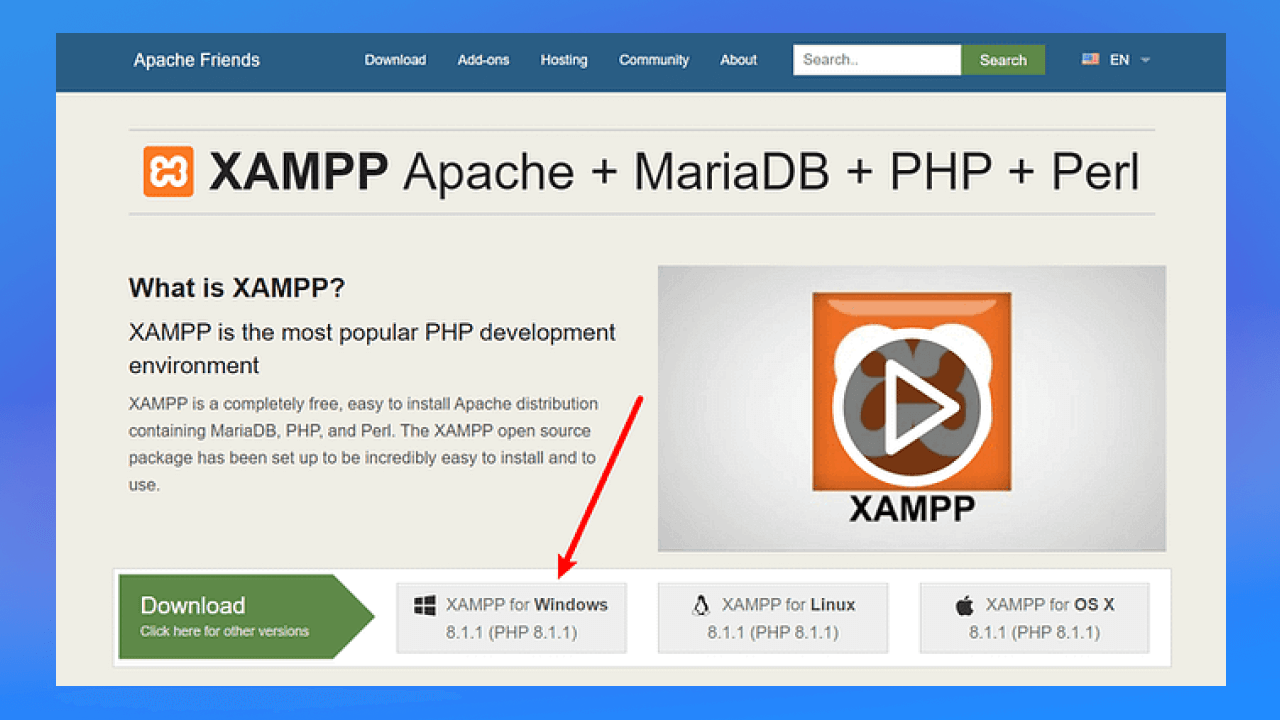
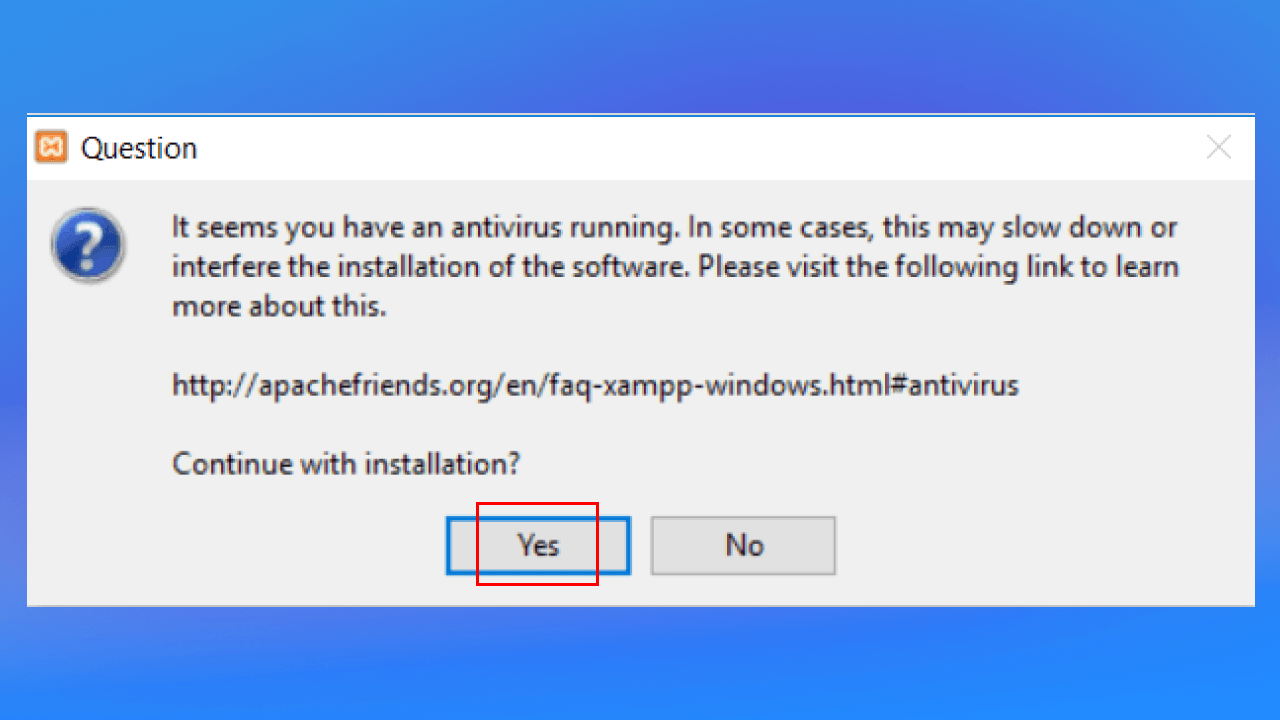
When the download finishes, run the file to start the XAMPP installer. If antivirus software is on, you may see a notice like the one shown. Just choose Yes to continue the installation.
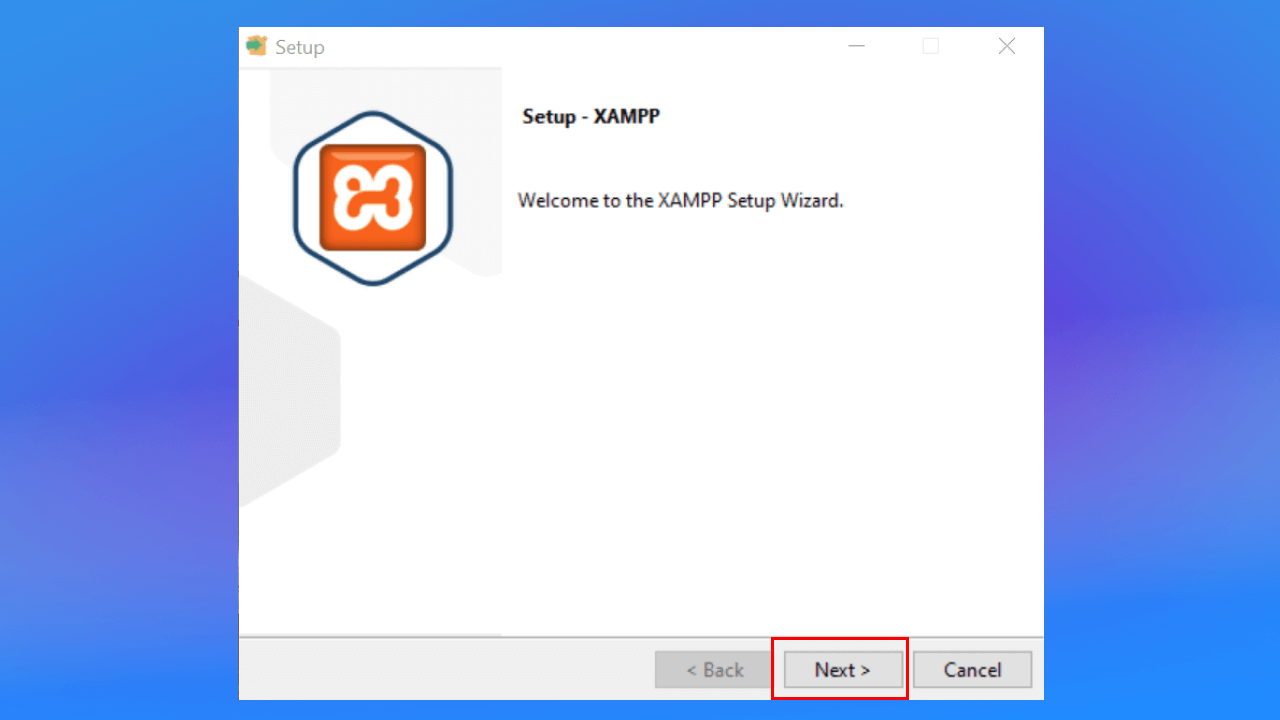
Step 2: Open the file you downloaded. On the setup screen, click Next to continue installing.
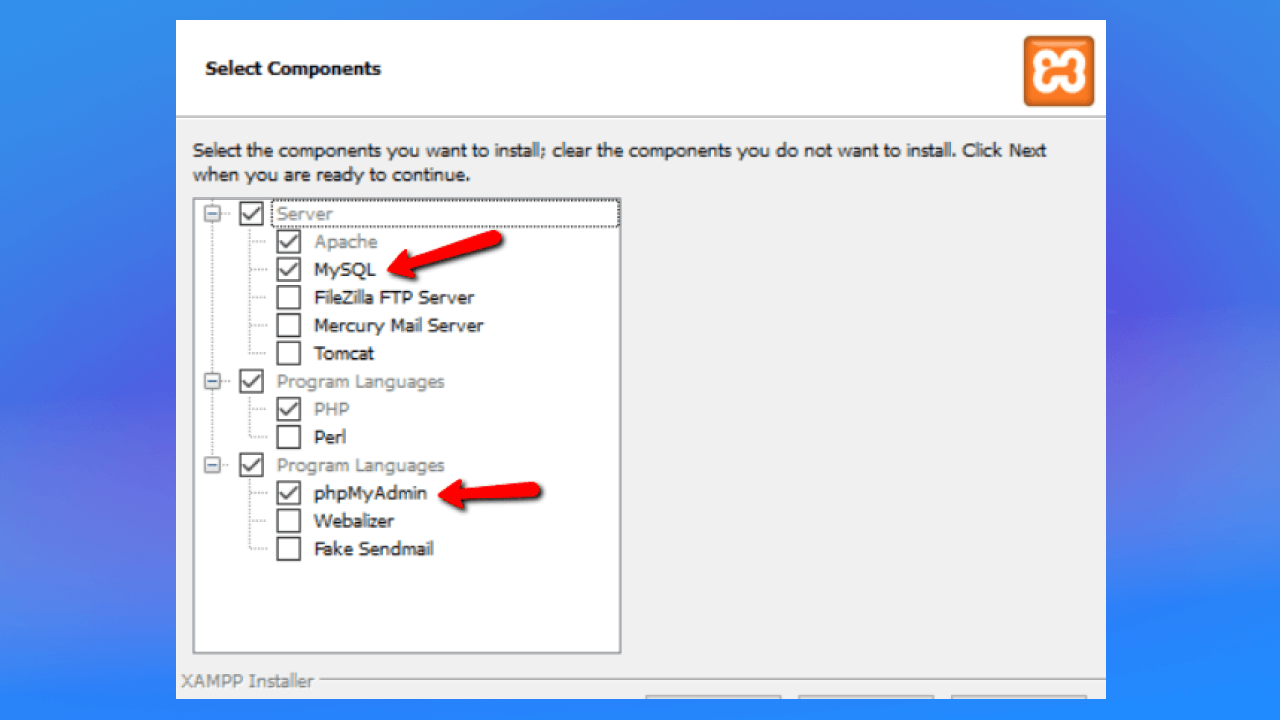
Step 3: On the XAMPP screen, enable the components you want to install, such as Apache, MySQL, FileZilla, PHPMyAdmin… by ticking the box next to each and choosing Next.
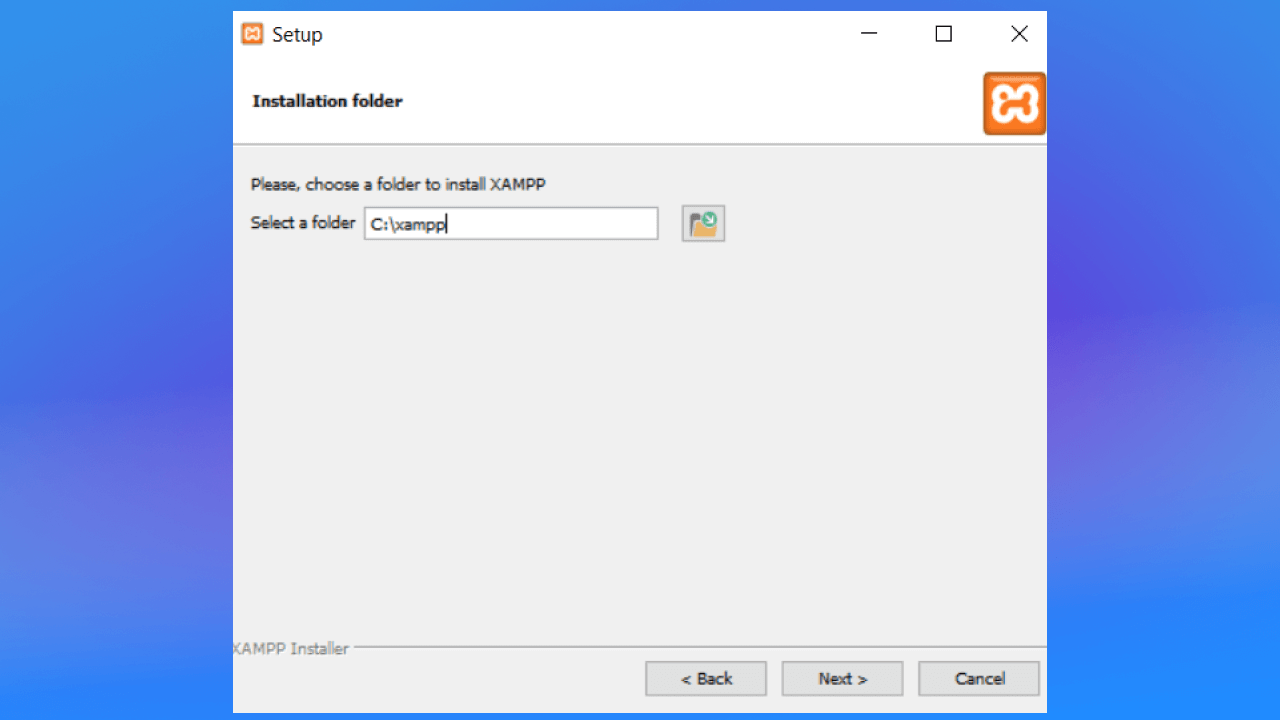
Step 4: On the XAMPP install screen, keep the suggested install path C:xampp. Then choose Next to continue the installation.
In the next step, pick your preferred language, then choose Next to run the installation.
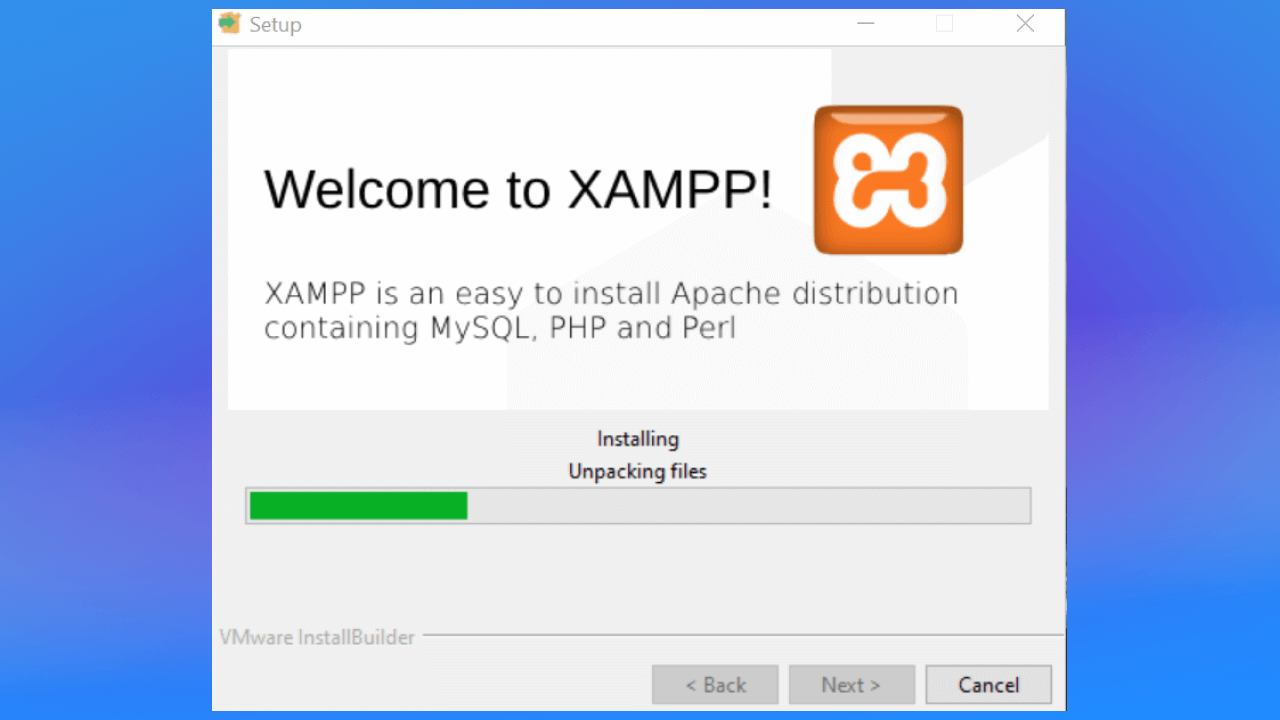
Installation may take a few minutes, then choose Finish to finish the installation.
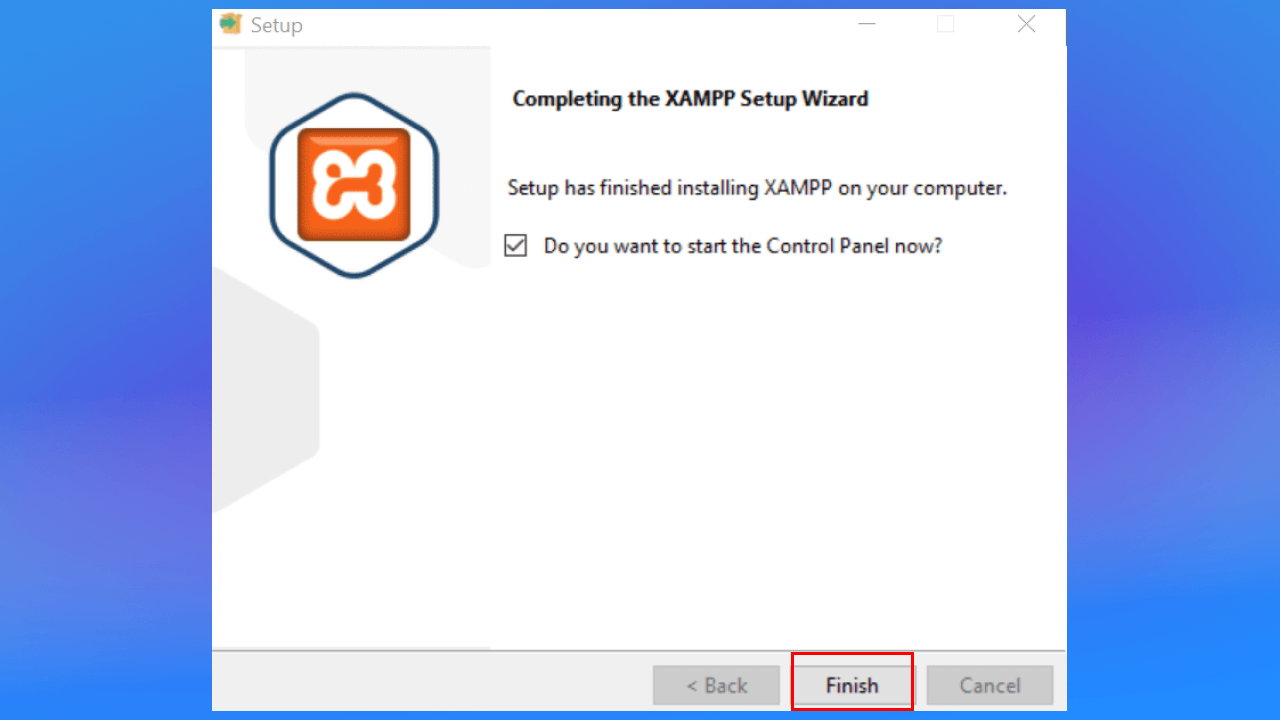
Step 5: When setup finishes, start the modules from the XAMPP control panel to check your server.
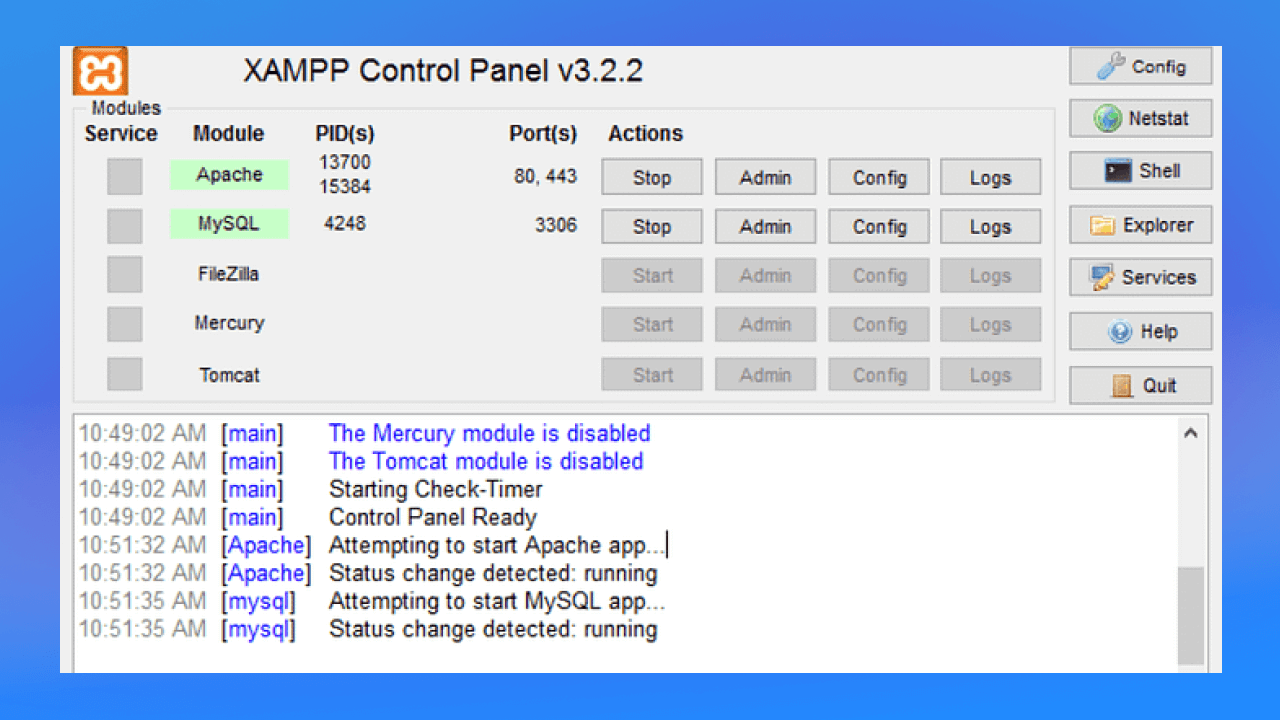
To set up XAMPP you need to run 2 modules: Apache and MySQL
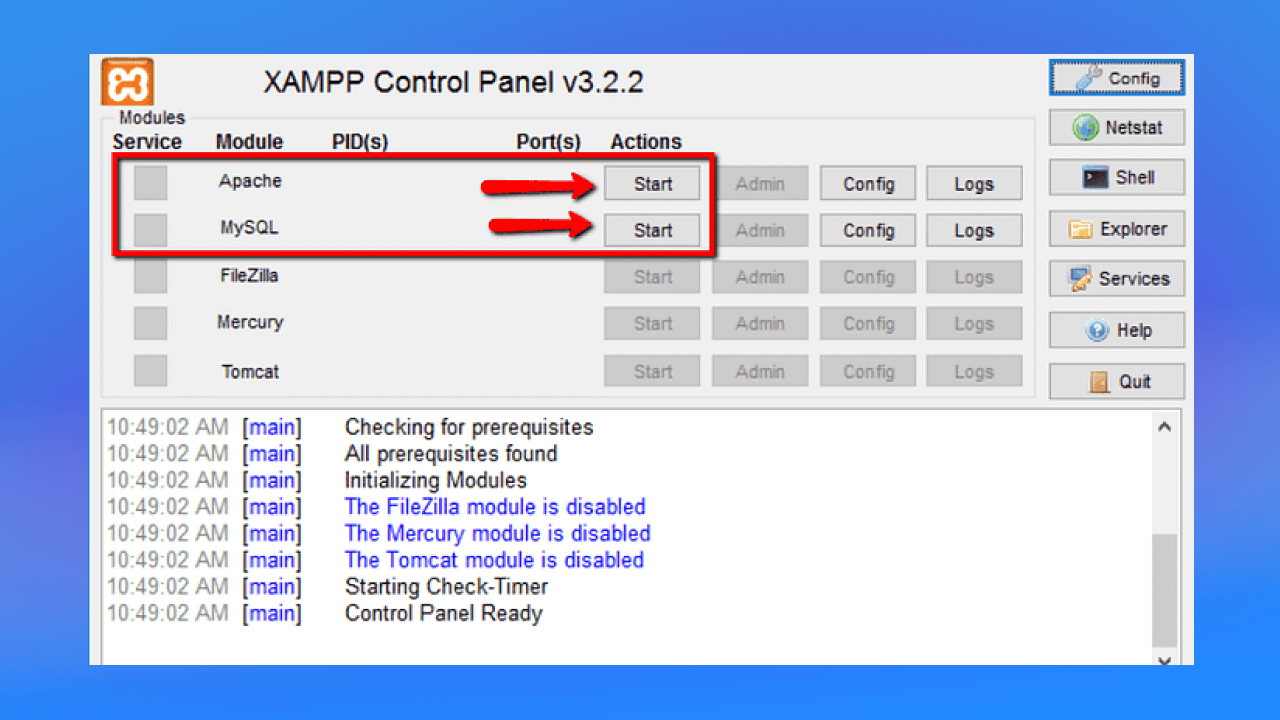
When they start successfully, both modules turn green, as shown below.
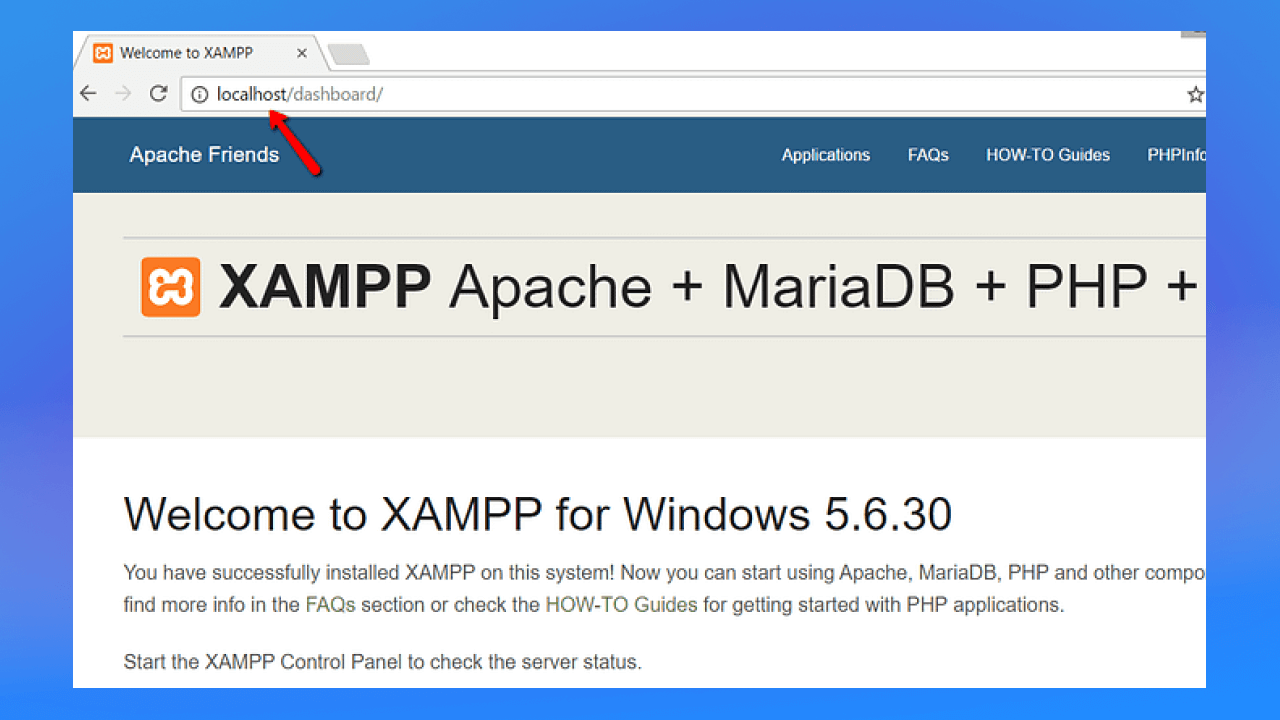
Step 6: Open a browser such as Chrome or Firefox and enter the IP address http://localhost or http://127.0.0.1. If the page displays normally, localhost is installed.
Wampserver stands for Windows – Apache – MySQL – PHP. Like XAMPP, Wampserver is another program for creating localhost on Windows.
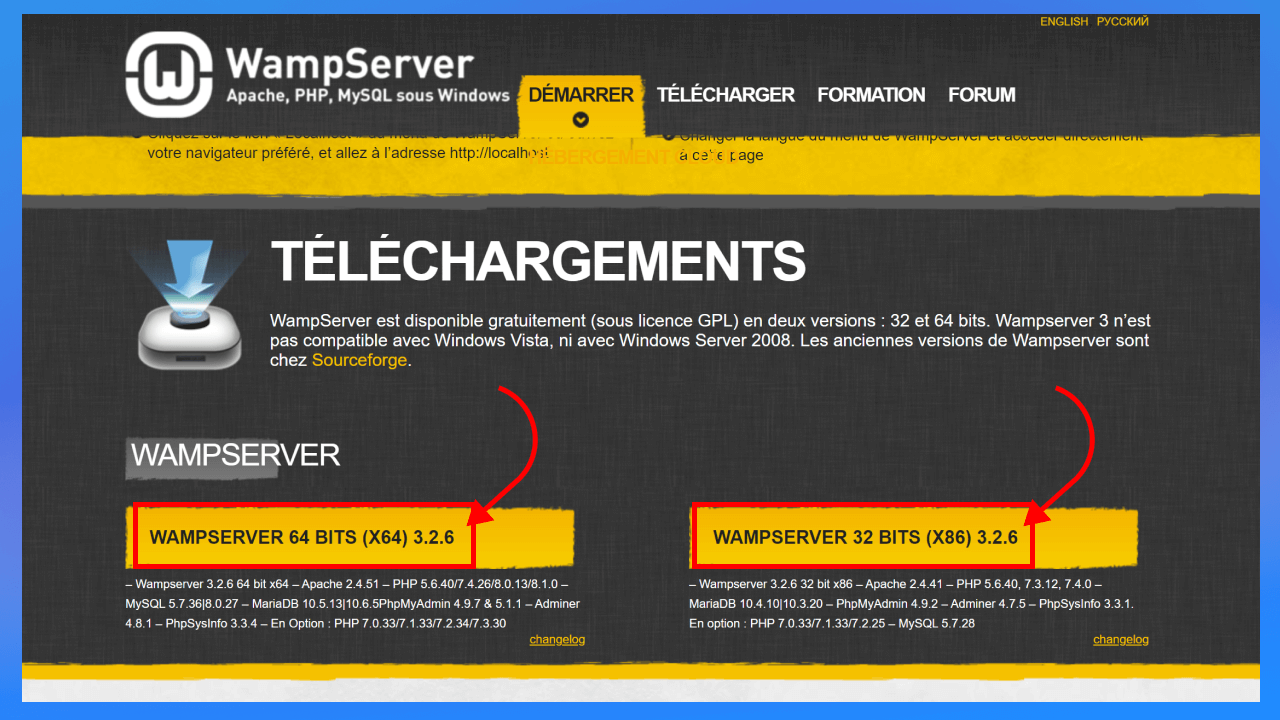
Step 1: Download the 32-bit or 64-bit Wampserver that fits your machine, unzip it and start the program.
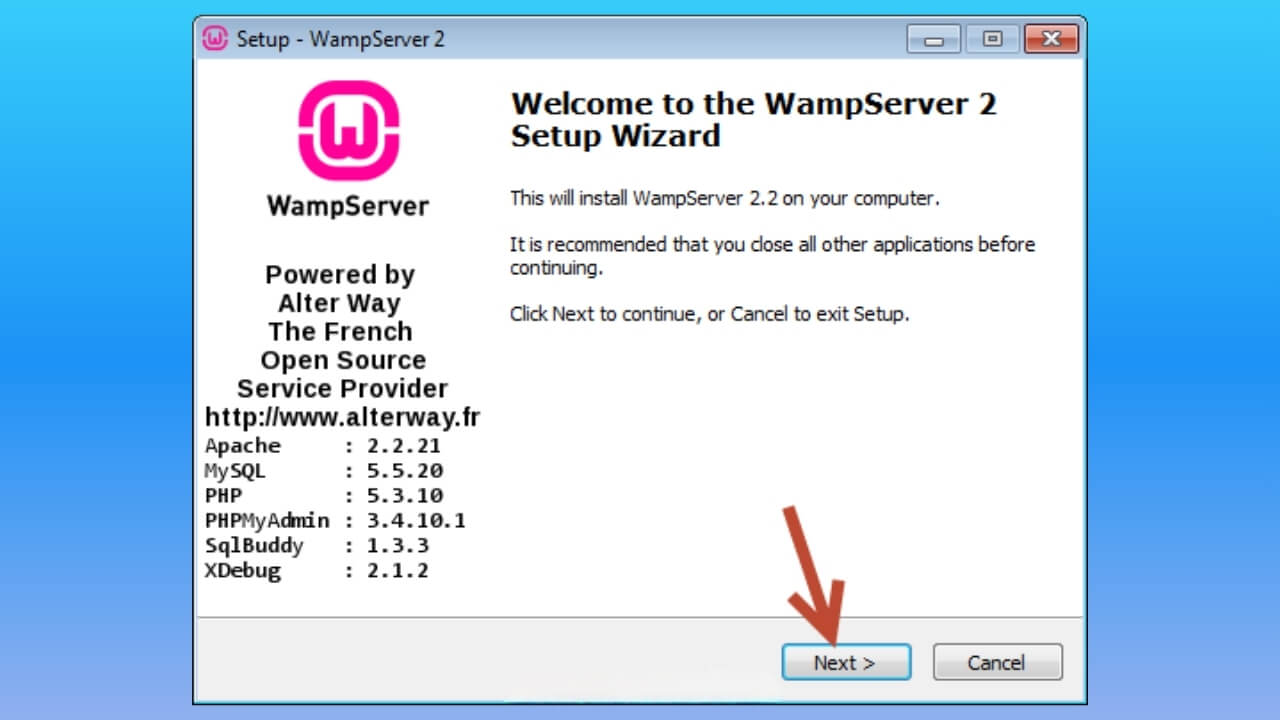
Next, choose Next
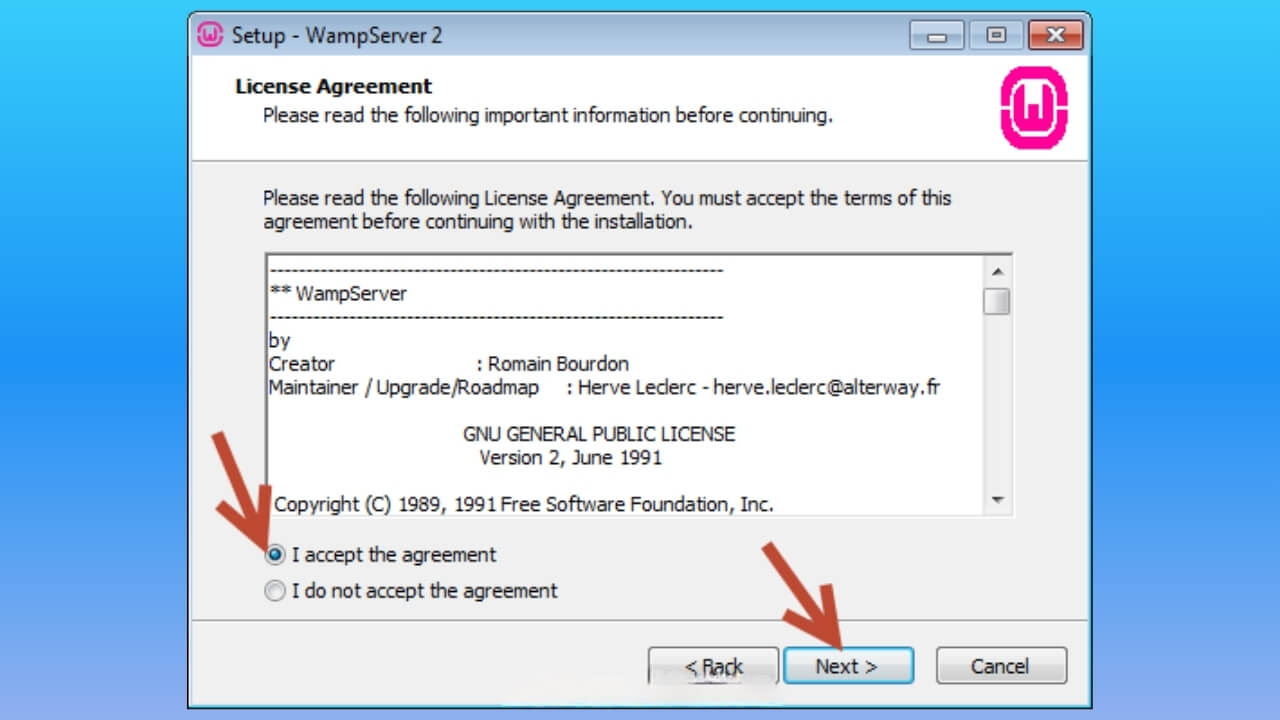
Step 2: At License Agreement, tick I accept the agreement and choose Next
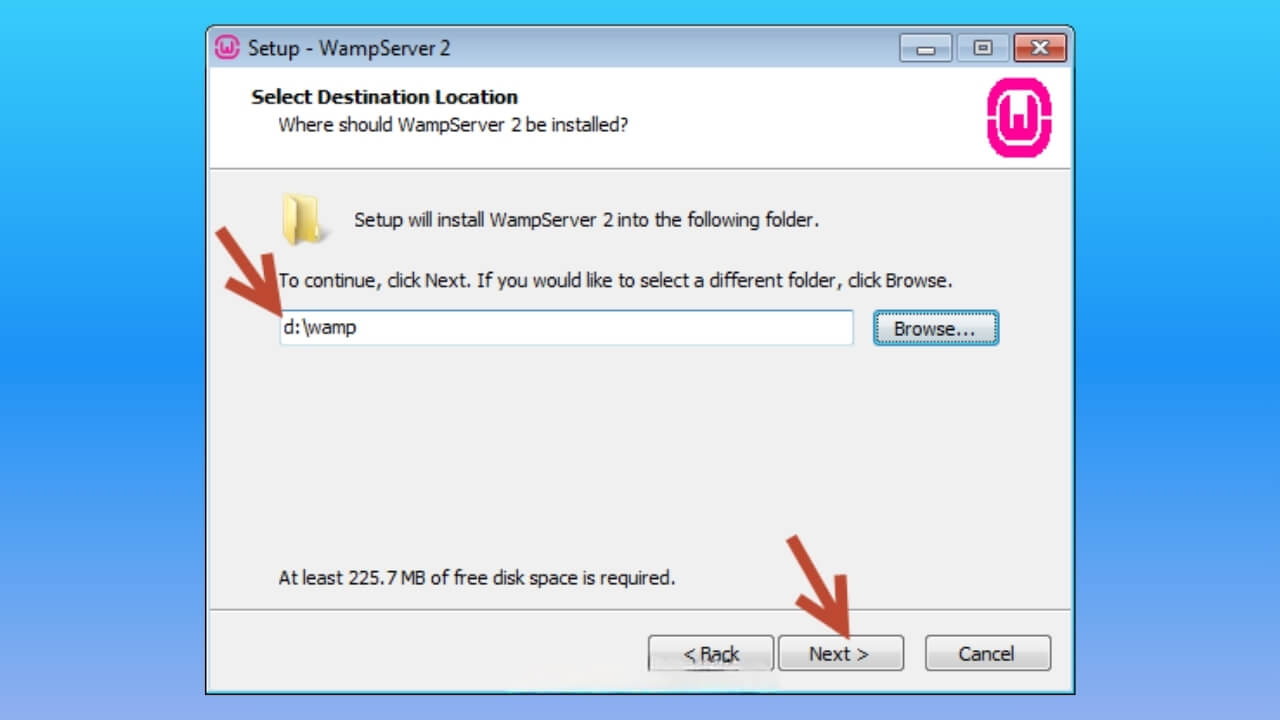
Step 3: In the next step, choose where to install Wampserver. Then choose Next.
Step 4: On the Select Additional Tasks screen, tick Create a Quick Launch icon and Create a Desktop icon then select Next
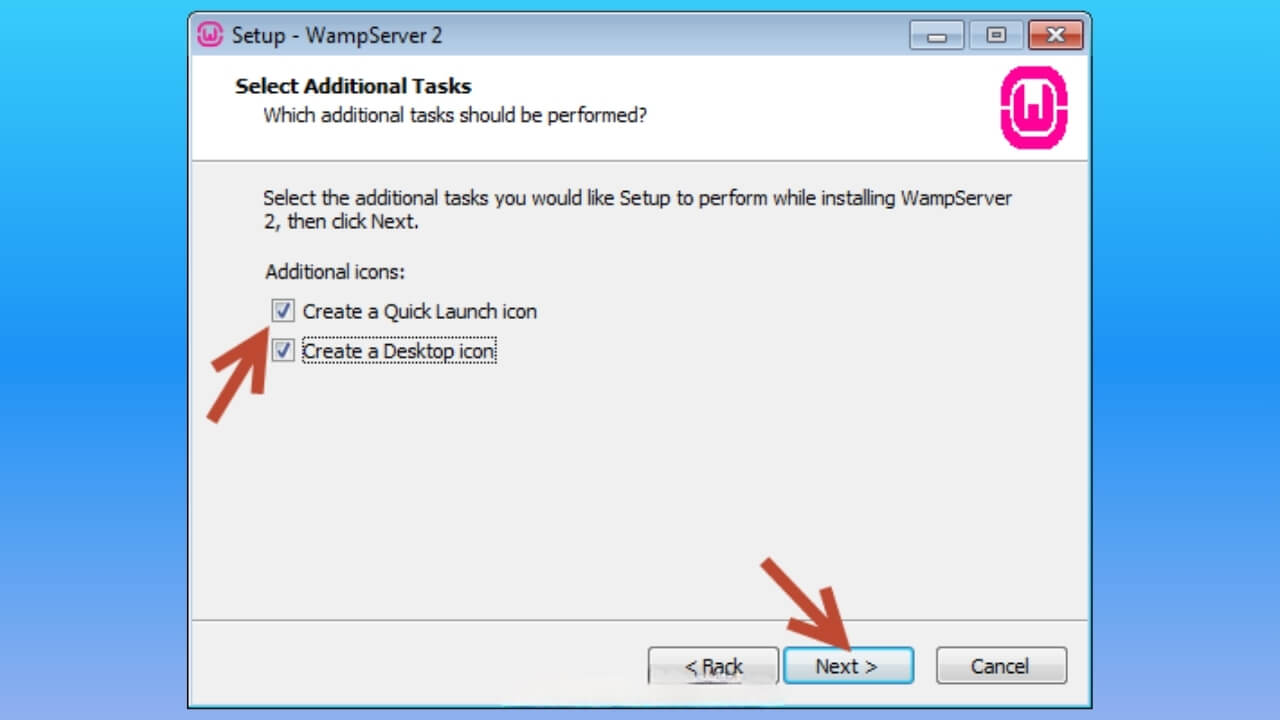
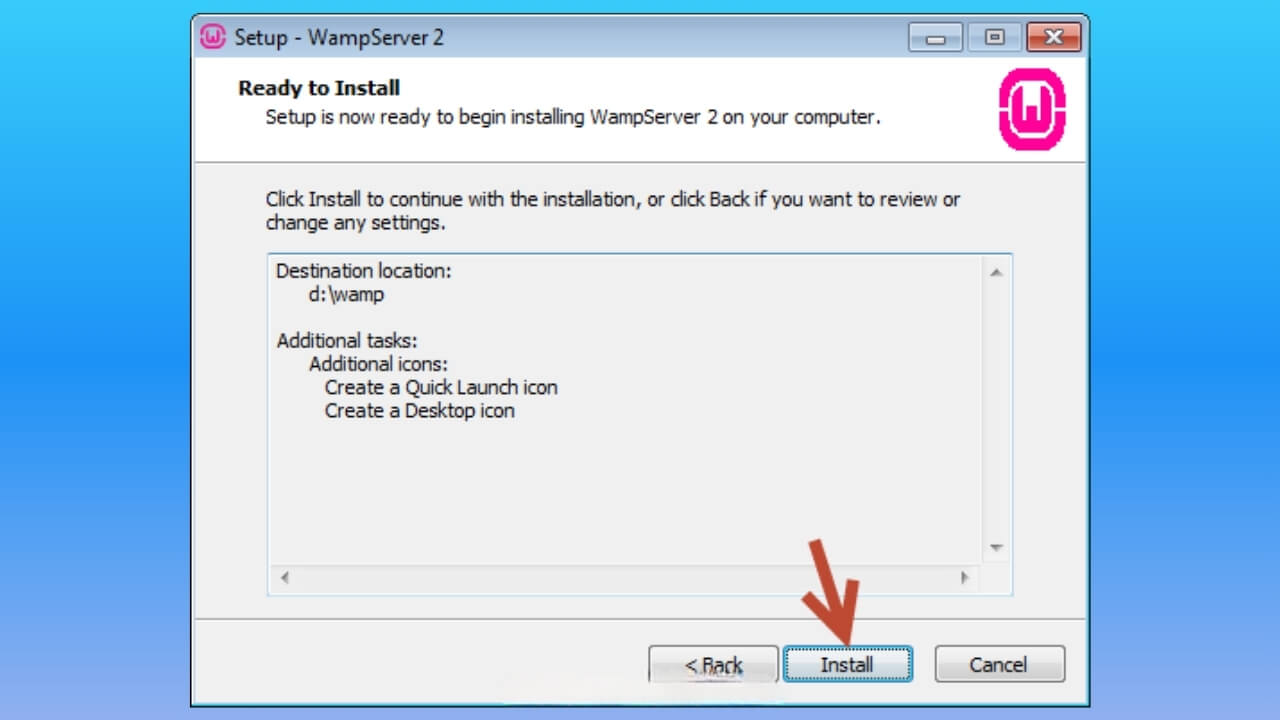
Then click Install
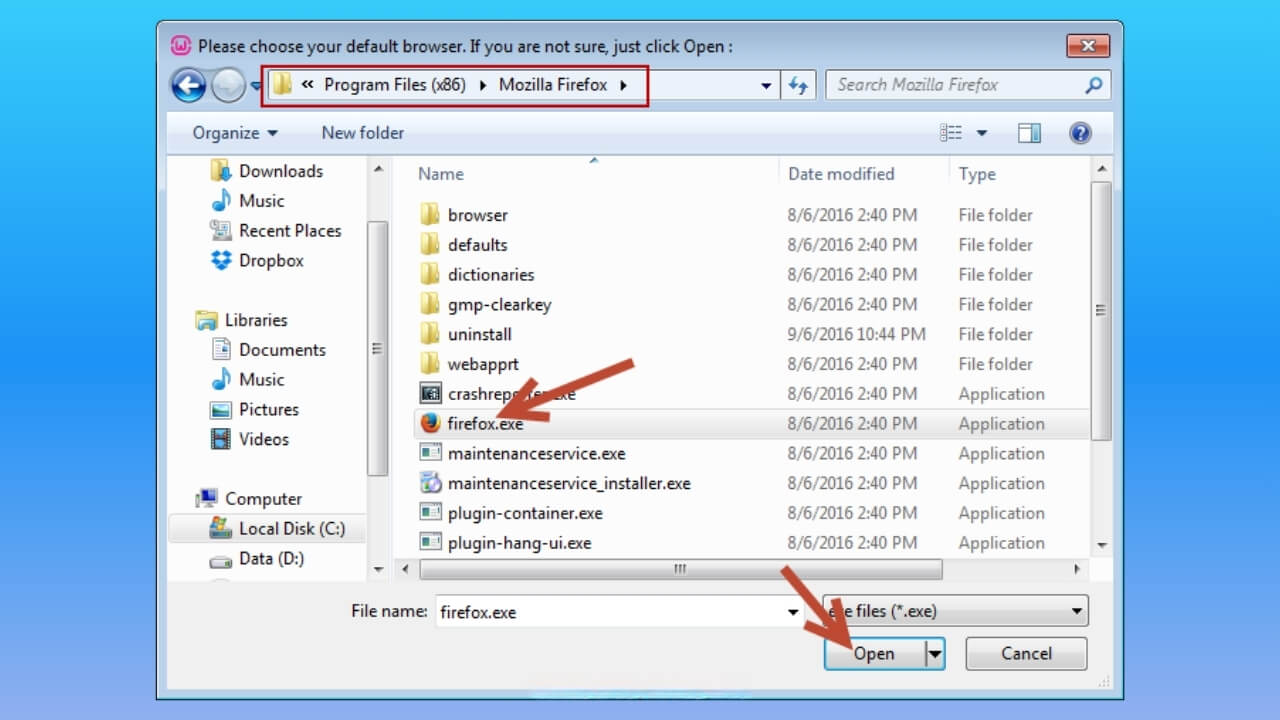
Step 5: Choose the default web browser to open Localhost. Here we will choose Firefox. Then choose Open.
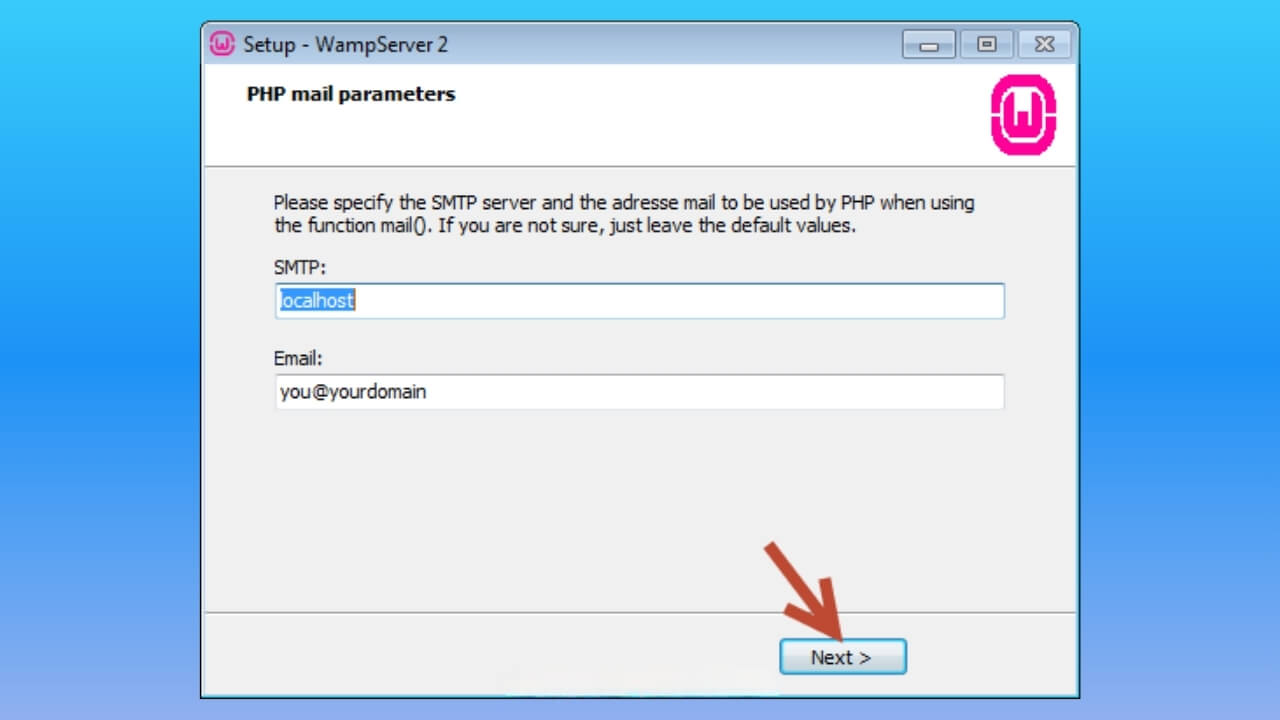
On this screen you set up PHP mail. If you don't use it, leave the defaults and choose Next.
After the step above, choose Finish to finish installing localhost on Wampserver.
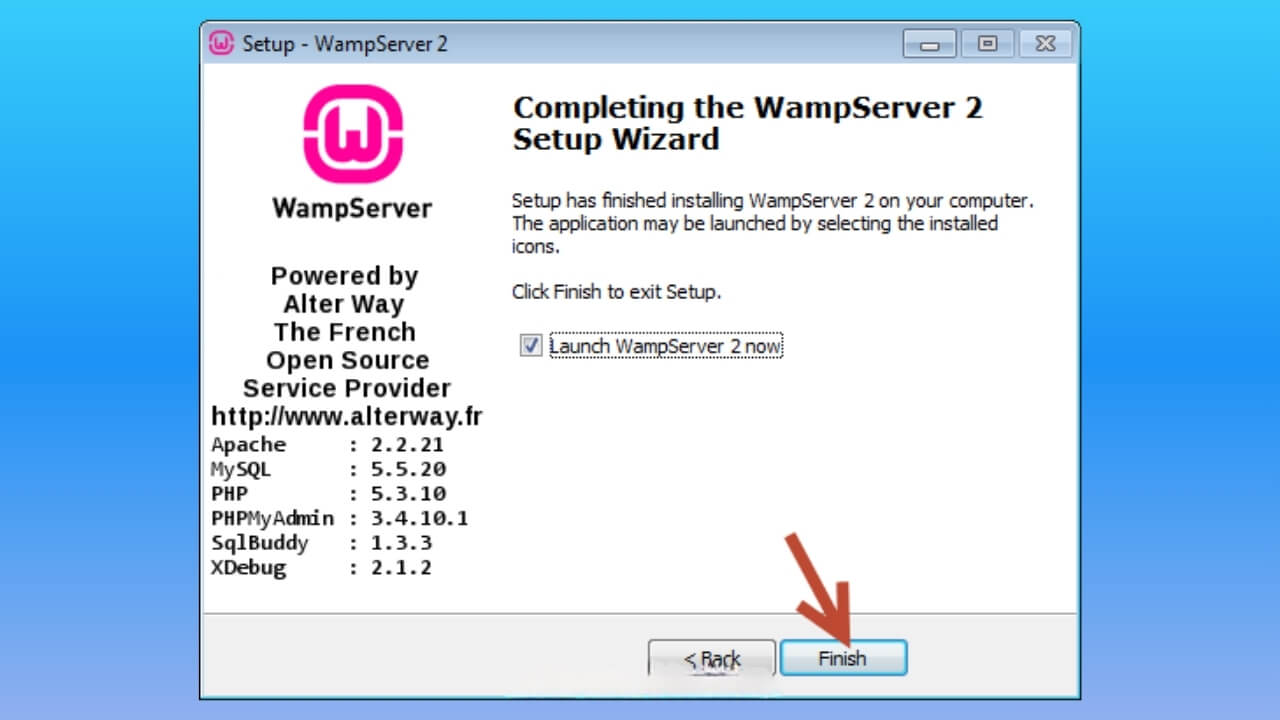
Step 6: Restart WAMP and turn this feature on so URLs can run; otherwise the system will only run the main home page.
In the WAMP control panel, choose Apache > Alias Directories > http://localhost/phpmyadmin/ > Edit alias
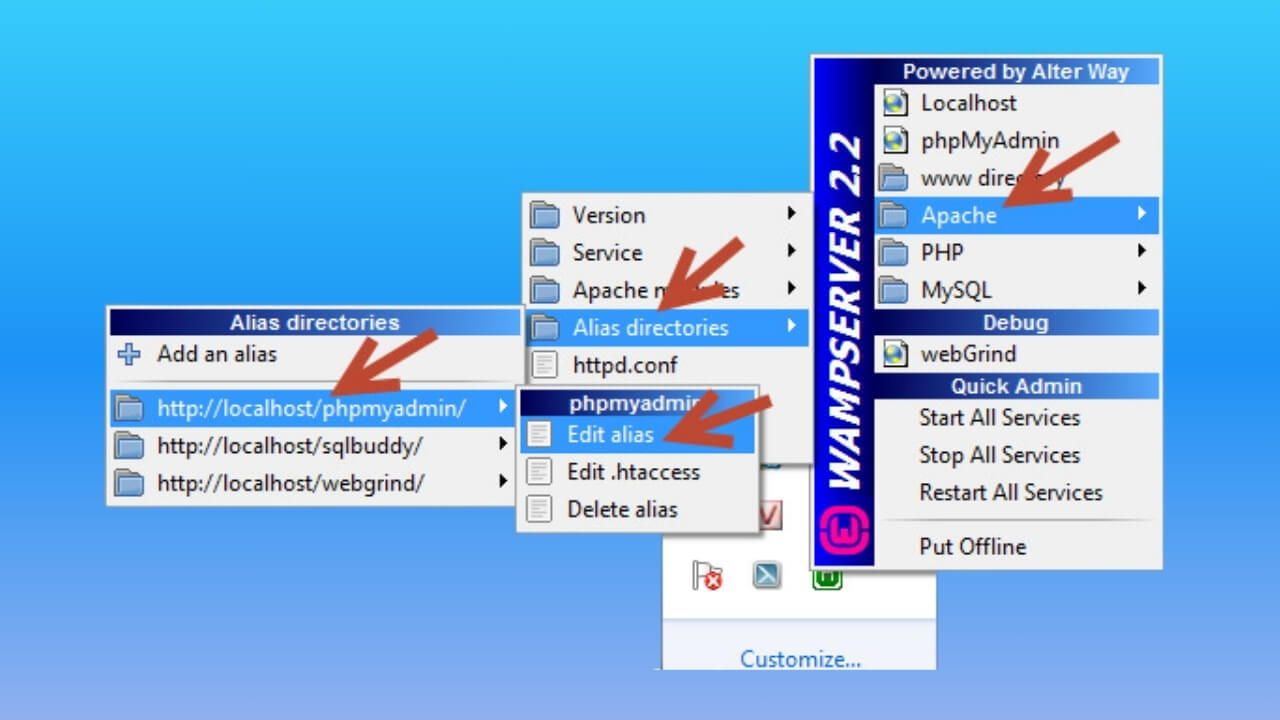
Then click Ctrl + S and close the file
Now open a web browser and enter http://localhost. If you see the default Wampserver page, the installation worked.
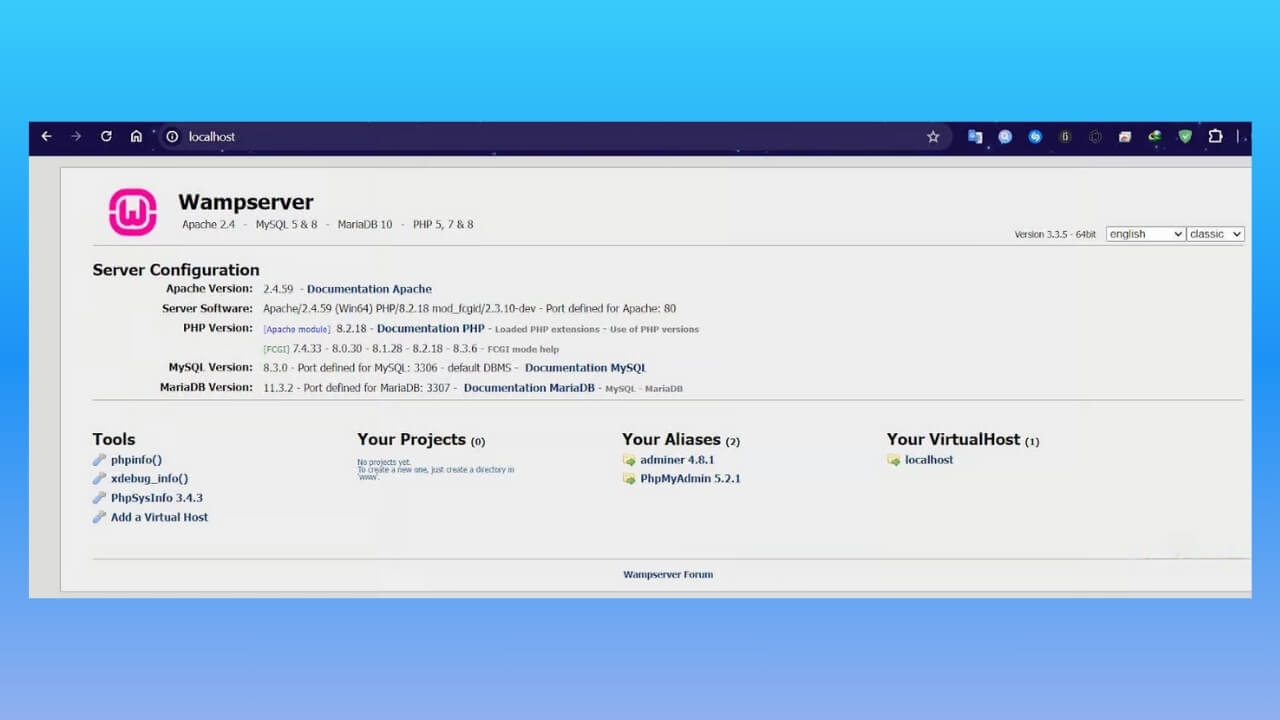
Install localhost with AppServ is another way to set up a server environment on your computer. AppServ lets you quickly set up server and a database simply. Although better optimized for Linux/Unix, AppServ still runs stably on Windows.
To install localhost with AppServ, follow these steps:
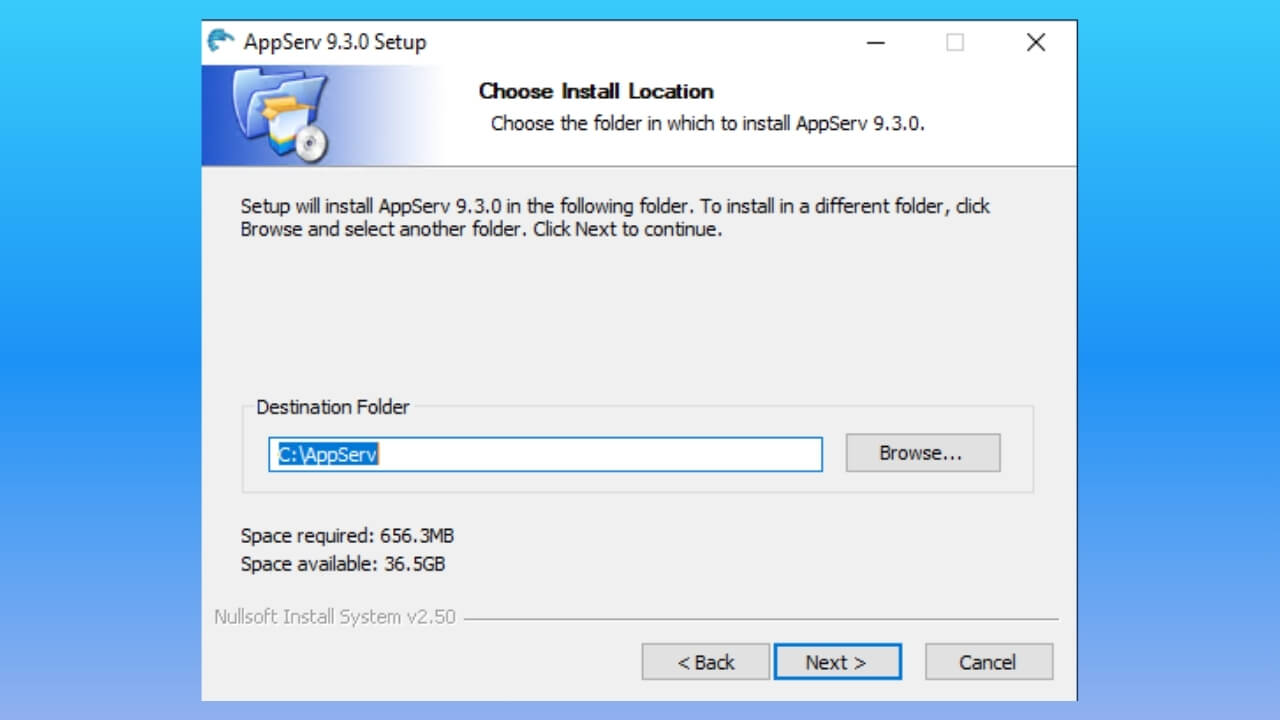
Step 1: Download the right version of AppServ for your computer. Open the downloaded file, unzip it and start AppServ.
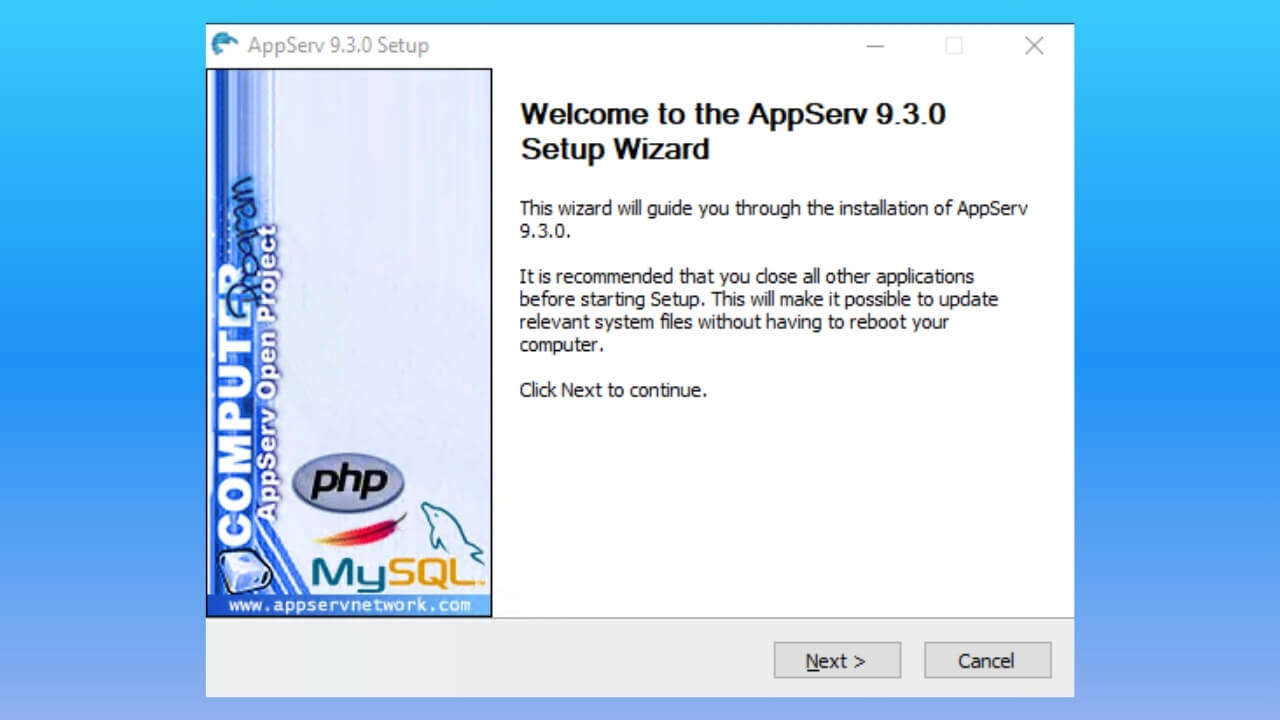
Choose where to install AppServ
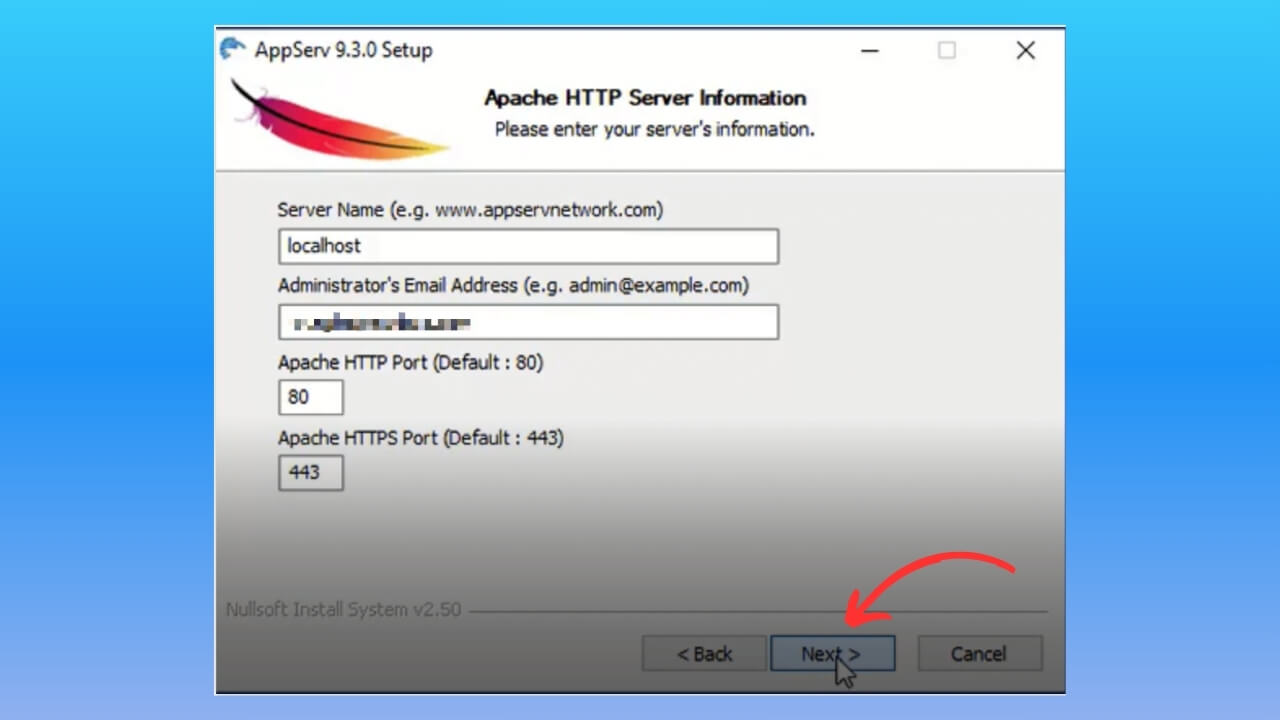
Step 2: Set the configuration values, such as the server name (Server name), the administrator's email address (Administrator’s Email address), and the Apache HTTP port (80 by default).
Step 3: Set a username (root by default) and a password for MySQL as you like.
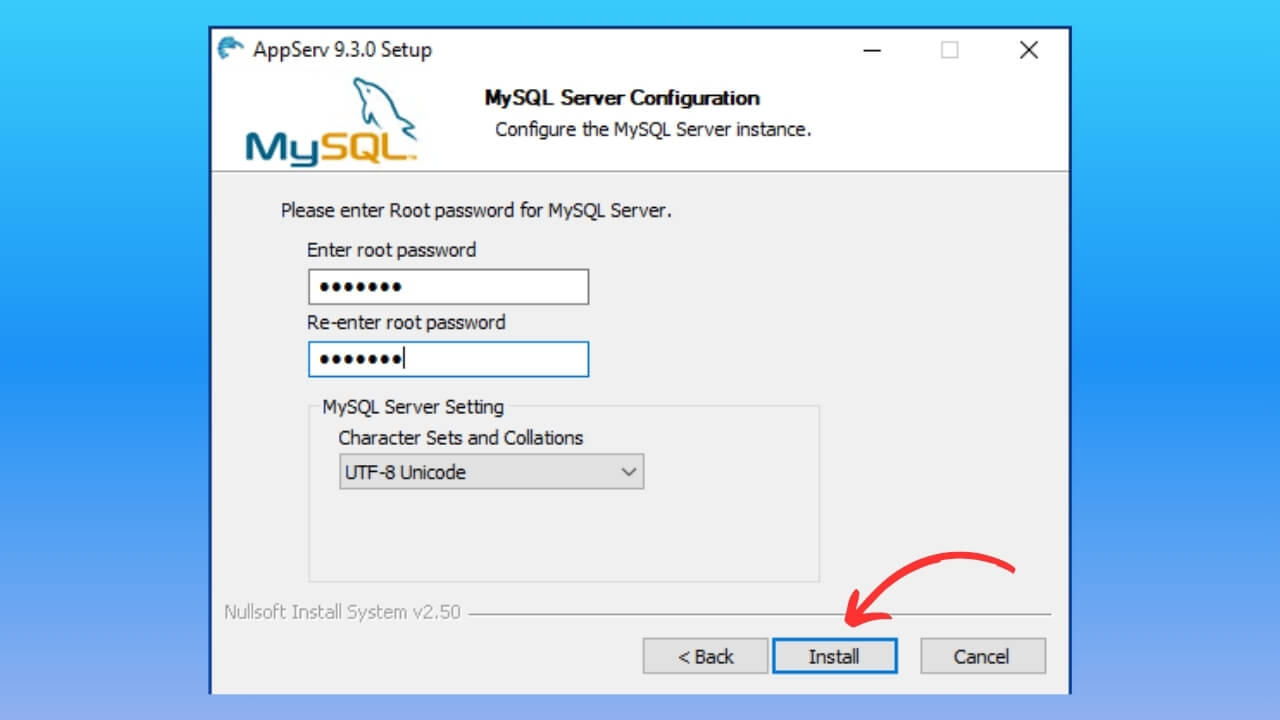
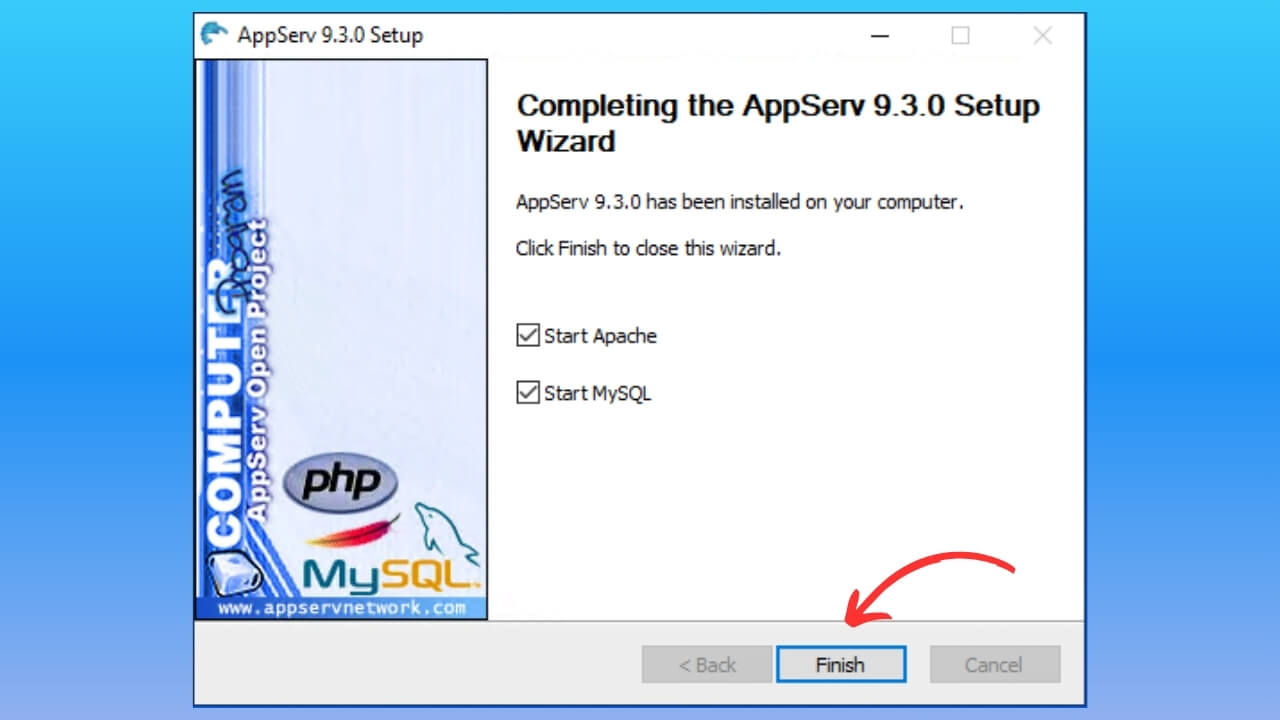
Step 4: Click “Install” to start the installation, and choose “Finish” when it finishes.
Step 5: Open a browser and go to localhost/phpmyadmin to confirm the installation worked.
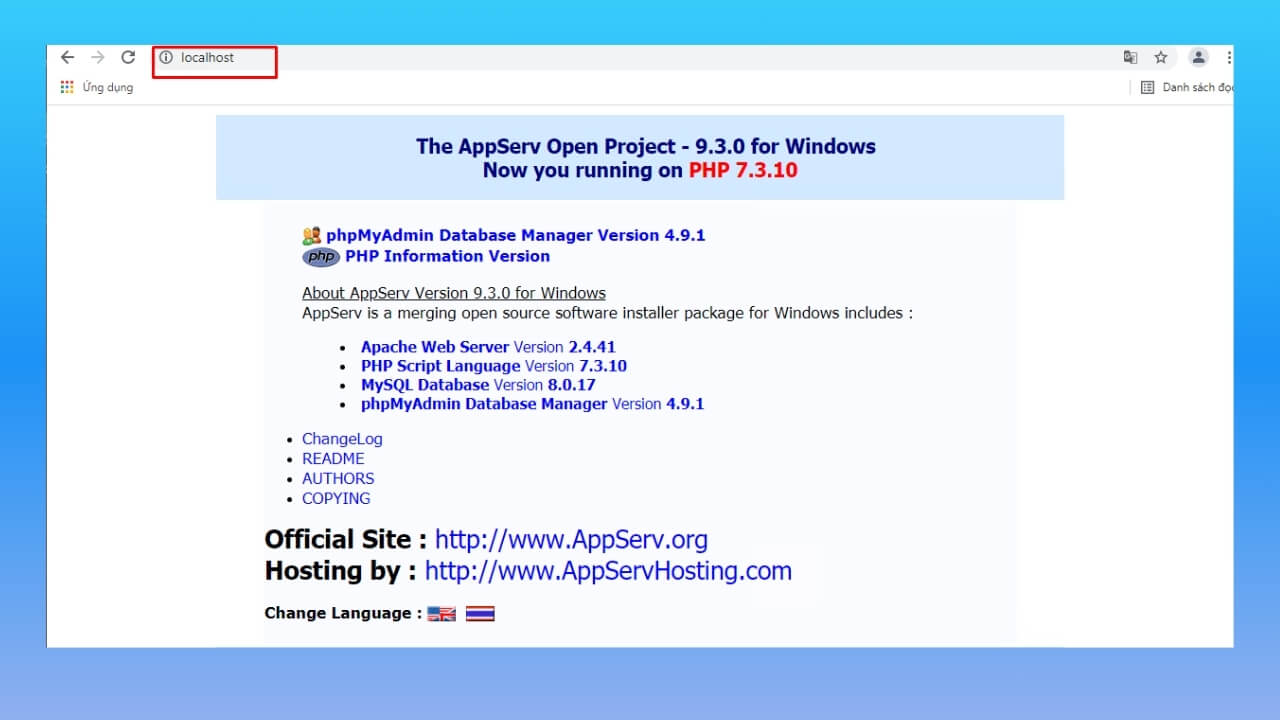
Whether to use localhost depends on your needs and circumstances. Localhost uses your computer's hard drive as storage and as the place to install a website, which is convenient for learning and testing before you decide to buy hosting.

Moving from localhost to hosting is also quick and simple. But if you want to save costs and keep things secure, consider a reputable hosting provider for a safer solution.
You can set up a local server without any internet connection. Localhost does not need any external network connection to work.
localhost:8080 and localhost:8888 are two common loopback addresses. Port 8080 is used to run web applications such as PHP or Java, while port 8888 is often used for Java applications.
For example, if you install the Apache web server on your computer, you can open your website by entering localhost:8080 in the browser. Likewise, if you install a Java application on your computer, you can reach it by entering localhost:8888.
localhost/htdocs and localhost/wordpress are paths to two different folders on your computer. The localhost/htdocs folder holds general web files, while localhost/wordpress holds the files for a WordPress website.
That is an overview of localhost and how to install it with XAMPP and Wampserver on Windows. We hope the article gave readers useful information.

CEO & Founder · The MONA
Founder of The MONA, who built a services company of 200+ staff with 14,000+ projects delivered. Khánh Hùng shares how he thinks about building systems that run themselves, automating a business, and the real lessons from delivering projects at MONA.
 1,6K
1,6K




Professional website
design services
Own a website with a beautiful, 100% exclusive design and a lifetime warranty, with the ability
to expand features flexibly as your business grows, starting today!








 MONA will never sell your information or send you spam
MONA will never sell your information or send you spam
MONA will never sell your information or send you spam


 MONA will never sell your information or send you spam