
 MONA OS 2.0
 Partner with MONA


 Tự động hoá doanh nghiệp
 Cẩm nang SEO
 Digital Marketing
 Kinh nghiệm thiết kế website
 Hạ Tầng Server
 Giáo dục


 VI
 EN












Message us on
Zalo Official


 ProductsNew

 ProductsProducts
 Mới ra mắtKHA AI 2027App tự edit video, tự đăng mọi mạng xã hội, 2 phút mỗi ngày










 Website designLooks good and wins customers over.
SEO servicesBrings in customers searching for exactly what you sell.
 Tư vấn digital marketingKéo khách từ nhiều kênh, đo bằng số thật.
Corporate video productionVideos introducing your company, factory and team.
 NewAI video productionCompany story films made with AI.
 Custom software developmentCRM, ERP and HRM built for your business.
 Viết AI Agent theo yêu cầuĐặt riêng một trợ lý AI cho đúng việc của mình.
 Tư vấn chuyển đổi AIĐưa AI vào vận hành của cả công ty.
NewMONA LMSManagement for centers and schools.
MONA SkillHubInternal training for company staff.
 NHTQ systemEnd-to-end China–Vietnam shipping operations.
MONA JMSManagement for gold, diamond and pawn shops.
 MONA E-LearningA website with every feature you need to sell courses.
 How to sell online courses (course)More than 30 free lessons on selling courses on autopilot.
 MONA Cloudmonacloud.vnServers to get your apps and websites running.
 MONA Basemonabase.vnPostgres database, sign-in and file storage.
 MONA Mailmonamail.vnSend OTP, order and invoice emails from your software.
 MONA Paymonapay.vnAccept bank transfers via VietQR and notify your software when the money arrives.
 MONA eInvoiceComing soonIssue e-invoices that meet tax standards.
Gấu CườiTrả lời khách 24/7 trên web, Fanpage, Zalo và thu lead cho sale.
 Gấu TeleSalesGọi điện tư vấn, chăm khách như tổng đài viên thật.
Dê CườiTư vấn và chốt đơn cho shop ngay trong khung chat.
Gấu WebmasterNhắn nhóm Zalo là website được sửa xong.
 Gấu Pháp ChếSoạn hợp đồng, rà điều khoản trong vài phút.
 Gấu Báo GiáLên báo giá đúng mẫu và gửi khách ngay.
 AI chăm sóc khách hàngTheo dõi và giữ chân khách hàng cũ.
 Gấu Tuyển DụngLọc hồ sơ, hẹn lịch, phỏng vấn ứng viên.
 Mới ra mắt
KHA AI 2027
Xây kênh chuyên gia 2 phút mỗi ngày
Quay bằng điện thoại, AI tự edit video, tự đăng lên 16 nền tảng và tự trả lời bình luận, tin nhắn.
901.078lượt xem trên kênh CEO MONA sau 37 ngày
 Anh Khánh HùngCEO MONA đang dùng mỗi ngày
Xem app làm được gì
 AI
Gấu Cười MONA ĐANG TỰ XÀITrả lời khách 24/7 trên website, Zalo OA, Messenger và thu lead về cho sale.
Dê CườiChốt đơn bán lẻ và sàn: Shopee, TikTok Shop, web. Chăm cả khách sỉ, đại lý.
Gấu WebmasterCập nhật nội dung, tối ưu SEO website mỗi ngày.
Gấu TeleSalesGọi điện tư vấn, chăm khách như tổng đài viên thật.
Gấu Tuyển DụngLọc hồ sơ, hẹn lịch, phỏng vấn ứng viên tự động.
AI chăm sóc khách hàngGiữ khách cũ, cứu lead đã rớt cho phòng kinh doanh.
Gấu Pháp ChếSoạn hợp đồng, rà điều khoản trong vài phút.
Gấu Báo GiáLên báo giá đúng mẫu, gửi khách ngay khi có yêu cầu.
 Chuyển đổi AI toàn phầnGiải pháp tổng cho doanh nghiệp, 3 lớp triển khai.
 Viết AI Agent theo yêu cầuĐặt riêng một con AI gánh đúng nghiệp vụ của bạn.
 Custom softwareCRM, ERP and HRM with built-in AI automation.
 SEO & AEO thời đại AIĐược Google lẫn AI trích dẫn, không chỉ xếp hạng.
 Kiến thức AI cho doanh nghiệpBài phân tích, hướng dẫn ứng dụng AI vào vận hành.
 Free AI courses
 AI tools at work
App mới · KHA AI 2027
Xây kênh 2 phút mỗi ngày
AI tự edit video, tự đăng mọi mạng xã hội
Free consultation, 8am–10pm every day

04 April, 2023

Figma is a “powerful helper” for people who design websites and software. But non-specialists may not know exactly what Figma is. If you are new to this and want to grow in design, this article is for you. The content below MONA Media shares useful knowledge to help you better understand this website interface design tool.
Figma is a responsive design tool that runs in a web browser and is used to optimize interfaces and user experience (UI UX). With smart features such as letting many people collaborate online in the same file and simple customization, you can quickly design flyers, publications and infographics, or build a website in Figma. It is a go-to helper for developers, designers, marketers and business owners.

Figma first launched to users as a trial version in late 2015. It was not until September 2016 that it was officially released with its full feature set, gradually establishing itself in the design community.
In October 2019, Figma Community launched. From then on, designers could publish their work for others to view and remix. In April 2021, Figma added FigJam, a tool for taking notes, drawing or adding emoji to collaborative projects, a strong help for anyone designing websites in Figma.

As a versatile tool, Figma is chosen and used for many kinds of design work, from product Digital Marketing to designed UX/UI. So what exactly is Figma used for? Today, it is commonly used for tasks such as:
Figma has grown into a natural fit for individuals and businesses that specialize in website design. It has all the necessary, powerful features to help designers create products and manage projects effectively.
Not only for designers, but thanks to its high compatibility, the tool is also chosen as the shared workspace for UX/UI design projects. Any member of a project can take part and need this tool, from designers, back-end, front-end developer, content writers to the CTO, and more
Figma for website design has a free version for everyone and a paid version for users who want more advanced features.
Design professionals have embraced Figma as a companion tool throughout their team's work thanks to strong advantages such as:
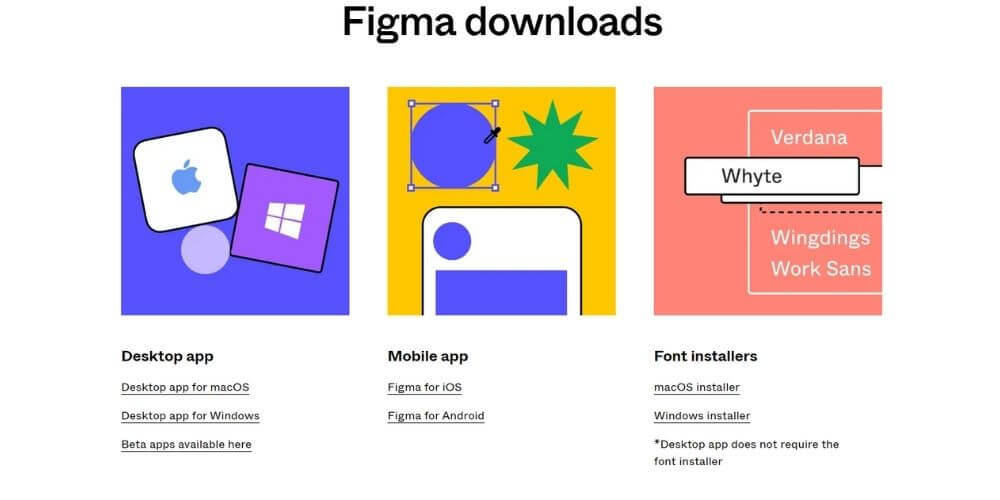
This design software can be used directly in a web browser or downloaded to your computer. You can access and use it on nearly every common operating system, such as Windows, macOS or even Linux, as long as you have an internet connection.
In addition, Figma now has 2 versions, for computer and for phone, so you can create or follow a project from anywhere more conveniently.
Often compared to a mini Google Drive, Figma lets teams work remotely with ease and flexibility. Team members can be given sharing and permission settings, and can collaborate on design, edit, give feedback, check progress or flag potential issues in real time.
The developers give Figma users a huge and very useful library of plugins. This is an attractive resource for fixing small design problems and boosting productivity. Managing colors, images and animations also becomes easier than ever.
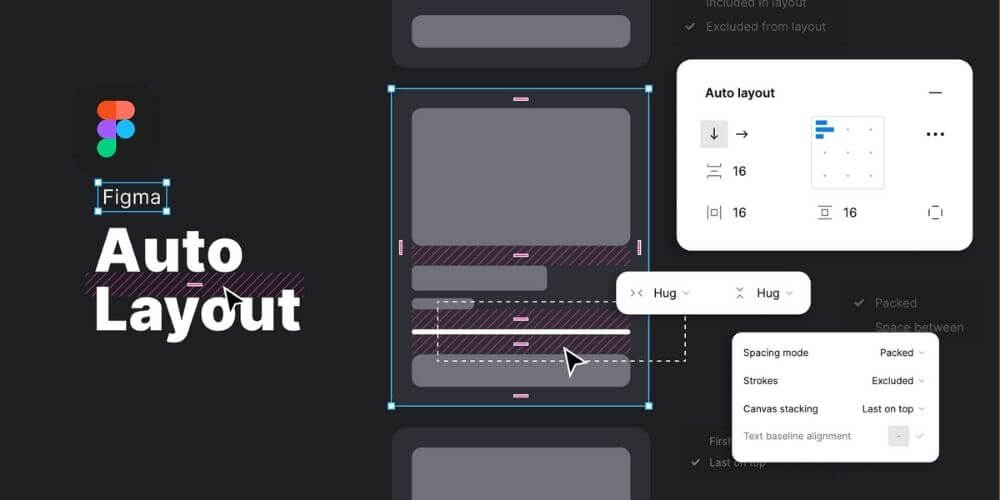
With the ability to manage many artboards at once, Figma users can easily create many layout in different sizes within the same product without adding new files.
Like Illustrator, Figma lets you export your designs in many file formats such as PNG, JPG, SVG or even PDF.
>>> Read more: Which image format is best for website design
When designing a website with Figma, you can rest easy because all data and product changes are automatically saved in the cloud. You no longer need to worry about a full hard drive or forgetting to back up, which is convenient and safe.
Figma also offers plenty of other useful features to support your work, such as:
Before Figma, there were many other design tools such as Sketch and Adobe XD. So how do these 3 tools differ? See the comparison table below for a clearer picture.
Comparison of Figma, Sketch and Adobe XD
| Features | Figma | Adobe XD | Sketch |
| Main platform | Web browsers | Desktop/mobile app | Desktop software |
| Operating system | MacOS, Windows, Linux | MacOS, Windows, iOS, Android | MacOS |
| Real-time interaction | All users | Co-editing for projects synced in the cloud | Only registered users, and for Sketch 71 on macOS Mojave 10.14.4 or later |
| Offline work | Not possible | Possible | Possible |
| Prototyping | You can | Basic | Best |
| Price |
– Free Starter plan (limited to 3 projects) – $12/month for the Professional plan. |
– Free for individual users – $23/month for the team plan. |
– $99/year with free updates – $8.25/month/user for the team plan. |
| Advantages |
– Best interactivity – Automatic cloud storage – Flexible artboards because they can be linked. |
– Familiar to Adobe users – Can share the Creative Cloud library. |
– A long-established tool with stable design. – Frequent, fast updates – Largest plugin library |
| Disadvantages |
– Cannot work offline or when Figma's servers have problems. – Only runs on operating systems with 4GB of RAM or more. |
High cost for the Professional plan. |
– macOS only – High cost – Prototyping features are simpler than Figma and Adobe XD |
When you start designing websites in Figma, mastering the basic operations helps you work more efficiently, save time and keep every project consistent. Below are the key operations anyone should be comfortable with when designing for the web in Figma or working in a team on this platform.
Inspect lets you see an element's color, size, spacing, font and variants. You can also export it as PNG or SVG files, or as code in CSS, XML or Swift quite easily. In addition, if your team needs deeper measurement when building a website in Figma, you can install the Zeplin plugin for detailed breakdown and checking.
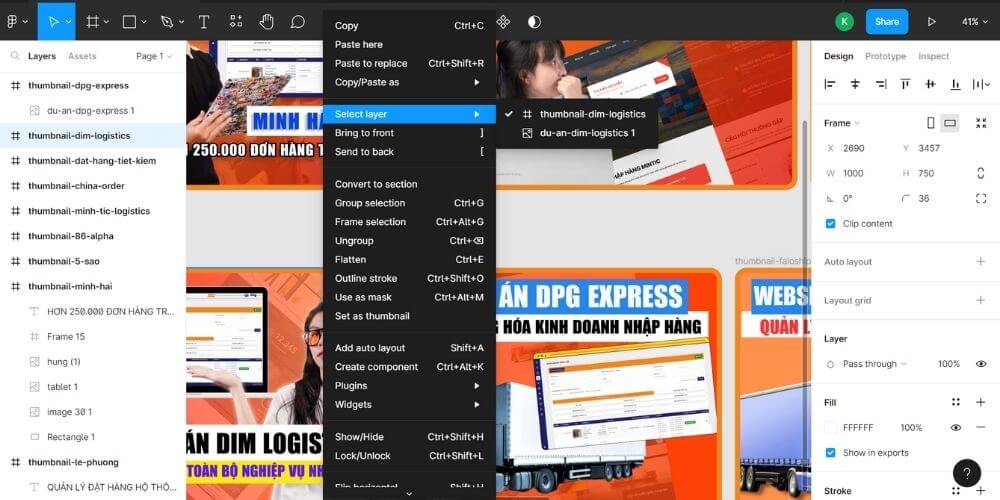
If you want to select an element to see its design specs and measurements, the program automatically selects the topmost element. To select an element on a deeper layer, you need to click the Command + element you want, or right-click the element to show the panel Select Layer.
Users can export CSS straight from a website design file in Figma and view the file on iOS and Android.
To export the assets you want, you can do either of these 2 things:
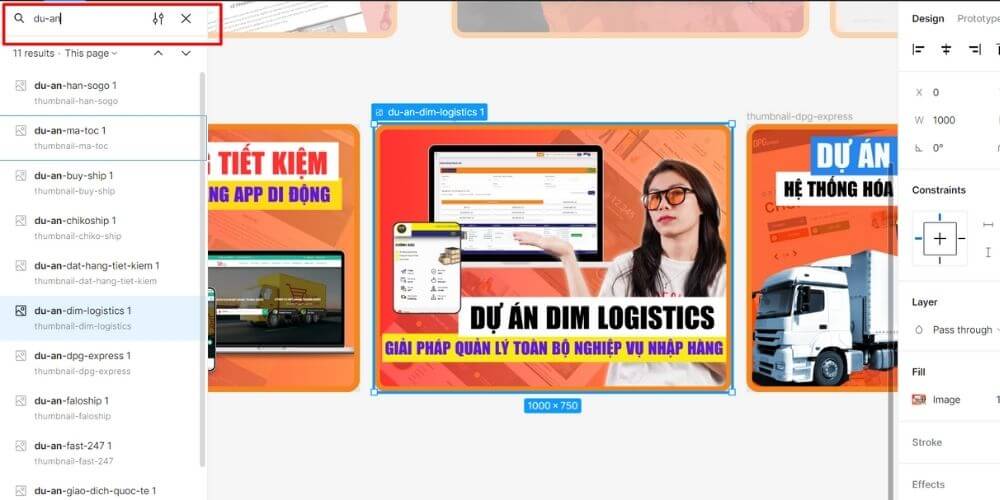
In files with many design frames, finding a specific layer can take time. You can use plugins such as Find or Focus to find layers by name and zoom automatically to the right spot. This is a simple way to keep large files under control when designing web pages in Figma or building a complex project.
To locate the main component on any screen, right-click the component and choose Main Component, then choose Go to Main Component from the menu. This makes it easy to update or edit it consistently across the whole design file.
To check an element's size and its distance to surrounding objects, open the Code panel, click the element you want to measure, and move the cursor over another layer.
Figma lets you create prototypes directly on linked frames. Preview mode helps you visualize how users interact with the website, making it easier to refine and optimize UI/UX. You can also turn on Live Device Preview to view the design on a real mobile device, or customize the viewport to check compatibility across devices.
Getting started with Figma is not hard. You can install and use Figma in 2 ways:
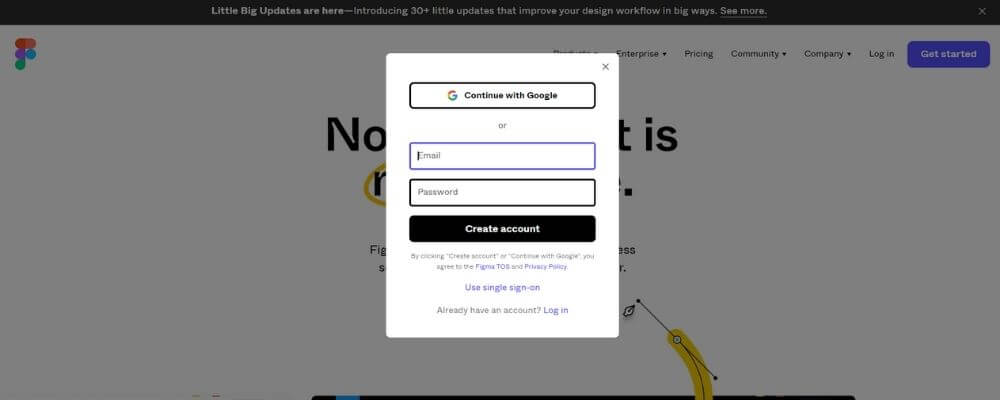
If you are a beginner or are looking into what Figma is used for, this step-by-step guide will help you get familiar with the tool. Whether you want to design a website in Figma or build an interactive interface prototype, these steps will help you get the most out of Figma.
Step 1: Get familiar with the Figma interface
Start by signing in to the official Figma website or opening the app on your computer or mobile device. The Figma interface is intuitive, with main parts such as the drawing toolbar, the Layers panel, the color palette and the main work area. Getting familiar with them helps you understand how Figma works before you start a design project.
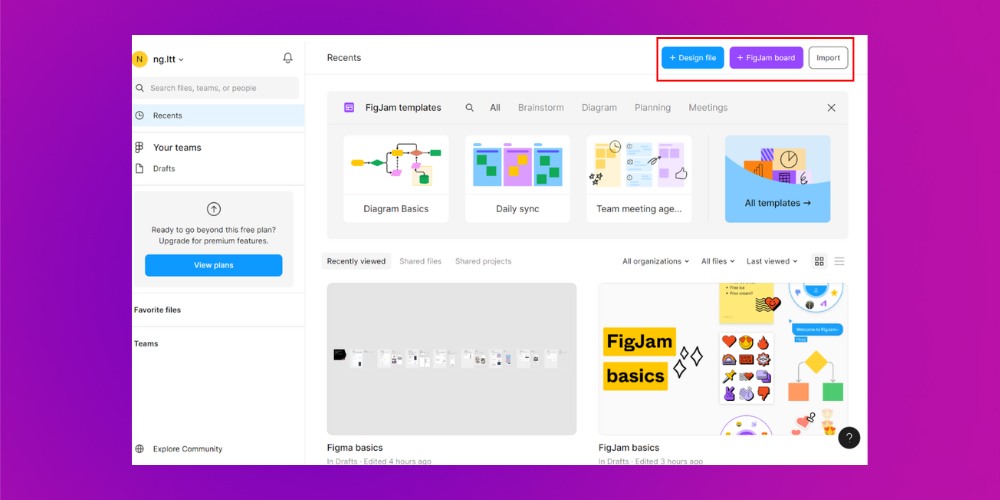
Step 2: Create or open a design
Once you understand the basics of the Figma interface, you can create a new design or open an existing file. The options include:
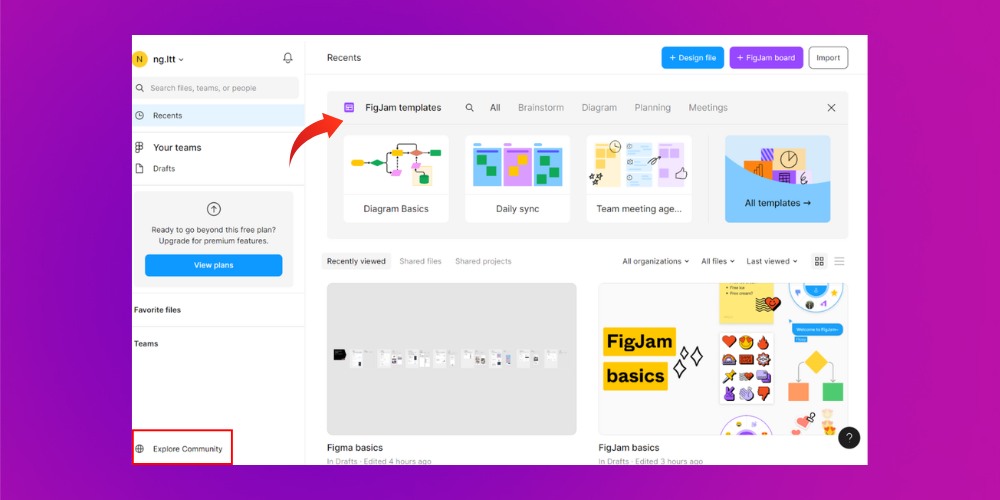
You can also pick from the ready-made templates on Figma's main screen or search by a suitable keyword. To explore more, click Explore Community to access the huge library of design resources shared by the Figma community.
Step 3: Use the drawing tools to create design elements
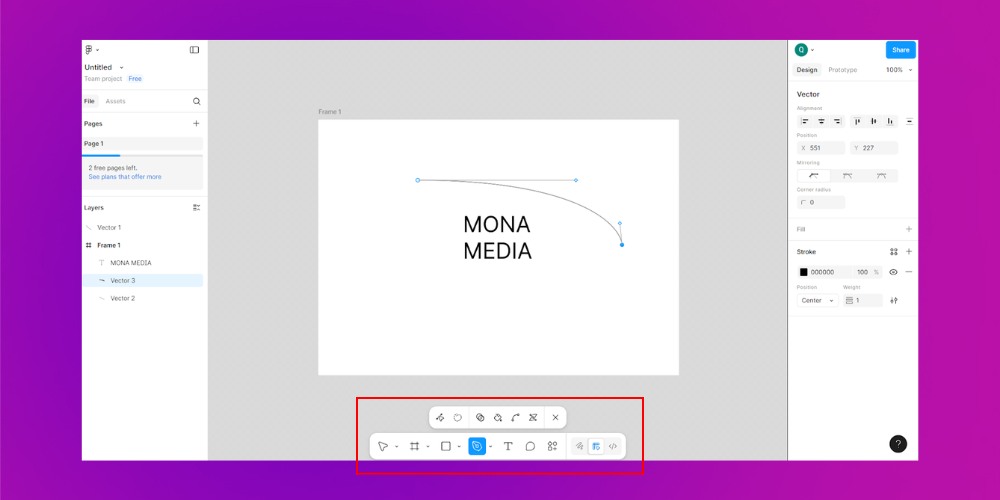
Figma offers a range of drawing tools such as Frame, shapes (Rectangle, Ellipse), Text and more, for designing buttons, icons and layouts in a website design project in Figma. You can freely drag and drop, copy and edit every small detail to build a professional UX/UI-standard interface.
Step 4: Integrate plugins
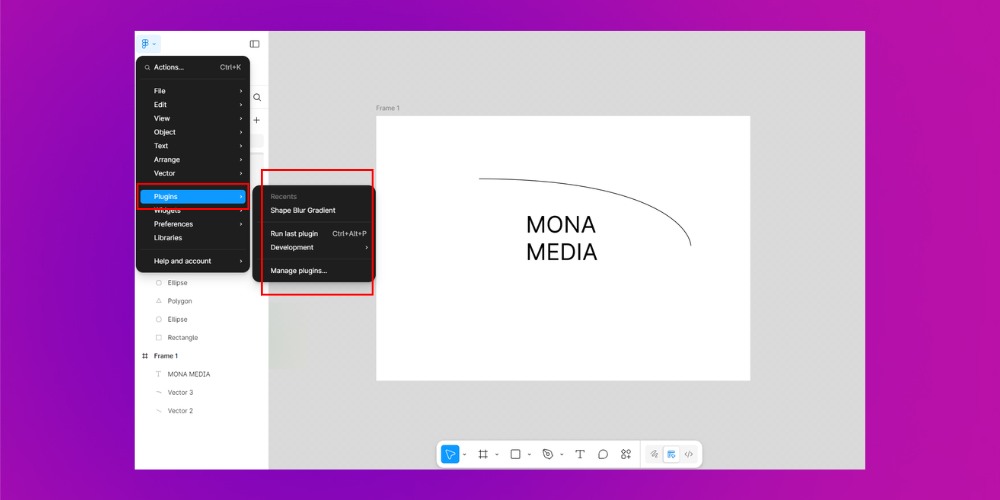
If you want to extend Figma's features, you can install suitable plugins. In the navigation bar at the bottom of the screen, click Plugins, then search for the tool you need (for example a wireframe plugin, an auto-alignment plugin, an icon library,…). Select the plugin and click Install.
Step 5: Save and manage your design
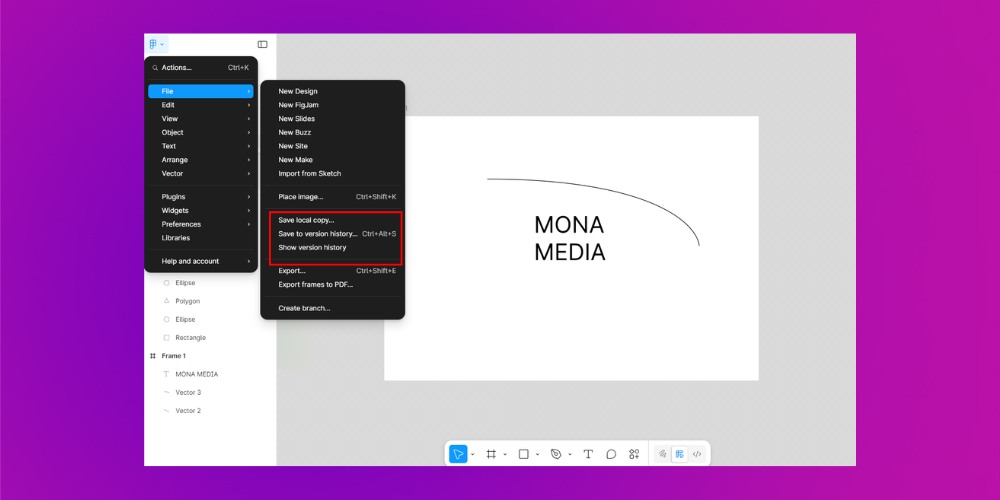
Although Figma autosaves, you should still save manually with Ctrl + S (Windows) or Cmd + S (Mac) to keep your data safe. You can also use Show Version History to review earlier versions of the design.
Step 6: Share and collaborate in real time
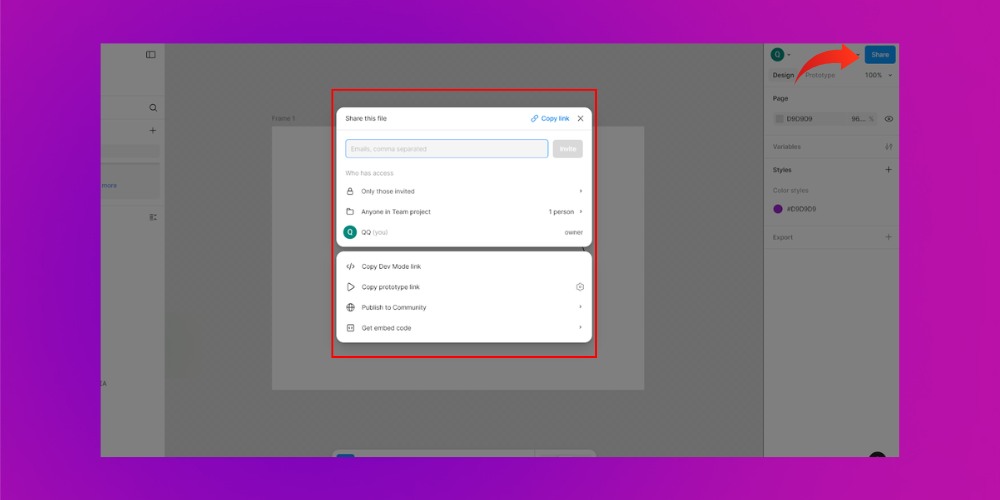
When designing web pages in Figma, you can invite members to the project or create a share link so they can view or edit. The platform also lets you create interactive prototypes, including movement effects, clicks and transitions, as you design. When finished, you can export elements such as images, icons or CSS code to deploy on many platforms.
With its many standout features, Figma has become the top choice for anyone who wants to turn a digital interface into reality smoothly and efficiently. If you don't have the time or an in-house design team, feel free to get in touch with MONA, a custom website design company that is among Vietnam's leading professional providers. With our experience and attention to every detail, we are committed to delivering an exclusive website interface that optimizes user experience and reflects your business's spirit. Let MONA help you turn ideas into real products in the most efficient way. Contact Hotline 1900 636 648 for free advice from MONA and to get a website design quote in full detail.
Contact details for MONA Media Website Design Company

CEO & Founder · The MONA
Founder of The MONA, who built a services company of 60+ staff with 14,000+ projects delivered. Khánh Hùng shares how he thinks about building systems that run themselves, automating a business, and the real lessons from delivering projects at MONA.
 1,5K



Professional website
design services
Own a website with a beautiful, 100% exclusive design and a lifetime warranty, with the ability
to expand features flexibly as your business grows, starting today!






 MONA will never sell your information or send you spam


 MONA will never sell your information or send you spam
