
 MONA OS 2.0
 Partner with MONA


 Tự động hoá doanh nghiệp
 Cẩm nang SEO
 Digital Marketing
 Kinh nghiệm thiết kế website
 Hạ Tầng Server
 Giáo dục


 VI
 EN












Message us on
Zalo Official


 ProductsNew

 ProductsProducts
 Mới ra mắtKHA AI 2027App tự edit video, tự đăng mọi mạng xã hội, 2 phút mỗi ngày









 Website designLooks good and wins customers over.
SEO servicesBrings in customers searching for exactly what you sell.
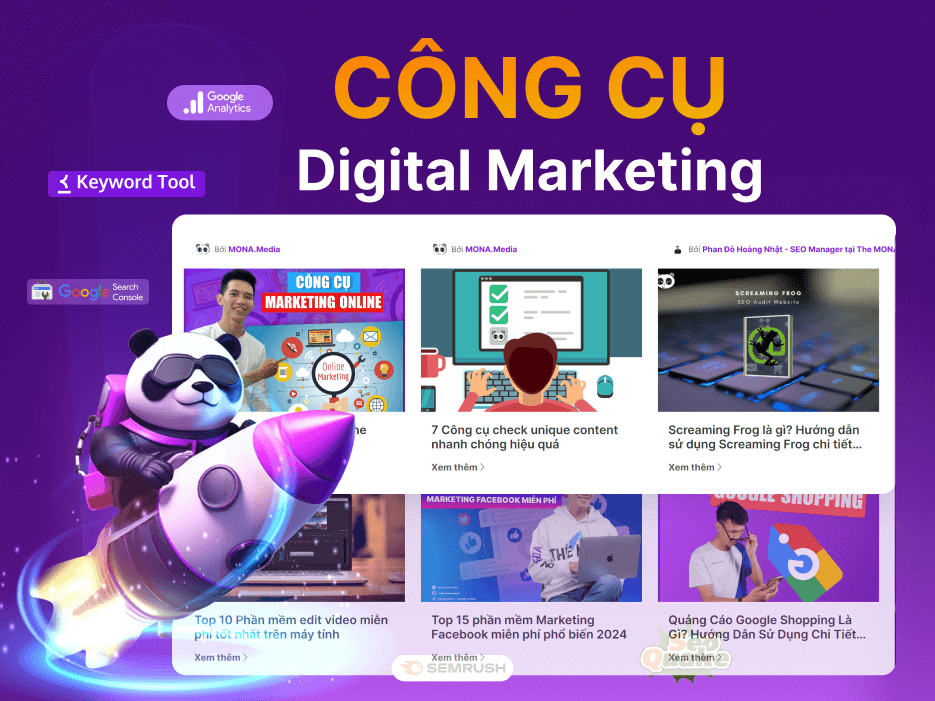 Tư vấn digital marketingKéo khách từ nhiều kênh, đo bằng số thật.
Corporate video productionVideos introducing your company, factory and team.
 NewAI video productionCompany story films made with AI.
 Custom software developmentCRM, ERP and HRM built for your business.
 Viết AI Agent theo yêu cầuĐặt riêng một trợ lý AI cho đúng việc của mình.
 Tư vấn chuyển đổi AIĐưa AI vào vận hành của cả công ty.
NewMONA LMSManagement for centers and schools.
MONA SkillHubInternal training for company staff.
 NHTQ systemEnd-to-end China–Vietnam shipping operations.
MONA JMSManagement for gold, diamond and pawn shops.
 MONA E-LearningA website with every feature you need to sell courses.
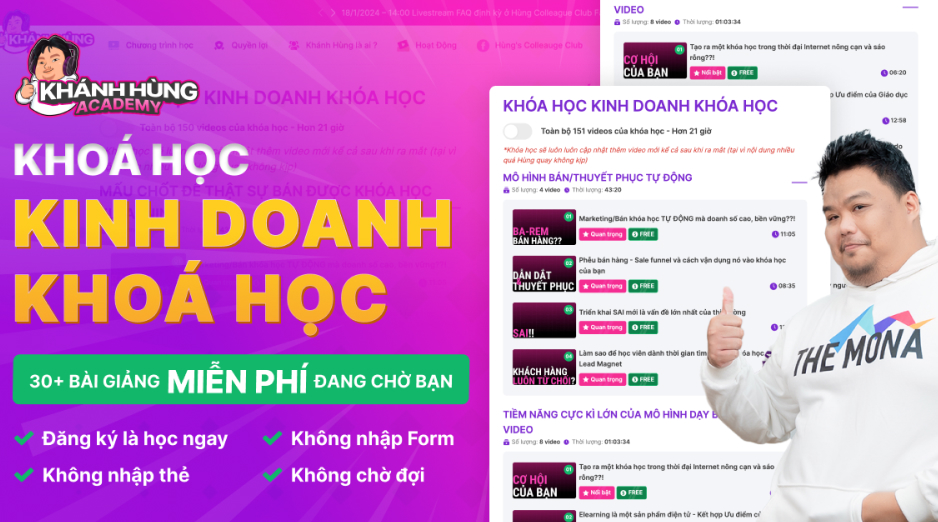 How to sell online courses (course)More than 30 free lessons on selling courses on autopilot.
 MONA Cloudmonacloud.vnServers to get your apps and websites running.
 MONA Basemonabase.vnPostgres database, sign-in and file storage.
 MONA Mailmonamail.vnSend OTP, order and invoice emails from your software.
 MONA Paymonapay.vnAccept bank transfers via VietQR and notify your software when the money arrives.
 MONA eInvoiceComing soonIssue e-invoices that meet tax standards.
Gấu CườiTrả lời khách 24/7 trên web, Fanpage, Zalo và thu lead cho sale.
 Gấu TeleSalesGọi điện tư vấn, chăm khách như tổng đài viên thật.
Dê CườiTư vấn và chốt đơn cho shop ngay trong khung chat.
Gấu WebmasterNhắn nhóm Zalo là website được sửa xong.
 Gấu Pháp ChếSoạn hợp đồng, rà điều khoản trong vài phút.
 Gấu Báo GiáLên báo giá đúng mẫu và gửi khách ngay.
 AI chăm sóc khách hàngTheo dõi và giữ chân khách hàng cũ.
 Gấu Tuyển DụngLọc hồ sơ, hẹn lịch, phỏng vấn ứng viên.
 Mới ra mắt
KHA AI 2027
Xây kênh chuyên gia 2 phút mỗi ngày
Quay bằng điện thoại, AI tự edit video, tự đăng lên 16 nền tảng và tự trả lời bình luận, tin nhắn.
859.344lượt xem trên kênh CEO MONA sau 30 ngày
 Anh Khánh HùngCEO MONA đang dùng mỗi ngày
Xem app làm được gì
 AI
Gấu Cười MONA ĐANG TỰ XÀITrả lời khách 24/7 trên website, Zalo OA, Messenger và thu lead về cho sale.
Dê CườiChốt đơn bán lẻ và sàn: Shopee, TikTok Shop, web. Chăm cả khách sỉ, đại lý.
Gấu WebmasterCập nhật nội dung, tối ưu SEO website mỗi ngày.
Gấu TeleSalesGọi điện tư vấn, chăm khách như tổng đài viên thật.
Gấu Tuyển DụngLọc hồ sơ, hẹn lịch, phỏng vấn ứng viên tự động.
AI chăm sóc khách hàngGiữ khách cũ, cứu lead đã rớt cho phòng kinh doanh.
Gấu Pháp ChếSoạn hợp đồng, rà điều khoản trong vài phút.
Gấu Báo GiáLên báo giá đúng mẫu, gửi khách ngay khi có yêu cầu.
 Chuyển đổi AI toàn phầnGiải pháp tổng cho doanh nghiệp, 3 lớp triển khai.
 Viết AI Agent theo yêu cầuĐặt riêng một con AI gánh đúng nghiệp vụ của bạn.
 Custom softwareCRM, ERP and HRM with built-in AI automation.
 SEO & AEO thời đại AIĐược Google lẫn AI trích dẫn, không chỉ xếp hạng.
 Kiến thức AI cho doanh nghiệpBài phân tích, hướng dẫn ứng dụng AI vào vận hành.
 Free AI courses
 AI tools at work
App mới · KHA AI 2027
Xây kênh 2 phút mỗi ngày
AI tự edit video, tự đăng mọi mạng xã hội
Free consultation, 8am–10pm every day

12 March, 2024
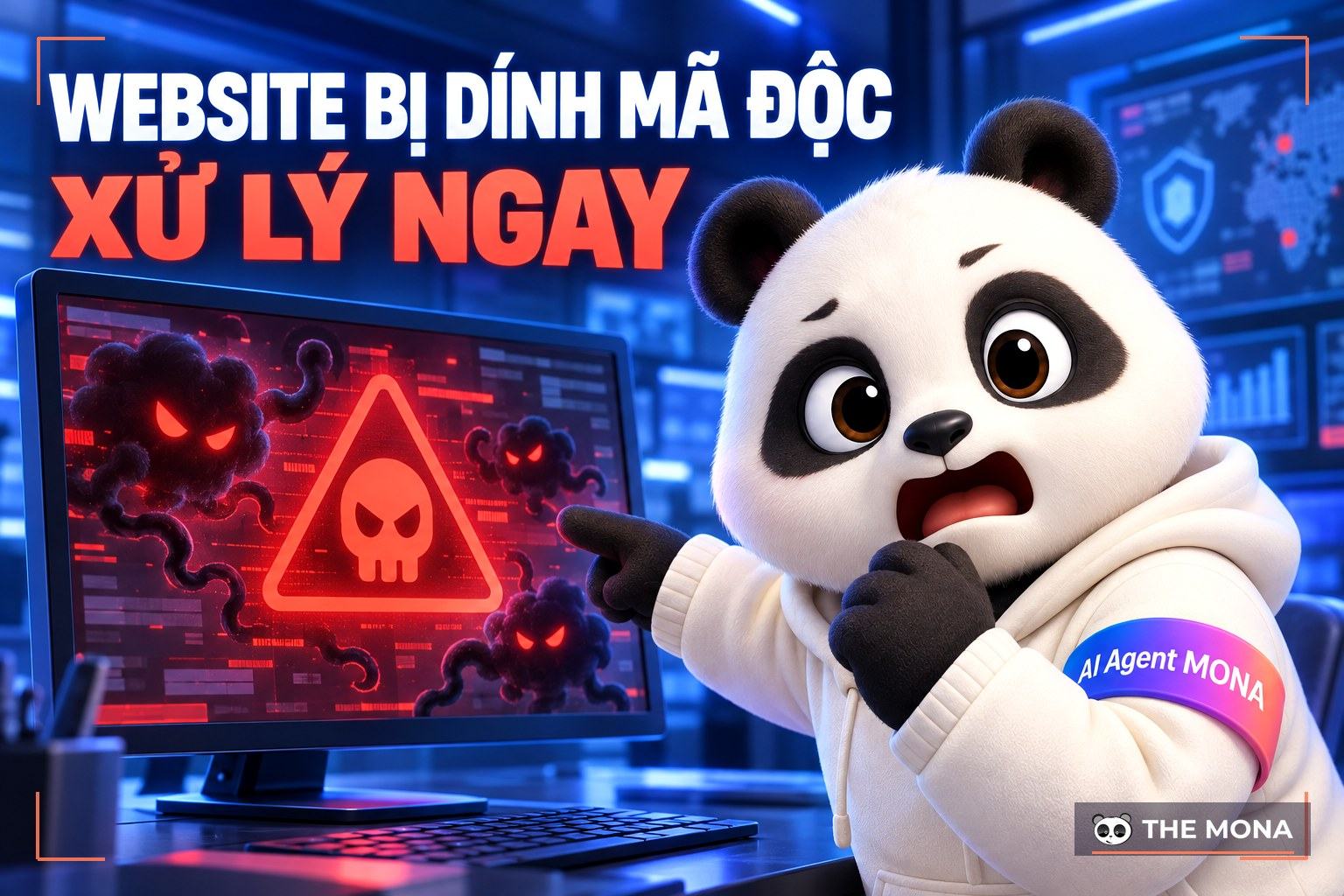
With years of experience supporting customers, MONA has seen many cases of website error notices, websites infected with malware, viruses, and ads being blocked from running. These are a main cause of serious damage to your website's performance. In this article, MONA Meida will help you find the cause and deal with a website infected with malware so your website can keep running and keep bringing results for your business.
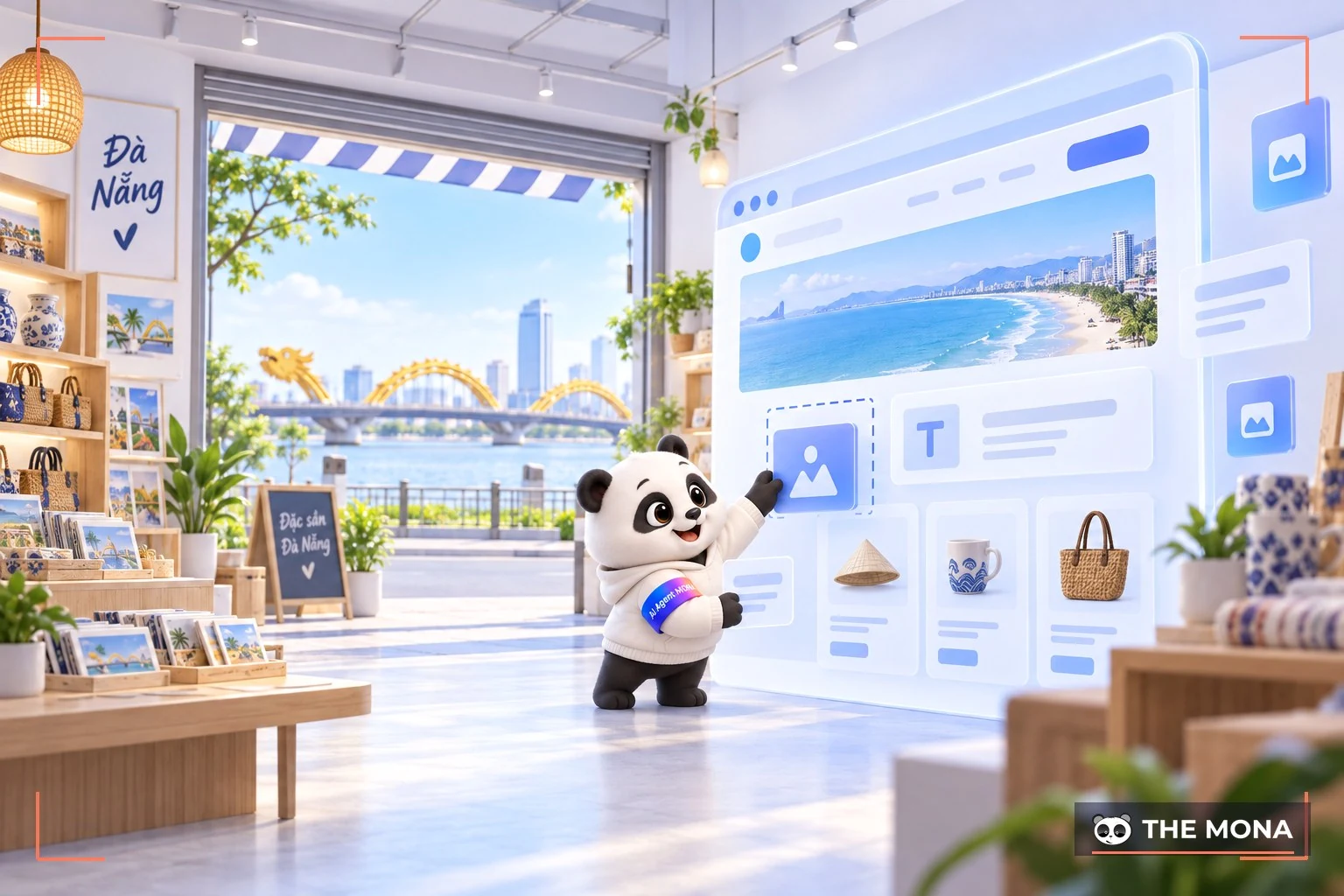
Malware is code designed to harm computer systems, electronic devices or users. When malware is injected into a website, the site contains code designed to carry out harmful activities such as stealing personal information, destroying data and infecting visitors' computers with viruses when they visit the page.
Malware can get onto a website in several ways, including:
≫Read more: Top 5 malware scanning tools keep the website safe

There are many reasons why your website might be infected with malware. MONA lists the most common ones below:
When a website contains malware, it is important for the administrator or owner to detect it in time and deal with it immediately. Leaving malware untreated can have serious consequences for your website and directly affect your users.
Accordingly, the specific consequences when a website is infected with malware can include:
Ever wondered why your website still does not reach the top even though everything is optimized? Sometimes it is because of tiny errors SEO techniques that you do not notice. In this video, we show you the “invisible” errors that Googlebot is very sensitive to. Watch the video now!
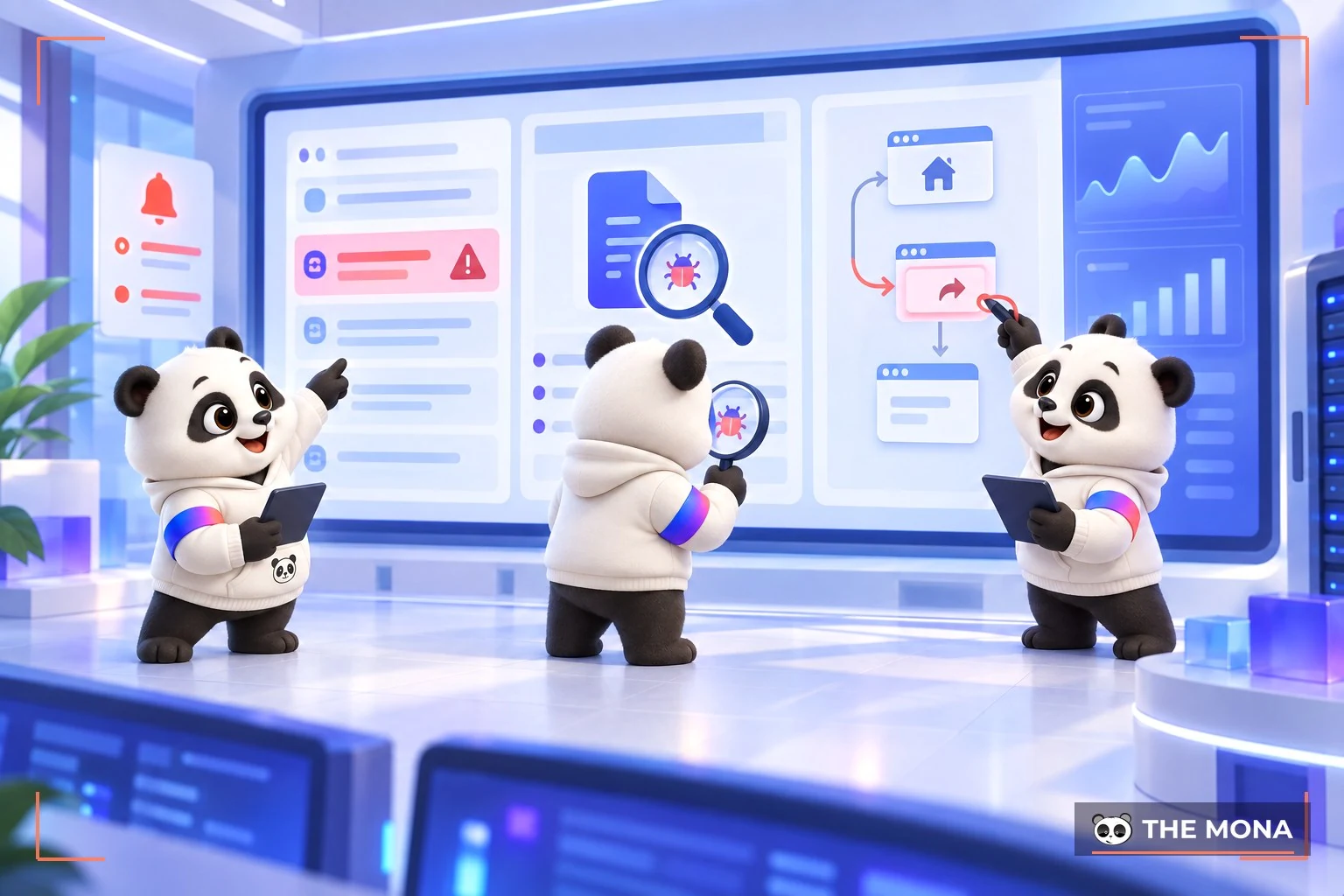
Prevention is better than cure. To keep your website from being infected with malware, MONA has put together these solutions to help you protect your website as well as possible:

There are many reasons a website ends up with malware, from security weaknesses on the server to gaps in how the site is managed. To keep your website safe, you can use the short-term solutions listed above.
However, for stronger, long-lasting and sustainable protection, you can consider moving from your current hosting provider to a more reputable, higher-quality one.
MONA Host is one of the leading providers of high-quality hosting and infrastructure solutions in the market. We have many years of experience keeping customers' websites safe and running reliably on the internet.
Co-Founder, MONA Host: “Even as we expand and grow, our top priority is still to make sure our customers are as satisfied as possible and get what they need and want. For us, customer goodwill and satisfaction matter most.”

In particular, when you use MONA hosting you receive these benefits below:
Contact us now at Hotline 1900 636 648 to get advice on the infrastructure solution that best fits your business.
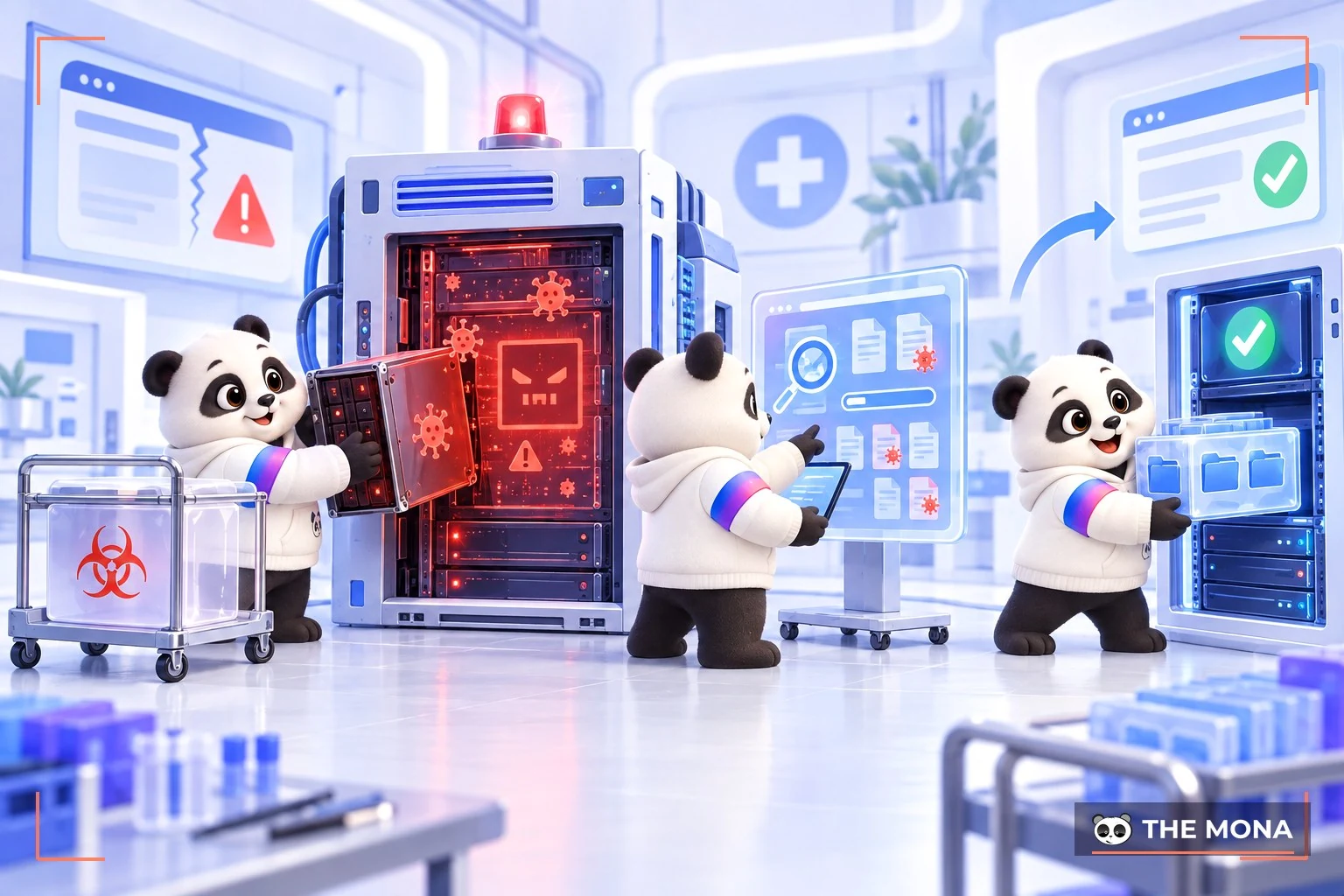
There are usually 5 ways to check where your website's malware came from. Let's go through them in detail:
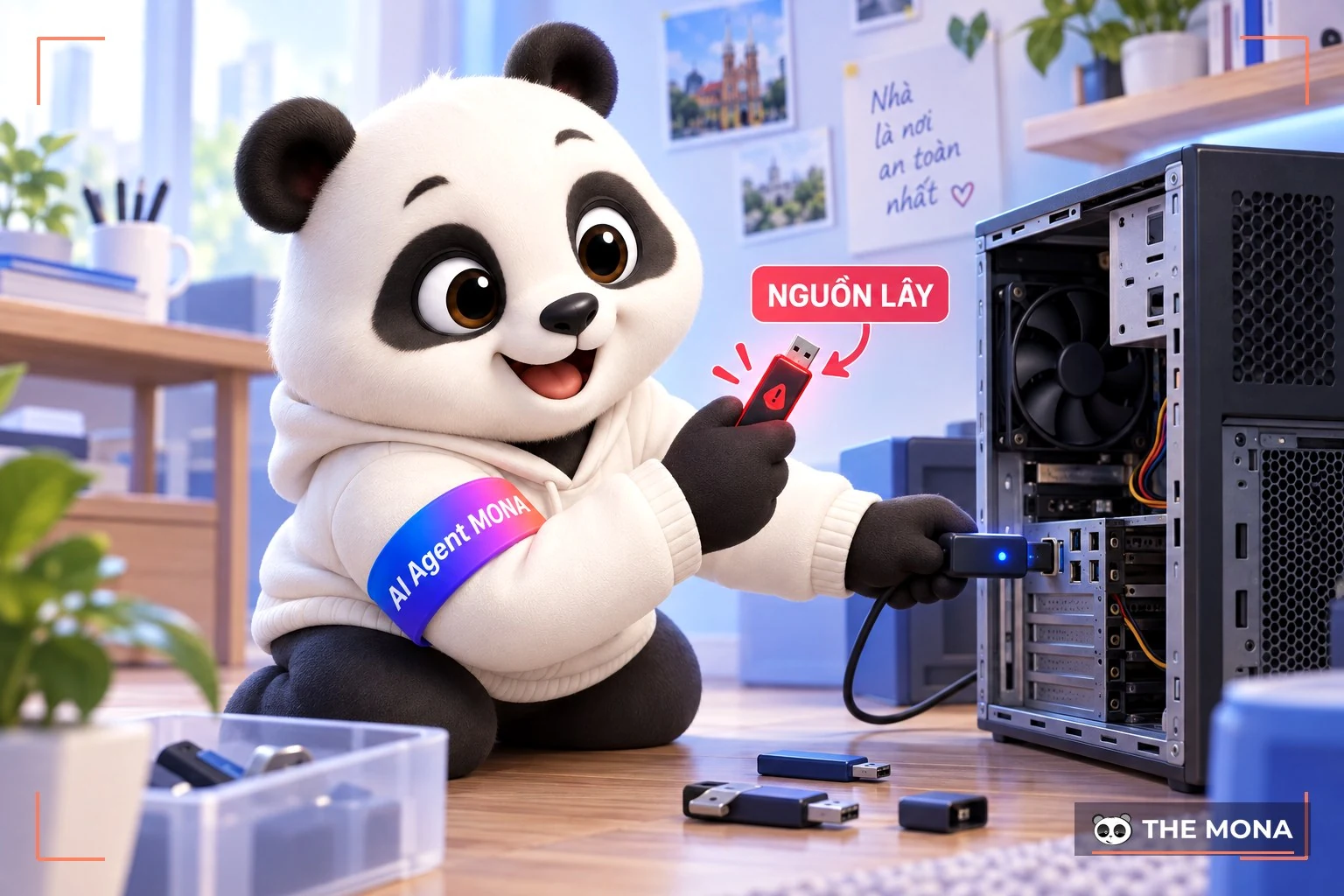
If your personal computer has a virus, or your access details were stolen and used to upload malware with harmful content, you need to download an antivirus program and scan your personal computer to make sure it is safe before taking the next steps.
Webmaster Tools is a powerful tool for website administrators. It is provided free to help you manage links to your website and the keywords users use to find it. The tool also checks your website regularly and notifies you as soon as it detects malware.
The process of checking the website's source code includes:
Besides Google Webmaster Tools, there are many reputable websites that scan for and quickly detect malware, for example:
If your website runs on WordPress, you can also use a few of the plugins below to check quickly when it is infected:
Once you have used the steps above to check whether your website is infected, and if the applications you use help remove malware, you should also check by hand.
First, check the files that were changed most recently since you found your website was infected. Files such as index., header, footer, default., and .htaccess are usually where malware can be attached, especially pieces of code base64.
You can also download your website's source code and scan it with antivirus software. Be careful, though, because this software may also delete your important files if it detects that they are infected.
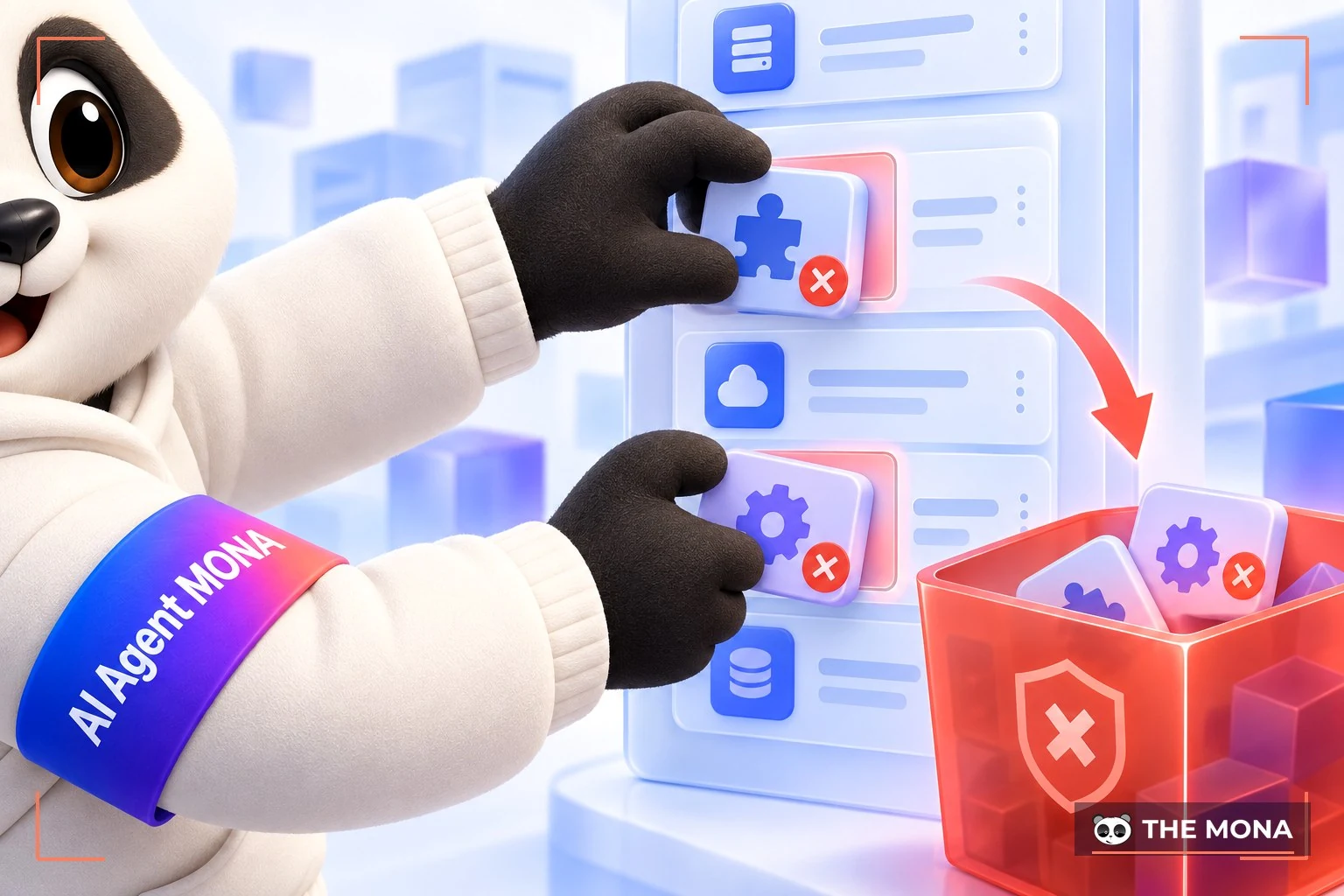
Once you have confirmed the website contains malware, log in to your hosting control panel. You normally receive the login details when you buy the hosting service.
Find the section “Installed applications” or “Installed apps” in the control panel. These applications are usually WordPress, Joomla, Drupal,… View the list of applications installed on your website. Check any applications you do not remember installing or do not recognize. Identify the applications of unknown origin and choose the option to remove or delete them from your website.
There is usually an option to remove them directly from the hosting control panel. After removing them, check the list of applications again to make sure only the ones you trust and remember installing are left.

In your hosting control panel, find the section “Backup” or “Backup and Restore“. View the list of available backups and choose the most recent one from before your website was infected. Choose the “Restore” option and follow the instructions to restore your website from the selected backup. Wait for the restore to finish. Then check the website again to make sure everything works normally.

After restoring the backup, log in to your website's admin area. Find the Account management or User accounts section in the admin area. Change the username (Username) and password (Password) to new, strong ones to protect your account from further attacks.
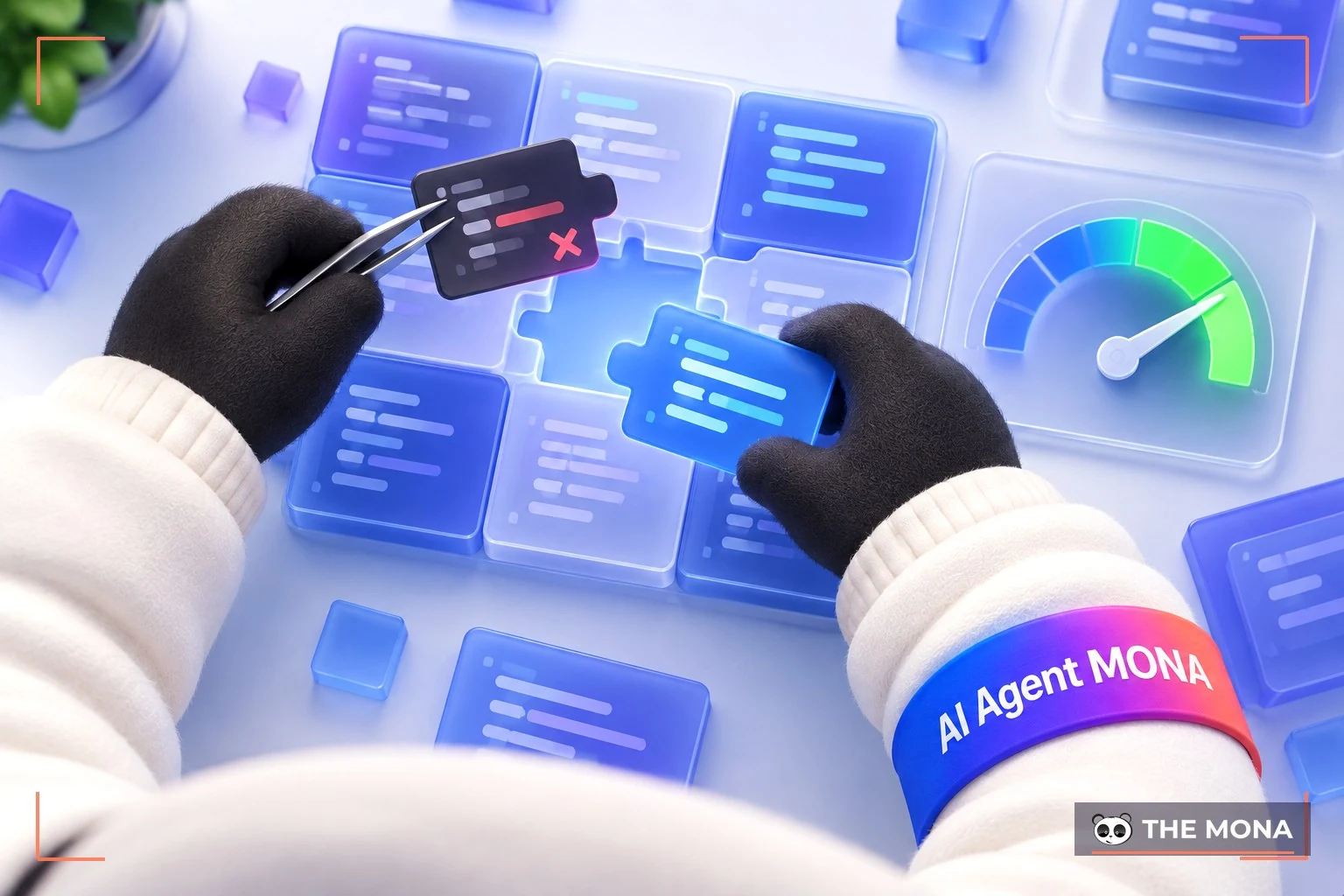
Finally, once the security issues are dealt with, you need to optimize the source code to improve the performance and security of the website. You can remove unnecessary code, fix errors and improve the code structure. This not only speeds up page loading but also reduces the risk of attacks through hidden security holes in the code.
≫Explore more: How to fix fixing a website hacked with Japanese text quickly
That is all the information on how to detect and deal with a website infected with malware that MONA Media has just shared with you. We hope this article helps you fix an infected website quickly and correctly. Keep in mind that viruses, malware and other malicious software can seriously harm not only your website but also your users. Rather than waiting for a problem and then looking for a fix, protect your website in advance against the threats around it.
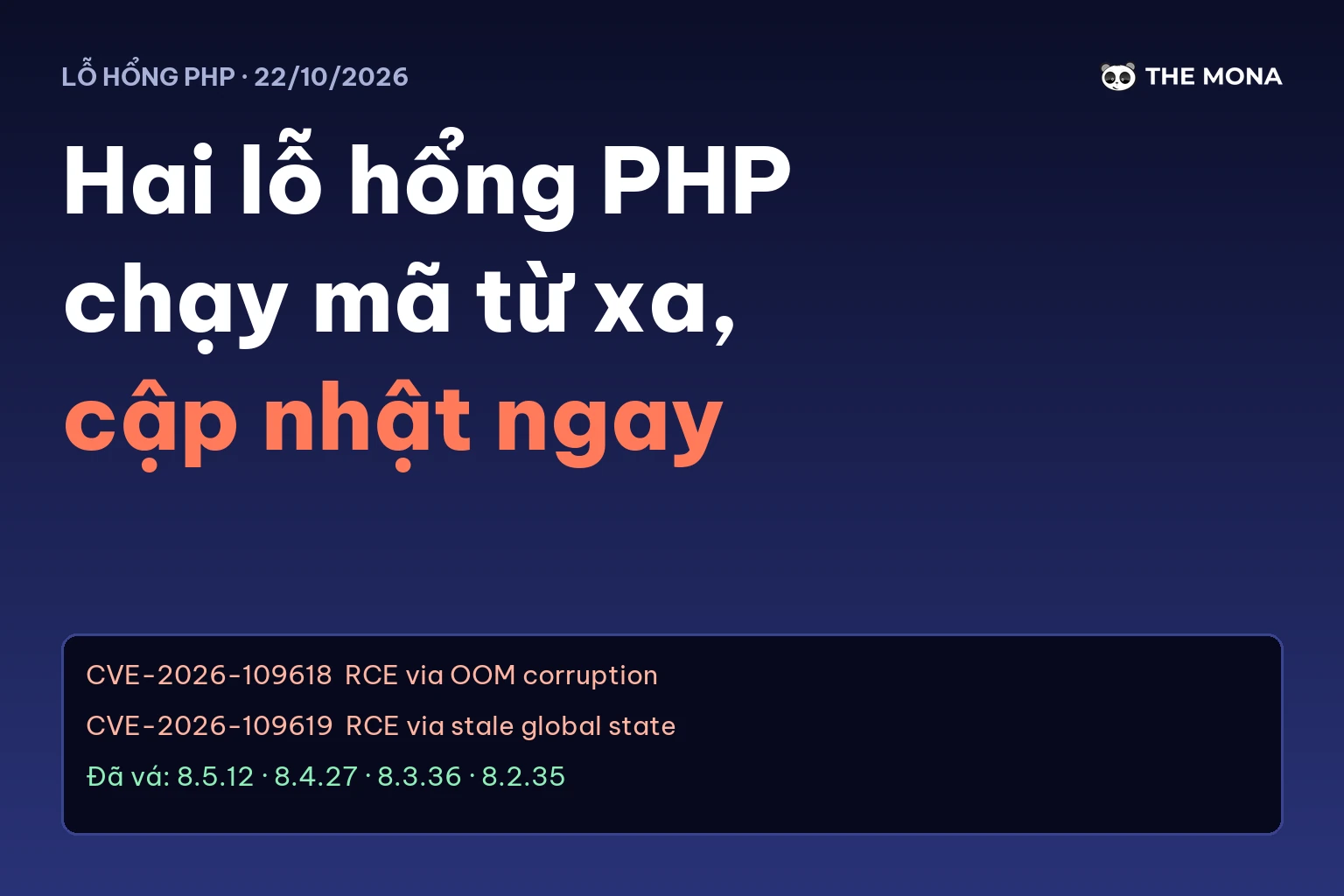
Related articles: PHP vulnerability disclosed on October 21, 2026 lets unpatched servers be hit by remote code execution

CEO & Founder · The MONA
Founder of The MONA, who built a services company of 200+ staff with 14,000+ projects delivered. Khánh Hùng shares how he thinks about building systems that run themselves, automating a business, and the real lessons from delivering projects at MONA.
 1,6K


Professional website
design services
Own a website with a beautiful, 100% exclusive design and a lifetime warranty, with the ability
to expand features flexibly as your business grows, starting today!






 MONA will never sell your information or send you spam


 MONA will never sell your information or send you spam
