
 MONA OS 2.0
 Hợp tác với MONA


 Tự động hoá doanh nghiệp
 Cẩm nang SEO
 Digital Marketing
 Kinh nghiệm thiết kế website
 Hạ Tầng Server
 Giáo dục


 VI
 EN















Message us on
Zalo Official


 ProductsNew

 ProductsProducts
 Mới ra mắtKHA AI 2027App tự edit video, tự đăng mọi mạng xã hội, 2 phút mỗi ngày









 Thiết kế websiteVừa đẹp vừa thuyết phục được khách.
Dịch vụ SEOKéo về khách đang tìm đúng thứ anh chị bán.
 Tư vấn digital marketingKéo khách từ nhiều kênh, đo bằng số thật.
Quay video doanh nghiệpVideo giới thiệu công ty, nhà xưởng, đội ngũ.
 MớiDựng video AIDựng phim câu chuyện công ty bằng AI.
 Custom software developmentCRM, ERP and HRM built for your business.
 Viết AI Agent theo yêu cầuĐặt riêng một trợ lý AI cho đúng việc của mình.
 Tư vấn chuyển đổi AIĐưa AI vào vận hành của cả công ty.
NewMONA LMSManagement for centers and schools.
MONA SkillHubInternal training for company staff.
 NHTQ systemEnd-to-end China–Vietnam shipping operations.
MONA JMSManagement for gold, diamond and pawn shops.
 MONA E-LearningA website with every feature you need to sell courses.
 How to sell online courses (course)More than 30 free lessons on selling courses on autopilot.
 MONA Cloudmonacloud.vnServers to get your apps and websites running.
 MONA Basemonabase.vnPostgres database, sign-in and file storage.
 MONA Mailmonamail.vnSend OTP, order and invoice emails from your software.
 MONA Paymonapay.vnAccept bank transfers via VietQR and notify your software when the money arrives.
 MONA eInvoiceComing soonIssue e-invoices that meet tax standards.
Gấu CườiTrả lời khách 24/7 trên web, Fanpage, Zalo và thu lead cho sale.
 Gấu TeleSalesGọi điện tư vấn, chăm khách như tổng đài viên thật.
Dê CườiTư vấn và chốt đơn cho shop ngay trong khung chat.
Gấu WebmasterNhắn nhóm Zalo là website được sửa xong.
 Gấu Pháp ChếSoạn hợp đồng, rà điều khoản trong vài phút.
 Gấu Báo GiáLên báo giá đúng mẫu và gửi khách ngay.
 AI chăm sóc khách hàngTheo dõi và giữ chân khách hàng cũ.
 Gấu Tuyển DụngLọc hồ sơ, hẹn lịch, phỏng vấn ứng viên.
 Mới ra mắt
KHA AI 2027
Xây kênh chuyên gia 2 phút mỗi ngày
Quay bằng điện thoại, AI tự edit video, tự đăng lên 16 nền tảng và tự trả lời bình luận, tin nhắn.
881.547lượt xem trên kênh CEO MONA sau 36 ngày
 Anh Khánh HùngCEO MONA đang dùng mỗi ngày
Xem app làm được gì
 AI
Gấu Cười MONA ĐANG TỰ XÀITrả lời khách 24/7 trên website, Zalo OA, Messenger và thu lead về cho sale.
Dê CườiChốt đơn bán lẻ và sàn: Shopee, TikTok Shop, web. Chăm cả khách sỉ, đại lý.
Gấu WebmasterCập nhật nội dung, tối ưu SEO website mỗi ngày.
Gấu TeleSalesGọi điện tư vấn, chăm khách như tổng đài viên thật.
Gấu Tuyển DụngLọc hồ sơ, hẹn lịch, phỏng vấn ứng viên tự động.
AI chăm sóc khách hàngGiữ khách cũ, cứu lead đã rớt cho phòng kinh doanh.
Gấu Pháp ChếSoạn hợp đồng, rà điều khoản trong vài phút.
Gấu Báo GiáLên báo giá đúng mẫu, gửi khách ngay khi có yêu cầu.
 Chuyển đổi AI toàn phầnGiải pháp tổng cho doanh nghiệp, 3 lớp triển khai.
 Viết AI Agent theo yêu cầuĐặt riêng một con AI gánh đúng nghiệp vụ của bạn.
 Custom softwareCRM, ERP and HRM with built-in AI automation.
 SEO & AEO thời đại AIĐược Google lẫn AI trích dẫn, không chỉ xếp hạng.
 Kiến thức AI cho doanh nghiệpBài phân tích, hướng dẫn ứng dụng AI vào vận hành.
 Free AI courses
 AI tools at work
App mới · KHA AI 2027
Xây kênh 2 phút mỗi ngày
AI tự edit video, tự đăng mọi mạng xã hội
Free consultation, 8am–10pm every day

23 July, 2025

If you do SEO and often check metrics like traffic, backlinks, keyword density or the strength of competitors' websites, SEOquake is a tool you can't do without. With just a few clicks to install, you get a very useful extension that supports SEO analysis right in your browser. So what is SEOquake? Why do SEO experts like this tool so much? In this article, MONA Media will cover the benefits, how to install SEOquake and how to use SEOquake most effectively.

SEOquake (or SEO Quake) is a free extension that gives SEO specialists important metrics to support work such as SERP analysis, SEO audits and keyword density reports. You can install the SEOquake extension on browsers like Google Chrome, Opera and Firefox and start researching data on a site with one click, with no account needed, which saves time compared with manual methods.
By showing a whole set of key metrics right on the search results, SEO Quake saves you time and gives you an overall view of your competitors and your own site. Instead of looking up each metric by hand on each landing page, the SEOquake extension automatically collects and shows information such as domain age, Alexa Rank, SEMrush Rank, domain info (whois) and even Facebook likes.
SEOquake doesn't only help you analyze competitors. It is also a handy tool for reviewing your own website. You can:
To make SEO analysis and research more effective, SEOquake is built with standout features such as:
Today, SEO tools SEOquake can be installed on most popular browsers, including Chrome, Firefox, Opera and Cốc Cốc. With a few simple steps you can add the extension to your browser and start analyzing SEO right away.
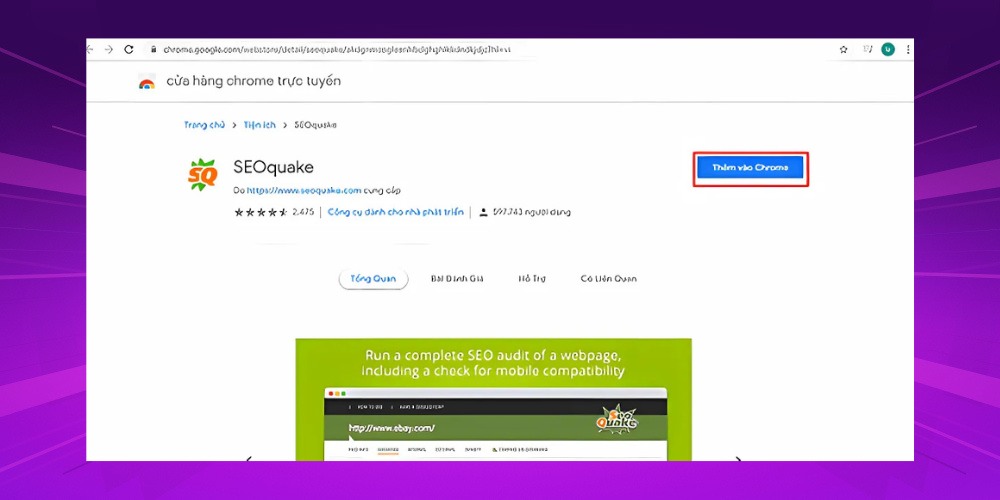
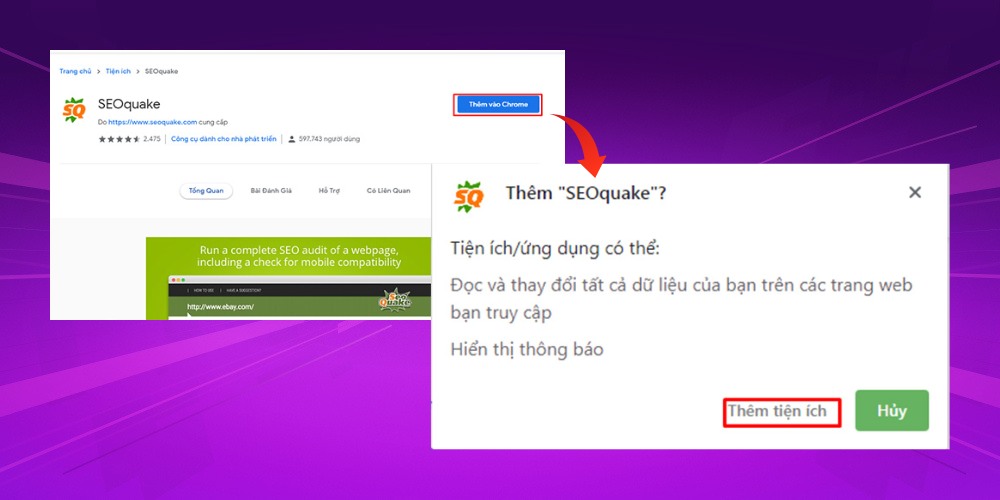
Step 1: Download the SEO Quake extension for Chrome from this link: https://chromewebstore.google.com/detail/seoquake/akdgnmcogleenhbclghghlkkdndkjdjc?hl=vi.
Step 2: Click the "Add to Chrome”.
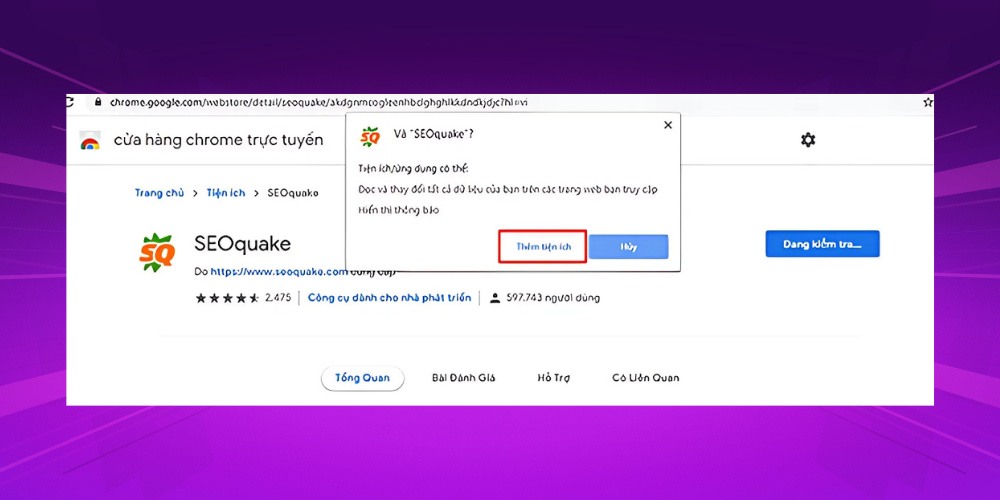
Step 3: A small window will appear in Chrome. Click "Add extension”.
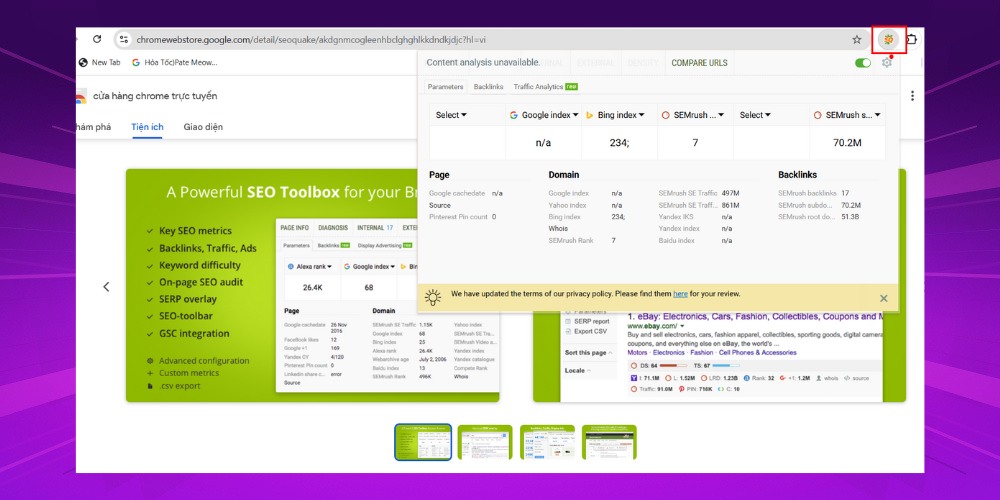
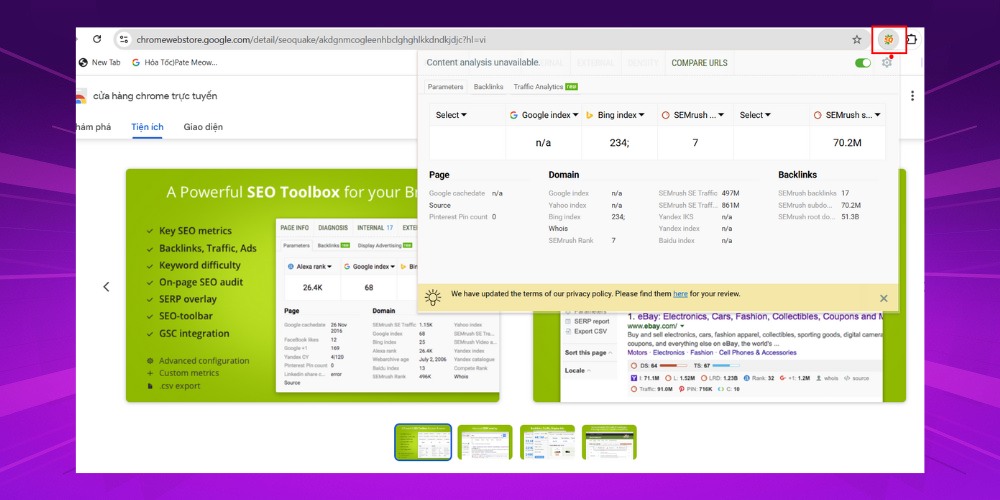
Step 4: When the SEOquake installation for Chrome is done, you will see the SEO Quake icon in the top right corner of the browser.
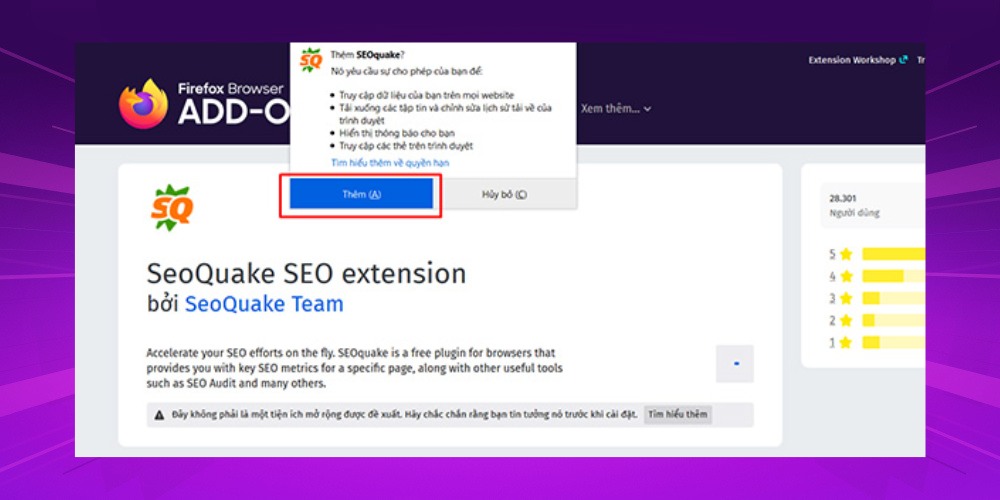
Step 1: Download the SEOquake extension for Firefox from this link: https://addons.mozilla.org/vi/firefox/addon/seoquake-seo-extension/.
Step 2: Choose "Add to Firefox”.
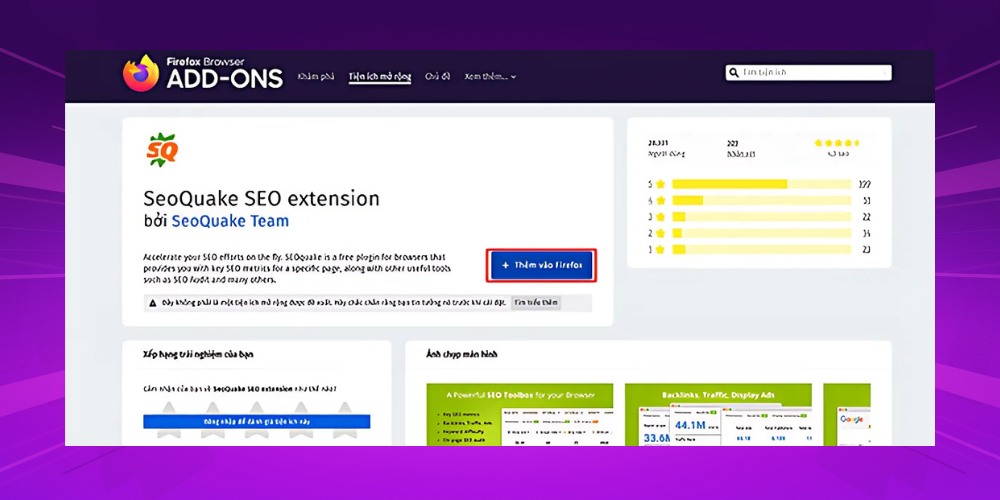
Step 3: When the window appears, just click "Plus" and you have finished installing SEOquake on Mozilla Firefox.
Step 1: Go to this link: https://chrome.google.com/webstore/detail/seoquake/akdgnmcogleenhbclghghlkkdndkjdjc?hl=vi.
Step 2: Click "Add to Chrome", then choose "Add extension”.
Step 3: That completes the SEOquake installation for Cốc Cốc.
Once SEOquake is installed, the next step is to learn its key features so you can use the tool well. Here is a detailed SEOquake guide to help you get the most out of its features, from basic to advanced:
When you search any keyword on Google, SEOquake automatically shows analysis metrics right in the search results (SERP). This is extremely useful for competitor research, meaning the websites in the top 10 for your target keyword, or the top 100 on Google.
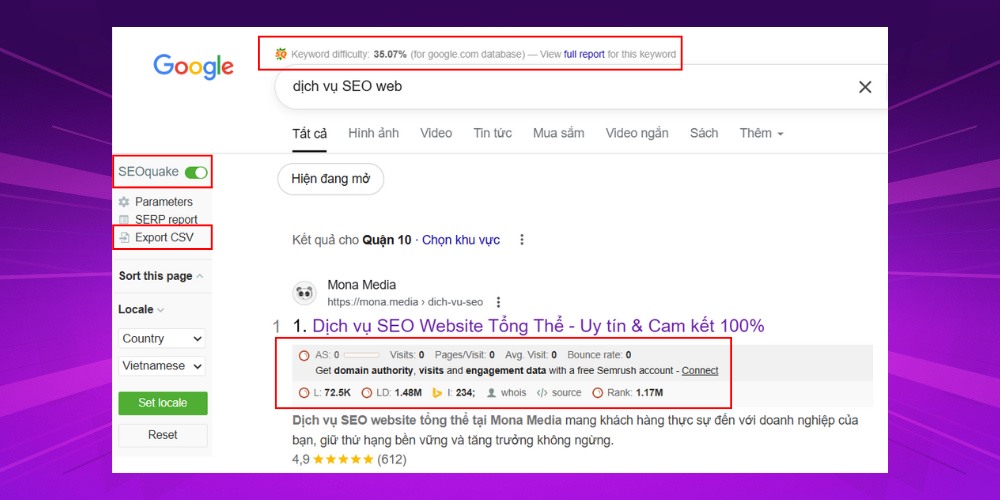
Some standout features to watch when using SEO Quake for competitor analysis:
One of the core and most praised features of SEOquake is SEO Onpageanalysis. This step helps you optimize your site's structure and content to be friendlier to Google and users. An Onpage SEO audit also lets SEOers quickly find and fix errors on the website, so the site competes better against its rivals.
How to use the Onpage SEO checking tool in SEO Quake:
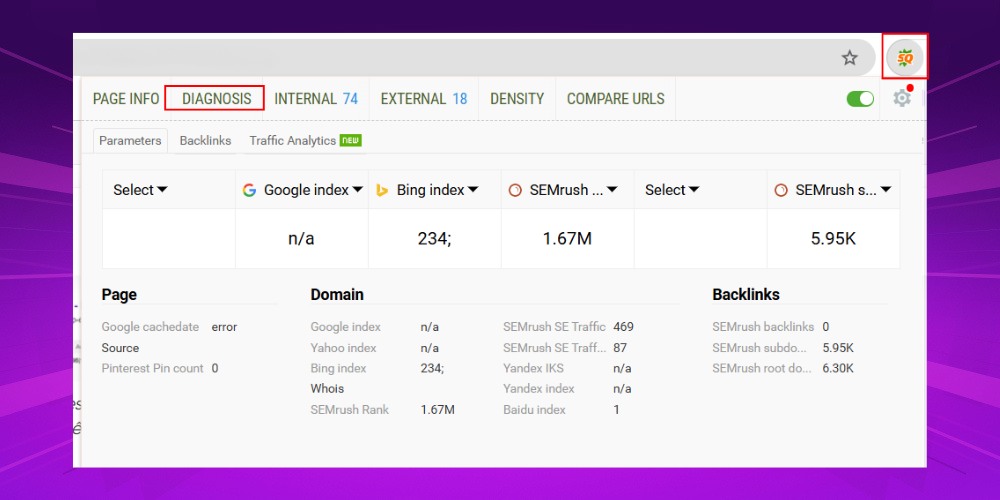
Step 1: Go to the site you want to analyze, click the SEOquake icon in your browser and choose "Diagnosis”.
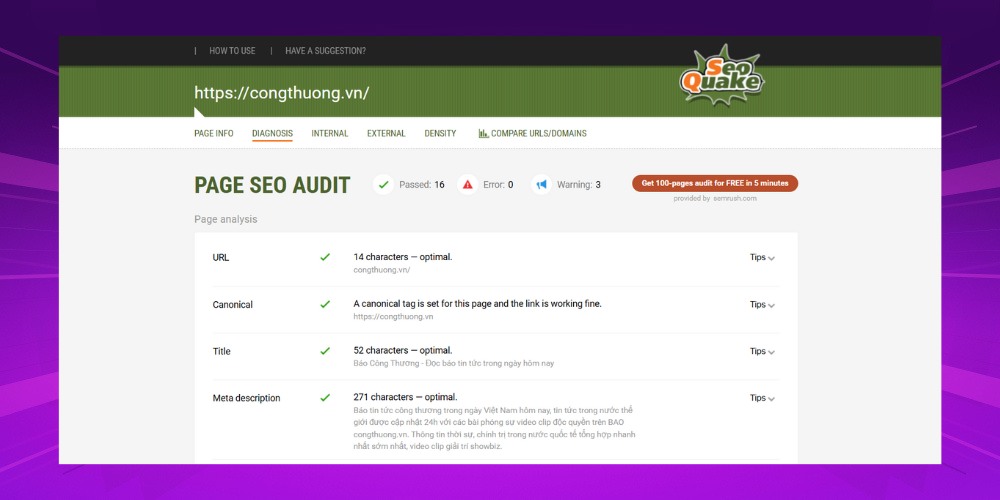
Step 2: The "Page SEO Audit" window will appear. You can see the title tag, meta description, canonical, internal links, page load speed and more, to know whether your site meets SEO standards.
You may also be interested in:
- Optimize your website for SEO: The most effective tips to optimize web SEO in 2026
- Roundup of the top 10 tools checking whether a website meets SEO standards best
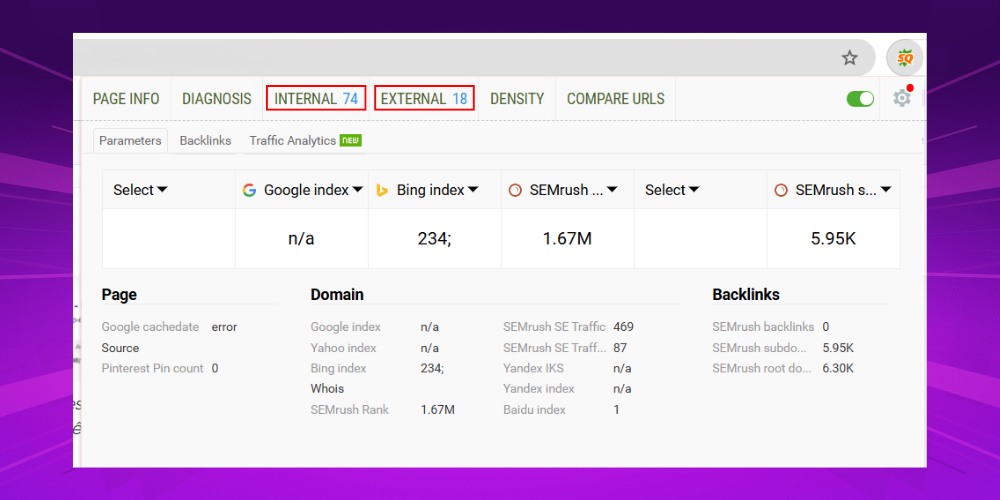
Controlling links within a website is always an important part of SEO. With the SEOquake extension, you can quickly check the number and detailed figures of:
Checking links with SEOquake is very simple. Go to the page you want to check, click the SEO Quake icon, then choose the "Internal" or "External" tab.
Google increasingly prioritizes user experience, so stuffing too many keywords into an article no longer works. Instead, control keyword density sensibly so that the article SEO-standard articles, is easy to read and easy to understand.
To check keyword density with SEOquake:
Step 1: Go to the page you want to check, click the SEOquake icon and choose the "Density”.
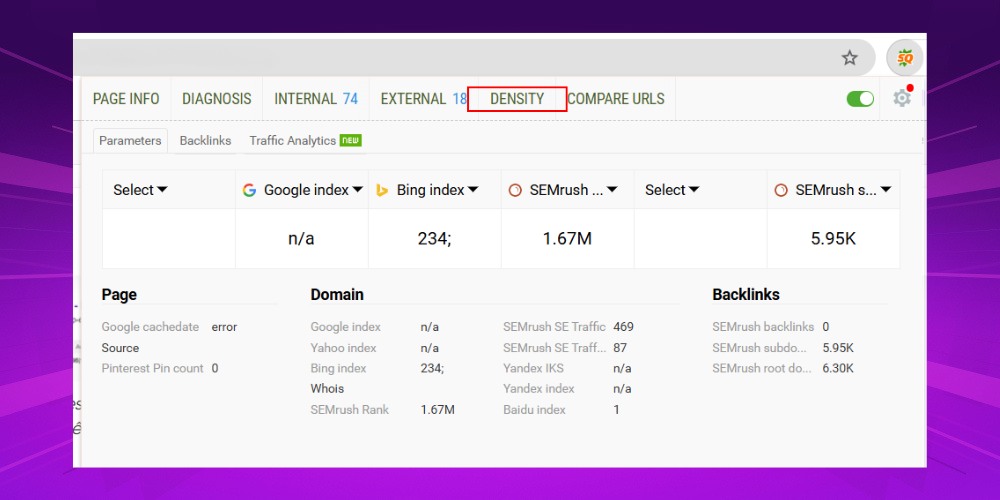
Step 2: A detailed analysis table appears with your keywords, how often each appears and the matching percentage.
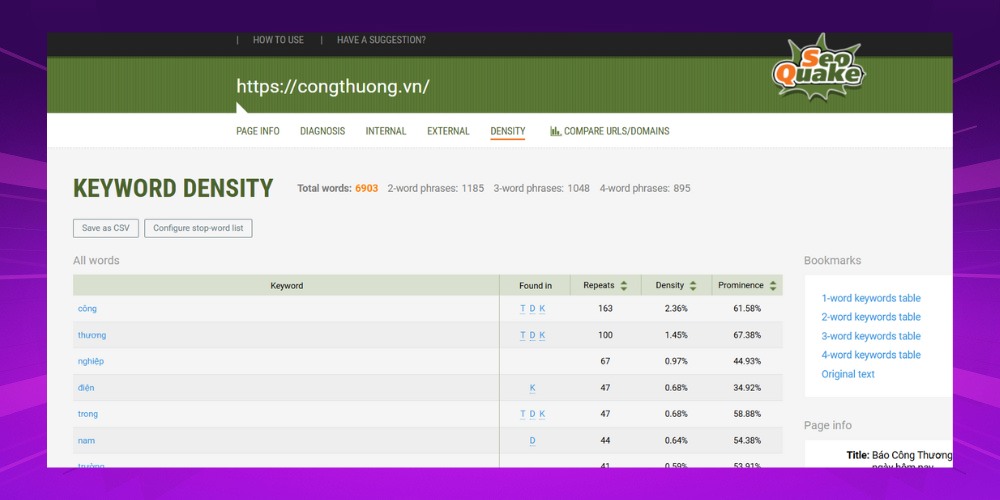
*Note: With experience carrying out SEO Google From over 10 years of hands-on work, MONA recommends keeping keyword density within 1,5% – 2% to avoid being flagged for keyword spam.
If you are analyzing several competitors or comparing landing page performance, SEOquake's Compare URLs/domains feature is extremely handy. You can compare up to 1000 URLs at once across more than 20 metrics such as domain age, number of indexed pages and backlinks.
Here is how to use the SEOquake extension to compare URLs:
Step 1: Click the SEO Quake icon and choose "Compare URLs”.
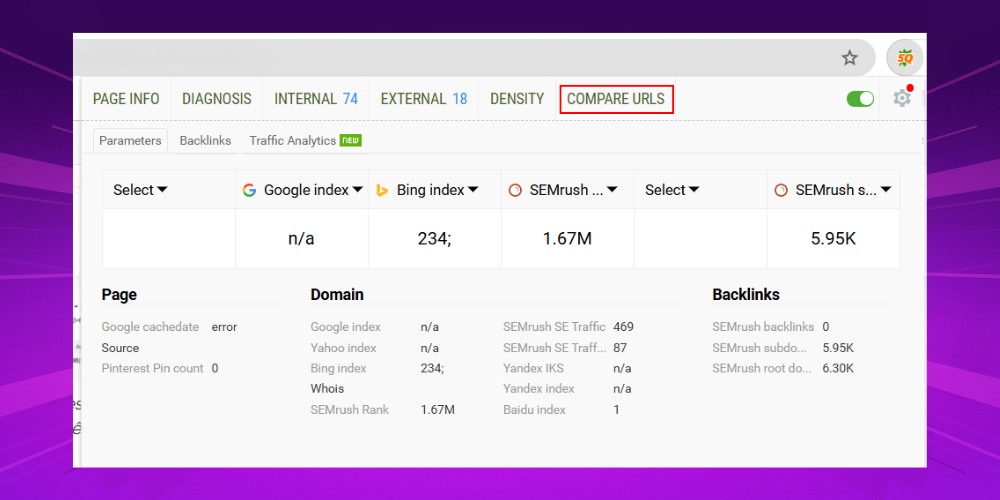
Step 2: Enter the list of URLs you want to analyze (up to 1000 URLs), then click "Process urls" to see the detailed comparison table.
To use SEOquake well, SEO practitioners need to know how to turn the extension on, off or remove it when needed. Here is a detailed guide so you can manage SEO Quake right in your browser.
After you install SEOquake, the extension icon appears in the top right corner of the screen (the extensions area). In some browsers like Chrome, you may also see an activation button on the left, running along the toolbar. To turn it on, SEOers just click the SEOquake icon and choose the activate button, and the extension is ready to analyze and support your SEO.
If you need to switch off the SEOquake extension for a while without removing it, click the extension icon and choose Turn off or Disable.
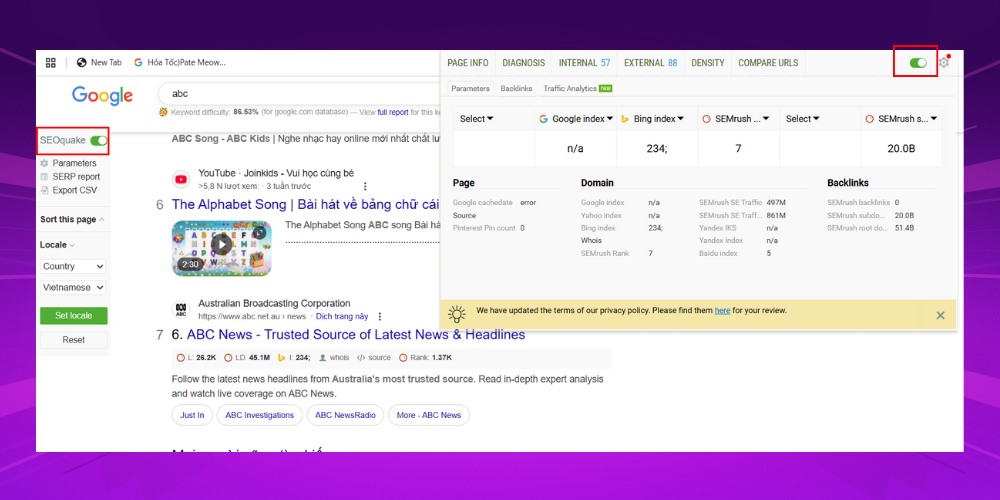
If you no longer need it and want to remove SEOquake from your browser completely, here is how for each platform:
*Note: Removing SEOquake doesn't affect your saved SEO data, so you can reinstall it any time you need.
That is MONA's full answer on what SEO Quake is, plus how to install and use SEOquake to make your SEO work more effective. Whether you are new or have done SEO for years, making good use of SEOquake will surely save you time and raise your productivity.
If SEO optimization feels too complicated or time-consuming, let reputable SEO companies MONA Media work with you. With over 10 years of experience delivering hundreds of SEO services across many industries, we are committed to bringing your keywords to the top sustainably, attracting a wide range of customers and growing real traffic without costly ads. Contact us now for advice and a detailed SEO quote that fits your business!


CEO & Founder · The MONA
Founder of The MONA, who built a services company of 60+ staff with 14,000+ projects delivered. Khánh Hùng shares how he thinks about building systems that run themselves, automating a business, and the real lessons from delivering projects at MONA.
 1,5K




Professional website
design services
Own a website with a beautiful, 100% exclusive design and a lifetime warranty, with the ability
to expand features flexibly as your business grows, starting today!



NHẬN TƯ VẤN SEO MIỄN PHÍ !






 MONA will never sell your information or send you spam


 MONA will never sell your information or send you spam
