MONA OS 2.0
 Partner with MONA







































 Free AI courses
 AI tools at work

 Tự động hoá doanh nghiệp
 Cẩm nang SEO
 Digital Marketing
 Kinh nghiệm thiết kế website
 Hạ Tầng Server
 Giáo dục


 VI
 EN


How to create online exams for schools and training centers

Online testing has become very common in exams at educational institutions. So how do you create an online exam? Read on below, MONA Media will walk you through the steps to create an online test (covering all 3 parts: Reading, Writing and Speaking) quickly, directly on MONA LMS software.
What is an exam bank?
An exam bank is a term for a collection of exams created by an educational institution to be used in tests for each class or competition.

The exam bank is managed by the school, the department or the exam organizer. The main purposes of building an exam bank are:
- For learners: it helps them understand the knowledge and skills content in detail when taking a test.
- For teachers and managers: the exam bank is a useful tool for creating new tests and keeping assessment results fair.
Accordingly, at each exam period, the subject teacher uses this bank to build an exam and sets a few options in the system, such as the number of questions and the time allowed.
How to create an online exam on MONA LMS
The steps to create an online exam are quite easy, and you can do them directly on the multiple-choice exam software of MONA LMS. The process takes 5 steps:
Step 1: Log in to MONA LMS
Go to the website address: https://monalms-dev.monamedia.net/signin/. Enter your Username and Password.
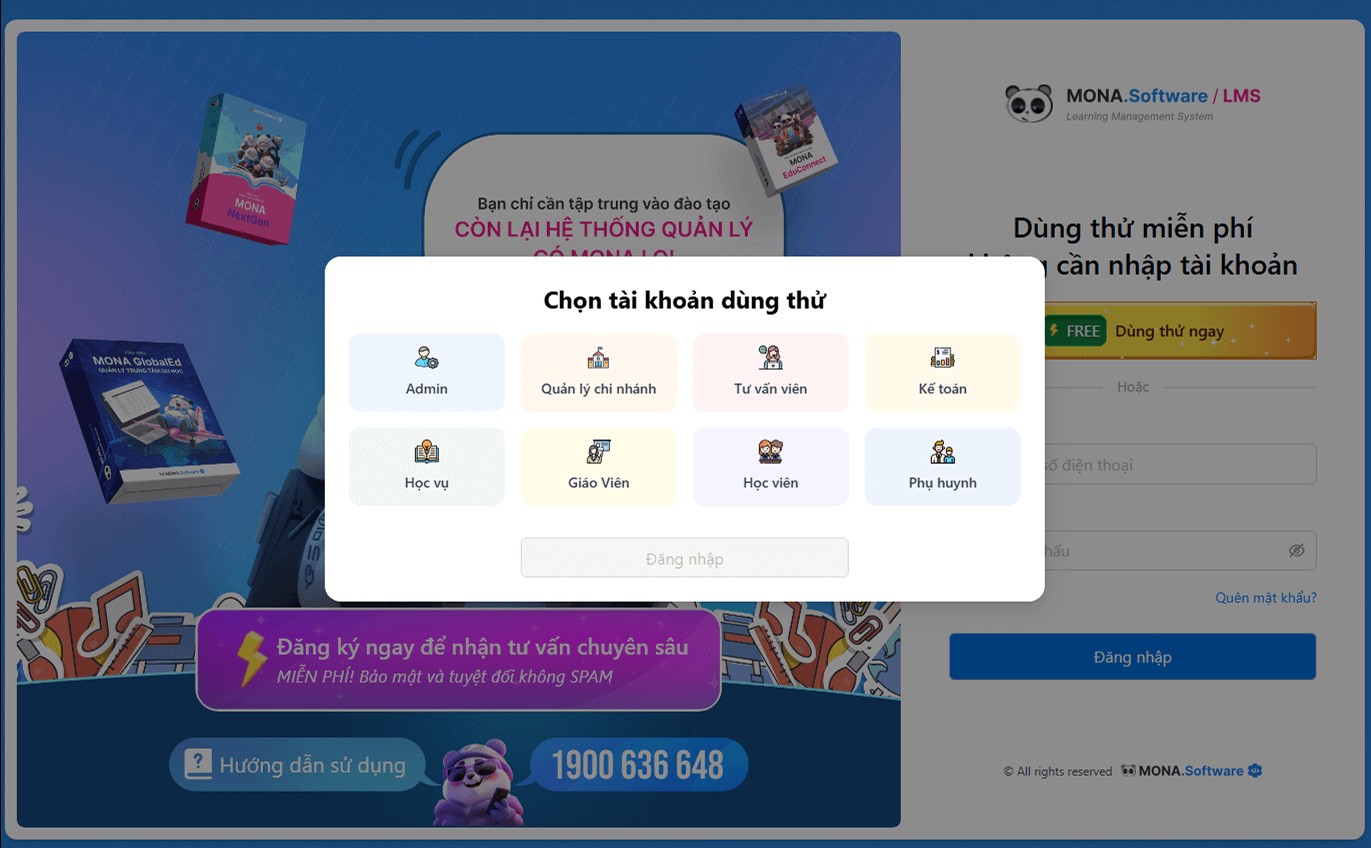
Login screen of the MONA LMS online exam software
Step 2: Create the online exam
After you log in, the system shows the admin page for accounts with permission to create online tests.
In the admin interface of MONA LMS, you can add more skills to the online test, including Reading, Writing and Speaking.

Click the "New skill" button to add a test type

Screen for adding a new skill
On the main screen, click the "New section" button to create a multiple-choice test as shown below.

Click New section to create an online exam
To make the process easy to follow, MONA will walk you through creating the question set for each skill (Reading, Writing and Speaking) below.
Reading skill
In the "Add new section" tab, enter the name, paste the content of the Reading test and click the "Save" button as shown below.

Name the section and choose the content for the Reading skill test
To add questions to the Reading section, click the "Passage" button. The menu then shows these options: "Add question", "Update", "Delete". Choose "Add question".

Below is the screen for adding questions to the Reading section. Do the following:
- Enter the group name.
- Choose the question type to display: Multiple choice, Fill in the blank, Select the correct answer, and so on.
- Choose the question level: Easy, Medium, Hard.
Note: The MONA LMS online exam builder has these "Type" and "Level" options preset. All you need to do is pick from them.

Screen for adding a "Fill in the blank" question to the Reading skill
Next, to add the blanks, click the yellow button shown below, and the gray boxes (1), (2), and so on will appear as shown below.
To enter the answers for the question's blanks, look at the right side of the screen, circled by MONA, then enter the answers and click the "Save" button.
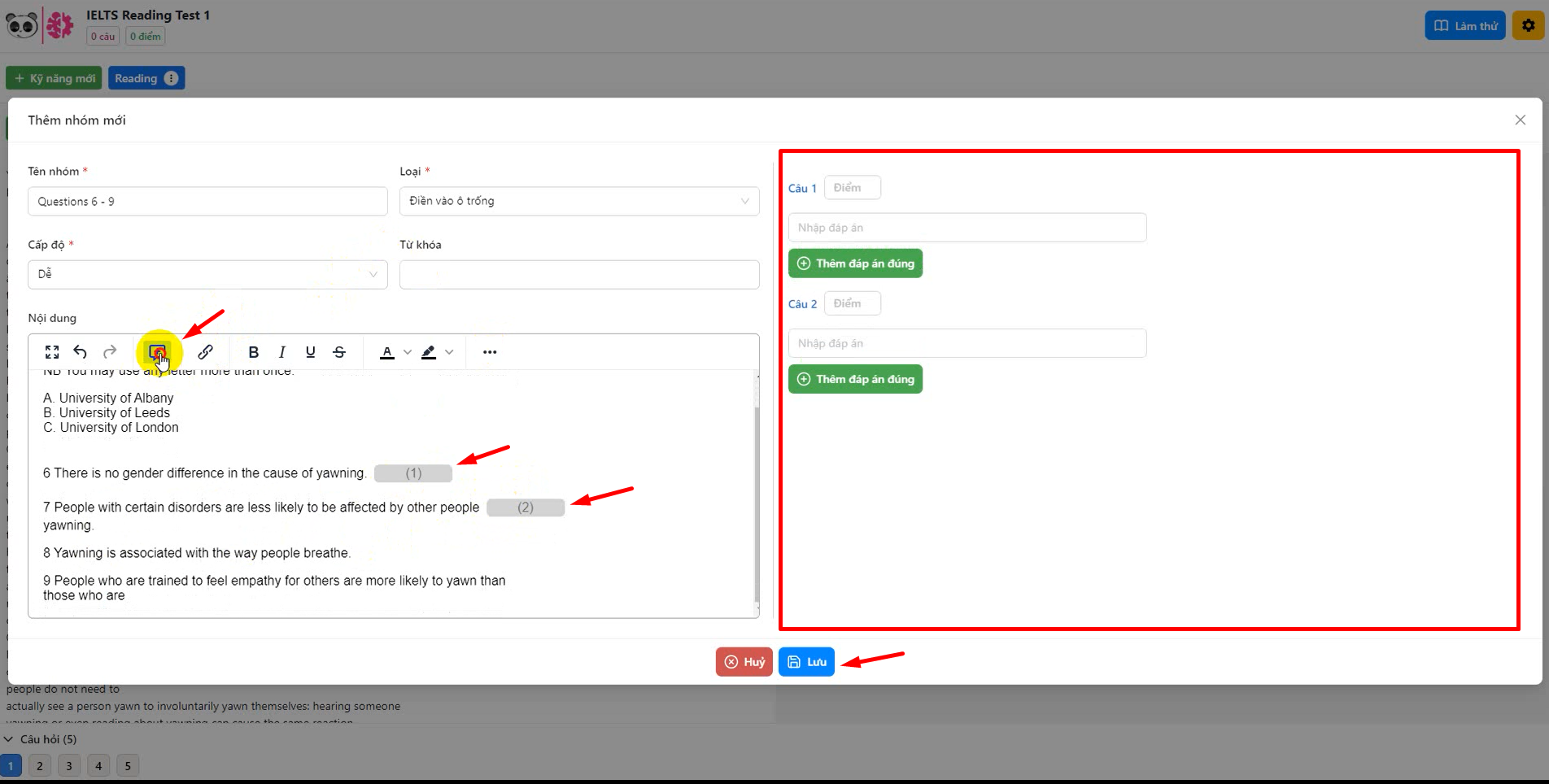
Screen for entering answers to a "Fill in the blank" question
After you click "Save", the system lets you preview the questions you just entered.

Preview screen for the "Fill in the blank" question you created
Writing skill
After adding the Writing skill, click the Writing button, then "New section", and the admin screen will appear as shown below.

Screen for adding a "New section" for the Writing skill
Just like the Reading skill, to add a question for Writing, click the "Writing" button, then "Add question". The image below shows exactly how.

Choose "Add question" for the Writing skill
After you choose "Add question", do the following:
- Enter the group name.
- Choose type: Essay.
- Level: Easy, Medium or Hard.
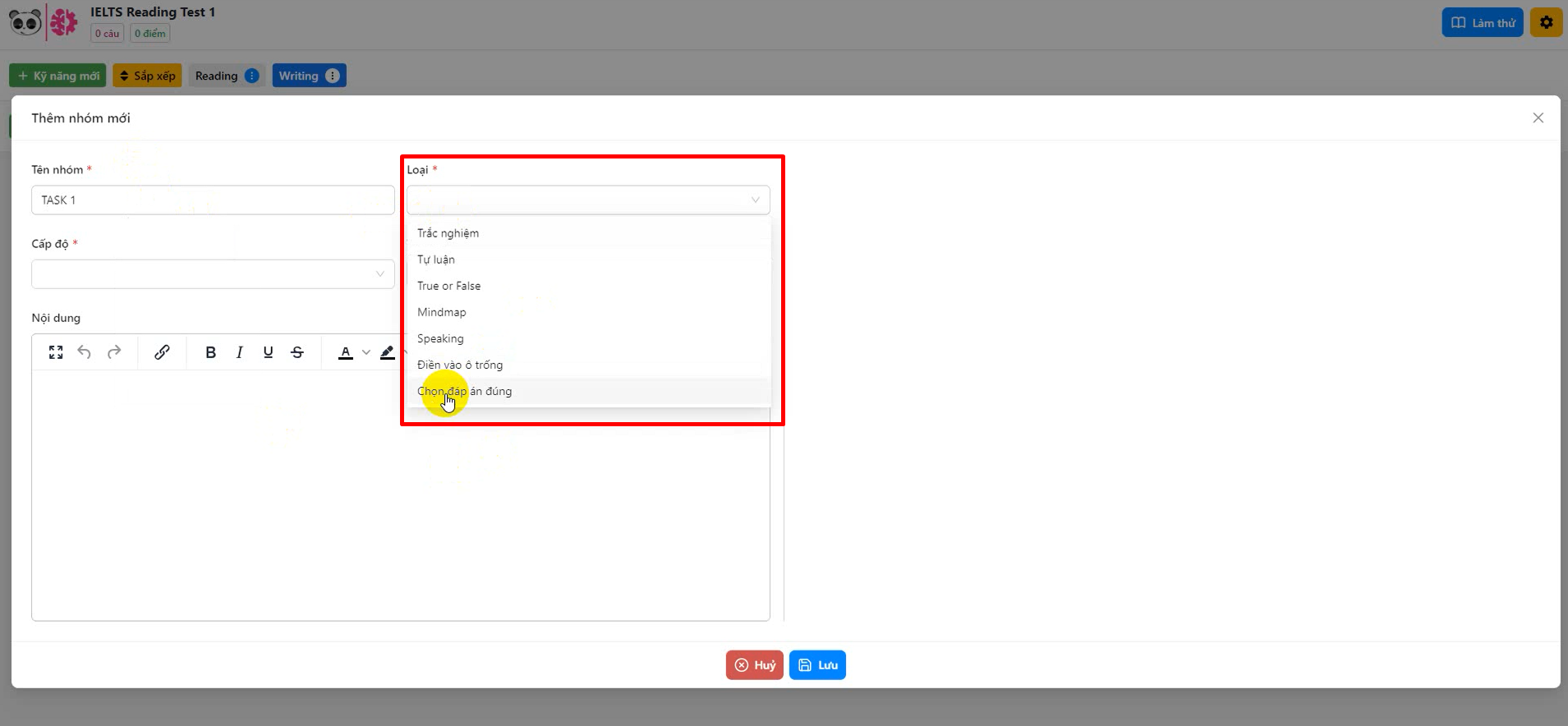
Screen for adding the question type for the Writing skill
Next, enter the question content in the left frame. If you want to add an image, do the 2 steps shown by the arrows below (this makes the image load faster for students than pasting it directly into the content). The Insert/Edit Image tab appears, then you enter the details and click "Save".

Screen for adding an image when creating an online exam
To add a question to the essay section of the Writing skill, click the "Add question" button as shown below.

Screen for adding a question to an online essay exam
After you click "Add question", you will see the screen below. Copy the question content you entered earlier in the left tab and paste it into "Question content", then click "Save".

Screen for adding question content to an online essay exam
After you click "Save", the essay preview tab appears on the right. If there are no mistakes, click "Save" again so the system updates the question.

Preview screen for the essay question you added
The screen below appears after you click "Save" successfully. This is also the online exam that students will see.

Online essay exam screen
Speaking skill
Just like Reading and Writing, for the Speaking skill you can add questions quickly as shown below.
 Screen for adding questions to the Speaking skill
The screen for creating an online exam for the Speaking skill appears as shown below.
- Enter the "Group name", choose the "Type" as Speaking, and choose the "Level".
- To add a question, fill in 2 main fields: "Score" and "Question content", then click "Save".
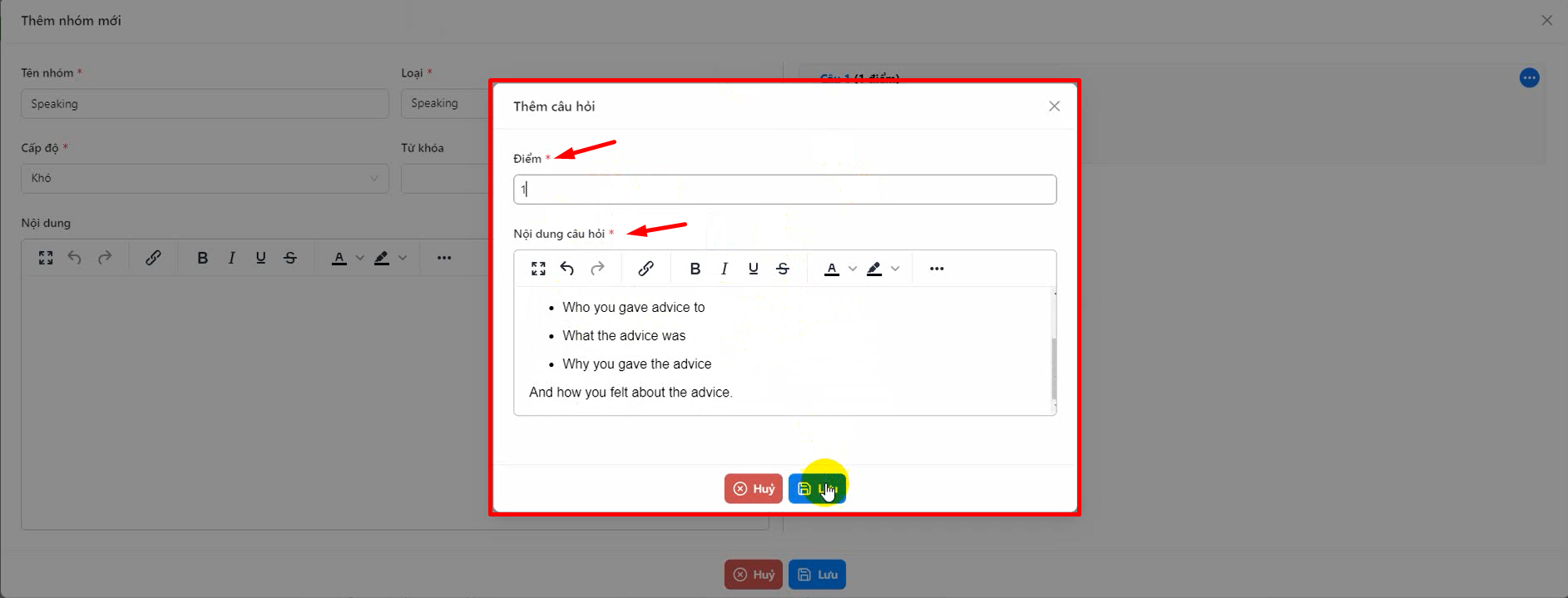 Screen for adding questions to the Speaking section of an online exam
Once the question is added and saved, the preview screen looks like the image below. Click "Save".

Screen after adding a question to the Speaking exam
After these steps are done, the image below appears. This is also the screen that students taking the online exam will see.
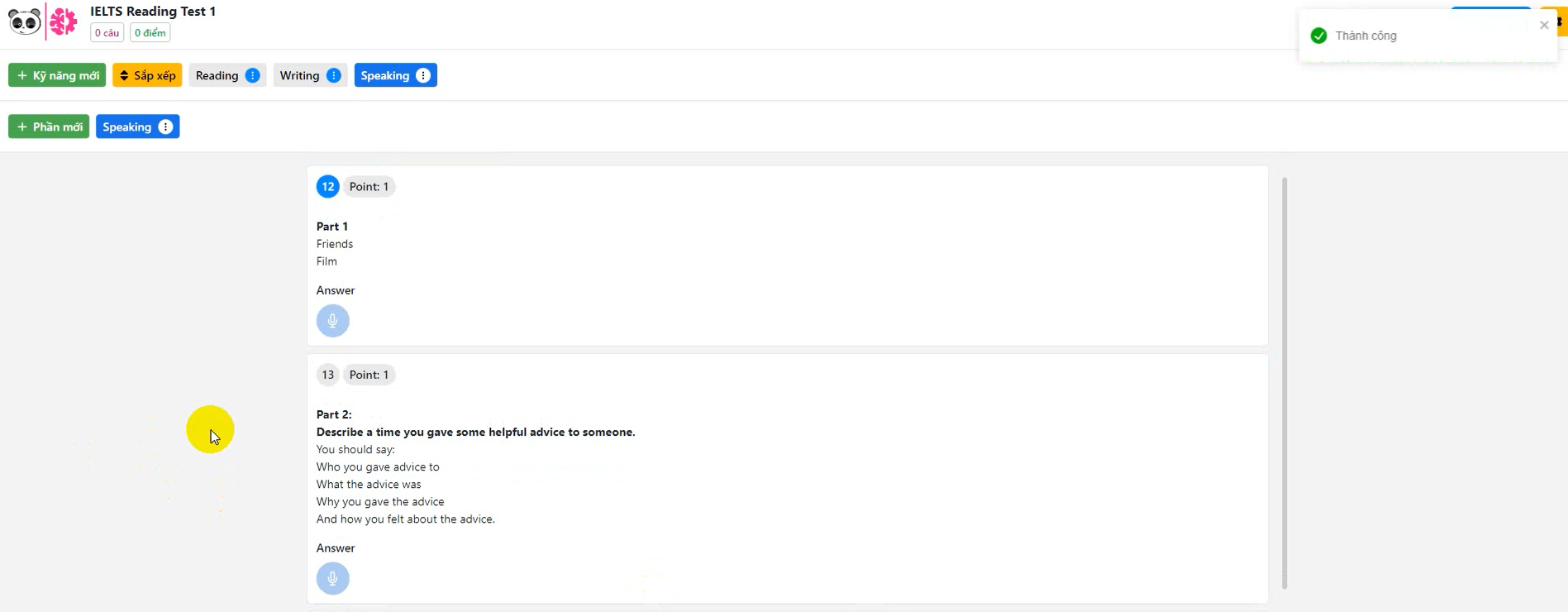
Online exam screen for the Speaking skill
Managers can reuse previously created exams across many classes or many competitions. In each class, the teacher can adjust the number of questions displayed, the exam duration and a few other related settings.
In this article, MONA Media has walked you through how to create an online exam quickly, covering all 3 skills Reading, Writing and Speaking and many question types. We hope this helps you create tests effectively on the MONA LMS online multiple-choice exam software. And if you need a complete, effective center management solution, don't hesitate to contact HOTLINE 1900 636 648 so MONA can support you as soon as possible!
→ Further reading: Guide to doing assignments on MONA LMS